Using Pyrefly in Zed Without an Extension: Settings to Enable It and Display Type Errors

This page has been translated by machine translation. View original
Hello! I'm Yuji Nishimura from the Operations Department!
When writing Python in Zed, the default language server responsible for type checking and go-to-definition is basedpyright. If you wanted to use Meta's type checker Pyrefly, you previously had to install the Pyrefly extension. With Zed 1.26.2, released on October 28, 2026, Pyrefly was added as a built-in language server, and you can now use it just by adding a setting.
However, in projects without a configuration file such as pyrefly.toml, simply enabling it does not return type mismatches as diagnostics. Including how to deal with that, I'll summarize the results I verified with Zed 1.28.1 and Pyrefly 1.4.1, the latest versions as of November 13, 2026, along with editor screenshots.
What We'll Do
Pyrefly is a type checker and language server, and its README highlights fast type checking as a feature. If your project already uses pyrefly check on the command line, you can see the results of the same type checker in your editor.
What you'll learn in this article:
- Settings to use Pyrefly instead of basedpyright in Zed
- The order in which Zed looks for pyrefly (the project's
.venv, PATH, GitHub Releases) - The
pyrefly.tomlandtypeCheckingModesettings for displaying type errors
Comparing the speed or detection results of Pyrefly and basedpyright is out of scope.
Prerequisites
Environment
- macOS 26.7.2 (Apple Silicon)
- Zed 1.28.1 (released November 11, 2026; a version later than 1.26.2, which added the built-in Pyrefly)
- Pyrefly 1.4.1 (the one Zed fetched from GitHub Releases), 1.3.0 (the one installed in the project's
.venv), and 1.3.2 (the one placed on PATH). I used different versions so that I could tell which pyrefly was launched - uv 0.13.6 (used to create the
.venvand install pyrefly)
Scope of Verification
How to Configure
There are two things to do.
- Add
"pyrefly"tolanguages.Python.language_servers - To display type errors too, either place a
pyrefly.tomlin the project, or settypeCheckingModetodefaultin Zed's settings
1. Add pyrefly to language_servers
You choose the Python language server with languages.Python.language_servers. To switch only for a specific project, write it in .zed/settings.json at the project root; to use it for all projects, write it in the user settings (~/.config/zed/settings.json).
{
  "languages": {
    "Python": {
      "language_servers": ["pyrefly", "!basedpyright", "..."]
    }
  }
}
The meaning of each element is as follows.
| Element | Meaning |
|---|---|
"pyrefly" |
Enables Pyrefly |
"!basedpyright" |
Disables the default basedpyright |
"..." |
Keeps using the other language servers enabled by default (such as Ruff) as they are |
According to the Zed documentation, Pyrefly, ty, Pyright, and PyLSP are disabled by default, so they are not included in "..." and are enabled only when you write their names in language_servers.
When you open a project for the first time, a dialog asking whether to trust it appears, and .zed/settings.json is not loaded until you select "Trust and Continue" (I'll explain this in more detail in the pitfalls section).
I opened the project with the setting written and compared the language servers shown in the log with those for a project without .zed/settings.json. On macOS, the log is at ~/Library/Logs/Zed/Zed.log, and if you filter by pyrefly, the starting language server process. binary path: ... line shows which binary was launched.
| Project settings | Language servers launched |
|---|---|
No .zed/settings.json |
Ruff, basedpyright |
.zed/settings.json above |
Ruff, Pyrefly |
basedpyright no longer launched, and Ruff remained. The division of labor becomes Ruff for formatting and linting, and Pyrefly for type checking and go-to-definition. Even if you haven't installed pyrefly separately, Zed fetches it automatically.
2. Which pyrefly Zed Launches
When Pyrefly is enabled, Zed looks for the pyrefly to launch in the order shown in the figure below. The figure is a conceptual diagram I made myself after reading the Zed 1.28.1 source code (PyreflyLspAdapter). It is not an official one.
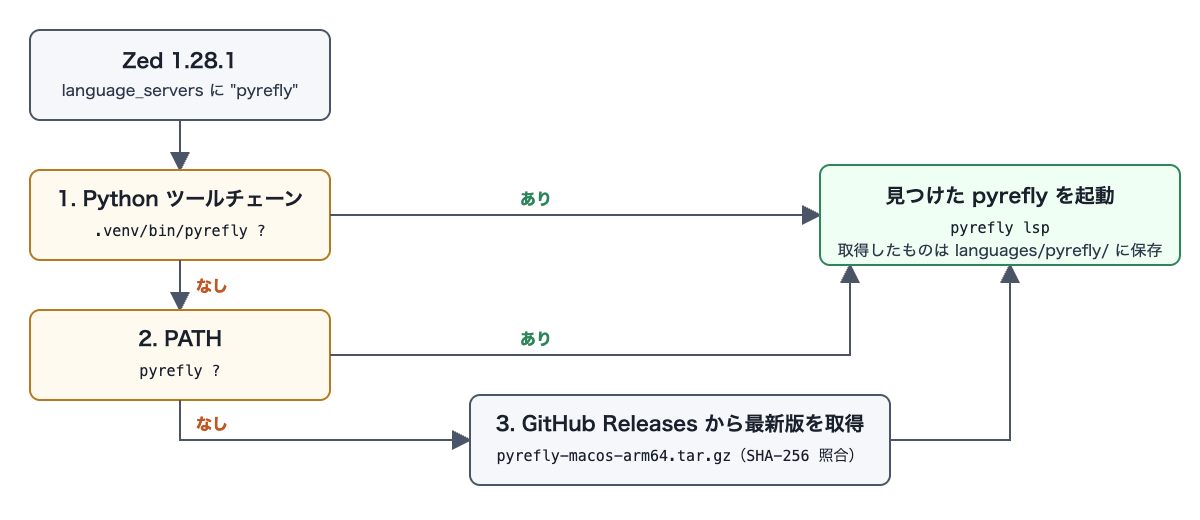
pyreflyinside the Python toolchain Zed selected (such as the project's.venv)pyreflyon PATH- If neither exists, the latest
pyreflyfetched from GitHub Releases (the SHA-256 is verified at download time. It is saved in Zed's data folder, which on macOS is~/Library/Application Support/Zed/languages/pyrefly/)
I actually ran all three to verify. The states I prepared were as follows.
- A project with pyrefly in neither
.venvnor PATH - A project where I created a
.venvwithuv venvand installed pyrefly withuv pip install pyrefly==1.3.0 - Launching Zed with the location of pyrefly installed via
uv tool install pyrefly==1.3.2included in PATH
The following log shows the main pyrefly lines extracted from Zed's log. I omitted the date, log level, and working directory, and replaced paths with <data-dir> and so on. The # lines were added for explanation.
# When pyrefly is in neither .venv nor PATH
10:55:11 [github_releases] downloading https://github.com/meta/pyrefly/releases/download/1.4.1/pyrefly-macos-arm64.tar.gz into "<data-dir>/languages/pyrefly/pyrefly-1.4.1"
10:55:16 [lsp] starting language server process. binary path: "<data-dir>/languages/pyrefly/pyrefly-1.4.1/pyrefly", args: ["lsp"]

# When .venv/bin/pyrefly exists
10:57:25 [language] found user-installed language server for pyrefly. path: "<project>/.venv/bin/pyrefly", arguments: ["lsp"]
10:57:25 [lsp] starting language server process. binary path: "<project>/.venv/bin/pyrefly", args: ["lsp"]

# When pyrefly is on PATH
10:57:59 [language] found user-installed language server for pyrefly. path: "<PATH 上のフォルダ>/pyrefly", arguments: ["lsp"]
10:57:59 [lsp] starting language server process. binary path: "<PATH 上のフォルダ>/pyrefly", args: ["lsp"]
When pyrefly exists in .venv or on PATH, Zed launches the pyrefly it found as is, without downloading. When it was on PATH, the same pyrefly was restarted once right after launch (omitted from the excerpt).
I also tried once with pyrefly in both .venv and PATH. The pyrefly on PATH (1.3.2) launched first, was stopped right after, and .venv/bin/pyrefly (1.3.0) was launched in its place. The one running in the end was the .venv one. The 1 to 3 above correspond to the priority order of the pyrefly that is ultimately used.
Note that the description of PR #44262 listed in the references says it fetches from PyPI, but in the 1.28.1 code and actual behavior, it was fetched from GitHub Releases.
3. Place pyrefly.toml to Display Type Errors
I opened the following main.py and checked the editor display and the diagnostics Pyrefly returned to Zed. Lines 4 and 5 are type errors, line 6 is an undefined name, and line 7 is an import of a nonexistent module.
def add(a: int, b: int) -> int:
    return a + b

total: int = add(1, "2")
print(total.upper())
prnt(total)
import not_installed_pkg
Without a Pyrefly configuration file (such as pyrefly.toml), squiggly lines appeared only on lines 6 and 7. Nothing appeared on lines 4 and 5.
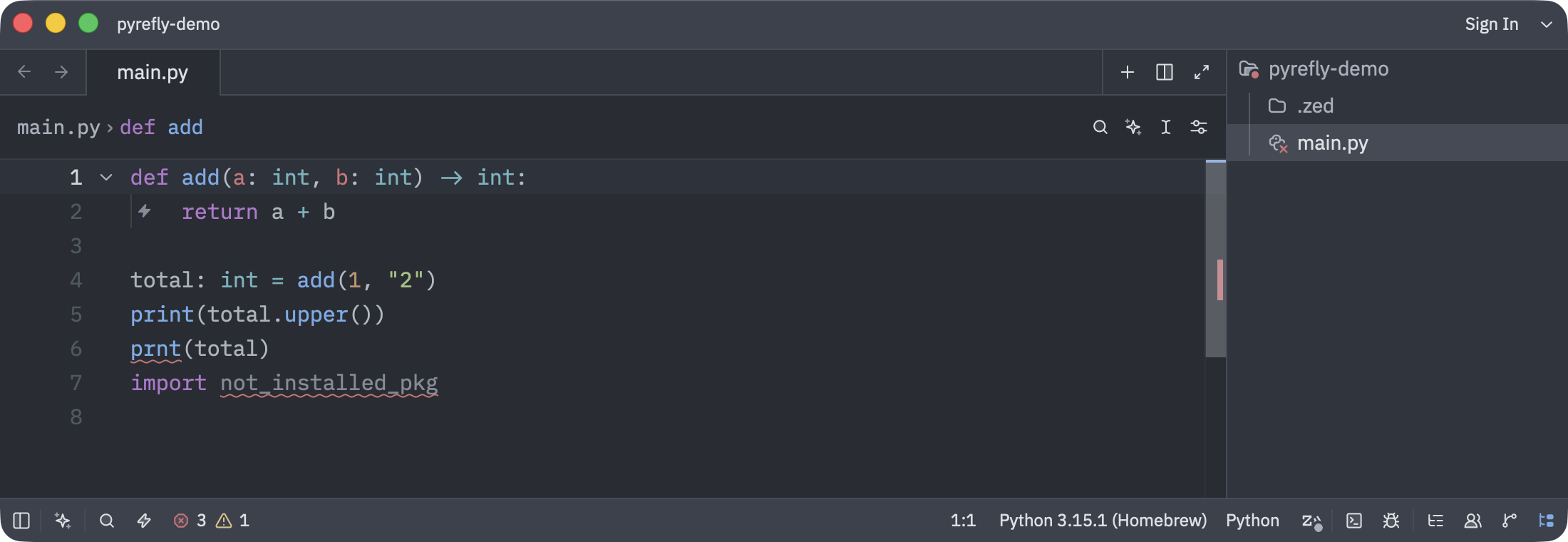
The squiggly lines on the screen and the counts in the status bar also include Ruff's diagnostics. Extracting only the diagnostics returned by Pyrefly from the communication log gives the following 3.
main.py diagnostics (3):
  6:1 [unknown-name] Could not find name `prnt`
  7:8 [missing-import] Cannot find module `not_installed_pkg`
  7:8 [unused-import] Import `not_installed_pkg` may be unused
Besides the undefined name (unknown-name), for the import on line 7, a module-not-found error (missing-import) and an unused hint (unused-import) appear. On the other hand, the argument type mismatch on line 4 (bad-argument-type) and the reference to a nonexistent attribute on line 5 (missing-attribute) did not appear.
The 3 errors in the status bar are Pyrefly's unknown-name and missing-import plus Ruff's F821 (undefined name), and the 1 warning is Ruff's F401 (unused import). Pyrefly's unused-import is returned as a hint and is not included in these counts.
This behavior matches the description of typeCheckingMode in the Pyrefly documentation. With the default auto, if there is no Pyrefly configuration file, it loads and uses nearby mypy or Pyright settings, and if those are not found either, it runs with the basic preset, which outputs only high-confidence errors. This sample has no mypy or Pyright settings either, so it's likely that only the 3 within the scope of basic appeared.
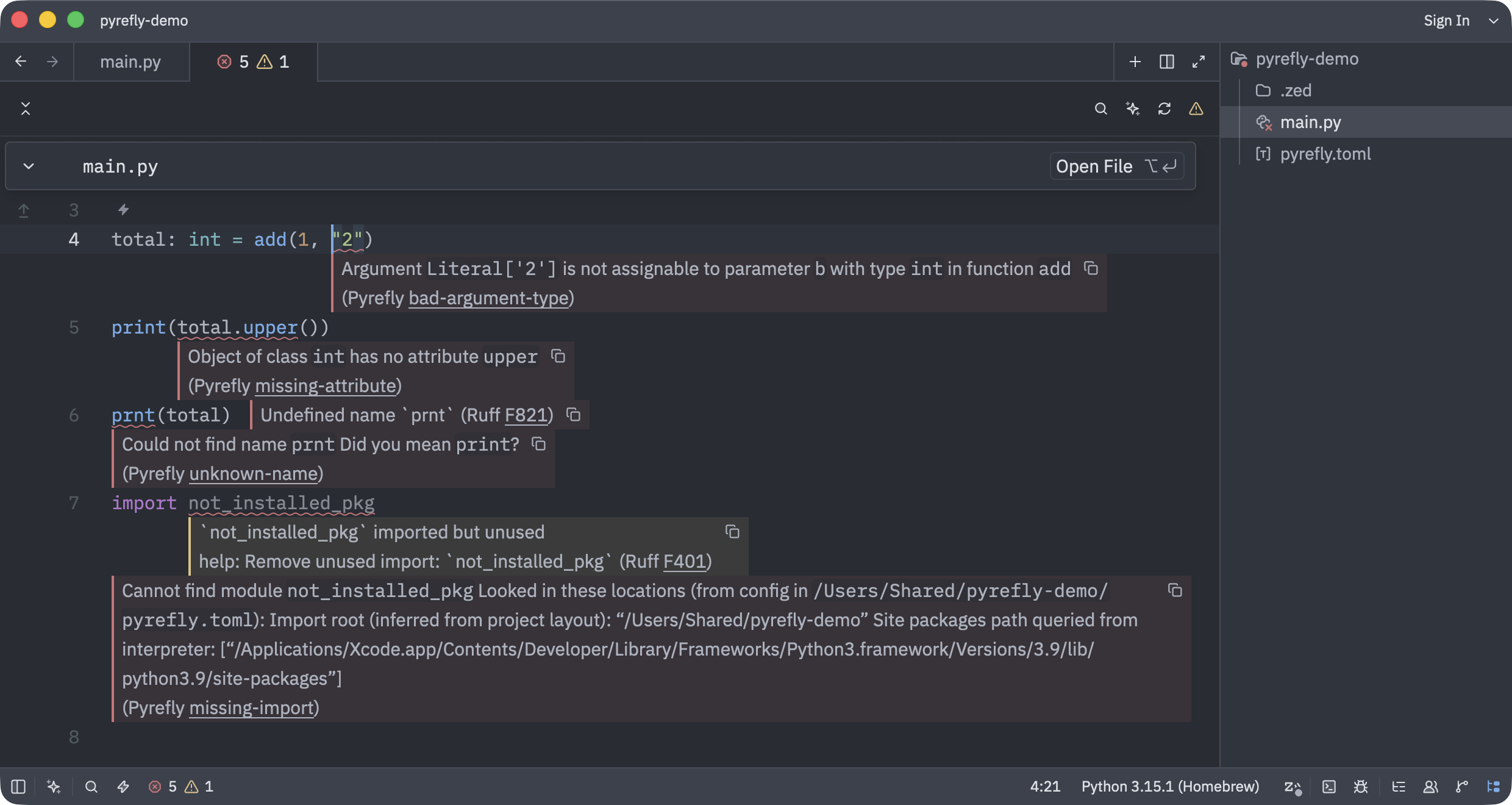
When I placed pyrefly.toml at the project root, squiggly lines also appeared on lines 4 and 5. The contents are the minimal example from the Zed documentation.
# Check all Python files in your project
project-includes = ["."]
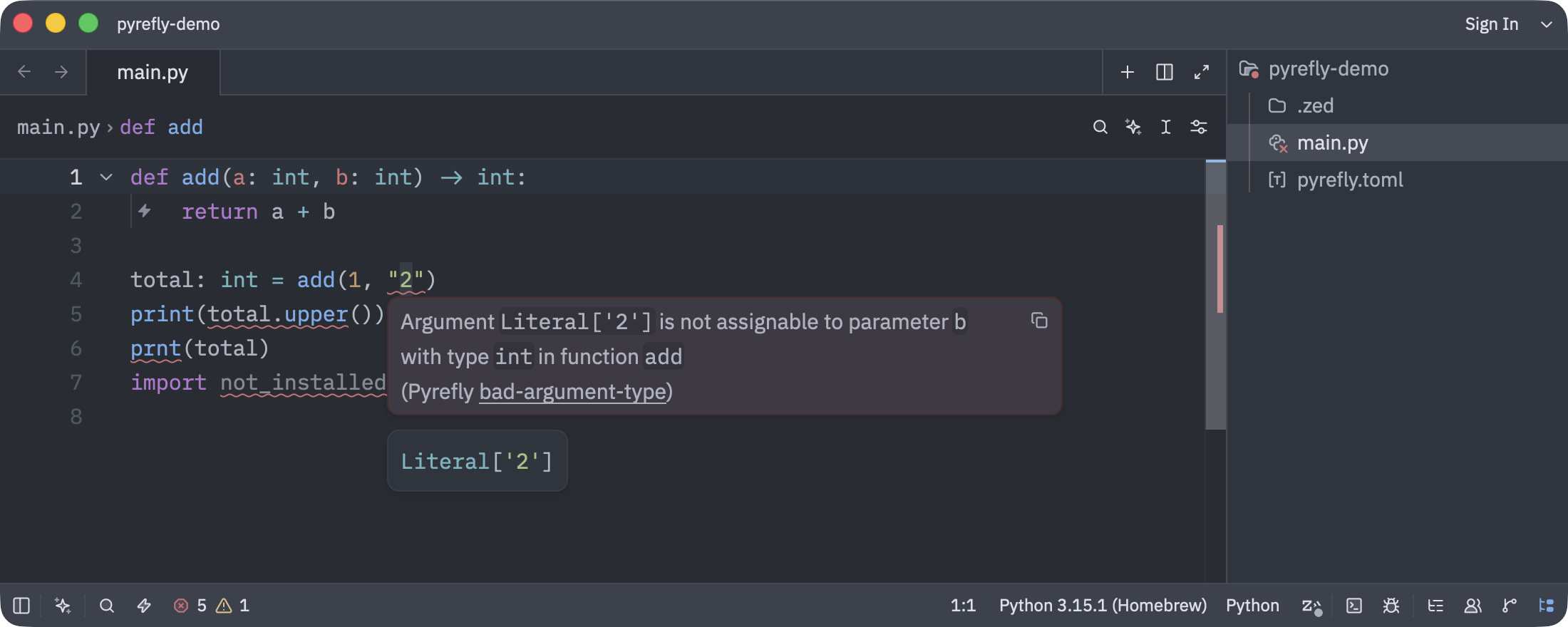
The screen above shows the mouse hovering over "2" on line 4. Pyrefly's bad-argument-type appears in the popup. The diagnostics returned by Pyrefly became 5, with bad-argument-type and missing-attribute added. The 5 errors in the status bar are Pyrefly's 4 errors plus Ruff's F821.
Opening the Project Diagnostics panel (cmd-shift-m) lets you check, for each diagnostic, whether Pyrefly or Ruff produced it, along with the rule name.
The Pyrefly documentation states that a pyproject.toml containing [tool.pyrefly] is also treated as a configuration file. For this, I connected directly to pyrefly 1.4.1 via LSP without going through Zed, and confirmed that bad-argument-type and missing-attribute are returned just as with pyrefly.toml.
4. Display Type Errors Without a Configuration File
If you can't add pyrefly.toml to the repository, or you want to handle it only through your personal Zed settings, set typeCheckingMode to default in the lsp section of the user settings.
What the Pyrefly 1.4.1 documentation describes is a way of sending settings via LSP initializationOptions. The key sent from editors other than VS Code is the VS Code setting name with the leading python. removed (pyrefly.typeCheckingMode). In Zed, lsp.pyrefly.initialization_options corresponds to this.
{
  "lsp": {
    "pyrefly": {
      "initialization_options": {
        "pyrefly": { "typeCheckingMode": "default" }
      }
    }
  }
}
With this setting, Pyrefly's diagnostics became the same 5 as when pyrefly.toml was placed, and squiggly lines also appeared on lines 4 and 5 in the editor (the screen is the lower half of the comparison image in the pitfalls section).
Writing it in settings instead of initialization_options gave the same result. In that case, write it under python as follows. This is because Pyrefly asks Zed for the settings of a section named python, and Zed returns the value of python within settings. Writing just one of the two is enough.
{
  "lsp": {
    "pyrefly": {
      "settings": {
        "python": {
          "pyrefly": { "typeCheckingMode": "default" }
        }
      }
    }
  }
}
According to the Pyrefly documentation, for files to which pyrefly.toml or [tool.pyrefly] in pyproject.toml applies, those settings take priority over typeCheckingMode. Even when I sent typeCheckingMode: "off", which turns off all errors, to a project with pyrefly.toml placed, bad-argument-type and missing-attribute were still returned. This is a result confirmed by connecting directly to pyrefly 1.4.1 via LSP; I did not try it through Zed's settings.
Key Points of the Configuration
-
If you can keep the configuration in the repository, place pyrefly.toml
- The Zed documentation also recommends a configuration file. When you run
pyrefly checklocally or in CI, the samepyrefly.tomlis read (I'll explain how to align versions in point 3). If you have mypy or Pyright settings, the README says you can migrate them withpyrefly init
- The Zed documentation also recommends a configuration file. When you run
-
If you only want to handle it through personal settings, use typeCheckingMode
- You don't have to touch the repository, but type errors appear only in your own Zed where you wrote the setting. In projects that have
pyrefly.toml, as written in configuration method 4, the configuration file takes priority
- You don't have to touch the repository, but type errors appear only in your own Zed where you wrote the setting. In projects that have
-
If you want to pin the Pyrefly version, install it in the project's .venv
- What Zed fetches from GitHub Releases is the latest version at that time. When I tried on October 31, 2026, it fetched 1.4.0, and on November 13 it fetched 1.4.1. The Pyrefly README says that minor versions are released every month and that new type errors may appear in any version. If you install a version-pinned pyrefly in
.venv, Zed also uses that version, which makes it easier to match the results ofpyrefly checkin CI
- What Zed fetches from GitHub Releases is the latest version at that time. When I tried on October 31, 2026, it fetched 1.4.0, and on November 13 it fetched 1.4.1. The Pyrefly README says that minor versions are released every month and that new type errors may appear in any version. If you install a version-pinned pyrefly in
Pitfalls
The language server doesn't start until you trust the project
The Zed documentation calls the state before the user trusts a project opened for the first time Restricted Mode, and explains that during that time, loading .zed/settings.json and installing and launching the project's language servers are blocked.
When I opened a project with Pyrefly configured in .zed/settings.json without having trusted it, the following dialog appeared.
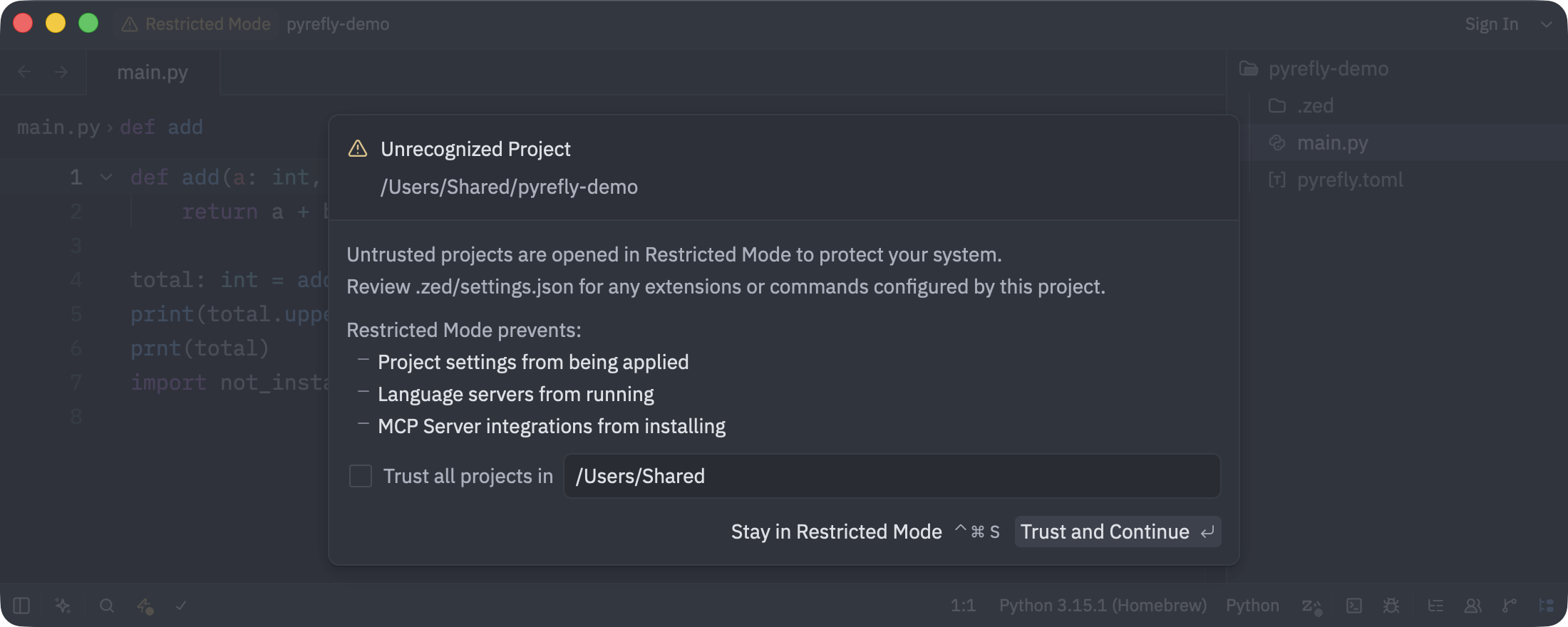
The log at this time showed Waiting for worktree ... to be trusted, before starting language server basedpyright. It is waiting to launch basedpyright, not Pyrefly, which shows that the project's settings have not yet been loaded. When I selected "Trust and Continue", the project's settings were loaded, and Pyrefly and Ruff launched.
According to the documentation, if you want to trust it later, you can open this dialog from the exclamation mark icon in the title bar (displayed as "Restricted Mode" in 1.28.1) or with the workspace::ToggleWorktreeSecurity action.
There is also a setting called session.trust_all_worktrees that treats all projects as trusted, but the documentation does not recommend it. When I opened a project with it enabled, .zed/settings.json was loaded without confirmation, and a binary inside the project such as .venv/bin/pyrefly was launched.
The displayTypeErrors example in the Zed documentation did not return type errors
The Zed documentation has an example of how to display type errors without placing a configuration file, which writes {"python": {"pyrefly": {"displayTypeErrors": "force-on"}}} in lsp.pyrefly.initialization_options (the main branch had the same description as of November 13, 2026). On the same day, I tried this example in the user settings with the combination of Zed 1.28.1 and Pyrefly 1.4.1. Zed sent this value to Pyrefly as is, but Pyrefly's diagnostics remained the same 3 as when no configuration file was placed, and no squiggly lines appeared on lines 4 and 5.
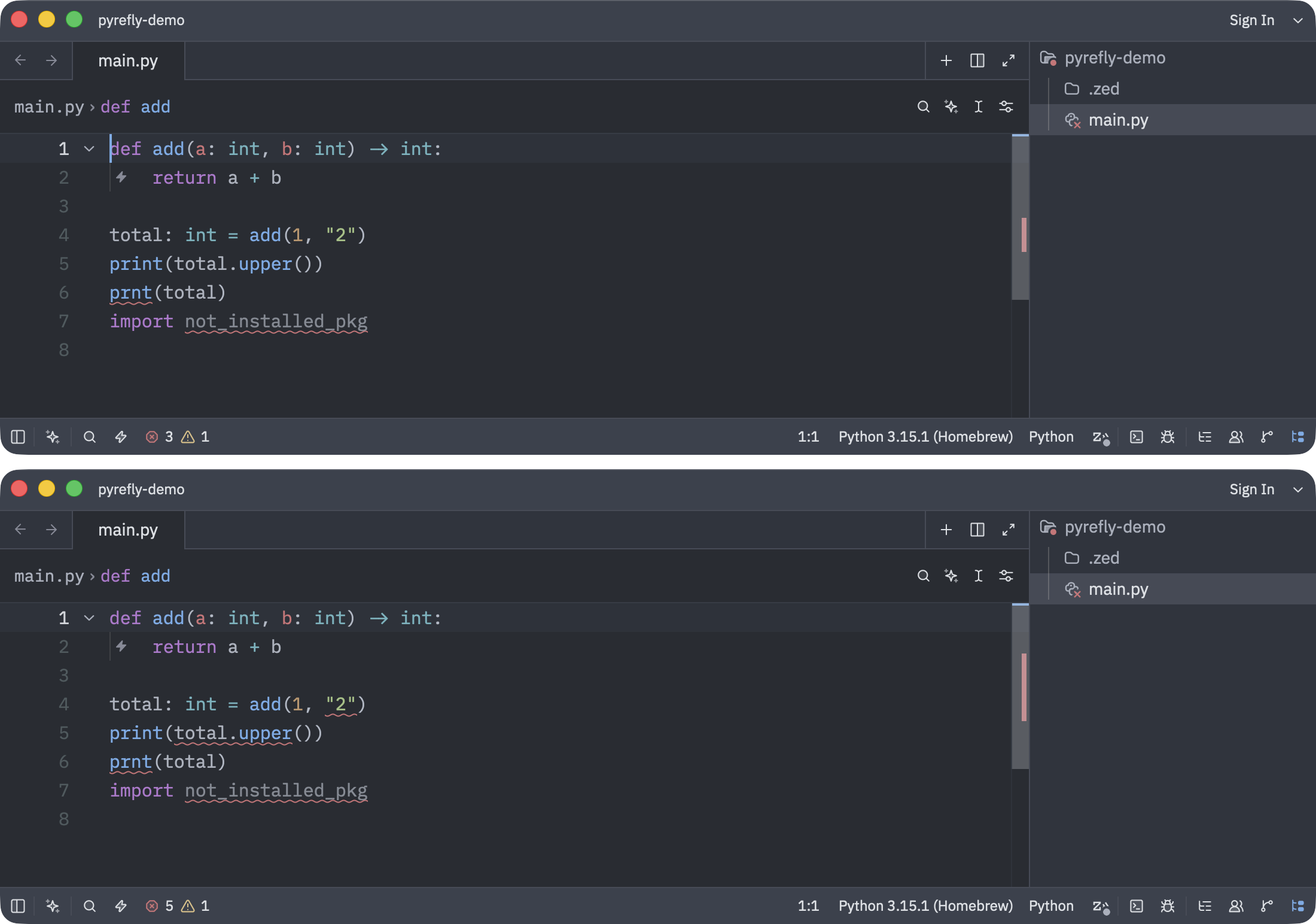
The top is the example from the Zed documentation, and the bottom is the case where {"pyrefly": {"typeCheckingMode": "default"}} was written in initialization_options. Neither has pyrefly.toml placed.
As a way to isolate the cause, I also tried connecting directly to pyrefly 1.4.1 via LSP. With {"python": {"pyrefly": {"displayTypeErrors": "force-on"}}} placed under python, no type errors were returned, and with {"pyrefly": {"displayTypeErrors": "force-on"}} with python removed, they were returned. As in configuration method 4, the key that Pyrefly 1.4.1 reads in initialization_options is at the position with python. removed. The example in the Zed documentation places the key under python, so it is likely not being read.
Also, in the Pyrefly 1.4.1 documentation, displayTypeErrors is deprecated and replaced by typeCheckingMode and disableTypeErrors (force-on corresponds to typeCheckingMode = "default"). If the example in the Zed documentation changes to the form with python. removed, this section will no longer apply.
Hitting the GitHub API rate limit causes the initial fetch to fail
If you hit the GitHub API rate limit when there is no already-fetched pyrefly, Failed to start language server "pyrefly": status error 403 and API rate limit exceeded appear in the log, and Pyrefly does not start. This is because Zed queries the GitHub API for the latest version in GitHub Releases, and unauthenticated requests are limited to 60 per hour per IP address.
When an already-fetched pyrefly is in the data folder, even if the same 403 is returned, failed to fetch newest version of language server appeared in the log and the already-fetched binary was launched. Even while the limit was in effect, the pyrefly installed in .venv launched.
This time, it occurred while I was repeatedly launching with an empty data folder over a VPN that shares its exit IP address with other users. I haven't verified how often it happens in normal use. I also haven't tried the case where pyrefly is only on PATH while the limit was in effect.
Summary
With Zed 1.26.2 and later, just by adding "pyrefly" to languages.Python.language_servers, you can use Pyrefly without installing an extension. Write "!basedpyright" along with it to stop basedpyright, and "..." to keep Ruff.
Zed looks for the pyrefly to launch in the order of the project's .venv and then PATH, and if neither has it, it fetches the latest version from GitHub Releases. If you want to match versions with the command line or CI, installing it in .venv makes that easier.
To display type mismatches, either place pyrefly.toml in the project, or set typeCheckingMode to default in Zed's lsp settings. Even when I wrote the displayTypeErrors example from the Zed documentation, the diagnostics did not change with the combination of Zed 1.28.1 and Pyrefly 1.4.1. After configuring, you can verify by checking whether squiggly lines appear on lines 4 and 5 of the same main.py as in this article, or whether bad-argument-type and missing-attribute appear in the Project Diagnostics panel.
I hope this is helpful to someone.
References:
- Zed 1.26.2 Release Notes
- Zed 1.28.1 Release Notes
- Add builtin Pyrefly language server support (zed-industries/zed #44262)
- How to Set Up Python in Zed (Zed documentation)
- Zed and trusted worktrees (Zed documentation)
- IDE Installation (Pyrefly documentation)
- Pyrefly README
- Pyrefly 1.4.1 Release
- Rate limits for the REST API (GitHub documentation)