
I tried to verify the behavior of "create and update records" for users in the Zendesk Data Importer

This page has been translated by machine translation. View original
Introduction
Zendesk's data importer is a convenient tool that allows you to bulk create or update users simply by uploading a CSV from the Admin Center. It is a GUI feature located at Admin Center → Objects and Rules → Tools → Data Importer, and changes are applied asynchronously after submission.
When importing data into an environment that already has users, understanding the matching mechanism with existing users and the uniqueness check will allow you to proceed with updates confidently. There is much that can be confirmed by actually running the data importer, and this article introduces behaviors discovered through hands-on testing.
Target Audience
- Those responsible for bulk importing data that includes existing users into Zendesk
- Those looking to migrate or integrate customer data from another system into Zendesk
- Those who want to understand the behavior of the data importer before submitting data
References
- Bulk importing user data with the data importer (Zendesk official)
- About the data importer (Zendesk official)
Behavior for New Creation or Update
The first thing to understand is the key used to identify existing users. The official documentation explains that existing users can be identified by name, email, and external_id. In addition to this, we actually tested which key takes priority when multiple keys each point to a different existing user.
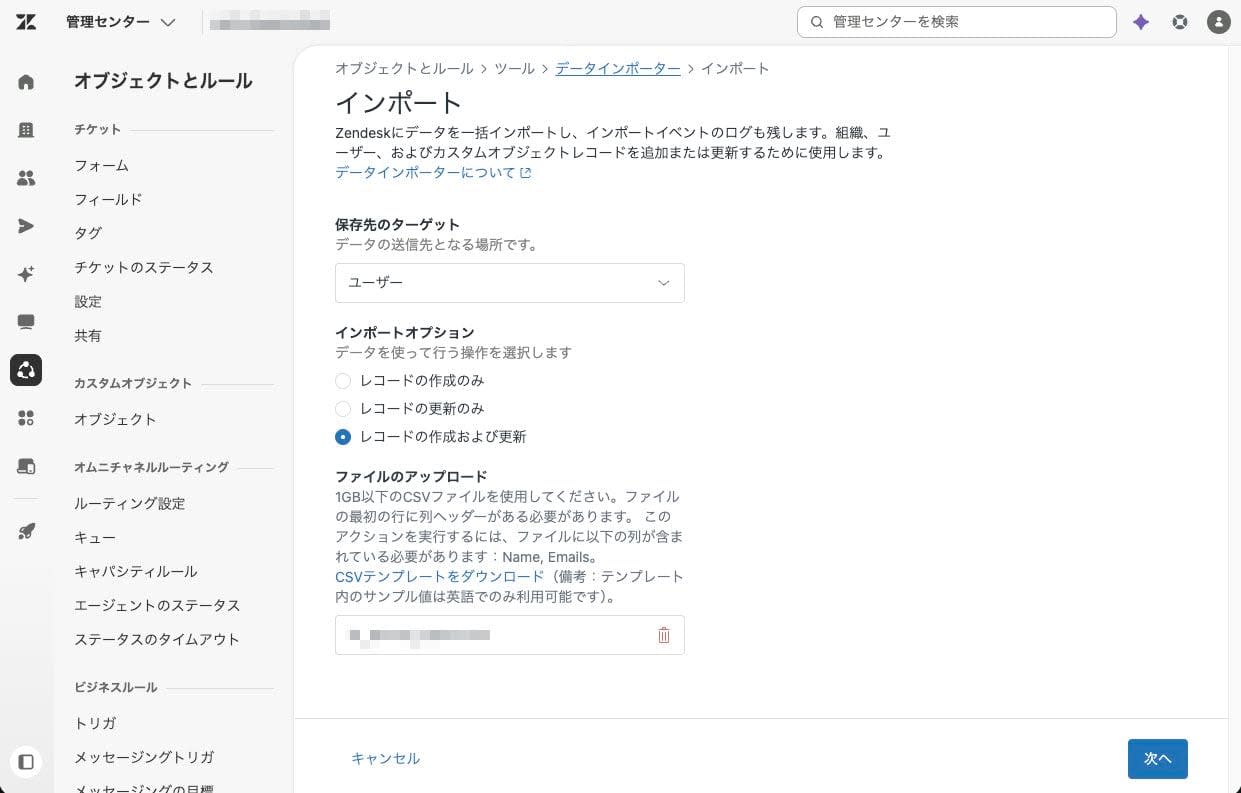
As a result, matching with existing users was evaluated as follows.
First, every row requires an email and a name. When the email is empty or in an invalid format, or when the name is empty, that row will neither be created nor updated. This also applies to rows that update existing users by external_id — leaving the email empty will cause the row to be rejected.
On top of that, the keys used to determine the target are external_id and email. If external_id matches an existing user, that user becomes the target; if not, the system searches by email. phone and name are not used as keys for determining the target. phone is only involved in the uniqueness check, and name is not involved in matching. If no key finds a match, a new user is created.
If an existing user is found by email, that user is updated. If the submitted row has an external_id, the existing user's external_id is updated with that value. Whether the existing external_id is empty or contains a different value, it will be replaced with the submitted value. name and custom fields are also updated with the submitted values, and the records are merged into one. If the submitted row has no external_id, the existing user's external_id is preserved as-is. Phone numbers left blank were not overwritten and were retained.
Errors Due to Uniqueness Checks
In Zendesk, both email and phone must be unique across the entire account. Therefore, if the email or phone of a submitted row overlaps with that of an existing user other than the target of that row, the row will result in an error and will neither be created nor updated. This applies equally to rows that update existing users and rows that create new users.
For example, if you try to change the email of a row matched to a user by external_id to an email already held by another user, the following error will be displayed.
Record validation errors. Email: user@example.com is already in use.
The same applies to phone numbers. Uniqueness extends not only to the primary phone number but also to numbers registered as secondary numbers. If an existing user holds a certain number as a secondary number, any other row containing that number will result in an error.
Record validation errors. Phone number: +81-90-xxxx-xxxx is already in use by another user (User B).
This uniqueness check also applies to rows within the same CSV. If the same phone number is entered in multiple rows, the first row will be imported with that number, but the remaining rows will find that the same number is already in use and will result in a uniqueness error. This is because Zendesk does not allow the same phone number to be registered to multiple users. If multiple people share the same number, you can avoid errors by keeping the phone number in only one row and leaving the phone number blank in the other rows. As mentioned in the previous section, rows with a blank phone number will not delete the phone number even when updating an existing user.
Errors Due to Invalid Email Addresses
Email is required for new user creation. A row with only a phone number and an empty email column will be notified that an email is required, and a user with only a phone number will not be created.
If you want to submit a record that only has a phone number, one approach is to generate and fill in a temporary email address. For example, using the phone number, you can enter an address in the following format in the emails column.
phone-819012345678@example.invalid
Since this is a temporary address, Zendesk notifications will not be delivered to it, but the name and phone number are retained, so contact by phone or SMS will continue to work as expected.
The email format check has both lenient and strict aspects. We tested several patterns by actually submitting them.
First, the check is lenient regarding the position of dots in the local part (before the @). Dots at the beginning, end, or in consecutive positions — which are often rejected by common format checks — were accepted as-is. These are formats that exist in real carrier email addresses.
Accepted (dot positions in local part)
.taro@example.com      Dot at the beginning
taro.@example.com      Dot immediately before @
ta..ro@example.com     Consecutive dots
On the other hand, the check was strict regarding the domain part (after the @) and the overall structure of the address. The following formats were rejected with a format error.
Rejected
tarodomain.com         No @
taro@                  No domain
@example.com           No local part
taro@sub@example.com   Two @ signs
taro rou@example.com   Space in local part
taro@examplecom        No dot in domain, no top-level domain
taro@.example.com      Dot at the beginning of domain
taro@ex..ample.com     Consecutive dots in domain
taro@example.com.      Dot at the end of domain
taro@example.c0m       Number mixed into top-level domain
太郎@example.com        Non-ASCII characters such as Japanese in local part
In summary, the check is lenient regarding dots in the local part, but the domain part must be properly formed. The top-level domain (the part at the end of the domain, such as .com or .jp) must contain only alphabetic characters, and the entire address must consist of ASCII characters. If you validate emails too strictly on your own side before submitting, you may end up excluding local part formats that would actually be accepted by Zendesk. Aligning with the data importer's standards — maintaining domain validity while permitting dot positions in the local part — will help prevent both data loss and submission errors.
Summary
When performing bulk processing with Zendesk's data importer using "Create and update records," understanding the matching and uniqueness mechanisms will allow you to proceed with migration smoothly.
- Every row requires an email and a name, and even rows that update existing users by external_id will be rejected if the email is left empty
- The update target is determined first by external_id and then by email; phone and name are not used for target determination
- When matched by email, the external_id in the submitted row updates the existing user's external_id regardless of whether it is empty or contains a different value, and name and custom fields are also merged
- email and phone number must be unique, and phone uniqueness applies to secondary numbers as well
- The email format check is lenient regarding dot positions in the local part, but strict regarding the domain part and ASCII compliance
There is much that can be confirmed by actually running the data importer, so it is advisable to try it once in a sandbox environment before submitting to production.