![[Update] Tried AWS Glue Interactive Sessions Spark Connect Support with Notebooks from VS Code](https://images.ctfassets.net/ct0aopd36mqt/wp-thumbnail-545ba5dfbc8fa4c7760dd9872ef835f9/665944e579f487b4434cb289305767b3/aws-glue?w=3840&fm=webp)
[Update] Tried AWS Glue Interactive Sessions Spark Connect Support with Notebooks from VS Code

This page has been translated by machine translation. View original
I'm Ishikawa from the Cloud Business Division. AWS Glue Interactive Sessions now support Apache Spark Connect, enabling you to run PySpark directly from SageMaker Unified Studio notebooks or your local IDE, so I tried connecting from a VS Code notebook to test it out.
AWS Glue interactive sessions are a serverless mechanism for interactively running and debugging PySpark code before turning it into a job. Previously, sessions were accessed via a notebook kernel (SparkMagic) or a Livy-based Statement API.
With this update, AWS Glue interactive sessions now natively support Apache Spark Connect. Spark Connect is a lightweight client-server architecture that separates the client from the Spark execution environment, enabling direct connections to serverless Glue Spark from SageMaker Unified Studio notebooks, IDEs with a Python interpreter such as VS Code or PyCharm, or any Python script. A key feature is the ability to perform ad hoc data exploration, step-by-step debugging, and incremental PySpark job development prior to production deployment, all from your familiar tools.
What is Spark Connect
Apache Spark Connect is an architecture introduced in Spark 3.4 that separates the client from the Spark driver process. The client sends a logical execution plan to the server via gRPC, and results are streamed back via Apache Arrow. The client side does not need a full Spark runtime — any environment that supports PySpark's remote() API can connect.
In AWS Glue, Spark Connect is supported in interactive sessions from Glue version 5.1 onwards. The differences from traditional Livy sessions are as follows.
| Item | Livy | Spark Connect |
|---|---|---|
| Protocol | REST | gRPC (logical execution plan) + Apache Arrow (result streaming) |
| Connection method | Statement API (RunStatement / GetStatement, etc.) | Direct connection to endpoint URL via PySpark remote() |
| Client requirements | aws-glue-sessions package or AWS SDK | Spark Connect-compatible PySpark |
| Supported environments | Jupyter with SparkMagic kernel | SageMaker Unified Studio notebooks, IDEs such as VS Code and PyCharm |
The overall connection architecture is as follows.
Note that Spark Connect is not available in AWS Glue Studio. For interactive development, use SageMaker Unified Studio notebooks or an IDE with a Python interpreter.
Trying It Out
This time, without using SageMaker Unified Studio, I'll connect to an AWS Glue Spark Connect session and run PySpark from a VS Code notebook (with the Jupyter extension), which is my usual development environment.
Prerequisites
- Validation region: ap-northeast-1 / Tokyo
- IAM role for AWS Glue interactive sessions (for this validation,
AWSGlueServiceRoleDefault, which has access to Glue Data Catalog and S3, is used) - Permissions required for the calling principal:
glue:CreateSession/glue:GetSession/glue:GetSessionEndpoint/glue:DeleteSession, andiam:PassRoleto pass the role to Glue - VS Code (with Python and Jupyter extensions installed)
- Local Python 3.11 environment
The Spark Connect endpoint is a public gRPC endpoint (443/TLS) using token authentication. There is no need to place it inside a VPC — you can connect from your local PC over the internet.
Preparing the Client Environment and Kernel
Set up a Spark Connect client locally. A full Spark installation or Java is not required — you can connect with just the PySpark Spark Connect client (a pure-Python gRPC client). Since Glue 5.1 uses Spark 3.5.x, match the PySpark version on the client side accordingly. Also register a Jupyter kernel for selection in VS Code.
python3.11 -m venv .venv
source .venv/bin/activate
pip install boto3 "pyspark[connect]==3.5.6" pandas pyarrow grpcio grpcio-status ipykernel
python -m ipykernel install --user --name sparkconnect-glue --display-name "Python 3.11 (Glue Spark Connect)"
In my environment, I open a notebook (.ipynb) in VS Code and select Python 3.11 (Python 3.11.13) from "Select Kernel" in the upper right (you can also directly select the venv interpreter). There is no longer any need to set up a dedicated Spark kernel (SparkMagic) as before — you can connect to Glue directly from a standard Python kernel.
0. Loading Libraries and Preparing Session Information
Assemble the role ARN for the Glue session from the running account (retrieved via sts to avoid hardcoding). Make the session ID unique each time.
import time, uuid, urllib.parse
import boto3
from pyspark.sql import SparkSession

REGION = "ap-northeast-1"
glue = boto3.client("glue", region_name=REGION)

account_id = boto3.client("sts", region_name=REGION).get_caller_identity()["Account"]
role_arn = f"arn:aws:iam::{account_id}:role/AWSGlueServiceRoleDefault"
session_id = "blog-vscode-sc-" + uuid.uuid4().hex[:8]
print("session_id:", session_id)
print("role_arn  :", role_arn)

1. Creating a Spark Connect Session
Specify SessionType="SPARK_CONNECT" and GlueVersion="5.1". To keep costs down, the worker configuration is minimal (G.1X × 2) and the idle timeout is set short.
resp = glue.create_session(
    Id=session_id,
    Role=role_arn,
    Command={"Name": "glueetl"},
    GlueVersion="5.1",
    SessionType="SPARK_CONNECT",
    NumberOfWorkers=2,
    WorkerType="G.1X",
    IdleTimeout=15,
    Timeout=30,
    DefaultArguments={"--language": "python", "--enable-glue-datacatalog": "true"},
)
s = resp["Session"]
print("Status      :", s["Status"])
print("SessionType :", s["SessionType"])
print("GlueVersion :", s["GlueVersion"])
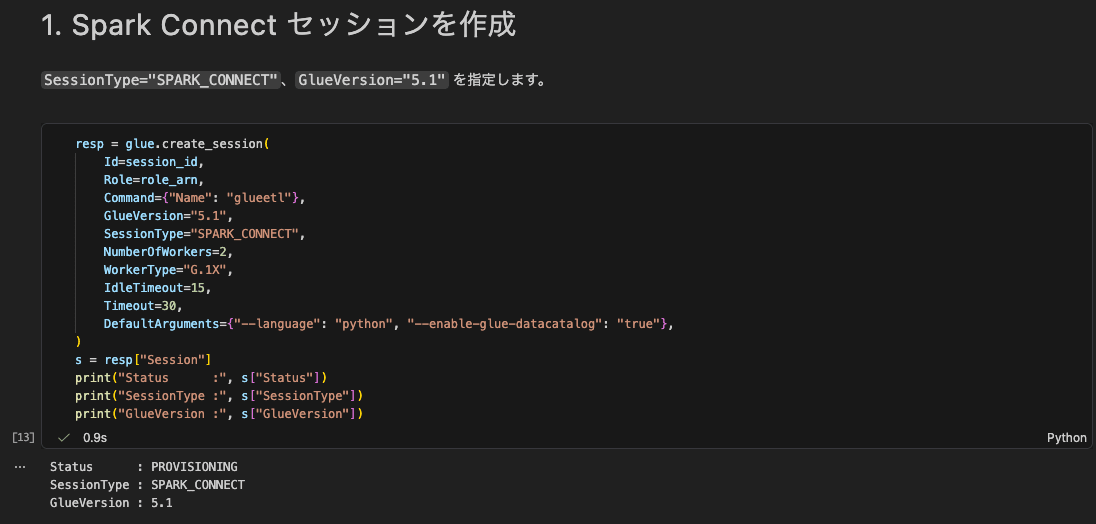
The session was created with SessionType set to SPARK_CONNECT. You can confirm in the management console that the interactive session has been created and is in Provisioning status.
2. Waiting Until READY
Poll until the session reaches READY status. In this case, it reached READY within tens of seconds.
while True:
    status = glue.get_session(Id=session_id)["Session"]["Status"]
    print(status)
    if status in ("READY", "FAILED", "STOPPED", "TIMEOUT"):
        break
    time.sleep(10)
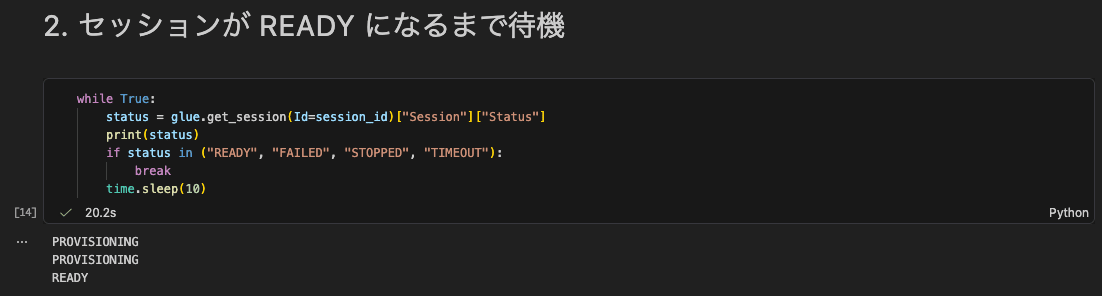
You can confirm that the interactive session is Ready.

3. Retrieving the Endpoint and Token
Use get_session_endpoint (a new API) to retrieve the Spark Connect connection URL and authentication token, then assemble the connection string to pass to remote(). The token is masked in the output for security.
ep = glue.get_session_endpoint(SessionId=session_id)["SparkConnect"]
token = urllib.parse.quote(ep["AuthToken"], safe="")
remote = f"{ep['Url']}:443/;use_ssl=true;x-aws-proxy-auth={token}"

print("Url                    :", ep["Url"])
print("AuthToken (len)        :", len(ep["AuthToken"]), "chars (masked)")
print("AuthTokenExpirationTime:", ep["AuthTokenExpirationTime"])

The SparkConnect in the response contains Url, AuthToken, and AuthTokenExpirationTime (token expiration time).
4. Connecting via Spark Connect
Pass the assembled connection string to SparkSession.builder.remote(...) to connect. The VS Code kernel (local PC) acts purely as a thin client, while processing is executed by Spark on the Glue side.
spark = SparkSession.builder.remote(remote).getOrCreate()
spark.version
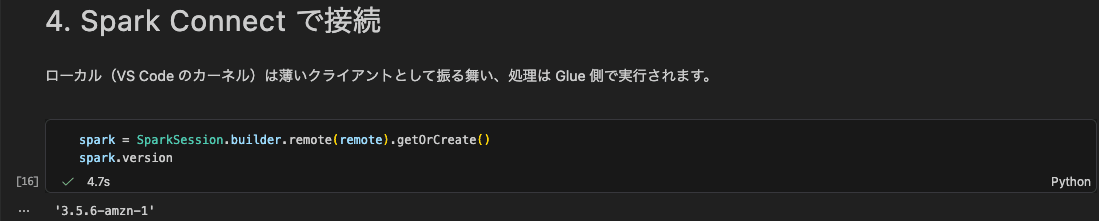
The Spark version on the connection target was 3.5.6-amzn-1.
5. Running PySpark / Spark SQL
Run the DataFrame API and Spark SQL from cells.
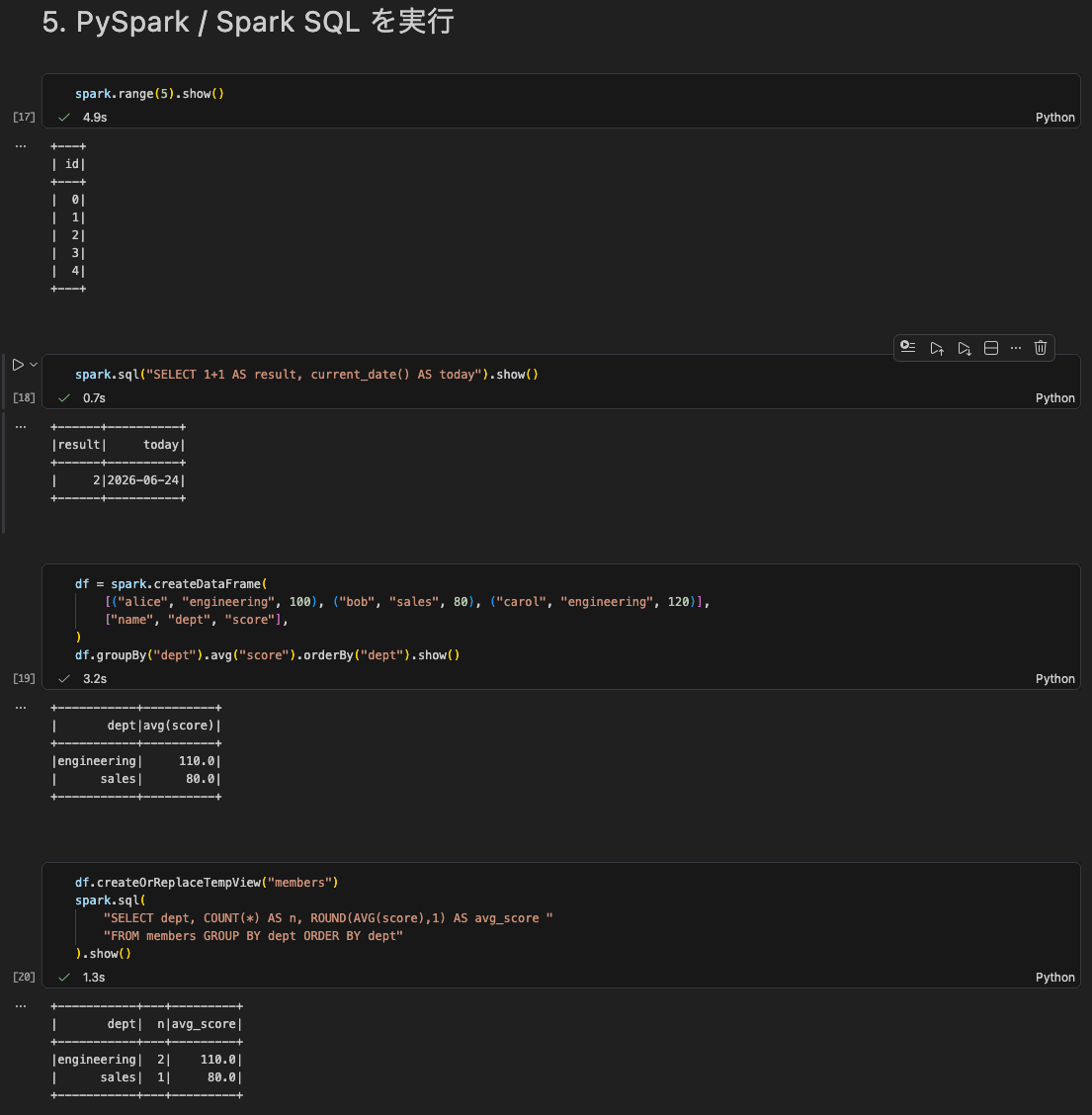
The DataFrame API, Spark SQL, and aggregation using Temp Views all ran successfully from VS Code cells. Result collection (show) is performed via Apache Arrow.
Cell 7: Cleanup (Deleting the Session)
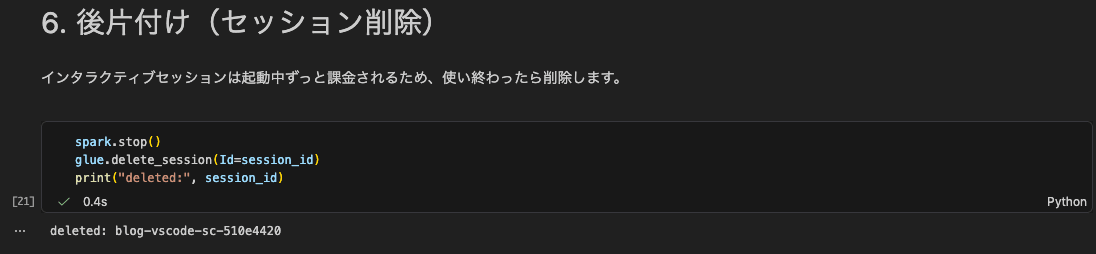
Interactive sessions incur charges for the entire duration they are running, so delete the session when you are done. Rather than relying on idle timeout, it is safer to explicitly delete the session in the last cell of the notebook.
spark.stop()
glue.delete_session(Id=session_id)
print("deleted:", session_id)
Discussion
Here is a summary of insights and considerations gained from trying this out in a VS Code notebook.
- Without setting up a full Spark or Java installation on a local PC, it was possible to interactively connect to serverless Glue Spark using just
pyspark[connect]. There is no longer any need to set up a dedicated Spark kernel (SparkMagic) as before — the simplicity of connecting directly from a standard Python kernel is a practical advantage. - The connection uses a public gRPC endpoint (443/TLS) with token authentication, and no VPC setup was required. Being able to connect directly from a familiar VS Code environment is a welcome point for practical use.
- The authentication token has an expiration time (
AuthTokenExpirationTime). For long-running sessions, it is advisable to include a mechanism to refresh the token by callingget_session_endpointagain and reconnecting, as shown in the official documentation samples.
The following limitations are worth keeping in mind.
- The session type (Livy / Spark Connect) cannot be changed after creation.
- The Statement API (RunStatement, etc.) cannot be used in Spark Connect sessions. Interaction is done directly from the client.
- Fine-grained access control (FGAC) via Lake Formation is not supported — only full table access is available. In practice, when I tried running
SHOW DATABASESseparately, access was denied due to insufficient permissions (Required Describe on default) for a catalog managed by Lake Formation. This indicates that Lake Formation permission design for the session role is required when working with tables in the Glue Data Catalog. - Spark Connect is not available in AWS Glue Studio. It must be used from SageMaker Unified Studio notebooks or an IDE with a Python interpreter.
When using SageMaker Unified Studio notebooks, the sagemaker-studio library's Spark utilities allow you to connect without worrying about endpoint retrieval or connection string assembly.
from sagemaker_studio import sparkutils
spark = sparkutils.init(connection_name="my-glue-spark-connection")
In terms of cost, the charges per single validation run (session creation → PySpark execution → deletion) measured DPUSeconds=331.892 (approximately 0.092 DPU hours). At the Tokyo region rate ($0.44/DPU hour), this amounts to approximately $0.04. Note that interactive sessions have a per-minute minimum charge and continue to accrue charges while running, so it is safe practice to delete the session when finished. (Please refer to the official pricing page for the latest rates, as they may vary by region and time.)
Closing Thoughts
With AWS Glue interactive sessions now supporting Spark Connect, it has become possible to directly connect to serverless Glue Spark from SageMaker Unified Studio notebooks, local IDEs, or Python scripts for interactive PySpark development. In this post, I confirmed that connecting from a VS Code notebook using pyspark[connect] and running the DataFrame API and Spark SQL works successfully.
In recent years, Apache Spark has seen expanded support for Apache Iceberg tables, and there are an increasing number of cases where Spark is needed when creating tables. The entire workflow — from creating an interactive session, running Spark SQL, to deleting the session — can be written in a standard notebook file rather than IaC (Infrastructure as Code), which makes it easy to incorporate into Git-based code management.
Being able to build PySpark jobs incrementally on Glue using your everyday development environment, without having to think about cluster management, seems particularly valuable during the trial-and-error phase before productionizing jobs. When working with tables in the Glue Data Catalog, be mindful of Lake Formation permission design (and the FGAC limitation), but I recommend starting by connecting from your local VS Code to give it a try.