![[Update] I tried out Data Lineage supported by Amazon SageMaker Unified Studio in IAM-based domains](https://images.ctfassets.net/ct0aopd36mqt/wp-thumbnail-4e6e510f2f74e1cc7d0ec360f38d138a/c00e9d7f4e47022543b37632bc20bcc0/amazon-sagemaker?w=3840&fm=webp)
[Update] I tried out Data Lineage supported by Amazon SageMaker Unified Studio in IAM-based domains

This page has been translated by machine translation. View original
This is Ishikawa from the Cloud Business Division. OpenLineage-compatible data lineage is now supported in IAM-based domains of Amazon SageMaker Unified Studio, so I tried everything from posting lineage events to visualizing graphs and deleting them.
The data lineage feature of Amazon SageMaker Unified Studio visualizes how data "originates, gets transformed, and is used" as a lineage graph. While it was previously centered around IAM Identity Center (IdC)-based domains, this update makes it available in IAM-based domains (domains where you sign in with IAM authentication) as well.
It supports lineage event capture from Apache Spark on Amazon EMR, AWS Glue, SageMaker Visual ETL, and notebooks, and also enables programmatic publishing, querying, and management via API.
What is OpenLineage-Compatible Data Lineage
OpenLineage is an open standard for collecting metadata about datasets, jobs, and runs in a standardized format. The data lineage in SageMaker Unified Studio is compatible with this OpenLineage standard, currently supporting only RunEvent (job execution events) and compatible with OpenLineage 1.22.0 and later.
Each node in the lineage graph is uniquely identified by a sourceIdentifier. The main formats are as follows:
- AWS Glue table:
arn:aws:glue:<region>:<account-id>:table/<database>/<table-name> - SageMaker Catalog asset:
amazon.datazone.asset/<assetId> - Other datasets:
<namespace>/<name>(concatenation of namespace and name from the OpenLineage event) - Job run:
<job namespace>.<job name>/<runId>
Trying It Out
Prerequisites
- SageMaker Unified Studio IAM-based domain (domainVersion: V2) already created
- Verification environment: ap-northeast-1 (Tokyo region), AWS CLI v2
- The execution role requires
datazone:PostLineageEvent/datazone:GetLineageEvent/datazone:ListLineageEvents/datazone:DeleteLineageEvent/datazone:GetLineageNodepermissions
Step 1: Confirm the Domain is IAM-Based
Verify the authentication method of the target domain. If singleSignOn.type is DISABLED, it is an IAM-based domain.
% aws datazone get-domain --identifier dzd-d3w2uawk8vo7a1
{
    "id": "dzd-d3w2uawk8vo7a1",
    "rootDomainUnitId": "ca101tbx027cex",
    "name": "Default_05252026_Domain",
    "description": "Use your IAM role to analyze and build with your existing AWS resources in a single data and AI development environment.",
    "singleSignOn": {
        "type": "DISABLED"
    },
    "arn": "arn:aws:datazone:ap-northeast-1:123456789012:domain/dzd-d3w2uawk8vo7a1",
    "status": "AVAILABLE",
    "portalUrl": "https://dzd-d3w2uawk8vo7a1.sagemaker.ap-northeast-1.on.aws",
    "createdAt": "2026-05-25T02:48:31.757000+09:00",
    "lastUpdatedAt": "2026-05-25T02:48:36.638000+09:00",
    "tags": {},
    "domainVersion": "V2",
    "serviceRole": "arn:aws:iam::123456789012:role/service-role/AmazonSageMakerAdminIAMExecutionRole_1"
}
Step 2: Create an OpenLineage RunEvent
An OpenLineage RunEvent is normally created automatically by openlineage-spark for Apache Spark (AWS Glue ETL jobs or Amazon EMR jobs). Since the purpose of this verification was to confirm the behavior of the PostLineageEvent API itself, instead of actually running a Glue job, I manually wrote the event that the listener would have emitted and posted it directly to the API.
I created a RunEvent in JSON representing a fictional job run of "transforming the raw_sales table with the transform_sales_data job to produce clean_sales". I prepared a START and COMPLETE event pair. Below is the COMPLETE event with a columnLineage facet representing column-level lineage.
complete_event.json
{
  "producer": "https://github.com/OpenLineage/OpenLineage",
  "schemaURL": "https://openlineage.io/spec/2-0-0/OpenLineage.json#/definitions/RunEvent",
  "eventType": "COMPLETE",
  "eventTime": "2026-07-09T16:23:25Z",
  "run": {
    "runId": "03a4de9d-fdd4-46b9-8467-9aa41d6c0ce6"
  },
  "job": {
    "namespace": "devio.blog.lineage-demo",
    "name": "transform_sales_data"
  },
  "inputs": [
    {
      "namespace": "devio.blog.lineage-demo",
      "name": "raw_sales",
      "facets": {
        "schema": {
          "_producer": "https://github.com/OpenLineage/OpenLineage",
          "_schemaURL": "https://openlineage.io/spec/facets/1-0-0/SchemaDatasetFacet.json",
          "fields": [
            { "name": "region", "type": "string" },
            { "name": "year", "type": "int" },
            { "name": "amount", "type": "double" },
            { "name": "created_at", "type": "timestamp" }
          ]
        }
      }
    }
  ],
  "outputs": [
    {
      "namespace": "devio.blog.lineage-demo",
      "name": "clean_sales",
      "facets": {
        "schema": {
          "_producer": "https://github.com/OpenLineage/OpenLineage",
          "_schemaURL": "https://openlineage.io/spec/facets/1-0-0/SchemaDatasetFacet.json",
          "fields": [
            { "name": "region", "type": "string" },
            { "name": "year", "type": "int" },
            { "name": "total_amount", "type": "double" },
            { "name": "created_at", "type": "timestamp" }
          ]
        },
        "columnLineage": {
          "_producer": "https://github.com/OpenLineage/OpenLineage",
          "_schemaURL": "https://openlineage.io/spec/facets/1-0-1/ColumnLineageDatasetFacet.json",
          "fields": {
            "region": {
              "inputFields": [
                { "namespace": "devio.blog.lineage-demo", "name": "raw_sales", "field": "region" }
              ]
            },
            "year": {
              "inputFields": [
                { "namespace": "devio.blog.lineage-demo", "name": "raw_sales", "field": "year" }
              ]
            },
            "total_amount": {
              "inputFields": [
                { "namespace": "devio.blog.lineage-demo", "name": "raw_sales", "field": "amount" }
              ]
            },
            "created_at": {
              "inputFields": [
                { "namespace": "devio.blog.lineage-demo", "name": "raw_sales", "field": "created_at" }
              ]
            }
          }
        }
      }
    }
  ]
}
Step 3: Post the Event with post-lineage-event
POST the created JSON to the PostLineageEvent API. Since AWS CLI v2 interprets blob-type parameters as base64 by default, adding --cli-binary-format raw-in-base64-out made it work successfully.
% aws datazone post-lineage-event \
    --domain-identifier dzd-d3w2uawk8vo7a1 \
    --cli-binary-format raw-in-base64-out \
    --event file://complete_event.json
{
    "id": "ct8js82043461l",
    "domainId": "dzd-d3w2uawk8vo7a1"
}
The COMPLETE event was posted similarly, and event ID ct8js82043461l was issued.
Step 4: Check Processing Status with list-lineage-events
Check the processing status of the posted event.
% aws datazone list-lineage-events --domain-identifier dzd-d3w2uawk8vo7a1
{
    "items": [
        {
            "id": "ct8js82043461l",
            "domainId": "dzd-d3w2uawk8vo7a1",
            "processingStatus": "SUCCESS",
            "eventTime": "2026-07-10T01:23:25+09:00",
            "eventSummary": {
                "openLineageRunEventSummary": {
                    "eventType": "COMPLETE",
                    "runId": "03a4de9d-fdd4-46b9-8467-9aa41d6c0ce6",
                    "job": {
                        "name": "transform_sales_data",
                        "namespace": "devio.blog.lineage-demo"
                    },
                    "inputs": [
                        {
                            "name": "raw_sales",
                            "namespace": "devio.blog.lineage-demo"
                        }
                    ],
                    "outputs": [
                        {
                            "name": "clean_sales",
                            "namespace": "devio.blog.lineage-demo"
                        }
                    ]
                }
            },
            "createdBy": "7cf1da49-6b49-4cf9-aa3a-2398ed6794a9",
            "createdAt": "2026-07-12T22:26:16.638000+09:00"
        }
    ]
}
In this verification, processingStatus became SUCCESS within a few tens of seconds after posting.
Step 5: Retrieve the Event Body with get-lineage-event
The GetLineageEvent API outputs the event body (OpenLineage JSON) to a file, so specifying an output file (outfile) is mandatory. Without it, a ParamValidation error occurs.
% aws datazone get-lineage-event \
    --domain-identifier dzd-d3w2uawk8vo7a1 \
    --identifier ct8js82043461l \
    event_body.json
{
    "domainId": "dzd-d3w2uawk8vo7a1",
    "id": "ct8js82043461l",
    "createdBy": "7cf1da49-6b49-4cf9-aa3a-2398ed6794a9",
    "processingStatus": "SUCCESS",
    "eventTime": "2026-07-09T16:23:25+00:00",
    "createdAt": "2026-07-12T13:26:16+00:00"
}
The output event_body.json preserved the posted OpenLineage event in its complete form, including the columnLineage facet.
event_body.json
{
  "producer": "https://github.com/OpenLineage/OpenLineage",
  "schemaURL": "https://openlineage.io/spec/2-0-0/OpenLineage.json#/definitions/RunEvent",
  "eventType": "COMPLETE",
  "eventTime": "2026-07-09T16:23:25Z",
  "run": {
    "runId": "03a4de9d-fdd4-46b9-8467-9aa41d6c0ce6"
  },
  "job": {
    "namespace": "devio.blog.lineage-demo",
    "name": "transform_sales_data"
  },
  "inputs": [
    {
      "namespace": "devio.blog.lineage-demo",
      "name": "raw_sales",
      "facets": {
        "schema": {
          "_producer": "https://github.com/OpenLineage/OpenLineage",
          "_schemaURL": "https://openlineage.io/spec/facets/1-0-0/SchemaDatasetFacet.json",
          "fields": [
            { "name": "region", "type": "string" },
            { "name": "year", "type": "int" },
            { "name": "amount", "type": "double" },
            { "name": "created_at", "type": "timestamp" }
          ]
        }
      }
    }
  ],
  "outputs": [
    {
      "namespace": "devio.blog.lineage-demo",
      "name": "clean_sales",
      "facets": {
        "schema": {
          "_producer": "https://github.com/OpenLineage/OpenLineage",
          "_schemaURL": "https://openlineage.io/spec/facets/1-0-0/SchemaDatasetFacet.json",
          "fields": [
            { "name": "region", "type": "string" },
            { "name": "year", "type": "int" },
            { "name": "total_amount", "type": "double" },
            { "name": "created_at", "type": "timestamp" }
          ]
        },
        "columnLineage": {
          "_producer": "https://github.com/OpenLineage/OpenLineage",
          "_schemaURL": "https://openlineage.io/spec/facets/1-0-1/ColumnLineageDatasetFacet.json",
          "fields": {
            "region": {
              "inputFields": [
                { "namespace": "devio.blog.lineage-demo", "name": "raw_sales", "field": "region" }
              ]
            },
            "year": {
              "inputFields": [
                { "namespace": "devio.blog.lineage-demo", "name": "raw_sales", "field": "year" }
              ]
            },
            "total_amount": {
              "inputFields": [
                { "namespace": "devio.blog.lineage-demo", "name": "raw_sales", "field": "amount" }
              ]
            },
            "created_at": {
              "inputFields": [
                { "namespace": "devio.blog.lineage-demo", "name": "raw_sales", "field": "created_at" }
              ]
            }
          }
        }
      }
    }
  ]
}
Step 6: Check Lineage Nodes with get-lineage-node
Once event processing is complete, datasets and job runs are generated as lineage nodes. Nodes can be referenced by their sourceIdentifier (<namespace>/<name>).
% aws datazone get-lineage-node \
    --domain-identifier dzd-d3w2uawk8vo7a1 \
    --identifier "devio.blog.lineage-demo/clean_sales"
{
    "domainId": "dzd-d3w2uawk8vo7a1",
    "name": "clean_sales",
    "createdAt": "2026-07-12T22:26:32.099000+09:00",
    "createdBy": "7cf1da49-6b49-4cf9-aa3a-2398ed6794a9",
    "updatedAt": "2026-07-12T22:26:32.099000+09:00",
    "updatedBy": "7cf1da49-6b49-4cf9-aa3a-2398ed6794a9",
    "id": "ci3qdzxlqt823d",
    "typeName": "amazon.datazone.DatasetLineageNodeType",
    "typeRevision": "4",
    "sourceIdentifier": "devio.blog.lineage-demo/clean_sales",
    "eventTimestamp": "2026-07-10T01:23:25+09:00",
    "formsOutput": [
        {
            "formName": "DatasetSchemaForm",
            "typeName": "amazon.datazone.DatasetSchemaFormType",
            "typeRevision": "2",
            "content": "{\"schema\":{\"columns\":[{\"name\":\"region\",\"type\":\"string\"},{\"name\":\"year\",\"type\":\"int\"},{\"name\":\"total_amount\",\"type\":\"double\"},{\"name\":\"created_at\",\"type\":\"timestamp\"}]}}"
        },
        {
            "formName": "DatasetForm",
            "typeName": "amazon.datazone.DatasetFormType",
            "typeRevision": "4",
            "content": "{\"alternateIdentifiers\":[],\"datasetType\":\"TABLE\"}"
        },
        {
            "formName": "ColumnLineageForm",
            "typeName": "amazon.datazone.ColumnLineageFormType",
            "typeRevision": "5",
            "content": "{\"columns\":[{\"sourceColumns\":[{\"tableIdentifier\":\"devio.blog.lineage-demo/raw_sales\",\"transformations\":[],\"columnName\":\"region\"}],\"columnName\":\"region\"},{\"sourceColumns\":[{\"tableIdentifier\":\"devio.blog.lineage-demo/raw_sales\",\"transformations\":[],\"columnName\":\"year\"}],\"columnName\":\"year\"},{\"sourceColumns\":[{\"tableIdentifier\":\"devio.blog.lineage-demo/raw_sales\",\"transformations\":[],\"columnName\":\"amount\"}],\"columnName\":\"total_amount\"},{\"sourceColumns\":[{\"tableIdentifier\":\"devio.blog.lineage-demo/raw_sales\",\"transformations\":[],\"columnName\":\"created_at\"}],\"columnName\":\"created_at\"}]}"
        }
    ],
    "upstreamNodes": [
        {
            "id": "dm2rscxpbdzwnt"
        }
    ],
    "downstreamNodes": []
}
The ColumnLineageForm records the column-level lineage showing that "the total_amount column originates from the amount column of raw_sales". This confirms that column renaming can also be tracked.
Tracing the upstream node dm2rscxpbdzwnt leads to a job run node (amazon.datazone.JobRunLineageNodeType), whose sourceIdentifier is devio.blog.lineage-demo.transform_sales_data/03a4de9d-fdd4-46b9-8467-9aa41d6c0ce6, in the <job namespace>.<job name>/<runId> format. The flow of the lineage graph is shown in the diagram below.
Step 7: Visualize the Lineage Graph in SageMaker Unified Studio Portal
Next, let's view this lineage graph in the portal. However, there is a caveat. A lineage graph posted programmatically will not appear in the Unified Studio UI unless at least one node in the graph exists as an asset in the catalog. In practice, the synthetic events above alone could not be reached from any screen in the portal.
Therefore, I additionally posted a lineage event with an AWS Glue table (superstore.superstore_joined) that exists as a catalog asset as the input. The key point is to ensure that the concatenation of the input dataset's namespace and name matches the Glue table ARN.
asset_linked_event.json
{
  "producer": "https://github.com/OpenLineage/OpenLineage",
  "schemaURL": "https://openlineage.io/spec/2-0-0/OpenLineage.json#/definitions/RunEvent",
  "eventType": "COMPLETE",
  "eventTime": "2026-07-09T16:34:12Z",
  "run": { "runId": "03a4de9d-fdd4-46b9-8467-9aa41d6c0ce6" },
  "job": {
    "namespace": "devio.blog.lineage-demo",
    "name": "aggregate_superstore_sales"
  },
  "inputs": [
    {
      "namespace": "arn:aws:glue:ap-northeast-1:123456789012:table",
      "name": "superstore/superstore_joined",
      "facets": {
        "schema": {
          "_producer": "https://github.com/OpenLineage/OpenLineage",
          "_schemaURL": "https://openlineage.io/spec/facets/1-0-0/SchemaDatasetFacet.json",
          "fields": [
            { "name": "region", "type": "string" },
            { "name": "category", "type": "string" },
            { "name": "sales", "type": "double" },
            { "name": "profit", "type": "double" }
          ]
        }
      }
    }
  ],
  "outputs": [
    {
      "namespace": "devio.blog.lineage-demo",
      "name": "superstore_sales_summary",
      "facets": {
        "schema": {
          "_producer": "https://github.com/OpenLineage/OpenLineage",
          "_schemaURL": "https://openlineage.io/spec/facets/1-0-0/SchemaDatasetFacet.json",
          "fields": [
            { "name": "region", "type": "string" },
            { "name": "category", "type": "string" },
            { "name": "total_sales", "type": "double" },
            { "name": "total_profit", "type": "double" }
          ]
        },
        "columnLineage": {
          "_producer": "https://github.com/OpenLineage/OpenLineage",
          "_schemaURL": "https://openlineage.io/spec/facets/1-0-1/ColumnLineageDatasetFacet.json",
          "fields": {
            "region": { "inputFields": [ { "namespace": "arn:aws:glue:ap-northeast-1:123456789012:table", "name": "superstore/superstore_joined", "field": "region" } ] },
            "category": { "inputFields": [ { "namespace": "arn:aws:glue:ap-northeast-1:123456789012:table", "name": "superstore/superstore_joined", "field": "category" } ] },
            "total_sales": { "inputFields": [ { "namespace": "arn:aws:glue:ap-northeast-1:123456789012:table", "name": "superstore/superstore_joined", "field": "sales" } ] },
            "total_profit": { "inputFields": [ { "namespace": "arn:aws:glue:ap-northeast-1:123456789012:table", "name": "superstore/superstore_joined", "field": "profit" } ] }
          }
        }
      }
    }
  ]
}
POST this updated JSON to the PostLineageEvent API. Since AWS CLI v2 interprets blob-type parameters as base64 by default, adding --cli-binary-format raw-in-base64-out made it work successfully.
% aws datazone post-lineage-event \
    --domain-identifier dzd-d3w2uawk8vo7a1 \
    --cli-binary-format raw-in-base64-out \
    --event file://asset_linked_event.json
{
    "id": "68i0e3q37dzcpl",
    "domainId": "dzd-d3w2uawk8vo7a1"
}
After the POST, automatic linking occurred because the dataset's sourceIdentifier matched the asset, and an asset node was connected downstream of the dataset node.
Opening the target table from Data Explorer in the portal revealed a "Lineage" tab (with a New badge) had been added, and the lineage graph was displayed.
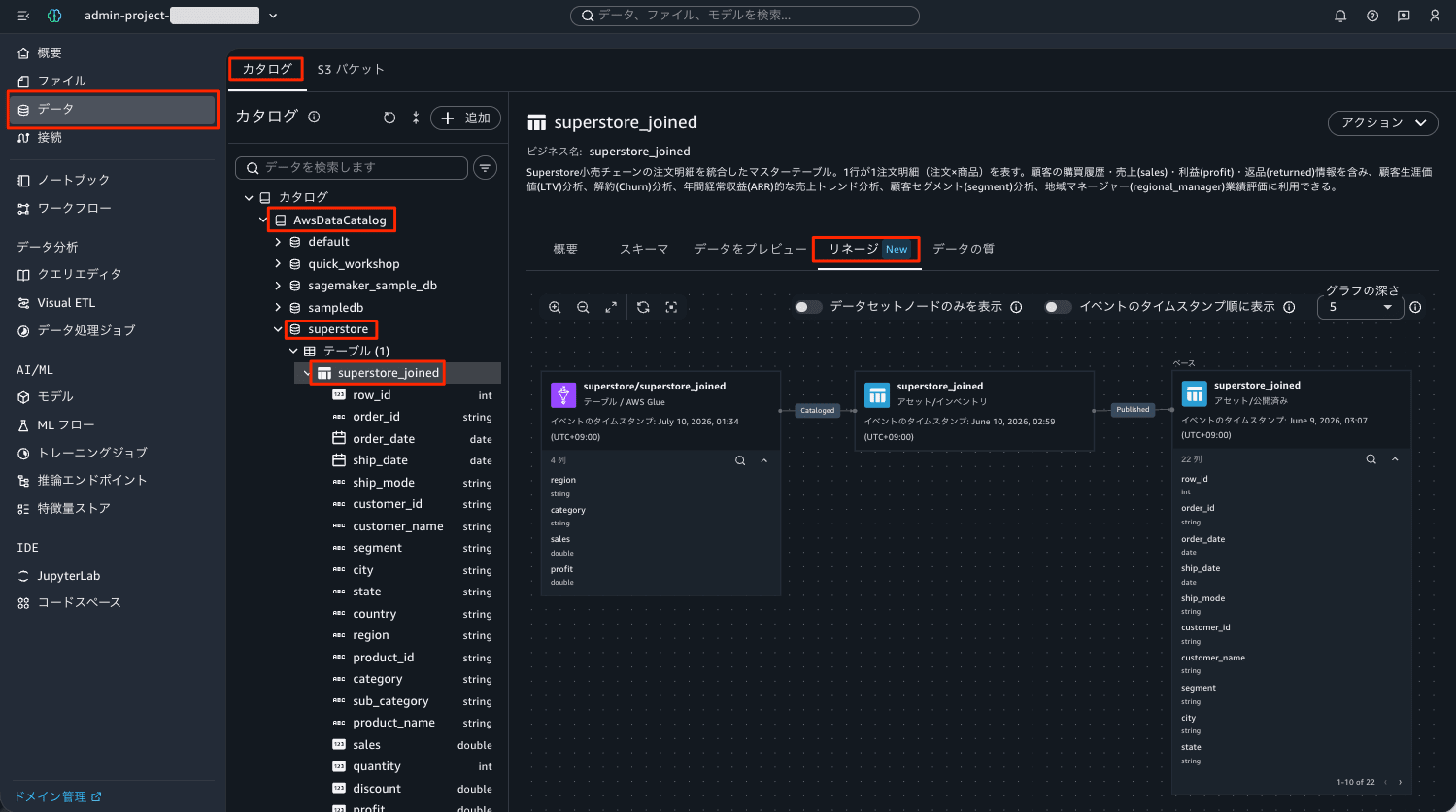
On the Lineage tab, the following operations were available as described in the documentation:
- "Show dataset nodes only" toggle: simplified view that hides job and job run nodes
- "Display in event timestamp order" toggle: detailed view including column-level lineage (Event Timestamp mode)
- "Graph depth" selector: adjusts the depth for traversing upstream/downstream from 1 to 5 hops
- Click a node to display a detail panel (lineage information / schema / history). Node IDs and sourceIdentifiers matched the CLI results
- Expand icon on a node to display the column list within the graph
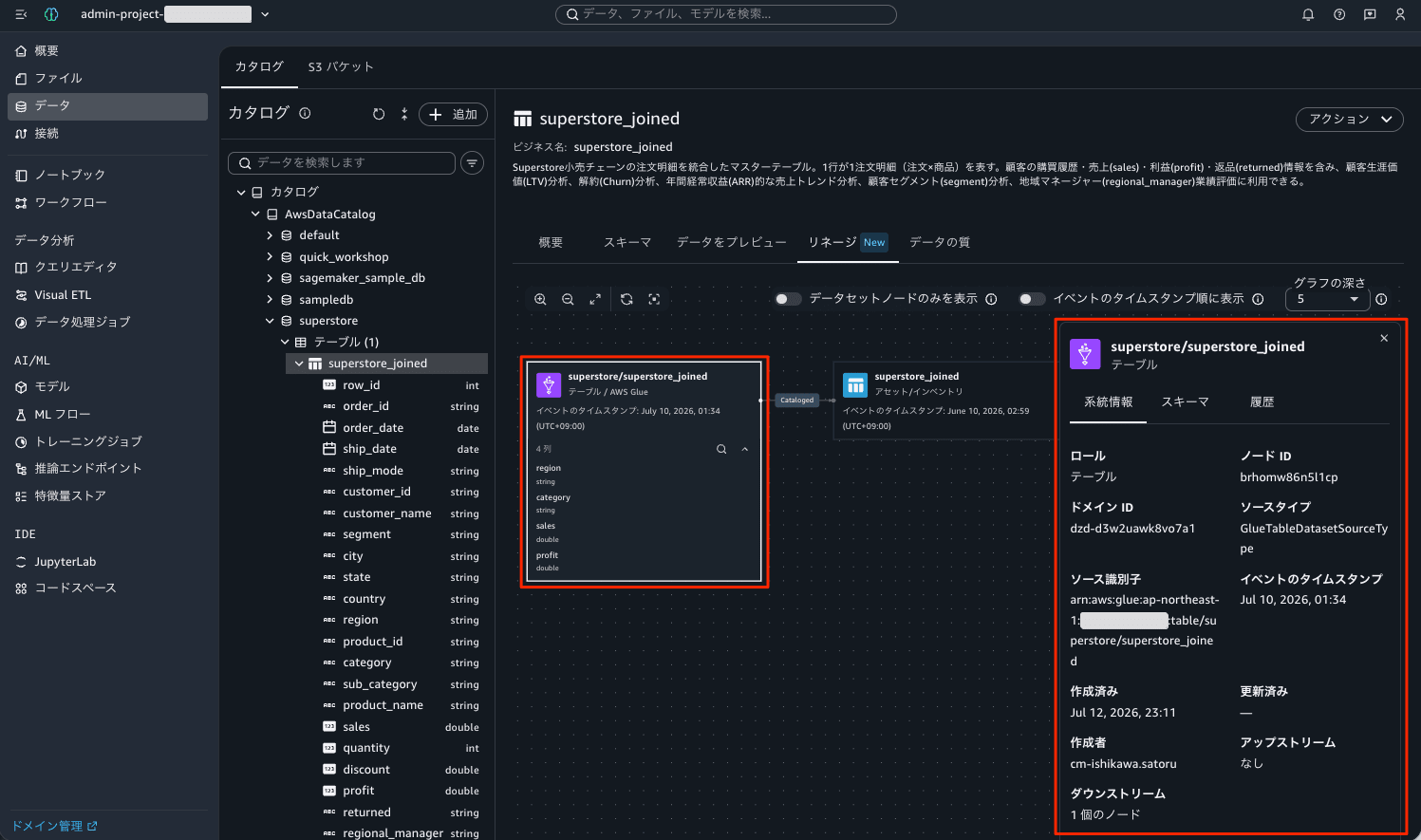
Observations
Here is a summary of the insights gained through the verification.
- In an IAM-based domain (V2 domain with singleSignOn: DISABLED), the full cycle of posting, retrieving, visualizing, and deleting OpenLineage-compatible lineage events worked correctly
- Since
--eventis a blob-type parameter, specifying--cli-binary-format raw-in-base64-outis required when using the AWS CLI - To display a lineage graph in the portal, at least one node in the graph must exist as an asset in the catalog. Aligning the dataset's namespace / name to match the Glue table ARN format enables automatic linking to existing assets
- Column-level lineage is expressed using the columnLineage facet and saved as
ColumnLineageForm. Column renaming (amount → total_amount) was also tracked - DeleteLineageEvent performs asynchronous deletion (going through DELETE_PENDING), and lineage nodes associated with the event are also deleted
- Since event integration from OpenLineage-compatible tools such as dbt and Apache Airflow uses the same API, it should be possible to centrally manage lineage for pipelines running outside of Unified Studio
Closing
With data lineage now available in IAM-based domains of Amazon SageMaker Unified Studio, it is now possible to track data provenance and perform impact analysis even in environments that do not have IdC (SSO) configured. Simply sending OpenLineage events to the PostLineageEvent API builds a lineage graph, and the automatic linking mechanism with assets is straightforward and easy to work with.
If you are operating SageMaker Unified Studio with IAM authentication, why not start with automatic capture from AWS Glue or Visual ETL, then gradually move on to programmatic integration with your own pipelines? I hope this article proves useful to someone.
