I verified a method for browsing files in Windows shared folders and network drives from Amazon Q on Desktop

This page has been translated by machine translation. View original
This is Ishikawa from the Cloud Business Division. The desktop version of Amazon Quick has a feature that allows Quick to directly read, write, and search files in permitted local folders. We verified whether Windows shared folders and network drives can be specified as reference targets for this feature.
The scope of access to Windows shared folders is determined by the signed-in Windows user, share permissions, and NTFS permissions. Meanwhile, the Amazon Quick desktop version accesses only explicitly permitted folders through the OS sandbox. By combining these two, it becomes possible to analyze with generative AI only the documents that each user is authorized to view.
Background Leading to This Verification
Over the past two sessions, we had been verifying methods to apply per-user access control to documents (unstructured data) on Amazon S3 and use them from Quick Chat.
Both of these are so-called "RAG" configurations that ingest data into Amazon Quick's S3 knowledge base or Amazon Bedrock Managed Knowledge Base. While they enable cross-sectional searching in order of relevance to a question, re-ingestion is required every time a document is updated or an ACL is changed. Therefore, this configuration is suited for data whose content and permissions do not change frequently.
This time, we verified a method of accessing ad hoc data with access control already in place (Windows shares) rather than ingesting data into a RAG.
Conclusion First
Both worked. It was possible to register a local folder using a UNC path (\\computer-name\path), and we were able to view the file list and contents of that folder from the chat. When assigned to a network drive, the contents of the shared folder were also returned with the instruction "Z drive."
However, regarding the latter, the verification was performed with the same share already registered as a local folder via UNC path before the drive assignment. Details are provided in the "Considerations" section.
Verification Environment
- Client: Windows 11, Amazon Quick desktop version
- Shared host name:
F35B - Shared folder:
\\F35B\Users\ishik\share(contains one subfolder namedcontext-ontology-accelerator)
What Are Local Folders in the Amazon Quick Desktop Version?
The "Local Folders" feature in the Amazon Quick desktop version (macOS / Windows) allows Quick to directly read, write, and search files within a specified folder. Unlike the browser version where files must be uploaded to the chat, files in permitted folders can be referenced directly.
Folders can be added from the "+" (Add context) button in the chat input field via Local folders > Manage folders, or from the Knowledge tab in Customize. For each registered folder, the folder name, path, number of files, and last indexing date/time are displayed.
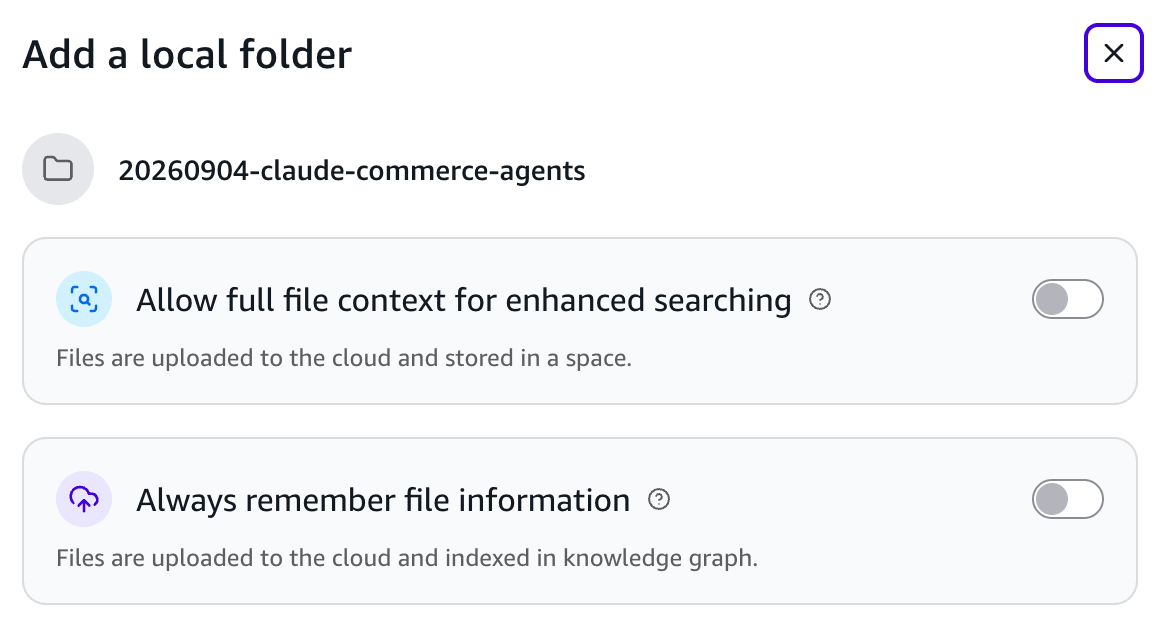
The above is the dialog for registering a folder. Adding a folder is simply an operation to grant access permission, and indexing does not start until you manually turn it on. Both toggles can be left off when registering, and they can be changed later by opening the folder's detail pane in the Knowledge tab of Customize and going to Indexing under Settings.
Allow full file context for enhanced searching
This uploads and indexes files in the folder to enable full-text search. It is also referenced by scheduled runs and background processes. When turned on, the estimated usage rate against the monthly index budget is displayed as a percentage. The phrase "stored in a space" in the description means that the upload destination is a space within your own Quick account.
Always remember file information
This uploads files and extracts information such as people, projects, and dates to incorporate into the knowledge graph. The estimated usage rate against the monthly extraction budget is also displayed here. The Entities extracted field on the Details tab remains displayed as a hyphen until this is turned on.
Note that for each folder, you can set the access level (Full Access / Read Only / Ask Each Time) from Manage permissions, and you can also adjust individual read/write operations.
In the following sections, we verify whether this mechanism can be combined with Windows shared folders.
Accessing Windows Shared Folders from Amazon Quick on Desktop
To reference a Windows shared folder, you need to register a UNC-formatted path as a local folder. First, we verify whether this configuration is possible.
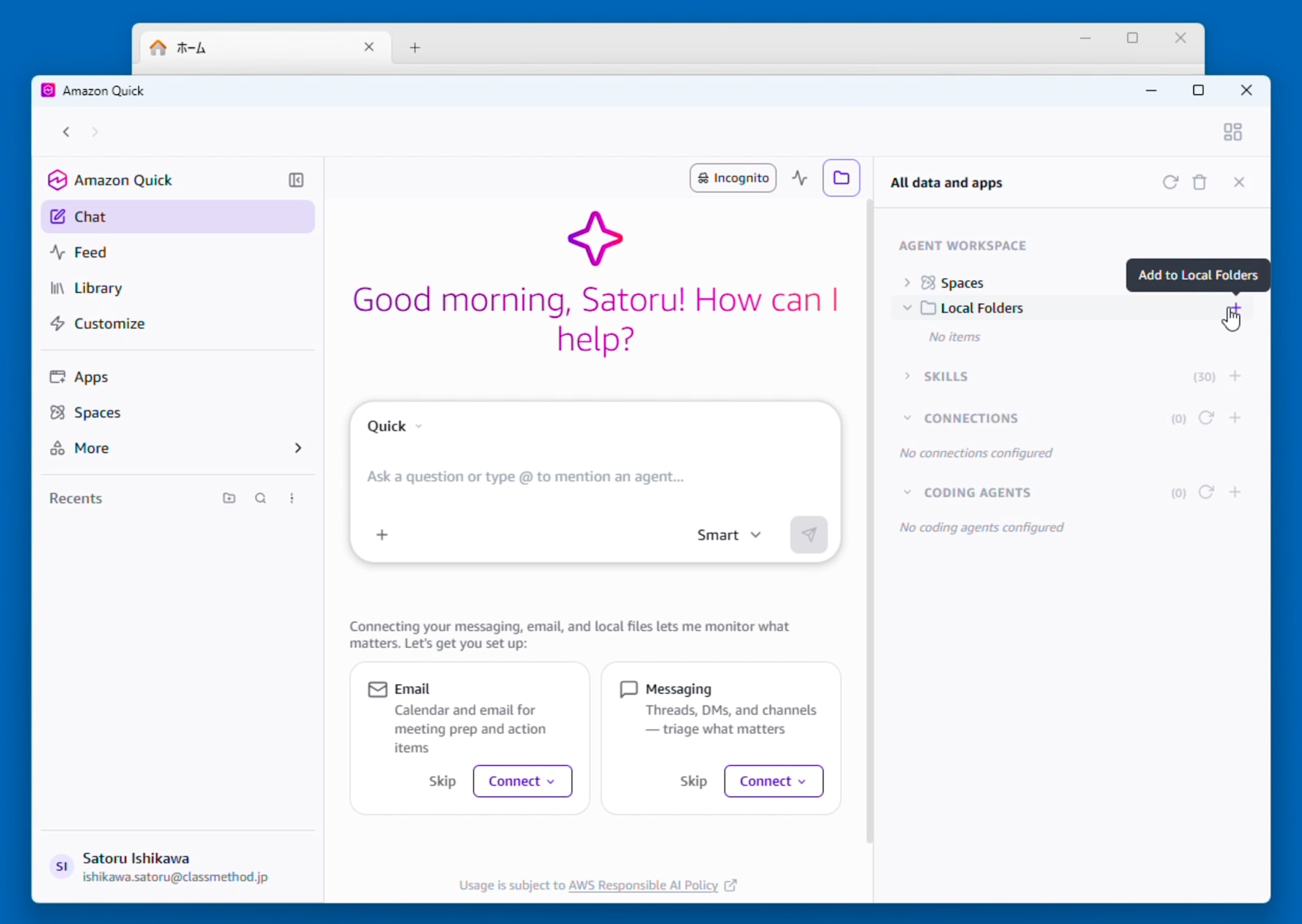
Select "+" (Add to Local Folders) under Local Folders in the "All data and apps" right panel.
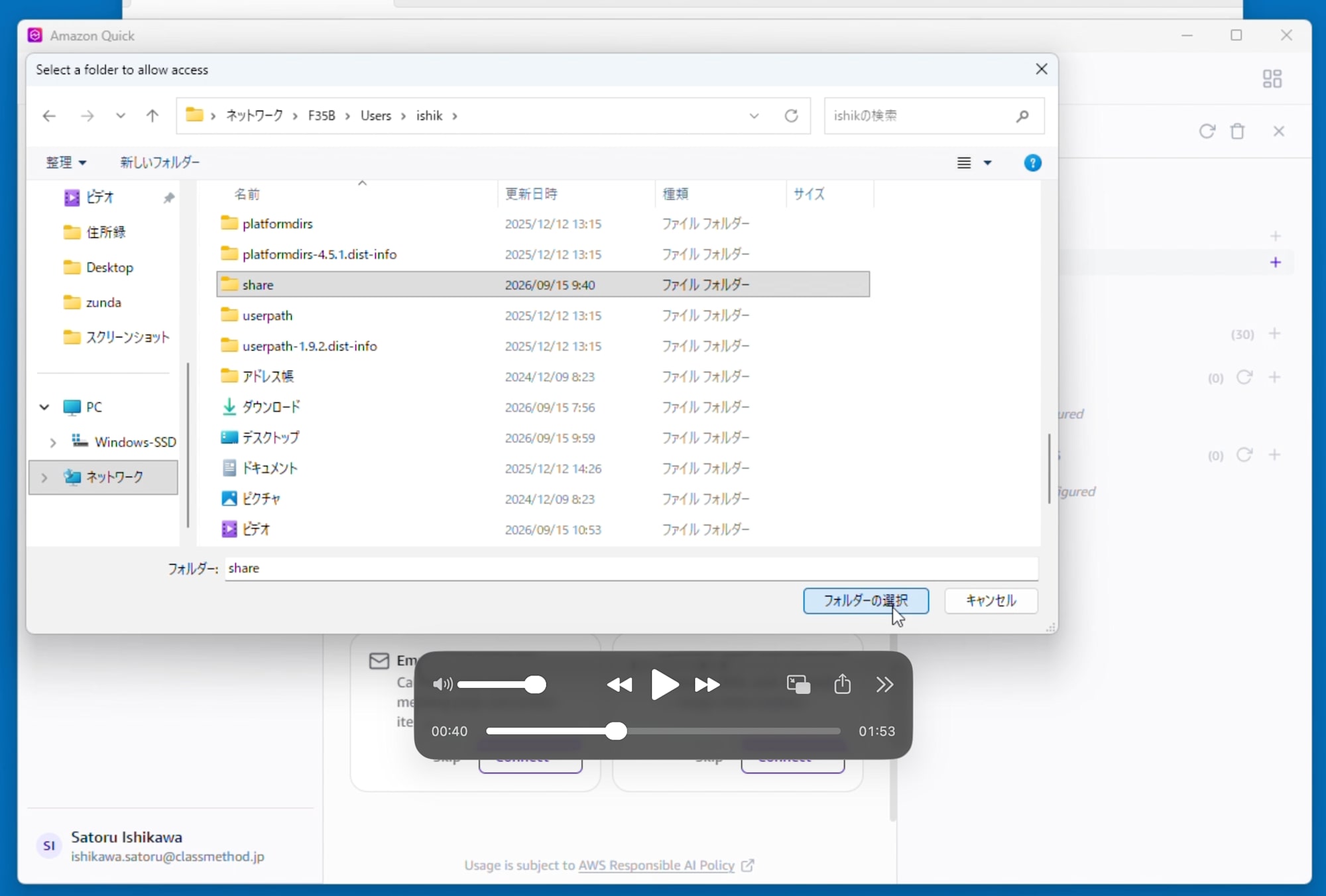
"Select a folder to allow access" opens. Entering \\F35B with \\ and the computer name in the folder field navigates to that computer under the network. From there, navigate as you would in a regular Explorer and select the desired folder (in this case, Users > ishik > share), then click "Select Folder."
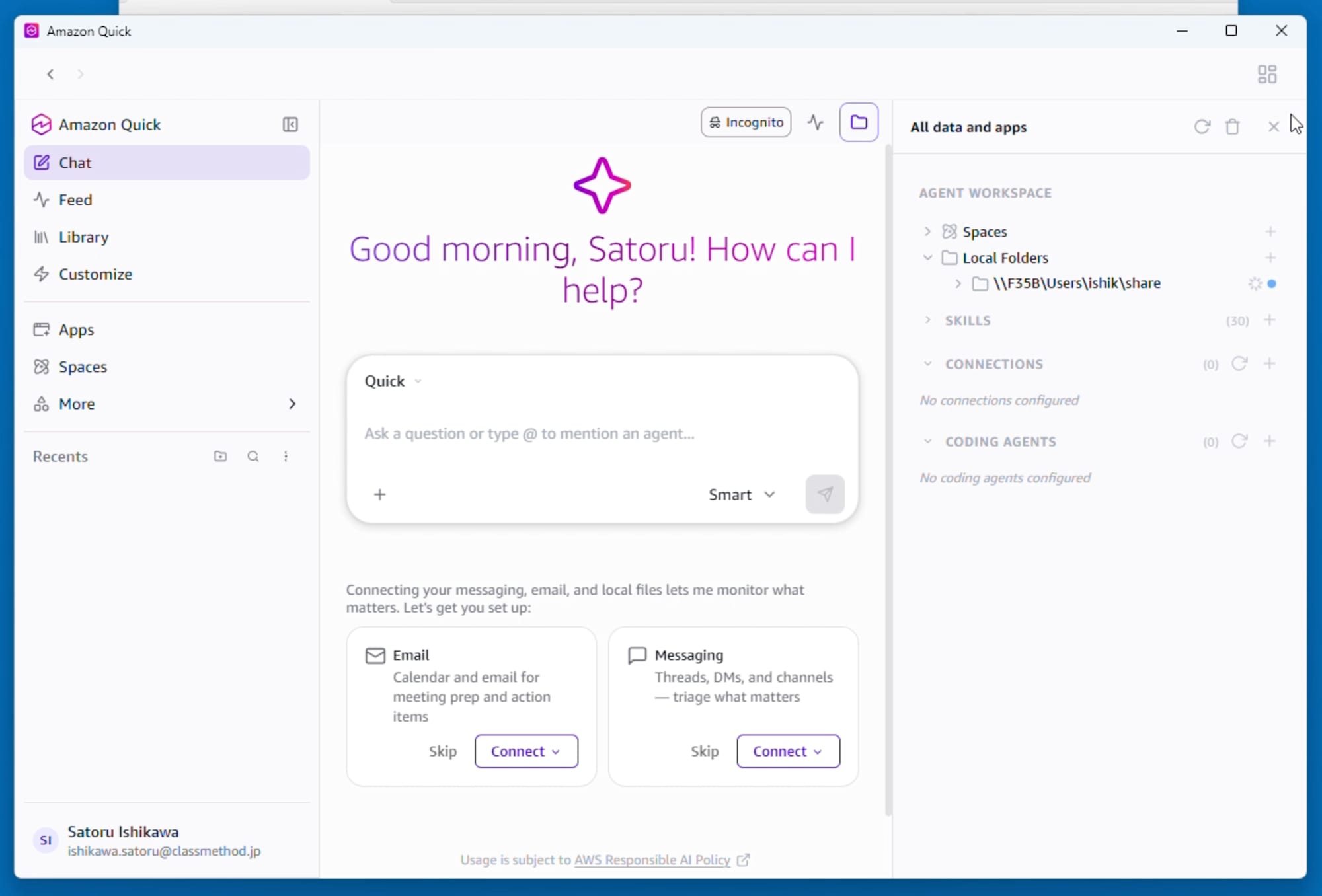
\\F35B\Users\ishik\share was registered in Local Folders in UNC notation as-is. The shared folder has been successfully defined as a local folder.
We then verify whether it can actually be referenced from the chat. The prompt Please tell me about the contents of the share folder was entered.
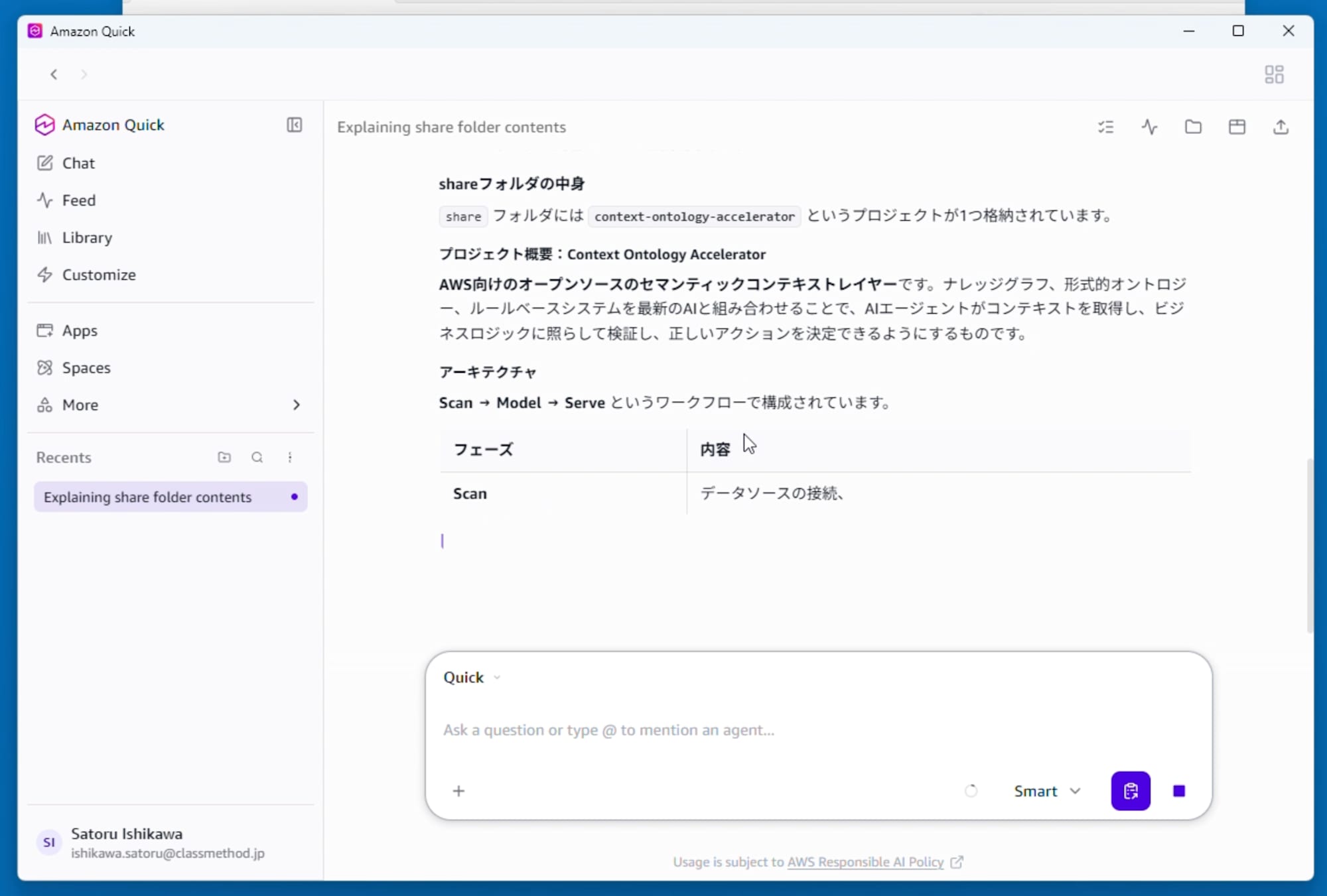
One subfolder, context-ontology-accelerator, was found under the share folder, and a description of its contents was returned. The tool executions leading to the response were displayed as "Listing folder — share," "Listing folder — context-ontology-accelerator," and "Reading file(s) — README.md," confirming that the response was generated by traversing the shared folder and reading the files.
Accessing Windows Shares as a Network Drive
Next, we verify the case where the shared folder is assigned to a drive letter. First, we assign the network drive on the Windows side.
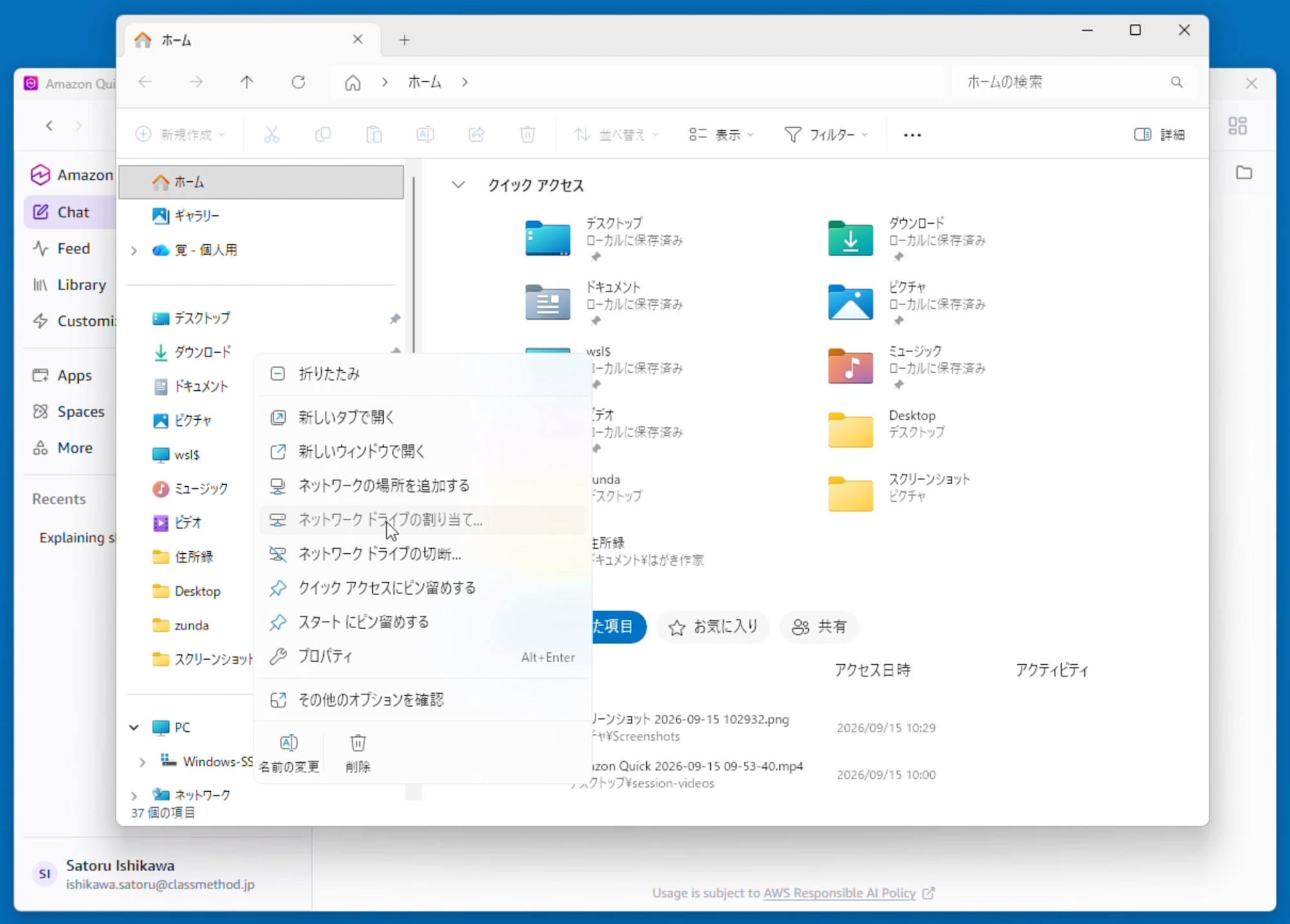
Right-click Home (This PC) in Explorer and select "Map network drive..."
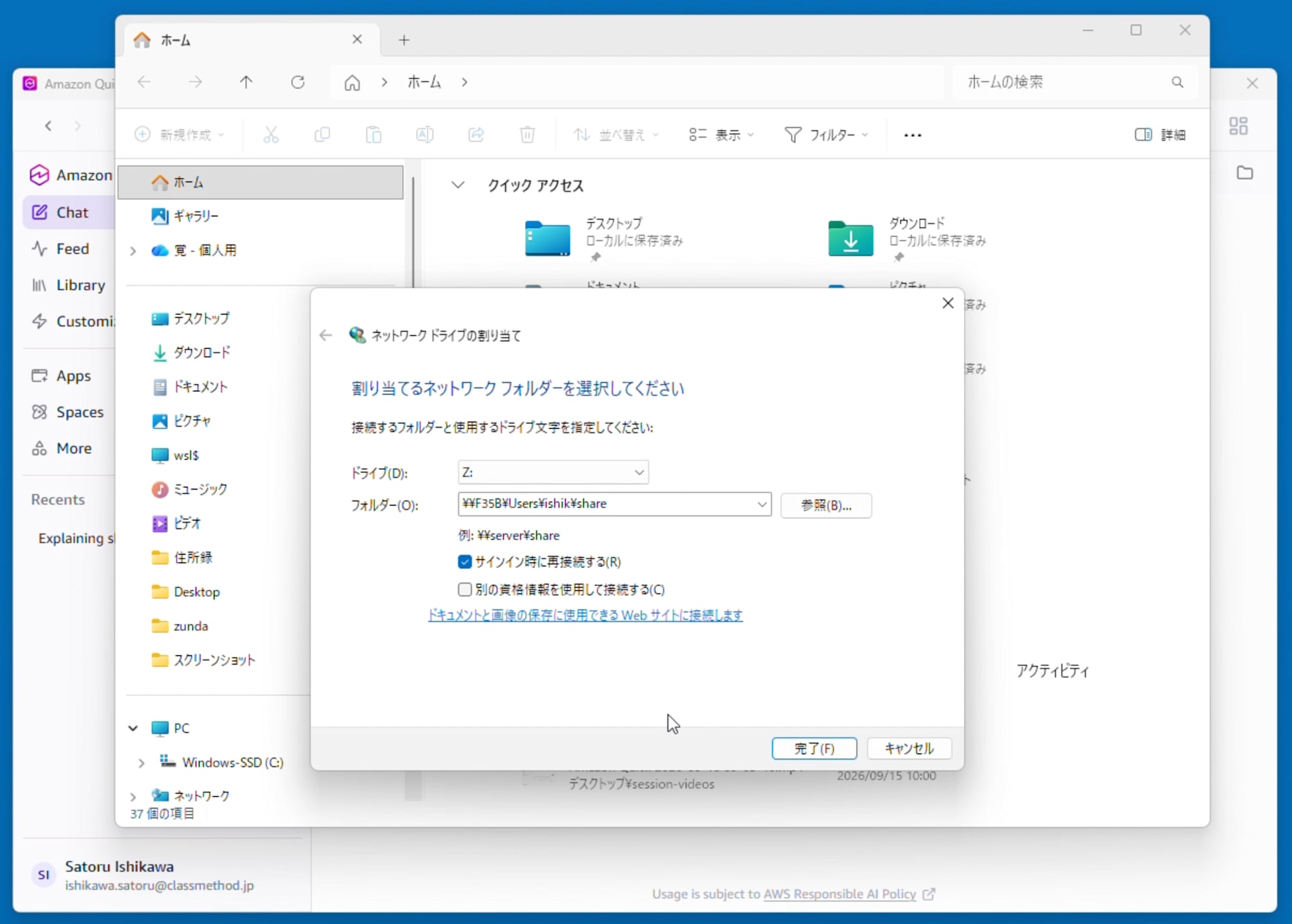
Set the drive to Z:, the folder to \\F35B\Users\ishik\share, enable "Reconnect at sign-in," and click Finish.
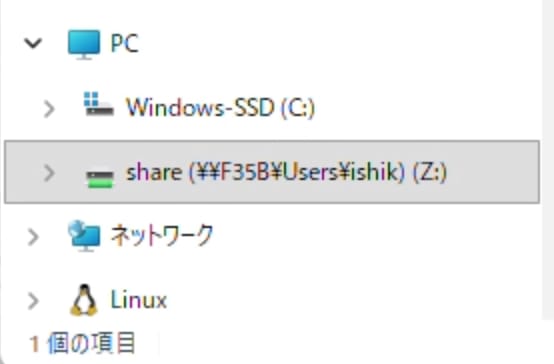
share (\\F35B\Users\ishik) (Z:) was added directly under This PC.
In this state, the prompt Please tell me about the contents of the Z drive. was entered in the chat.
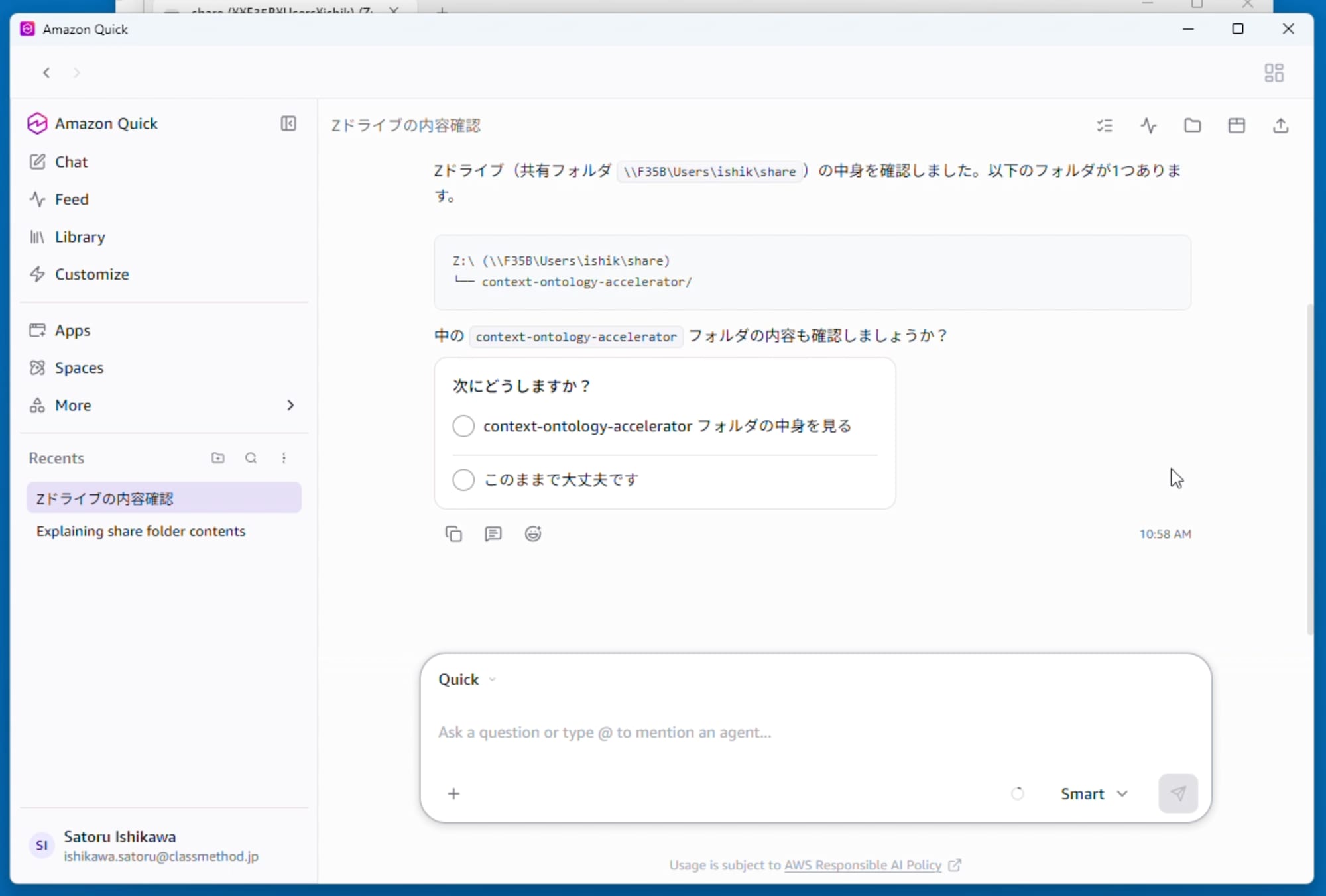
The response confirmed the contents of "Z drive (shared folder \\F35B\Users\ishik\share)" by resolving the drive letter to the UNC path and returning the contents in a tree view. It was confirmed that instructions using the drive letter work as expected.
Considerations
UNC paths can be registered as local folders
The Amazon Quick documentation does not mention that network paths can be specified for local folders. In this verification, entering a UNC path in the folder selection dialog allowed registration as-is, and the path was retained in UNC notation after registration. File reading from the chat also worked.
Drive letter instructions were resolved to UNC paths
The response to the question about the Z drive used the notation Z drive (shared folder \\F35B\Users\ishik\share). In this verification, the same share was already registered as a local folder via UNC path before the drive assignment. Therefore, what was confirmed is only that "instructions using a drive letter for an already-registered shared folder are resolved as intended," and the behavior when registering Z:\ directly as a local folder was not verified. Since drive letters depend on the assignment configuration and can change, it is more stable to register using UNC paths.
Access control is delegated to the Windows side
Since the Amazon Quick desktop version accesses files through the OS sandbox, authentication and authorization for shared folders are governed directly by Windows share permissions and NTFS permissions. If a shared folder has different accessible scopes per user, what Quick can see will also vary per user. The practical advantage is that you can start using the existing file server's permission design as the reference scope for generative AI without redesigning it.
Confirm the upload destination before enabling indexing
Turning on "Allow full file context for enhanced searching" and "Always remember file information" will upload files to a space within the Quick account. If the shared folder contains confidential documents, the decision to enable these two options must be made after determining whether uploading is permissible. Even with them left off, referencing from the chat works as demonstrated in this verification.
Note that the indexing scan interval is 30 minutes, and maximum file size, extensions, exclusion patterns, and other settings can be specified from the Advanced settings. Since shared folders tend to have large volumes, it is considered more manageable to narrow down the targets before enabling indexing.
Conclusion
We registered Windows shared folders as local folders in the Amazon Quick desktop version and were able to reference files from the chat. Both UNC path registration and drive letter instructions for network drive-assigned shares returned the contents of the shared folder.
While "RAG" configurations using Amazon Quick's S3 knowledge base or Amazon Bedrock Managed Knowledge Base can be created by data engineers and shared centrally with users, local files in Amazon Quick on Desktop need to be configured by each individual user, which means users with low technical literacy may not be able to configure them and thus be unable to take advantage of the feature.
When you want to analyze assets on a file server using generative AI, you can get started while inheriting the Windows permission design as-is, without moving or uploading data to another location. The only point requiring judgment based on the confidentiality level of the target folder is that enabling indexing will upload files to the cloud.