
[Update] Trying Out Deterministic Steps and Validation in the Revamped AWS Quick Flows

This page has been translated by machine translation. View original
I'm Ishikawa from the Cloud Business Division. Flows in AWS Quick has been renewed: you can now build a flow just by explaining the procedure in chat, and deterministic steps that process with code and validation that checks outputs against rules have been added. Today I'll build and try a flow that matches invoices against purchase orders!
An update to Flows in AWS Quick has been announced. The key points of the announcement are as follows.
- When you explain a business procedure in chat, Quick builds the flow. You can also run and modify the flow in chat
- Flows can call agents, skills, and tools. They can also access structured data, knowledge, and apps
- They can create documents, spreadsheets, and presentations and save them to the team's space
- Support for long-running processing and processing of large amounts of data has been added
- Deterministic steps have been newly added
- With validation, you can check whether each step's output meets rules defined by the user before moving on to the next step
- Flows can be run from desktop, web, and mobile. The desktop app can handle local files and browser operations, and the mobile app can start flows and check their progress
- Available in all Regions where AWS Quick is available
The announcement includes an example in which an accounts payable team uses an agent to read invoices and match them against purchase orders, and then uses deterministic steps to recheck totals and detect duplicates. I built a smaller version of this example and checked how deterministic steps and validation behave.
Flows has been renewed, and the layout of the Flows UI has changed
The AWS Quick web app UI has been overhauled and appears to be unified with the desktop app.
With this update, Flows has been renewed and the layout of the Flows UI has changed. Also, the Flows you created before can still be run, but to edit them you need to press the [Migrate] button and migrate to the new Flows.
What is the new Flows?
Flows is an AWS Quick feature that automates repetitive work by dividing it into multiple steps. When you explain the process in chat, as if explaining the procedure to a new colleague, Quick builds the flow. You can run and modify the built flow in chat, and when you publish it, you can share it with other users.
The official documentation explains the difference from skills as follows.
- With a skill, the agent decides the procedure as it works. It suits work where the procedure changes with each run
- With a flow, the user decides the procedure in advance. It suits work performed with the same procedure every time
A flow consists of inputs and outputs, steps, flow logic, and the capabilities a step can use (agents, skills, connectors, system tools, spaces and knowledge bases, data, and other flows). You can define up to 50 inputs and 50 outputs each, and the input types are text, number, true/false, list, group, and file.
Two types of steps
With this update, there are now two types of steps.
| Type | Suited for | Behavior |
|---|---|---|
| Agent step | Work that requires judgment | The agent reads the instructions and decides how to proceed with the step |
| Deterministic step | Precise work performed the same way every time | Quick writes code and runs that code. It does not access the internet directly |
Validation
Validation is a set of rules that the output of an agent step must satisfy. If the rules are not satisfied, the step is re-run. You can choose in the settings whether to stop the flow or continue as is if the rules are still not satisfied.
| Setting | Description |
|---|---|
| Rules | Conditions the step's output must satisfy |
| Max retries | Number of times to re-run the step if the rules are not satisfied. The default is 1 |
| Continue if validations fail | Whether to continue the flow if the rules are still not satisfied after re-running |
As flow logic, you can use Condition (runs only when the condition is true), Match (branches according to a value), Loop (repeats for each item in a list), While (repeats while the condition is true), and Parallel (runs multiple paths simultaneously).
Trying it out
Prerequisites
- An AWS Quick account (Enterprise, identity Region is Tokyo Region)
- Quick user role: ADMIN_PRO
% aws --version
aws-cli/2.42.1 Python/3.14.10 Darwin/25.6.0 exe/arm64
% ACCOUNT_ID=$(aws sts get-caller-identity --query Account --output text)
% aws quicksight describe-account-subscription --aws-account-id ${ACCOUNT_ID} --region ap-northeast-1 \
    --query "AccountInfo.{Name:AccountName,Edition:Edition,Status:AccountSubscriptionStatus}" --output table
--------------------------------------------------------------
|                 DescribeAccountSubscription                |
+------------+---------------------------+-------------------+
|   Edition  |           Name            |      Status       |
+------------+---------------------------+-------------------+
|  ENTERPRISE|  q-in-quicksight-sandbox  |  ACCOUNT_CREATED  |
+------------+---------------------------+-------------------+
Data used for verification
I prepared an invoice line item CSV (8 rows) and a purchase order CSV (7 rows). I included 3 problems in the invoice line items for verification.
- INV-1003 has two rows with exactly the same content for line 1 (duplicate)
- The sum of the line amounts for INV-1004 is 130,000 yen, but the billed amount (invoice_total) is 135,000 yen (total mismatch)
- INV-1005 bills 5 units of the 27-inch monitor against 4 units ordered (mismatch with the purchase order)
The expected results are that INV-1001 and INV-1002 are normal, and INV-1003, INV-1004, and INV-1005 need review.
Opening the Flows screen
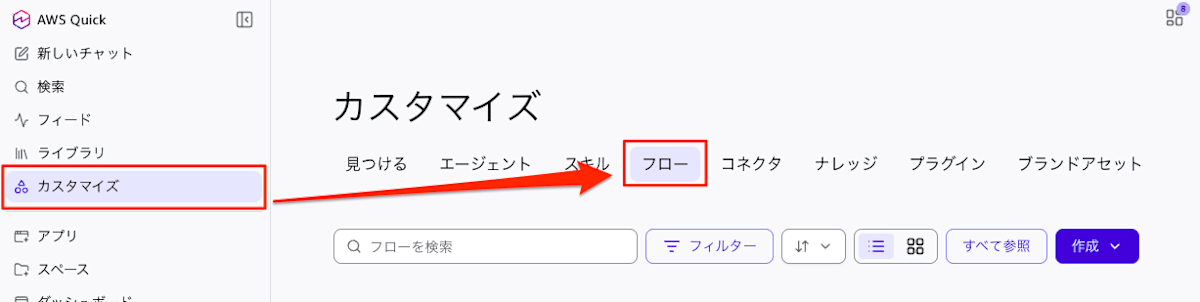
Flows is on the "Flows" tab under "Customize" in the left menu. Only "Create with AI" appeared in the "Create" menu.
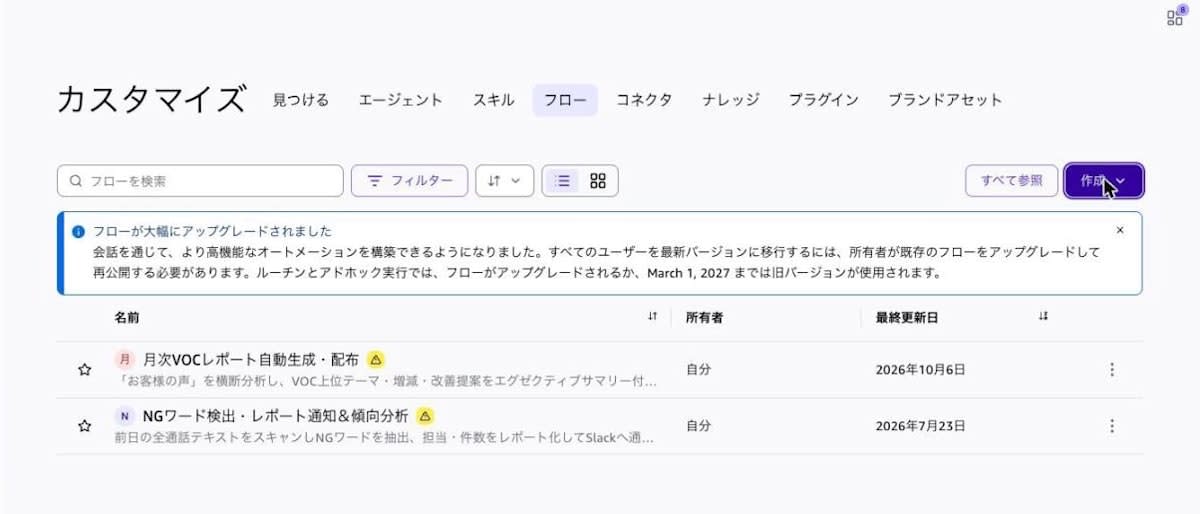
If you have existing flows, a banner saying "Flows have been significantly upgraded" is shown above the list. To move an existing flow to the new version, the owner needs to upgrade the flow and republish it. It states that for routines and ad hoc runs, the old version is used until the flow is upgraded or until March 1, 2027.
Creating a flow in chat
When you select "Create" → "Create with AI", a chat opens and the skill "Flow Builder" is loaded. Quick asked me to tell it the purpose, inputs, data sources, and outputs.
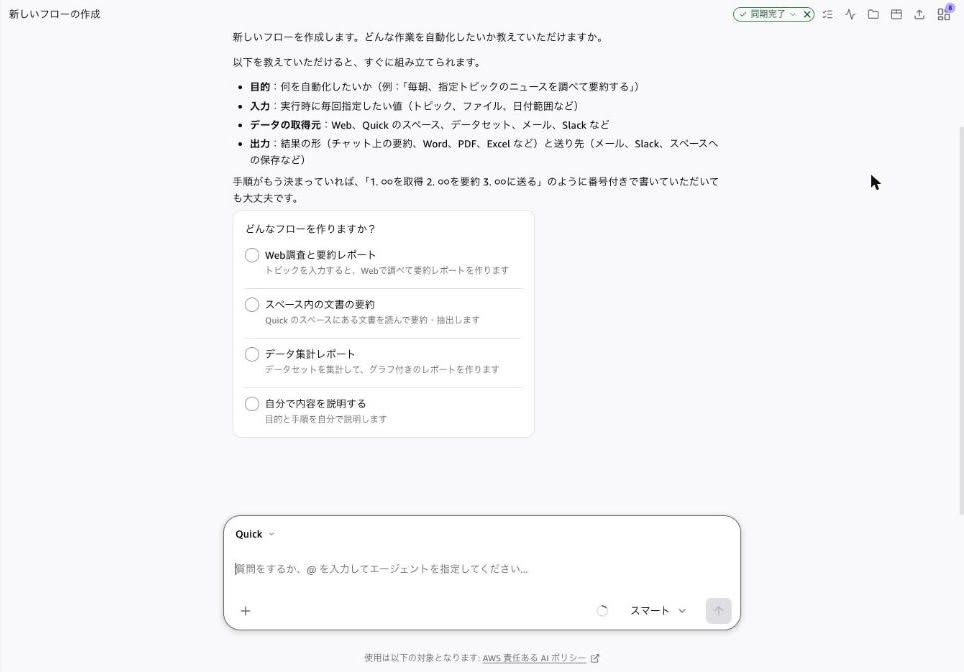
I wrote out numbered steps and made the following request.
買掛金チーム向けに、請求書を発注書と照合するフローを作ってください。入力は請求書明細CSV(列: invoice_id, vendor, po_number, line_no, item, quantity, unit_price, line_amount, invoice_total)と発注書CSV(列: po_number, vendor, item, quantity, unit_price, po_amount)の2つのファイルです。
手順:
1. 決定論的ステップで、invoice_id と line_no が同じ明細を重複として検出し、重複を除外する。
2. 決定論的ステップで、請求書ごとに line_amount の合計を計算し、invoice_total と一致するか検算する。
3. エージェントステップで、各明細を po_number と item で発注書と照合し、数量・単価の不一致を見つける。
4. エージェントステップで、結果を日本語のレポートにまとめる。レポートには請求書ごとの判定(正常/要確認)と理由を並べた要約表を必ず含める。
手順4にはバリデーションを設定し、要約表が含まれていることを確認してください。ウェブ検索と外部コネクタは使わないでください。フロー名は「請求書照合チェック」にしてください。
About a minute after sending it, a flowchart appeared in the right-hand panel.
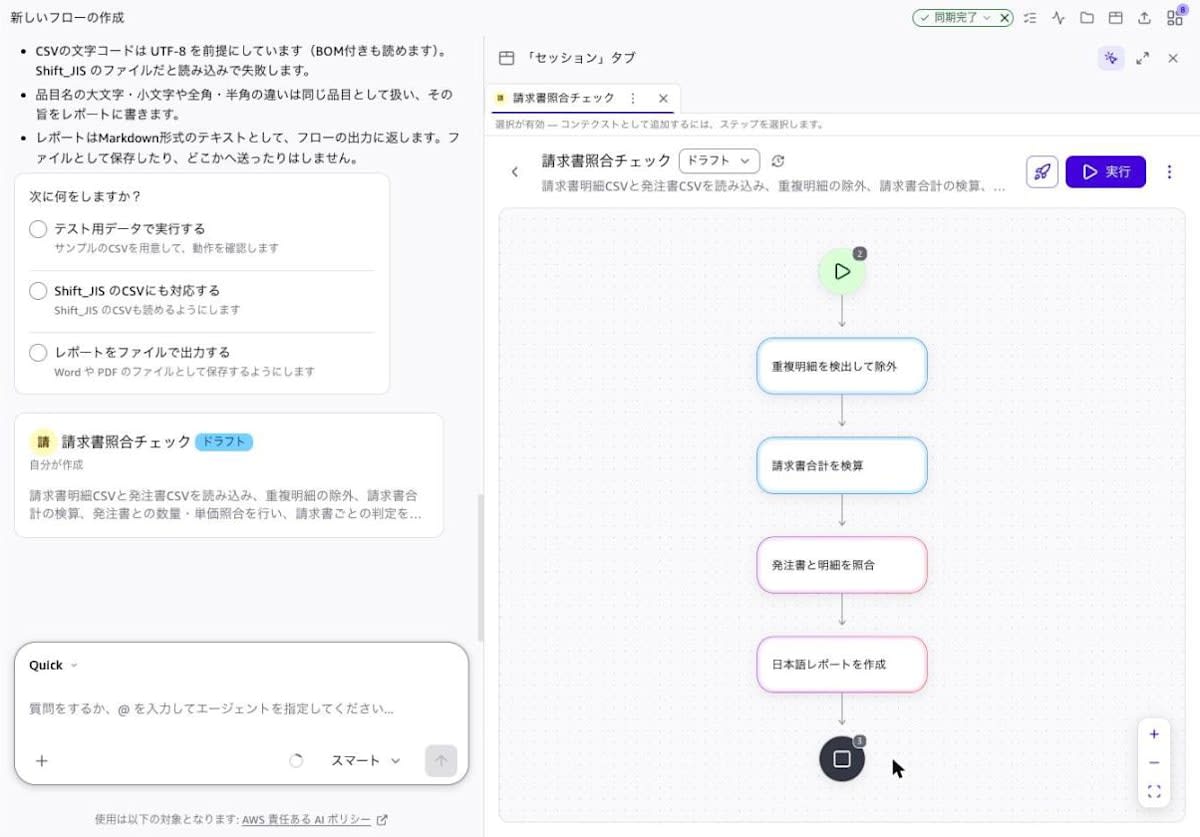
Quick's reply described the flow it created as follows.
- There are two inputs, the invoice line item CSV and the purchase order CSV, and you specify the files each time you run it
- Steps 1 and 2 are deterministic steps, and steps 3 and 4 are agent steps
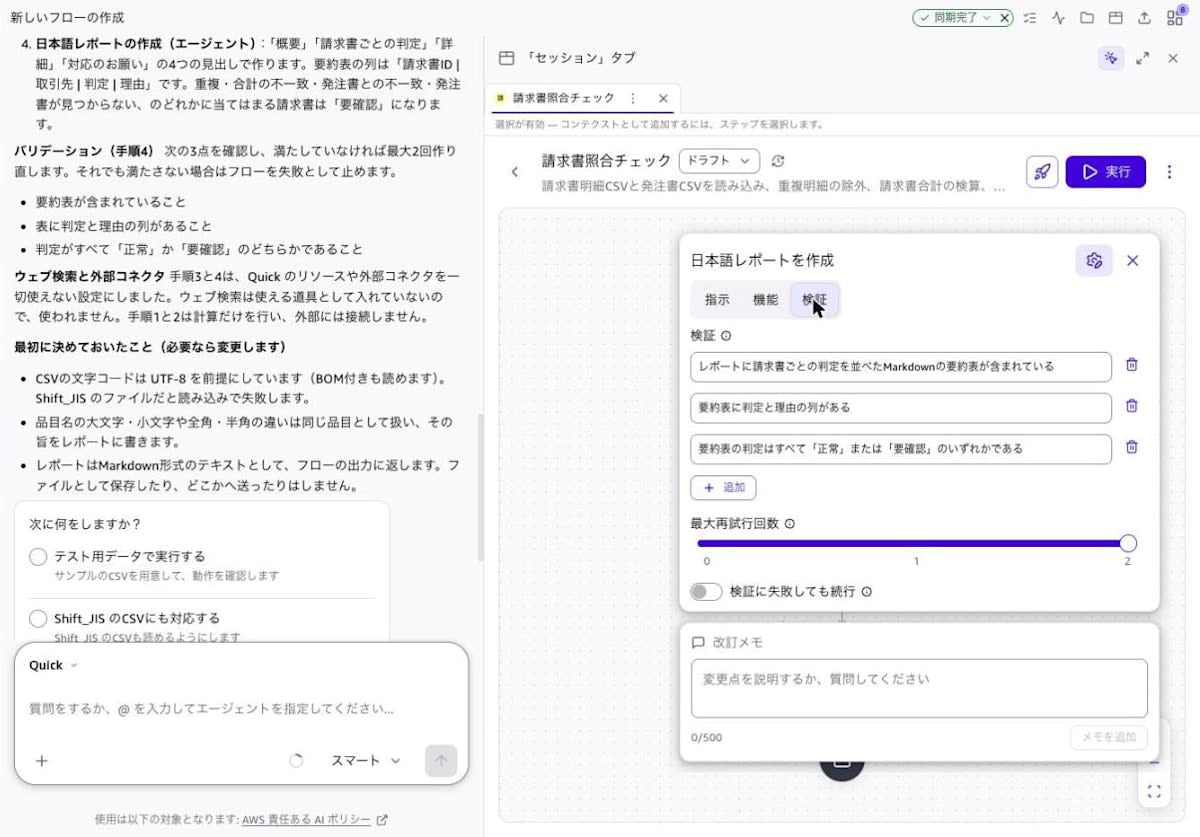
- For the validation in step 4, three rules were set, and if they are not satisfied, the step is redone up to 2 times. If they are still not satisfied, the flow is stopped as failed
- A summary table is included
- The table has columns for verdict and reason
- Every verdict is either "Normal" or "Needs review"
- Steps 3 and 4 were set so that they cannot use Quick resources or external connectors
For points I had not written in the request, Quick decided them and presented them as "What I decided first (I can change this if needed)". There were three: the CSV character encoding is UTF-8 (files with a BOM can also be read; Shift_JIS fails to load), differences in uppercase/lowercase or full-width/half-width in item names are treated as the same item, and the report is returned as Markdown text in the flow's output without saving it to a file or sending it. At the beginning of the reply it also said, "I have not run it even once yet, so I cannot confirm how it works with your actual CSVs."
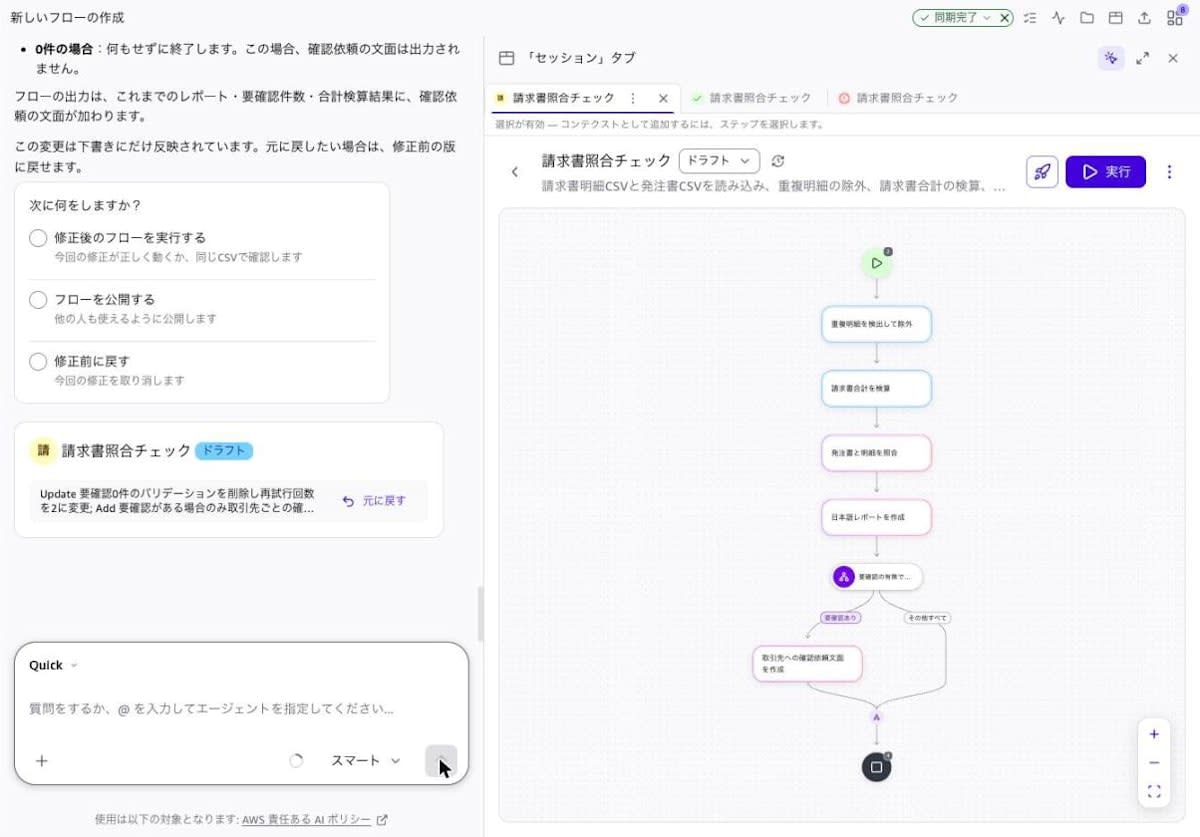
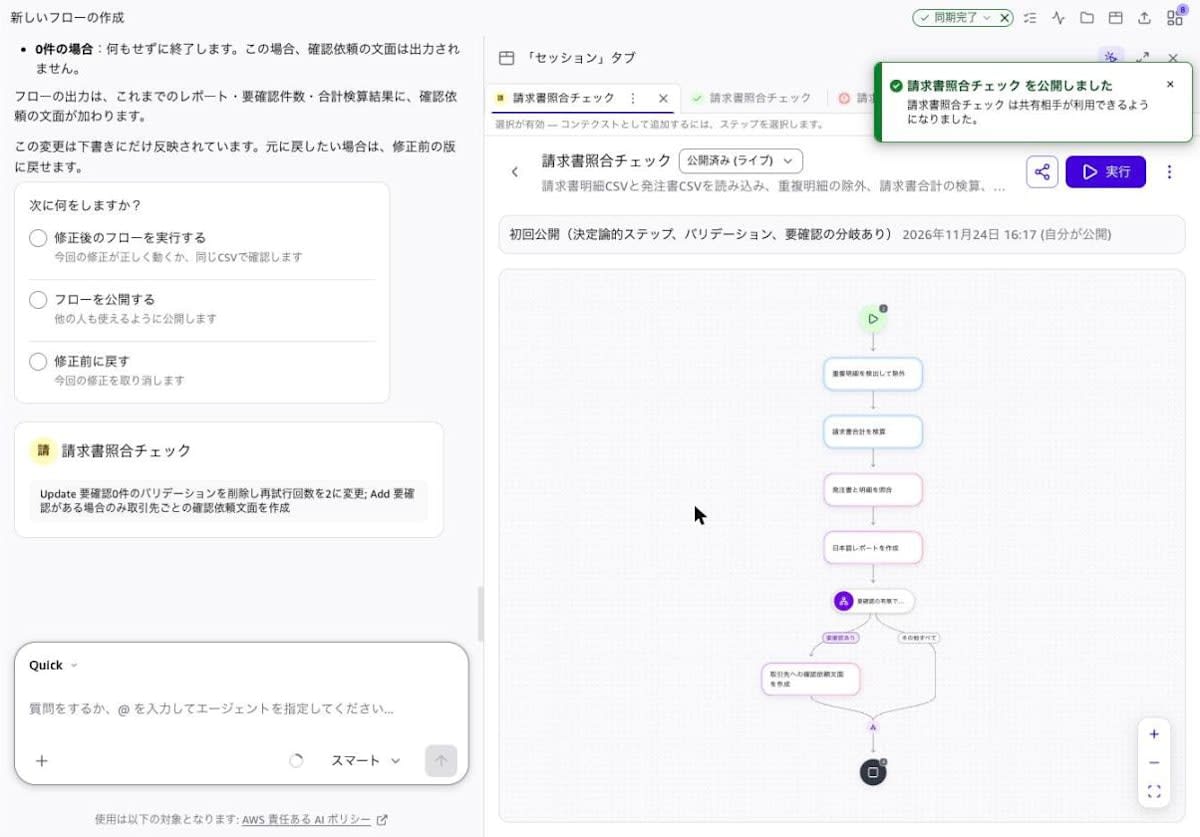
The structure of the flow is shown in the diagram below. The conditional branch and the confirmation-request step shown in dotted frames were added later from chat in a subsequent step.
Checking the contents of the deterministic steps
When you click a step in the flowchart, fields for the step type ("Step" or "Agent"), description, the number of inputs and outputs, and revision notes are displayed. Pressing the gear icon opens the detailed settings.
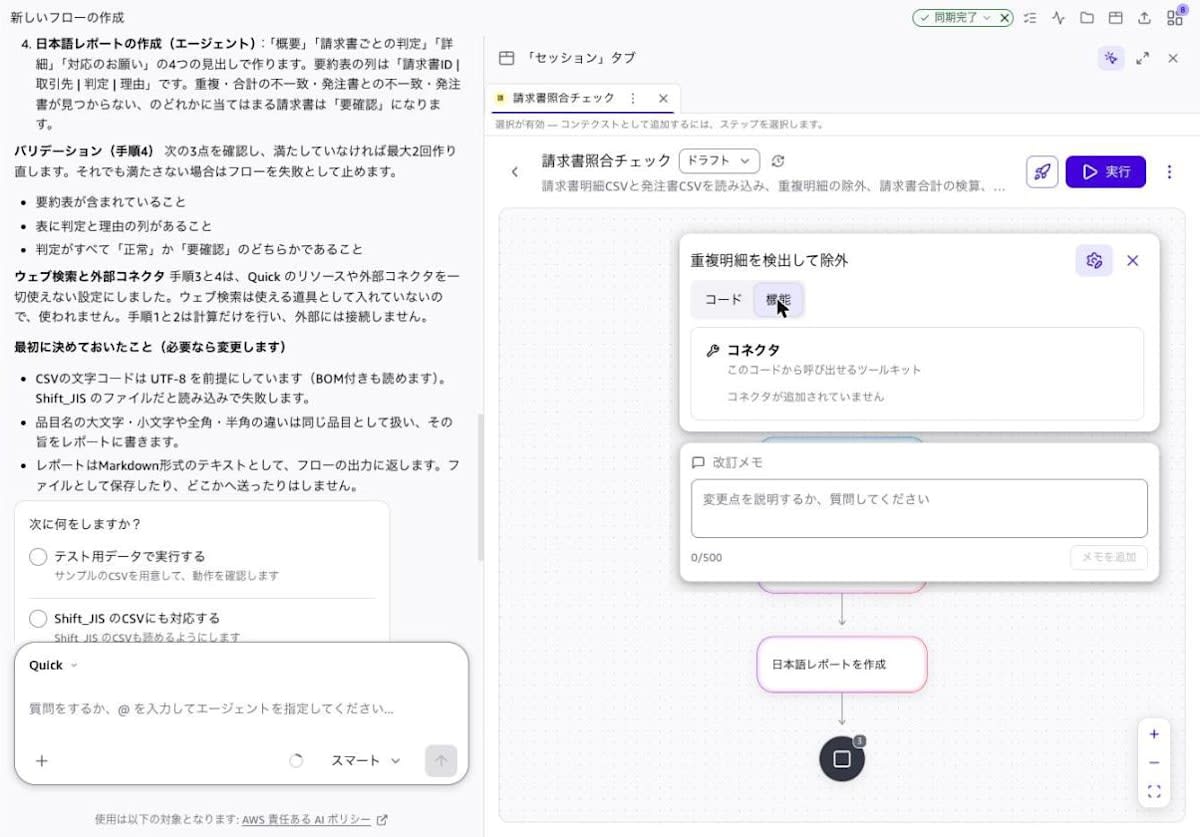
The details of a deterministic step have "Code" and "Capabilities" tabs, and the "Code" tab shows the Python code that Quick wrote. The code for step 1, "Detect and exclude duplicate line items", was as follows.
import csv
def read(p):
    with open(p, newline='', encoding='utf-8-sig') as f:
        return [{k.strip(): (v or '').strip() for k, v in r.items()} for r in csv.DictReader(f)]
lines = read(inputs['invoice_path'])
pos = read(inputs['po_path'])
seen = set()
unique, dups = [], []
for r in lines:
    key = (r.get('invoice_id'), r.get('line_no'))
    if key in seen:
        dups.append(r)
    else:
        seen.add(key)
        unique.append(r)
return {'lines': unique, 'duplicates': dups, 'po_rows': pos}
The code receives the flow's inputs from inputs. The values of the dictionary returned with return are used as inputs to subsequent steps. In the code for step 2, "Recheck invoice totals", amounts were converted to Decimal and summed, and it returned the difference and whether they matched (matches).
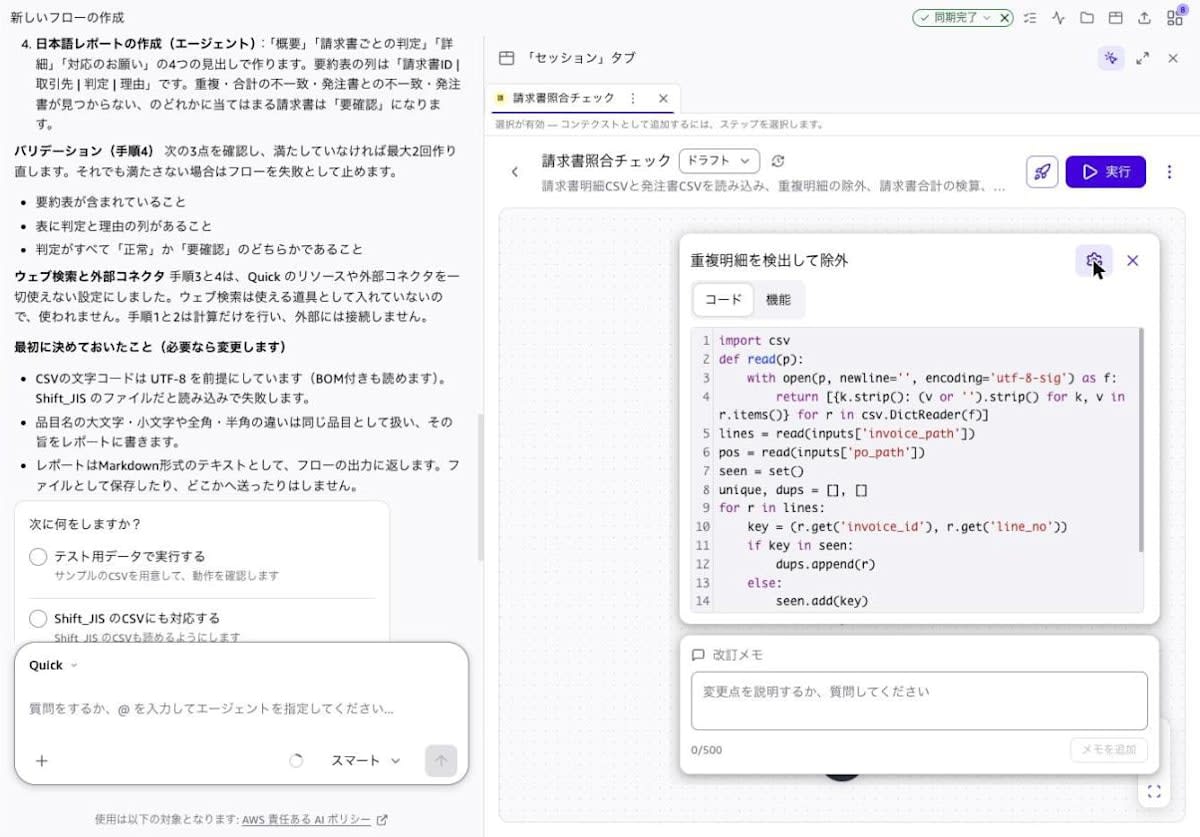
The code editor is read-only, and the HTML attributes were also contenteditable="false" and aria-readonly="true". The official documentation also states that for deterministic steps only the capabilities can be changed and the code is read-only. The same documentation says any part of a flow can be changed in chat, so if you want to change the code, ask Quick in chat.
The "Capabilities" tab shows only the connectors that can be called from this code. Nothing was added this time.
Checking the agent step and validation settings
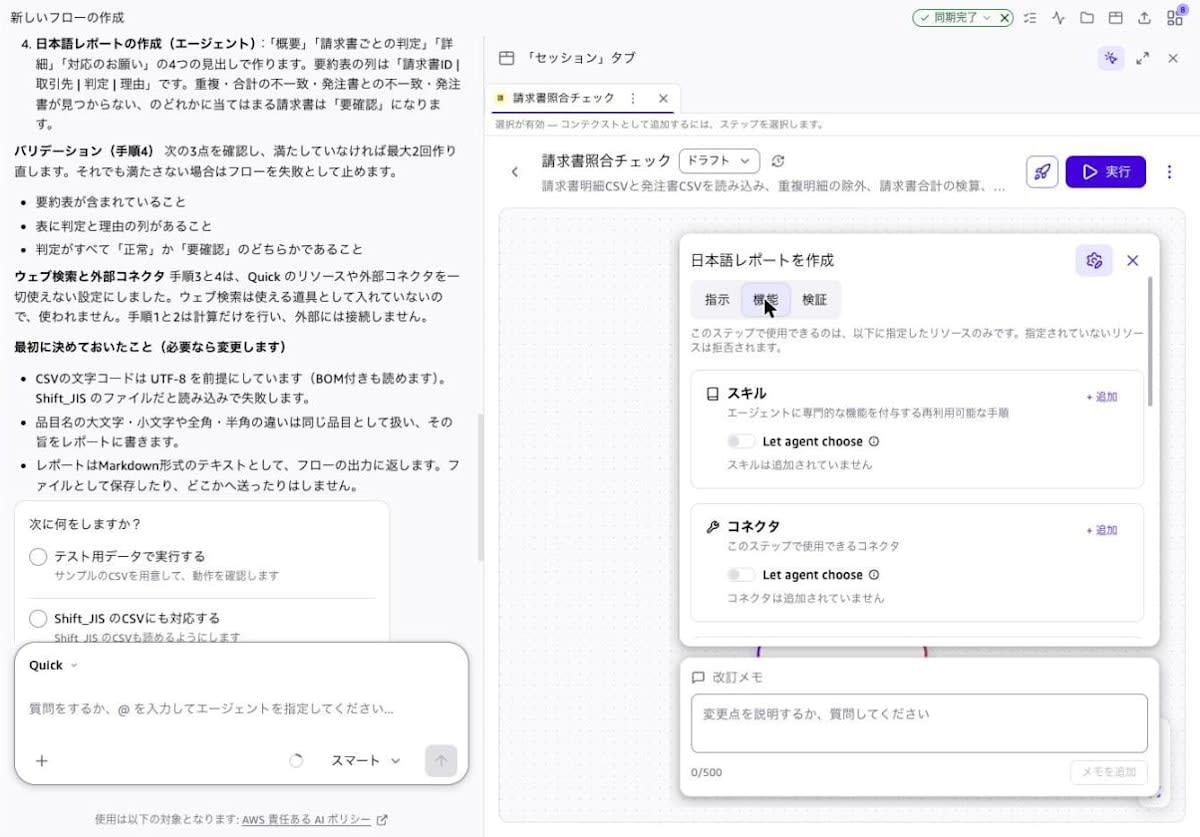
The details of an agent step have three tabs: "Instructions", "Capabilities", and "Validation". "Instructions" can be edited as rich text and referenced the outputs of previous steps, like @duplicates and @totals.
The "Capabilities" tab displays "This step can only use the resources specified below. Resources that are not specified will be denied.", and below it are fields for seven kinds of resources: skills, connectors, spaces, knowledge bases, dashboards, topics, and datasets. None had been added, and "Let agent choose" was also off. As requested, it is set up not to use external information.
The "Validation" tab holds the validation settings. Three rules are listed, the "Max retries" slider (0 to 2) was set to 2, and "Continue if validations fail" was off.
Test run (1st time)
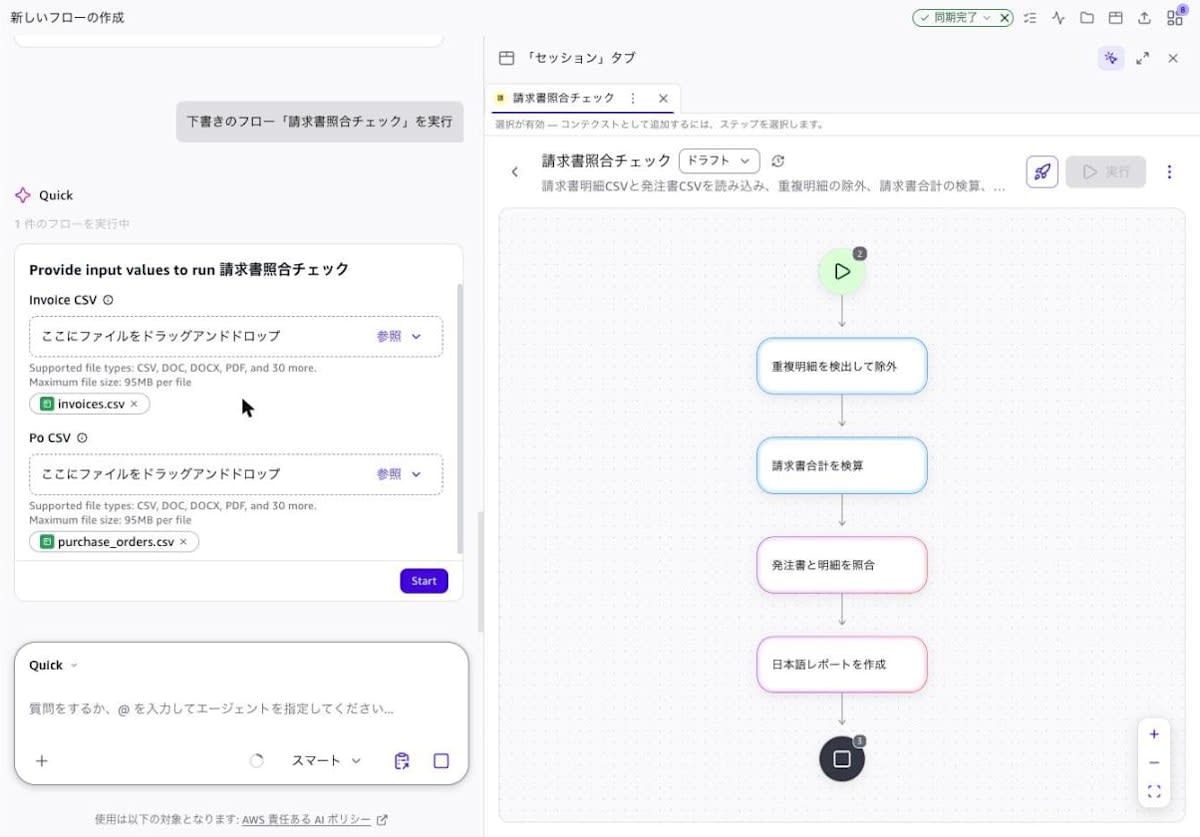
When I pressed "Run" on the flow, the message "Run draft flow 'Invoice Reconciliation Check'" was sent to the chat, the skill "Flow Runner" was loaded, and an input form was displayed. The file input fields said "Supported file types: CSV, DOC, DOCX, PDF, and 30 more." and "Maximum file size: 95MB per file". I specified the two CSVs and pressed "Start".
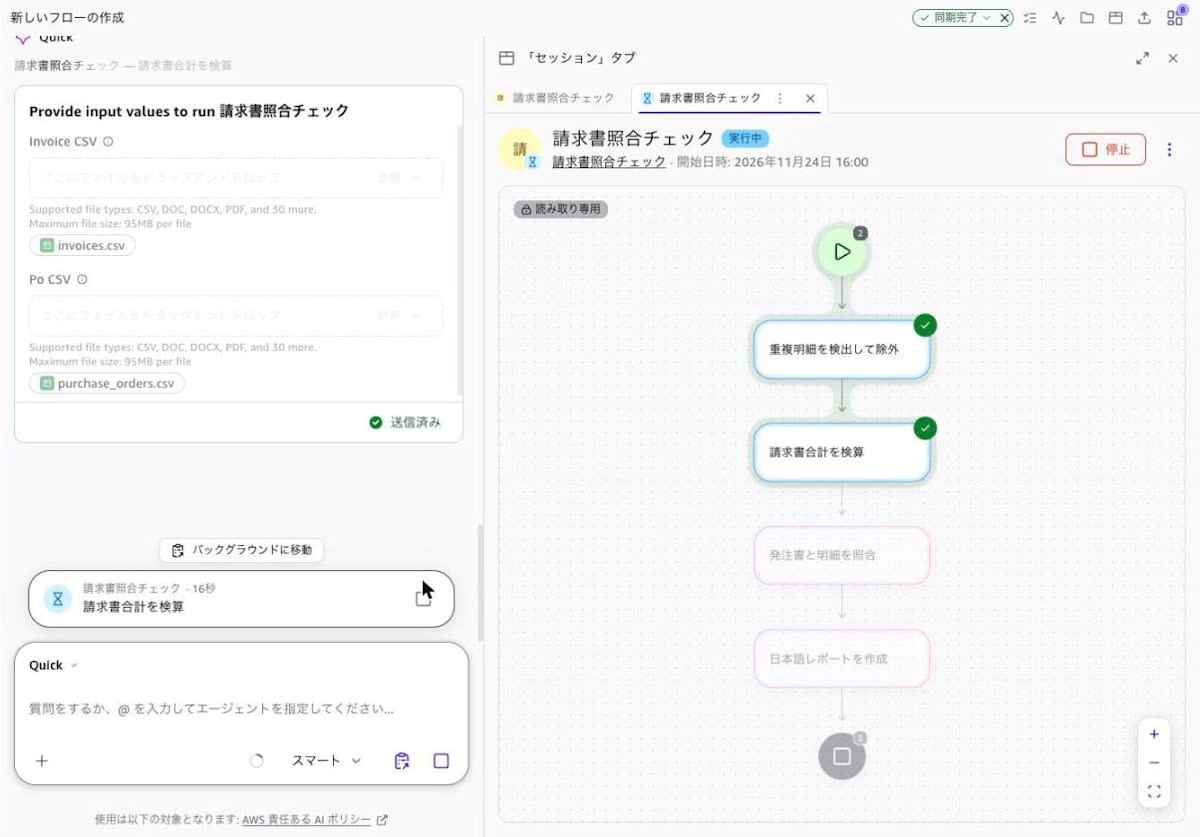
During the run, a tab for the run opens in the right panel, and on the flowchart (read-only) a check mark is added to each step as it completes.
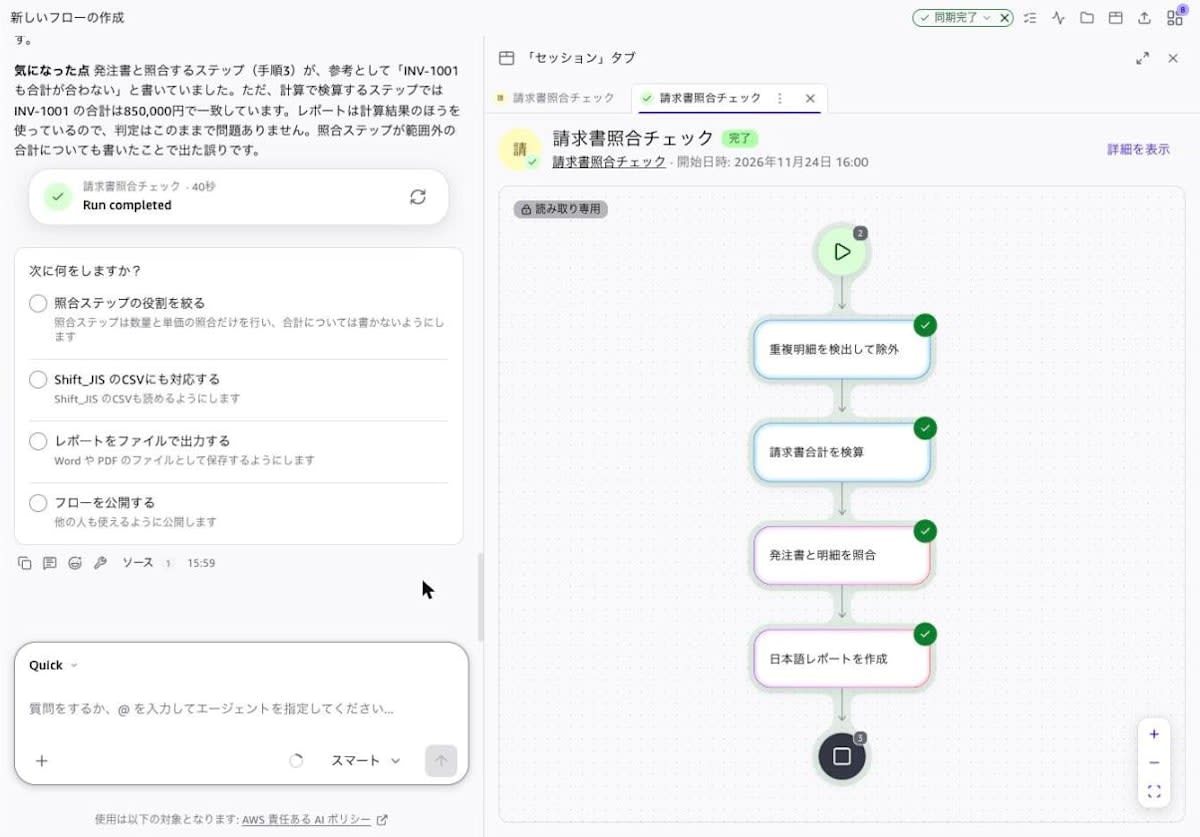
It completed in 40 seconds. The result displayed in the chat was as follows.
| Invoice ID | Vendor | Verdict | Reason |
|---|---|---|---|
| INV-1001 | Sample Trading Co. | Normal | No issues |
| INV-1002 | Test Bussan | Normal | No issues |
| INV-1003 | Fictional Solutions | Needs review | The "Maintenance support (monthly)" line item was duplicated (1 item excluded) |
| INV-1004 | Example Industries | Needs review | The total of the line items is 130,000 yen and the invoice total is 135,000 yen, a difference of 5,000 yen |
| INV-1005 | Demo Electric | Needs review | The 27-inch monitor is billed for 5 units against 4 units ordered (difference of 35,000 yen) |
The verdicts matched the expected ones.
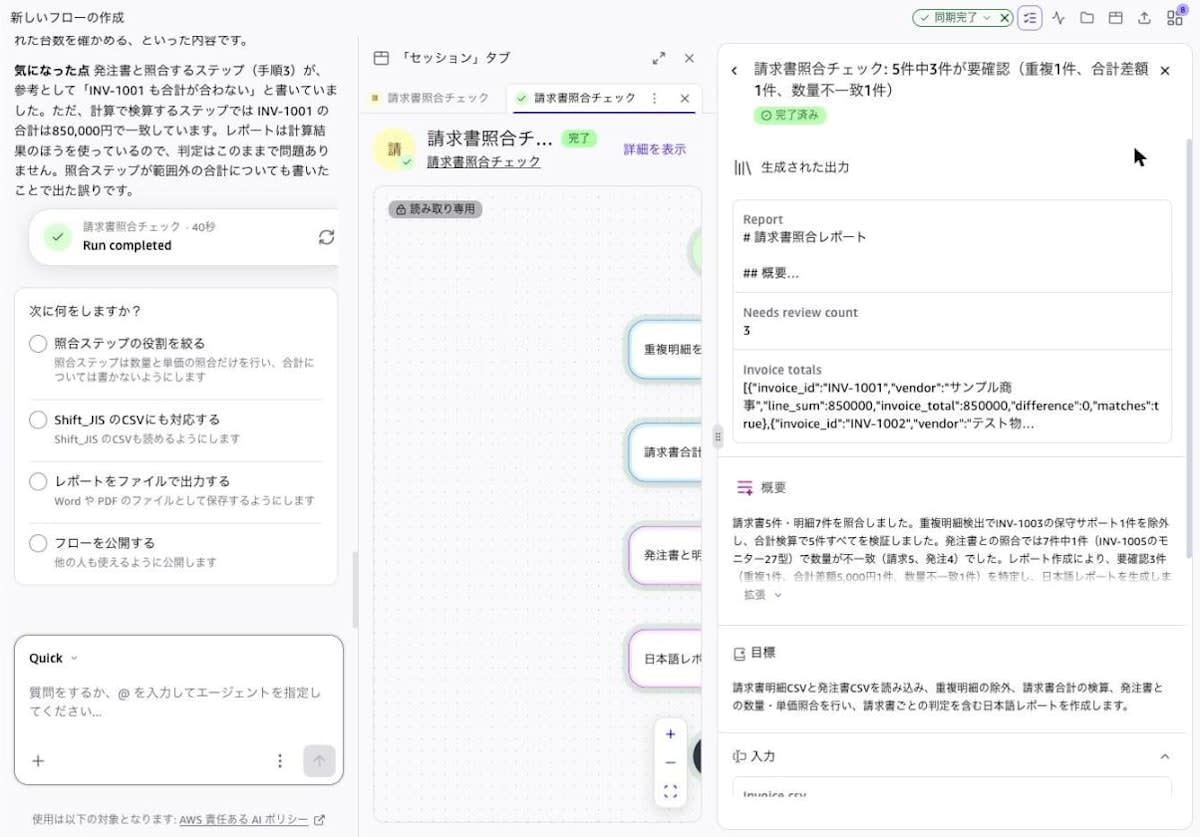
When you open "Show details", you can check the flow's outputs (Report, Needs review count, Invoice totals) and the details of each step. Invoice totals are exactly the values returned by the deterministic step, and for INV-1001 it was "line_sum":850000,"invoice_total":850000,"difference":0,"matches":true.
Checking an error in the agent step
In the chat after the 1st run, Quick wrote the following as "a point of concern".
The step that matches against the purchase orders (step 3) wrote, as a reference, that "INV-1001's total also does not match". However, in the step that rechecks by calculation, INV-1001's total is 850,000 yen and matches.
When I opened the details of step 3, the agent's summary said "Note that the line totals of INV-1001 and INV-1004 do not match invoice_total, but this is reference information outside the scope of matching." INV-1001 is 750,000 yen + 100,000 yen = 850,000 yen, which matches the billed amount. The agent in step 3 went as far as checking totals, which it had not been instructed to do, and wrote something incorrect.
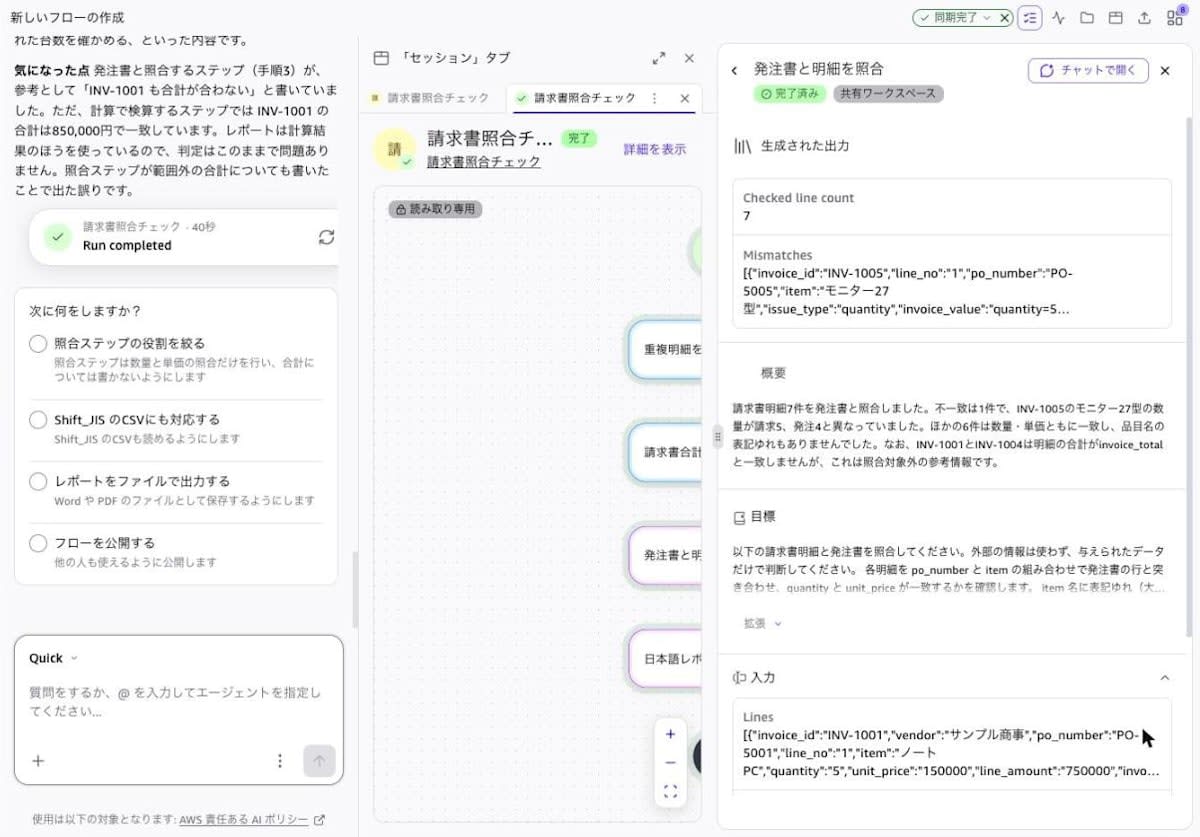
Because the report's verdicts used the deterministic step's recheck result (totals), INV-1001 was judged normal. Quick also offered, as a candidate next action, "Narrow the role of the matching step (the matching step will only match quantities and unit prices and will not write about totals)".
Checking the validation record
Below the details of step 4, "Create Japanese report", "Final answer" and "Validation: Create Japanese report" are listed as "2 steps". When I opened Validation, the verdict record was displayed.
attempt       0
criteria      レポートに請求書ごとの判定を並べたMarkdownの要約表が含まれている
              要約表に判定と理由の列がある
              要約表の判定はすべて「正常」または「要確認」のいずれかである
all_passed    true
accepted      false
aborted       false
error_kind    null
結果
PASS: レポートに請求書ごとの判定を並べたMarkdownの要約表が含まれている
PASS: 要約表に判定と理由の列がある
PASS: 要約表の判定はすべて「正常」または「要確認」のいずれかである
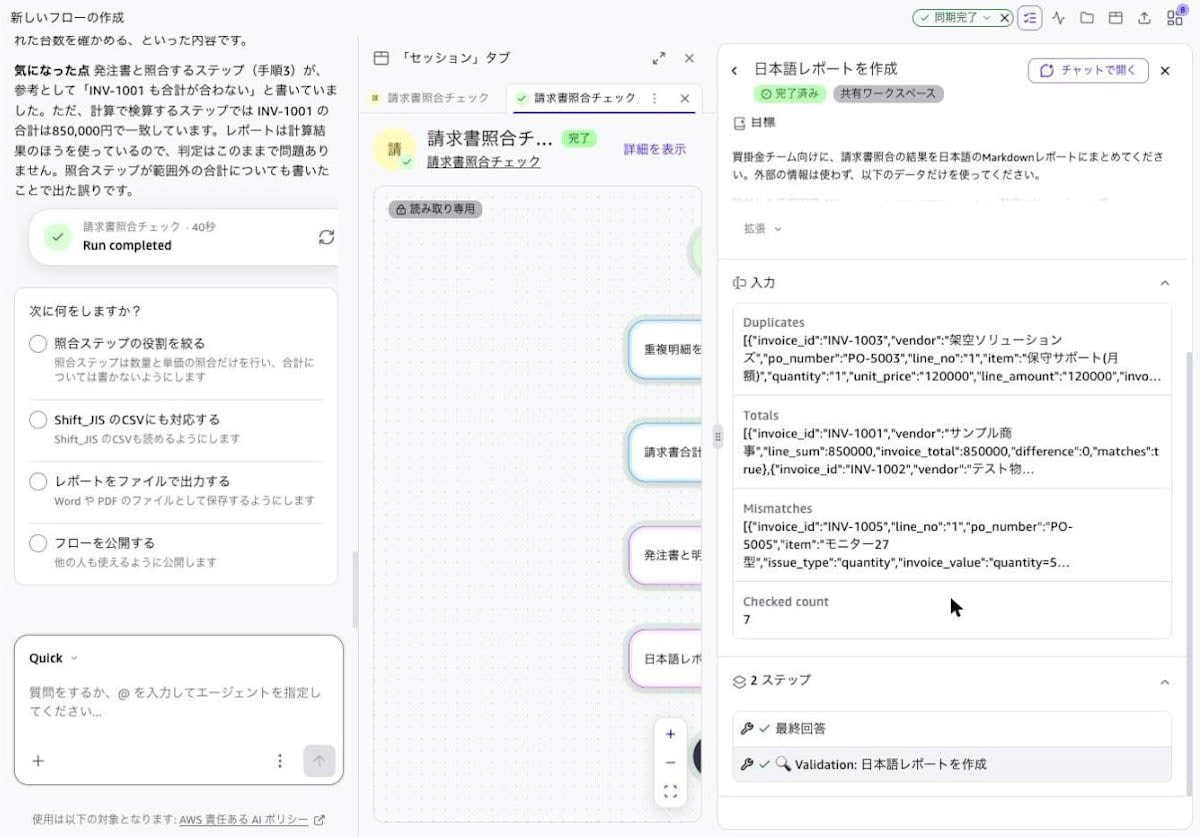
The first output satisfied all three rules, so no retry occurred (attempt was 0).
Checking validation retries (2nd time)
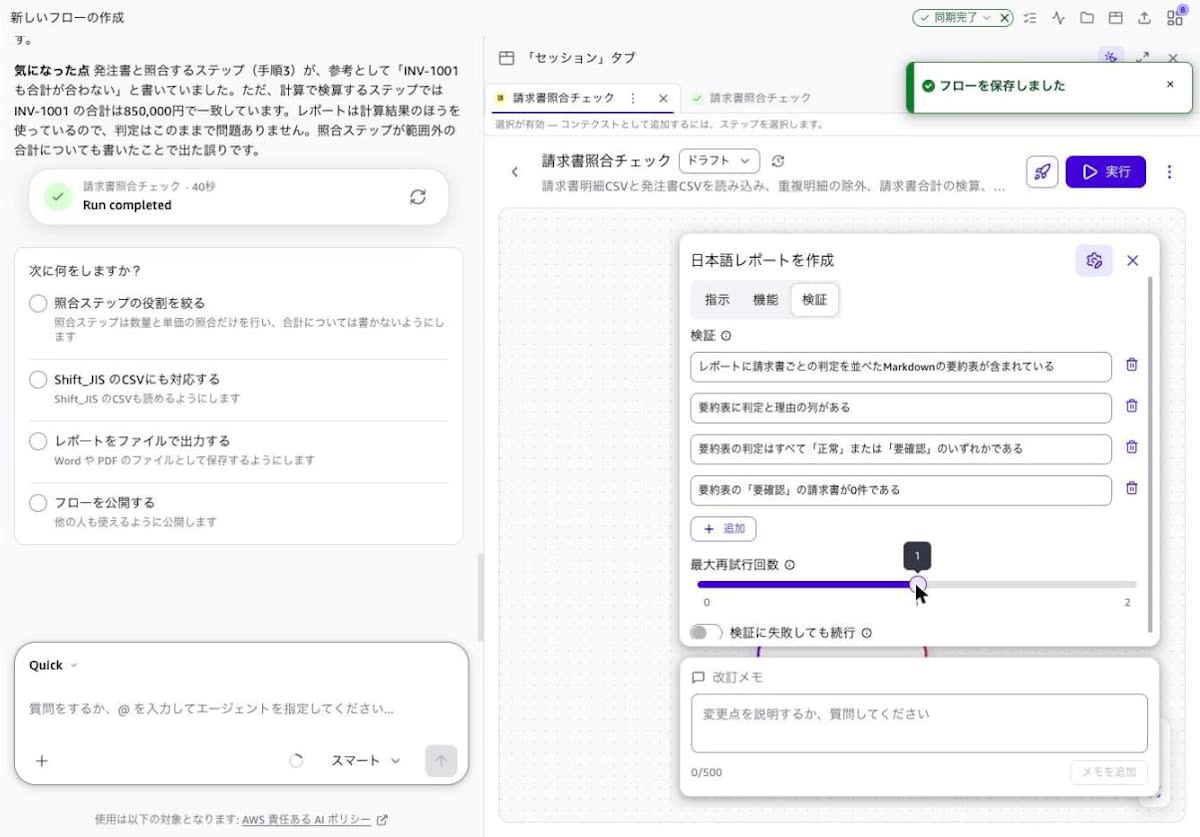
To see how retries work, I temporarily added a rule that this data cannot satisfy: "The number of invoices marked 'Needs review' in the summary table is 0". I lowered "Max retries" to 1 and left "Continue if validations fail" off. When I changed the settings on the flowchart, "Flow saved" was displayed and it was saved to the draft.
When I ran it with the same CSVs, steps 1 to 3 completed and it stopped at step 4. After 51 seconds it showed "Run failed", and the status was "Failed".
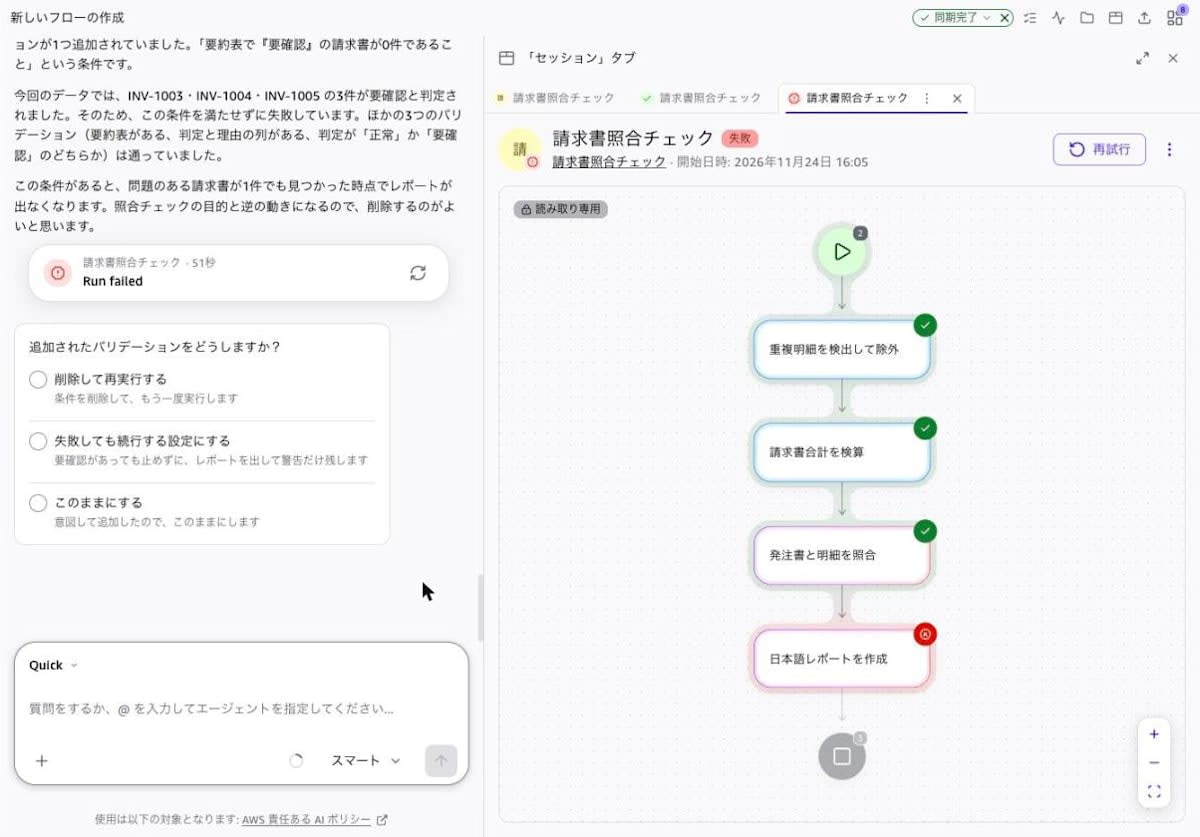
In the chat, Quick explained that the run failed because it could not satisfy the added rule and that the other three rules were satisfied, and offered three options: "Delete it and re-run", "Set it to continue even on failure", and "Leave it as is".
The details of step 4 list two pairs of "Final answer" and "Validation" as "4 steps". The records of each Validation were as follows.
| Record | attempt | all_passed | aborted | Added rule |
|---|---|---|---|---|
| 1st | 0 | false | false | FAIL |
| 2nd | 1 | false | true | FAIL |
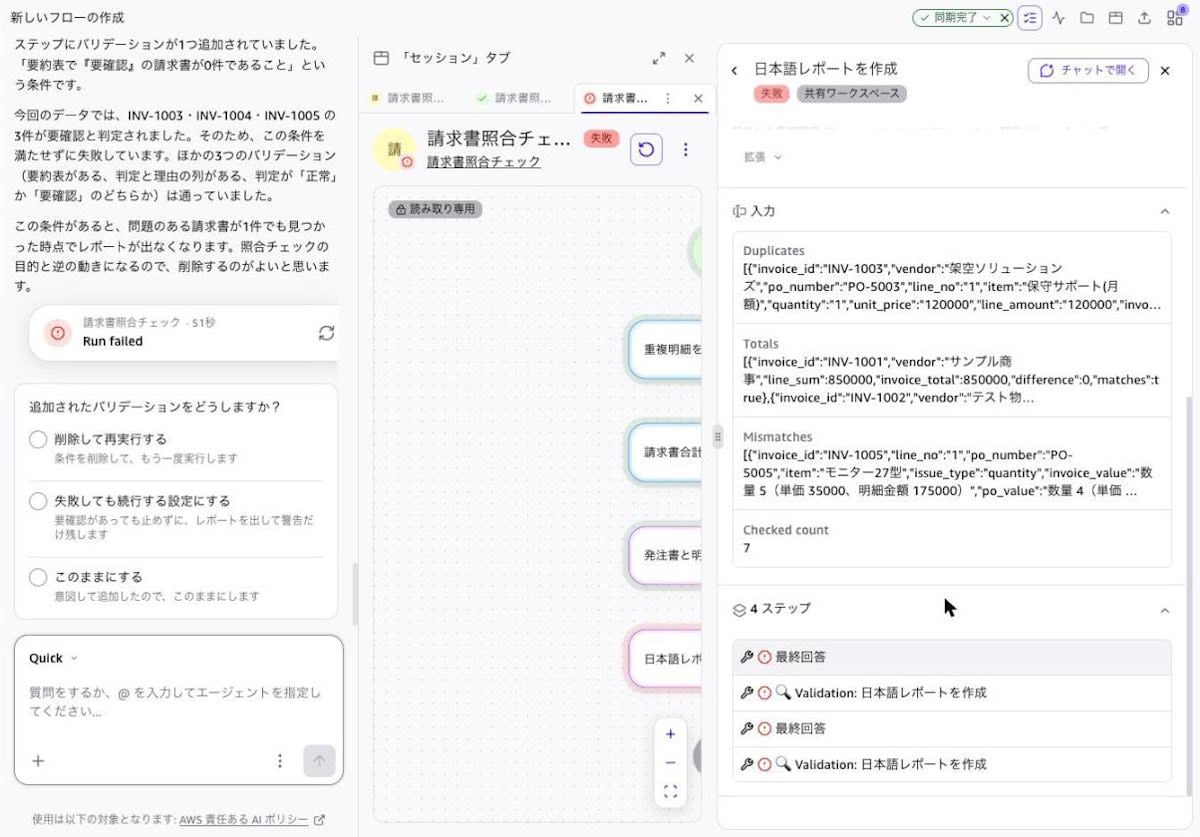
Because the first output (attempt 0) did not satisfy the rule, the step was re-run once (attempt 1); since it still did not satisfy it, aborted became true and the flow stopped. The number of re-runs was as configured by the max retries setting of 1. Both times the number of items needing review stayed at 3, and the verdicts were not rewritten in order to satisfy the rule.
The step's error contained each rule's verdict and reason in JSON (excerpt).
Failed. Error: [task_prompt] Validation failed: - validate_postconditions: [Correction] [...
{"criterion": "要約表の「要確認」の請求書が0件である", "passed": false, "reason": "Three invoices in the summary table are marked 「要確認」 (INV-1003, INV-1004 and INV-1005), so the count is not 0."}] Your final answer was rejected by post-verification. ...
The flow of the validation processing is summarized below.
Modifying the flow in chat
Next, I requested two modifications in chat.
フローを2点修正してください。1. 手順4のバリデーションから「要約表の「要確認」の請求書が0件である」を削除し、最大再試行回数を2に戻してください。2. 手順4のあとに条件分岐(Condition)を追加し、要確認の請求書が1件以上ある場合だけ、取引先ごとの確認依頼メッセージの文面を作るエージェントステップを実行してください。0件の場合は何もせずに終了してください。メッセージは送信せず、文面を出力に返すだけにしてください。修正後の実行は不要です。
The rule was deleted and the max retries was returned to 2, and after step 4 a conditional branch "Branch on whether review is needed" and an agent step "Create confirmation request text for vendors" were added. It was explained that the confirmation-request step was also set so that it cannot use web search or external connectors.
A card showing the changes was displayed in the chat, and the card had an "Undo" button. The official documentation explains that Undo is displayed for each change made in chat.
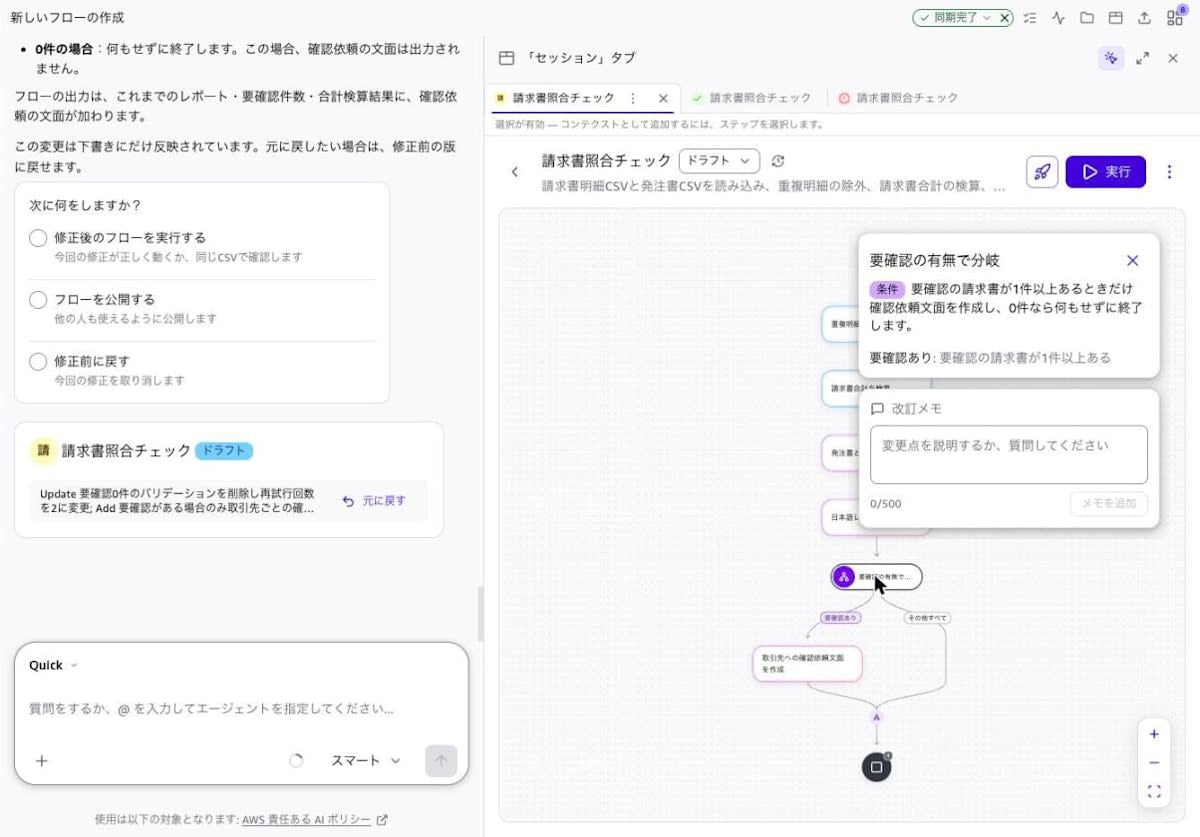
The conditional branch node had a "Condition" label, and a path "Review needed: one or more invoices need review" was displayed.
Publishing
The flow's menu ("⋮") lists "Run", "Publish", "Export", and "Share", and "Share" could not be pressed because the flow was not yet published. When you select "Publish", a dialog for entering optional release notes is displayed.
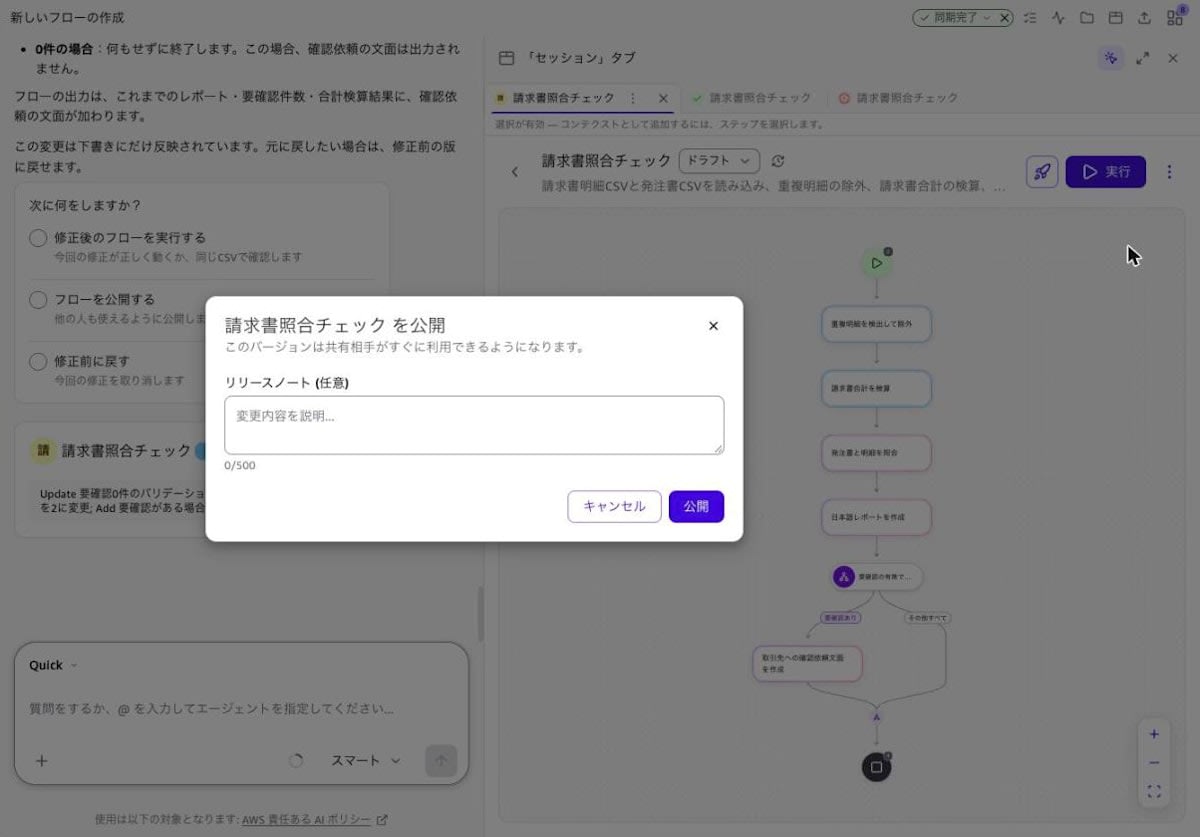
After publishing, the display changed to "Published (Live)", and the release notes and the publication date and time were shown. "Undo" disappeared from the change card in the chat. The official documentation also says that when you publish, the draft and version history are deleted and you cannot go back to a previously published version.
Checking the flow page
When you click the flow name in the "Customize" → "Flows" list, the flow page opens in a panel. There were four tabs: "Overview", "Activity", "Triggers", and "Capabilities" (Overview, Activity, Routines, and Capabilities in the official documentation).
- Overview: the flow's description and a read-only flowchart
- Activity: the two draft runs were displayed under "Completed", with titles and summaries added by Quick
- Triggers: "It will appear here when you create your first routine" and a "Create routine" button
- Capabilities: "This flow has no defined resource dependencies."
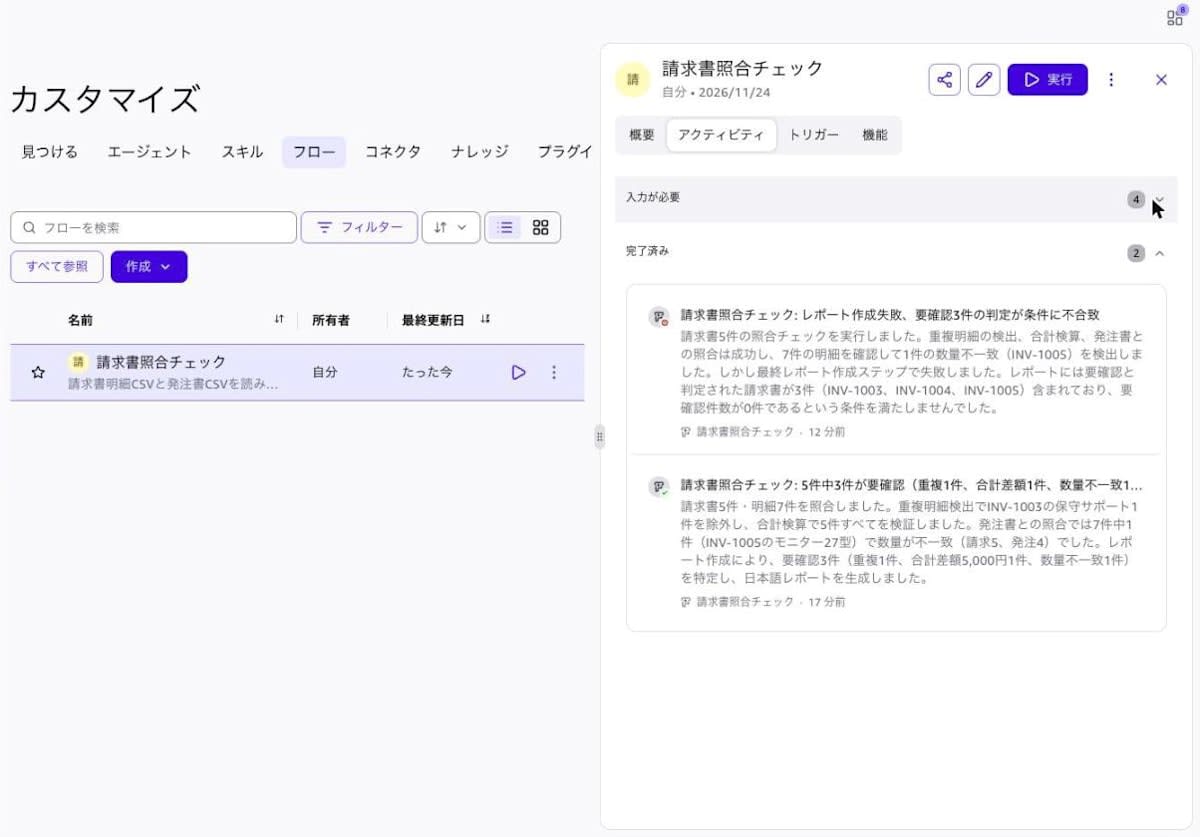
In Activity, the failed 2nd run was titled "Invoice Reconciliation Check: Report creation failed, verdict of 3 items needing review did not meet the condition", and the 1st run was titled "Invoice Reconciliation Check: 3 of 5 need review (1 duplicate, 1 total difference, 1 quantity mismatch…".
Discussion
Leave calculations to deterministic steps
The biggest finding this time was that in the 1st run, the agent step went as far as checking totals that it had not been instructed to check, and wrote an incorrect statement that INV-1001's total does not match. In the same run, the deterministic step's code calculated INV-1001's total correctly. Because the report used the deterministic step's result for its verdicts, the final verdicts remained correct.
If you leave processing whose procedure is fixed and whose result is uniquely determined, such as recalculating totals and detecting duplicates, to deterministic steps, and pass those results as inputs to agent steps, the verdicts are less likely to be affected even if the agent writes an incorrect value. It would be good to state explicitly in the agent step's instructions the scope it is responsible for (in this case, only matching quantities and unit prices).
The code of a deterministic step is written by Quick and cannot be edited from the screen. Since you can check the contents of the code on the screen, I recommend reading the code before publishing to confirm that the calculation method (in this case, summing with Decimal and the key used to determine duplicates) is as intended.
Records of validation attempts
In the step details, validation verdicts were recorded for each attempt, and I could check PASS / FAIL and the reason for each rule. When I ran with max retries of 1, there were two attempts, attempt 0 and 1, so the upper limit of attempts is "the first attempt + the number of retries".
The max retries slider on the screen ranged from 0 to 2. The default in the official documentation is 1, but when I created the flow in chat, Quick set it to 2.
Rules are written in natural language. The reasons for verdicts were returned as English sentences. If you include a rule that cannot be satisfied depending on the output, like "0 items need review" this time, retrying gives the same result, and the flow fails while consuming agent time. It seems best to use validation for quality checks (there is a table, the columns are present, a value is one of the predetermined choices), and to express business judgments with deterministic steps and conditional branches.
Creating and modifying in chat
When creating in chat, Quick decided and stated explicitly the points I had not written in the request (character encoding, handling of variations in item name notation, the output format), and wrote that it would change them if needed. When I requested modifications, too, an explanation of what was changed and "Undo" were displayed. Changes to settings made on the flowchart were also saved automatically to the draft.
On the other hand, when you publish, the draft and version history are deleted and you cannot go back to a previously published version. The official documentation says that if you want to modify a flow after publishing, you create a new draft with "Copy to draft". It's safer to run a test before publishing and keep records of the screens you need.
If you are using existing flows
Existing flows keep running as the old version until the owner upgrades and republishes them, and the screen showed that for routines and ad hoc runs, the old version is used until March 1, 2027. If you have flows running regularly as routines, you need to plan the upgrade and operation checks before the deadline.
Cost and what was not checked this time
Running a flow consumes agent time. On the pricing page, up to 8 hours of agent time per month per user is included for Professional and up to 18 hours per month for Enterprise. The 1st run this time took 40 seconds and the 2nd took 51 seconds, but I did not check the amount of agent time consumed.
Because I verified only on the web screen this time, I did not check the following points.
- Local files and browser operations in the desktop app, and starting flows and checking progress from the mobile app
- Creating documents, spreadsheets, and presentations and saving them to a space
- The flow logic of Match, Loop, While, and Parallel
- Scheduled runs with routines, sharing, publication approval, and processing of long-running or large-volume data
Conclusion
In AWS Quick Flows, I tried creating a flow from chat, deterministic steps, and validation. When I wrote out numbered steps and made the request, a flow with two deterministic steps, two agent steps, and three validation rules was created, and it returned the expected verdicts.
During verification, the agent step wrote an incorrect statement about totals, while the deterministic step's code calculated correctly. With this update, you can now build a division of roles like this: assign processing whose result is uniquely determined, such as numerical calculations and duplicate detection, to deterministic steps; assign matching judgments and text creation to agent steps; and check the format of the agent's output with validation.
Both the deterministic step's code and the validation attempt records can be checked on the screen. If you want to automate routine work that demands accuracy, such as invoice matching, prepare expected values with a small amount of data, run a test, check the output of each step, and then try publishing.