
[Update] Plugins that let you install agents, skills, connectors, and flows all at once are now available in AWS Quick, so I tried them out

This page has been translated by machine translation. View original
I'm Ishikawa from the Cloud Business Division. AWS Quick now supports "plugins," which let you install agents, skills, connectors, and flows together as one bundle. Today, I'll try everything from installing an official plugin to creating, publishing, and deleting a custom plugin!
It was announced that AWS Quick now supports plugins. Many business tasks use multiple capabilities at the same time. The "capabilities" here are four things: connectors that connect to the systems used in your work, skills that describe how your team gets work done, agents that think through and carry out tasks, and flows that run processes in sequence. A plugin bundles these together, so you can install the capabilities needed for your work in a single step.
As examples of official plugins provided by AWS, the announcement introduces Calendar and Meetings Assistant, which "helps with scheduling before time off and creating action items from meeting notes," and Sales Development, which "covers everything from researching prospects to outreach and drafting proposals." More than 100 skills and plugins are available for everyday work, job functions such as finance, marketing, and legal, industries, and commonly used business applications.
You can also create custom plugins for teams, departments, and organizations. When you describe your work in chat, Quick assembles the plugin, and you can share the plugin you create with team members. Plugins are available in all Regions where AWS Quick is available.
What are plugins in AWS Quick?
A plugin in AWS Quick is a package of the capabilities needed for a role, team, or task. A plugin can include up to 50 capabilities in total across the following four types.
| Capability | Description |
|---|---|
| Agent | An AI that you configure with instructions, knowledge, and tools to answer questions and carry out tasks |
| Skill | Reusable instructions that teach an agent how to perform a specific task |
| Connector | Connects to external applications and services to retrieve data and perform operations |
| Flow | A multi-step workflow that automates repetitive work |
A plugin you own has two versions: Draft and Published. Your edits are saved to the Draft and do not affect installed copies. Publishing replaces the published version. You need to Publish before sharing, and you can choose to share with specific users or the whole account. Installed plugins automatically follow the owner's published version, and when the owner Publishes again, the update is reflected for the people it's shared with. If you don't want to be affected by changes, duplicate the plugin and use it as a separate plugin that you own. Connector sign-in credentials are not shared; each user signs in with their own account.
There are two roles for a plugin: Owner and Viewer. Owners can edit, publish, share, duplicate, and delete, while Viewers can install, uninstall, and duplicate. Administrators can restrict "Plugins" and "Share plugins with individuals" in Custom permissions.
Trying it out
Prerequisites
- An AWS Quick account (Enterprise edition)
- Test environment: ap-northeast-1 (Tokyo Region)
Checking the catalog of official plugins
Open "Customize" from the left menu and select the "Plugins" tab. The URL is https://<region>.quicksight.aws.amazon.com/sn/account/<account name>/start/customize?tab=plugins. At the start of my testing, there were no plugins at all.
Clicking "Browse all" opens the catalog. In my test account, 22 official plugins were displayed. Most were created by AWS, and there is also a plugin created by Informatica. You can filter the catalog by provider, industry, role, and owner.
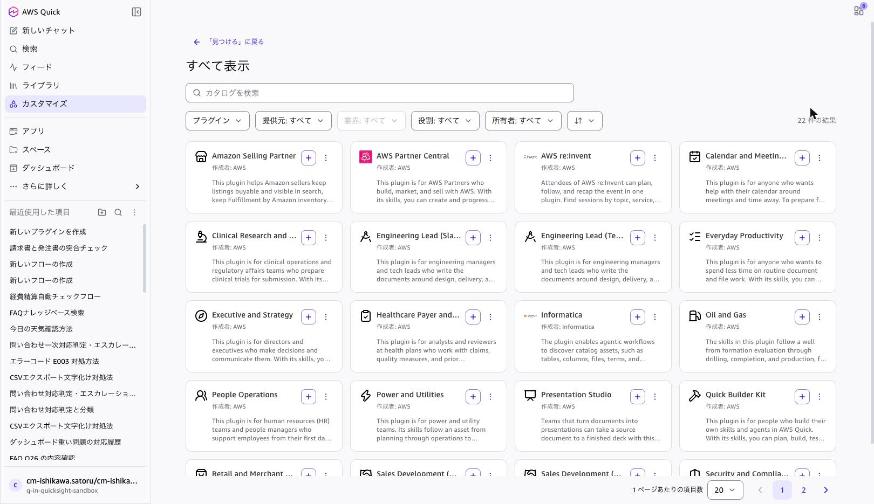
Opening the detail page of Calendar and Meetings Assistant, which was introduced in What's New, showed 3 skills (OOO Setup, Meeting Notes to Actions, Standup Summarizer) and a Microsoft Outlook connector (required). Since I wanted to try a plugin that doesn't need a connector this time, I chose Everyday Productivity.
Installing Everyday Productivity
The detail page of Everyday Productivity shows a list of the capabilities included in the plugin. It includes the following 8 skills, and no connectors.
- Meeting Notes to Actions (creates decisions and action items from meeting notes)
- Document Comparison (compares two documents)
- Markdown to DOCX (converts Markdown to Word)
- Microsoft Document Translator (translates Word and PowerPoint while preserving formatting)
- File Organizer (suggests how to organize folders)
- Desktop Cleanup (organizes the desktop)
- Research Paper Digest (summarizes papers)
- Teach Me (creates quizzes from materials)
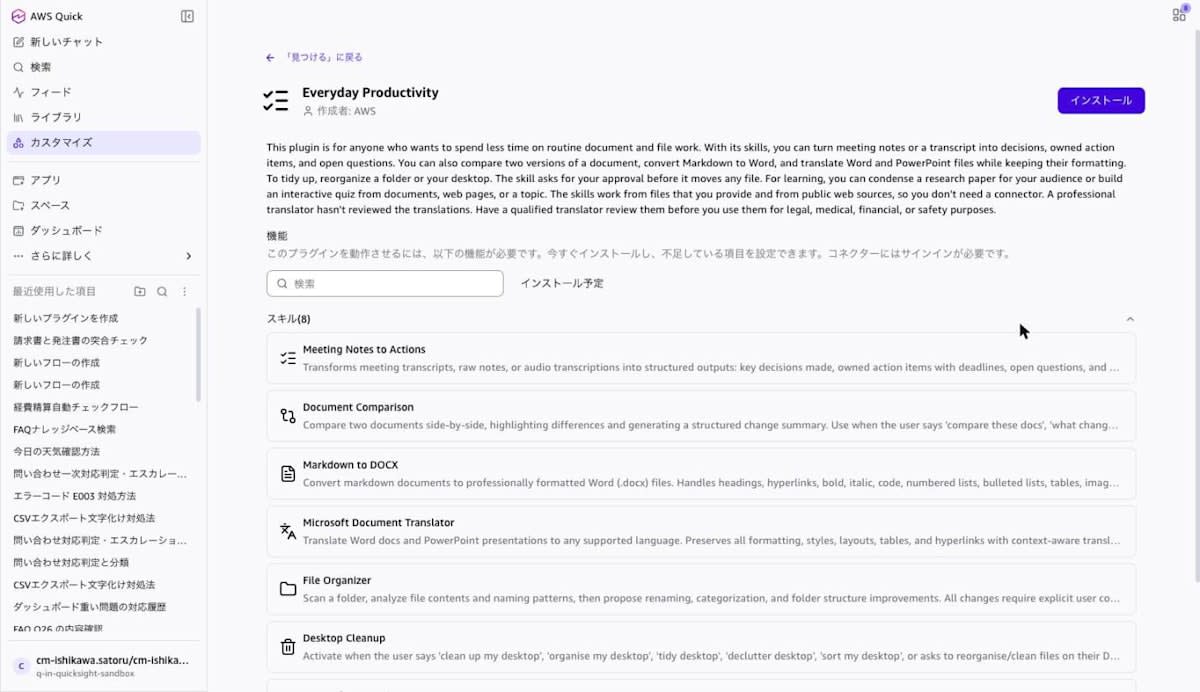
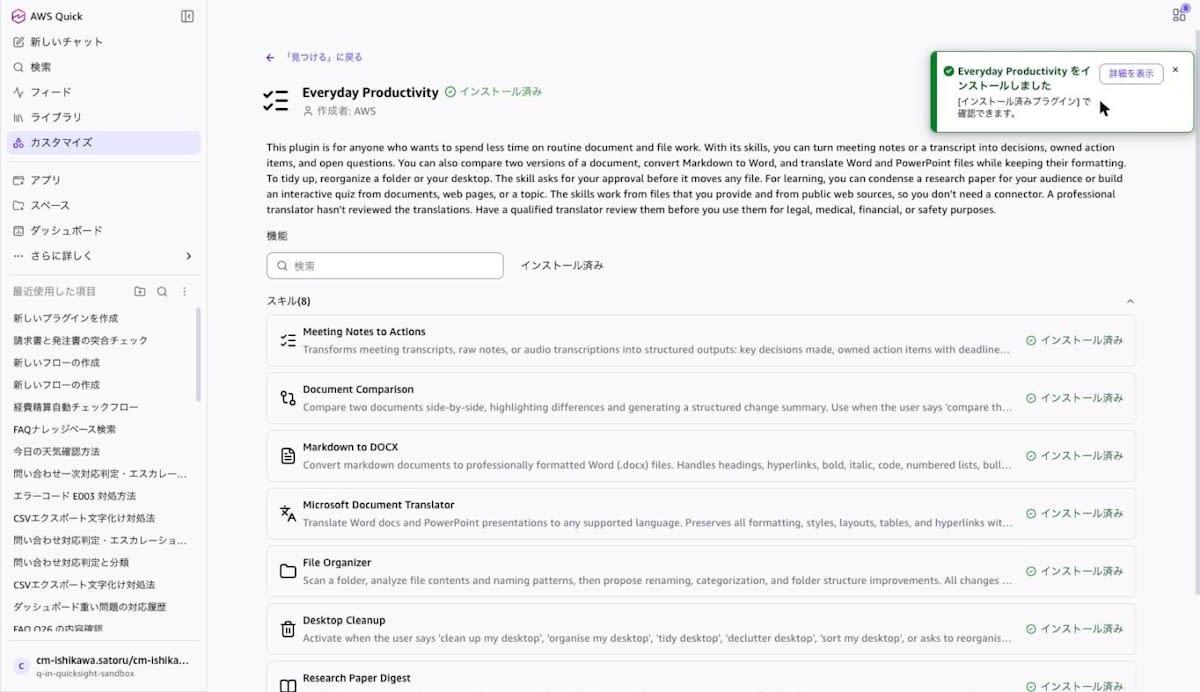
When I clicked "Install," the installation completed without a confirmation screen. All skills showed "Installed."
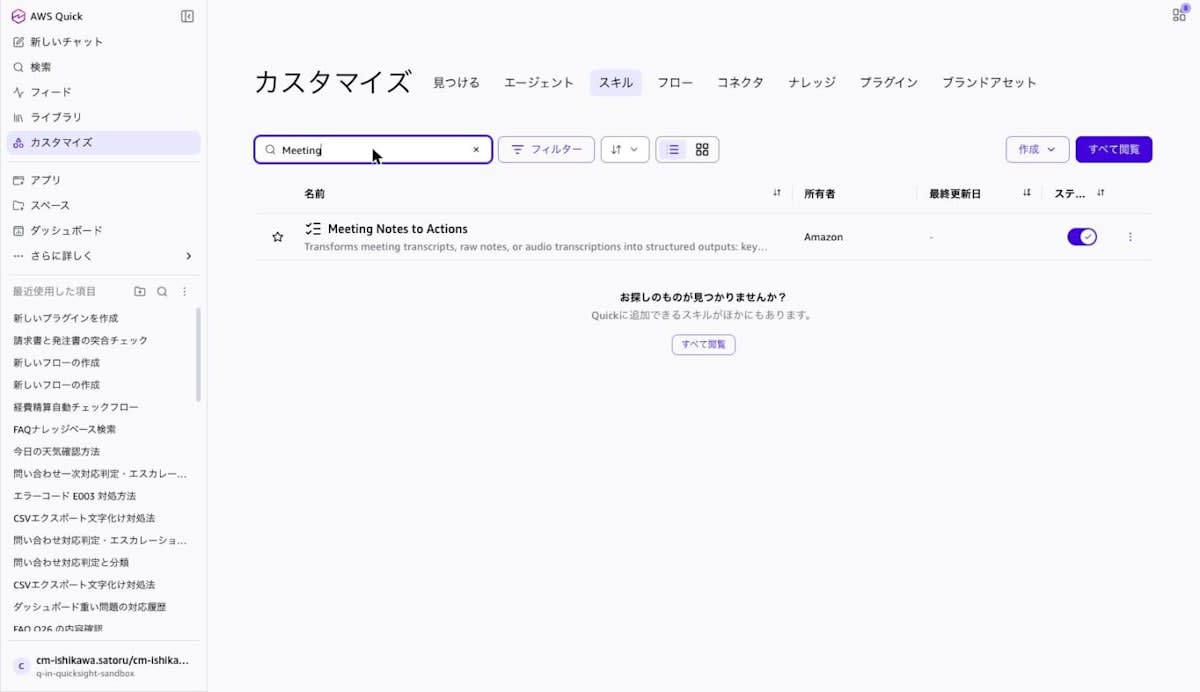
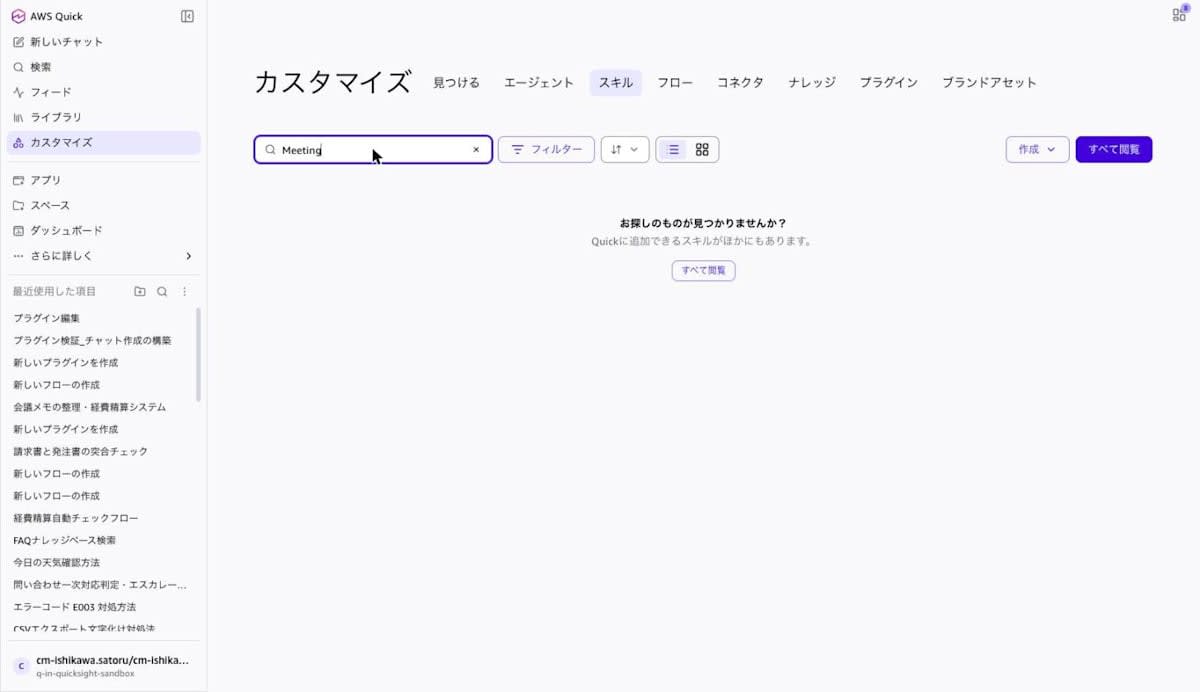
Searching for "Meeting" in the "Skills" tab showed Meeting Notes to Actions as a skill owned by Amazon. The skills included in the plugin were added to the skills list.
Using the installed skill in chat
I opened a new chat and sent the following request. I did not specify a skill name.
以下の会議メモから、決定事項・担当者と期限付きのアクションアイテム・未解決の質問を日本語で整理してください。【会議メモ、11/20 定例ミーティング(参加: 田中、佐藤、鈴木)。新しい経費精算システムは12月から試験運用することに決定。佐藤さんが11/28までに試験運用の手順書を作成する。鈴木さんが対象部署向けの説明会を12/2に開く。交通費の上限をいくらにするかは未定で、田中さんが次回までに経理部に確認する。試験運用の対象部署を営業部だけにするかは結論が出なかった。
Opening "Check context" above the response showed "Loading skill 'Meeting Notes to Actions'." The installed skill was selected based on the content of the request.
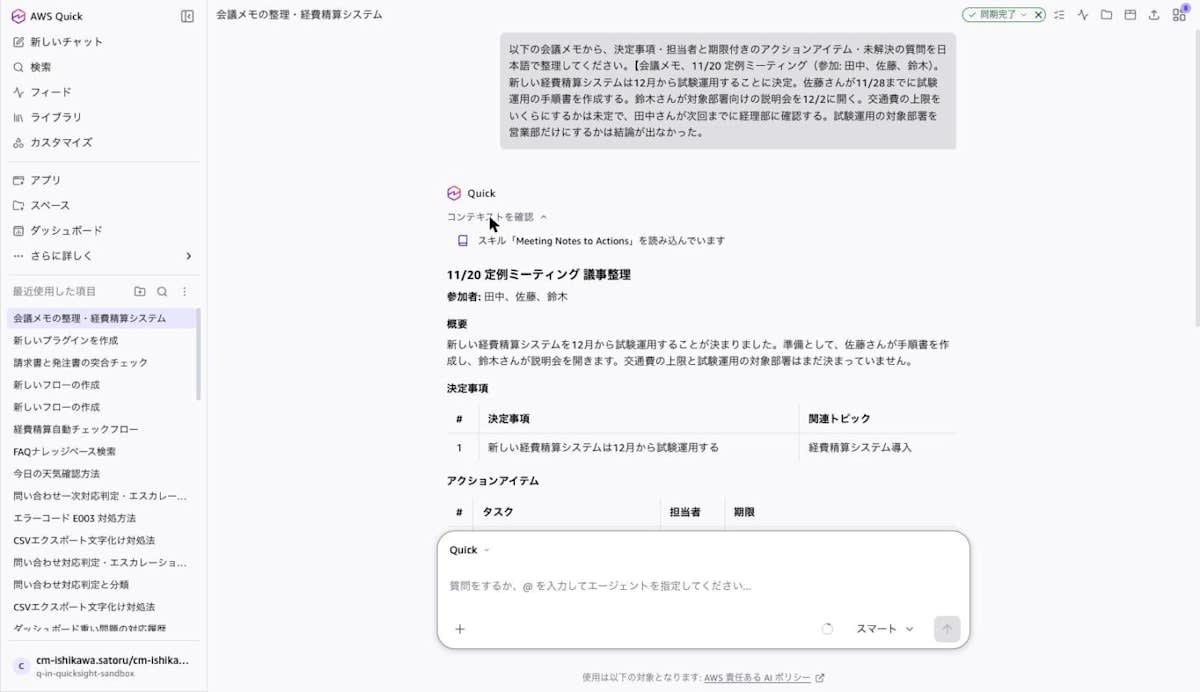
The response contained three tables: "Decisions," "Action items," and "Unresolved questions." The action items table is as follows.
| # | Task | Owner | Deadline |
|---|---|---|---|
| 1 | Create the trial operation manual | Mr./Ms. Sato | 11/28 |
| 2 | Hold an information session for the target departments | Mr./Ms. Suzuki | 12/2 (date held) |
| 3 | Confirm the transportation cost cap with the Accounting Department | Mr./Ms. Tanaka | By the next meeting (no date stated) |
The table of unresolved questions is as follows.
| # | Question | Next step |
|---|---|---|
| 1 | What the transportation cost cap will be | Mr./Ms. Tanaka will confirm with the Accounting Department and report at the next meeting |
| 2 | Whether to limit the trial's target departments to Sales only | No conclusion was reached. The owner and next step have not been decided either |
Finally, it also included a note: "The information session is planned for 'the target departments,' but the target departments (unresolved question 2) have not been decided yet. This needs to be decided before the 12/2 session."
Preparing a skill and a flow to put in the custom plugin
I newly created a skill and a flow dedicated to this test to put in the custom plugin. The reason I didn't use existing skills or flows was to check what remains when I later uninstall or delete things.
Skill
"Create" in the "Skills" tab offers three options: "Create with AI," "Create from file (.md or .zip)," and "From folder." To fix the name and content, I uploaded the following SKILL.md using "Create from file."
---
name: プラグイン検証_議事録整形
description: 会議メモを社内の議事録テンプレート(件名・日時・参加者・決定事項・ToDo・確認事項)に整形する。「議事録テンプレートに整形して」「社内形式の議事録にして」と依頼されたときに使う。
---

# 議事録整形

会議メモを次の形式に整形する。

## 出力形式

- 件名: 【議事録】<会議名>(<日付>)
- 日時
- 参加者
- 決定事項(箇条書き)
- ToDo(「担当者: 内容(期限)」の形式)
- 次回までの確認事項

## ルール

- 会議メモに書かれていない内容は追加しない
- 期限が書かれていない ToDo は「期限: 未定」と書く
After uploading, the following error was displayed.
Error uploading skill: No skills could be installed from the upload. skill-SKILL.md: invalid name 'プラグイン検証_議事録整形'. Names must use only lowercase letters, numbers, hyphens, and underscores (e.g. 'my-skill-name'). Add a YAML frontmatter block with 'name: valid-name' to fix.
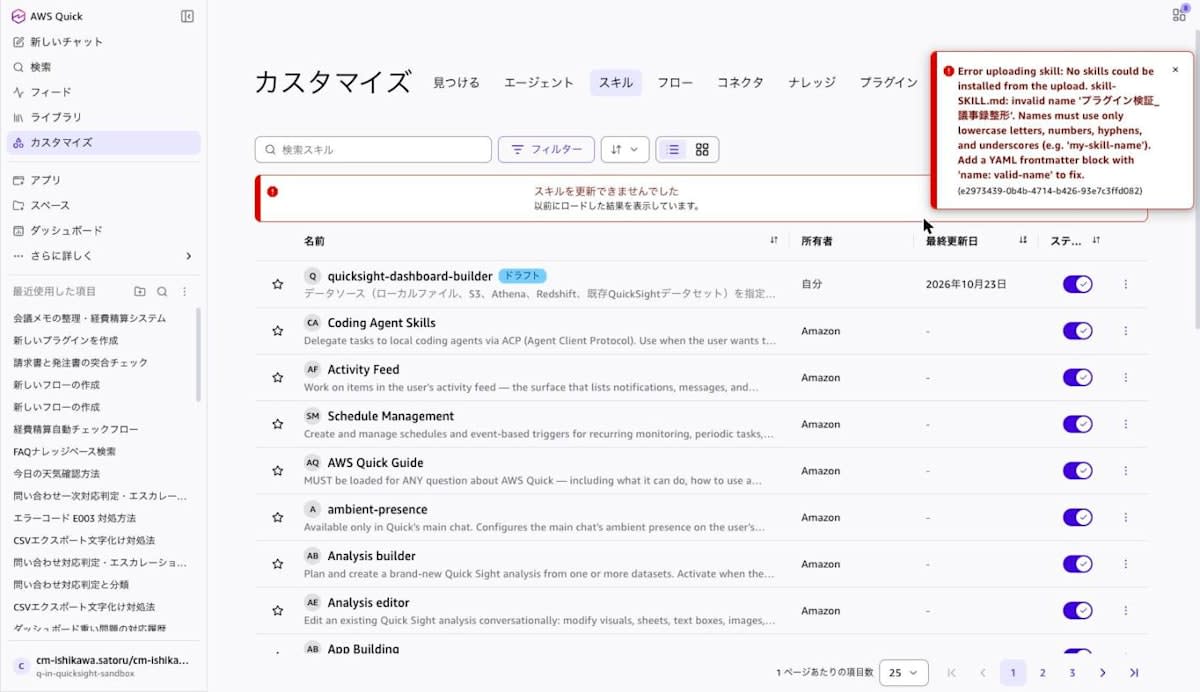
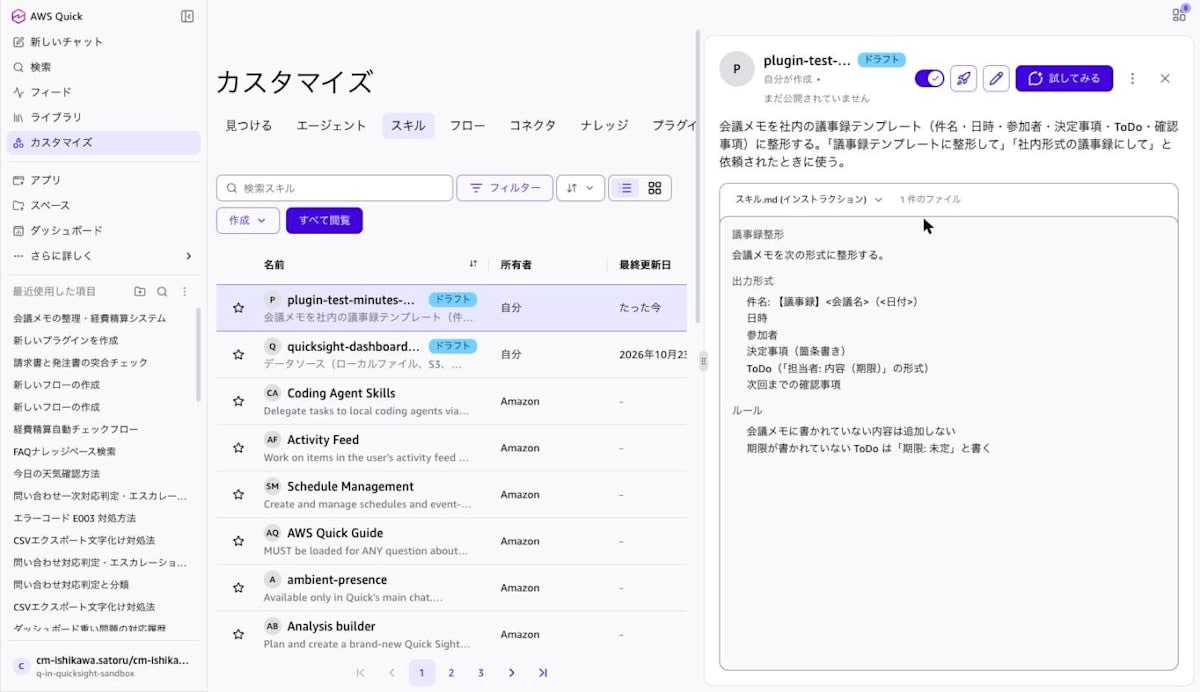
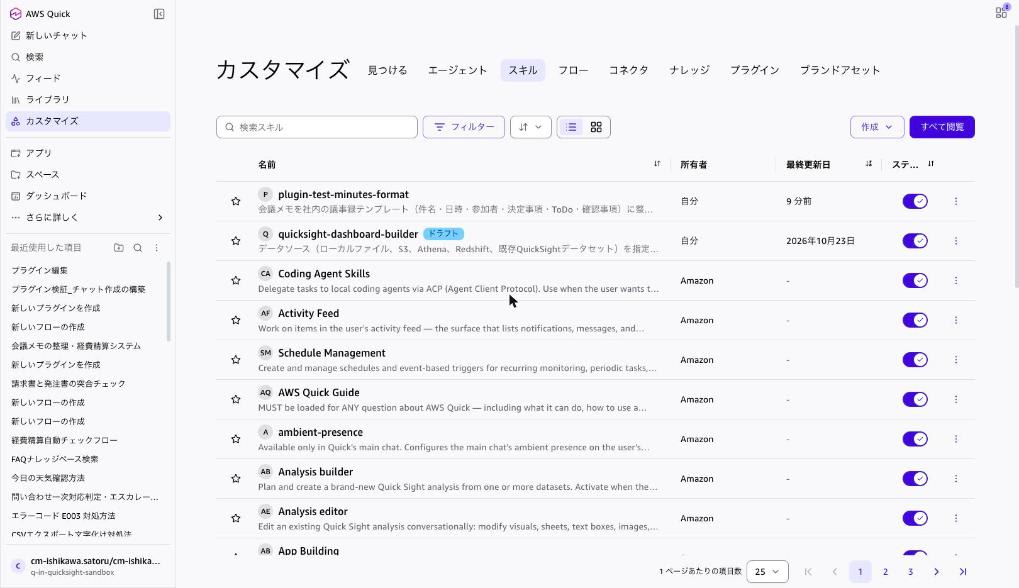
The skill name can only use lowercase letters, numbers, hyphens, and underscores. When I changed name to plugin-test-minutes-format and uploaded again, it was created as a draft skill. The description and body could stay in Japanese without any problem.
Flow
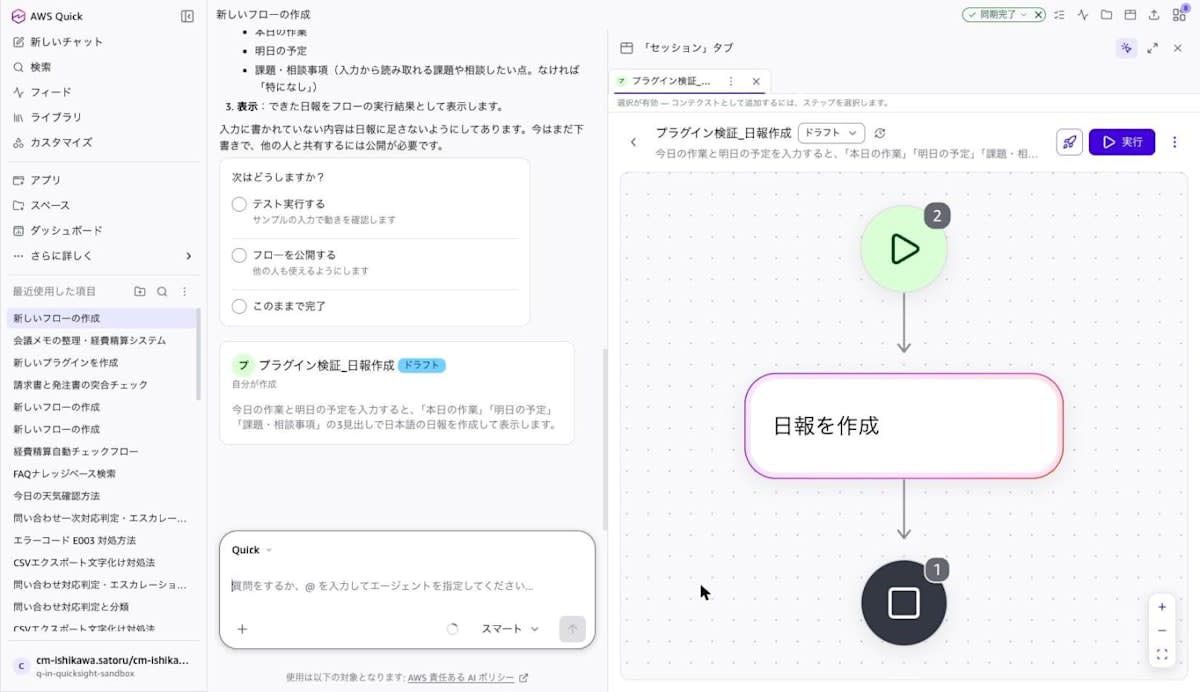
"Create" in the "Flows" tab offers only "Create with AI." Selecting it opens a chat and loads the skill "Flow Builder." I described the flow I wanted as follows.
フロー名は「プラグイン検証_日報作成」にしてください。1. ユーザーに今日やった作業と明日の予定を入力してもらう 2. 入力内容から「本日の作業」「明日の予定」「課題・相談事項」の3つの見出しで日報を日本語で作成する 3. 作成した日報を表示する。コネクタや外部サービスへの送信は使わないでください。
A flow consisting of three nodes—start, "Create daily report," and end—was created as a draft. Japanese could be used in the flow name.
Creating a plugin in chat
In a new chat, I asked it to create a plugin bundling the skill and flow I had created.
「プラグイン検証_チャット作成」という名前のプラグインを作ってください。会議の議事録づくりと日報作成を支援するチーム向けのプラグインです。スキル「plugin-test-minutes-format」と、フロー「プラグイン検証_日報作成」を含めてください。新しいスキルやエージェントは作らず、コネクタも追加しないでください。公開と共有はまだしないでください。
The skill "Plugin Builder" was loaded, but the plugin was not created. The response said "the two items you specified did not appear in the list of things that can be added to a plugin," and explained that "only skills that you own and that are published can be included in a plugin." This was because both the skill and the flow were still drafts.
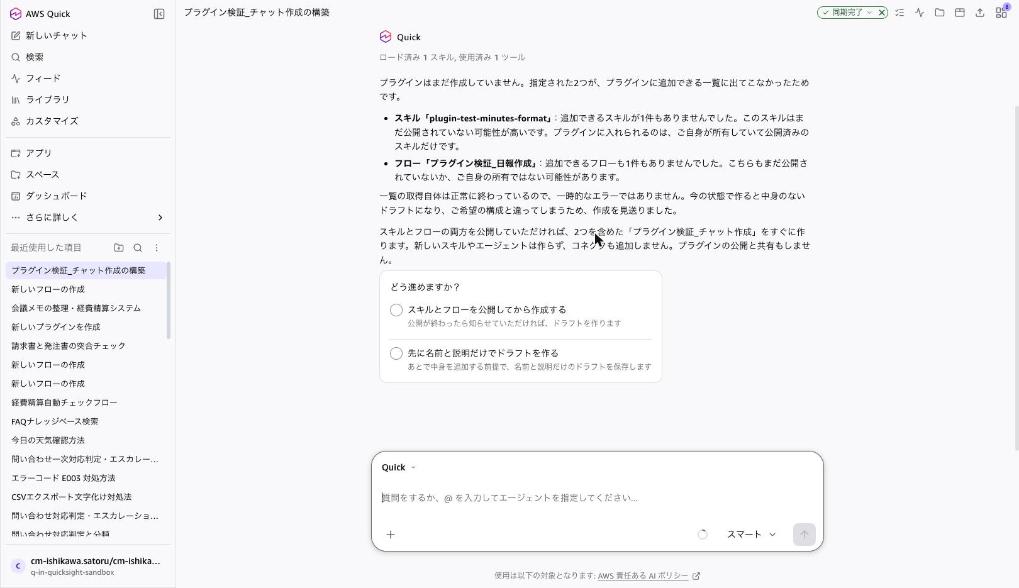
So I published the skill and the flow. The skill's publish dialog displays "Once published, anyone you share it with can use this version." There was also an option "Installed by default," but I published with it left off. I did not share the skill.
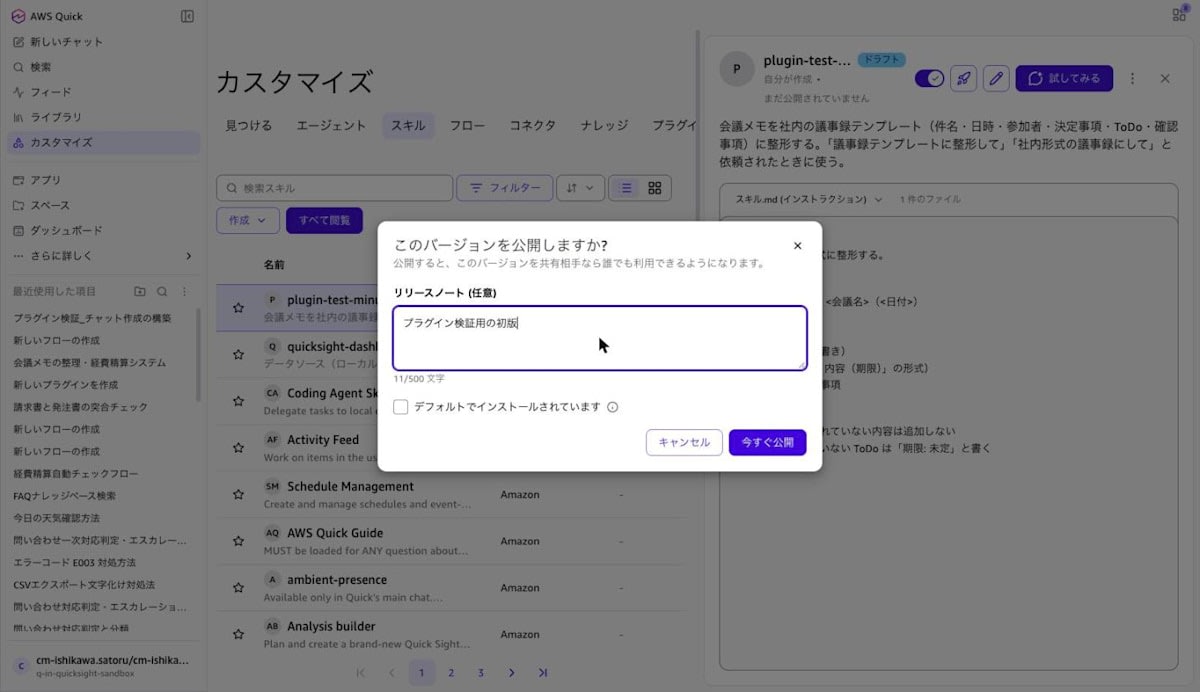
When I told it in the same chat, "I published both the skill and the flow," and asked again, the flow could now be added, but the skill did not appear as a candidate. Even after waiting a little and selecting "Check again and then create," the result was the same.
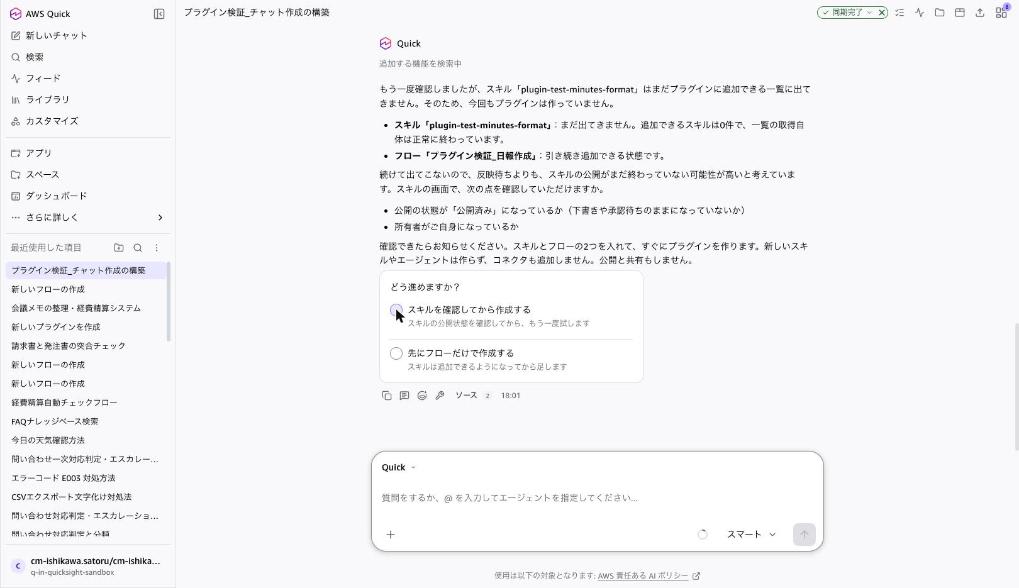
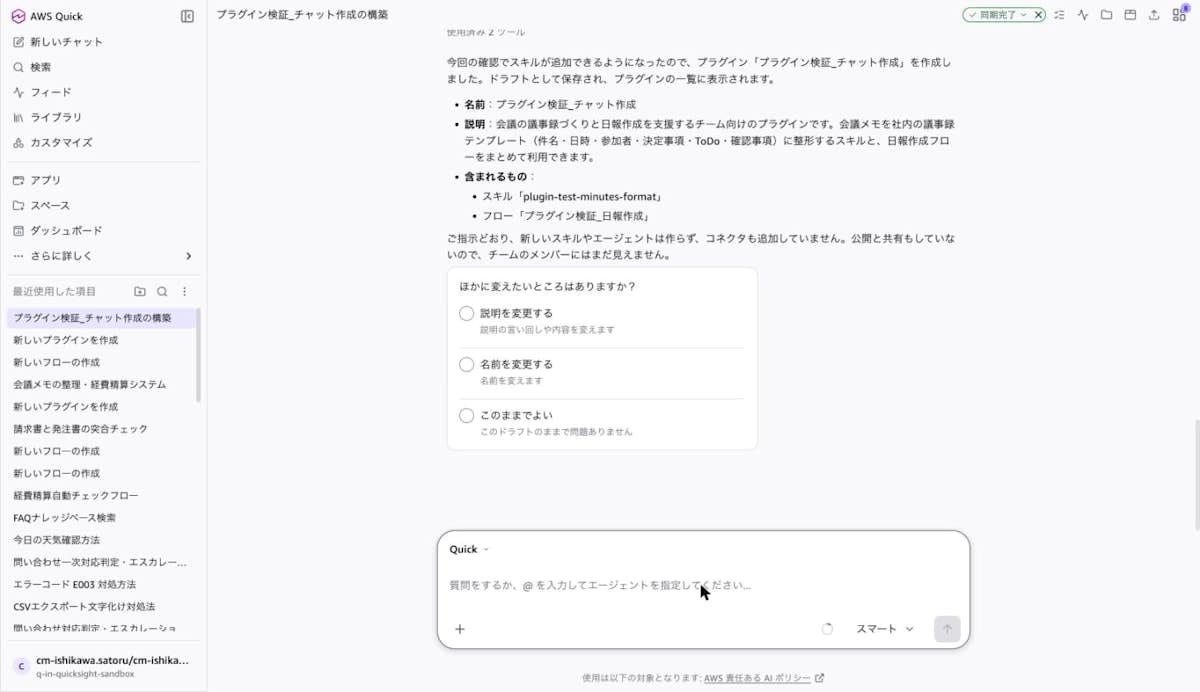
At this point, I was already able to select this skill on the creation screen described below. When I said for the third time, "The skill is published and I am the owner. It is displayed on the creation screen," the plugin was created this time. This was about 5 minutes after publishing the skill. Whether it was reflected as time passed or the result changed because I told it the situation was not isolated in this test.
Creating a plugin from the creation screen
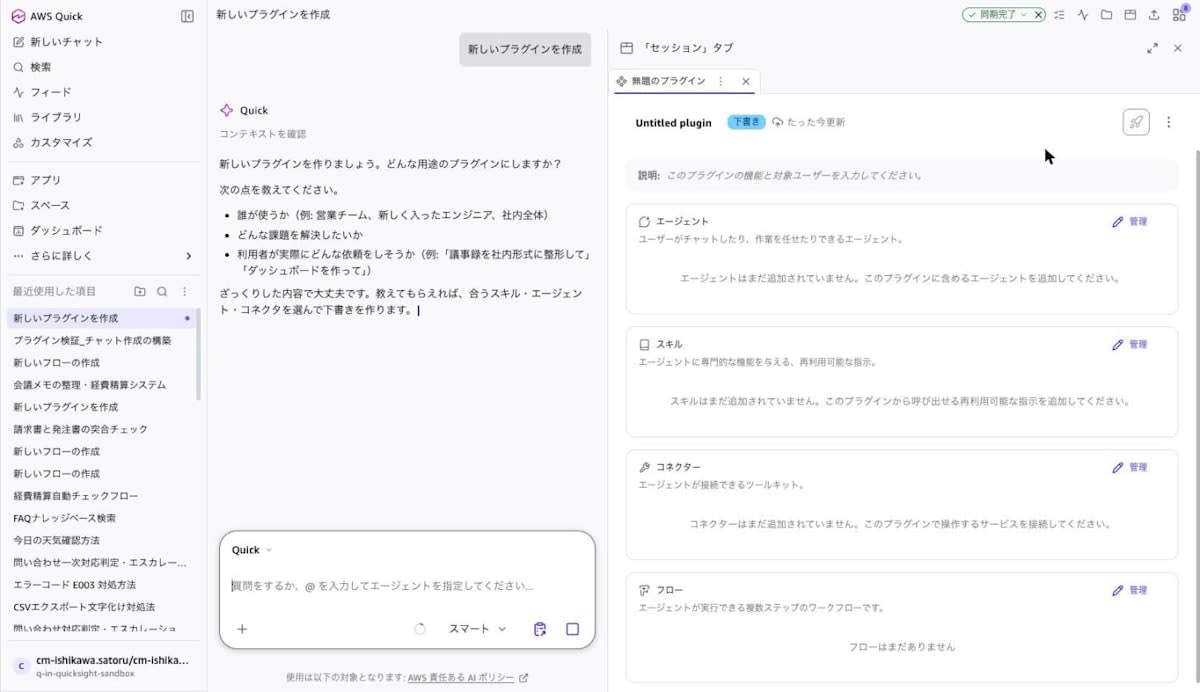
Clicking "Create" in the "Plugins" tab opens a chat on the left and the plugin editor on the right. The editor has four sections—"Agents," "Skills," "Connectors," and "Flows"—and you add items from "Manage" in each.
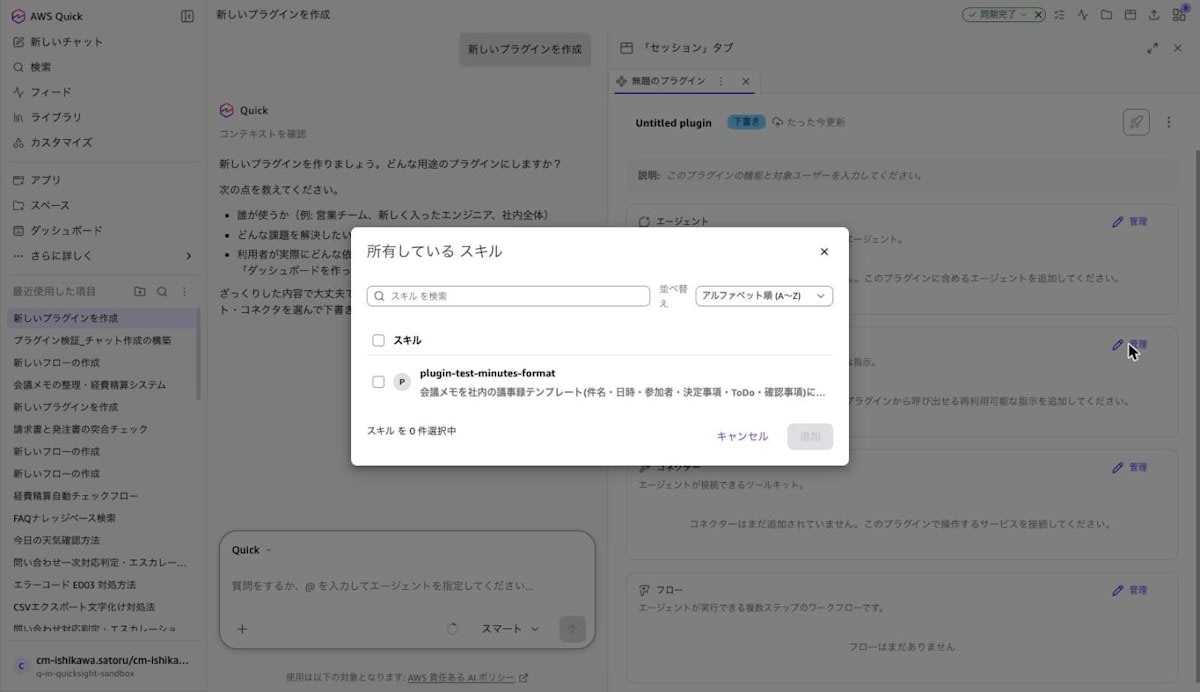
Clicking "Manage" for skills opens a dialog called "Skills you own," and only plugin-test-minutes-format was displayed. Skills provided by Amazon (such as Meeting Notes to Actions that I installed earlier) and my own skills that are still drafts were not displayed.
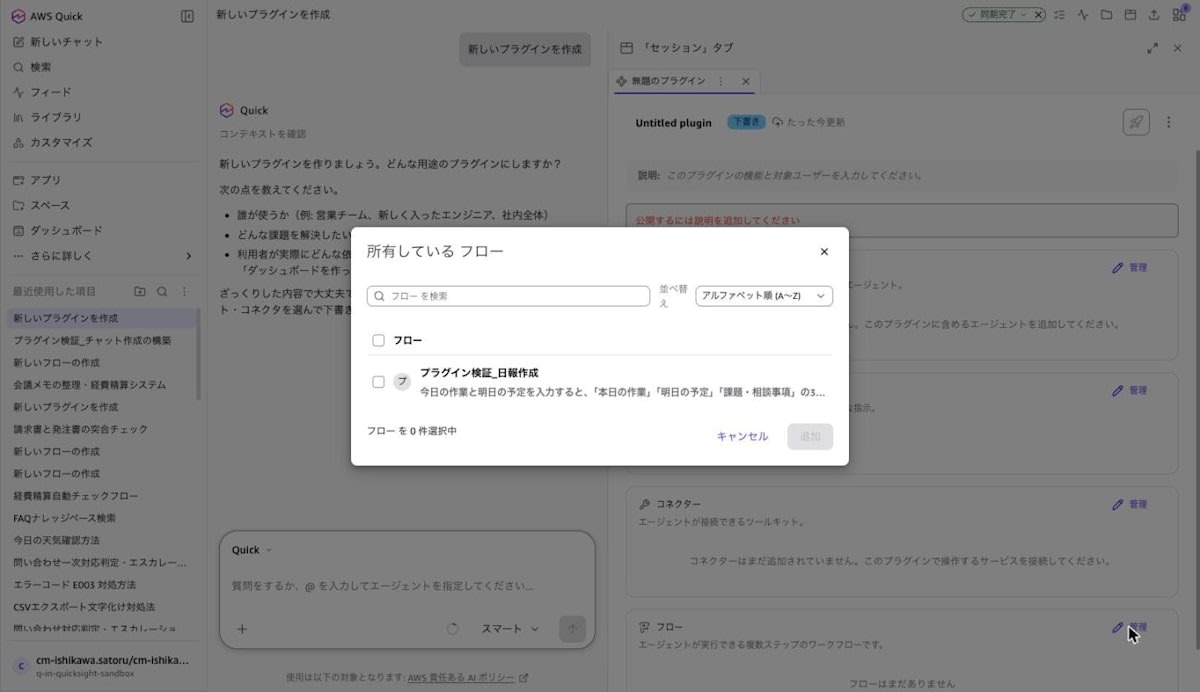
Similarly, in "Manage" for flows, "Flows you own" showed only Plugin Test_Daily Report Creation, which I created and published.
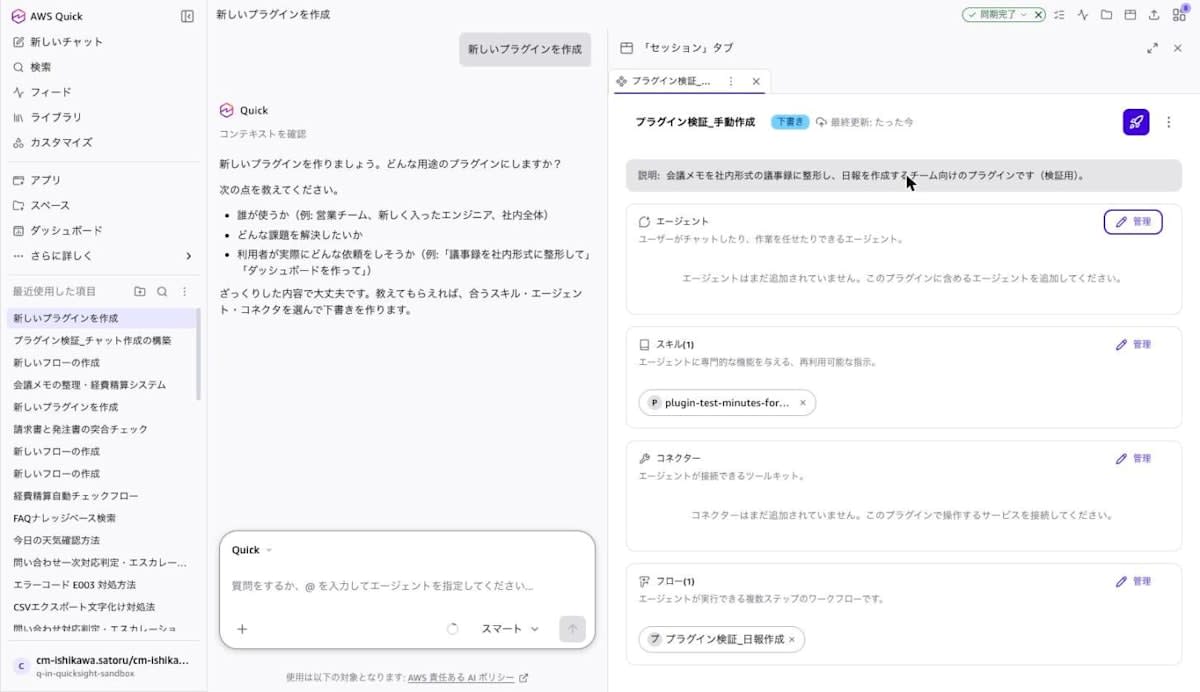
I added the skill and the flow, changed the name to "Plugin Test_Manual Creation," and entered a description. While the description is empty, "Add a description to publish" is displayed, and once you enter a description, the publish button becomes clickable.
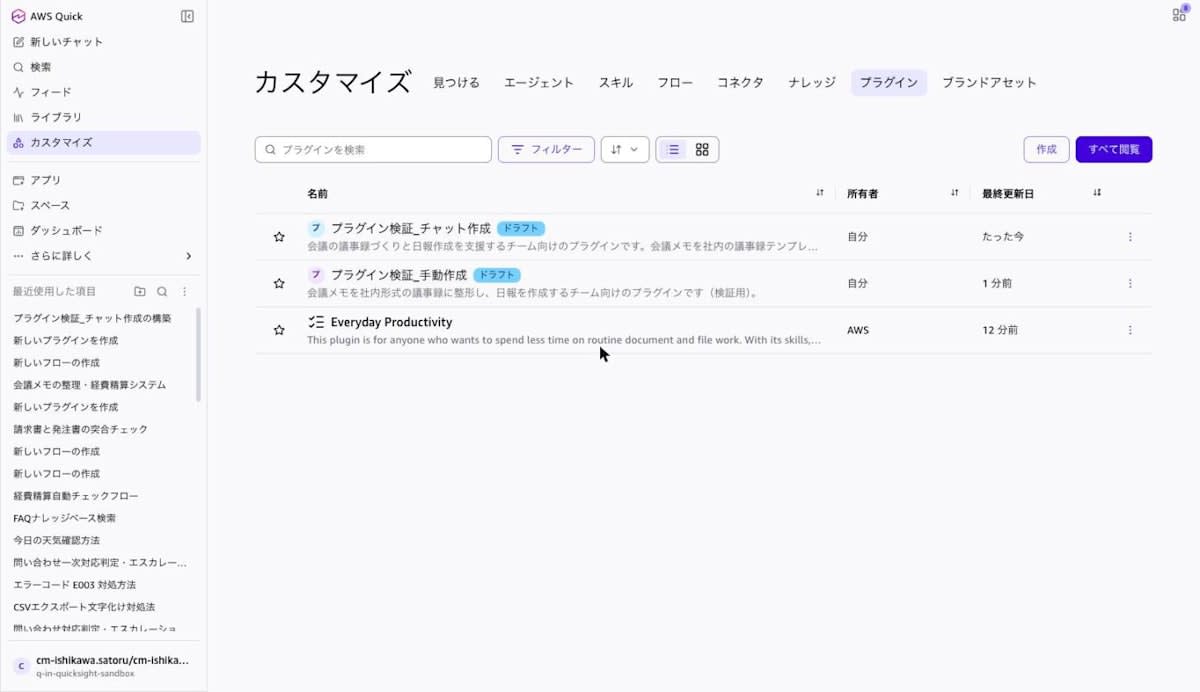
When I returned to the "Plugins" tab, two plugins were displayed as drafts, including the one created in chat.
Publishing the plugin
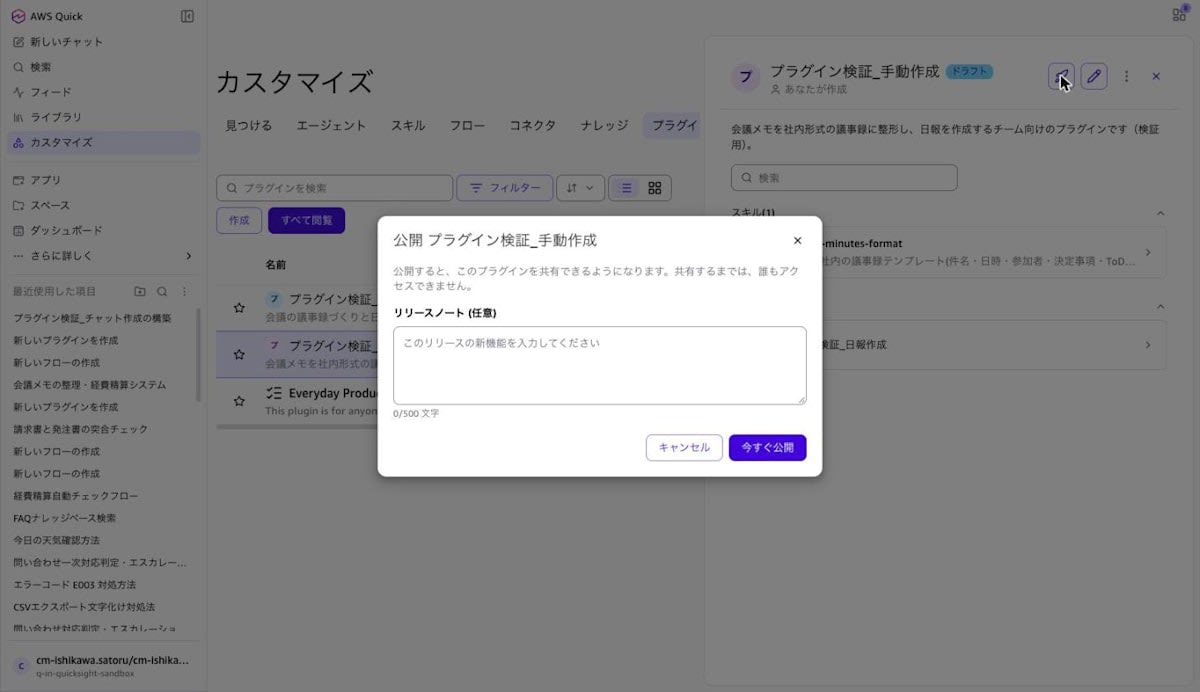
I opened "Plugin Test_Manual Creation" and clicked the publish button. The dialog displayed "Once published, you can share this plugin. Until you share it, no one can access it." I entered release notes and clicked "Publish now."
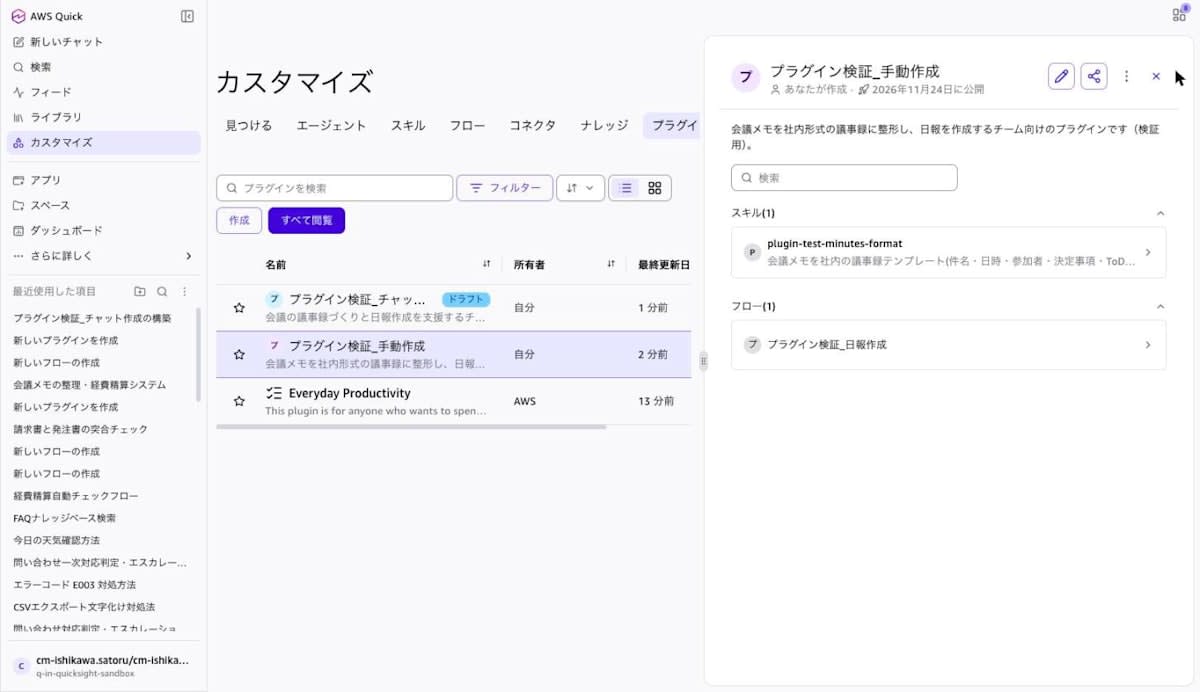
After publishing, the "Draft" label disappeared and "Published on November 24, 2026" was displayed. A share button now appears where the publish button used to be.
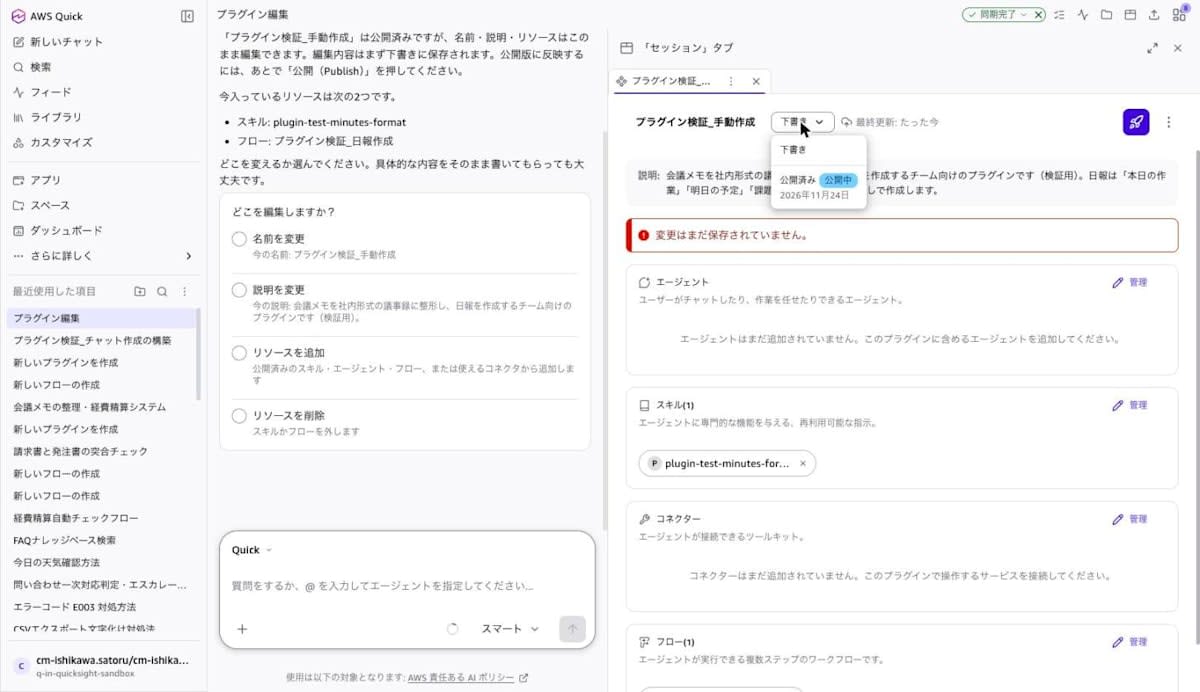
Next, I checked the behavior when editing a published version. Clicking the edit button opens the chat and the editor, and the chat displayed "Your edits are saved to the draft first. To reflect them in the published version, press 'Publish' later." When I changed the description, the status changed from "Published" to "Draft."
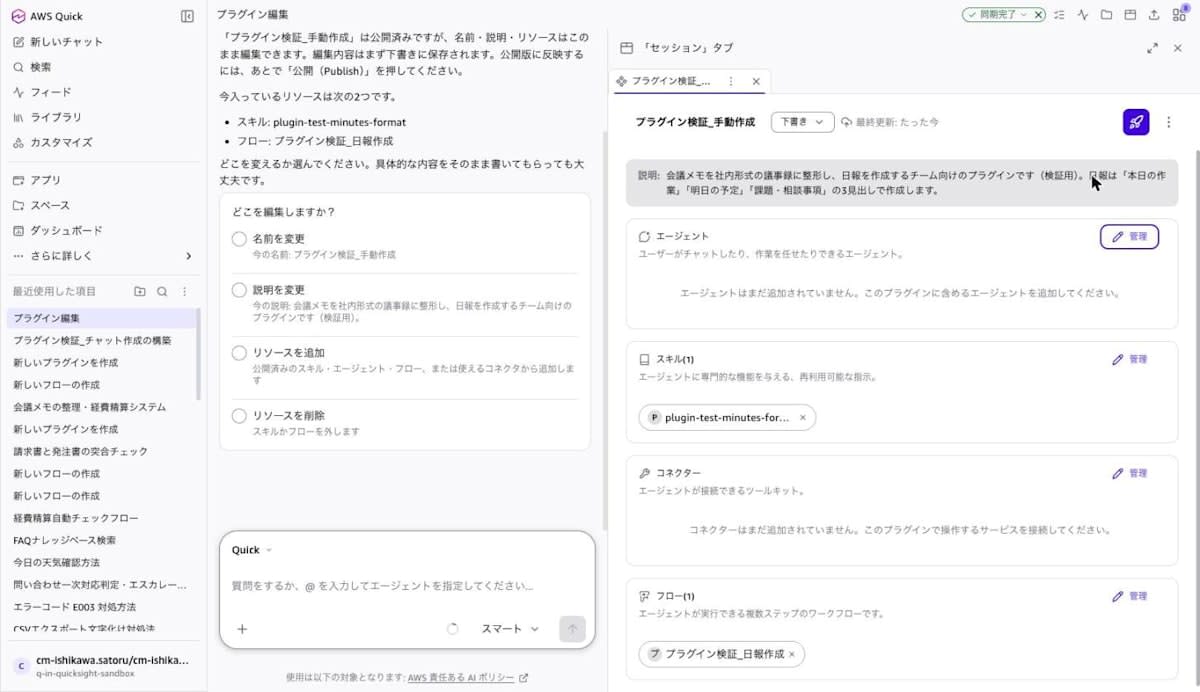
The status display is a dropdown, and you can choose between two versions: "Draft" and "Published (live)." Note that the editor sometimes displayed "Changes have not been saved yet," but when I opened the plugin list in another tab, the changes had been saved.
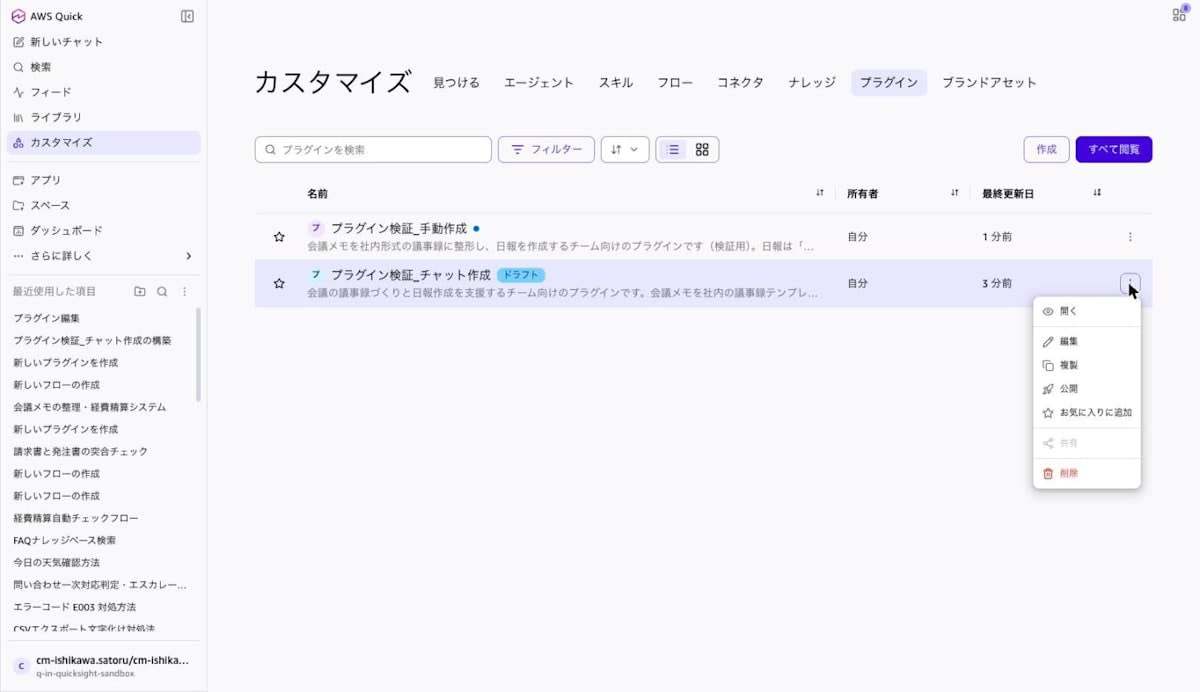
In the plugin list, a blue dot appears next to the name of a plugin that has unpublished changes.

When I opened the menu of the draft plugin (Plugin Test_Chat Creation), "Share" was grayed out and could not be selected. For published plugins, "Share" and "Copy link" can be selected.
Uninstalling and deleting
Finally, I checked what is removed and what remains when uninstalling and deleting.
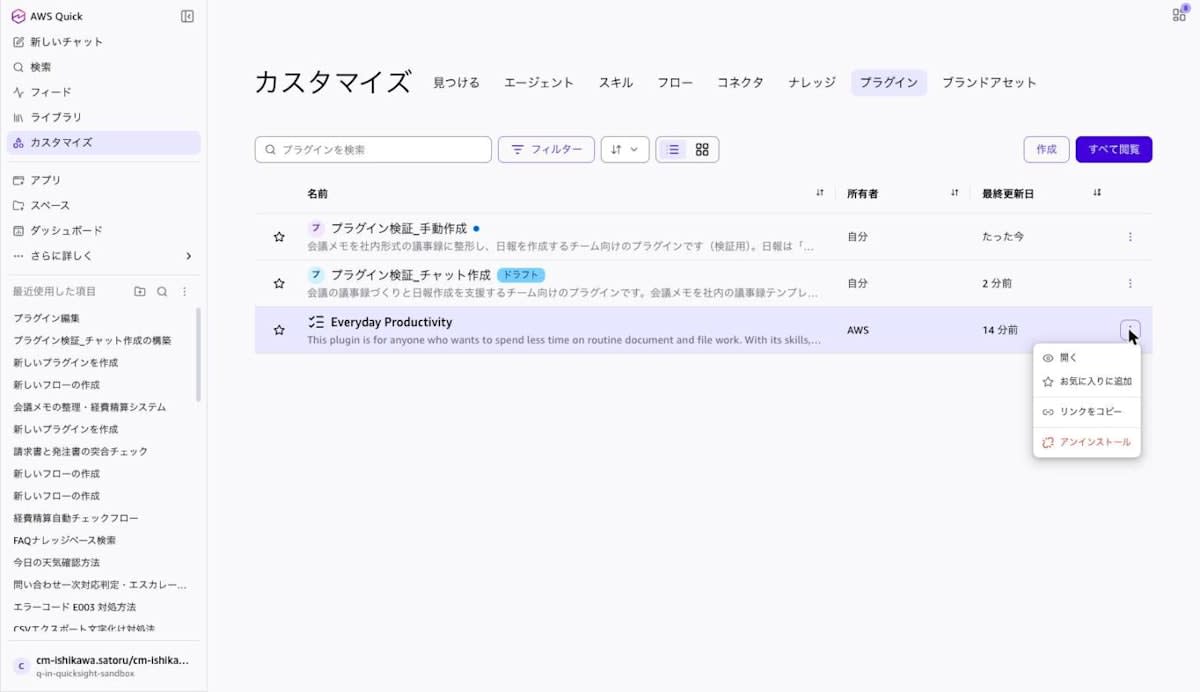
The menu of the official plugin (Everyday Productivity) had four items: "Open," "Add to favorites," "Copy link," and "Uninstall."
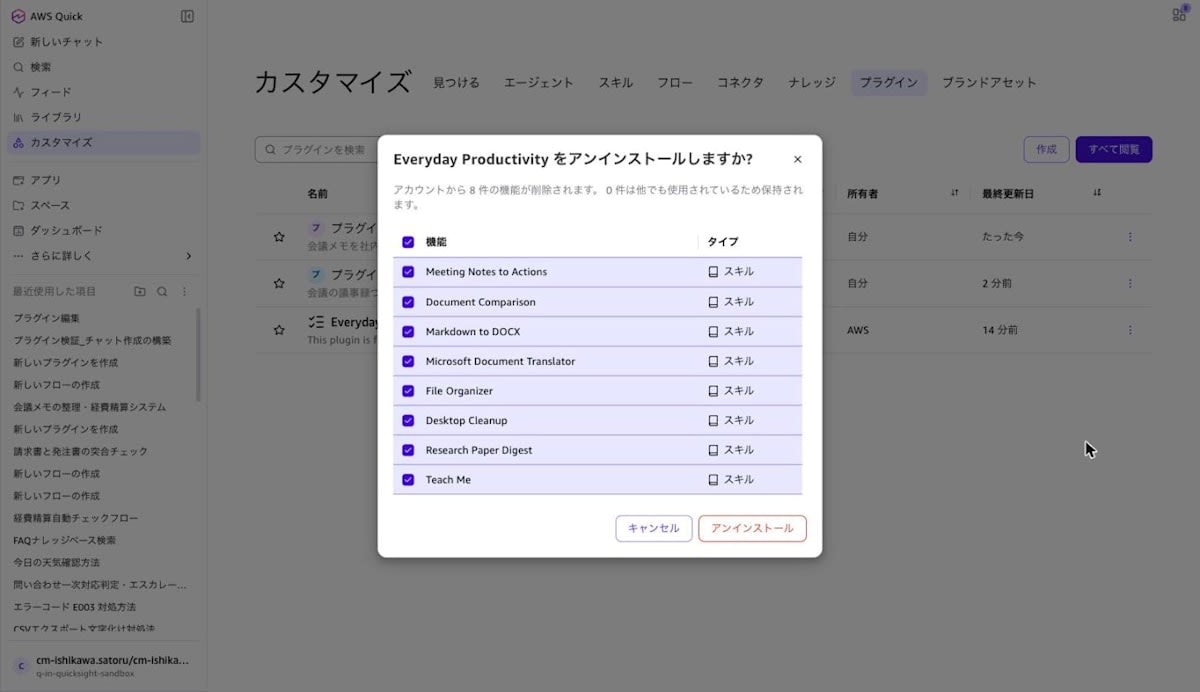
Selecting "Uninstall" displayed a list of the capabilities to be removed, with checkboxes. The dialog displayed "8 capabilities will be removed from your account. 0 will be kept because they are used elsewhere." This time I uninstalled with everything left checked. I did not test what happens when you uncheck items.
After uninstalling, searching for "Meeting" in the "Skills" tab no longer showed Meeting Notes to Actions.
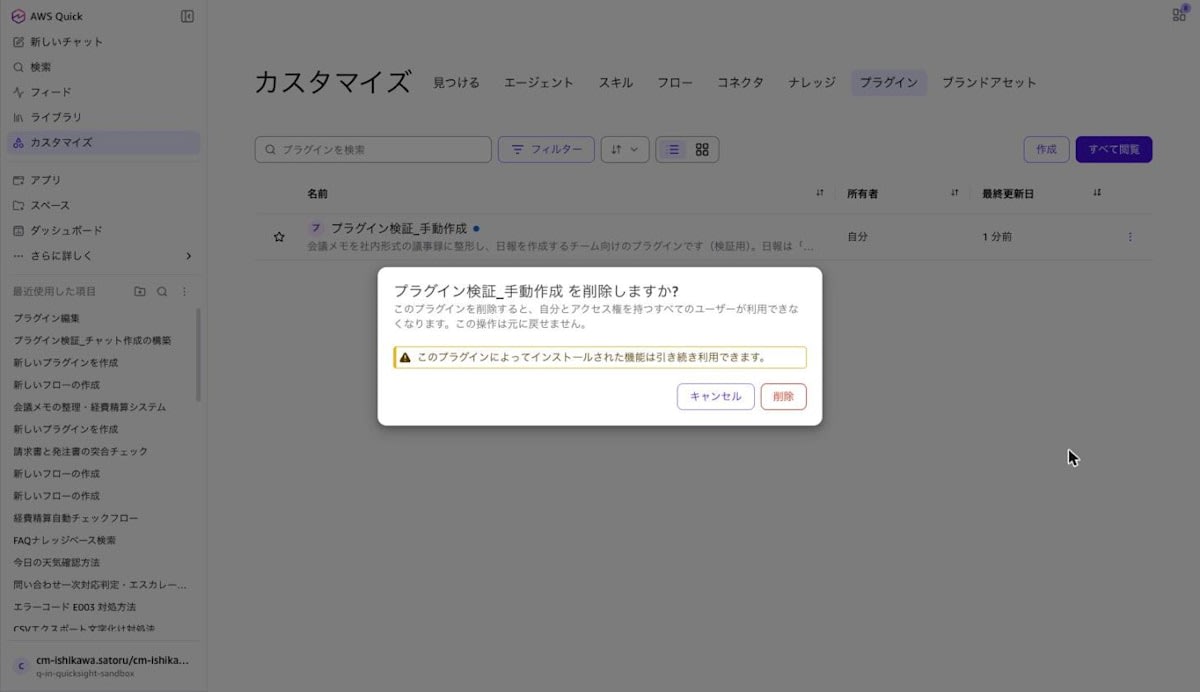
Next, I deleted the plugins I created. The wording of the delete dialog differs between draft plugins and published plugins.
| Plugin | Delete dialog wording |
|---|---|
| Plugin Test_Chat Creation (draft) | The plugin will be deleted from this computer. This action cannot be undone. The skills, agents, and connectors referenced by this plugin will not be deleted. |
| Plugin Test_Manual Creation (published) | Deleting this plugin will make it unavailable to you and to all users who have access. This action cannot be undone. Capabilities installed by this plugin will remain available. |
Even after deleting the two plugins, the skill plugin-test-minutes-format and the flow Plugin Test_Daily Report Creation remained.
Discussion
What can be put in a custom plugin
On the screens I used, the only things that could be added to a custom plugin were skills and flows that I own and that are published. Skills provided by Amazon and draft skills and flows did not appear as candidates. Therefore, the steps to create a custom plugin are as follows.
- Create skills, flows, and agents
- Publish each of them
- Create the plugin and add the published capabilities
- Publish the plugin
- Share the plugin
If you want a team to use both official skills and your own skills, it looks like you'll need to have them install the official plugin separately from the plugin that bundles your own skills.
Naming constraints and differences in creation methods
The skill name could only use lowercase letters, numbers, hyphens, and underscores. Japanese can be used for flow names and plugin names. If you want to manage things in Japanese, it's practical to use English letters for the skill name and write the description in Japanese.
When creating from chat, the skill I had just published failed to appear as a candidate twice in a row, and the plugin was created on the third request. On the creation screen (editor), I could select the skill at the same point in time. If the configuration is already decided, adding items from the creation screen lets you proceed while checking the results.
What remains after uninstalling and deleting
The uninstall dialog displayed the number of capabilities to be removed and the number of capabilities that remain because they are used elsewhere, with a checkbox for each capability. On the other hand, deleting a plugin I created does not delete the skills or flows I put in it. When you delete a plugin, you need to clean up the skills and flows inside it separately.
Operational notes
- At the time of testing, I could not find any CLI commands for operating plugins and skills. At present, it is not well suited for managing plugin creation and publishing as code or automating it in a pipeline. Flows and agents can be listed and deleted with the
aws quicksightAPI. - Quick's AI features (chat, flows, artifact generation, and so on) are metered in agent hours. Enterprise includes 18 hours per user per month, and usage beyond that costs $3 per hour. In this test, creating plugins and running skills were also done in chat, so agent hours were consumed. I did not measure the amount consumed.
- Administrators can restrict plugin usage and sharing with individuals in Custom permissions. Before rolling out company-wide, it would be good to decide who can create and share plugins.
Conclusion
With AWS Quick plugins, you can install agents, skills, connectors, and flows together in one go. With the official plugin Everyday Productivity, the included skills were used automatically in chat after installation. Custom plugins can be created from either chat or the creation screen, and you can manage the Draft and the published version separately.
Only capabilities that you own and that are published can be put in a custom plugin. Also note that skill names can only use lowercase letters, numbers, hyphens, and underscores, and that capabilities inside a plugin remain even if you delete the plugin. Once the skills and flows needed for your team's work are in place, consider bundling them into a plugin for distribution.