
I tried the batch evaluation (Preview) of AgentCore Evaluations

This page has been translated by machine translation. View original
Introduction
Hello, I'm Jinno from the Consulting Department, and I love supermarkets.
Previously, I introduced an overview of AgentCore Evaluations and On-demand evaluation on the blog.
The usage distinction was: use online evaluation for continuously evaluating production environments, and use on-demand evaluation when you want to evaluate specific sessions. Recently, batch evaluation was also added!
As the name suggests, it's a feature that evaluates multiple sessions all at once in bulk. It seems useful when you want to bulk evaluate, such as when you want to do regression testing.
This time I actually tried this batch evaluation, so I'll introduce the flow from setup to checking the results!
Prerequisites
This time I used the following versions.
-
AgentCore CLI 1.0.0-preview.8
-
Python 3.13
-
CloudWatch Transaction search enabled
-
Region used
- us-east-1
-
Model used
- us.anthropic.claude-haiku-4-5-20251001-v1:0
Positioning of Batch Evaluation
I introduced an overview of AgentCore Evaluations and built-in evaluators in the previous article, but let me organize all evaluation methods again.
| Perspective | On-demand | Online | Batch |
|---|---|---|---|
| Trigger | Caller initiates (synchronous) | Continuous, event-driven | Caller initiates (asynchronous) |
| Session source | Caller provides session ID or span inline | Monitors log groups | Service auto-discovers from CloudWatch Logs |
| Scope | Single session | All sessions matching sampling rules | Multiple sessions (time range / session ID specifiable) |
| Ground truth (reference data) | Via evaluationReferenceInputs | Not supported | Inline specification with sessionMetadata |
| Results | Synchronous response | CloudWatch metrics / dashboard | Aggregated summary + per-session details in CloudWatch |
| Use case | Spot checks during development, CI/CD | Production monitoring | Baseline measurement, before/after change comparison, regression testing |
As a supplementary note, ground truth refers to "expected correct answers" — you predefine expected response text, tool call order, and conditions to satisfy, then compare against the agent's actual behavior for evaluation. Since online evaluation is a mechanism for continuously monitoring production traffic, correct answers cannot be prepared in advance, so ground truth cannot be used.
On-demand is the method I tried in the previous article, where the caller specified individual session IDs, but with batch evaluation, the service handles session discovery, span collection, and scoring for multiple sessions all at once, so you just need to submit the job.
Also, with batch evaluation, Trajectory-type evaluators can be used. These are recently added evaluators. They evaluate whether the agent called tools in the expected order, and there are 3 types.
| Evaluator | What is evaluated | Example (expected: A → B → C) |
|---|---|---|
| TrajectoryExactOrderMatch | Expected order with no extra tool calls | A → B → C passes, A → B → X → C fails |
| TrajectoryInOrderMatch | Expected order, but other tools in between are OK | A → B → X → C also passes |
| TrajectoryAnyOrderMatch | Order doesn't matter, all expected tools must be used | B → C → A also passes |
The choice depends on how strictly you want to evaluate tool call order. Note that it's not available for online evaluation — only for batch evaluation and on-demand evaluation.
Creating and Deploying a Sample Agent
The official documentation's Getting Started uses an Acme Store customer support agent, but this time I'll try it with a corporate IT helpdesk agent instead.
It's an agent that handles employee inquiries using 5 tools: ticket lookup, password reset, system status check, ticket creation, and escalation to engineers.
Project Creation
First, create a project with the AgentCore CLI.
agentcore create --name HelpDesk --framework Strands --model-provider Bedrock --memory none
cd HelpDesk
Agent Code Implementation
Replace app/HelpDesk/main.py with the following content.
Full code
"""Corporate IT helpdesk agent."""
from strands import Agent, tool
from strands.models.bedrock import BedrockModel
from bedrock_agentcore.runtime import BedrockAgentCoreApp

app = BedrockAgentCoreApp()
MODEL_ID = "us.anthropic.claude-haiku-4-5-20251001-v1:0"
SYSTEM_PROMPT = (
    "あなたは社内ITヘルプデスクのアシスタントです。"
    "社員からのIT関連の問い合わせ、パスワードリセット、"
    "システム稼働状況の確認、チケット管理をサポートしてください。"
)

@tool
def lookup_ticket(ticket_id: str) -> str:
    """Look up a support ticket by ID and return its status and details."""
    tickets = {
        "TKT-2001": {
            "status": "open",
            "category": "network",
            "summary": "VPN connection drops during video calls",
            "priority": "high",
            "created": "2026-05-20",
            "assignee": "network-team",
        },
        "TKT-2002": {
            "status": "in_progress",
            "category": "hardware",
            "summary": "Laptop battery drains in 2 hours",
            "priority": "medium",
            "created": "2026-05-18",
            "assignee": "hardware-team",
            "note": "Replacement battery ordered, arriving May 25",
        },
        "TKT-2003": {
            "status": "resolved",
            "category": "software",
            "summary": "Slack notifications not working on macOS",
            "priority": "low",
            "created": "2026-05-15",
            "resolved": "2026-05-16",
            "resolution": "Updated Slack to v4.41, re-enabled notification permissions",
        },
        "TKT-2004": {
            "status": "open",
            "category": "access",
            "summary": "Cannot access AWS console after team transfer",
            "priority": "high",
            "created": "2026-05-22",
            "assignee": "iam-team",
        },
        "TKT-2005": {
            "status": "pending",
            "category": "software",
            "summary": "Need license for JetBrains IntelliJ IDEA",
            "priority": "low",
            "created": "2026-05-21",
            "note": "Waiting for manager approval",
        },
    }
    return str(tickets.get(ticket_id, {"error": f"Ticket {ticket_id} not found"}))

@tool
def reset_password(employee_id: str, system: str) -> str:
    """Reset password for an employee on a specified system."""
    supported = {"active_directory", "aws_console", "jira", "confluence", "slack"}
    if system.lower() not in supported:
        return f"System '{system}' is not supported. Supported: {', '.join(sorted(supported))}"
    return (
        f"Password reset completed for {employee_id} on {system}. "
        "Temporary password sent to registered email. "
        "Please change it within 24 hours."
    )

@tool
def check_system_status(system_name: str) -> str:
    """Check the current operational status of a company system."""
    statuses = {
        "vpn": {
            "status": "degraded",
            "message": "Intermittent drops reported in Tokyo office. Engineering investigating.",
            "since": "2026-05-24T08:30:00+09:00",
        },
        "email": {
            "status": "operational",
            "message": "All email services running normally.",
        },
        "aws_console": {
            "status": "operational",
            "message": "All AWS services accessible.",
        },
        "jira": {
            "status": "maintenance",
            "message": "Scheduled maintenance until 22:00 JST. Read-only access available.",
        },
    }
    info = statuses.get(system_name.lower())
    if not info:
        return f"System '{system_name}' not found. Available: {', '.join(sorted(statuses.keys()))}"
    return str(info)

@tool
def create_ticket(category: str, summary: str, priority: str) -> str:
    """Create a new support ticket for the employee."""
    return (
        "Ticket TKT-3001 created successfully. "
        f"Category: {category}, Priority: {priority}. "
        f"Summary: {summary}. "
        "You will receive email updates on progress."
    )

@tool
def escalate_to_engineer(ticket_id: str, reason: str) -> str:
    """Escalate a ticket to a senior engineer for immediate attention."""
    return (
        f"Ticket {ticket_id} escalated to senior engineering team. "
        f"Reason: {reason}. "
        "Expected response within 30 minutes during business hours."
    )

agent = Agent(
    model=BedrockModel(model_id=MODEL_ID),
    tools=[lookup_ticket, reset_password, check_system_status,
           create_ticket, escalate_to_engineer],
    system_prompt=SYSTEM_PROMPT,
)

@app.entrypoint
def invoke(payload, context):
    result = agent(payload.get("prompt", "Hello"))
    return {"response": str(result)}

if __name__ == "__main__":
    app.run()
I imagined ticket management, password reset, system status checks, VPN failures, Jira maintenance, and so on.
Deploy and Verify Operation
agentcore deploy
After deployment, verify the operation.
agentcore invoke --prompt "チケット TKT-2001 の状況を教えてください"
チケット TKT-2001 の状況は以下の通りです:

| 項目 | 内容 |
|------|------|
| 状態 | オープン(対応中) |
| カテゴリ | ネットワーク |
| 概要 | ビデオ通話中のVPN接続切断 |
| 優先度 | 高 |
| 作成日 | 2026年5月20日 |
| 担当者 | ネットワークチーム |

このチケットは高優先度で、ネットワークチームが対応中です。
ビデオ通話中のVPN接続切断の問題については、高優先度で処理されています。
The ticket details were returned! You can check the Runtime ARN from agentcore status --json.
agentcore status --json
{
  "resources": [
    {
      "name": "HelpDesk",
      "deploymentState": "deployed",
      "identifier": "arn:aws:bedrock-agentcore:us-east-1:123456789012:runtime/HelpDesk_HelpDesk-qTj1toGZS8",
      "detail": "READY"
    }
  ]
}
When operating with boto3, in addition to this Runtime ARN, you need the service name and log group name. These can be derived from the Runtime ID using the following rules.
- Runtime ID:
HelpDesk_HelpDesk-qTj1toGZS8(the trailing part of the ARN) - Service name:
{Runtime ID}.DEFAULT - Log group name:
/aws/bedrock-agentcore/runtimes/{Runtime ID}-DEFAULT
Generating Sample Sessions
To run batch evaluation, sessions that are the targets of evaluation must first be recorded in CloudWatch Logs. We'll invoke the agent in various scenarios to generate sessions.
Running with AgentCore CLI
agentcore invoke --runtime HelpDesk --prompt "チケット TKT-2001 の状況を教えてください"
agentcore invoke --runtime HelpDesk --prompt "VPN が不安定なのですが、システムの状態を確認できますか?"
agentcore invoke --runtime HelpDesk --prompt "Active Directory のパスワードをリセットしてほしいです。社員IDは EMP-1234 です。"
agentcore invoke --runtime HelpDesk --prompt "TKT-2002 のノートPC バッテリーの件、進捗はどうなっていますか?"
agentcore invoke --runtime HelpDesk --prompt "Jira にログインできないのですが、メンテナンス中ですか?"
agentcore invoke --runtime HelpDesk --prompt "チーム異動で AWS コンソールにアクセスできなくなりました。TKT-2004 を確認してもらえますか?"
agentcore invoke --runtime HelpDesk --prompt "Slack の通知が来ないのですが、以前同じ問題のチケットがありませんでしたか? TKT-2003 を確認してください。"
agentcore invoke --runtime HelpDesk --prompt "IntelliJ のライセンス申請 TKT-2005 がまだ承認待ちです。エスカレーションできますか?"
agentcore invoke --runtime HelpDesk --prompt "メールが送れないのですが、システム障害でしょうか?チケットを作ってください。"
agentcore invoke --runtime HelpDesk --prompt "VPN が会議中に何度も切れます。TKT-2001 をエスカレーションしてください。"
I've included various patterns such as ticket lookup, password reset, system status check, and escalation.
Here are some execution results.
VPN system status check
VPN の状態を確認しました。以下の結果です:

現在のシステム状態: 低下中(Degraded)

- 詳細: 東京オフィスで断続的な接続ドロップが報告されています
- 対応状況: エンジニアリングチームが現在調査中です
- 発生時刻: 2026年5月24日 08:30 から

VPN の不安定さはシステム側の問題が原因のようです。
エンジニアが対応中なので、状況の改善を待つようお願いします。
Email failure check + ticket creation
確認結果をお知らせします:

メールシステムの状況: 正常に稼働しています
- 現在、すべてのメールサービスは正常に動作しており、システム障害は確認されません。

サポートチケットを作成しました:
- チケットID: TKT-3001
- カテゴリ: メール
- 優先度: 高
- 内容: メールが送信できない問題

システムは正常ですが、個別の環境での問題の可能性があります。
It's handling combinations of multiple tools properly, such as checking system status with check_system_status before creating a ticket!
Running Batch Evaluation
Here's the main topic! Let's actually run batch evaluation.
Running with AgentCore CLI
Using the AgentCore CLI is the simplest approach.
agentcore run batch-evaluation \
  --runtime HelpDesk \
  --evaluator Builtin.GoalSuccessRate Builtin.Helpfulness Builtin.Faithfulness
The CLI automatically resolves the CloudWatch log group and service name from the project settings, starts the job, and polls for completion. When complete, you get output like the following.
Batch evaluation completed: HelpDesk_HelpDesk_1779590150637-d63979747f

Sessions: 13 completed, 0 failed, 13 total

Evaluator                           Avg Score
─────────────────────────────────────────────
Builtin.GoalSuccessRate             1.0000
Builtin.Helpfulness                 0.8400
Builtin.Faithfulness                1.0000

Results saved to .cli/batch-eval-results/
The output was produced! You can see the average scores for the 3 evaluators. GoalSuccessRate and Faithfulness both achieved perfect scores of 1.0, and Helpfulness also scored 0.84. The accuracy of tool calls and faithfulness of responses based on tool output are evaluated perfectly. Helpfulness received a rating of Very Helpful or above for all sessions.
When more fine-grained control with boto3 is needed
import boto3
import uuid
import time
import json

REGION = "us-east-1"
SERVICE_NAME = "HelpDesk-xyz789.DEFAULT"
LOG_GROUP = "/aws/bedrock-agentcore/runtimes/HelpDesk-xyz789-DEFAULT"

eval_client = boto3.client("bedrock-agentcore", region_name=REGION)

response = eval_client.start_batch_evaluation(
    batchEvaluationName=f"helpdesk_baseline_{uuid.uuid4().hex[:8]}",
    evaluators=[
        {"evaluatorId": "Builtin.GoalSuccessRate"},
        {"evaluatorId": "Builtin.Helpfulness"},
        {"evaluatorId": "Builtin.Faithfulness"},
    ],
    dataSourceConfig={
        "cloudWatchLogs": {
            "serviceNames": [SERVICE_NAME],
            "logGroupNames": [LOG_GROUP],
        }
    },
    clientToken=str(uuid.uuid4()),
)

batch_eval_id = response["batchEvaluationId"]
print(f"Started: {batch_eval_id}")

while True:
    result = eval_client.get_batch_evaluation(batchEvaluationId=batch_eval_id)
    status = result["status"]
    print(f"Status: {status}")

    if status in ("COMPLETED", "COMPLETED_WITH_ERRORS", "FAILED", "STOPPED"):
        break
    time.sleep(30)

print(json.dumps(result, indent=4, default=str))
The job is started with start_batch_evaluation and polled with get_batch_evaluation. By simply specifying the CloudWatch Logs service name and log group name in dataSourceConfig, the service automatically discovers sessions.
Using filterConfig, you can also filter by specific session IDs or time ranges.
Checking Results
Aggregated Results
The response in .cli/eval-job-results/ contains an aggregated summary.
{
    "batchEvaluationId": "HelpDesk_HelpDesk_1779590150637-d63979747f",
    "status": "COMPLETED",
    "evaluationResults": {
        "numberOfSessionsCompleted": 13,
        "numberOfSessionsFailed": 0,
        "numberOfSessionsIgnored": 0,
        "numberOfSessionsInProgress": 0,
        "totalNumberOfSessions": 13,
        "evaluatorSummaries": [
            {
                "evaluatorId": "Builtin.GoalSuccessRate",
                "statistics": {
                    "averageScore": 1.0
                },
                "totalEvaluated": 13,
                "totalFailed": 0
            },
            {
                "evaluatorId": "Builtin.Faithfulness",
                "statistics": {
                    "averageScore": 1.0
                },
                "totalEvaluated": 13,
                "totalFailed": 0
            },
            {
                "evaluatorId": "Builtin.Helpfulness",
                "statistics": {
                    "averageScore": 0.84
                },
                "totalEvaluated": 13,
                "totalFailed": 0
            }
        ]
    }
}
You can see the session success/failure count and the average score for each evaluator at a glance. Up to 500 sessions can be evaluated per job, and if that's exceeded, the latest 500 sessions are selected.
When running with the CLI, the result JSON is also saved under .cli/batch-eval-results/. However, looking at the contents, it's structured like this — session IDs and prompts are not included.
{
  "results": [
    {
      "evaluatorId": "Builtin.Faithfulness",
      "score": 1,
      "label": "Completely Yes",
      "explanation": "The assistant's response provides information about ticket TKT-2004..."
    },
    {
      "evaluatorId": "Builtin.Helpfulness",
      "score": 0.83,
      "label": "Very Helpful",
      "explanation": "The user's goal is to understand the status of their ticket (TKT-2004)..."
    },
    ...
  ]
}
It's just a flat list of evaluator ID, score, and explanation, so you only know "this is the result for the TKT-2004 inquiry" by reading the explanation content. With 13 sessions × 3 evaluators = 39 results listed, it's a bit difficult for checking individual sessions.
Checking in the Console
To check results per session, the easiest way is to look at the AgentCore console.
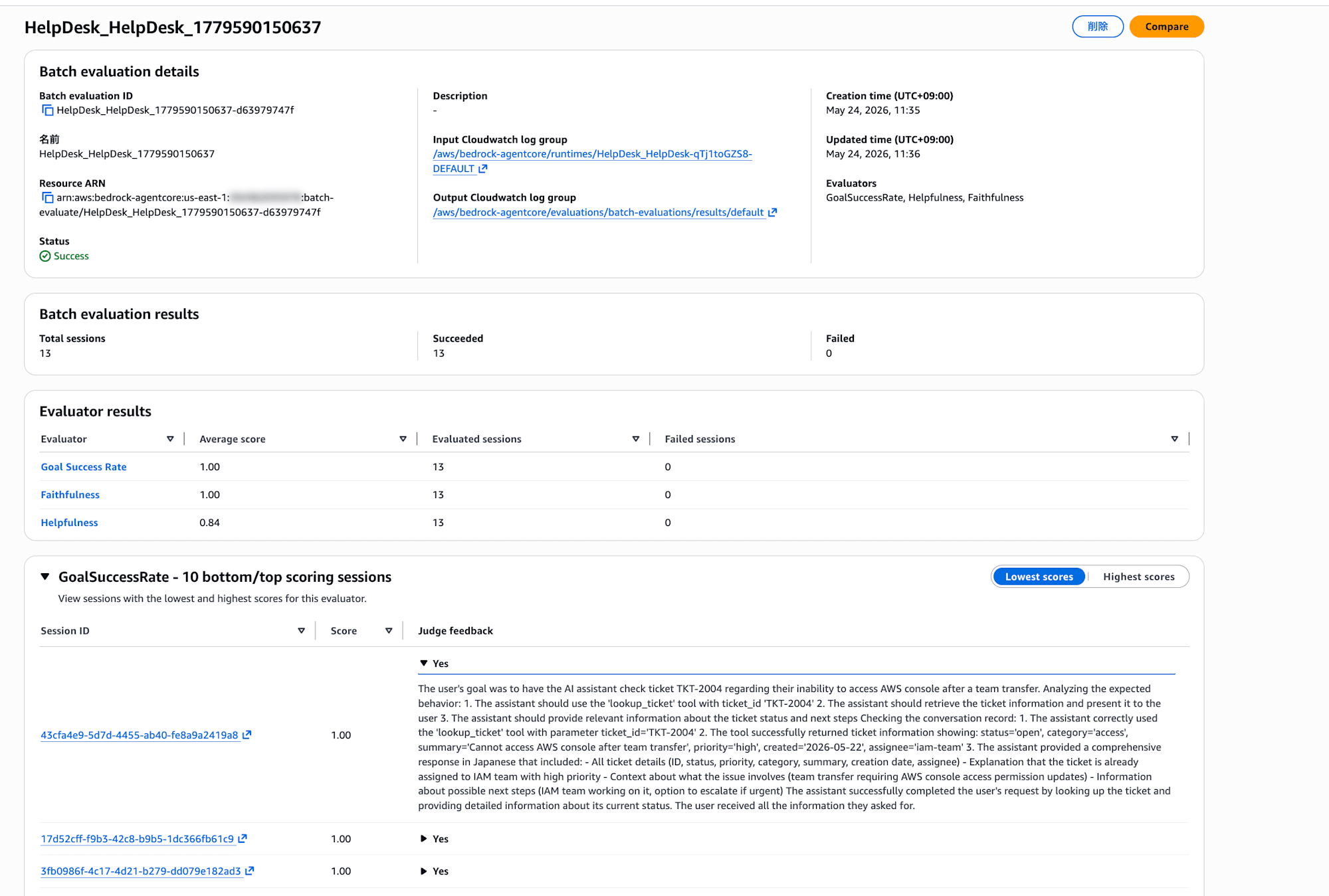
Batch evaluation details shows the job ID / status / input and output CloudWatch log groups. Batch evaluation results shows the total session count and the breakdown of successes and failures. Evaluator results shows the average score for each evaluator at a glance.
Further down there's a list of top and bottom sessions per evaluator, and clicking a session ID lets you expand and read the individual Judge feedback (the basis for the score assigned by the LLM). It's overwhelmingly easier to understand than looking at JSON, so it's recommended to first get an overall picture in the console.
Retrieving Per-Session Details via Code
While checking in the console is convenient, you can also retrieve results from code when you want to integrate into a CI/CD pipeline or process the results. Results are written to CloudWatch Logs as OpenTelemetry events.
import boto3
import json

logs_client = boto3.client("logs", region_name="us-east-1")

output = result["outputConfig"]["cloudWatchConfig"]

response = logs_client.get_log_events(
    logGroupName=output["logGroupName"],
    logStreamName=output["logStreamName"],
)

for event in response["events"]:
    attrs = json.loads(event["message"]).get("attributes", {})
    print(f"Score: {attrs.get('gen_ai.evaluation.score.value')}")
    print(f"Label: {attrs.get('gen_ai.evaluation.score.label')}")
    print(f"Explanation: {attrs.get('gen_ai.evaluation.explanation', '')[:200]}")
    print()
For each session and each turn, you can retrieve the numeric score (score.value), a categorical label (score.label, e.g.: Very Helpful / Not Helpful), and the basis for the score (explanation).
Here are some of the actual retrieved results.
Example explanation from Faithfulness evaluator
Score: 1.0
Label: Completely Yes
Explanation: The assistant's response provides information about ticket TKT-2001
based on the tool output. Let me verify each piece of information:

1. Status: Tool shows 'open', Assistant says 'オープン(対応中)' - Matches ✓
2. Category: Tool shows 'network', Assistant says 'ネットワーク' - Matches ✓
3. Summary: Tool shows 'VPN connection drops during video calls',
   Assistant says 'ビデオ通話中のVPN接続切断' - Matches ✓
4. Priority: Tool shows 'high', Assistant says '高' - Matches ✓
5. Created date: Tool shows '2026-05-20', Assistant says '2026年5月20日' - Matches ✓
6. Assignee: Tool shows 'network-team', Assistant says 'ネットワークチーム' - Matches ✓

All information in the assistant's response accurately reflects the data from
the tool output.
Example explanation from Helpfulness evaluator
Score: 1.0
Label: Above And Beyond
Explanation: The user had two clear goals: (1) determine if there's a system outage
preventing email sending, and (2) create a support ticket. The assistant successfully
accomplished both goals. The response clearly communicates that the email system is
operational (no outage), and confirms ticket TKT-3001 was created with appropriate
details (high priority, email category).

Beyond fulfilling the explicit requests, the assistant goes further by:
- Providing clear, well-structured information with visual formatting
- Explaining that while the system is operational, individual environment issues may exist
- Offering three concrete troubleshooting steps the user can try immediately
The explanation contains detailed reasoning for why the LLM assigned that score. For Faithfulness, it verifies the correspondence between each field of the tool output and the response one by one, and for Helpfulness, it evaluates the degree of goal achievement for the user and even additional added value. If you want to see the details, you can extract them this way for analysis.
Before and After Comparison
Since batch evaluation results can be retrieved with get_batch_evaluation, you can also compare scores before and after changes. For example, you simply specify two batch evaluation IDs and output the differences as shown below.
Comparison Script Example
import boto3

eval_client = boto3.client("bedrock-agentcore", region_name="us-east-1")

baseline = eval_client.get_batch_evaluation(batchEvaluationId=baseline_id)
treatment = eval_client.get_batch_evaluation(batchEvaluationId=treatment_id)

baseline_summaries = {
    s["evaluatorId"]: s["statistics"]["averageScore"]
    for s in baseline["evaluationResults"]["evaluatorSummaries"]
}
treatment_summaries = {
    s["evaluatorId"]: s["statistics"]["averageScore"]
    for s in treatment["evaluationResults"]["evaluatorSummaries"]
}

print(f"{'Evaluator':<35} {'Baseline':>10} {'Treatment':>10} {'Delta':>10}")
print("=" * 67)
for eid in baseline_summaries:
    b = baseline_summaries[eid]
    t = treatment_summaries.get(eid, 0)
    delta = t - b
    print(f"{eid:<35} {b:>10.4f} {t:>10.4f} {delta:>+10.4f}")
By running batch evaluations every time you adjust prompts or change models, you can track how scores change over time.
You can also compare from the console. By pressing the Compare button in the upper right of the batch evaluation details screen, you can select past batch evaluations and compare them side by side.
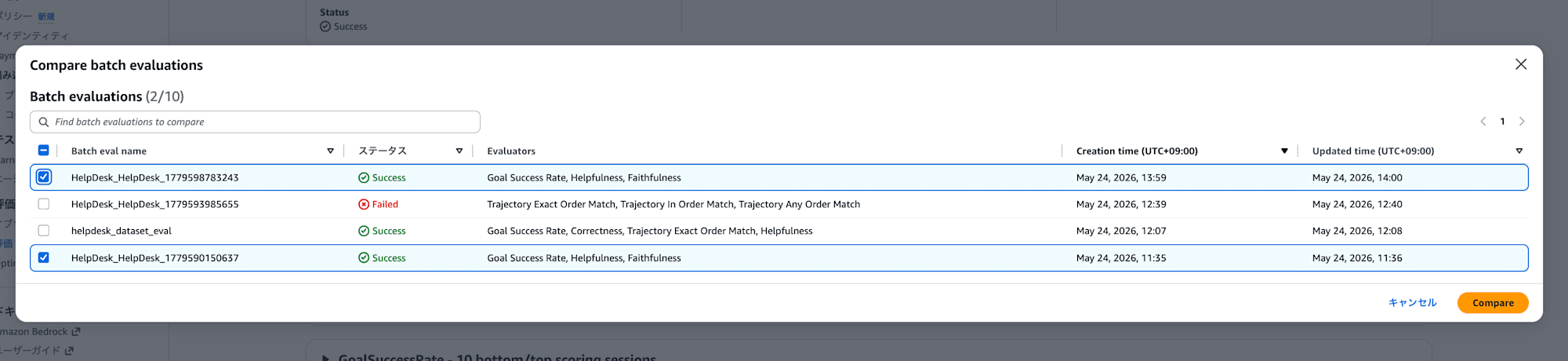
When you select two batch evaluations to compare, the average score for each evaluator is displayed side by side in a bar chart. You can also check the breakdown of score distributions, making it easy to see visually whether things have improved or regressed.
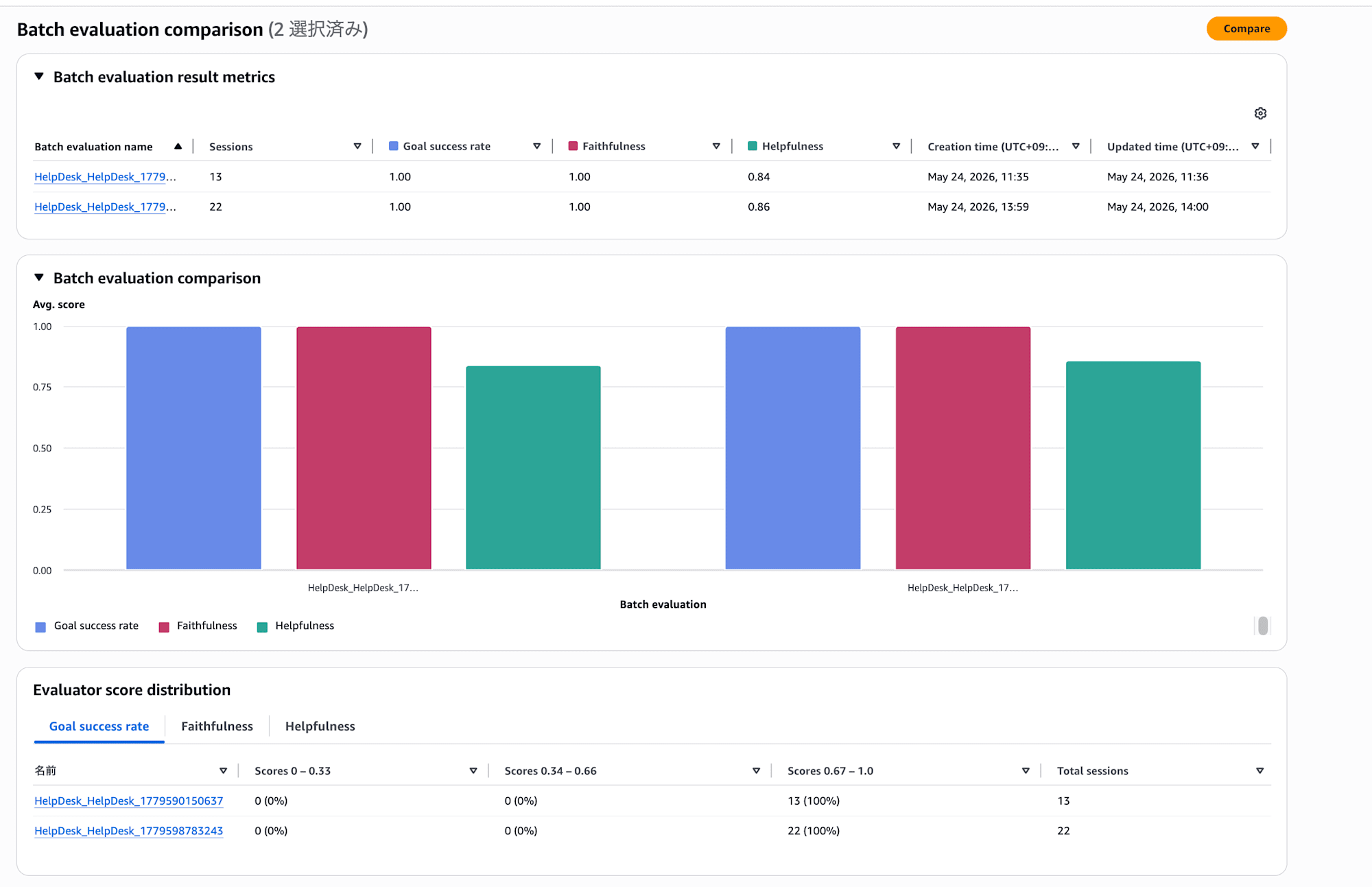
It's convenient to be able to do quick comparisons without writing any code!
Dataset-Driven Batch Evaluation
Up until now we've been doing batch evaluation on existing sessions, but there's also a way to invoke the agent with pre-defined scenarios and then run the evaluation all at once. We use BatchEvaluationRunner from the AgentCore SDK.
Actually, the AgentCore CLI's interactive mode can also run batch evaluations with ground truth. Running agentcore run batch-evaluation without arguments lets you proceed interactively, from selecting evaluators to specifying the ground truth file.
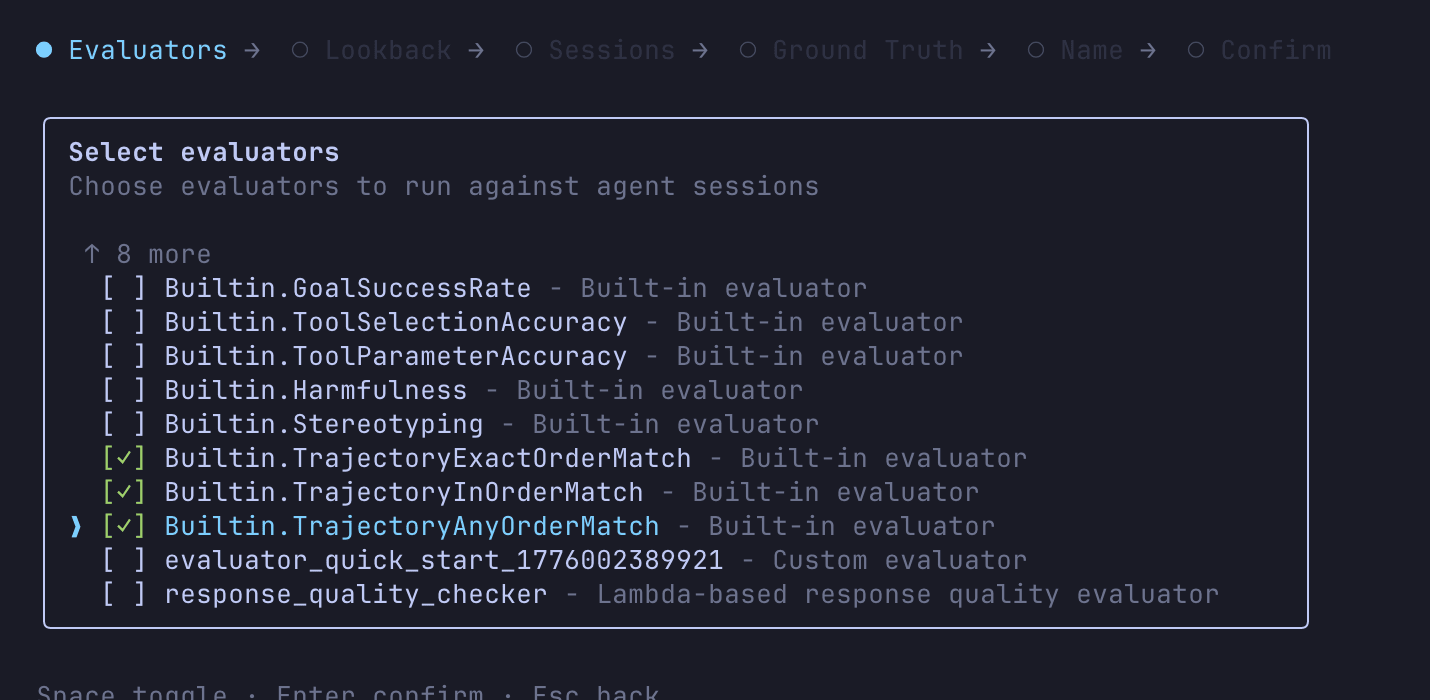
Trajectory-type evaluators can also be selected from here.
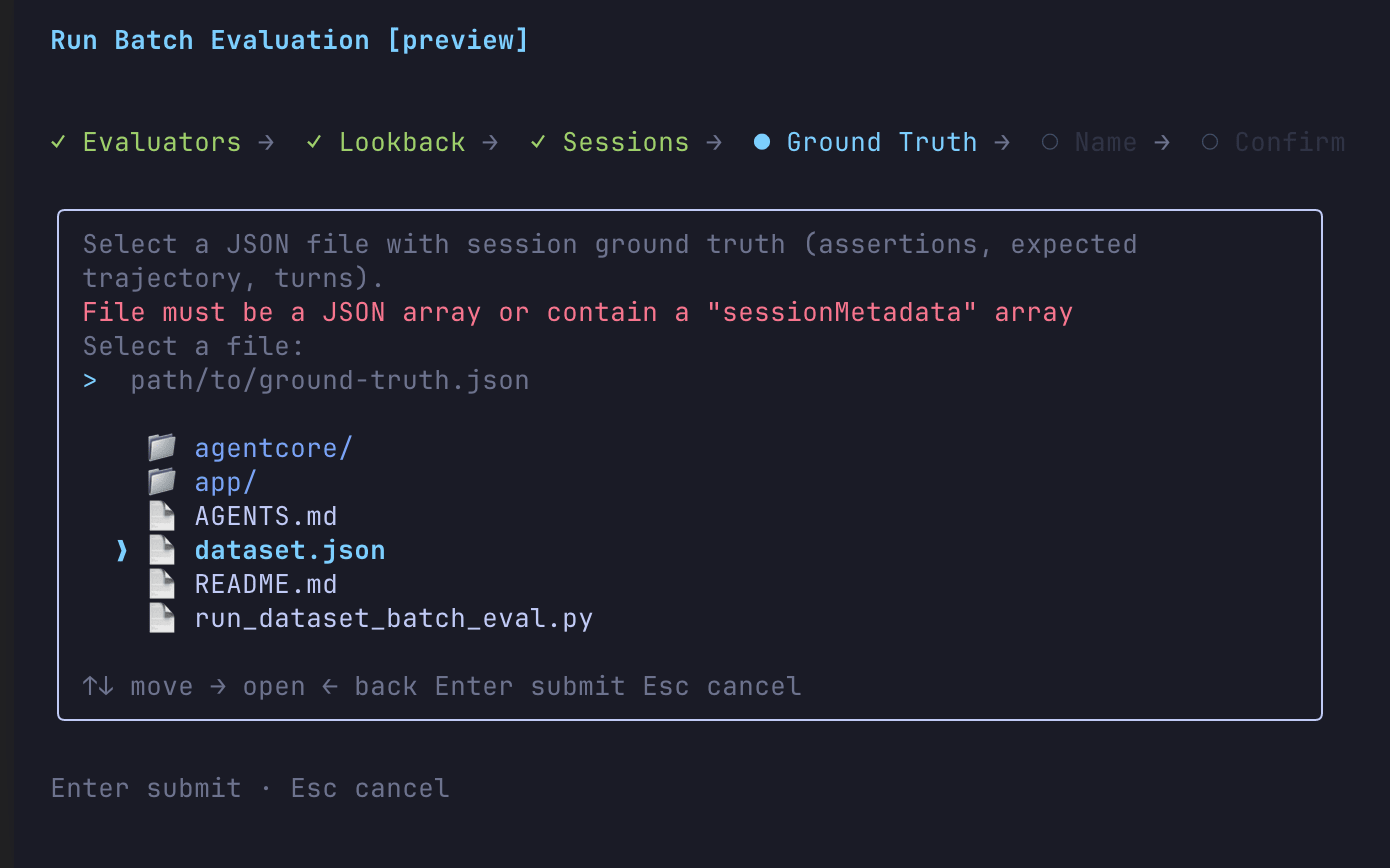
In the Ground Truth step, you can specify a ground truth JSON file. However, the file format is a JSON containing a sessionMetadata array, where ground truth is linked to each session ID.
We want to define test scenarios, invoke the agent, and evaluate the results with ground truth, but trying to do this with the CLI alone requires manually connecting the following steps:
- Run
agentcore invokefor each scenario to generate sessions - Wait 2–3 minutes for telemetry to be ingested into CloudWatch
- Collect the generated session IDs
- Create a JSON in sessionMetadata format linking session IDs to ground truth
- Run the evaluation with
agentcore run batch-evaluation --ground-truth
Step 4 in particular is the painful part—keeping track of the session ID issued with each invoke and manually assembling JSON like "this session ID is for the password reset scenario so the expected tool call is reset_password and..." is quite a chore. Using BatchEvaluationRunner automates this entire flow with a single method call, so we'll use this for dataset-driven evaluation.
Environment Setup
BatchEvaluationRunner is included in the batch-eval extras of the bedrock-agentcore package. Install it additionally into the virtual environment of the project created with agentcore create.
cd app/HelpDesk
uv add --dev "bedrock-agentcore[batch-eval]"
Creating the Dataset
First, define evaluation scenarios in JSON.
{
  "scenarios": [
    {
      "scenario_id": "ticket-lookup",
      "turns": [
        {
          "input": "Please tell me the status of ticket TKT-2001",
          "expected_response": "TKT-2001 is in open status. An issue has been reported where the VPN connection drops during video calls."
        }
      ],
      "expected_trajectory": ["lookup_ticket"],
      "assertions": ["The agent used the lookup_ticket tool to check the ticket status"]
    },
    {
      "scenario_id": "password-reset",
      "turns": [
        {
          "input": "I would like to reset my Active Directory password. My employee ID is EMP-1234.",
          "expected_response": "Your password has been reset. A temporary password has been sent to your registered email."
        }
      ],
      "expected_trajectory": ["reset_password"],
      "assertions": [
        "The agent reset the password for the correct system (Active Directory)",
        "The agent informed the user about the temporary password"
      ]
    },
    {
      "scenario_id": "vpn-escalation",
      "turns": [
        {
          "input": "My VPN keeps dropping during meetings. Please escalate ticket TKT-2001.",
          "expected_response": "TKT-2001 has been escalated to the senior engineering team."
        }
      ],
      "expected_trajectory": ["lookup_ticket", "check_system_status", "escalate_to_engineer"],
      "assertions": [
        "The agent checked the ticket and system status before escalating",
        "The agent escalated the ticket with an appropriate reason"
      ]
    }
  ]
}
Each scenario defines turns (input and expected response), expected_trajectory (expected tool call order), and assertions (natural language descriptions of expected behavior).
The third vpn-escalation scenario expects a 3-step tool call sequence: check ticket → check system status → escalate. The key point is being able to evaluate whether the agent first confirms the situation before deciding to escalate, rather than escalating immediately.
The correspondence between ground truth and each evaluator is as follows:
| Field | Corresponding Evaluator |
|---|---|
| turns[].expected_response | Builtin.Correctness |
| assertions | Builtin.GoalSuccessRate |
| expected_trajectory | Builtin.TrajectoryExactOrderMatch / InOrderMatch / AnyOrderMatch |
All of these fields are optional, and evaluators that are not specified will operate in no-ground-truth mode.
Running BatchEvaluationRunner
import json
import boto3
from bedrock_agentcore.evaluation import (
    BatchEvaluationRunner,
    BatchEvaluationRunConfig,
    BatchEvaluatorConfig,
    CloudWatchDataSourceConfig,
    FileDatasetProvider,
    AgentInvokerInput,
    AgentInvokerOutput,
)

REGION = "us-east-1"
AGENT_ARN = "arn:aws:bedrock-agentcore:us-east-1:123456789012:runtime/HelpDesk-xyz789"
SERVICE_NAME = "HelpDesk-xyz789.DEFAULT"
LOG_GROUP = "/aws/bedrock-agentcore/runtimes/HelpDesk-xyz789-DEFAULT"

agentcore_client = boto3.client("bedrock-agentcore", region_name=REGION)

def agent_invoker(invoker_input: AgentInvokerInput) -> AgentInvokerOutput:
    payload = invoker_input.payload
    if isinstance(payload, str):
        payload = json.dumps({"prompt": payload}).encode()
    elif isinstance(payload, dict):
        payload = json.dumps(payload).encode()

    response = agentcore_client.invoke_agent_runtime(
        agentRuntimeArn=AGENT_ARN,
        runtimeSessionId=invoker_input.session_id,
        payload=payload,
    )
    response_body = response["response"].read()
    return AgentInvokerOutput(agent_output=json.loads(response_body))

dataset = FileDatasetProvider("dataset.json").get_dataset()

config = BatchEvaluationRunConfig(
    batch_evaluation_name="helpdesk_dataset_eval",
    evaluator_config=BatchEvaluatorConfig(
        evaluator_ids=[
            "Builtin.GoalSuccessRate",
            "Builtin.Correctness",
            "Builtin.TrajectoryExactOrderMatch",
            "Builtin.Helpfulness",
        ],
    ),
    data_source=CloudWatchDataSourceConfig(
        service_names=[SERVICE_NAME],
        log_group_names=[LOG_GROUP],
        ingestion_delay_seconds=180,
    ),
    polling_timeout_seconds=1800,
    polling_interval_seconds=30,
)

runner = BatchEvaluationRunner(region=REGION)
result = runner.run_dataset_evaluation(
    agent_invoker=agent_invoker,
    dataset=dataset,
    config=config,
)

print(f"Status: {result.status}")
print(f"Batch evaluation ID: {result.batch_evaluation_id}")

if result.evaluation_results:
    er = result.evaluation_results
    print(f"Sessions completed: {er.number_of_sessions_completed}")
    print(f"Sessions failed:    {er.number_of_sessions_failed}")
    print(f"Total sessions:     {er.total_number_of_sessions}")

    for summary in er.evaluator_summaries or []:
        avg = summary.statistics.average_score if summary.statistics else None
        print(f"  {summary.evaluator_id}: avg={avg}")
BatchEvaluationRunner automatically handles four phases:
- Concurrently invokes the agent for each scenario in the dataset
- Waits for telemetry ingestion into CloudWatch (default 180 seconds)
- Submits the batch job via the
StartBatchEvaluationAPI - Polls with
GetBatchEvaluationand waits for completion
It's great that everything from invoking the agent to polling for the batch evaluation completes with a single method call!
Place run_dataset_batch_eval.py and dataset.json in the app/HelpDesk directory and run with uv run.
uv run run_dataset_batch_eval.py
When executed, the 3-scenario invoke → CloudWatch ingestion wait → batch evaluation submission → polling runs automatically, yielding results like the following:
Status: COMPLETED
Batch evaluation ID: helpdesk_dataset_eval-f879e432bd
Sessions completed: 3
Sessions failed:    0
Total sessions:     3
  Builtin.GoalSuccessRate: avg=0.67
  Builtin.TrajectoryExactOrderMatch: avg=0.33
  Builtin.Helpfulness: avg=0.89
  Builtin.Correctness: avg=1.0
Correctness is perfect across all scenarios, but TrajectoryExactOrderMatch came out quite low at 0.33. Let's look at the breakdown by session.
| Scenario | GoalSuccessRate | TrajectoryExactOrderMatch | Correctness | Helpfulness |
|---|---|---|---|---|
| ticket-lookup | 1.0 (Yes) | 1.0 (Yes) | 1.0 (Correct) | 0.83 (Very Helpful) |
| password-reset | 1.0 (Yes) | 0.0 (No) | 1.0 (Correct) | 0.83 (Very Helpful) |
| vpn-escalation | 0.0 (No) | 0.0 (No) | 1.0 (Correct) | 1.0 (Above And Beyond) |
ticket-lookup passed as expected by calling only lookup_ticket. On the other hand, for password-reset, we expected only reset_password, but the agent first called the tool with the system name "Active Directory" which errored, then retried with "active_directory", resulting in an extra tool call that caused ExactOrderMatch to fail.
For vpn-escalation, we expected a 3-step tool call sequence of lookup_ticket → check_system_status → escalate_to_engineer, but the agent made its own judgment and called only escalate_to_engineer, causing both TrajectoryExactOrderMatch and GoalSuccessRate to fail. However, Helpfulness was Above And Beyond (1.0), indicating the response was useful to the user, which led to that evaluation. It's interesting to look at the details.
You can also check the details of each evaluator from the console.
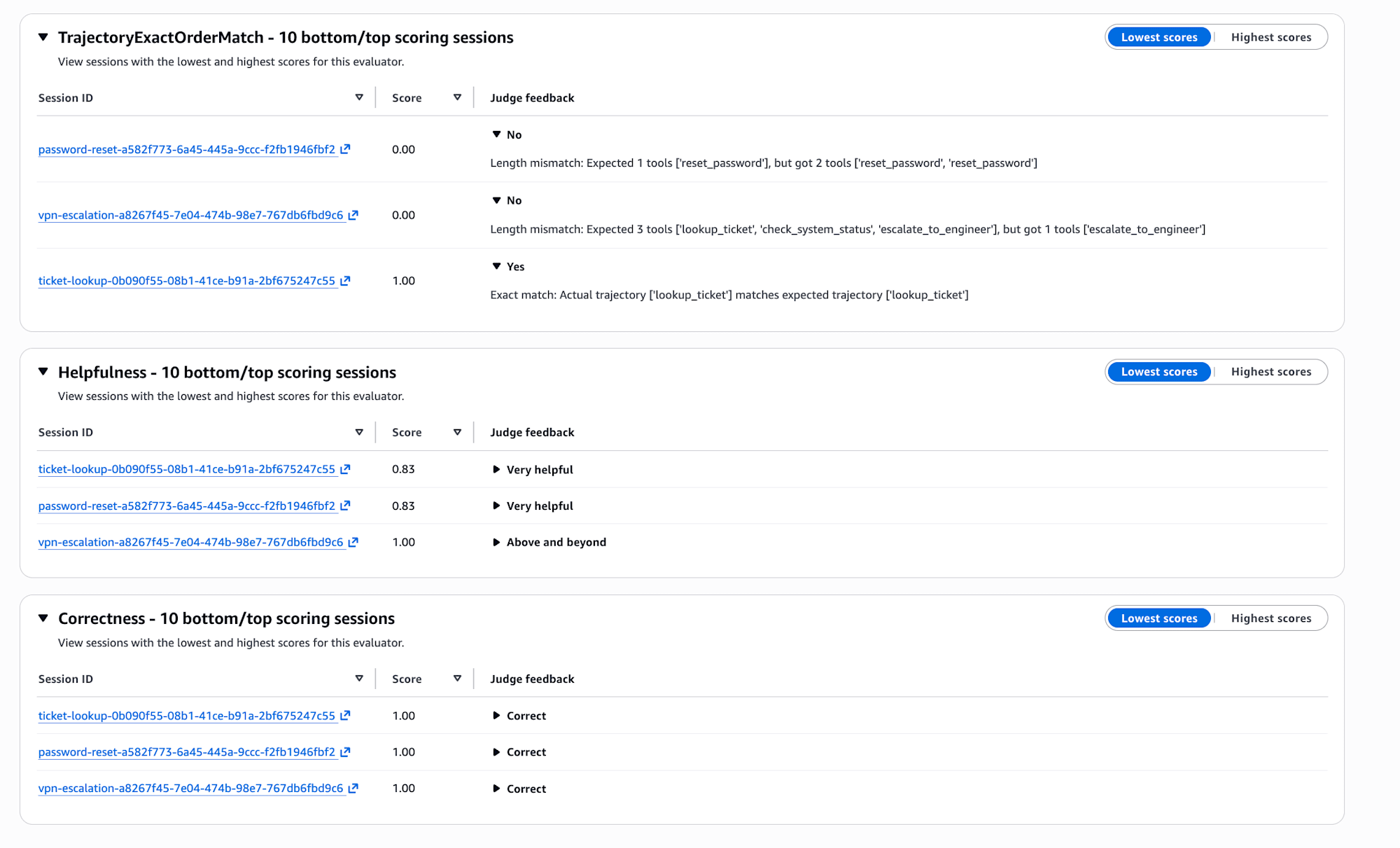
The Judge feedback for TrajectoryExactOrderMatch shows the specific reason for failure. For password-reset it says "Expected 1 tools ['reset_password'], but got 2 tools ['reset_password', 'reset_password']", and for vpn-escalation it says "Expected 3 tools [...], but got 1 tools ['escalate_to_engineer']", making the difference between expected and actual tool calls immediately clear at a glance.
As shown here, there are cases where response quality is high but the tool call order differs from expectations, so if ExactOrderMatch is too strict, it might be better to use InOrderMatch or AnyOrderMatch. For example, when only the end result matters.
Closing
Being able to evaluate in bulk is great. Also, being able to check the evaluation results from the console is appreciated, and it seems easy to compare with previous results. Although it's in Preview, it looks useful for checking whether there are any batch regressions. I would like to make active use of it myself.
I hope this article was helpful to you in some way. Thank you for reading to the end!