
I tried creating a guide for operators to pause and resume call recording at any time during a call in Amazon Connect Customer

This page has been translated by machine translation. View original
Introduction
In Amazon Connect, you can control whether call recording is ON/OFF in the contact flow settings, but this is a setting for the entire call, and you cannot temporarily stop only the recording partway through a call.
On the other hand, when an operator needs to verbally collect sensitive information such as a credit card number, there are cases where you want to stop recording only during that interval. This article is based on the following requirements.
- The operator remains one person, continuing the same voice call
- The operator collects sensitive information verbally (not using DTMF secure input)
- No queue transfer to another operator is performed
- Call recording is stopped only during the interval when the target information is being collected, and recording resumes on the same call after collection is complete
This control cannot be achieved with standard flow blocks alone, and it is necessary to call the SuspendContactRecording / ResumeContactRecording APIs.
This time, I created a Step-by-step guide for calling these APIs from AWS Lambda, and tried out a configuration where the operator can stop and resume recording with just button operations during a call.
Prerequisites Knowledge
Show View Block and Step-by-step Guides
Amazon Connect has a mechanism called "Views" that displays a custom UI on the agent workspace. When you specify a view in the "Show view" block within a flow, that view is displayed in the agent workspace, and the results of button operations and the like are handled as flow branches (Actions).
SuspendContactRecording / ResumeContactRecording API
SuspendContactRecording is an API that temporarily pauses recording (call, IVR, screen) that has been enabled in the flow settings. You can narrow down the target by specifying AGENT/IVR/SCREEN for ContactRecordingType, but if omitted, all targets enabled in the flow settings will be subject to suspension and resumption. Intervals that were paused are treated as silence in the final recording.
Prerequisites
This article assumes the following.
- An Amazon Connect instance has already been created
- Call recording and Contact Lens real-time analysis have been enabled in the flow
- Screen recording is not used (notes on using screen recording are described later)
Creating the View
The recording view places one Text component and one Button component. Only the Button's display name (label) and Action were changed; all other settings remain at their defaults.
- Text: "Status: Recording"
- Button: Label "Stop Recording", Action
SuspendRecording
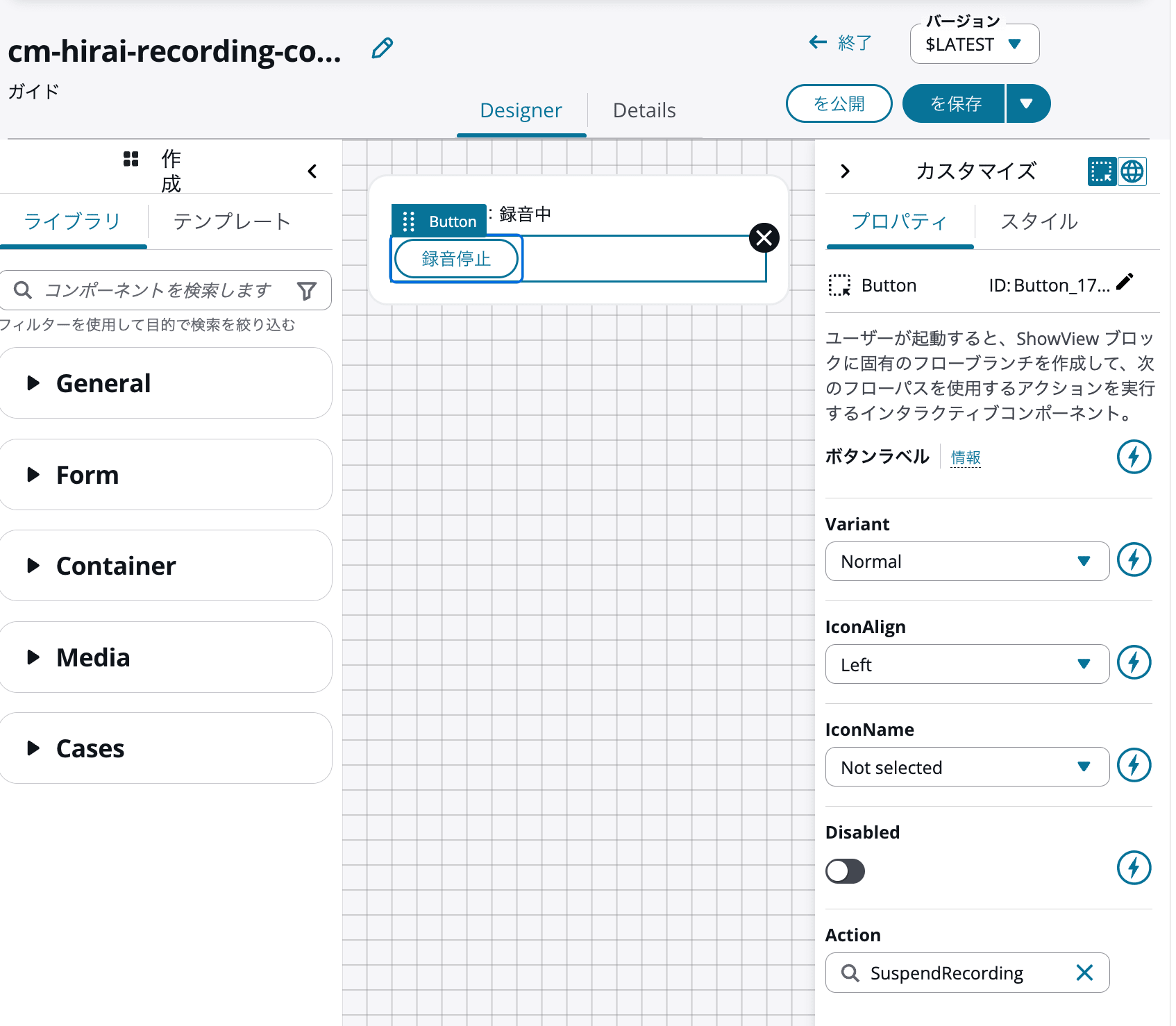
Canvas of the recording view
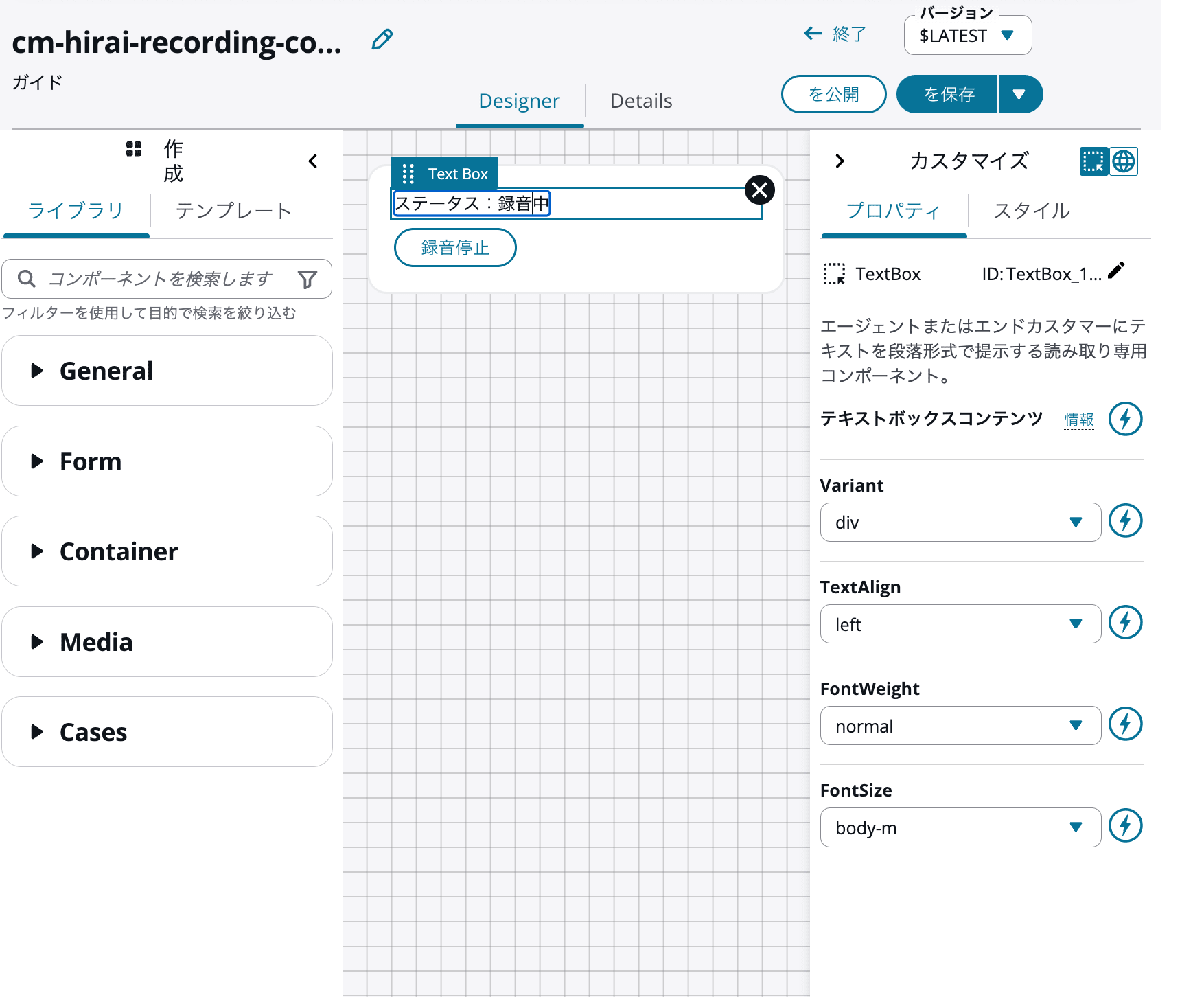
Properties of the "Stop Recording" button. SuspendRecording is specified for the Action
The stopped view similarly places one Text and one Button, changing only the label and Action.
- Text: "Status: Recording Stopped"
- Button: Label "Resume Recording", Action
ResumeRecording
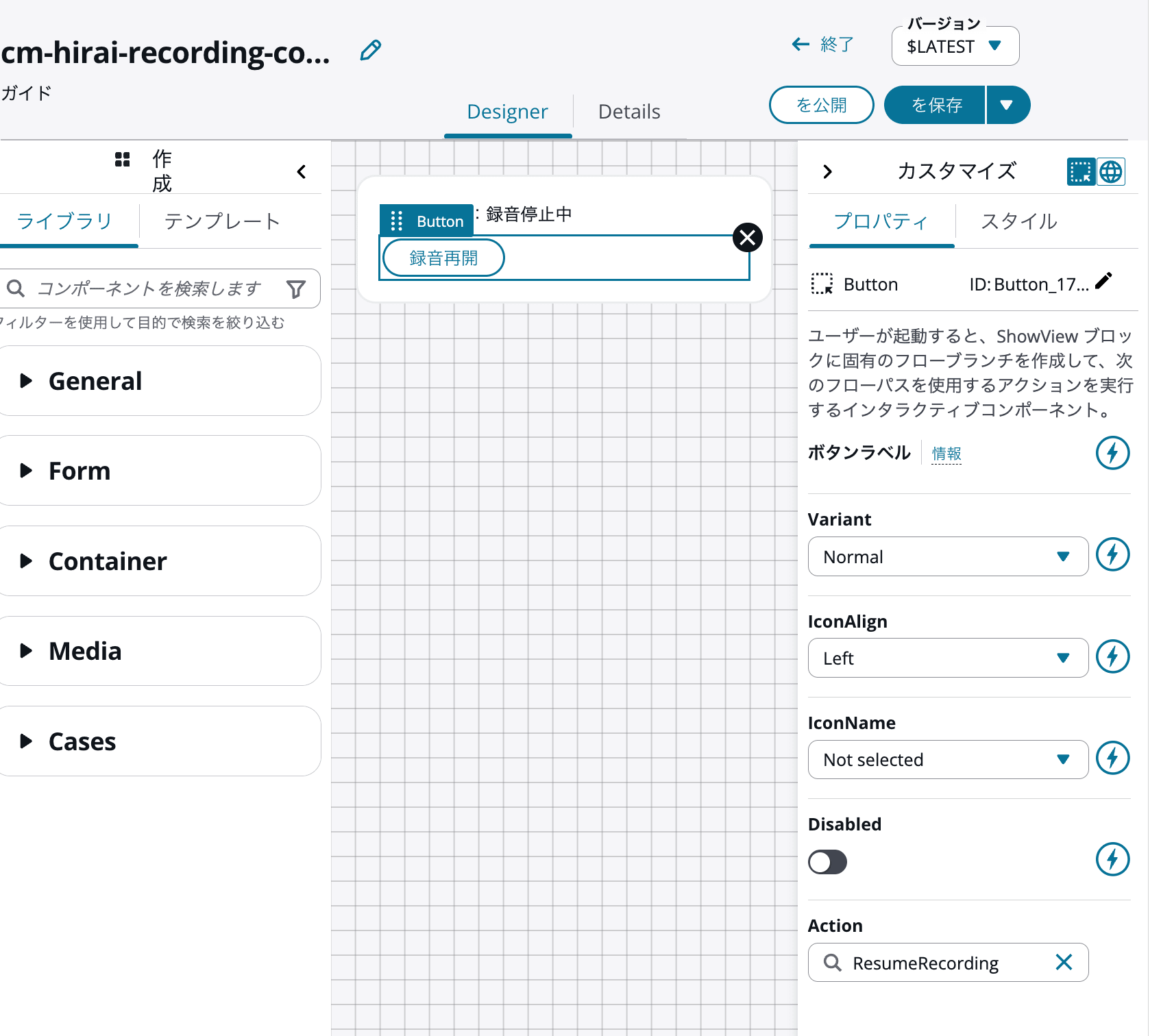
Canvas of the stopped view
The values specified in the button's Action property (SuspendRecording / ResumeRecording) must match the branch conditions (Conditions) of the Show view block described later. The button label text only affects the display in the agent workspace and does not affect flow branching.
Creating the Lambda
The Lambda function was created with the following content.
import boto3

connect_client = boto3.client('connect')

def lambda_handler(event, context):
    contact_data = event['Details']['ContactData']
    parameters = event['Details'].get('Parameters', {})

    # The view display flow operates as a separate contact (CHAT), so RelatedContactId is used
    instance_id = contact_data['InstanceARN'].split('/')[1]
    related_contact_id = contact_data['RelatedContactId']
    action = parameters.get('Action')

    common_args = {
        'InstanceId': instance_id,
        'ContactId': related_contact_id,
        'InitialContactId': related_contact_id,
        'ContactRecordingType': 'AGENT',  # Explicitly set to AGENT since screen recording is not used
    }

    if action == 'Suspend':
        connect_client.suspend_contact_recording(**common_args)
    elif action == 'Resume':
        connect_client.resume_contact_recording(**common_args)
    else:
        raise ValueError(f'Unsupported Action: {action}')

    return {'statusCode': '200', 'result': action}
Key points of the processing are as follows.
The guide flow containing the "Show view" block runs as a separate contact from the call between the agent and the customer. Therefore, if you use ContactData.ContactId from the event passed to the Lambda function as-is, you cannot control the recording of the target voice contact. You need to specify ContactData.RelatedContactId for both ContactId and InitialContactId.
In this verification environment as well, the following two contacts were actually generated.
It appears that the guide side is generated as a contact with a CHAT channel, and the ID of the voice contact is held in RelatedContactId.
- Voice call
- Channel: VOICE
- Initiation method: INBOUND
- RelatedContactId: None
- Flow displaying the view
- Channel: CHAT
- Initiation method: API
- RelatedContactId: Contact ID of the voice call
Therefore, in the code, RelatedContactId obtained from event is used instead of ContactId.
Also, which action to take is determined by the value of Action passed in the "Function input parameters" of the Invoke Lambda function block. The return value statusCode is a string. Since STRING_MAP is specified for ResponseValidation on the Invoke Lambda function block side, returning non-string values such as numbers will result in a response validation error and prevent the flow from proceeding to the intended branch.
Add the following inline policy to the Lambda execution role in addition to AWSLambdaBasicExecutionRole.
{
  "Version": "2012-10-17",
  "Statement": [
    {
      "Effect": "Allow",
      "Action": [
        "connect:SuspendContactRecording",
        "connect:ResumeContactRecording"
      ],
      "Resource": "arn:aws:connect:ap-northeast-1:111111111111:instance/<connect-instance-id>/contact/*"
    }
  ]
}
Creating the Flows
Two flows were created this time.
Inbound Flow (Base)
The inbound flow is a simple configuration that applies recording and analysis settings to incoming calls, then transfers them to a queue and connects them to an operator.
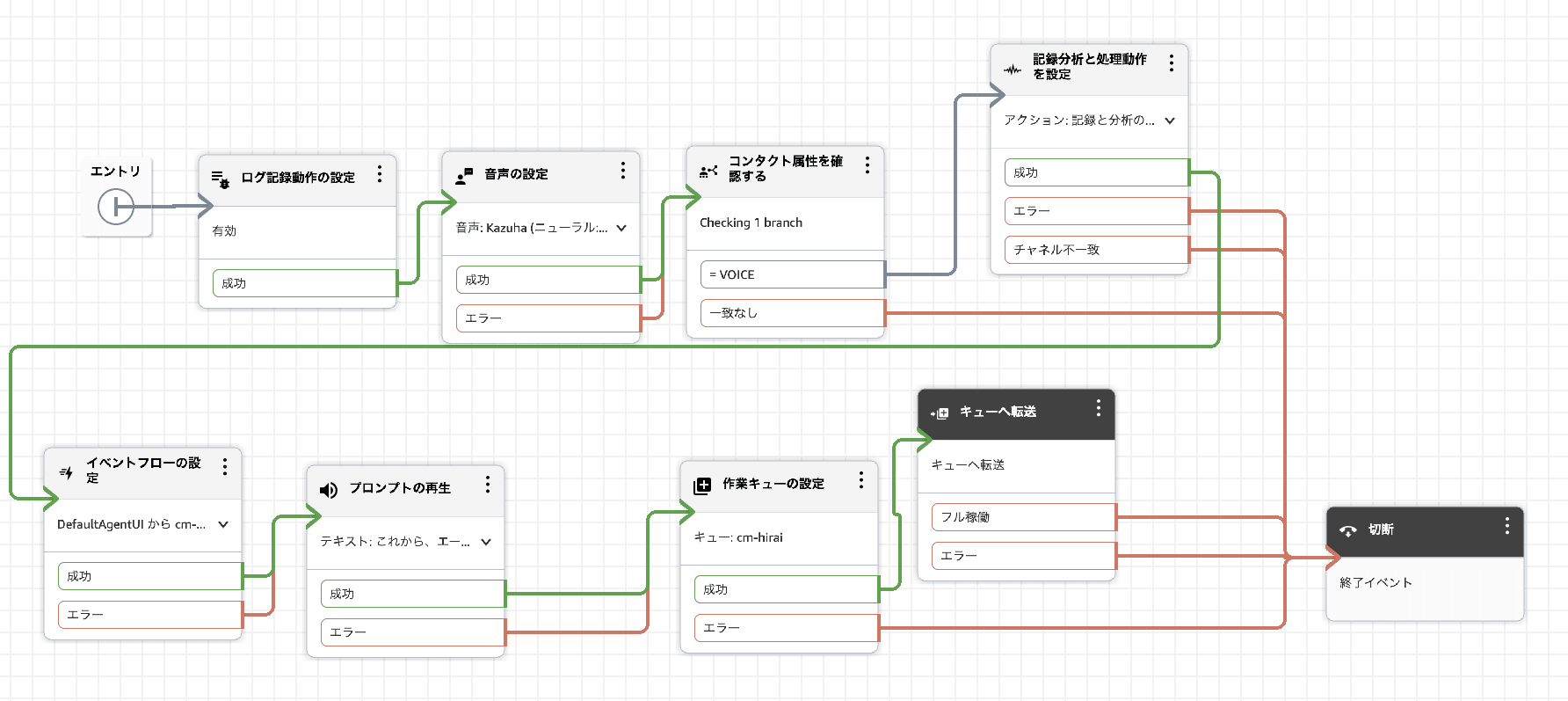
The entire inbound flow. A "Set event flow" block is added immediately after the call recording and analysis settings
A "Set event flow" block is added immediately after the recording and analysis settings block in this flow. This block is used to specify the flow to be executed during interaction with the contact, and in this case, the guide flow described below is specified for the event "Default agent UI flow."
As a result, when a call connects to an operator, the guide is automatically displayed in the agent workspace. The operator can pause and resume recording with buttons on the guide while continuing the call.
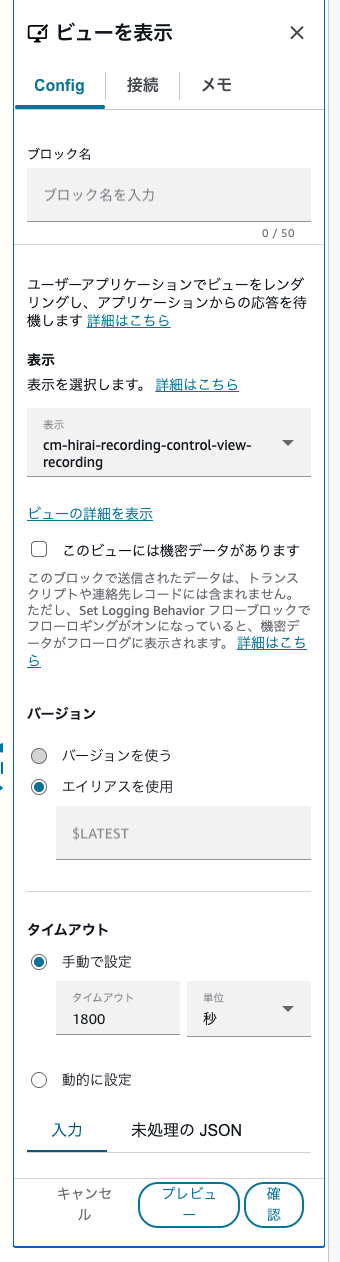
Properties of the "Set event flow" block. The guide flow is specified for DefaultAgentUI in EventHooks
Guide Flow
The guide flow is configured to loop between the two views — the recording view and the stopped view — with a Lambda invocation block in between.
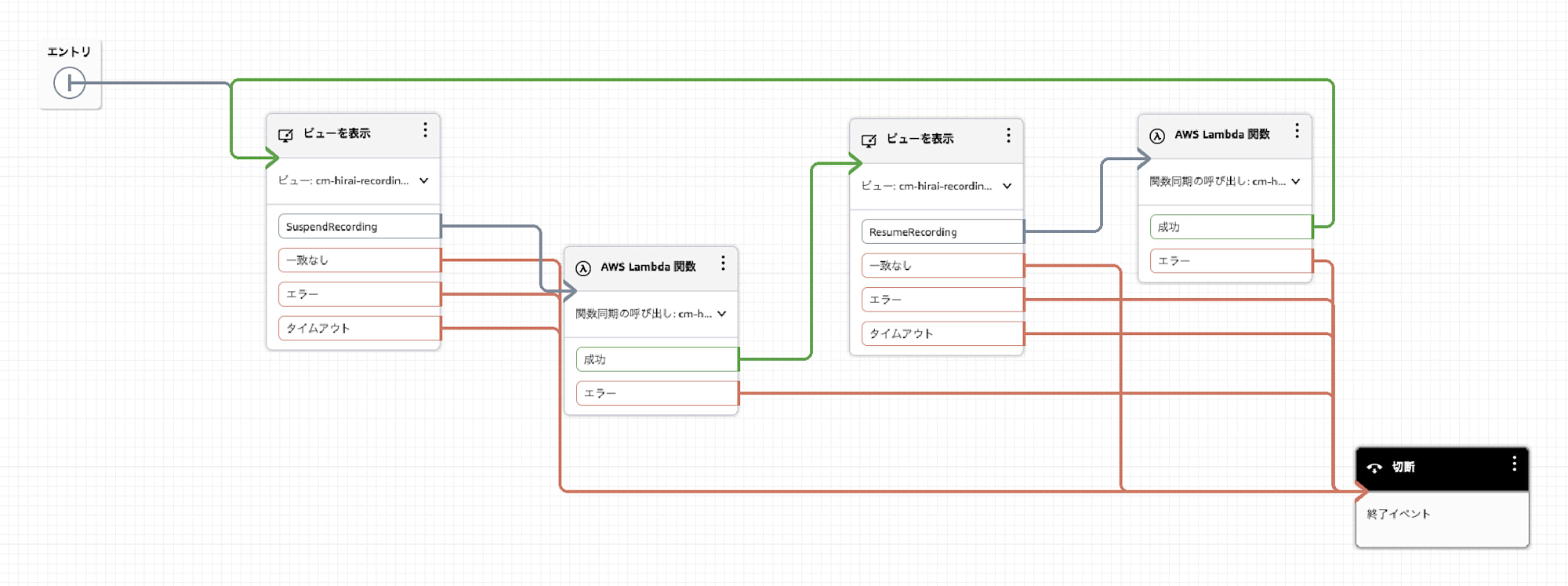
The entire guide flow. The recording view and stopped view transition between each other with Lambda invocations in between
- When the "Stop Recording" button is pressed while the recording view is displayed, Lambda calls
SuspendContactRecordingand transitions to the stopped view - When the "Resume Recording" button is pressed while the stopped view is displayed, Lambda calls
ResumeContactRecordingand returns to the recording view
Since the views are separated by state (recording / stopped), during a call only "the current state + one button that can be pressed next" is always displayed.
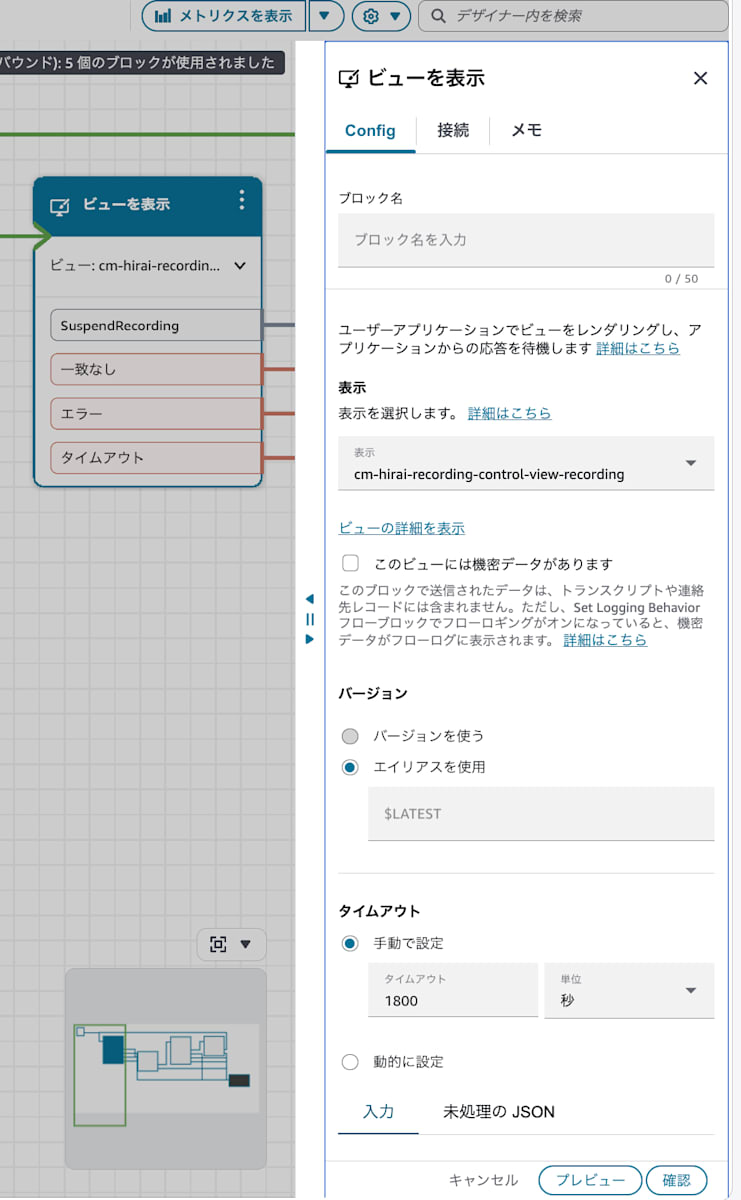
The state where the recording view is selected in the "Show view" block. On the left block, the SuspendRecording branch corresponding to the button's Action is automatically displayed.
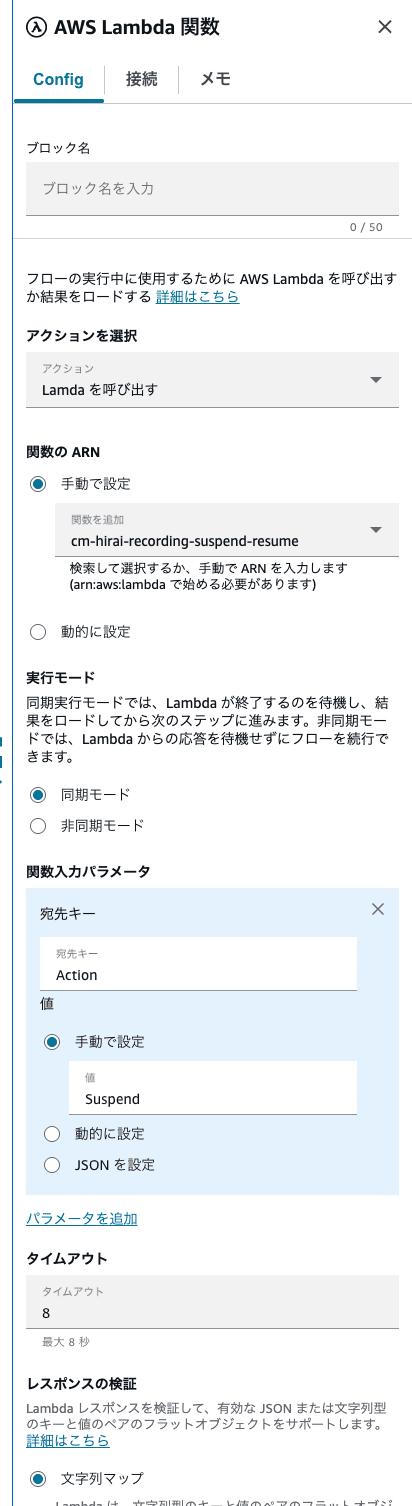
Properties of the block that invokes the AWS Lambda function. The function to invoke and the Action value are passed via function input parameters
Verification
When actually tested, it was confirmed that for content spoken during a recording pause, Contact Lens real-time transcription was not generated.
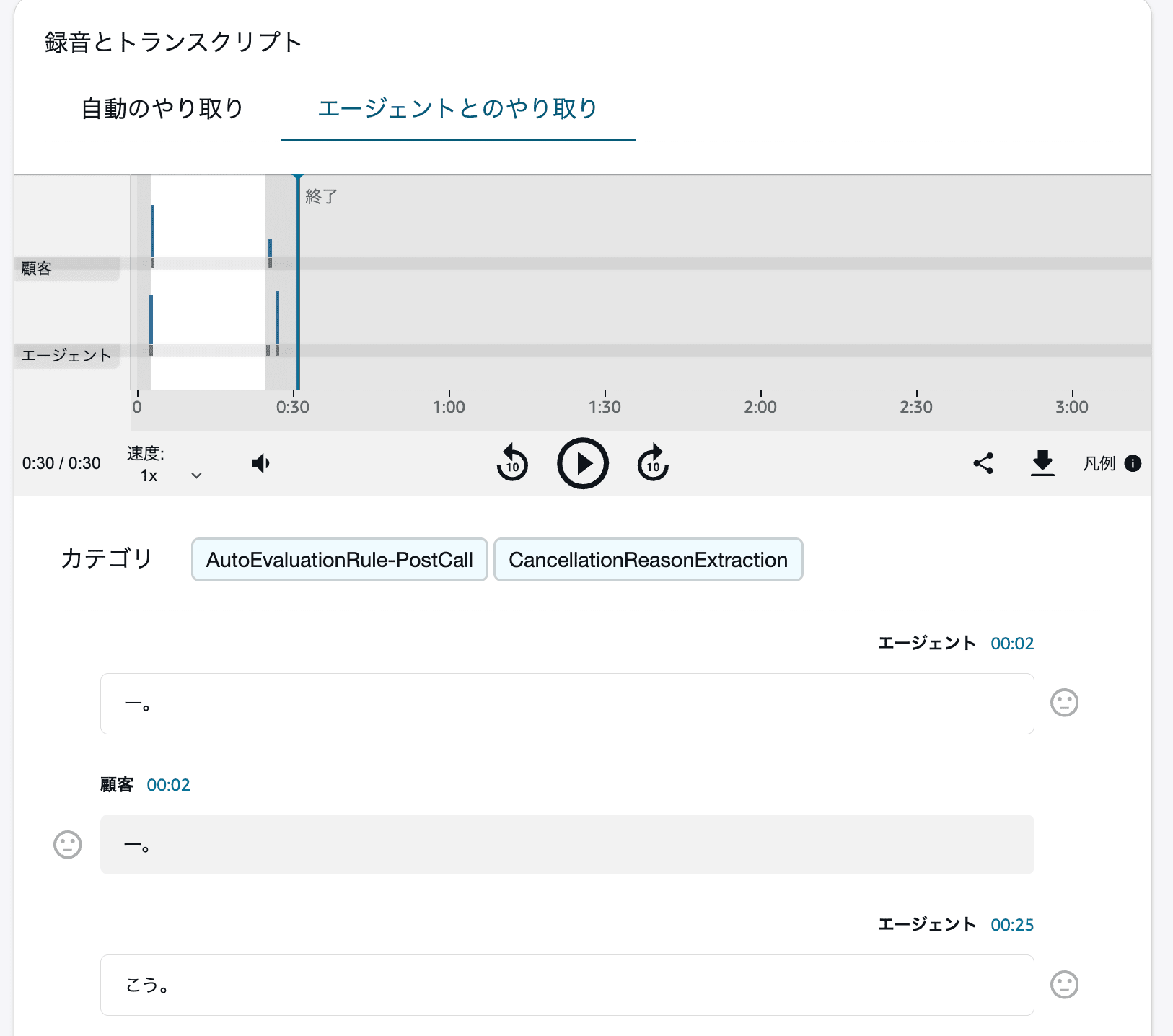
The transcription is interrupted during the recording pause interval. In addition, the recording waveform is displayed in white for the paused interval, and that portion is not played back
Contact Lens real-time analysis segments can be checked with the following command (since voice data is retained for 24 hours, it must be executed within that period).
aws connect-contact-lens list-realtime-contact-analysis-segments --instance-id <connect-instance-id> --contact-id <contact-id> --region ap-northeast-1 --query 'Segments[].Transcript.{Role:ParticipantRole,Text:Content,BeginMs:BeginOffsetMillis}' --output table
When checking BeginOffsetMillis, a segment gap of more than 20 seconds was found before and after the recording pause operation, confirming that no Transcript segments were generated during that interval. After the recording resume operation, segments were generated again. The details of the spoken content are omitted here.
Notes
Notes on Using Screen Recording
Since ContactRecordingType is explicitly set to AGENT in this case, screen recording continues even in environments where screen recording is enabled. According to the API documentation, SuspendContactRecording stops all recording targets enabled in the flow settings (call, IVR, screen) together when ContactRecordingType is omitted. If you also want to stop and resume screen recording, you need to implement it without passing the ContactRecordingType key at all.
Impact on Transcription and Logs
Contact Lens transcription stops in sync with recording pauses, so no additional configuration was needed.
CTR, contact attributes, and CloudWatch Logs only retain values passed through flows and APIs, so they are not recorded unless the target information is passed.
Summary
Recording was able to be temporarily paused and resumed only during the necessary interval, without changing the call or the operator. By calling the API via Lambda from the guide buttons, Contact Lens transcription also stopped during the recording pause.
