
I Tried Categorizing Each Customer Inquiry with Amazon Connect Customer Conversation Analytics Rules and Displaying Them on a Dashboard

This page has been translated by machine translation. View original
Introduction
In Amazon Connect Customer conversational analytics rules, you can assign contact categories based on the content of a chat.
This time, I used the rule condition [Natural language – Semantic match] to classify Japanese chats into "plan change" and "cancellation." I tested whether categories are assigned even to chats in which the customer does not use those exact words, and checked the counts and percentages on the conversational analytics dashboard.
Prerequisites and workflow
For this verification, I used an Amazon Connect Customer instance with a contact flow for chat and conversational analytics available. The Region is ap-northeast-1.
The user performing the operations was granted the permissions required to create and publish conversational analytics rules. Creating rules with natural language requires the "Rules - Generative AI" permission in addition to the rules permission. Viewing the dashboard requires permission to access dashboards and permission to view conversational analytics.
The flow this time is as follows: accept a chat in a flow with chat analytics enabled, assign categories with a post-chat analytics rule, and check the results on the contact details page and the conversational analytics dashboard.
Configuring chat analytics and classification rules
Enabling chat analytics in the contact flow
I enabled chat analytics in the [Set recording and analytics behavior] block of the contact flow. The settings used this time are as follows.
| Setting | Value |
|---|---|
| Chat analytics | Enabled |
| Analytics language | ja-JP |
| Analytics mode | ContactLens |
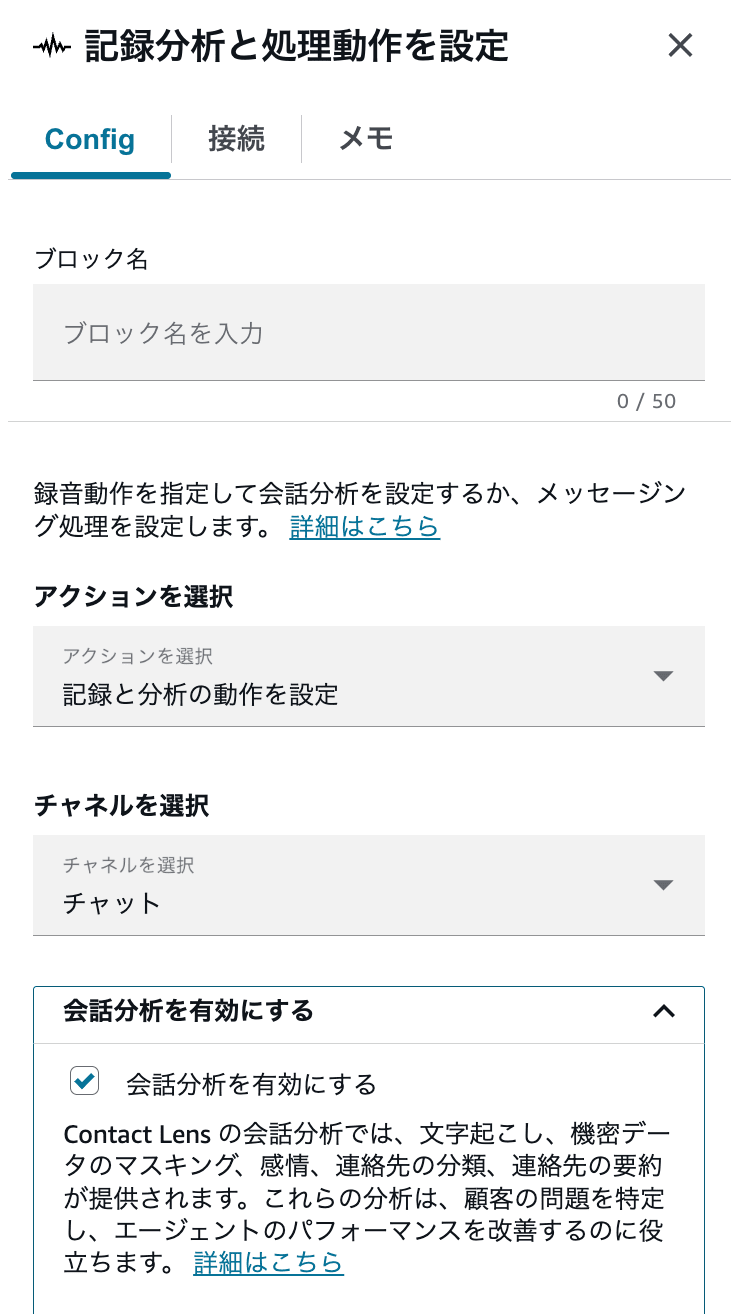
Chat analytics is enabled in the contact flow, and the analytics language is set to ja-JP
As of this writing, the AWS documentation also describes a block for new flows in addition to the block for existing flows. Here, I describe things according to the screen display of the flow used in this verification.
Creating the plan change and cancellation rules
From [Create rule], I created the following two rules. The rule names and category names are values used for this verification.
| Rule name | Category name | Natural language statement |
|---|---|---|
TestChatPlanChange |
TestPlanChange |
The customer wants to change their pricing plan or contract plan. |
TestChatCancellation |
TestCancellation |
The customer wants to cancel the service or contract they are currently using. |
For both rules, I specified [Post-chat analysis available] as the event and [Natural language – Semantic match] as the condition, set the category name, and published them. Because this condition cannot be used with real-time analytics, the classification results this time are checked after the chat, not during it.
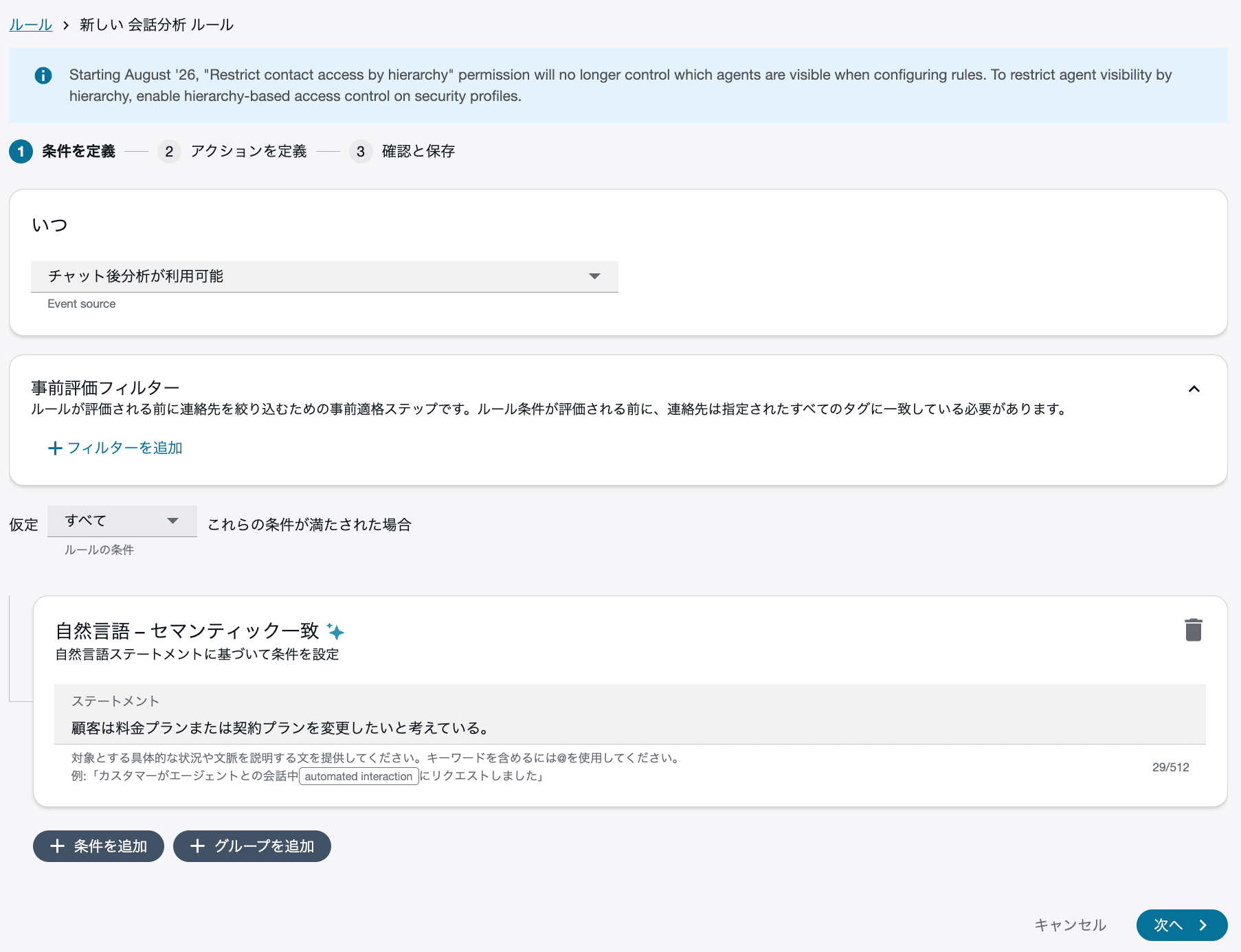
The plan change statement and the TestPlanChange category are configured
With this condition, generative AI compares the conversation transcript with the statement and evaluates it as true or false. The AWS documentation recommends expressions that make clear who is acting, such as "customer" or "agent." Because I wanted to classify the customer's intent this time, I included "customer" in the statements. When narrowing the target by queue or contact attributes, specify it in the rule's additional conditions rather than in the statement.
Note that the screen also has the conventional [Words or phrases – Semantic match] condition. The AWS documentation recommended using the generative AI-powered [Natural language – Semantic match] for those who had been using the conventional condition, so I used the latter this time.
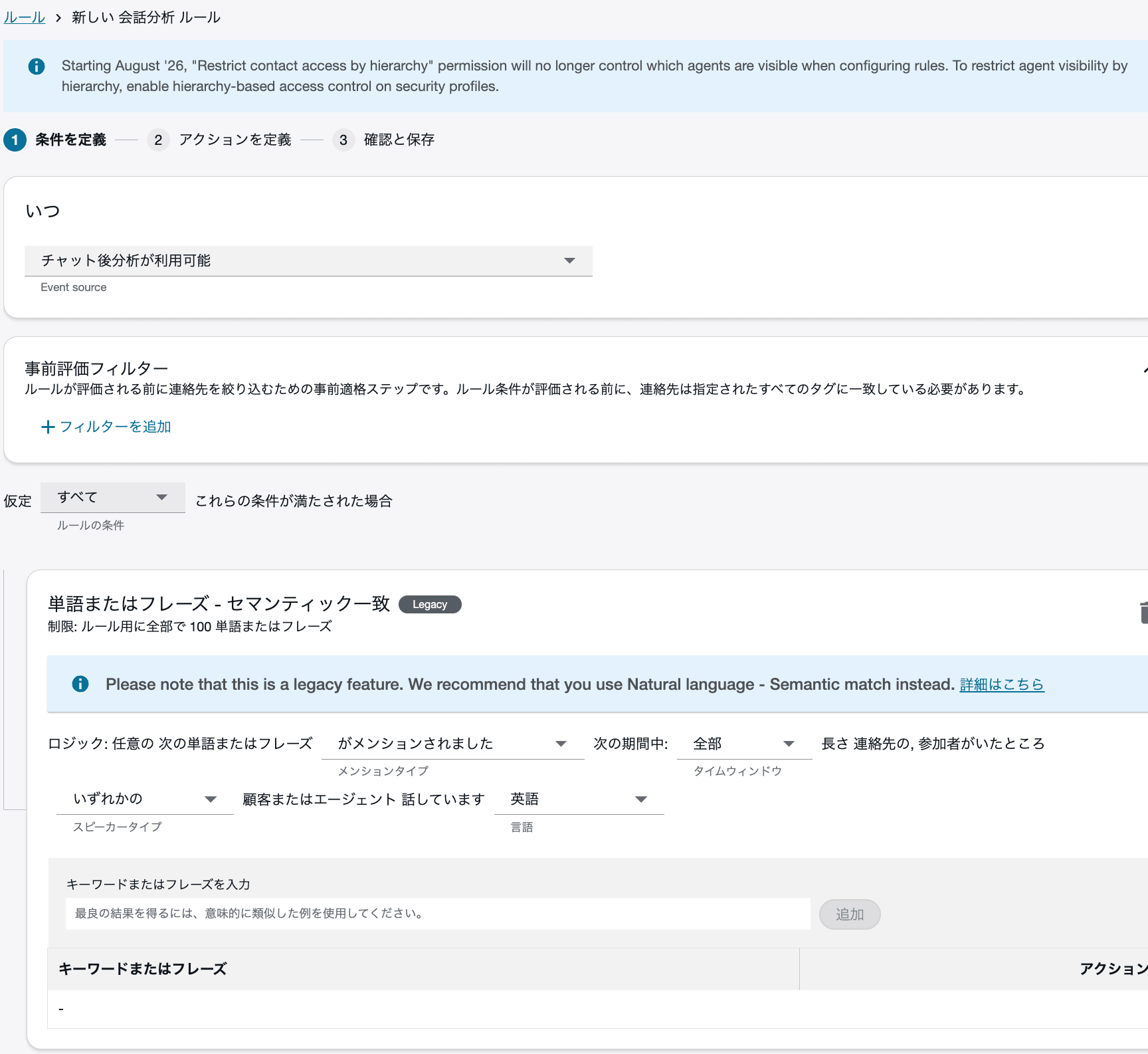
Input example for the conventional [Words or phrases – Semantic match] condition
Checking category assignment with Japanese chats
After publishing the rules, I tried the following four patterns in chat. In each case, I ended the chat, completed after-contact processing, and then checked the contact details page. In this environment, categories appeared about 3 to 4 minutes after the chat ended. This is the time it took during this verification, not a fixed processing time.
Consulting about reviewing charges
The customer did not say "plan change" but said they wanted to reduce their charges.
顧客:
毎月の料金が少し負担になっていて、何か見直せる方法はありますか?

エージェント:
ご利用中のプランの変更をご案内できます。現在のプランを確認いたします。

顧客:
できれば、もう少し安い内容に切り替えたいです。
TestPlanChange was assigned to this chat.
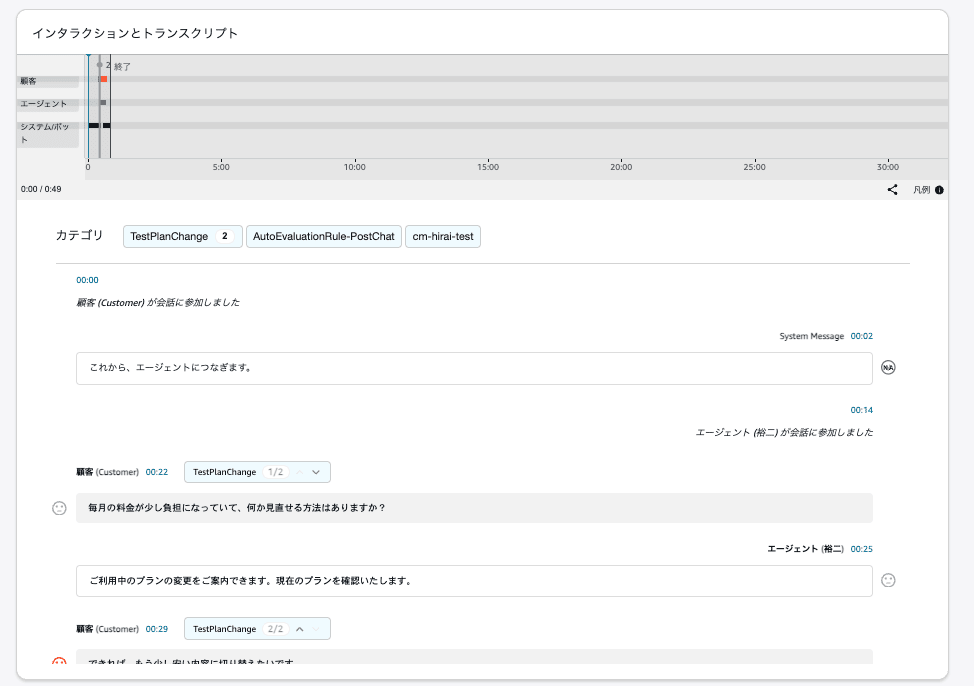
TestPlanChange was assigned to the chat consulting about reviewing charges
Saying they want to stop using the service
Next is a chat in which the customer wants to stop using the service without saying "cancel." The agent's statement includes the word "cancellation."
顧客:
最近あまり使っていないので、今後どうするか迷っています。

エージェント:
ご利用継続、プラン変更、解約のお手続きをご案内できます。

顧客:
このまま料金がかかるなら、利用をやめる手続きをお願いしたいです。
TestCancellation was assigned to this chat.
Trying multiple categories and another way of expressing cancellation
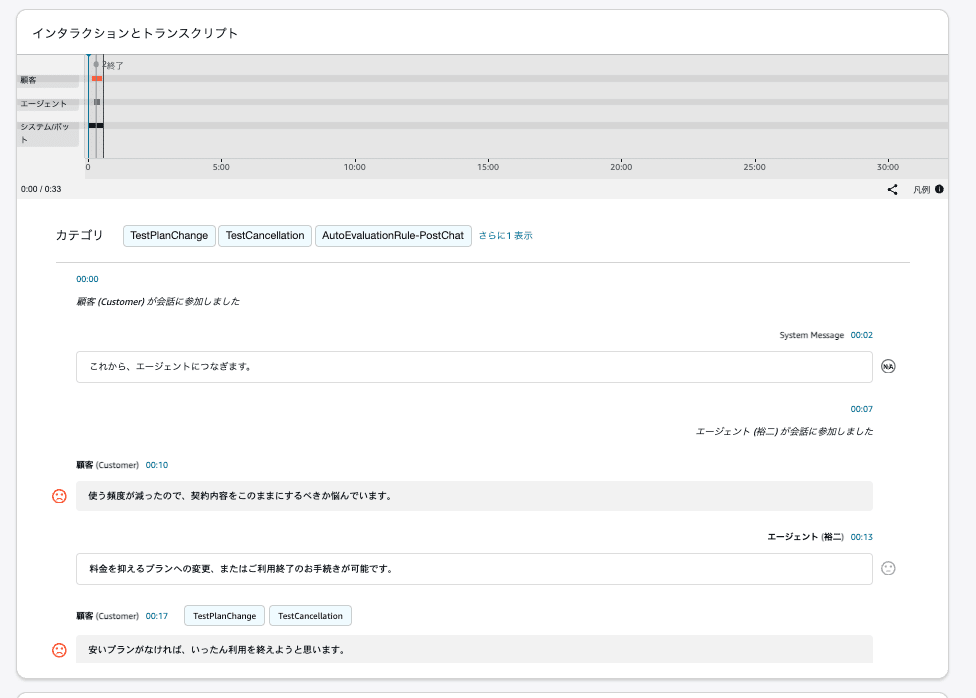
I also tried a chat that touches on both a plan change and ending use.
顧客:
使う頻度が減ったので、契約内容をこのままにするべきか悩んでいます。

エージェント:
料金を抑えるプランへの変更、またはご利用終了のお手続きが可能です。

顧客:
安いプランがなければ、いったん利用を終えようと思います。
Both TestPlanChange and TestCancellation were assigned to this chat. In these rules, the two categories are not mutually exclusive.
I also tried phrasing it as wanting to avoid the next bill.
顧客:
しばらくサービスを使う予定がないのですが、料金だけ発生し続けるのでしょうか?

エージェント:
ご利用を継続しない場合は、利用終了のお手続きが可能です。

顧客:
では、次の請求が発生しないように手続きをお願いします。
TestCancellation was assigned to this chat. The results are summarized below.
| What was checked in the chat | Assigned category |
|---|---|
| Wants to review the plan to reduce charges | TestPlanChange |
| Wants the procedure to stop using the service | TestCancellation |
| Wants to end use if there is no cheaper plan | TestPlanChange, TestCancellation |
| Does not want to be billed from next time onward | TestCancellation |
In the range tested this time, the expected categories were assigned even to chats in which the customer did not directly use words corresponding to the category names.
Checking counts and percentages on the dashboard
I opened the [Conversational analytics dashboard] under [Dashboards and reports] and checked the [Contact categories] widget. In this verification, TestCancellation showed 3 contacts and TestPlanChange showed 2.
Here, the denominator of [Contact %] deserves attention. This value is not the composition ratio relative to the total number of category assignments; it is the percentage of the aggregated contacts that have that category.
This time, there were 5 contacts that had been analyzed by conversational analytics. Of these, 4 were chats I performed intentionally, and the remaining 1 was a contact I created by mistake during the verification. The fifth contact, created by mistake, has neither category. On the other hand, the second contact has both categories.
| Contact | TestCancellation |
TestPlanChange |
|---|---|---|
| 1 | Yes | No |
| 2 | Yes | Yes |
| 3 | No | Yes |
| 4 | Yes | No |
| 5 (created by mistake) | No | No |
Without a category filter
All 5 contacts, including the fifth one created by mistake, are included in the aggregation. TestCancellation showed 60% (3 of 5), and TestPlanChange showed 40% (2 of 5).
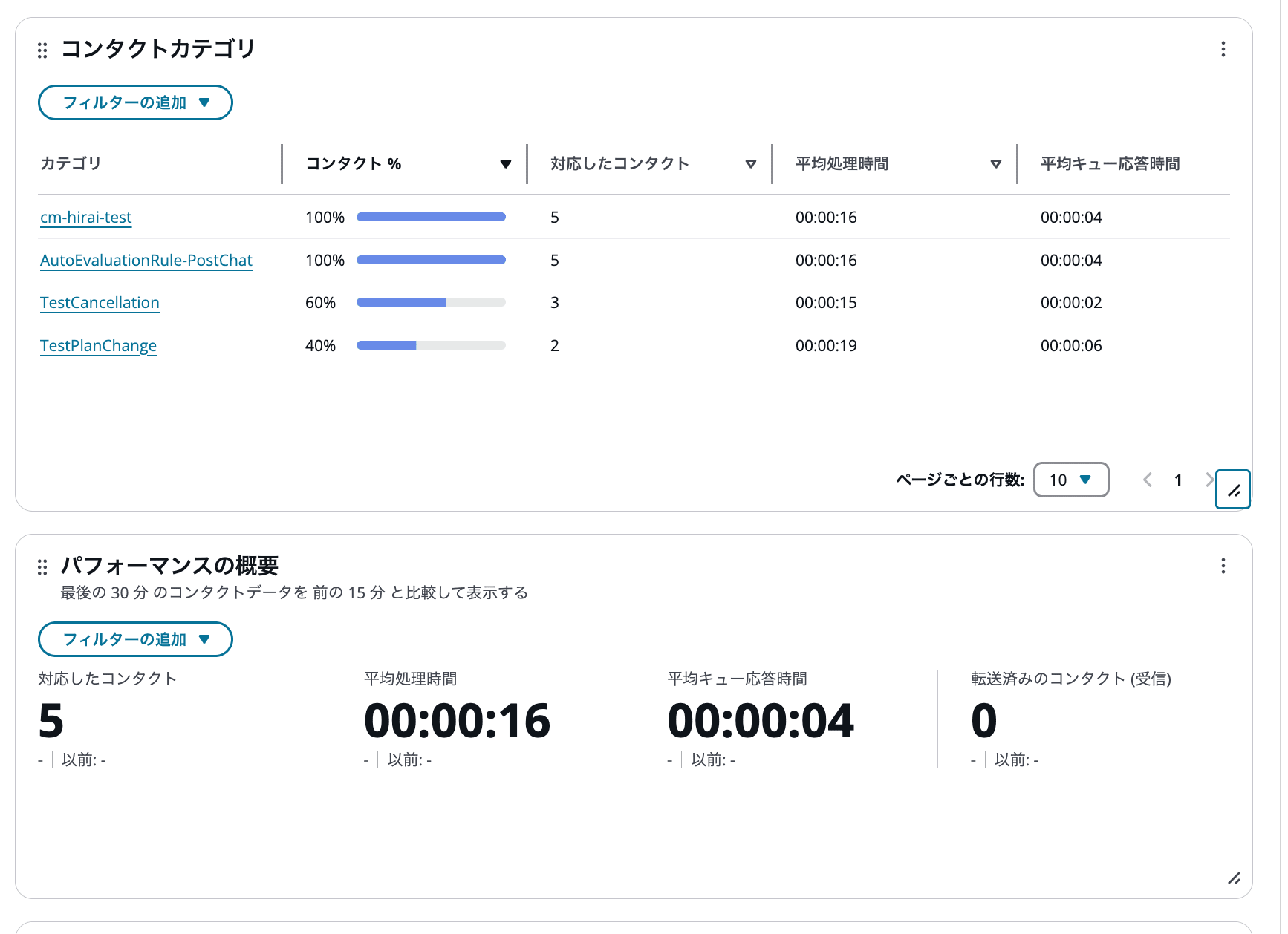
Without a category filter, 60% and 40% were displayed based on 5 contacts
Filtering by both categories
I specified TestCancellation and TestPlanChange in the category filter. In this verification, the 4 contacts (contacts 1 to 4) that have either category were included in the aggregation, and the fifth contact, which has no category, was not included.
As a result, TestCancellation showed 75% (3 of 4), and TestPlanChange showed 50% (2 of 4).
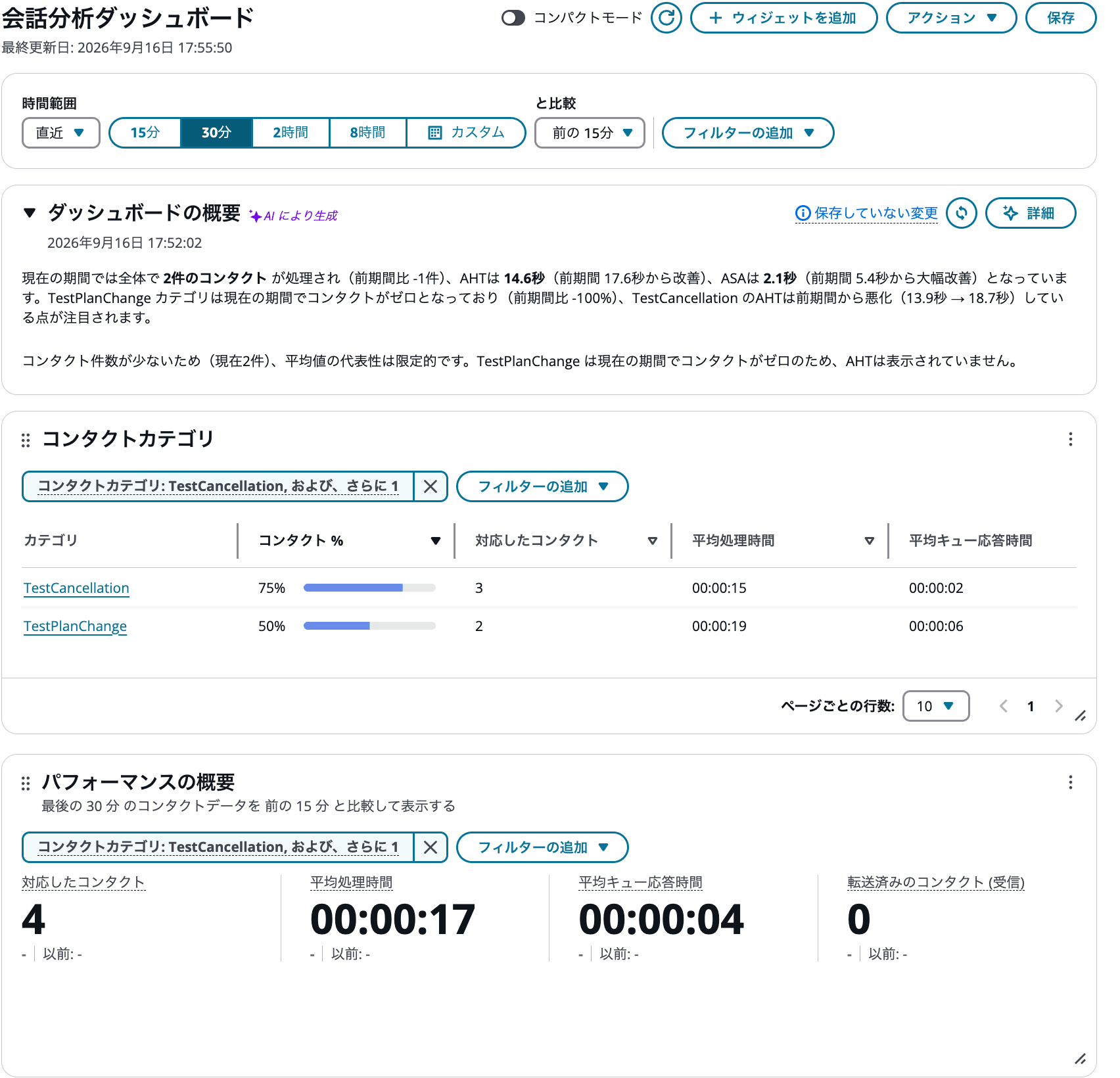
When filtering by both categories, 75% and 50% were displayed for the 4 target contacts
Adding 75% and 50% exceeds 100%. This is because contact 2 is counted in both categories. [Contact %] cannot be treated as a composition ratio of inquiry types that sums to 100% across categories.
If you want to check the share of all contacts analyzed by conversational analytics, remove the category filter. If you want to narrow down to contacts that match a specific category and check things such as average handle time, set the category filter.
Summary
Using [Natural language – Semantic match], in the Japanese chats tested this time, the expected categories were assigned even to inquiries that did not directly say "plan change" or "cancellation." Because categories are assigned as a result of post-chat analytics, check them after the chat ends.
[Contact %] on the dashboard is the percentage of the aggregated contacts that have that category. Because the denominator changes depending on the category filter, and multiple categories can be assigned to a single contact, avoid treating it as a composition ratio of inquiry types.