Intentionally Generating Lots of Easy-to-Handle Findings with Amazon Inspector

This page has been translated by machine translation. View original
Introduction
Hello everyone, this is Akaike.
Have you ever wanted to test Amazon Inspector suppression rules or Security Hub automation rules?
I have.
However, when I actually tried to test them, I couldn't find any convenient findings, which left me in a bind.
GuardDuty has a command called create-sample-findings that generates sample findings, but Inspector has no equivalent.
Inspector works by scanning actual resources and matching them against vulnerabilities, so if you want findings, the only way is to actually create a vulnerable state and let it scan.
So this time, I'll intentionally generate lots of Inspector findings on EC2.
What We'll Do
All you do is launch an EC2 instance from an old AMI.
Inspector scans packages on the instance for vulnerabilities (CVEs), so if you use an AMI that was released a long time ago, unpatched vulnerabilities will have accumulated by that much, and you can produce a large number of findings.
If you just want dummy findings for testing, this is the quickest way.
※ As a prerequisite, please make sure Inspector EC2 scanning is enabled in the target region
Finding an AMI
First, let's look for an ancient AMI.
We'll add --include-deprecated to include deprecated AMIs as well, and sort them by creation date, oldest first.
aws ec2 describe-images --owners amazon --include-deprecated \
  --filters "Name=name,Values=al2023-ami-2023.*-kernel-6.1-x86_64" \
            "Name=state,Values=available" \
  --query 'sort_by(Images,&CreationDate)[].[CreationDate,ImageId,Name,DeprecationTime]' \
  --output text | head -5
February 2023.
That looks pretty good.
2023-02-24T05:02:33.000Z        ami-06b9a1f1f27895002   al2023-ami-2023.0.20230222.1-kernel-6.1-x86_64  2023-03-27T22:00:00.000Z
2023-03-13T23:52:35.000Z        ami-067871d950411e643   al2023-ami-2023.0.20230315.0-kernel-6.1-x86_64  2023-08-25T17:30:00.000Z
2023-03-22T20:19:18.000Z        ami-02a2700d37baeef8b   al2023-ami-2023.0.20230322.0-kernel-6.1-x86_64  2023-08-25T17:30:00.000Z
2023-04-04T18:27:21.000Z        ami-079a2a9ac6ed876fc   al2023-ami-2023.0.20230329.0-kernel-6.1-x86_64  2023-08-25T17:30:00.000Z
2023-04-18T23:37:44.000Z        ami-01b32aa8589df6208   al2023-ami-2023.0.20230419.0-kernel-6.1-x86_64  2023-08-25T17:30:00.000Z
Launching It
Pass the ID of the AMI we just found to ami_id and launch the EC2 instance.
This time we'll use the following Terraform.
Note that to be covered by Inspector's agent-based scanning, the instance must be managed by SSM, so I've also created an instance profile with AmazonSSMManagedInstanceCore attached.
terraform {
  required_version = ">= 1.15"

  required_providers {
    aws = {
      source  = "hashicorp/aws"
      version = "~> 6.0"
    }
  }
}

provider "aws" {
  region = var.region
}

###############################################################################
# Variables
###############################################################################

variable "region" {
  type        = string
  default     = "ap-northeast-1"
}

variable "ami_id" {
  type        = string
}

variable "instance_type" {
  type        = string
  default     = "t3.micro"
}

variable "name" {
  type        = string
  default     = "inspector-test"
}

###############################################################################
# IAM: SSM 管理下に置くためのインスタンスプロファイル
###############################################################################

data "aws_iam_policy_document" "assume_role" {
  statement {
    effect  = "Allow"
    actions = ["sts:AssumeRole"]

    principals {
      type        = "Service"
      identifiers = ["ec2.amazonaws.com"]
    }
  }
}

resource "aws_iam_role" "ssm" {
  name               = "${var.name}-ssm-role"
  assume_role_policy = data.aws_iam_policy_document.assume_role.json
}

resource "aws_iam_role_policy_attachment" "ssm_core" {
  role       = aws_iam_role.ssm.name
  policy_arn = "arn:aws:iam::aws:policy/AmazonSSMManagedInstanceCore"
}

resource "aws_iam_instance_profile" "ssm" {
  name = "${var.name}-ssm-profile"
  role = aws_iam_role.ssm.name
}

###############################################################################
# EC2
###############################################################################

resource "aws_instance" "this" {
  ami                  = var.ami_id
  instance_type        = var.instance_type
  iam_instance_profile = aws_iam_instance_profile.ssm.name

  metadata_options {
    http_endpoint = "enabled"
    http_tokens   = "required"
  }

  root_block_device {
    volume_size           = 8
    volume_type           = "gp3"
    encrypted             = true
    delete_on_termination = true
  }

  tags = {
    Name    = var.name
    Purpose = "amazon-inspector-detection-test"
  }
}

###############################################################################
# Outputs
###############################################################################

output "instance_id" {
  value = aws_instance.this.id
}

output "check_ssm" {
  description = "SSM 管理下になったかの確認コマンド(数分かかる)"
  value       = "aws ssm describe-instance-information --region ${var.region} --filters Key=InstanceIds,Values=${aws_instance.this.id} --query 'InstanceInformationList[].[InstanceId,PlatformName,PlatformVersion,AgentVersion]' --output table"
}

output "check_findings" {
  description = "Inspector の検出結果確認コマンド(初回スキャンまで10〜30分程度)"
  value       = "aws inspector2 list-findings --region ${var.region} --filter-criteria '{\"resourceId\":[{\"comparison\":\"EQUALS\",\"value\":\"${aws_instance.this.id}\"}]}' --query 'findings[].{Sev:severity,Title:title}' --output table"
}
After applying, first check whether the instance is under SSM management.
Wait a few minutes, and if it displays as below, you're good.
aws ssm describe-instance-information \
  --region ap-northeast-1 \
  --filters Key=InstanceIds,Values=i-08846885b4c065daa \
  --query 'InstanceInformationList[].[InstanceId,PlatformName,PlatformVersion,AgentVersion]' \
  --output table
---------------------------------------------------------------
|                 DescribeInstanceInformation                 |
+----------------------+----------------+-------+-------------+
|  i-08846885b4c065daa |  Amazon Linux  |  2023 |  3.1.1927.0 |
+----------------------+----------------+-------+-------------+
After Waiting a While
Right after the instance came under SSM management, Inspector's initial scan completed.
aws inspector2 list-coverage \
  --region ap-northeast-1
  --filter-criteria '{"resourceId":[{"comparison":"EQUALS","value":"i-08846885b4c065daa"}]}' \
  --query 'coveredResources[].{Status:scanStatus.statusCode,Reason:scanStatus.reason,Last:resourceMetadata.ec2}' \
  --output json
[
    {
        "Status": "ACTIVE",
        "Reason": "SUCCESSFUL",
        "Last": {
            "tags": {
                "Name": "inspector-test",
                "Purpose": "amazon-inspector-detection-test"
            },
            "amiId": "ami-06b9a1f1f27895002",
            "platform": "LINUX"
        }
    }
]
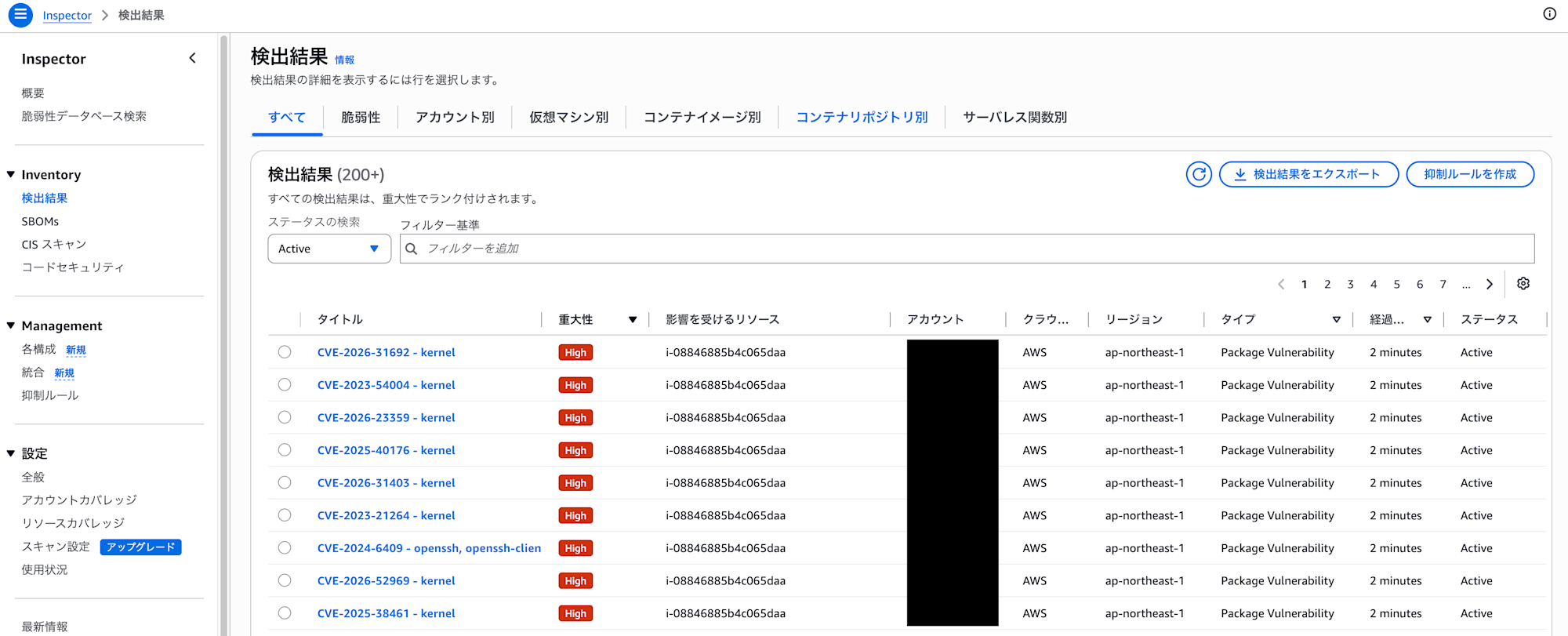
And once the initial scan finishes, a flood of findings comes rushing in.
This time, findings appeared within a few minutes of launch.
When I counted them, there were 3,340 findings.
Now you can test suppression rules to your heart's content.
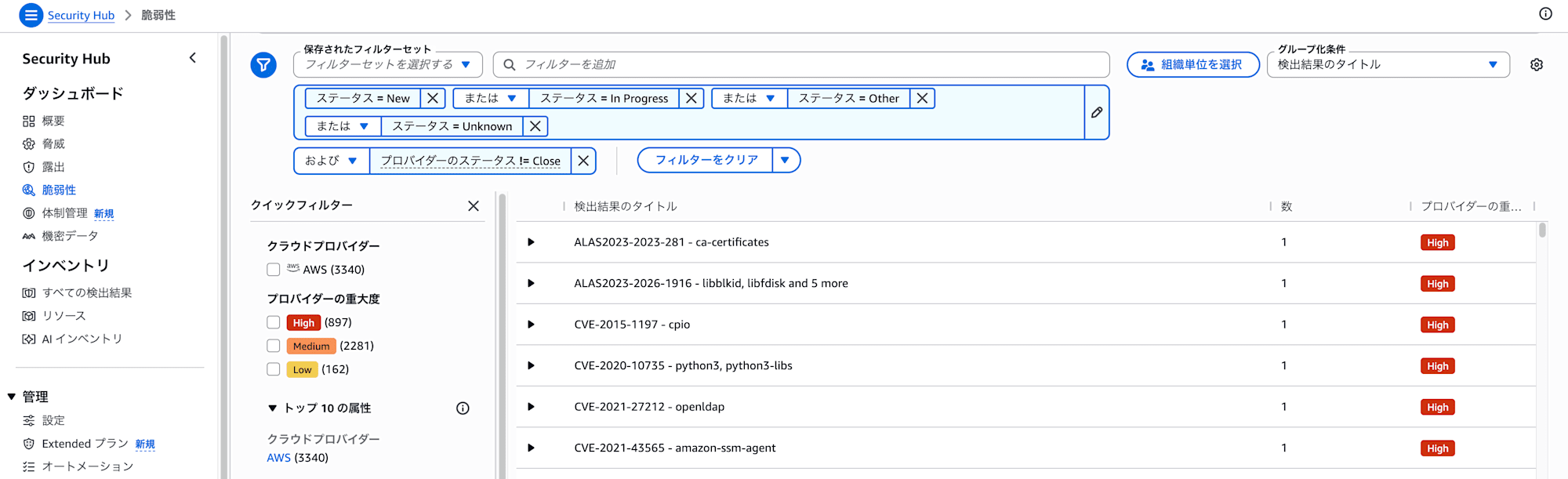
On the Security Hub side, the findings were also reflected at almost the same time.
Now you can test automation rules to your heart's content too.
I tried this on EC2, but the idea is the same for containers such as ECS.
If you run a task based on an old image, you can generate findings in the same way through container image scanning.
If you want to test in a container environment, please give that a try.
Conclusion
That was how to intentionally generate convenient findings in Inspector.
It's very simple, just launching from an old AMI, but you get more than enough findings to test suppression rules and automation rules.
Also, once you've finished testing, be sure to delete this vulnerable instance.
I hope this helps anyone else who is looking for findings for testing in the same way.