AWS Organizations Inspector policies can now be configured in form format from the Inspector console.

This page has been translated by machine translation. View original
Introduction
In Amazon Inspector, you can use AWS Organizations Inspector policies to centrally manage Inspector enablement, scan types, and target regions across your entire organization.
This feature itself was announced in the November 2025 What's New as "Amazon Inspector supports organization-wide management through AWS Organizations policies."
The announcement at the time described a workflow of enabling the Inspector policies policy type in the AWS Organizations console and creating a policy.
To get started, designate a delegated admin within Amazon Inspector, enable the "Inspector policies" policy type in the AWS Organizations console, and create a policy that specifies the desired scan types and Regions.
When creating from the AWS Organizations console, Inspector policies are configured in JSON format.
On the other hand, the current Amazon Inspector console allows you to create equivalent policies in form format from Management > Configurations.
However, within the scope of the public documentation I reviewed, I was unable to confirm when the Amazon Inspector console became capable of configuring settings in form format. The Amazon Inspector getting started tutorial describes how to create AWS Organizations policies from the Amazon Inspector console as the current procedure.
This article introduces the screens for creating policies via JSON from the AWS Organizations console and via form format from the Amazon Inspector console.
Checking Delegated Administrator Permissions in Advance
To configure Inspector policies in the Amazon Inspector console, the Amazon Inspector delegated administrator must have the necessary permissions.
In this environment, I logged into the AWS Management Console using the shared account used as the AWS Organizations management account, opened Amazon Inspector in the Tokyo region, and found the following warning displayed at the top of the screen.
Your delegated administrator cannot configure Inspector policies.
Allow Inspector to automatically create a delegation policy with all required permissions.
This warning is displayed when the Amazon Inspector delegated administrator does not have the permissions required to configure AWS Organizations Inspector policies.
If the warning is displayed, click [Attach statement] within the yellow warning.
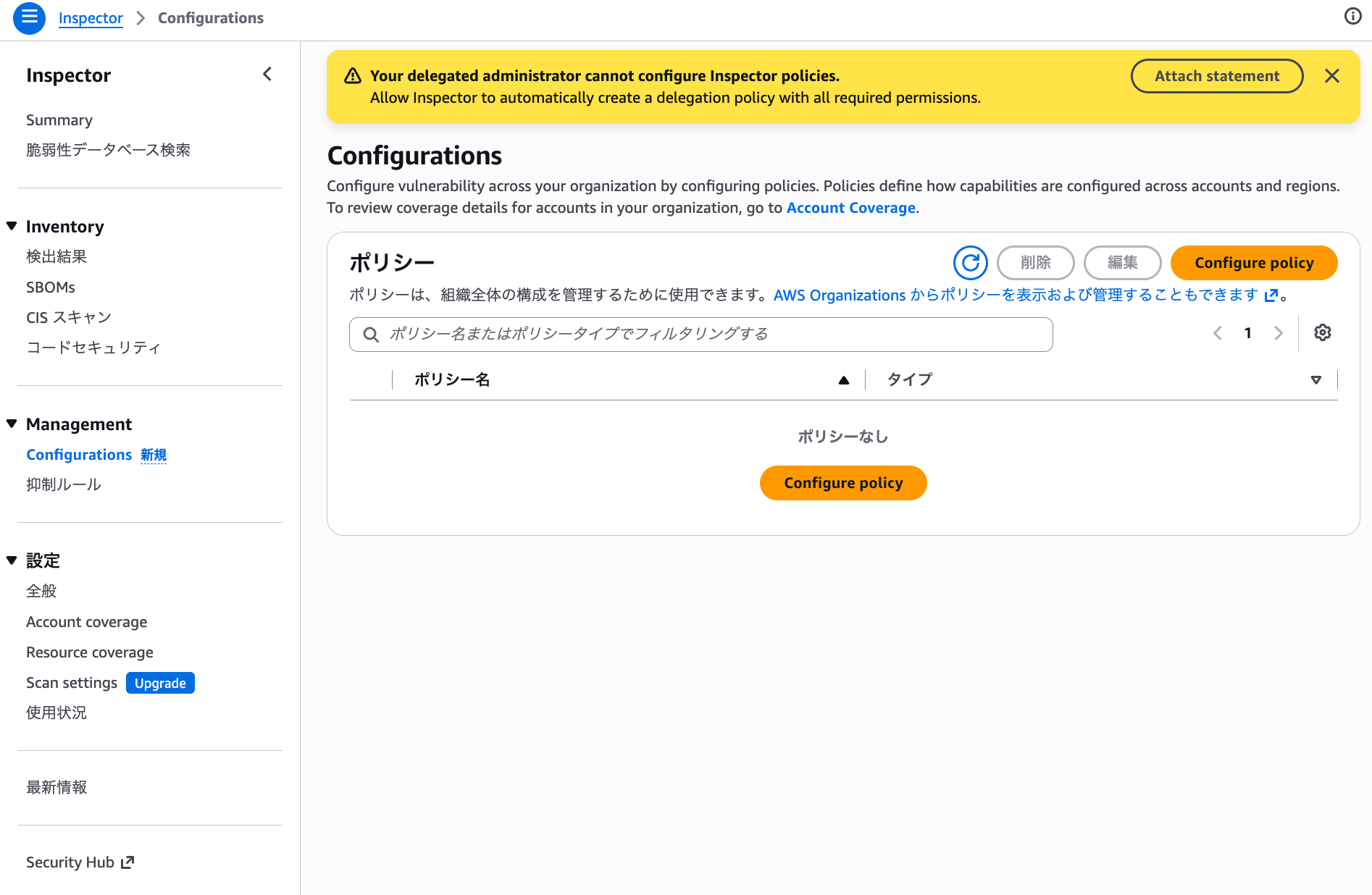
Warning for delegated administrators displayed in the Amazon Inspector console
A confirmation screen will appear, so review the content.
Check I acknowledge that I have reviewed the policy and understand the permissions it grants. and click [Attach statement].
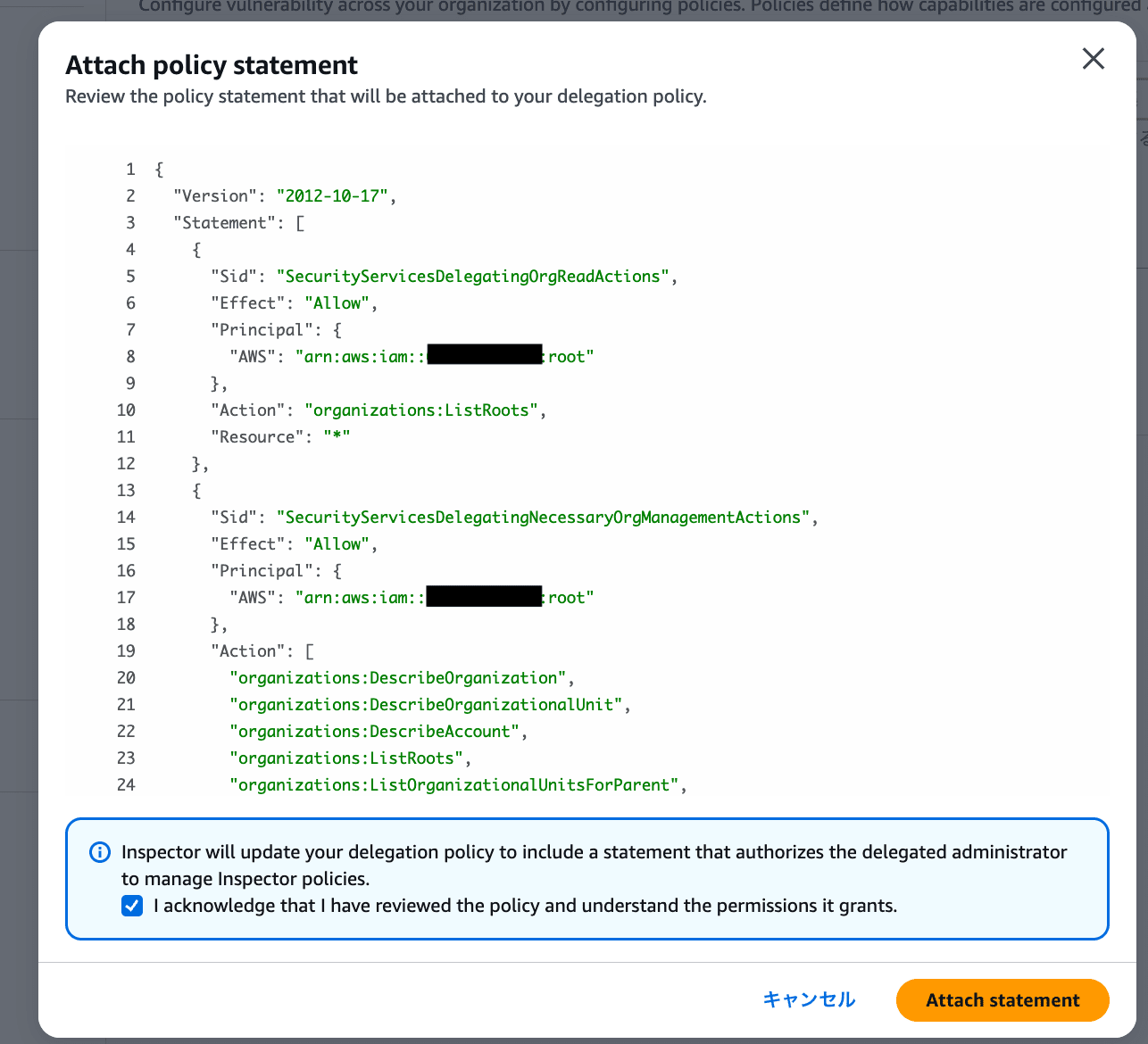
Confirmation screen for attaching the delegation policy statement
This operation automatically creates the required delegation policy statement, enabling the delegated administrator to configure Inspector policies.
The Amazon Inspector getting started tutorial also describes the steps for the delegated administrator to configure Inspector policies.
Creating from the AWS Organizations Console
First, let's look at creating an Amazon Inspector policy from the AWS Organizations console.
You can create Amazon Inspector policies from the policy list in AWS Organizations.
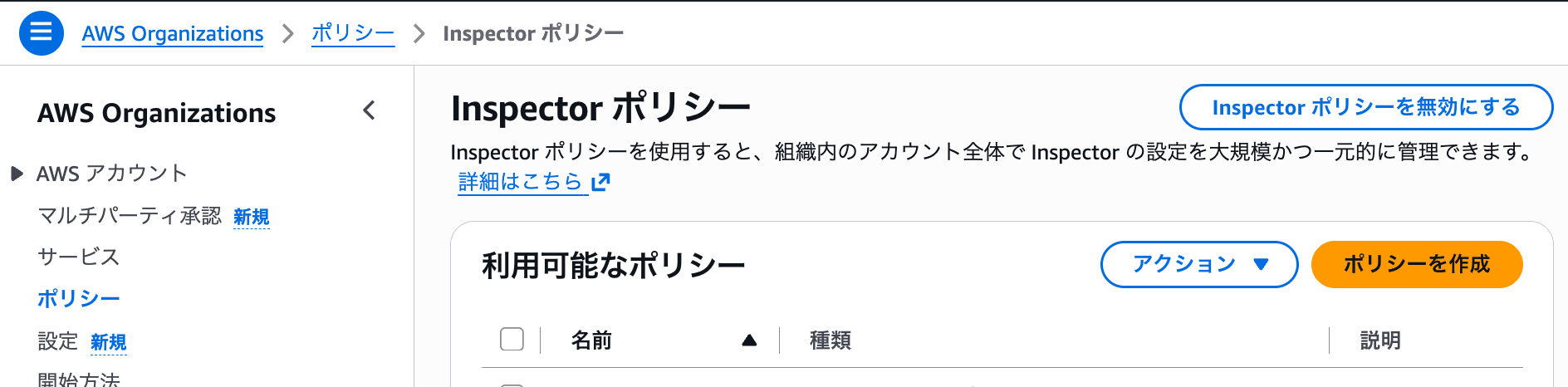
Screen for creating an Inspector policy in the AWS Organizations console
When creating from the AWS Organizations console, the policy body is entered in JSON format.
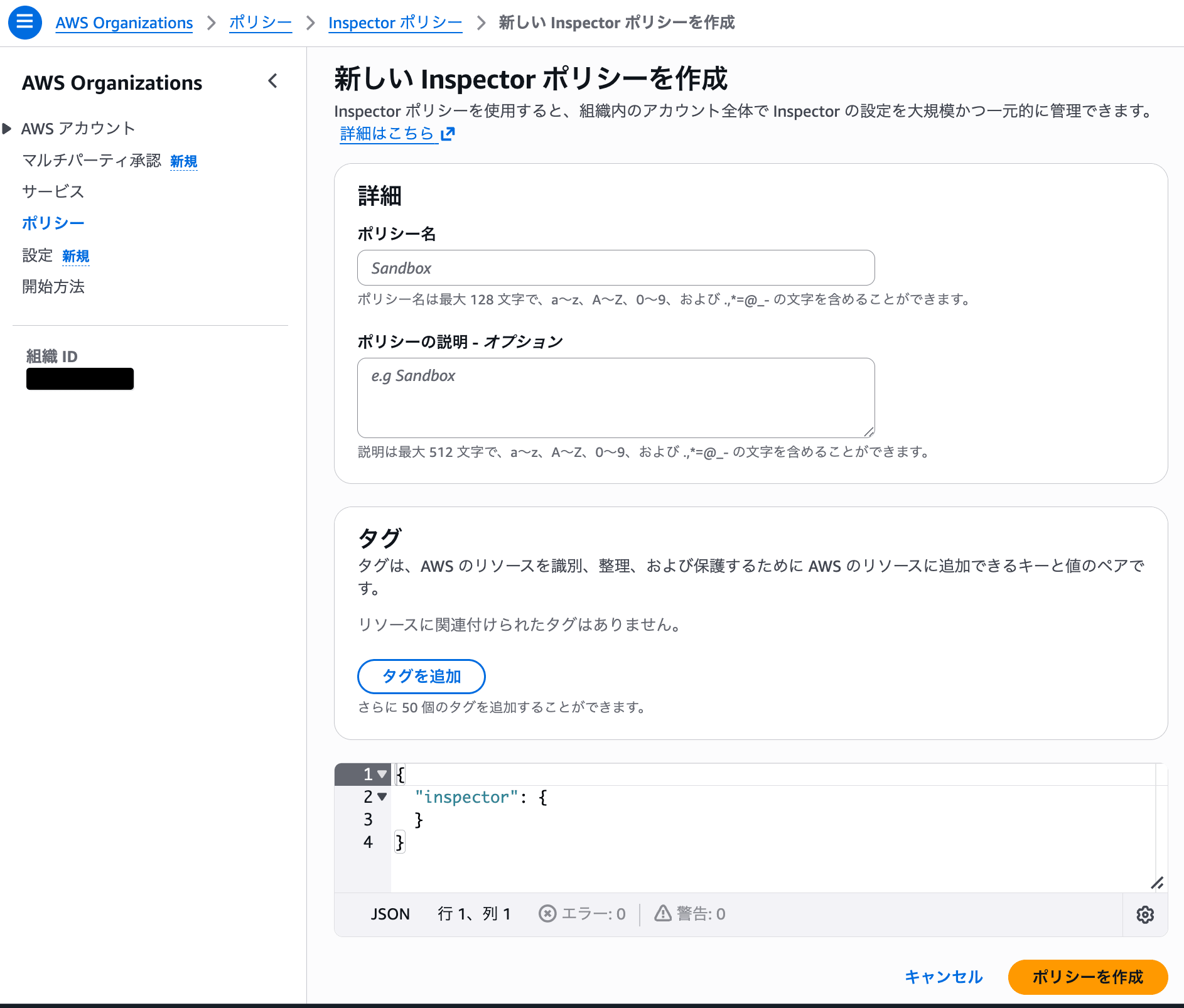
Inspector policies are entered in JSON format in the AWS Organizations console
The JSON syntax is created by referencing the following documentation.
For example, you specify enable_in_regions and disable_in_regions for each scan type such as ec2_scanning and ecr_scanning.
The JSON looks something like the following.
{
  "inspector": {
    "enablement": {
      "ec2_scanning": {
        "enable_in_regions": {
          "@@assign": [
            "ap-northeast-1"
          ]
        },
        "disable_in_regions": {
          "@@assign": []
        }
      },
      "ecr_scanning": {
        "enable_in_regions": {
          "@@assign": [
            "ap-northeast-1"
          ]
        },
        "disable_in_regions": {
          "@@assign": []
        }
      }
    }
  }
}
The above is an example. When using it in practice, please change the scan types you want to enable and the target regions to match your own environment.
When configuring from the AWS Organizations console, you need to be familiar with JSON key names and syntax such as @@assign. Therefore, if you are configuring for the first time, you will need to create it while referring to the documentation.
Creating from the Amazon Inspector Console
Next, let's look at creating from the Amazon Inspector console.
You can create Inspector policies from [Configurations] in the Amazon Inspector console.
I also confirmed that Inspector policies created in the AWS Organizations console are displayed in the Amazon Inspector console and can be edited there.
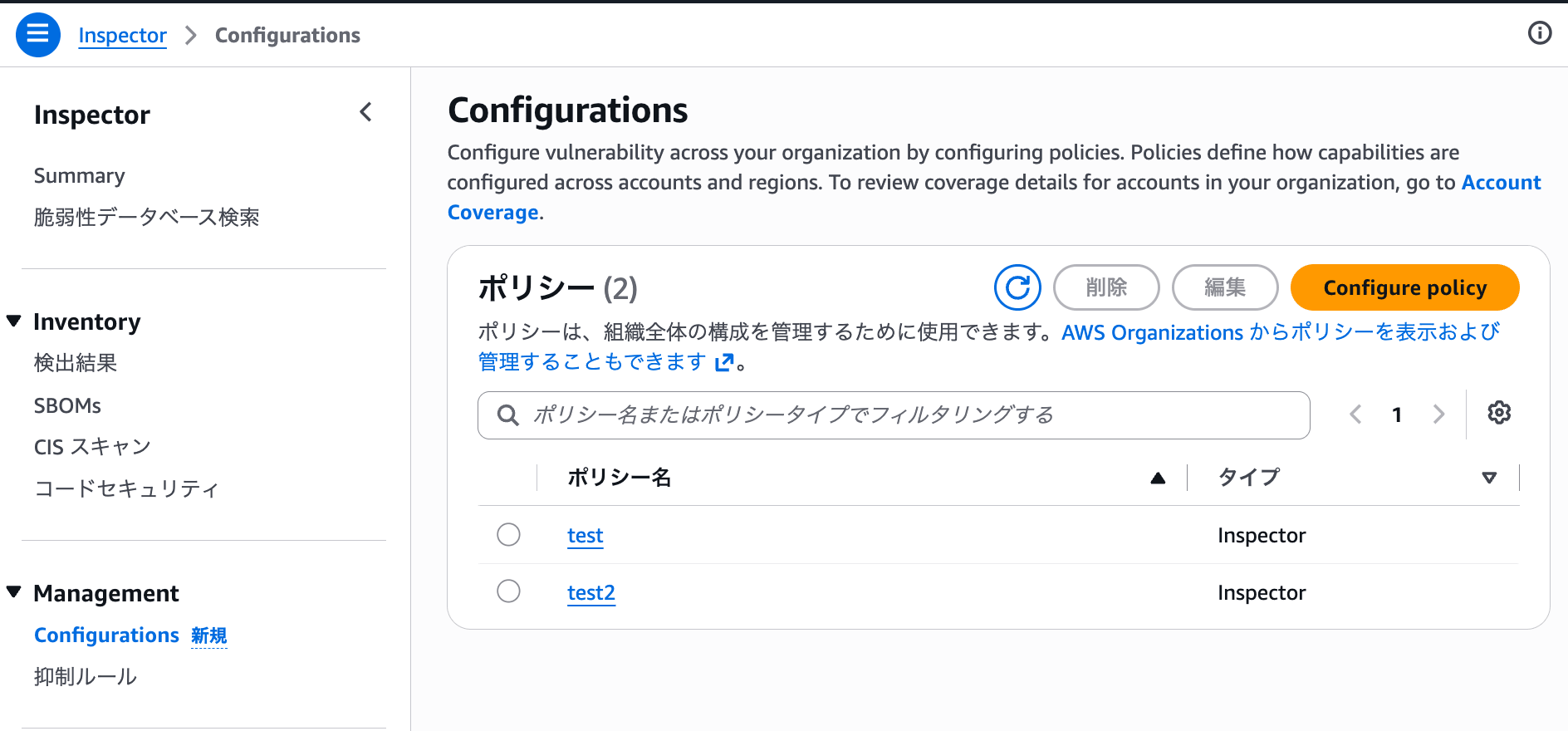
Configurations screen in the Amazon Inspector console
When you proceed to the creation screen, the console displayed it as [Configure vulnerability management policy].
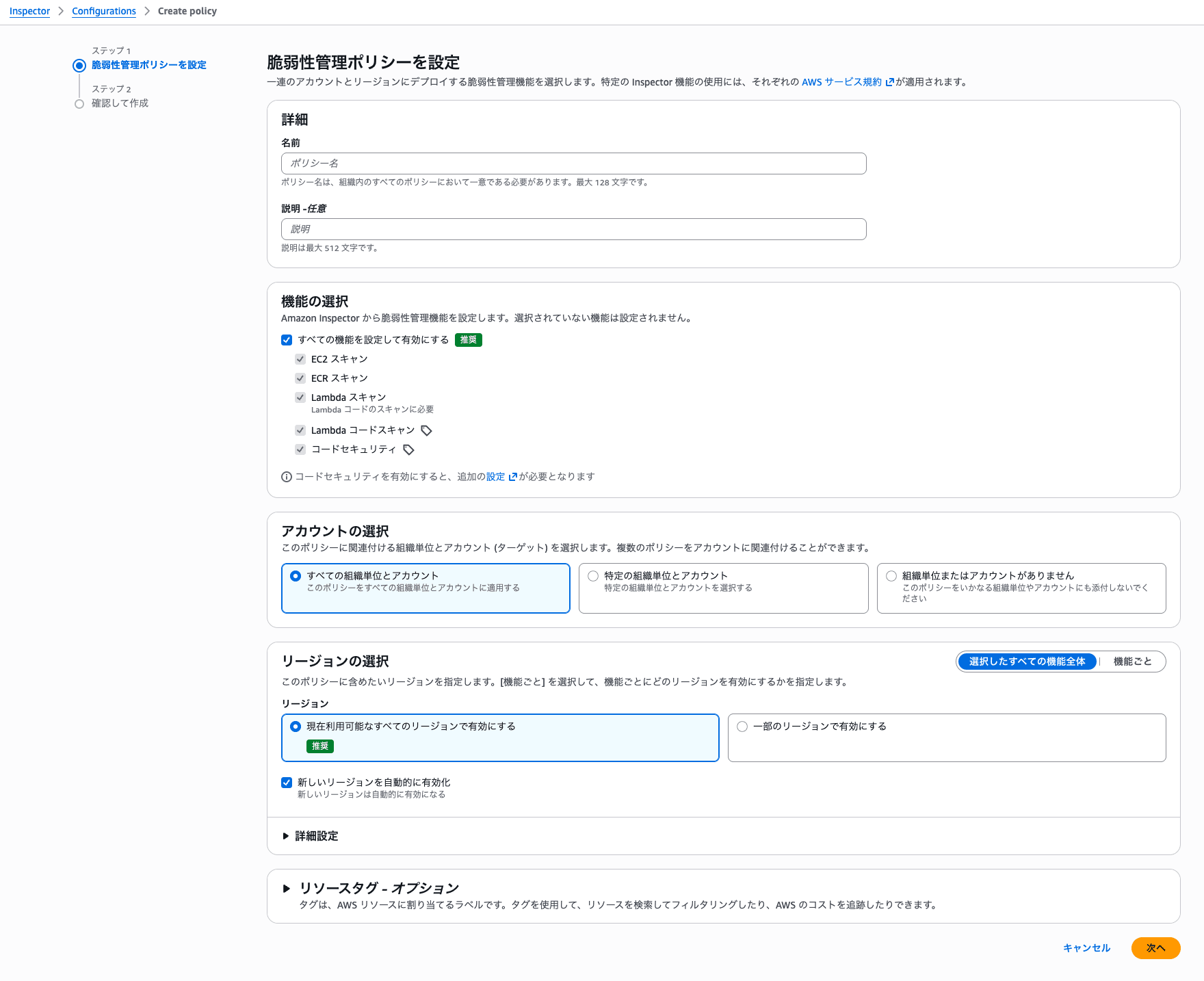
Screen for configuring vulnerability management policies in form format
When creating from the Amazon Inspector console, you can configure the following items on the screen.
- Name
- Feature selection
- Account selection
- Region selection
- Resource tags
Since there is no need to directly edit JSON, it is easy to understand what items are being configured.
The Amazon Inspector getting started tutorial also describes the steps for creating AWS Organizations policies from the Amazon Inspector console.
Viewing Recommended Settings
In the Inspector console, recommended settings are also displayed on the configuration screen.
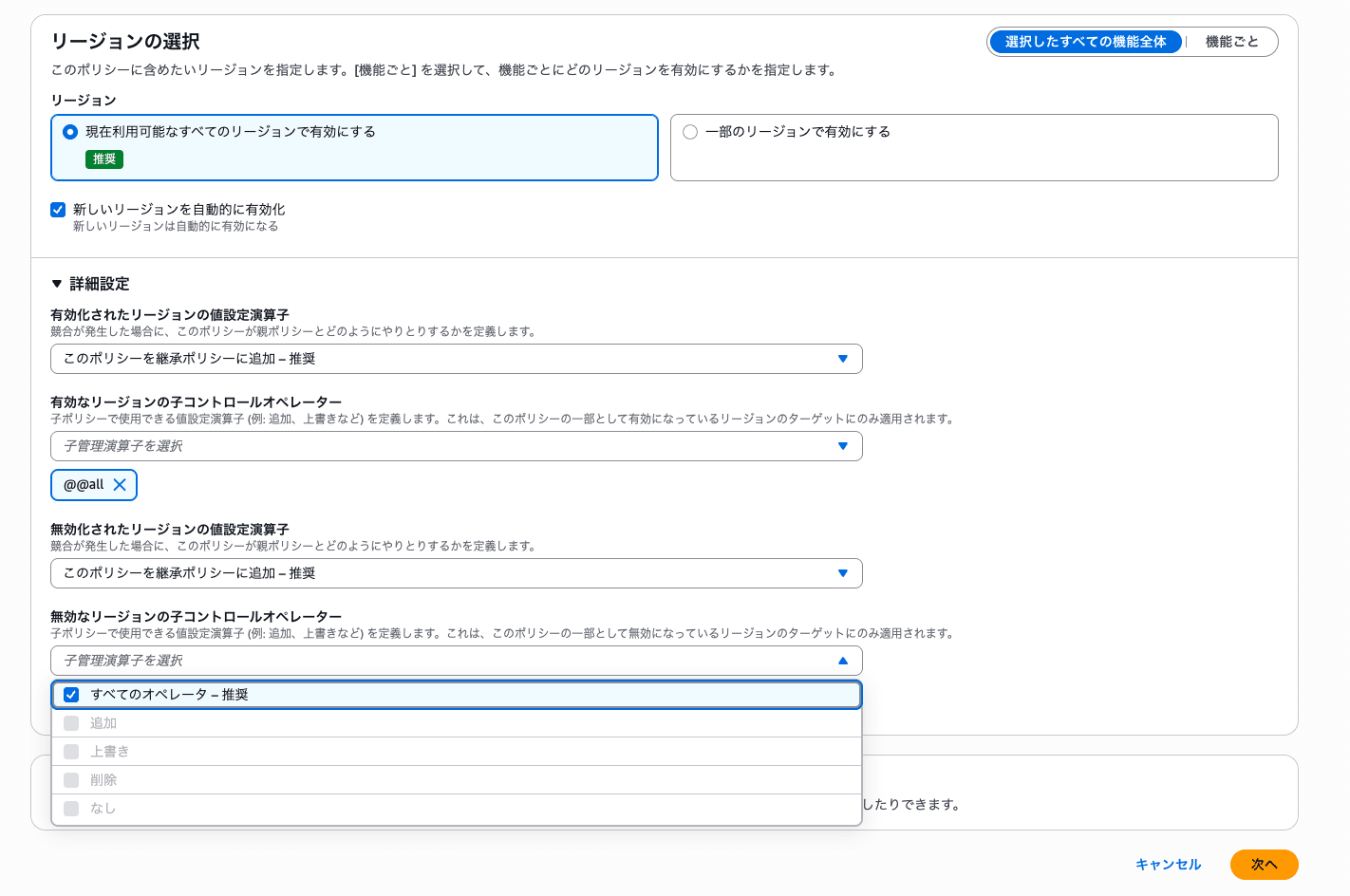
Recommended values can be checked in the region settings
If you are unsure, you can refer to the recommended values shown on the screen.
In the screen I reviewed, it was recommended to enable all regions. Compared to entering JSON in the Organizations console, it is easier to configure while checking the recommended values on the screen.
Feature Selection
In feature selection, you can choose to enable all features, enable only some features, or disable them.
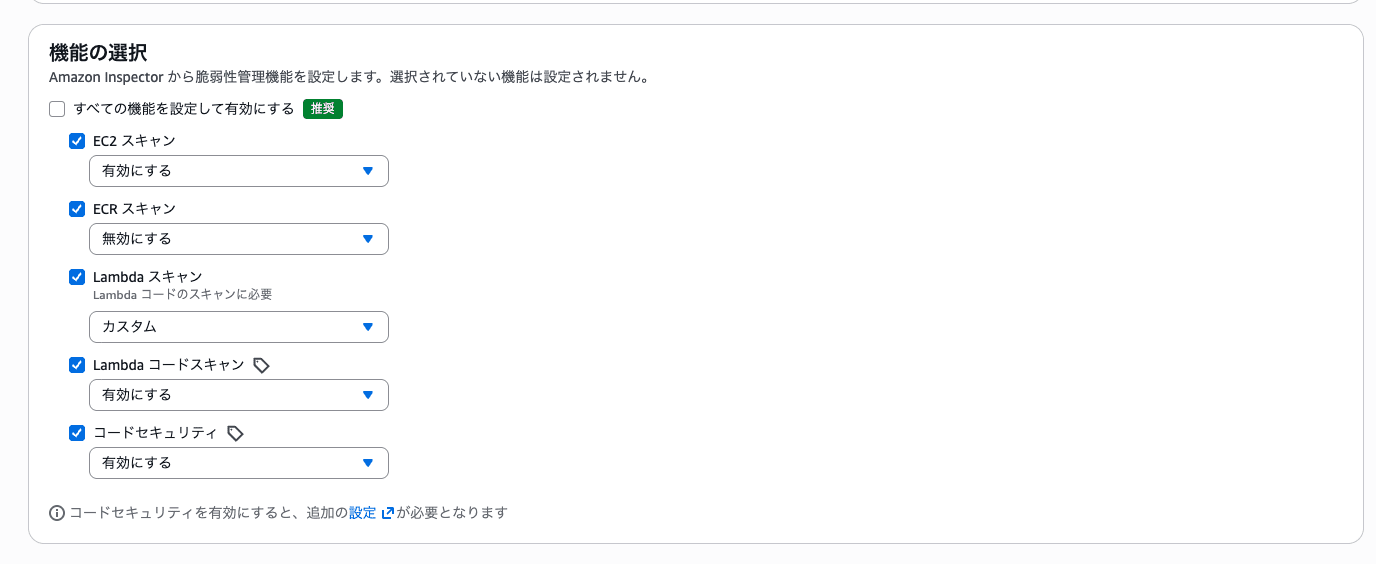
Feature selection allows you to choose which Inspector features to enable
When configuring with JSON, you need to write it while checking the key names for each scan type.
On the other hand, the Inspector console allows you to select the target features on the screen, making it easier to understand the configuration content.
Account Selection
In account selection, you can choose the scope to which the policy applies.
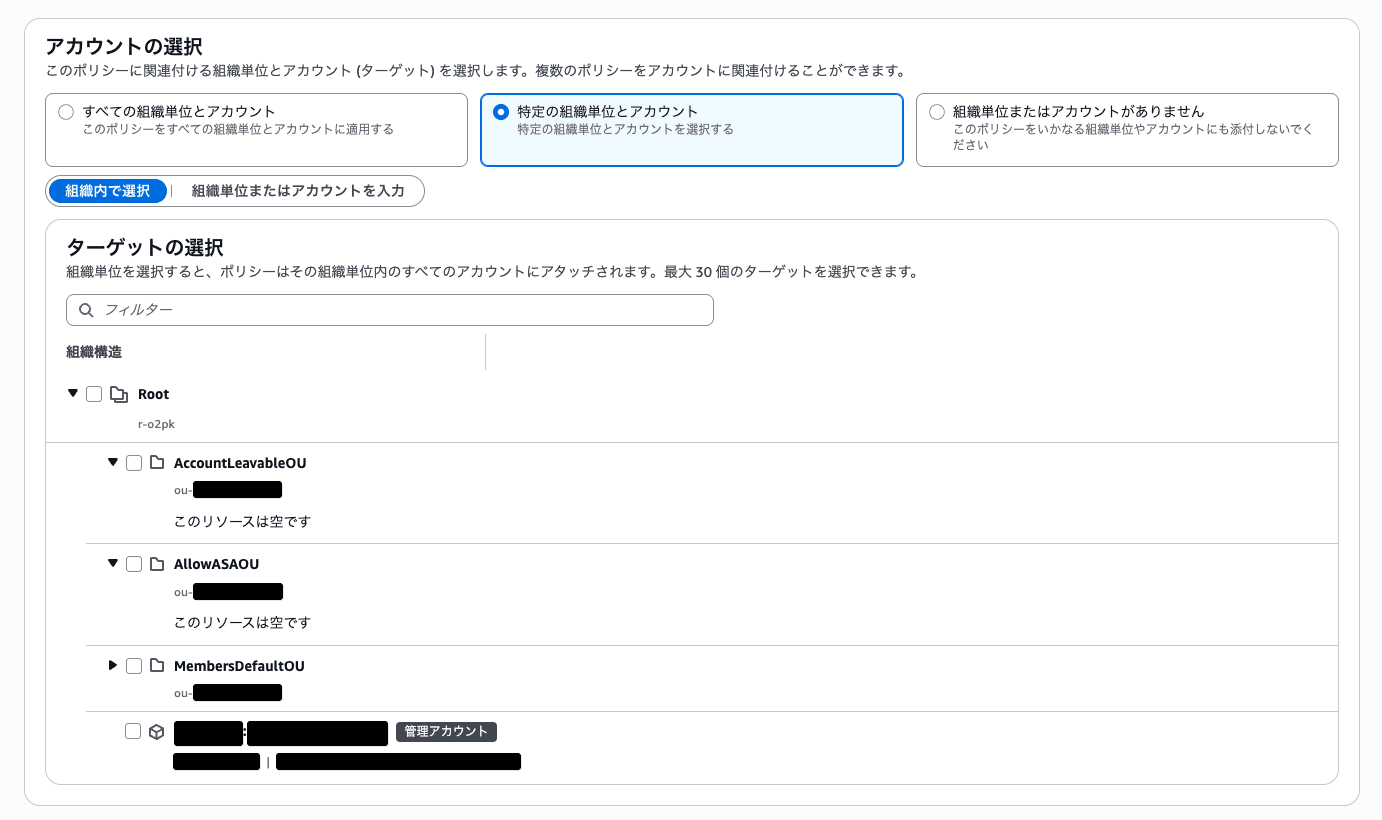
Account selection allows you to choose the entire organization, organizational units, or accounts
In the screen I reviewed, you could select the entire organization, specific organizational units, or individual accounts.
As an AWS Organizations policy concept, it involves attaching to the organization root, organizational units, or accounts, and in the Inspector console that selection can be made on the form.
Region Selection
In region selection, you can choose to enable all regions or only specific regions.
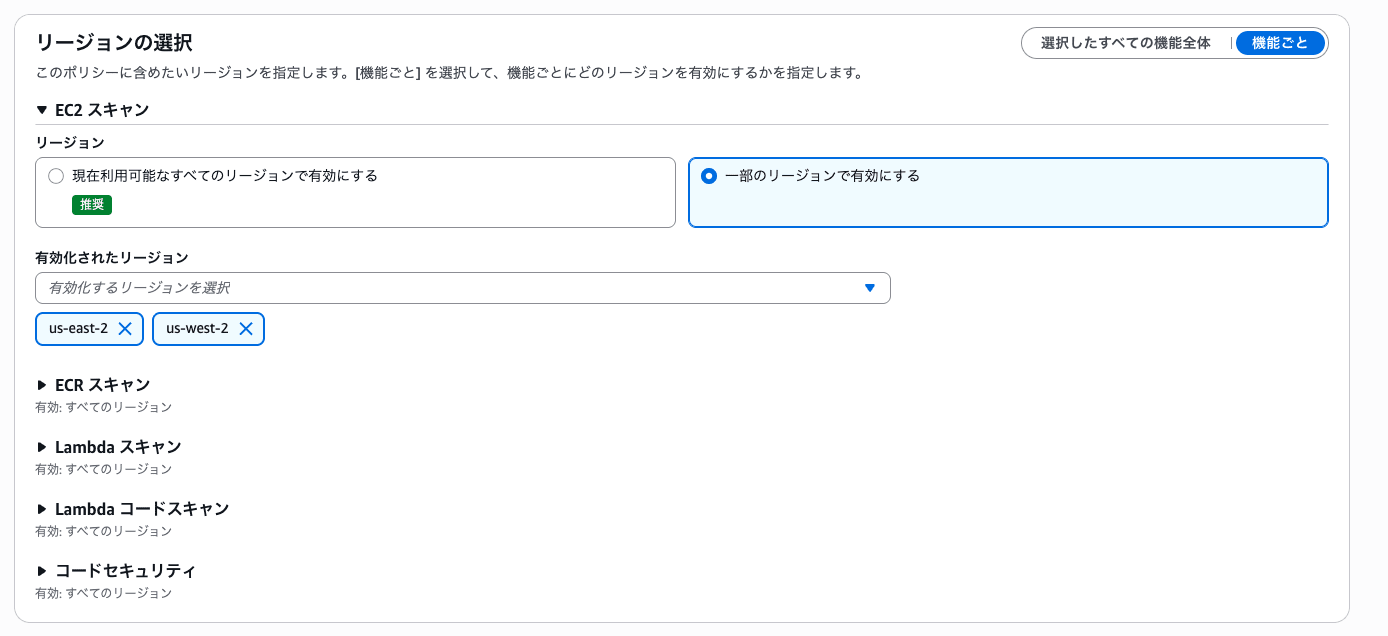
Region selection allows you to choose all regions or specific regions
In AWS Organizations JSON, you need to write enable_in_regions and disable_in_regions.
In the Inspector console, you can select from a list of regions, so you can configure settings without being aware of JSON key names or syntax.
Checking the Status After Configuration
When configuring from the Amazon Inspector console, you can also check the policy configuration status on the screen.
The Amazon Inspector getting started tutorial describes the status after policy application as follows.
Choose Next, review your changes, and choose Apply. The target accounts will be configured based on the policy. The configuration status of the policy will be displayed at the top of the policy page. Each feature provides a status indicating whether it has been configured or whether a deployment failure has occurred. If a failure occurs, choose the link in the failure message to view details. To view the effective policy at the account level, select an account on the Organizations tab of the Configurations page.
https://docs.aws.amazon.com/ja_jp/inspector/latest/user/getting_started_tutorial.html
In this environment as well, I was able to check the status after configuring the policy.
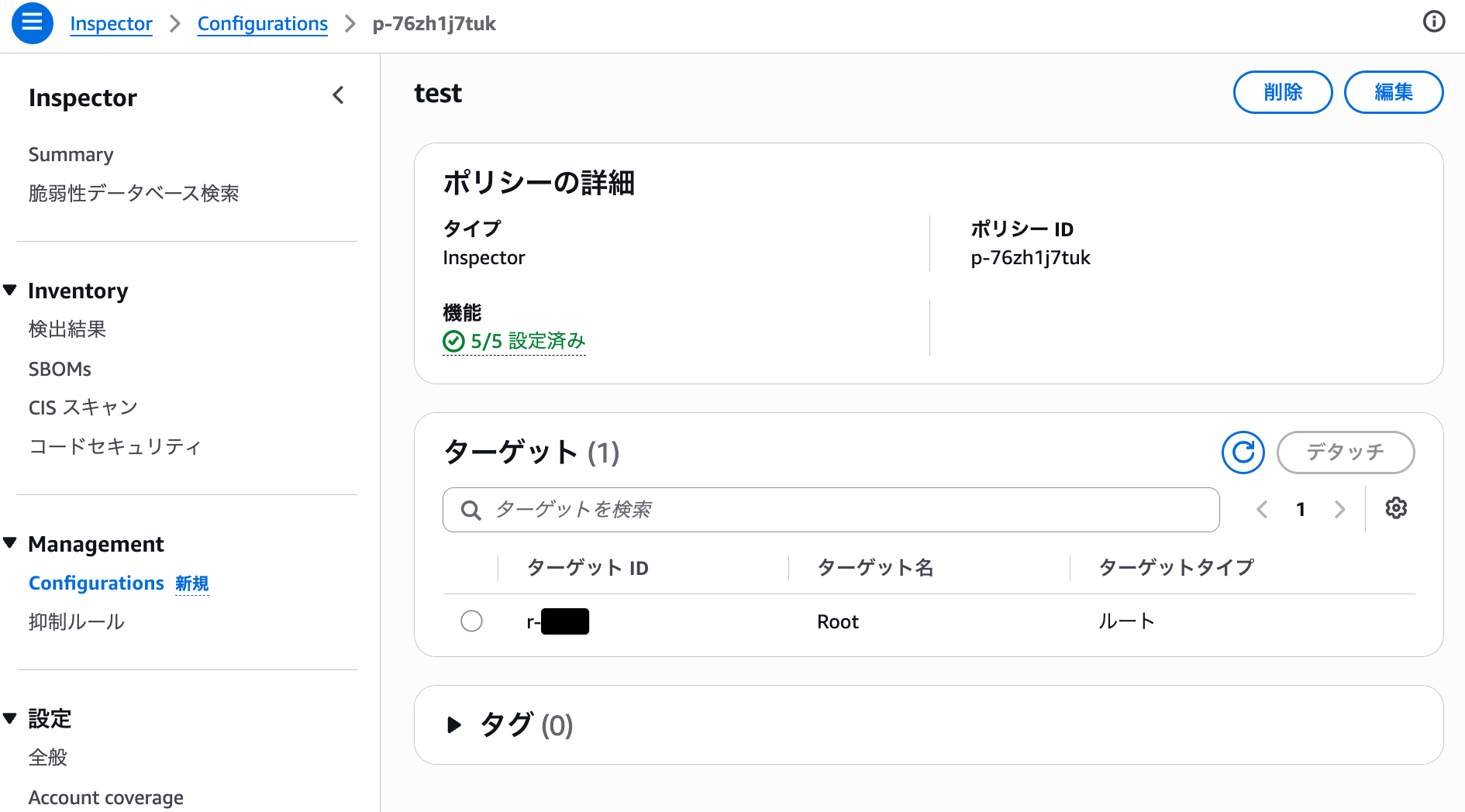
Screen where you can check the policy configuration status
You can also check the configuration status for each feature.
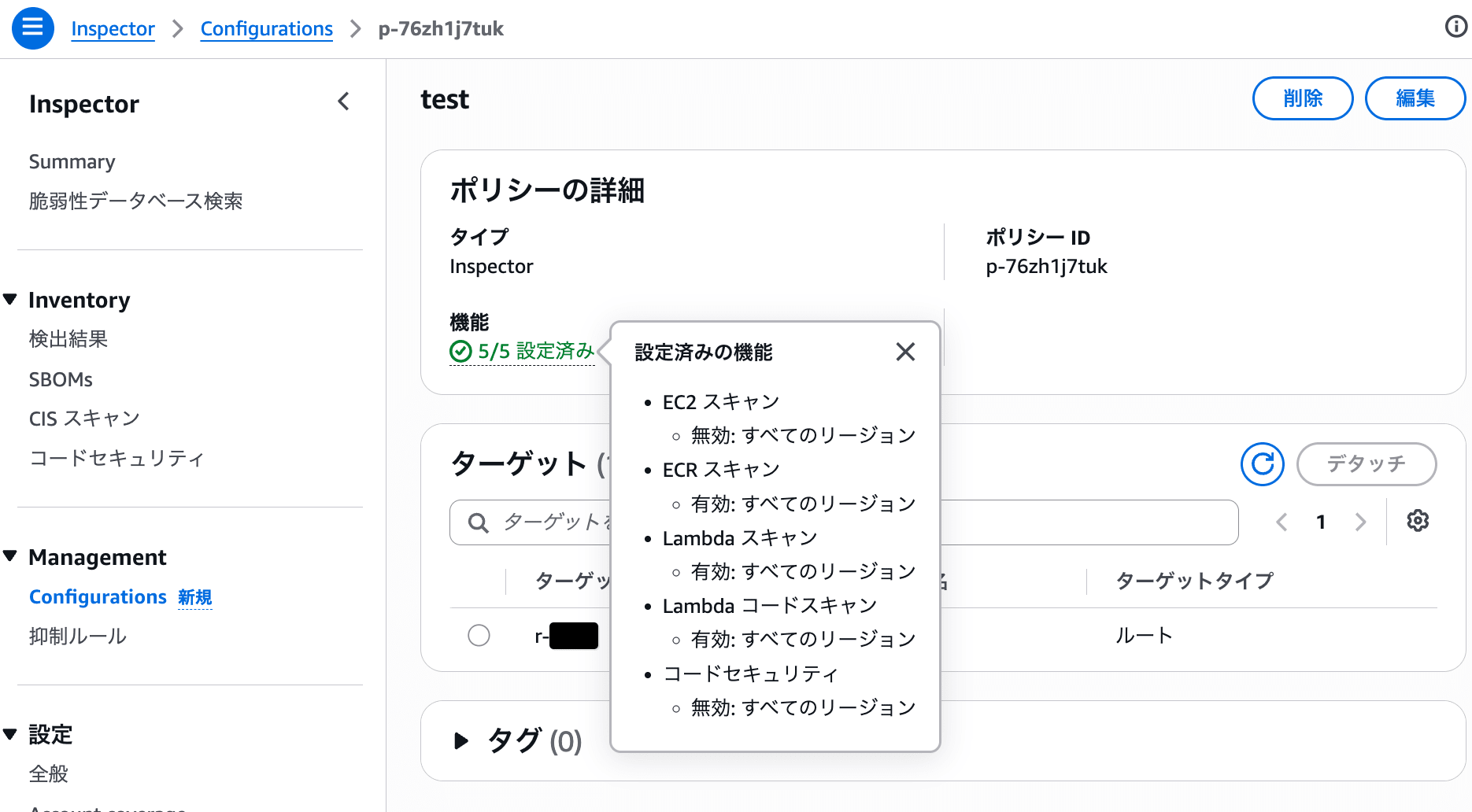
Screen where you can check the configuration status of each feature
When entering JSON in the AWS Organizations console, you can manage what is set as the policy body. On the other hand, in the Inspector console, you can check on the screen after policy application whether each feature has been configured and whether deployment has failed.
I felt that being able to perform this status check on the same screen is a benefit of configuring from the Inspector console.
Form Format Makes Configuration Easier to Understand
When creating Inspector policies from the AWS Organizations console, you enter JSON directly.
Since you can configure settings in JSON format, you can review the configuration content as text. On the other hand, if you are configuring for the first time, you need to create it while checking keys and syntax such as ec2_scanning, ecr_scanning, enable_in_regions, disable_in_regions, and @@assign in the documentation.
When creating from the Inspector console, you can configure the name, feature selection, account selection, region selection, and resource tags on a form. Recommended settings are displayed on the screen, and you can check the status after policy application, making it easy to understand which items to configure and how.
In particular, for initial configuration and reviewing configuration content, I felt that being able to configure in form format from the Inspector console has made the work easier.