I tried launching Amazon WorkSpaces Secure Browser integrated with Microsoft Entra ID from My Apps

This page has been translated by machine translation. View original
Introduction
Previously, I tried integrating Amazon WorkSpaces Secure Browser with Microsoft Entra ID using Security Assertion Markup Language (SAML) and starting a session from the WorkSpaces Secure Browser portal URL.
In the previous article, I used a Service Provider (SP)-initiated flow, where you access the WorkSpaces Secure Browser portal URL, get redirected to the Microsoft Entra ID sign-in page, and then start a session.
WorkSpaces Secure Browser also supports Identity Provider (IdP)-initiated flows. By configuring the IdP-initiated flow, you can start a WorkSpaces Secure Browser session from an application displayed in Microsoft Entra My Apps.
The AWS documentation also states that you can start a session with a single click from the application home page of a SAML provider such as the Azure My Apps portal.
This time, I added IdP-initiated SAML sign-in settings to the environment created previously and confirmed that a WorkSpaces Secure Browser session can be started from Microsoft Entra My Apps.
Prerequisites
This article uses the environment created in the following article.
The main prerequisites are as follows.
- WorkSpaces Secure Browser portal has been created
- WorkSpaces Secure Browser and Microsoft Entra ID have been integrated via SAML
- WorkSpaces Secure Browser portal status is active
- An enterprise application for WorkSpaces Secure Browser has been created in Microsoft Entra ID
- A session can be started SP-initiated from the WorkSpaces Secure Browser portal URL
- A Microsoft Entra ID user for verification has been created
With the previous configuration, access was made from the WorkSpaces Secure Browser portal URL as follows.
WorkSpaces Secure Browser portal URL
↓
Microsoft Entra ID
↓
WorkSpaces Secure Browser session
This time, the following IdP-initiated flow is added.
Microsoft Entra My Apps
↓
WorkSpaces Secure Browser application
↓
WorkSpaces Secure Browser session
Enable IdP-Initiated Sign-In in WorkSpaces Secure Browser
Open WorkSpaces Secure Browser from the AWS Management Console and select the target portal.
Open the [Identity Provider] tab of the target portal and edit the SAML sign-in type.
Change [Select SAML sign-in type] from the following setting.
SP-initiated SAML assertions only
The setting after the change is as follows.
SP-initiated SAML assertions and IdP-initiated SAML assertions
This setting allows you to use not only the SP-initiated flow starting from the WorkSpaces Secure Browser portal URL, but also the IdP-initiated flow starting from Microsoft Entra My Apps.
The AWS documentation states that when using the IdP-initiated flow, you need to configure a default relay state in the SAML 2.0 identity provider.
After changing the settings, copy the [Relay state parameter] displayed on the screen.
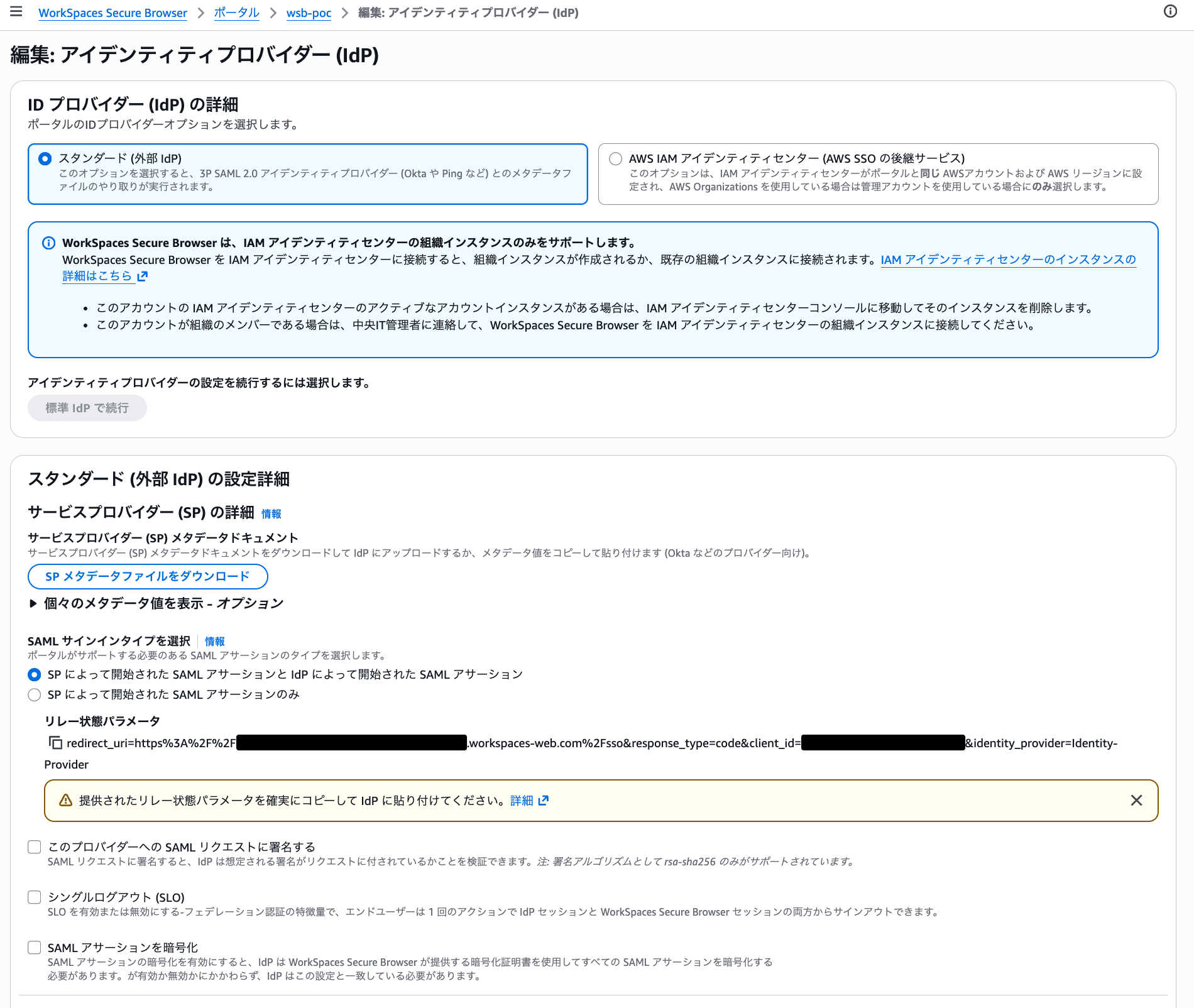
Screen for enabling IdP-initiated SAML sign-in and checking the relay state parameter
In this environment, a value in the following format was displayed. The portal ID, client ID, and identity provider name are environment-specific information and are masked in this article.
redirect_uri=https%3A%2F%2F<portal-id>.workspaces-web.com%2Fsso&response_type=code&client_id=<client-id>&identity_provider=<identity-provider-name>
The relay state parameter contains environment-specific values for identifying the WorkSpaces Secure Browser portal.
Configure the Relay State in Microsoft Entra ID
Next, change the settings on the Microsoft Entra ID side in the Azure portal.
https://portal.azure.com/
Open [Enterprise applications] in Microsoft Entra ID and click the WorkSpaces Secure Browser application created previously.
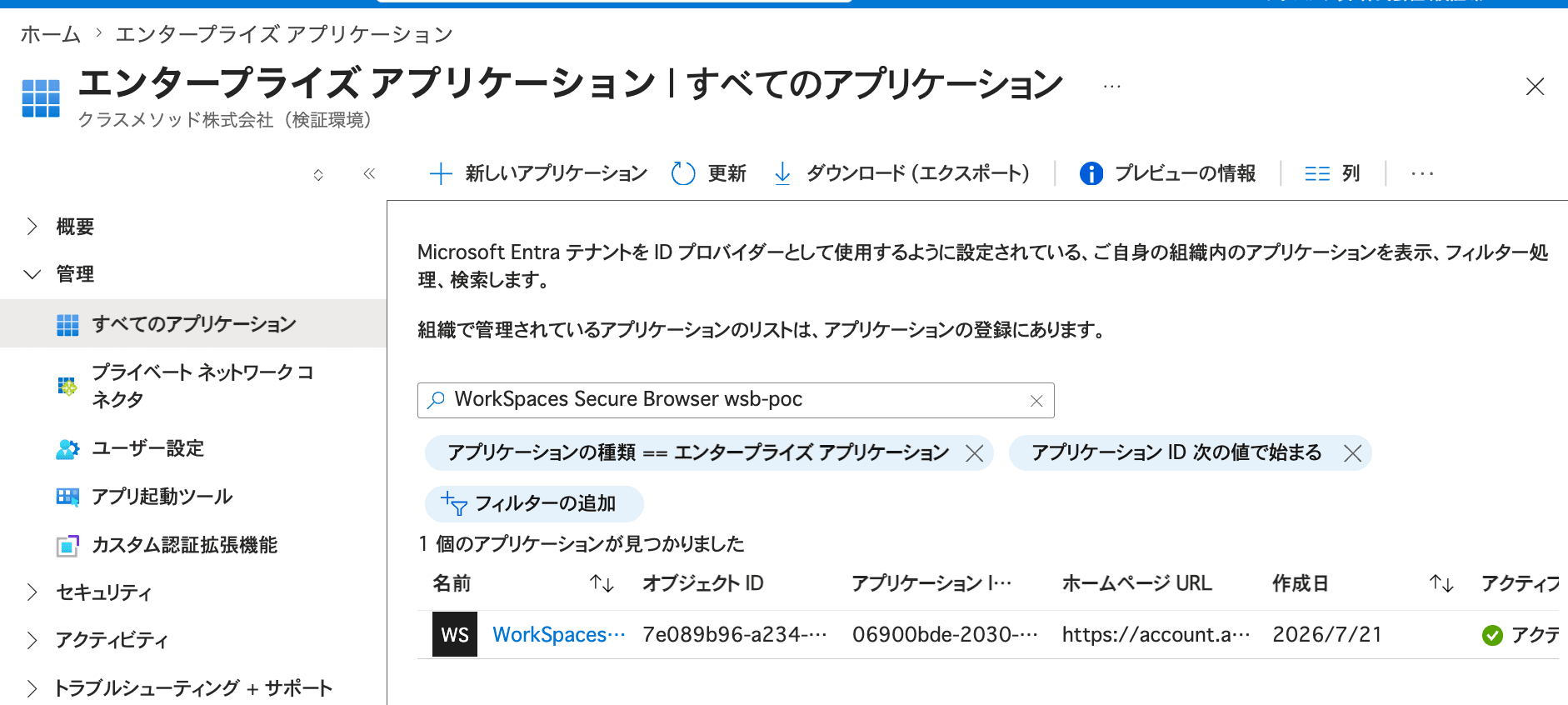
Screen for selecting the enterprise application for WorkSpaces Secure Browser
From the application overview screen, click [Set up single sign on].
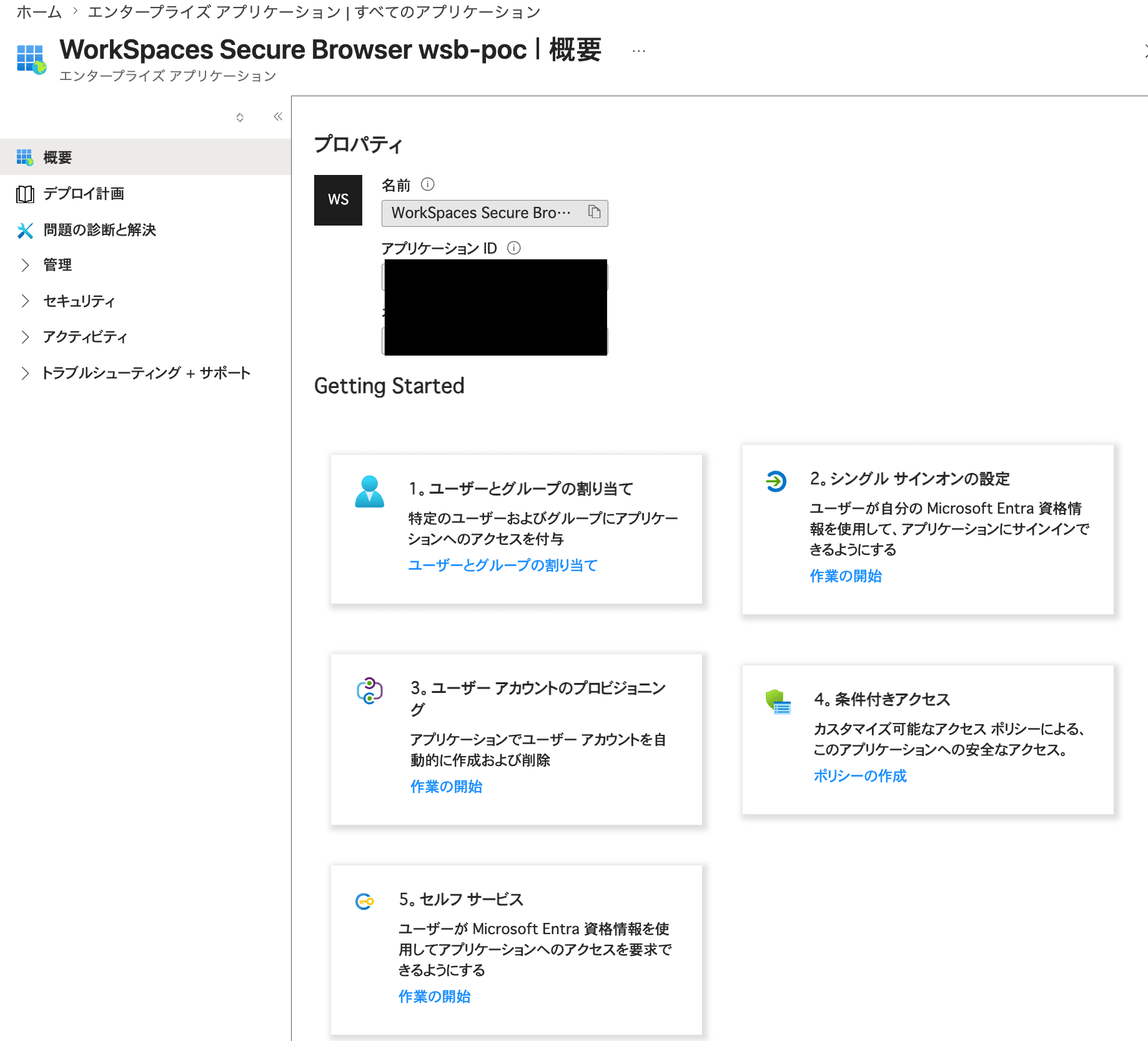
Screen for opening the single sign-on settings of the WorkSpaces Secure Browser application
In the SAML configuration screen, edit [Basic SAML Configuration].
Paste the relay state parameter copied from WorkSpaces Secure Browser into [Relay State (Optional)].
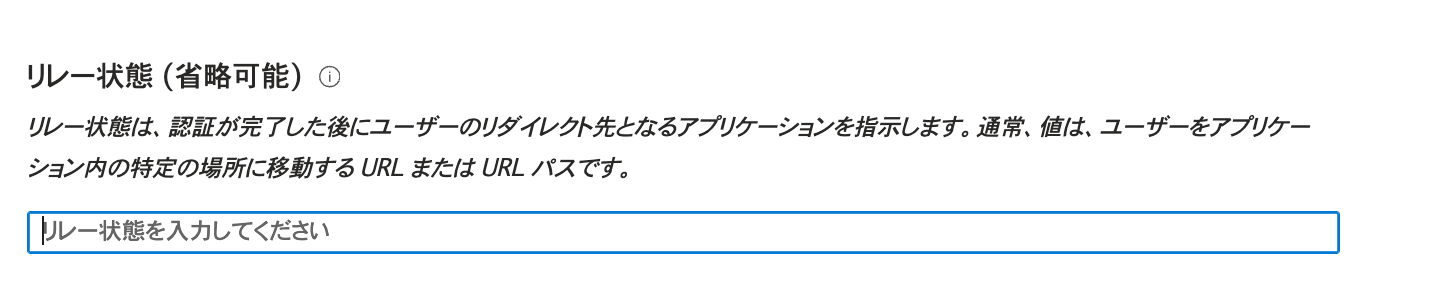
Screen for configuring the relay state parameter for WorkSpaces Secure Browser
The existing [Identifier (Entity ID)] and [Reply URL] have not been changed from the values configured in the previous article.
Assign Users to the Application
To display the application in Microsoft Entra My Apps, assign the users or groups that will use it to the WorkSpaces Secure Browser application.
Open [Users and groups] in the target enterprise application and add the users or groups that will use WorkSpaces Secure Browser.
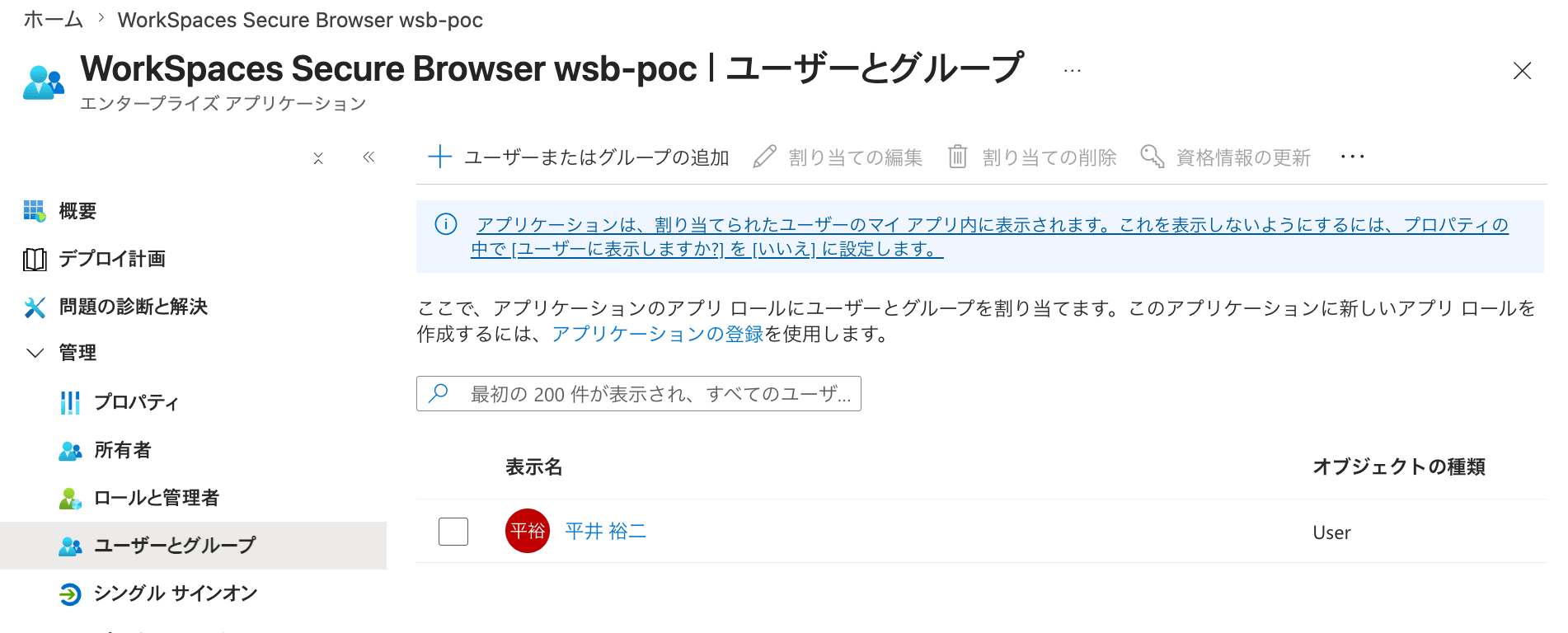
Screen for assigning users to the WorkSpaces Secure Browser application
Microsoft's documentation explains that when you assign a user to an enterprise application, the application appears in that user's My Apps portal.
Display the Application in My Apps
Next, open [Properties] in the target enterprise application.
This time, the settings were configured as follows.
| Item | Setting |
|---|---|
| Enabled for users to sign in | Yes |
| Visible to users | Yes |
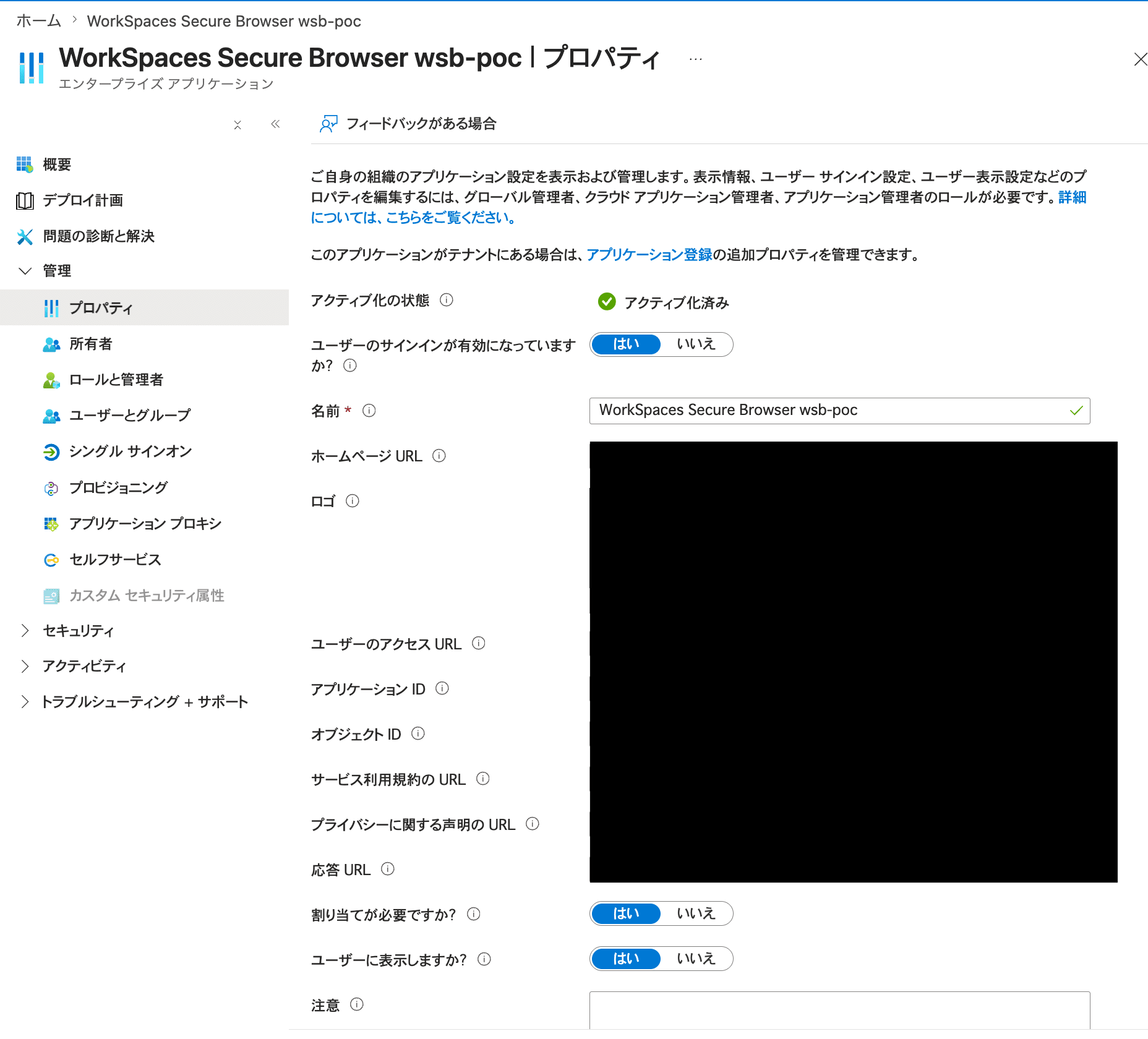
Screen for enabling sign-in from My Apps and application display
Setting [Visible to users] to [Yes] makes the application appear in the My Apps portal and Microsoft 365 app launcher for assigned users.
However, setting this to [Yes] alone is not enough for it to appear. The target user or group must be assigned to the application.
Access from Microsoft Entra My Apps
The configuration is complete, so let's verify the behavior.
Microsoft Entra My Apps, which users access, is a different site from the Azure portal.
https://myapps.microsoft.com/
The purpose of each is as follows.
| URL | Purpose |
|---|---|
https://portal.azure.com/ |
Administrators configure enterprise applications and other settings |
https://myapps.microsoft.com/ |
Users launch applications assigned to them |
My Apps is a portal for users to view and launch applications assigned to them in Microsoft Entra ID.
When I accessed My Apps with the test user, the WorkSpaces Secure Browser application was displayed.
Click the target application.
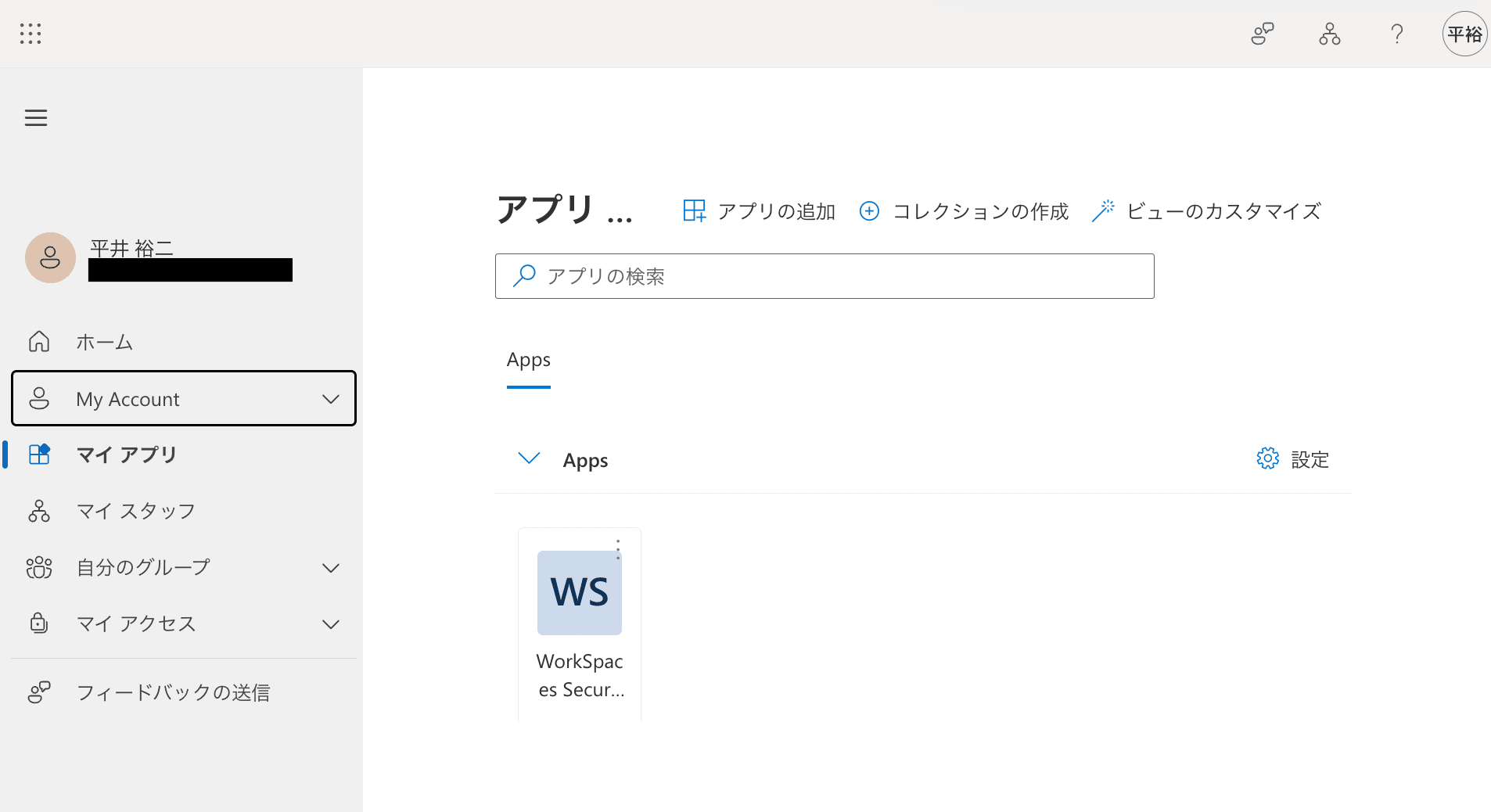
WorkSpaces Secure Browser application displayed in Microsoft Entra My Apps
Clicking the application initiated the WorkSpaces Secure Browser session startup process.
Screen showing the WorkSpaces Secure Browser session being started from My Apps
After that, the WorkSpaces Secure Browser session launched.
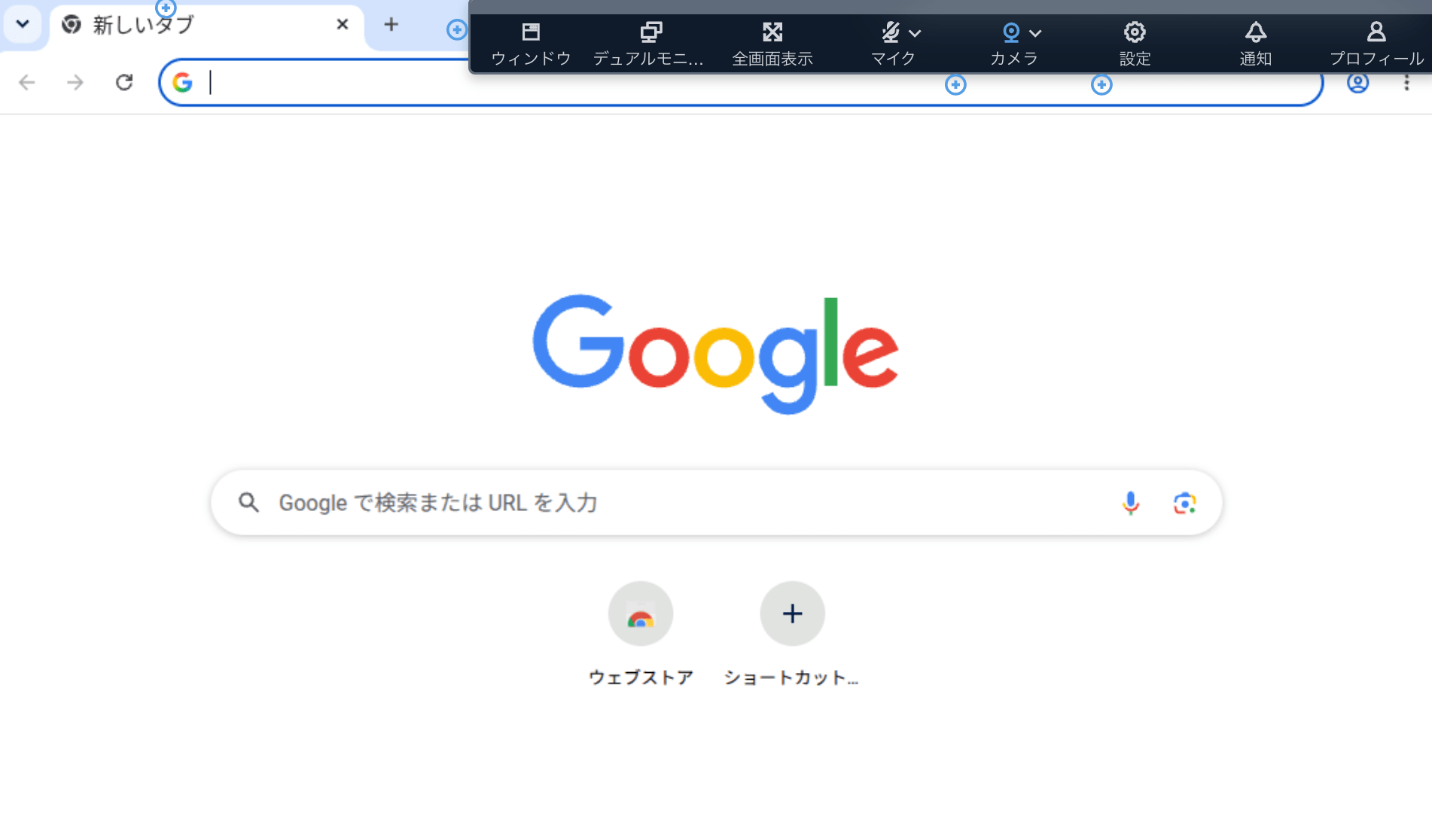
WorkSpaces Secure Browser session launched from Microsoft Entra My Apps
In this verification, since I was already signed in to Microsoft Entra ID via My Apps, clicking the WorkSpaces Secure Browser application started the session without requiring me to re-enter my username or password.
This does not mean "access was possible without authentication." Rather, the Microsoft Entra ID authentication session created during sign-in to My Apps was used, and no additional sign-in operation was required.
Differences Between SP-Initiated and IdP-Initiated
Here is a summary of the two sign-in flows confirmed this time.
| Flow | Where users first access | Behavior |
|---|---|---|
| SP-initiated | WorkSpaces Secure Browser portal URL | Redirected to Microsoft Entra ID, and session starts after authentication |
| IdP-initiated | Microsoft Entra My Apps | Session starts by clicking the application in My Apps |
Since [SP-initiated SAML assertions and IdP-initiated SAML assertions] is selected, the WorkSpaces Secure Browser portal URL used previously can still be accessed after the current configuration.
Therefore, the IdP-initiated configuration does not replace the SP-initiated access method; instead, it results in a configuration where both access methods are available.
Summary
I enabled IdP-initiated SAML sign-in in Amazon WorkSpaces Secure Browser and was able to start a session from Microsoft Entra My Apps.
The key points of the configuration are to enable IdP-initiated SAML assertions in WorkSpaces Secure Browser and register the displayed relay state parameter in the SAML settings of Microsoft Entra ID.
Also, to display the application in My Apps, you need to assign users to the enterprise application and set [Visible to users] to [Yes].
In this verification, clicking the application while already signed in to My Apps allowed me to start a WorkSpaces Secure Browser session without any additional sign-in operation.
