I tried skipping Microsoft Entra ID re-sign-in with the SSO extension in Amazon WorkSpaces Secure Browser

This page has been translated by machine translation. View original
Introduction
Previously, I tried integrating Amazon WorkSpaces Secure Browser with Microsoft Entra ID using Security Assertion Markup Language (SAML) 2.0, and signing into the portal using Microsoft Entra ID authentication.
In this configuration, when accessing the WorkSpaces Secure Browser portal URL from a local browser, you are redirected to the Microsoft Entra ID sign-in screen. After authenticating with Microsoft Entra ID, you can start a Secure Browser session.
On the other hand, when accessing websites that use Microsoft Entra ID authentication from within a Secure Browser session, you may be prompted to sign in again even if you are already authenticated in the local browser.
Amazon WorkSpaces Secure Browser has a Single Sign-On (SSO) extension that synchronizes authentication cookies obtained in the local browser to the Secure Browser session. By using this extension, you may be able to skip re-signing in when accessing websites that use the same identity provider within a Secure Browser session.
This time, I enabled the SSO extension on a WorkSpaces Secure Browser portal that is already integrated with Microsoft Entra ID via SAML. I then tried accessing Microsoft My Apps from within a Secure Browser session to see if I could skip re-signing in to Microsoft Entra ID.
What is the SSO Extension?
The WorkSpaces Secure Browser SSO extension is a browser extension that synchronizes cookies obtained when a user signs in with a local browser to the Secure Browser session.
For example, if the WorkSpaces Secure Browser portal and the websites accessed within the Secure Browser session use the same SAML 2.0 Identity Provider (IdP), the IdP sign-in cookies can be passed to the Secure Browser session.
This reduces additional sign-in operations when accessing websites that use the same IdP within a Secure Browser session.
No sign-in to the extension itself is required. After installation, it runs in the background and synchronizes cookies for domains permitted by the WorkSpaces Secure Browser administrator. Also, no data is stored in the extension itself.
In this configuration, Microsoft Entra ID authentication cookies are synchronized in the following flow.
Local Google Chrome
↓
Access the WorkSpaces Secure Browser portal URL
↓
SAML authentication with Microsoft Entra ID
↓
SSO extension synchronizes cookies for permitted domains
↓
Start Secure Browser session
↓
Access Microsoft My Apps from within the session
You can still access the WorkSpaces Secure Browser portal without installing the SSO extension.
What I am verifying this time is whether using the SSO extension can skip additional sign-in operations to Microsoft Entra ID within a Secure Browser session.
Prerequisites
For this verification, the following environment is assumed to be already set up.
- WorkSpaces Secure Browser portal has been created
- WorkSpaces Secure Browser and Microsoft Entra ID are integrated via SAML
- You can sign in to the portal with a Microsoft Entra ID user
- Internet access is available from Secure Browser sessions
- The verification region is
ap-northeast-1 - Google Chrome is used as the local browser
- Microsoft My Apps is accessible from within a Secure Browser session
For instructions on SAML integration between WorkSpaces Secure Browser and Microsoft Entra ID, please refer to the following article.
The devices and browsers supported by the SSO extension are as follows.
- Devices
- Laptops
- Desktop computers
- Browsers
- Google Chrome
- Mozilla Firefox
For this verification, I used a regular window in local Google Chrome.
Extensions are not enabled by default in Google Chrome's Incognito window or Mozilla Firefox's Private Browsing window.
Use a regular browsing window so that the SSO extension works as expected.
Checking Behavior with the SSO Extension Disabled
First, I verify the behavior with the SSO extension disabled.
Open WorkSpaces Secure Browser from the AWS Management Console and select the target portal.
Open the [User settings] tab of the portal and check [User settings details].
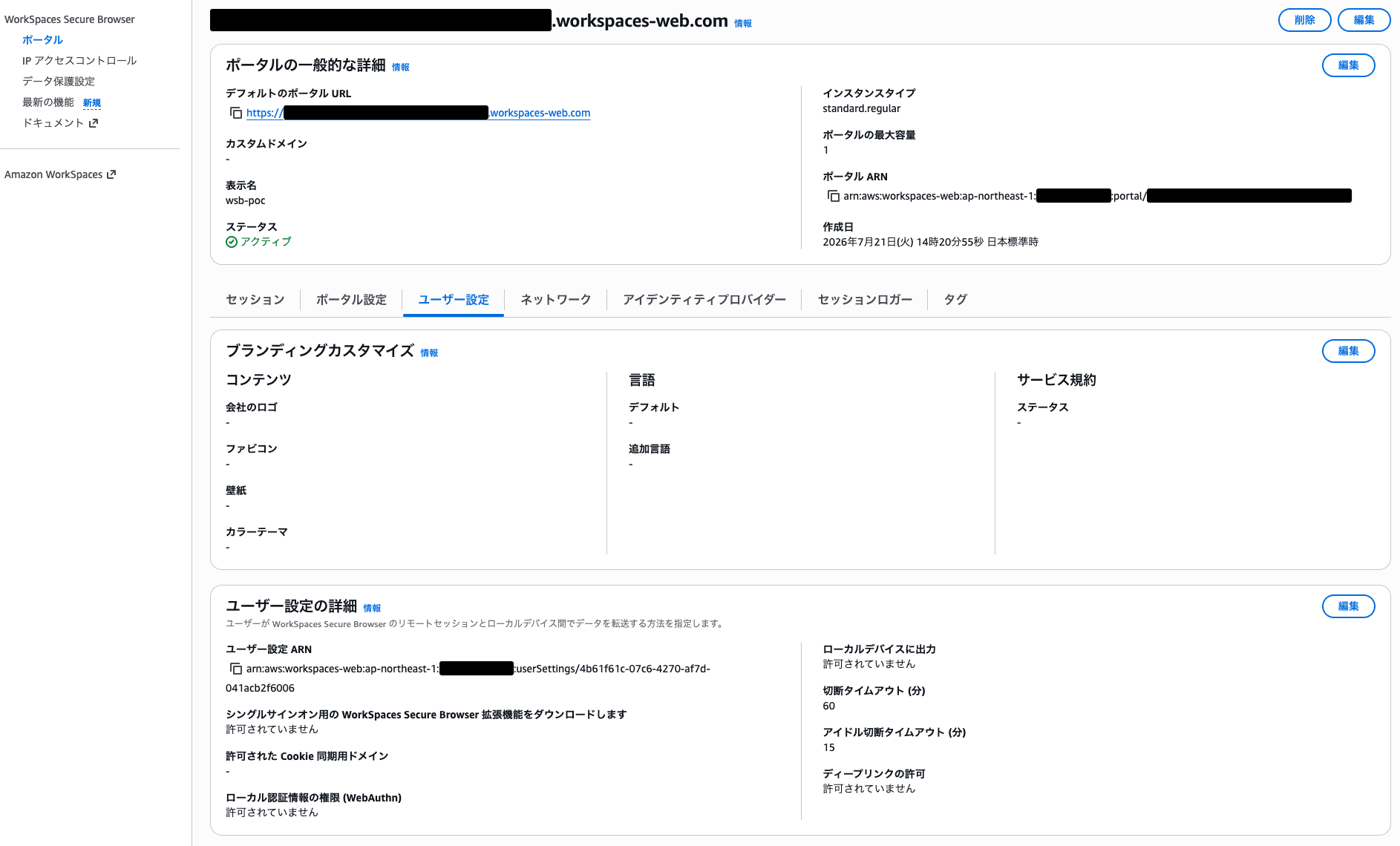
Screen after opening the [User settings] tab of the target portal
In this environment, [Allow WorkSpaces Secure Browser extension for single sign-on] is disabled.
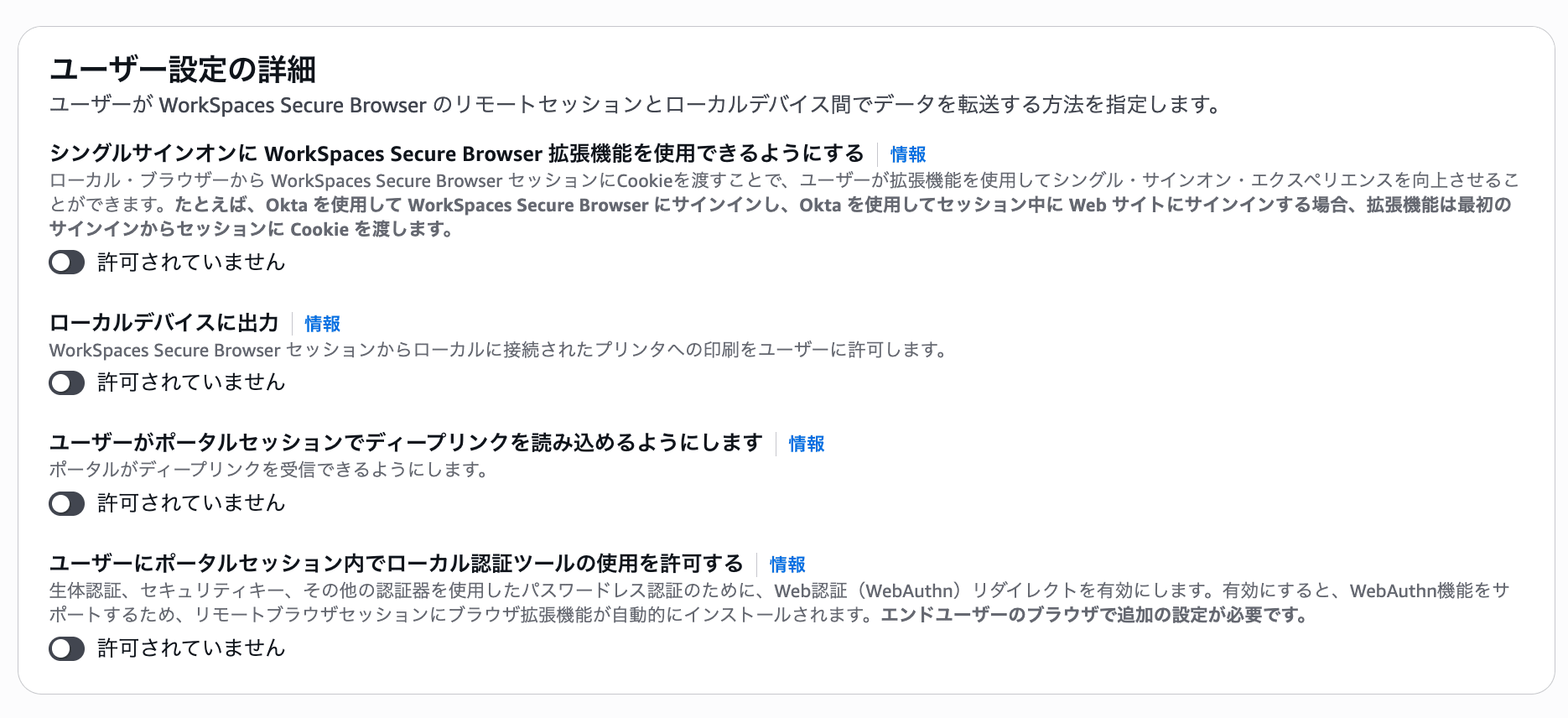
State with SSO extension disabled
In this state, access the WorkSpaces Secure Browser portal URL from the local Google Chrome.
The portal URL can be found from [Default portal URL] on the target portal's details screen.
The URL is in the following format.
https://<portal-id>.workspaces-web.com
Accessing the portal URL redirects you to the Microsoft Entra ID sign-in screen.
Authenticate with Microsoft Entra ID and start a Secure Browser session.
From the browser within the Secure Browser session, I accessed Microsoft My Apps.
https://myapps.microsoft.com/
This time, the Microsoft Entra ID sign-in screen was displayed as shown below.
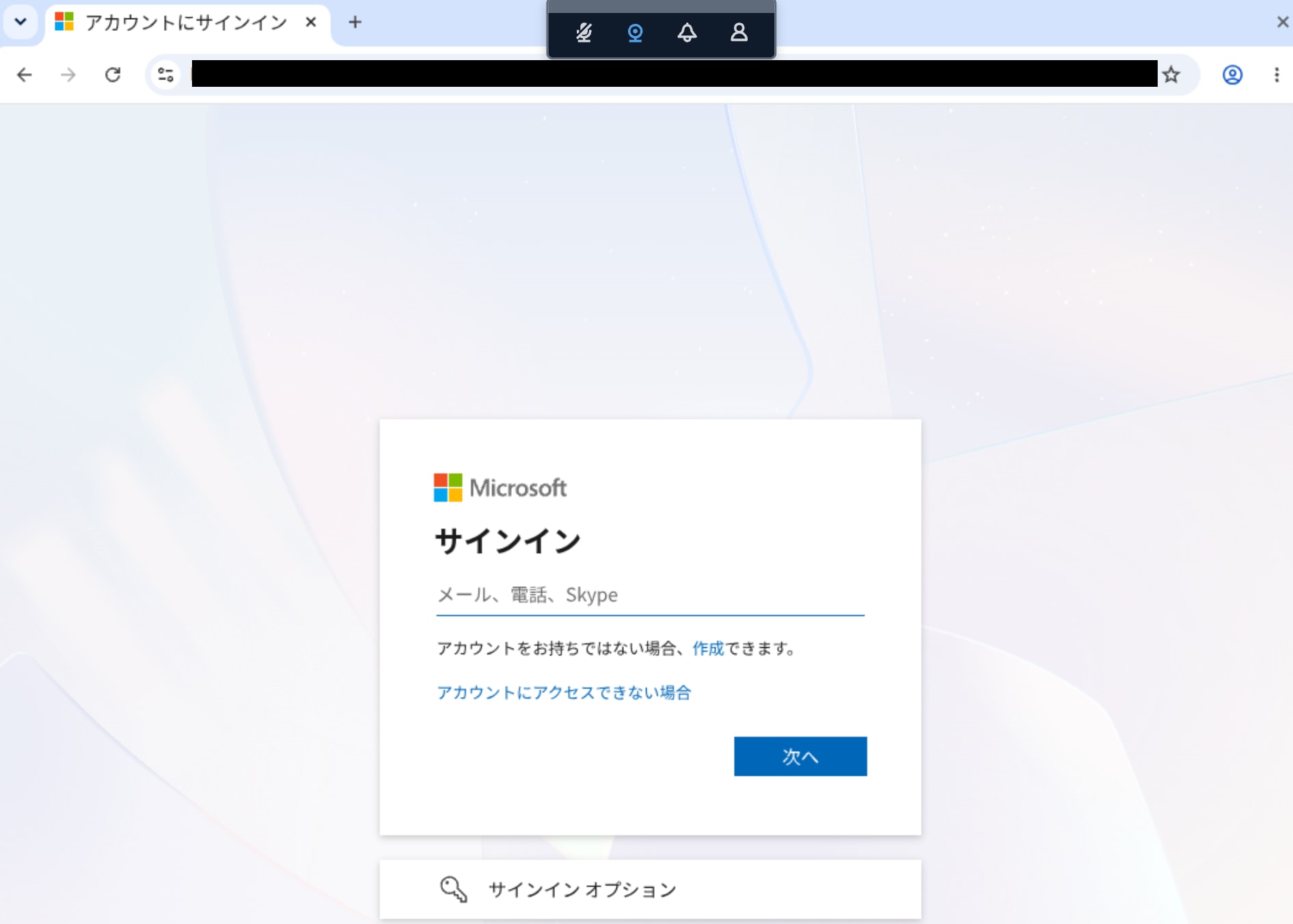
With the SSO extension disabled, sign-in was required when accessing Microsoft My Apps
In the local browser, Microsoft Entra ID authentication is performed when accessing the WorkSpaces Secure Browser portal.
However, with the SSO extension disabled, those authentication cookies are not synchronized to the Secure Browser session.
Therefore, when accessing Microsoft My Apps from within the Secure Browser session, I was prompted to sign in to Microsoft Entra ID again.
Enabling the SSO Extension
Next, I enable the SSO extension on the existing WorkSpaces Secure Browser portal.
Open the [User settings] tab of the target portal and click [Edit] in [User settings details].
Enable [Allow WorkSpaces Secure Browser extension for single sign-on].
For this configuration, I specified the following as the domain for cookie synchronization.
microsoftonline.com
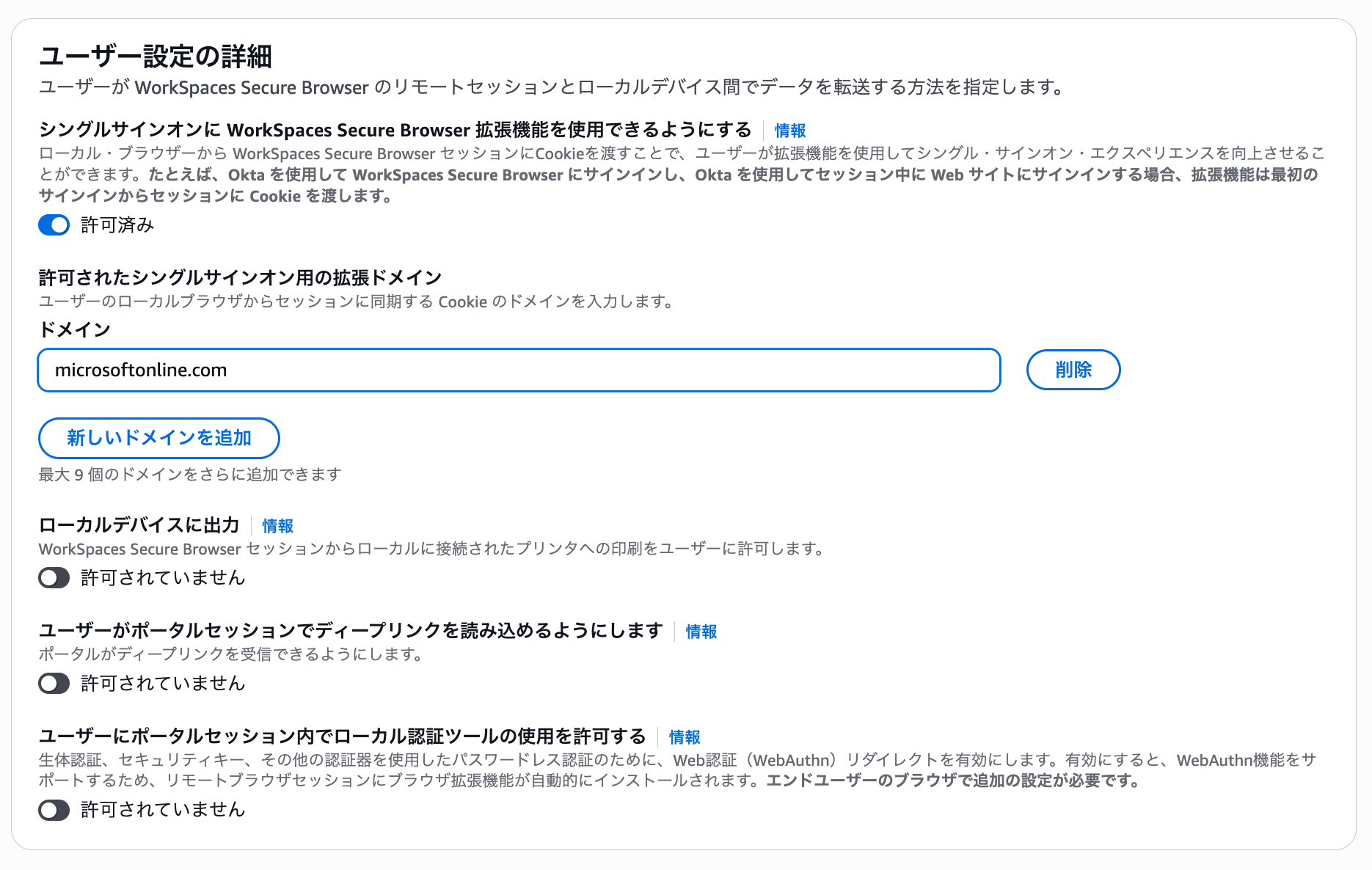
Screen after enabling the SSO extension and configuring the cookie synchronization target domain
For the cookie synchronization target, specify the domain used by the IdP for authentication, not the WorkSpaces Secure Browser portal domain workspaces-web.com.
The AWS documentation lists microsoftonline.com as the domain for Microsoft Entra ID.
Specify only the domain name, not a URL.
microsoftonline.com
Do not specify a URL that includes a protocol or path, as shown below.
https://login.microsoftonline.com/
The appropriate domain for cookie synchronization varies depending on the IdP and website being used. The AWS documentation states that it is the user's responsibility to test and identify the appropriate domain.
For this verification, I specified microsoftonline.com, which is listed in the AWS documentation for Microsoft Entra ID.
After configuring, save the changes.
Installing the Extension in Google Chrome
After enabling the SSO extension, access the WorkSpaces Secure Browser portal URL from local Google Chrome.
The portal URL is the URL shown in [Default portal URL] for the target portal.
https://<portal-id>.workspaces-web.com
After authenticating with Microsoft Entra ID, the following [Would you like to install the extension for single sign-on?] screen was displayed.
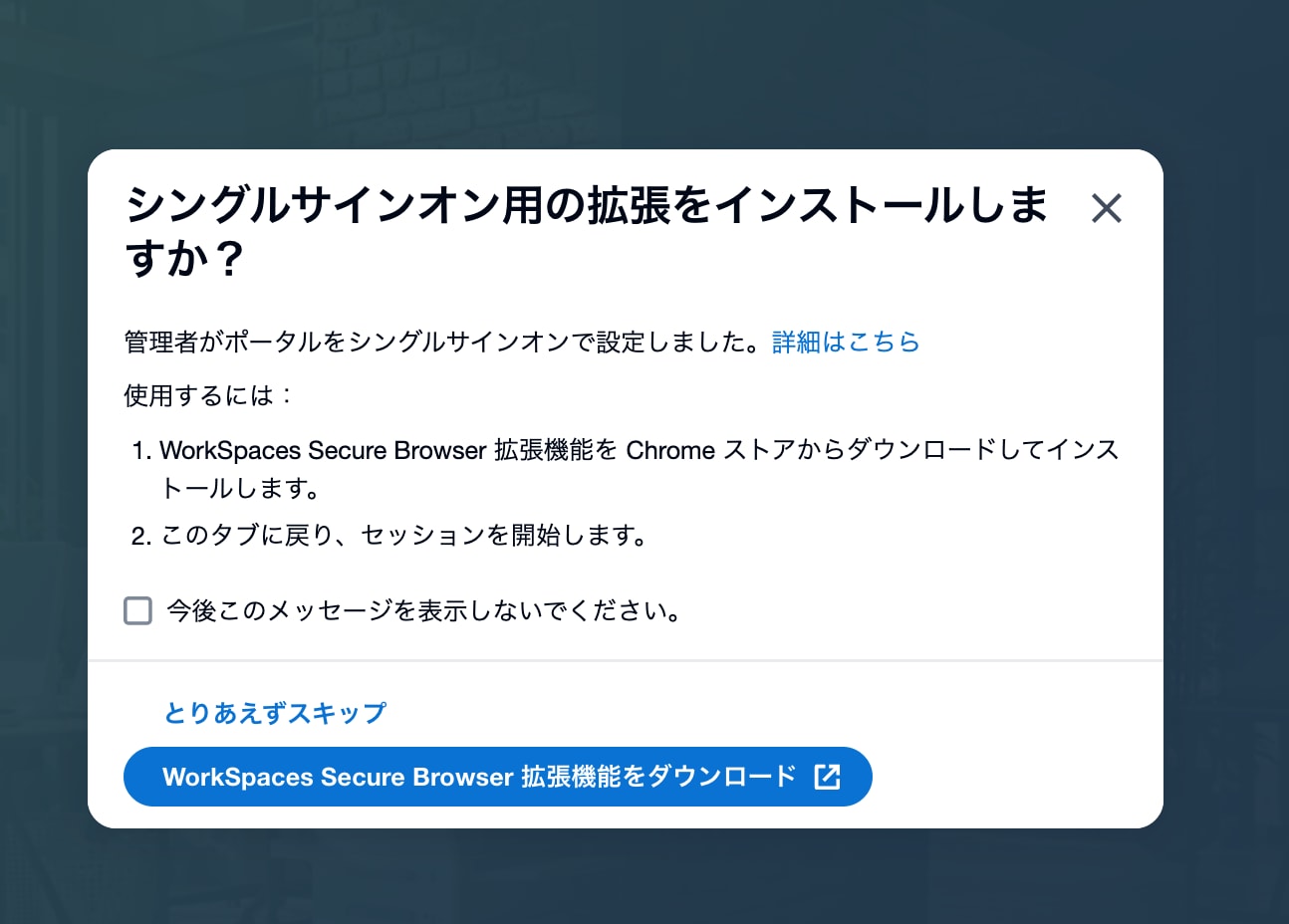
Screen prompting installation of the SSO extension
Click [Download Amazon WorkSpaces Secure Browser extension].
The Google Chrome extension addition screen is displayed.
Review the content and click [Add "Amazon WorkSpaces Secure Browser"].
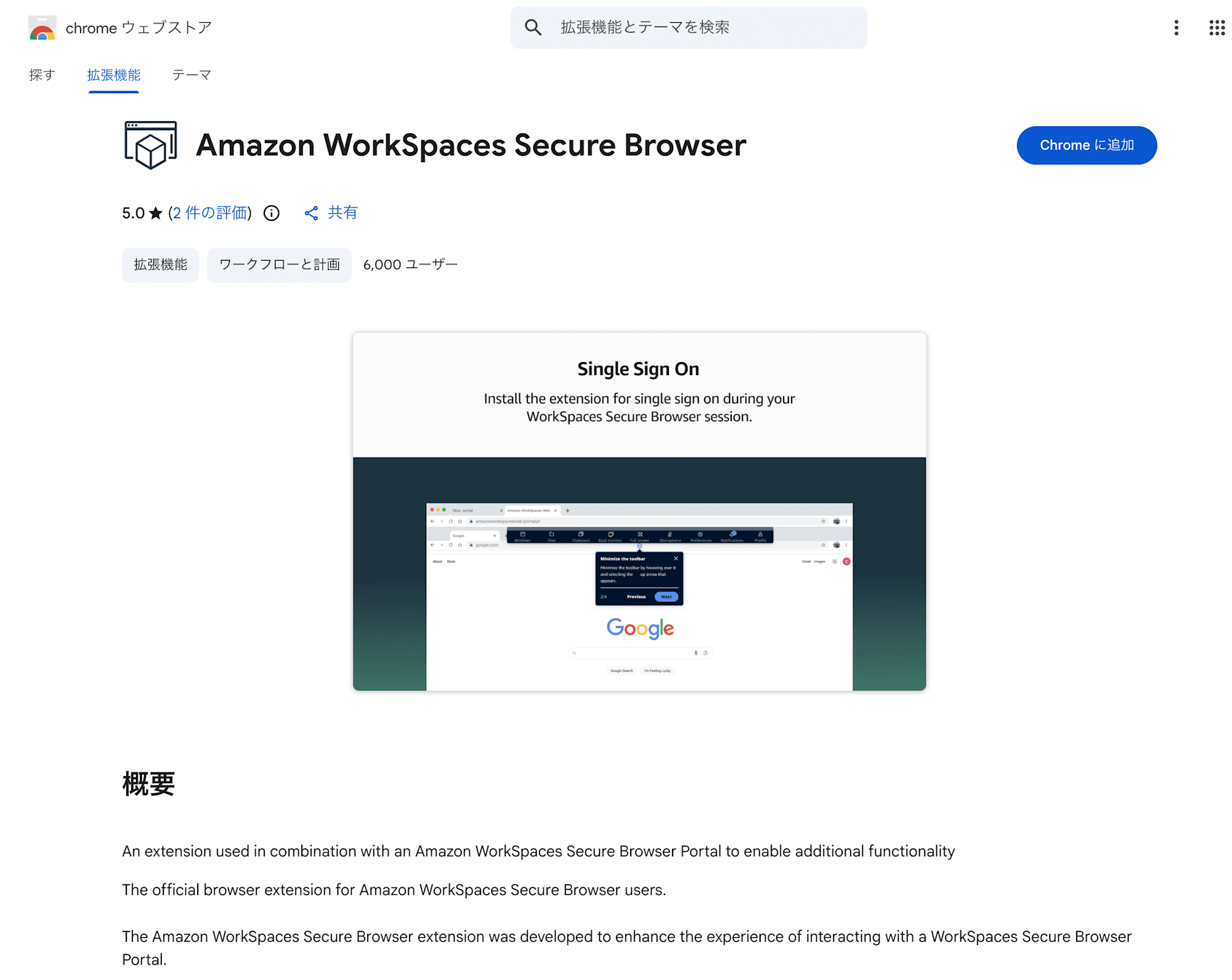
Screen for adding the Amazon WorkSpaces Secure Browser extension to Google Chrome
After installing the extension, return to the earlier [Would you like to install the extension for single sign-on?] screen.
Reloading the screen recognized the installed extension, and the WorkSpaces Secure Browser session launch screen was displayed.
Screen for starting a Secure Browser session after installing the extension
Start the Secure Browser session from this screen.
The SSO extension is installed in the local browser. It is not installed in the browser within the Secure Browser session.
In this configuration, the extension exists at the following location.
User device
└── Local Google Chrome
    └── Amazon WorkSpaces Secure Browser extension
After installing the extension, users do not need to sign in to the extension itself or manually execute cookie synchronization.
The extension installation is performed once per web browser. If you use a different device or browser, or if you remove the extension from the local browser, you will be prompted to install it again at the next session start.
Accessing Microsoft My Apps
Once the WorkSpaces Secure Browser session has launched, access Microsoft My Apps from the browser within Secure Browser.
https://myapps.microsoft.com/
This time, I accessed Microsoft My Apps from Google search results.
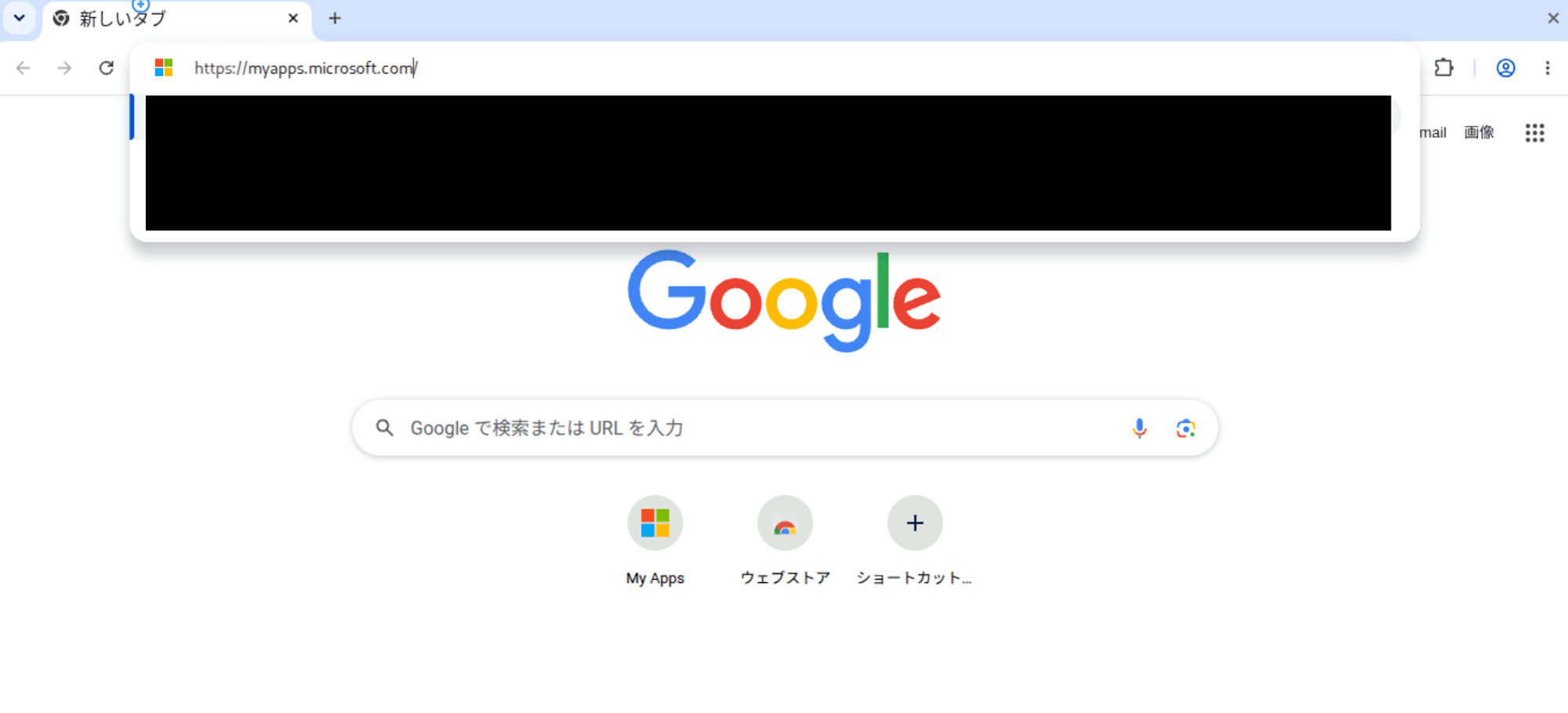
Screen accessing Microsoft My Apps from within a Secure Browser session
The Microsoft Entra ID sign-in screen was not displayed, and I was able to navigate directly to Microsoft My Apps.
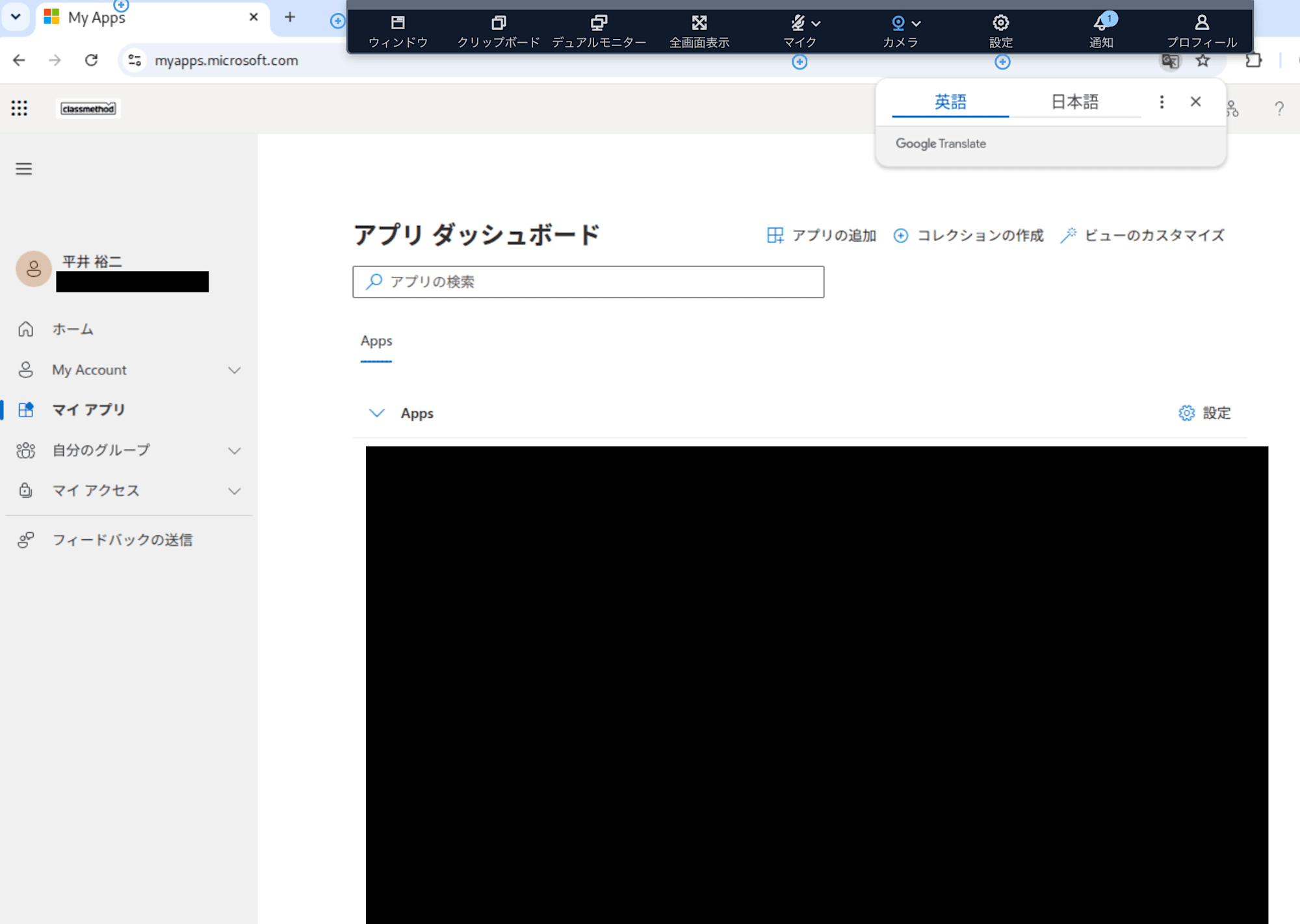
Microsoft My Apps displayed without any additional sign-in operations
When the SSO extension was disabled, I was prompted to sign in to Microsoft Entra ID when accessing Microsoft My Apps.
On the other hand, when the SSO extension was enabled and microsoftonline.com was specified as the cookie synchronization target domain, I was able to access Microsoft My Apps without any additional sign-in operations.
From these results, I confirmed that in this environment, cookie synchronization via the SSO extension worked, and re-signing in to Microsoft My Apps was successfully skipped.
Verification Results
The results of this verification are as follows.
| SSO Extension | Cookie Synchronization Target Domain | Microsoft My Apps Access Result |
|---|---|---|
| Disabled | None | Was prompted to sign in to Microsoft Entra ID |
| Enabled | microsoftonline.com |
Was able to access without additional sign-in operations |
In this verification, the same Microsoft Entra ID tenant user was used for signing in to the WorkSpaces Secure Browser portal and signing in to Microsoft My Apps.
Also, the SSO extension is not a feature that bypasses multi-factor authentication or Microsoft Entra ID Conditional Access policies.
If Microsoft Entra ID policies determine that re-authentication is required, you may still be prompted to sign in or complete multi-factor authentication even if cookies are synchronized.
The SSO extension can only synchronize cookies for domains configured by the WorkSpaces Secure Browser administrator. You need to verify which domains to target for synchronization based on the IdP and access destinations being used.
Summary
I tried the SSO extension with Amazon WorkSpaces Secure Browser integrated with Microsoft Entra ID via SAML.
In this verification, by enabling the SSO extension and specifying microsoftonline.com as the cookie synchronization target domain, I was able to access Microsoft My Apps from within a Secure Browser session without any additional sign-in operations.
When the WorkSpaces Secure Browser portal and the websites used within the Secure Browser session use the same IdP, this appears to be a useful way to reduce sign-in operations for users.
