I tried routing Amazon WorkSpaces Secure Browser internet traffic through a Squid proxy on EC2

This page has been translated by machine translation. View original
Introduction
Previously, I tried a configuration to federate Amazon WorkSpaces Secure Browser with Microsoft Entra ID via SAML and log into the portal using Entra ID authentication.
In the previous article, the configuration connected to the internet from the Secure Browser session via a Regional NAT Gateway.
WorkSpaces Secure Browser
↓
Regional NAT Gateway
↓
Internet
This time, I added a Squid proxy on Amazon EC2 to the existing environment and changed the WorkSpaces Secure Browser traffic to route through the proxy.
WorkSpaces Secure Browser
↓ TCP/3128
Proxy EC2(Squid)
↓
Regional NAT Gateway
↓
Internet
In WorkSpaces Secure Browser, you can configure an HTTP outbound proxy using Chrome's ProxySettings policy.
The official AWS documentation also describes the procedure for adding ProxySettings to the WorkSpaces Secure Browser policy settings.
This article covers configuring ProxySettings in WorkSpaces Secure Browser and verifying that traffic is routed through the proxy by checking Squid's access logs.
Prerequisites
This article assumes the following.
- The verification region is
ap-northeast-1 - A WorkSpaces Secure Browser portal federated with Microsoft Entra ID via SAML has already been created
- A VPC and private subnets for WorkSpaces Secure Browser have already been created
- The default route of the private subnets has been set to a Regional NAT Gateway
- A security group for WorkSpaces Secure Browser has already been created
- It has been confirmed that WorkSpaces Secure Browser can connect to the internet via the Regional NAT Gateway
- The Proxy EC2 will be created in the same VPC as WorkSpaces Secure Browser, in a private subnet
- The Proxy EC2 OS is Amazon Linux 2023
For the WorkSpaces Secure Browser portal and Microsoft Entra ID configuration, please refer to the previous article.
Architecture
The architecture for this setup is as follows.
VPC
├─ Private Subnet 1
│  ├─ ENI for WorkSpaces Secure Browser
│  └─ Proxy EC2(Squid)
│
├─ Private Subnet 2
│  └─ ENI for WorkSpaces Secure Browser
│
└─ Regional NAT Gateway
   └─ Used for traffic from Proxy EC2 to the internet
The traffic flow is as follows.
WorkSpaces Secure Browser
↓ Chrome ProxySettings
Proxy EC2 private IPv4 address:3128
↓ Squid
Regional NAT Gateway
↓
Internet
The route table associated with the private subnets uses the existing configuration as-is.
| Destination | Target |
|---|---|
| VPC CIDR | local |
0.0.0.0/0 |
Regional NAT Gateway |
Traffic from WorkSpaces Secure Browser to Proxy EC2 uses the VPC's local route.
Traffic from Proxy EC2 to the internet uses the 0.0.0.0/0 route and goes through the Regional NAT Gateway.
Create a Security Group for Proxy EC2
The security group for Proxy EC2 allows TCP/3128 from the WorkSpaces Secure Browser security group.
| Type | Protocol | Port | Source |
|---|---|---|---|
| Custom TCP | TCP | 3128 | WorkSpaces Secure Browser security group |
TCP/3128 is used as the Squid listening port.
In this verification, the outbound rules for the Proxy EC2 security group were set to the default allow-all.
| Type | Protocol | Port | Destination |
|---|---|---|---|
| All traffic | All | All | 0.0.0.0/0 |
Rules required for management connections to Proxy EC2 should be configured separately according to the connection method used. Use a connection method appropriate for your environment, such as Systems Manager Session Manager or EC2 Instance Connect Endpoint.
Create Proxy EC2
The Proxy EC2 was created with the following settings.
| Item | Setting |
|---|---|
| AMI | Amazon Linux 2023 |
| VPC | Same VPC as WorkSpaces Secure Browser |
| Subnet | Private subnet with a route to the Regional NAT Gateway |
| Public IPv4 address | None |
| Security group | Proxy EC2 security group |
The Proxy EC2 was created within the same VPC so that it can be reached from WorkSpaces Secure Browser via a private IPv4 address.
After creating the instance, connect to Proxy EC2 using a method appropriate for your environment.
Install Squid
Connect to Proxy EC2 and install Squid.
sudo dnf install -y squid
Verify the installed version.
squid --version
In this environment, the following version was installed.
Squid Cache: Version 6.13
Service Name: squid
The Squid version may differ depending on the Amazon Linux 2023 repository used and the time of execution.
Configure Squid
First, back up the existing configuration file.
sudo cp /etc/squid/squid.conf \
  /etc/squid/squid.conf.original
Next, change /etc/squid/squid.conf to the following content.
sudo tee /etc/squid/squid.conf > /dev/null <<'EOF'
http_port 3128

acl SSL_ports port 443

acl Safe_ports port 80
acl Safe_ports port 443

acl CONNECT method CONNECT

acl wsb_clients src 10.0.0.0/16

http_access deny !Safe_ports
http_access deny CONNECT !SSL_ports

http_access allow wsb_clients
http_access deny all

access_log stdio:/var/log/squid/access.log
cache_log /var/log/squid/cache.log

visible_hostname wsb-poc-proxy
EOF
10.0.0.0/16 is the CIDR of the VPC used in this setup. Replace it with your own VPC CIDR when trying this yourself.
The main configuration settings are as follows.
| Setting | Description |
|---|---|
http_port 3128 |
Squid listens for connections on TCP/3128 |
acl SSL_ports port 443 |
Restricts the ports available for HTTPS CONNECT to TCP/443 |
acl Safe_ports port 80 |
Includes HTTP TCP/80 as an allowed target |
acl Safe_ports port 443 |
Includes HTTPS TCP/443 as an allowed target |
acl CONNECT method CONNECT |
Identifies the HTTP CONNECT method |
acl wsb_clients src 10.0.0.0/16 |
Includes connections from the VPC CIDR as allowed targets |
http_access allow wsb_clients |
Allows connections matching wsb_clients |
http_access deny all |
Denies all other connections |
access_log |
Outputs Squid access logs |
cache_log |
Outputs Squid operation logs |
While the Squid configuration allows the VPC CIDR, the Proxy EC2 security group only permits TCP/3128 from the WorkSpaces Secure Browser security group.
Therefore, the source of traffic to TCP/3128 on Proxy EC2 is also restricted by the security group.
Start Squid
Check the configuration file syntax.
sudo squid -k parse
In this environment, it was confirmed that each line of the configuration file was processed as shown below and that the process did not exit with an error.
2026/07/21 07:32:11| Processing Configuration File: /etc/squid/squid.conf (depth 0)
2026/07/21 07:32:11| Processing: http_port 3128
2026/07/21 07:32:11| Processing: acl SSL_ports port 443
2026/07/21 07:32:11| Processing: acl Safe_ports port 80
2026/07/21 07:32:11| Processing: acl Safe_ports port 443
2026/07/21 07:32:11| Processing: acl CONNECT method CONNECT
2026/07/21 07:32:11| Processing: acl wsb_clients src 10.0.0.0/16
2026/07/21 07:32:11| Processing: http_access deny !Safe_ports
2026/07/21 07:32:11| Processing: http_access deny CONNECT !SSL_ports
2026/07/21 07:32:11| Processing: http_access allow wsb_clients
2026/07/21 07:32:11| Processing: http_access deny all
2026/07/21 07:32:11| Processing: access_log stdio:/var/log/squid/access.log
2026/07/21 07:32:11| Processing: cache_log /var/log/squid/cache.log
2026/07/21 07:32:11| Processing: visible_hostname wsb-poc-proxy
Next, start Squid and configure it to start automatically after the EC2 instance is restarted.
sudo systemctl enable --now squid
Check the Squid status.
sudo systemctl status squid --no-pager
In this environment, the status showed active (running) as follows.
● squid.service - Squid caching proxy
     Loaded: loaded (/usr/lib/systemd/system/squid.service; enabled; preset: disabled)
     Active: active (running) since Tue 2026-07-21 07:32:26 UTC
       Docs: man:squid(8)
   Main PID: 26529 (squid)
      Tasks: 2
     Memory: 14.0M
        CPU: 57ms
     CGroup: /system.slice/squid.service
             ├─26529 /usr/sbin/squid --foreground -f /etc/squid/squid.conf
             └─26531 "(squid-1)" --kid squid-1 --foreground -f /etc/squid/squid.conf
Also confirm that it is listening on TCP/3128.
sudo ss -lntp | grep 3128
At this point, Squid on Proxy EC2 is ready to accept connections from WorkSpaces Secure Browser.
Configure a Proxy in WorkSpaces Secure Browser
Open the target portal in WorkSpaces Secure Browser and click [Edit] under [Policy details] in the [Portal settings] tab.
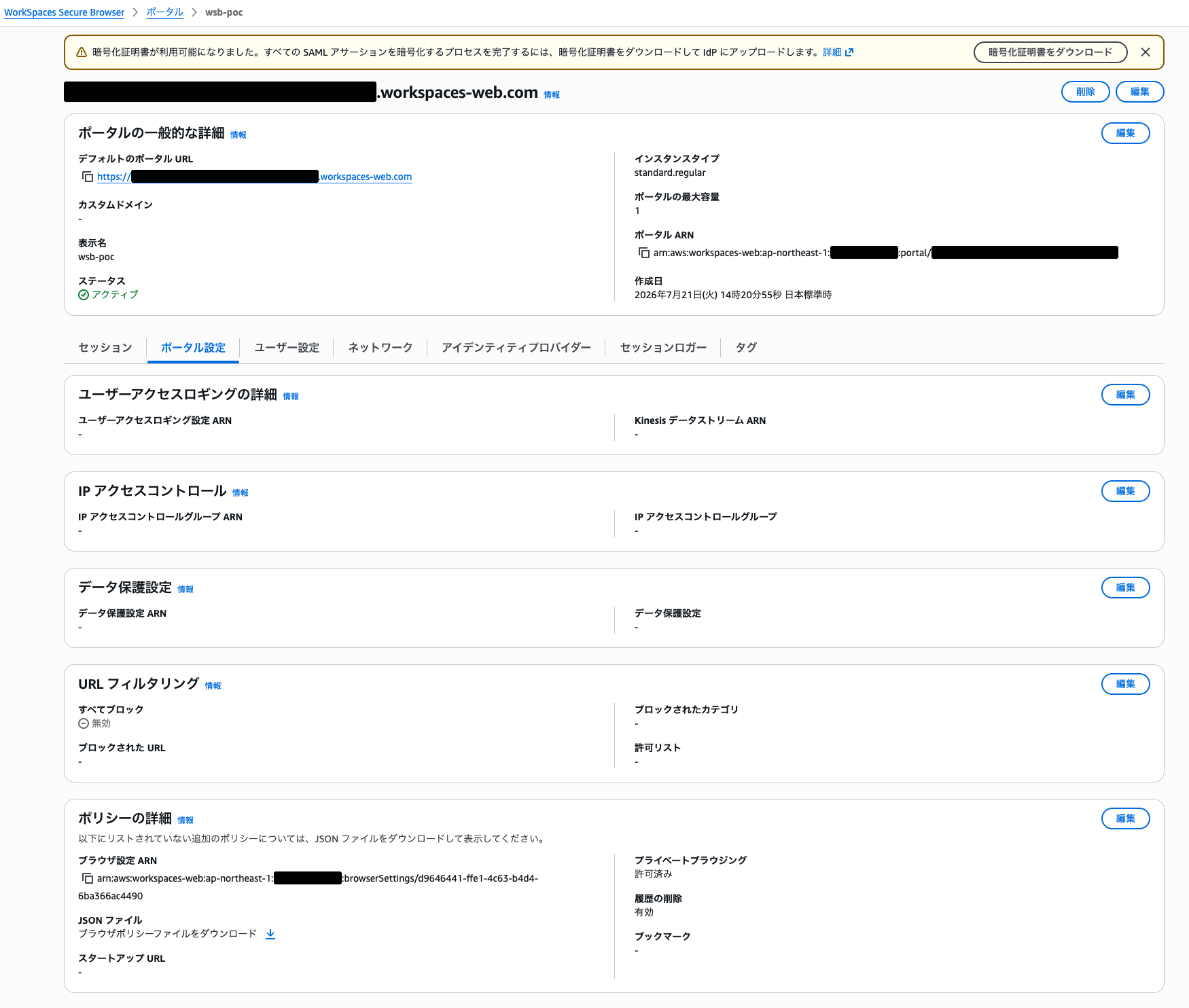
Screen for editing [Policy details] from the [Portal settings] tab in WorkSpaces Secure Browser
Select [JSON editor] and configure the following browser policy.
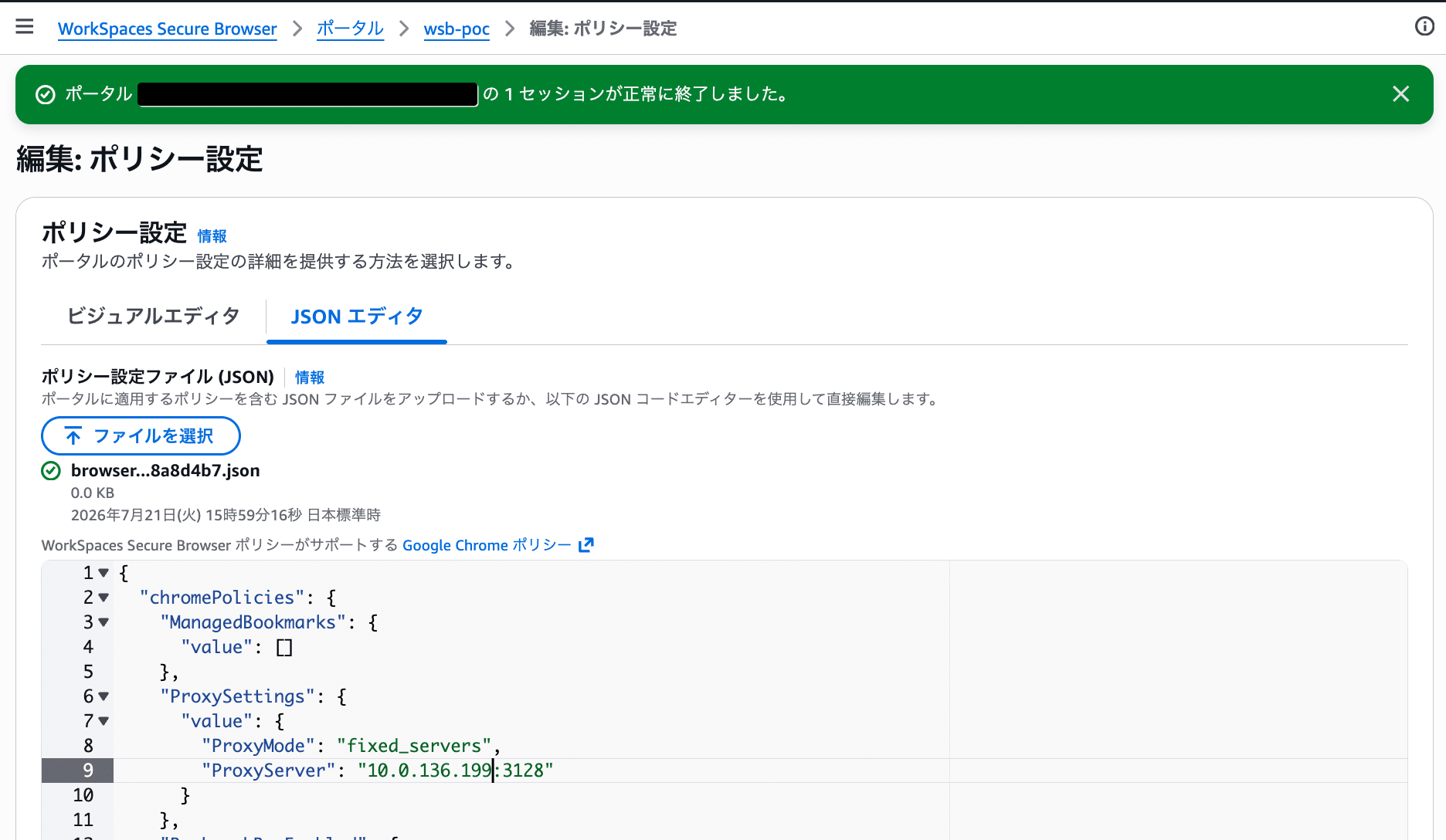
Screen showing ProxySettings configured in the WorkSpaces Secure Browser browser policy
{
  "chromePolicies": {
    "ProxySettings": {
      "value": {
        "ProxyMode": "fixed_servers",
        "ProxyServer": "10.0.136.199:3128"
      }
    }
  }
}
10.0.136.199 is the private IPv4 address of the Proxy EC2 created in this setup.
When trying this yourself, replace it with your own Proxy EC2's private IPv4 address and port number.
The meaning of each setting value is as follows.
| Item | Value | Description |
|---|---|---|
ProxyMode |
fixed_servers |
Use a fixed proxy server |
ProxyServer |
10.0.136.199:3128 |
The private IPv4 address of Proxy EC2 and Squid's listening port |
After saving the policy, end the existing Secure Browser session and start a new session.
For this verification, the Proxy EC2's private IPv4 address is specified directly in ProxyServer.
You can also specify a DNS name that WorkSpaces Secure Browser can resolve and connect to in ProxyServer. For continuous use, considering that the private IPv4 address may change if Proxy EC2 is recreated, you may want to specify a DNS name managed via Route 53 private hosted zones or similar.
When using a DNS name, specify the hostname and port number as follows.
"ProxyServer": "proxy.example.internal:3128"
Do not include a scheme such as http:// or https://; specify in the format DNS name:port number.
If you want to use the EC2 private DNS name directly, here is an example.
"ProxyServer": "ip-10-0-136-199.ap-northeast-1.compute.internal:3128"
However, since the private DNS name may also change if the EC2 instance is terminated and recreated, a self-managed DNS name is easier to handle for continuous use.
Verification
Confirm that ProxySettings is applied
Start a new Secure Browser session and enter the following in the address bar.
chrome://policy
Confirm that ProxySettings is displayed and that the configured proxy private IPv4 address and port number are reflected.
ProxyMode:fixed_servers
ProxyServer:10.0.136.199:3128
The official AWS documentation also provides steps for opening chrome://policy to verify that ProxySettings has been applied.
Access a website
Next, access a website from the Secure Browser.
In this verification, websites were displayed successfully even after configuring ProxySettings.
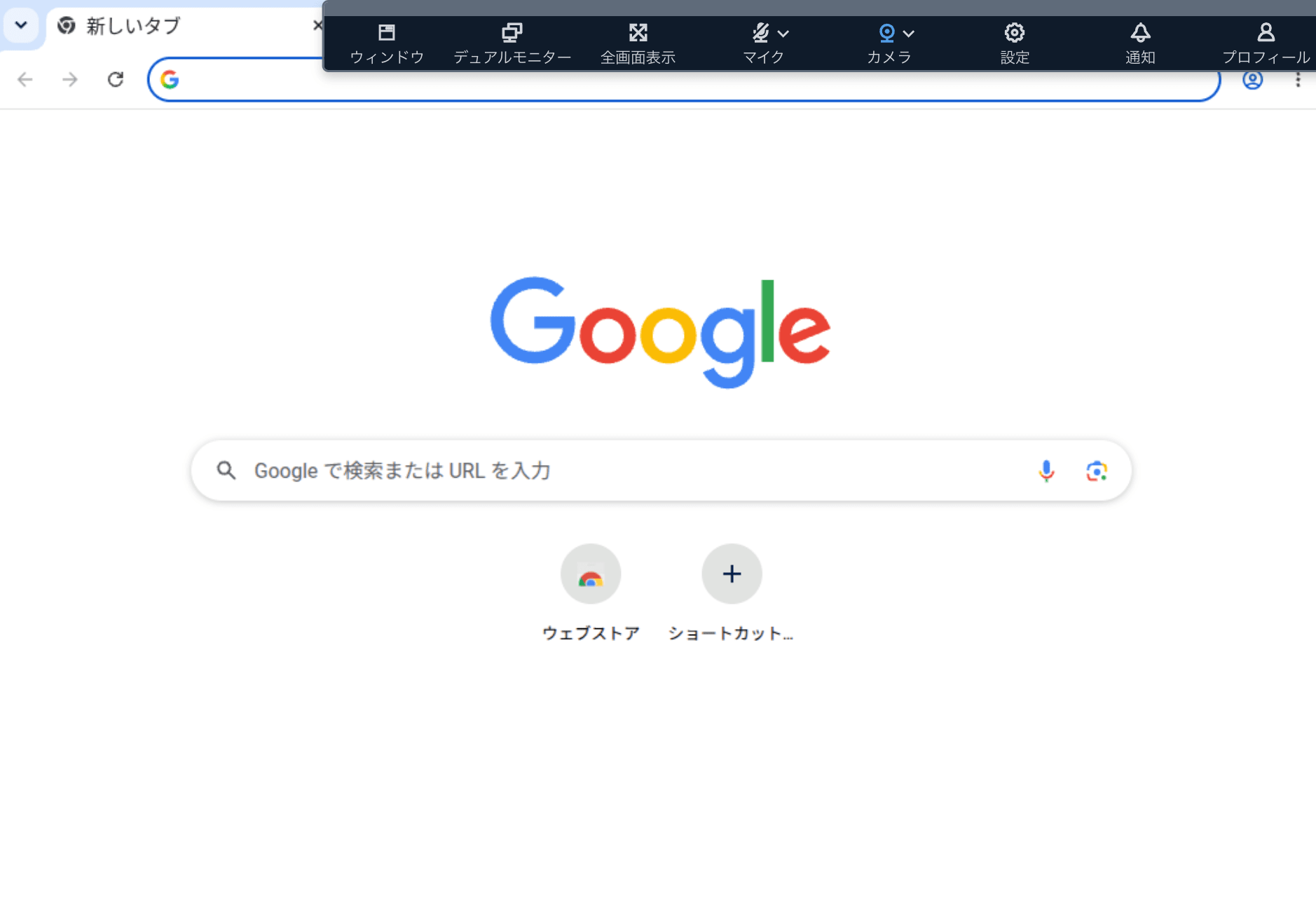
Screen showing access to a website from WorkSpaces Secure Browser after configuring the proxy
Check Squid's access logs
On Proxy EC2, check Squid's access logs with the following command.
sudo tail -f /var/log/squid/access.log
While monitoring, access a website from the Secure Browser.
In this verification, it was confirmed that traffic appeared in Squid's access logs when a website was accessed from the Secure Browser.
From the above, it was confirmed that in this environment, the WorkSpaces Secure Browser traffic is routed through Squid on Proxy EC2.
Summary
By specifying the Proxy EC2's private IPv4 address and TCP/3128 in the ProxySettings of Amazon WorkSpaces Secure Browser, websites were successfully accessed via Squid.
I hope this serves as a useful reference for those who want to consolidate WorkSpaces Secure Browser traffic through an existing proxy.
