
Prevent Mac from sleeping only while Claude is running with Amphetamine

This page has been translated by machine translation. View original
Introduction
Hello everyone, this is Akaike.
Both at work and in my personal life, I often leave Claude with time-consuming tasks and step away from my desk.
And naturally, closing my Mac causes the processing to stop…
So this time, I'll summarize how to use Amphetamine to prevent your Mac from sleeping when you close it, but only while Claude is running.
Prerequisites
- macOS
- Amphetamine
- Claude Desktop
About Amphetamine
Amphetamine is a free app that prevents your Mac from sleeping.
You can get it from the Mac App Store.
Sleep prevention itself can also be done with macOS's built-in caffeinate command, but Amphetamine has a trigger feature that lets you specify conditions for when to prevent sleep.
Basic Usage
Once installed, a pill icon appears in the menu bar, and you can start a session from there.
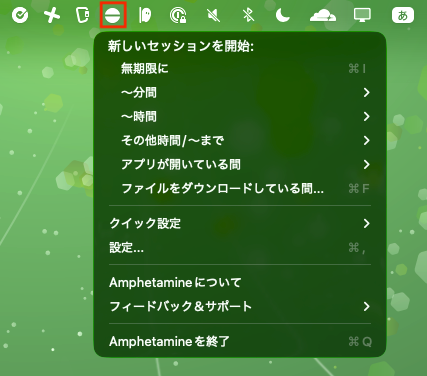
You can choose the session duration from indefinite down to minutes.
By selecting "While an app is open," you can also restrict prevention to only while a specified app is running.
However, this method requires you to select from the menu each time, and you'll probably forget most of the time.
So next, I'll use the triggers I'll explain below to automate this.
Recommended Settings When Using Claude
Launch Amphetamine at Login
First, go to the "General" settings and check "Launch Amphetamine at Login."
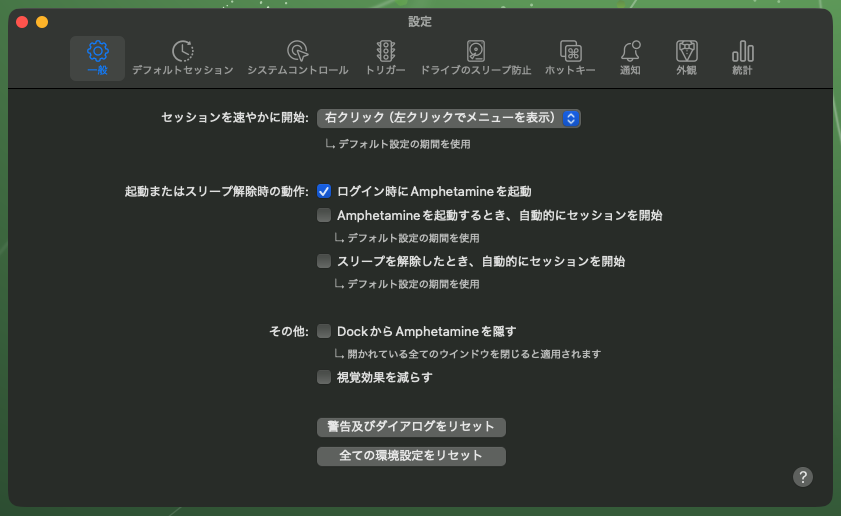
Triggers won't work unless Amphetamine itself is running, so make sure to check this.
Creating a Trigger
Next, in the "Triggers" tab, check "Enable Triggers" and add a trigger by clicking the "+" in the bottom left.
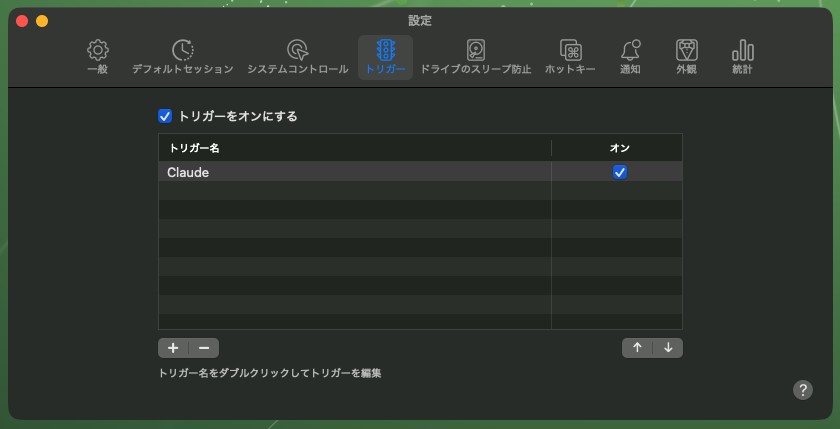
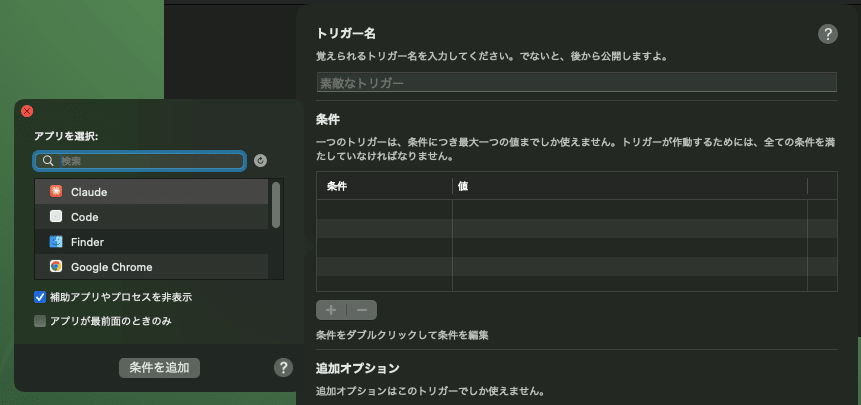
Press "+" in the opened tab to select a trigger condition, then choose Application.
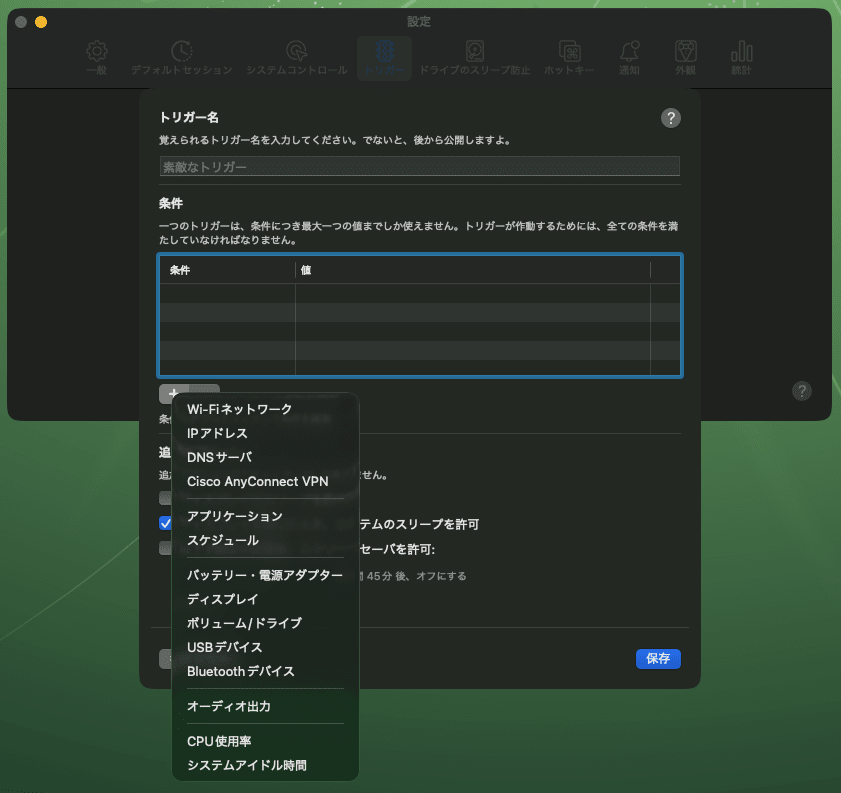
Here you can select from running apps.
If Claude Desktop is open, Claude will be available for selection.
For the additional options, only check "Allow display to sleep."
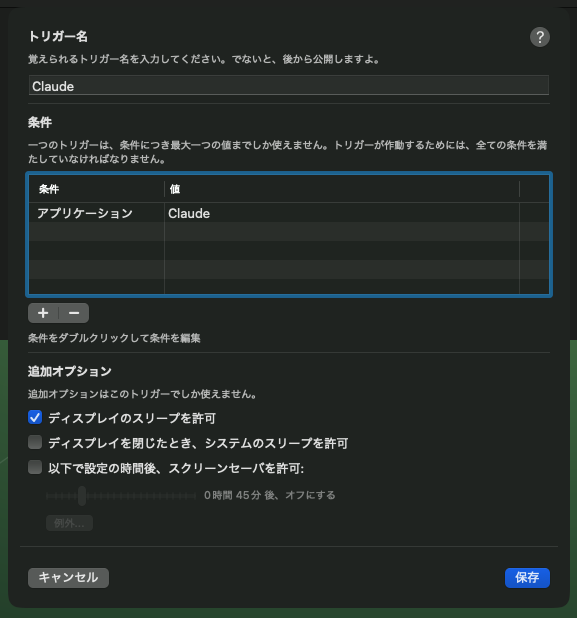
The meaning of each checkbox is as follows.
- Allow display to sleep
- When checked, only the screen turns off while the system remains running
- Since having the screen on just consumes battery, check this
- Allow system sleep when display is closed
- Leave this unchecked
- When unchecked, the system will not sleep even when the Mac is closed
With this configuration, the state will be "the screen may turn off when the Mac is closed, but the system will not stop."
It's a bit confusing, but note that the option to uncheck when you want processing to continue after closing your Mac is the latter one.
Verification
Once the settings are done, try launching Claude Desktop.
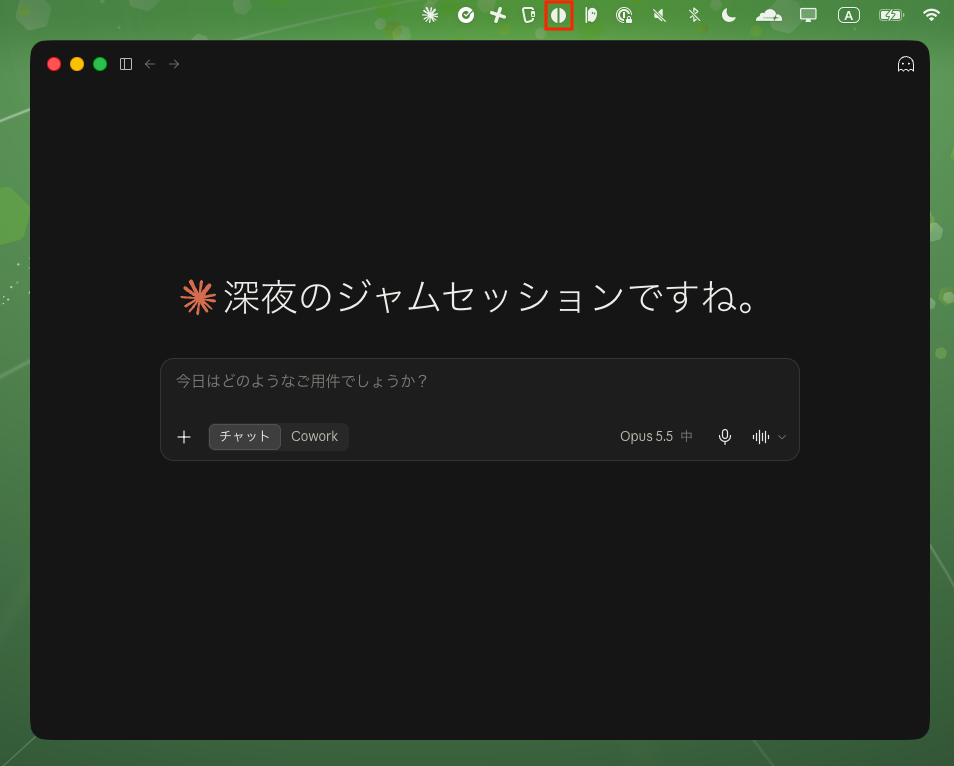
The moment it opens, the pill icon in the menu bar changes to an active display, indicating that a session has started.
In this state, even if you close your Mac, Claude can continue processing.
Considerations
Battery Consumption
Since the Mac won't sleep, the battery will keep draining.
If you're going to hand off long-running tasks, always make sure to plug in your charging cable.
Power Protect
It seems that plugging and unplugging the power adapter while the lid is closed can cause the session to not behave as intended.
A mechanism called Power Protect is available to address this issue, so consider setting it up if this is a concern.
When Using Claude Code in the Terminal
It doesn't seem possible to specify the Claude Code process directly,
so for the trigger condition, specify a terminal such as Terminal or iTerm2, or an IDE like VSCode.
Bonus: Changing the Menu Bar Icon
You can change the menu bar icon from the "Appearance" tab in the settings.
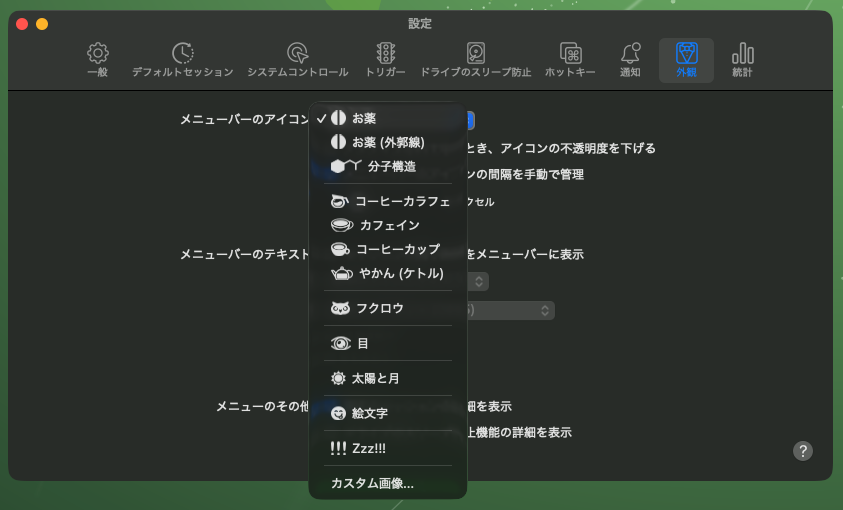
In addition to the pill, there are options for molecular structure, coffee carafe, caffeine, coffee cup, kettle, owl, eye, sun and moon, emoji, Zzz!!!, and more.
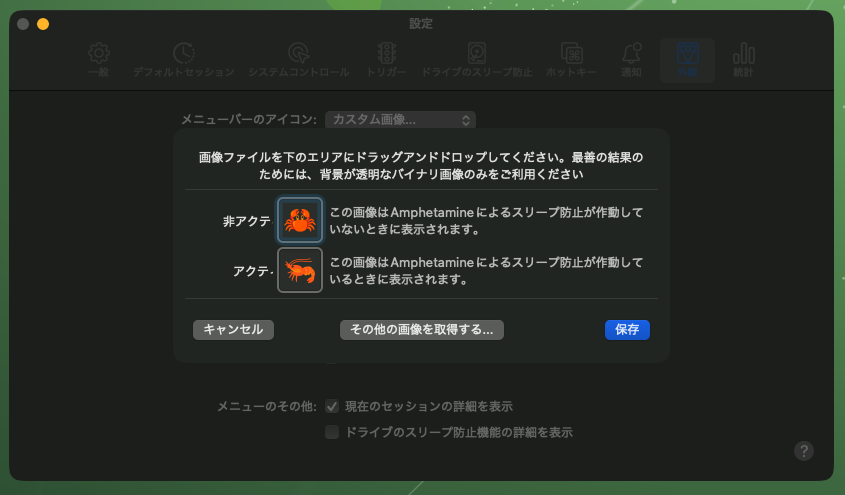
Selecting "Custom Image..." at the bottom lets you specify any image you like.
You can assign separate images for inactive and active states, so you could even assign a crab and a shrimp respectively, like below.
The menu bar has successfully become a shrimp.
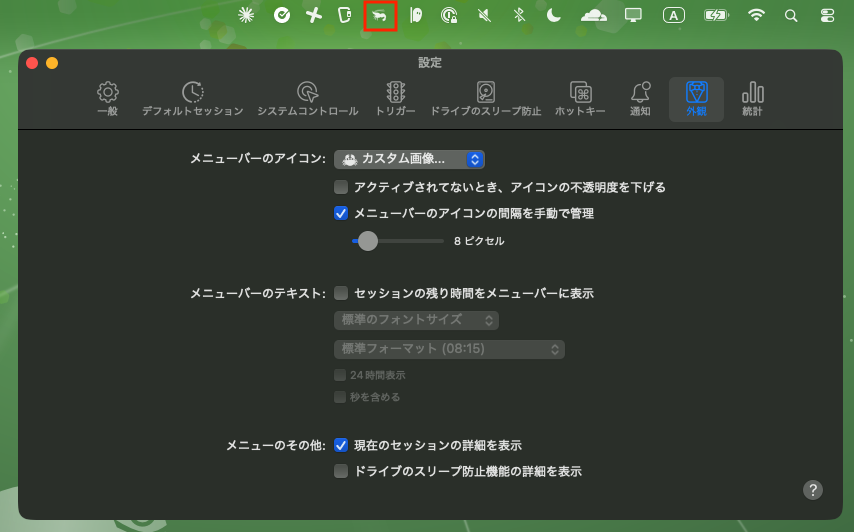
It's purely cosmetic, but since you can tell at a glance whether sleep prevention is active or not, it's handy to use two images that are clearly different from each other.
By the way, checking "Reduce icon opacity when inactive" on the same screen will make the icon appear faded when inactive.
If you want to reuse the same image, this setting is recommended.
Closing
That's all — I've set up Amphetamine to keep Claude's processing running even when the Mac is closed.
The setup itself takes about 5 minutes, yet the effect is quite significant.
I hope this helps anyone else who has been troubled by Claude's processing stopping unexpectedly.