
I Can't Write PyQGIS, But I Want to Automate QGIS: I Asked Claude Code and QGIS MCP to Do It

This page has been translated by machine translation. View original
You can open a map in QGIS and browse the data. But the moment the task becomes "create a 500 m radius buffer and extract the overlapping area," the GUI operations get tedious. And you don't know PyQGIS well enough to automate it. Sound familiar?
I wanted to see whether I could hand off the cycle of groping through the PyQGIS docs, finding the right APIs and arguments, and finally getting the code to run to Claude Code and QGIS MCP.
I previously wrote a blog post about using the Amazon Location Service plugin in QGIS.
This time, building on that environment, I'll add QGIS MCP and operate QGIS directly from Claude Code.
What is PyQGIS?
PyQGIS is the API for working with QGIS from Python. It helps to think of it as letting you write, as Python code, the operations you normally do with the mouse in QGIS. For example, you can automate loading data, filtering by conditions, coordinate transformation, spatial operations, styling, and map output.
What is QGIS MCP?
QGIS MCP is a Model Context Protocol (MCP) implementation that lets AI agents such as Claude Code operate QGIS Desktop directly.
The mechanism is simple.
When Claude Code calls a tool, the PyQGIS API inside QGIS is executed via MCP.
Prerequisites
This article assumes the following environment.
- macOS
- QGIS 3.X installed
- Python 3.10 or later available
- uv installed
- Claude Code installed
- An Amazon Location Service API key obtained (used to display the base map)
For obtaining the Amazon Location Service API key and setting up the QGIS plugin, please refer to my previous blog post.
Setup
1. Clone the repository
In the terminal where you run Claude Code, clone the repository into any directory.
$ git clone https://github.com/jjsantos01/qgis_mcp.git
2. Install the QGIS plugin
Copy the qgis_mcp_plugin folder from the cloned directory into the QGIS plugin folder.
On a Mac, the command looks like this.
$ cp -r qgis_mcp/qgis_mcp_plugin ~/Library/Application\ Support/QGIS/QGIS3/profiles/default/python/plugins
Start QGIS and open "Plugins" → "Manage and Install Plugins" from the menu.
Find "QGIS MCP" in the "Installed" tab, then tick the checkbox to enable it.
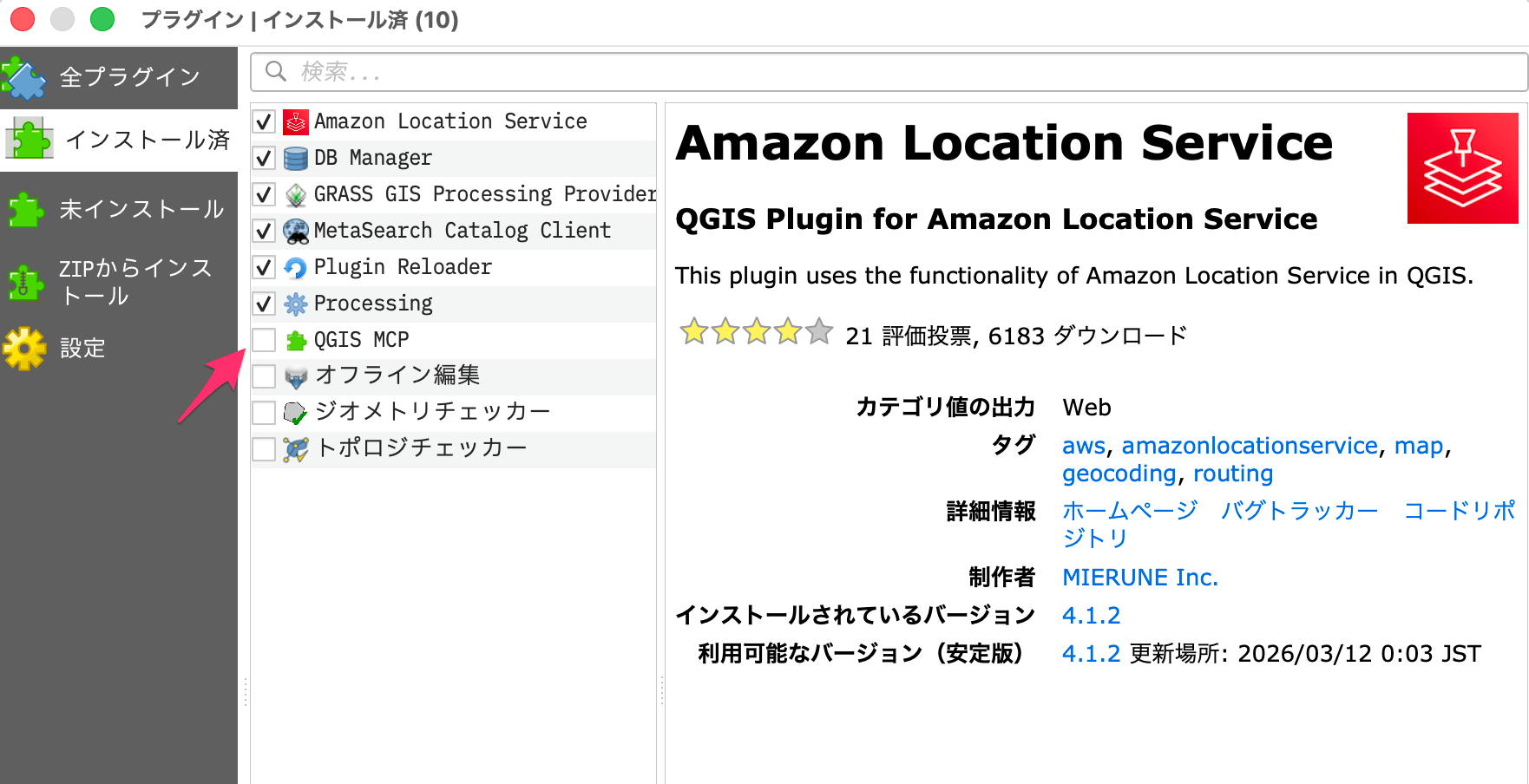
After installation, "Plugins" → "QGIS MCP" is added to the menu bar.
3. Start the server in QGIS
Click "Plugins" → "QGIS MCP" → "QGIS MCP" in the QGIS menu to open the panel, then click the "Start Server" button.
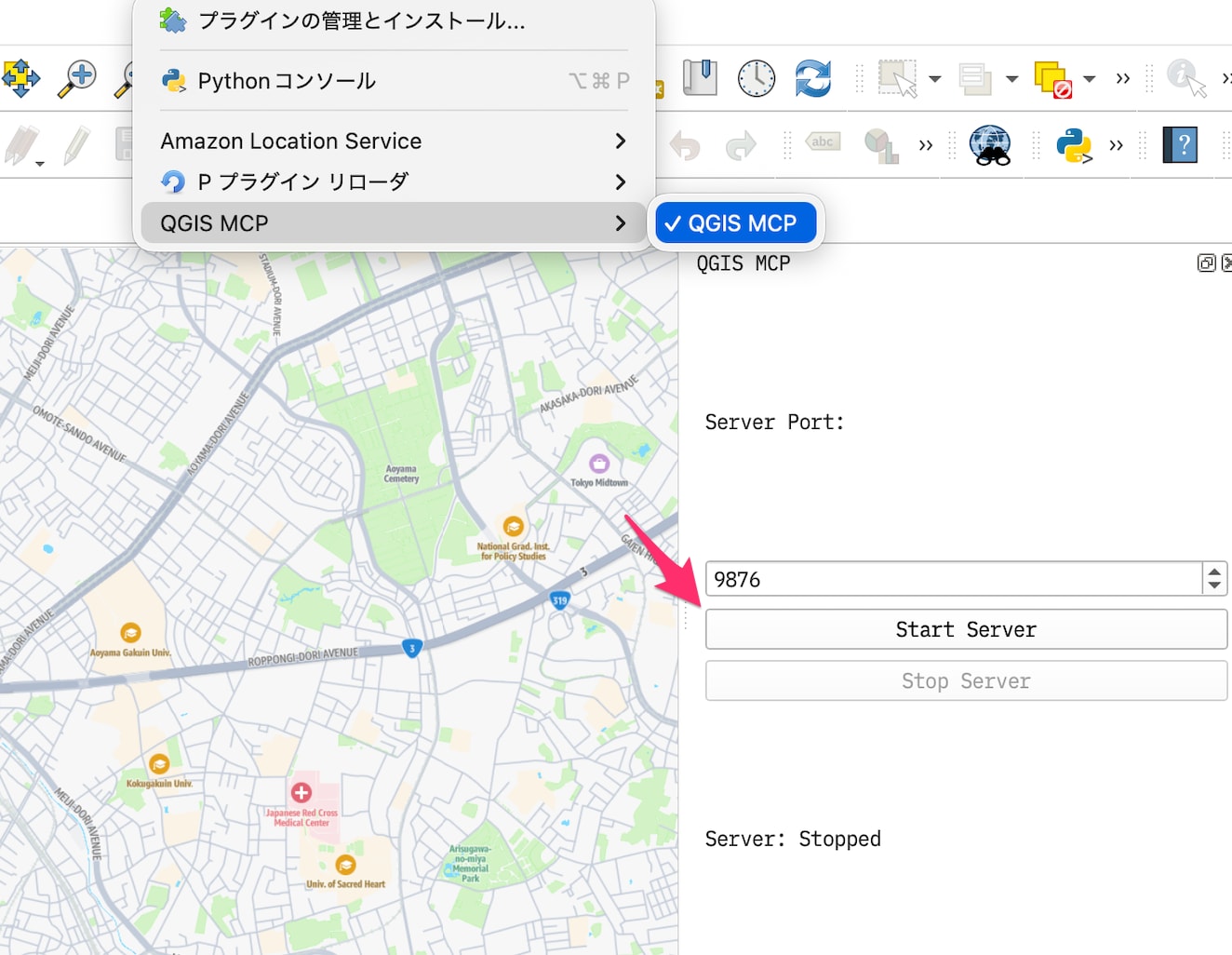
4. Register the MCP server with Claude Code
Register the MCP server with the claude mcp add command. Replace /path/to/qgis_mcp with the actual path where you cloned the repository.
$ claude mcp add \
  -s project qgis \
  -- uv --directory /path/to/qgis_mcp/src/qgis_mcp run qgis_mcp_server.py
Check that it was registered. If it shows "✓ Connected," you're good.
$ claude mcp list
qgis: uv --directory ./qgis_mcp/src/qgis_mcp run qgis_mcp_server.py - ✓ Connected
- Reference: Adding MCP servers - Claude Code
5. Verify the connection
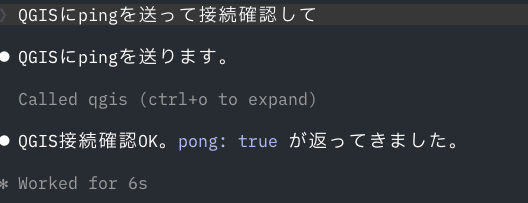
Start Claude Code and check the connection to QGIS MCP. If pong: true is returned, you're good.
> QGISにpingを送って接続確認して
Prepare the Amazon Location Service base map
Before the use cases, add a base map to QGIS. Start QGIS, and from the Amazon Location Service plugin select "Map" → "Standard" to add the background layer.
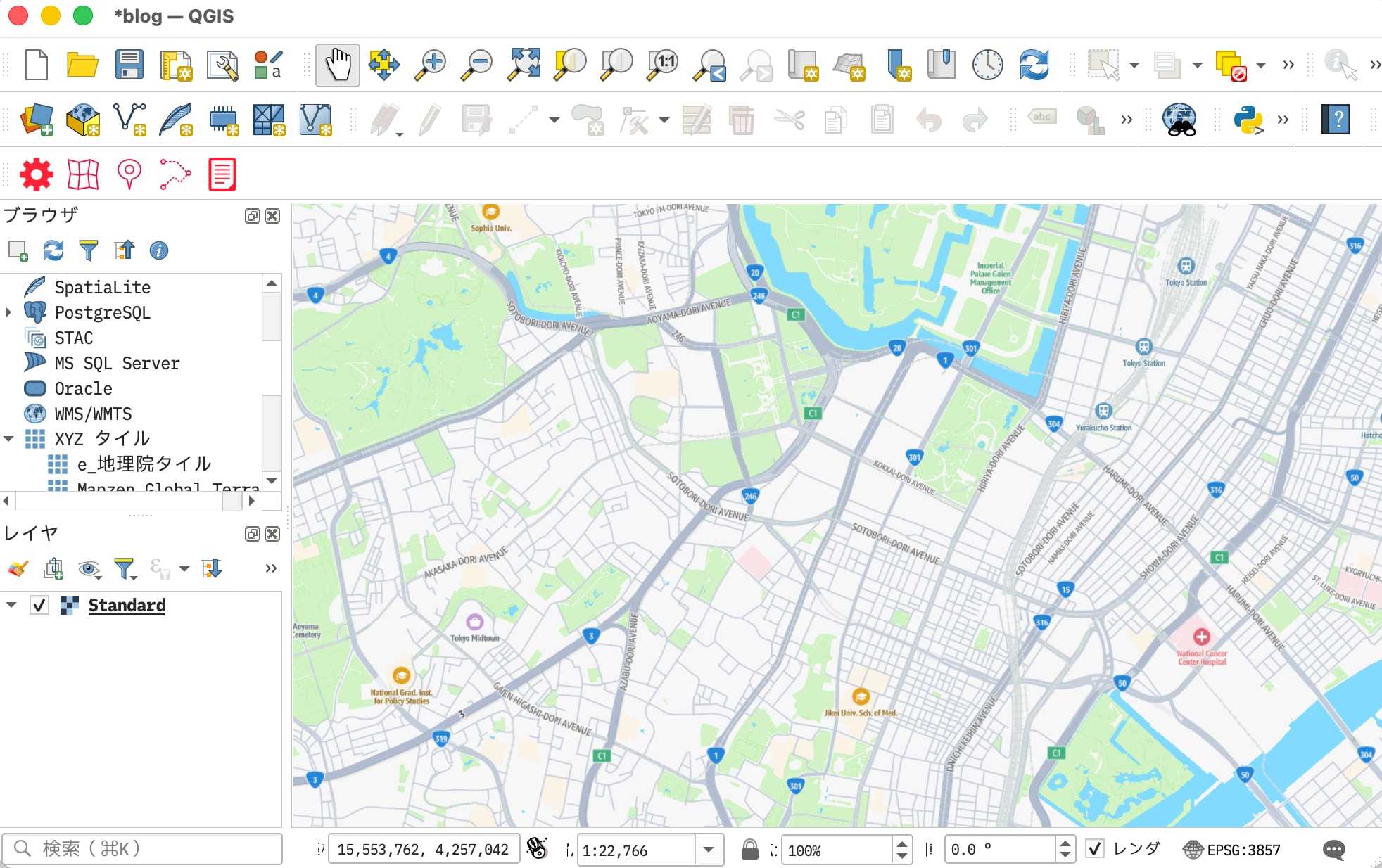
From here on, the use cases start with this base map displayed.
Prepare a Skill for Amazon Location Service
Claude Code didn't know how to use Amazon Location Service within QGIS and was unstable, so I created and used a Skill for Claude Code.
The full Skill is included as reference material at the end of this post.
Let's try it: playing with a map around the Hibiya office
From here, using Hibiya, where Classmethod's head office is located, as the subject, I'll play with a map of the office area using only instructions to Claude Code. The nearest stations are Kasumigaseki, Toranomon, and Uchisaiwaicho.
Working through the basic GIS data types in turn — point → line → polygon — we'll see how each QGIS MCP tool behaves.
Step 1: Plot the head office and nearest stations as points
First, let's start by dropping points on the map. Using the Amazon Location Service Places API, we have Claude Code geocode four locations (the head office plus 3 stations) and add them as a point layer.
> Amazon Location Serviceプラグインを使って、以下の4地点の座標を取得し、QGISにポイントレイヤーとして追加してください。
  - クラスメソッド本社(東京都港区西新橋1-1-1)
  - 霞ケ関駅
  - 虎ノ門駅
  - 内幸町駅
各ポイントに名前のラベルを表示してください。
Claude Code generates and runs PyQGIS code with the execute_code tool.
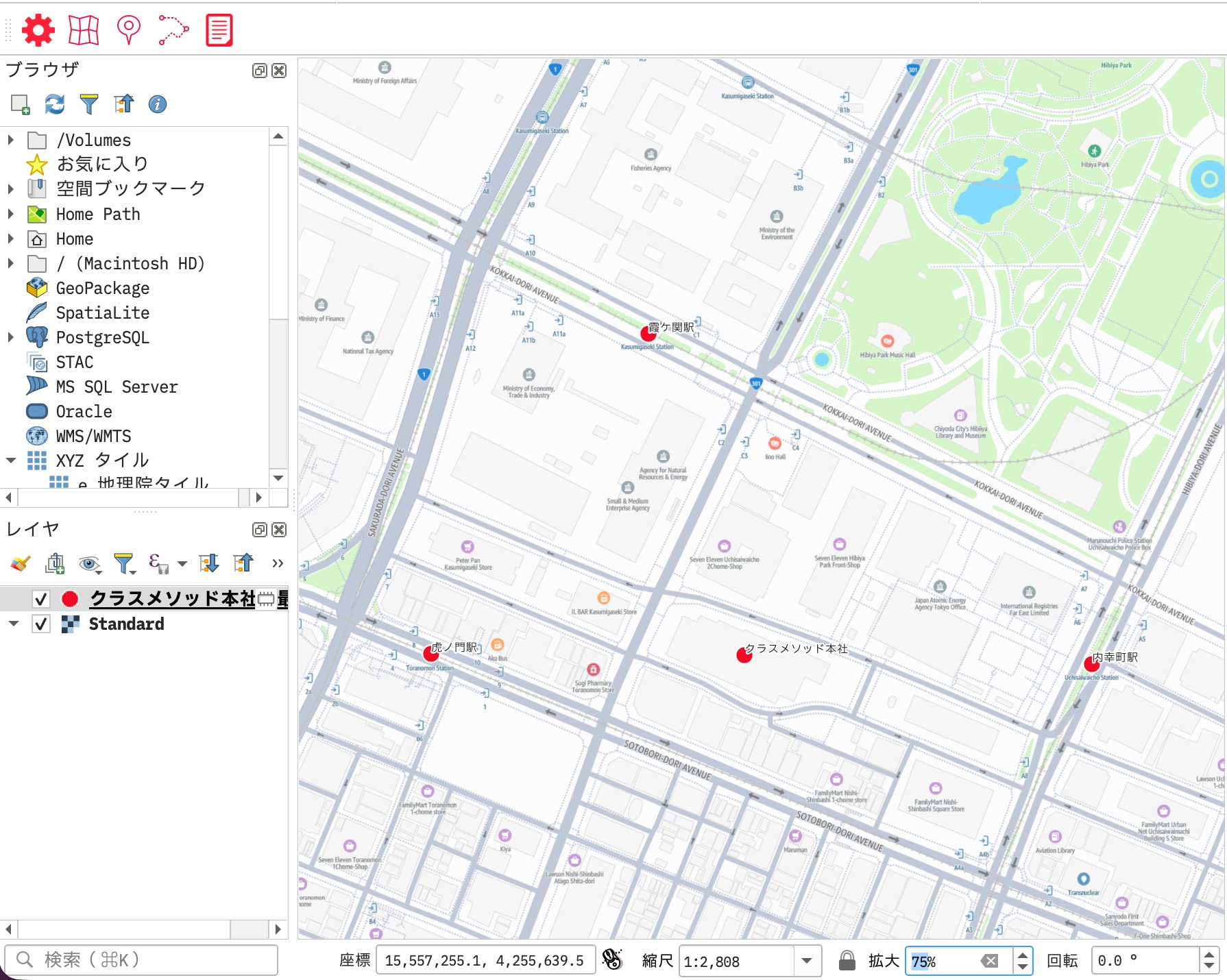
All four locations were placed on the map in one go. Doing this manually requires "search each location one at a time → configure labels," but a single natural-language request completed it.
PyQGIS code generated by Claude
import sys
from qgis.core import (
    QgsApplication, QgsFeature, QgsField, QgsFields, QgsGeometry,
    QgsMarkerSymbol, QgsPalLayerSettings, QgsPointXY, QgsProject,
    QgsSimpleMarkerSymbolLayer, QgsSingleSymbolRenderer,
    QgsTextBufferSettings, QgsTextFormat, QgsVectorLayer,
    QgsVectorLayerSimpleLabeling,
)
from qgis.PyQt.QtCore import QVariant
from qgis.PyQt.QtGui import QColor

# --- セットアップ ---
PLUGIN_DIR = QgsApplication.qgisSettingsDirPath().rstrip("/") + "/python/plugins"
if PLUGIN_DIR not in sys.path:
    sys.path.insert(0, PLUGIN_DIR)

from location_service.utils.configuration_handler import ConfigurationHandler
from location_service.utils.external_api_handler import ExternalApiHandler

config = ConfigurationHandler()
region = config.get_setting("region_value")
apikey = config.get_setting("apikey_value")

if not region or not apikey:
    raise RuntimeError(f"API設定未完了: region={region!r}, apikey={'***' if apikey else '(empty)'}")

api = ExternalApiHandler()

# --- ジオコーディング ---
URL = f"https://places.geo.{region}.amazonaws.com/v2/search-text?key={apikey}"
BIAS = [139.7528, 35.6680]  # 虎ノ門駅付近(港区西新橋エリアのバイアス)

targets = [
    ("クラスメソッド本社", "東京都港区西新橋1-1-1 クラスメソッド本社"),
    ("霞ケ関駅",          "霞ケ関駅 東京"),
    ("虎ノ門駅",          "虎ノ門駅 東京"),
    ("内幸町駅",          "内幸町駅 東京"),
]

points = []
for label, query in targets:
    payload = {
        "Language": "ja",
        "MaxResults": 1,
        "QueryText": query,
        "BiasPosition": BIAS,
    }
    result = api.send_json_post_request(URL, payload)
    items = result.get("ResultItems", []) if result else []
    if items:
        pos = items[0]["Position"]  # [lon, lat]
        points.append((label, pos[0], pos[1]))
        print(f"Found: {label} -> lon={pos[0]:.6f}, lat={pos[1]:.6f}")
    else:
        raise RuntimeError(f"ジオコーディング失敗: {label}")

# --- メモリポイントレイヤー作成 ---
layer = QgsVectorLayer("Point?crs=EPSG:4326", "クラスメソッド本社・最寄駅", "memory")
provider = layer.dataProvider()
fields = QgsFields()
fields.append(QgsField("name", QVariant.String))
provider.addAttributes(fields)
layer.updateFields()

features = []
for name, lon, lat in points:
    f = QgsFeature(layer.fields())
    f.setGeometry(QgsGeometry.fromPointXY(QgsPointXY(lon, lat)))
    f.setAttributes([name])
    features.append(f)
provider.addFeatures(features)

# --- マーカースタイル(赤丸・白縁) ---
sym_layer = QgsSimpleMarkerSymbolLayer()
sym_layer.setShape(QgsSimpleMarkerSymbolLayer.Circle)
sym_layer.setColor(QColor(220, 50, 50))
sym_layer.setStrokeColor(QColor(255, 255, 255))
sym_layer.setStrokeWidth(0.5)
sym_layer.setSize(6.0)
symbol = QgsMarkerSymbol.createSimple({})
symbol.changeSymbolLayer(0, sym_layer)
layer.setRenderer(QgsSingleSymbolRenderer(symbol))

# --- ラベル設定(白バッファ付き) ---
label_settings = QgsPalLayerSettings()
label_settings.fieldName = "name"
label_settings.enabled = True
tf = QgsTextFormat()
tf.setSize(11)
tf.setColor(QColor("#1a1a1a"))
buf = QgsTextBufferSettings()
buf.setEnabled(True)
buf.setSize(1.0)
buf.setColor(QColor(255, 255, 255))
tf.setBuffer(buf)
label_settings.setFormat(tf)
layer.setLabelsEnabled(True)
layer.setLabeling(QgsVectorLayerSimpleLabeling(label_settings))

layer.triggerRepaint()
QgsProject.instance().addMapLayer(layer)
iface.setActiveLayer(layer)
iface.zoomToActiveLayer()

# --- 検証用出力 ---
print("--- VERIFY ---")
print(f"layer={layer.name()} feature_count={layer.featureCount()} crs={layer.crs().authid()}")
for f in layer.getFeatures():
    g = f.geometry().asPoint()
    print(f"  {f['name']}: lon={g.x():.6f}, lat={g.y():.6f}")
Step 2: Draw walking routes from each station to the head office
Next, we draw walking routes from each of the 3 stations to the head office and color them by station. We generate the route lines with the Amazon Location Service Routes API and add distance labels too.
> 先ほど追加したレイヤーに霞ケ関駅・虎ノ門駅・内幸町駅のそれぞれから本社への徒歩ルートをAmazon Location Service プラグインで取得してください。
各ルートを駅ごとに異なる色(青・緑・オレンジ)で表示し、ルートの距離(km、小数点1桁)をラベルとして表示してください。
Claude Code calls the Routes API and generates route lines from each station's coordinates.
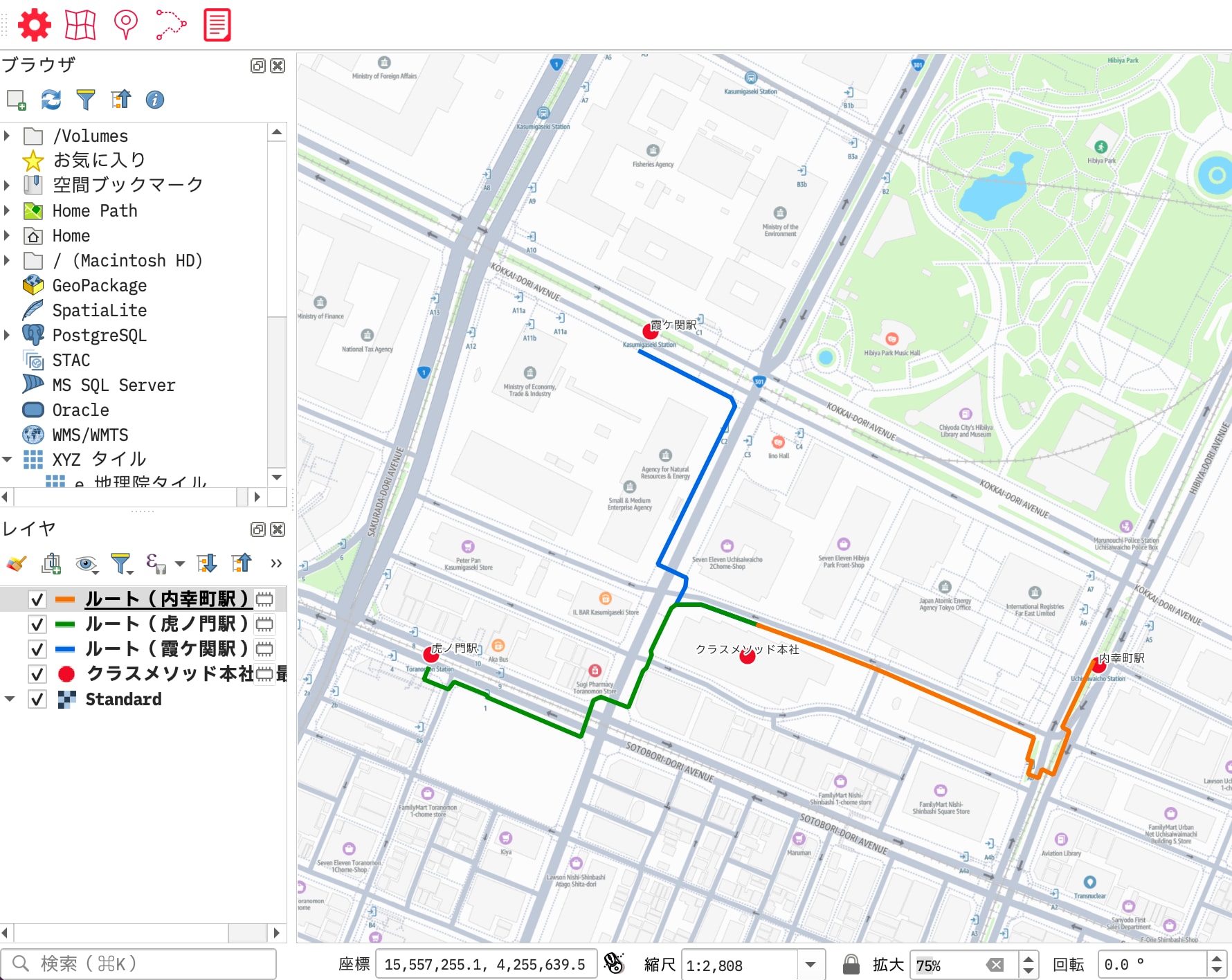
The three routes were color-coded, and each distance was shown as a label. GUI steps such as "Properties → Symbology → set color and width" and "Properties → Labels → Value" were skipped.
PyQGIS code generated by Claude
import sys
from qgis.core import (
    QgsApplication, QgsFeature, QgsField, QgsFields, QgsGeometry,
    QgsPalLayerSettings, QgsPointXY, QgsProject,
    QgsSimpleLineSymbolLayer, QgsSingleSymbolRenderer,
    QgsSymbol, QgsTextBufferSettings, QgsTextFormat, QgsVectorLayer,
    QgsVectorLayerSimpleLabeling,
)
from qgis.PyQt.QtCore import QVariant
from qgis.PyQt.QtGui import QColor

# --- セットアップ ---
PLUGIN_DIR = QgsApplication.qgisSettingsDirPath().rstrip("/") + "/python/plugins"
if PLUGIN_DIR not in sys.path:
    sys.path.insert(0, PLUGIN_DIR)

from location_service.utils.configuration_handler import ConfigurationHandler
from location_service.utils.external_api_handler import ExternalApiHandler

config = ConfigurationHandler()
region = config.get_setting("region_value")
apikey = config.get_setting("apikey_value")

if not region or not apikey:
    raise RuntimeError(f"API設定未完了: region={region!r}, apikey={'***' if apikey else '(empty)'}")

api = ExternalApiHandler()
ROUTES_URL = f"https://routes.geo.{region}.amazonaws.com/v2/routes?key={apikey}"

# 前スクリプトで検証済みの座標
HQ_LON, HQ_LAT = 139.752760, 35.670160

# (駅名, 経度, 緯度, 色)
stations = [
    ("霞ケ関駅", 139.751930, 35.672420, QColor(0, 100, 220)),   # 青
    ("虎ノ門駅", 139.750050, 35.670170, QColor(34, 139, 34)),   # 緑
    ("内幸町駅", 139.755770, 35.670100, QColor(230, 120, 0)),   # オレンジ
]

for station_name, st_lon, st_lat, color in stations:
    payload = {
        "Origin": [st_lon, st_lat],
        "Destination": [HQ_LON, HQ_LAT],
        "TravelMode": "Pedestrian",   # Routes v2: Pedestrian(徒歩)
        "LegGeometryFormat": "Simple",
    }
    data = api.send_json_post_request(ROUTES_URL, payload)
    if not data:
        raise RuntimeError(f"ルート取得失敗: {station_name}")

    route0 = data.get("Routes", [{}])[0]

    # 距離(メートル)取得(Summary が 0 の場合は TravelSteps から合算)
    dist_m = route0.get("Summary", {}).get("Distance", 0)
    if not dist_m:
        dist_m = sum(
            step.get("Distance", 0)
            for leg in route0.get("Legs", [])
            for step in leg.get("TravelSteps", [])
        )
    dist_km_label = f"{round(dist_m / 1000, 1)} km"

    # ジオメトリ(LineString 配列)
    line_points = []
    for leg in route0.get("Legs", []):
        coords = leg.get("Geometry", {}).get("LineString", [])
        line_points.extend([QgsPointXY(c[0], c[1]) for c in coords])

    if not line_points:
        raise RuntimeError(f"ジオメトリなし: {station_name} - keys={list(route0.keys())}")

    print(f"{station_name}: {dist_km_label}, {len(line_points)} points")

    # ラインレイヤー作成
    layer = QgsVectorLayer("LineString?crs=EPSG:4326", f"ルート({station_name})", "memory")
    provider = layer.dataProvider()
    fields = QgsFields()
    fields.append(QgsField("station",    QVariant.String))
    fields.append(QgsField("dist_label", QVariant.String))
    provider.addAttributes(fields)
    layer.updateFields()

    feat = QgsFeature(layer.fields())
    feat.setGeometry(QgsGeometry.fromPolylineXY(line_points))
    feat.setAttributes([station_name, dist_km_label])
    provider.addFeatures([feat])

    # ラインスタイル
    sym_line = QgsSimpleLineSymbolLayer()
    sym_line.setColor(color)
    sym_line.setWidth(1.5)
    symbol = QgsSymbol.defaultSymbol(layer.geometryType())
    symbol.changeSymbolLayer(0, sym_line)
    layer.setRenderer(QgsSingleSymbolRenderer(symbol))

    # ラベル設定(ルートの色に合わせた文字色 + 白バッファ)
    ls = QgsPalLayerSettings()
    ls.fieldName = "dist_label"
    ls.enabled = True
    tf = QgsTextFormat()
    tf.setSize(10)
    tf.setColor(color)
    buf = QgsTextBufferSettings()
    buf.setEnabled(True)
    buf.setSize(1.0)
    buf.setColor(QColor(255, 255, 255))
    tf.setBuffer(buf)
    ls.setFormat(tf)
    layer.setLabelsEnabled(True)
    layer.setLabeling(QgsVectorLayerSimpleLabeling(ls))

    layer.triggerRepaint()
    QgsProject.instance().addMapLayer(layer)

print("--- DONE ---")
Step 3: Visualize overlapping walking-range buffers
We create a 10-minute walking buffer (about 800 m) around each station and highlight in red the areas covered by two or more stations. It's a very GIS-like operation that spatially visualizes "which areas are easily accessible from multiple stations."
> 先ほどのレイヤーから駅のポイント(本社を除く3駅)だけを抽出して、各駅に半径800mのバッファを作成してください。
バッファは半透明で表示し、2つ以上のバッファが重なっているエリアだけを別レイヤーとして赤色でハイライトしてください。
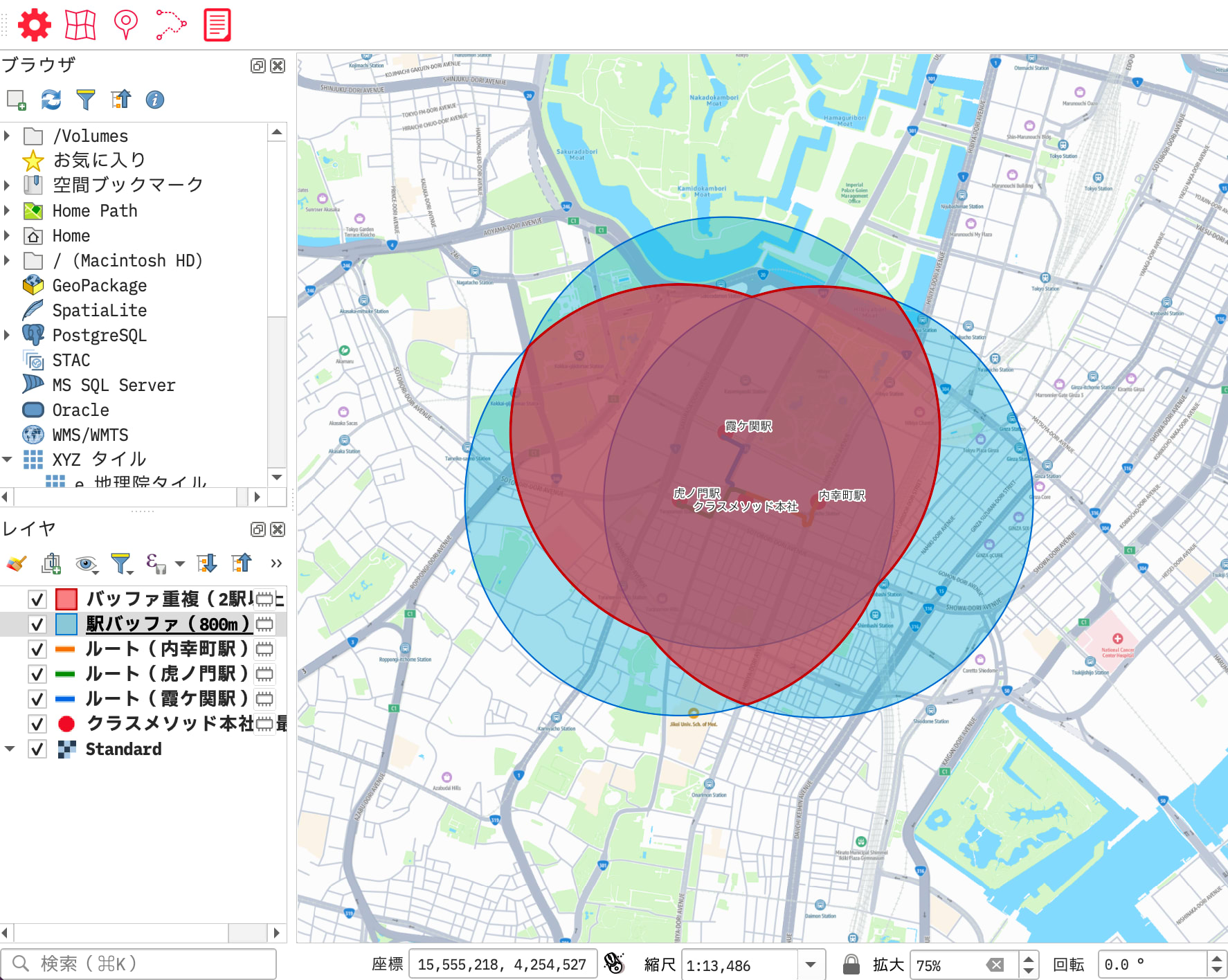
Claude Code created the buffers automatically, the overlapping areas are shown in red, and you can see at a glance that the head office lies within that area.
PyQGIS code generated by Claude
import sys
from qgis.core import (
    QgsApplication, QgsCoordinateReferenceSystem, QgsCoordinateTransform,
    QgsFeature, QgsField, QgsFields, QgsGeometry, QgsPointXY, QgsProject,
    QgsSimpleFillSymbolLayer, QgsSingleSymbolRenderer,
    QgsSymbol, QgsVectorLayer,
)
from qgis.PyQt.QtCore import QVariant
from qgis.PyQt.QtGui import QColor

# 前スクリプトで検証済みの3駅座標
stations = [
    ("霞ケ関駅", 139.751930, 35.672420),
    ("虎ノ門駅", 139.750050, 35.670170),
    ("内幸町駅", 139.755770, 35.670100),
]

BUFFER_M = 800
SEGMENTS = 64

# CRS変換(正確なメートル計算のため EPSG:6677 を使用)
crs_4326 = QgsCoordinateReferenceSystem("EPSG:4326")
crs_6677 = QgsCoordinateReferenceSystem("EPSG:6677")
to_proj = QgsCoordinateTransform(crs_4326, crs_6677, QgsProject.instance())
to_geo  = QgsCoordinateTransform(crs_6677, crs_4326, QgsProject.instance())

# バッファジオメトリ計算(6677 でバッファ → 4326 に変換)
buffers = []
for name, lon, lat in stations:
    pt_proj = to_proj.transform(QgsPointXY(lon, lat))
    buf_proj = QgsGeometry.fromPointXY(pt_proj).buffer(BUFFER_M, SEGMENTS)
    buf_proj.transform(to_geo)   # 4326 に変換(in-place)
    buffers.append((name, buf_proj))
    print(f"{name}: buffer OK")

# --- 駅バッファレイヤー(水色・半透明) ---
buf_layer = QgsVectorLayer("Polygon?crs=EPSG:4326", "駅バッファ(800m)", "memory")
provider = buf_layer.dataProvider()
fields = QgsFields()
fields.append(QgsField("station", QVariant.String))
provider.addAttributes(fields)
buf_layer.updateFields()

features = []
for name, geom in buffers:
    f = QgsFeature(buf_layer.fields())
    f.setGeometry(QgsGeometry.fromWkt(geom.asWkt()))  # deep copy
    f.setAttributes([name])
    features.append(f)
provider.addFeatures(features)

fill = QgsSimpleFillSymbolLayer()
fill.setColor(QColor(0, 150, 200, 80))        # 水色・半透明(alpha=80/255)
fill.setStrokeColor(QColor(0, 100, 200))
fill.setStrokeWidth(0.5)
symbol = QgsSymbol.defaultSymbol(buf_layer.geometryType())
symbol.changeSymbolLayer(0, fill)
buf_layer.setRenderer(QgsSingleSymbolRenderer(symbol))
buf_layer.triggerRepaint()
QgsProject.instance().addMapLayer(buf_layer)
print(f"バッファレイヤー: feature_count={buf_layer.featureCount()}")

# --- 2駅以上のバッファが重なるエリア ---
# ペアワイズ交差のユニオン → 2+ 重複エリア
geoms = [g for _, g in buffers]
overlap_geom = None
for i in range(len(geoms)):
    for j in range(i + 1, len(geoms)):
        inter = geoms[i].intersection(geoms[j])
        if not inter.isEmpty():
            overlap_geom = inter if overlap_geom is None else overlap_geom.combine(inter)

if overlap_geom and not overlap_geom.isEmpty():
    # 面積計算(EPSG:6677 でメートル換算)
    ov_for_area = QgsGeometry.fromWkt(overlap_geom.asWkt())
    ov_for_area.transform(to_proj)
    area_km2 = ov_for_area.area() / 1e6
    print(f"重複エリア面積: {area_km2:.4f} km²")

    # 重複レイヤー
    ov_layer = QgsVectorLayer("Polygon?crs=EPSG:4326", "バッファ重複(2駅以上)", "memory")
    ov_layer.dataProvider().addAttributes([])
    ov_layer.updateFields()
    f = QgsFeature(ov_layer.fields())
    f.setGeometry(overlap_geom)
    ov_layer.dataProvider().addFeatures([f])

    ov_fill = QgsSimpleFillSymbolLayer()
    ov_fill.setColor(QColor(220, 50, 50, 150))    # 赤・半透明(alpha=150/255)
    ov_fill.setStrokeColor(QColor(180, 0, 0))
    ov_fill.setStrokeWidth(0.8)
    ov_symbol = QgsSymbol.defaultSymbol(ov_layer.geometryType())
    ov_symbol.changeSymbolLayer(0, ov_fill)
    ov_layer.setRenderer(QgsSingleSymbolRenderer(ov_symbol))
    ov_layer.triggerRepaint()
    QgsProject.instance().addMapLayer(ov_layer)
    print(f"重複レイヤー: feature_count={ov_layer.featureCount()}")
else:
    print("重複エリアなし(バッファが交差しない)")

print("--- DONE ---")
Step 4: Divide nearest-station areas with a Voronoi diagram
Finally, we generate a Voronoi diagram from the points of the 3 stations. A Voronoi diagram divides the plane by "which seed point is closest to each location," and is often used for trade area analysis and visualizing the sphere of influence of facilities.
> 先ほどのレイヤーから駅のポイント(本社を除く3駅)を使って
ボロノイ図を作成してください。各ポリゴンを駅ごとに色分けして、駅名のラベルも表示してください。
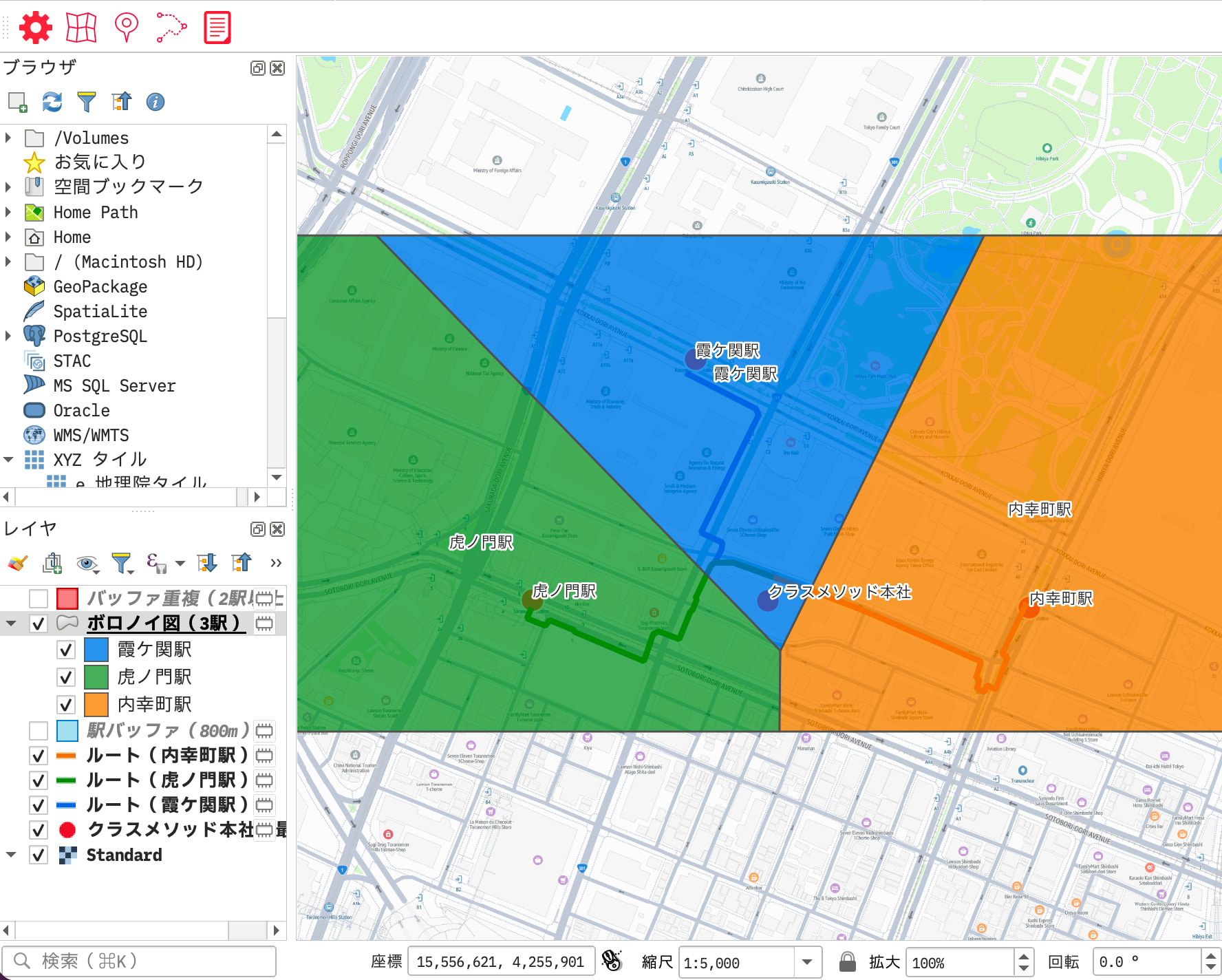
The boundary lines of the Voronoi diagram are "lines equidistant from each station," so you can see at a glance which area is closest to which station. You can also confirm which station's nearest zone the head office falls in.
PyQGIS code generated by Claude
import processing
from qgis.core import (
    QgsCategorizedSymbolRenderer, QgsFeature, QgsField, QgsFields,
    QgsGeometry, QgsPalLayerSettings, QgsPointXY, QgsProject,
    QgsRendererCategory, QgsSimpleFillSymbolLayer, QgsSymbol,
    QgsTextBufferSettings, QgsTextFormat, QgsVectorLayer,
    QgsVectorLayerSimpleLabeling,
)
from qgis.PyQt.QtCore import QVariant
from qgis.PyQt.QtGui import QColor

# 前スクリプトで検証済みの3駅座標
stations = [
    ("霞ケ関駅", 139.751930, 35.672420),
    ("虎ノ門駅", 139.750050, 35.670170),
    ("内幸町駅", 139.755770, 35.670100),
]

# 駅ごとの色(半透明)
colors = {
    "霞ケ関駅": QColor(0, 100, 220, 180),
    "虎ノ門駅": QColor(34, 139, 34, 180),
    "内幸町駅": QColor(230, 120, 0, 180),
}

# --- 入力ポイントレイヤー作成 ---
pt_layer = QgsVectorLayer("Point?crs=EPSG:4326", "_voronoi_input", "memory")
provider = pt_layer.dataProvider()
fields = QgsFields()
fields.append(QgsField("name", QVariant.String))
provider.addAttributes(fields)
pt_layer.updateFields()

features = []
for name, lon, lat in stations:
    f = QgsFeature(pt_layer.fields())
    f.setGeometry(QgsGeometry.fromPointXY(QgsPointXY(lon, lat)))
    f.setAttributes([name])
    features.append(f)
provider.addFeatures(features)
print(f"入力ポイント: feature_count={pt_layer.featureCount()}")

# --- ボロノイ生成(BUFFER=50%でバウンディングボックスを拡張) ---
result = processing.run("qgis:voronoipolygons", {
    "INPUT": pt_layer,
    "BUFFER": 50,
    "OUTPUT": "memory:",
})
voronoi_layer = result["OUTPUT"]
voronoi_layer.setName("ボロノイ図(3駅)")
print(f"ボロノイ: feature_count={voronoi_layer.featureCount()}, fields={[f.name() for f in voronoi_layer.fields()]}")

# --- 分類シンボルレンダラー(駅ごとに色分け) ---
categories = []
for name, color in colors.items():
    fill = QgsSimpleFillSymbolLayer()
    fill.setColor(color)
    fill.setStrokeColor(QColor(80, 80, 80))
    fill.setStrokeWidth(0.5)
    symbol = QgsSymbol.defaultSymbol(voronoi_layer.geometryType())
    symbol.changeSymbolLayer(0, fill)
    categories.append(QgsRendererCategory(name, symbol, name))

renderer = QgsCategorizedSymbolRenderer("name", categories)
voronoi_layer.setRenderer(renderer)

# --- ラベル設定(駅名・白バッファ付き) ---
ls = QgsPalLayerSettings()
ls.fieldName = "name"
ls.enabled = True
tf = QgsTextFormat()
tf.setSize(11)
tf.setColor(QColor("#1a1a1a"))
buf = QgsTextBufferSettings()
buf.setEnabled(True)
buf.setSize(1.0)
buf.setColor(QColor(255, 255, 255))
tf.setBuffer(buf)
ls.setFormat(tf)
voronoi_layer.setLabelsEnabled(True)
voronoi_layer.setLabeling(QgsVectorLayerSimpleLabeling(ls))

voronoi_layer.triggerRepaint()
QgsProject.instance().addMapLayer(voronoi_layer)

# 検証
print("--- VERIFY ---")
for f in voronoi_layer.getFeatures():
    print(f"  {f['name']}: geom_type={f.geometry().type()}, valid={f.geometry().isGeosValid()}")
print("--- DONE ---")
What I learned from trying it
What went well
- Routine multi-step work is completed in a single request. QGIS is convenient with its GUI, but doing multiple steps by hand is still tedious. It's a relief that Claude Code assembles and processes them in the proper order
- Claude knows how to use PyQGIS, which saved me the effort of reading the documentation myself
- Styling (color coding and label expressions) could also be specified in natural language. Tasks that are tedious to set one by one in the GUI, such as the route color coding in Step 2, became easy
- It can refer to results from earlier steps. By specifying an existing layer, as in "extract only the stations from the earlier layer," I could smoothly instruct follow-up work
What tripped me up
- Using the Amazon Location Service plugin was unstable: Claude Code didn't know how to use the plugin. So I needed to spell out how to use it with a Skill or similar
"You don't need to understand GIS" is not true
Claude Code will assemble the processing if you tell it "what you want to do," but basic GIS concepts such as "what is a buffer?" and "when do you use a projected coordinate system?" are still necessary. To give correct instructions, you need to know what data you have and what operations exist.
I'm not very familiar with GIS, so figuring out how to instruct it in the first place is difficult.
The effort of writing PyQGIS is greatly reduced. The need to understand GIS does not go away.
Caveats
- With QGIS MCP, Claude Code can basically obtain all the information in QGIS. Be careful if there are layers containing API keys or personal information
- The repository's README also states "Very powerful, but also be very cautious using this tool"
Conclusion
Using QGIS MCP, I operated on the area around the office with Claude Code alone, without writing PyQGIS myself.
The whole flow — placing points → drawing routes → finding overlaps with buffers → dividing nearest-station areas with a Voronoi diagram — being completed in natural language was a better experience than I expected. I think it will especially appeal to people who use GIS at work but aren't comfortable with PyQGIS.
On the other hand, when combining external plugins like the Amazon Location Service plugin, the agent won't necessarily generate correct code every time. In such cases, summarizing the correct usage as a skill greatly improved stability. Combining the approach of giving knowledge via skills, not just adding tools via MCP, makes the agent far more practical.
This time was an example combined with Amazon Location Service, but you can freely combine it with shapefiles and external APIs too. Please give it a try.
I hope this blog helps someone.
(Reference) Skill for Amazon Location Service
Full text of SKILL.md
---
name: amazon-location-service
description: >
  Amazon Location Service QGIS プラグインを PyQGIS スクリプトから使うスキル。
  ユーザーが「住所をジオコーディングしたい」「ルートを地図に表示したい」「Amazon Location Service で〜したい」
  「ALS で〜したい」「地点を検索して QGIS に追加したい」「駅からのルートを描きたい」と言ったら必ずこのスキルを使うこと。
  ジオコーディング・逆ジオコーディング・ルート計算・経由地ルート・バッファ解析・地図タイル・ポイント/ラインレイヤー作成をカバーする。
---

# Amazon Location Service × PyQGIS スキル

## 概要

このスキルは、QGIS にインストールされた `location_service` プラグインを PyQGIS スクリプトから
プログラマティックに呼び出すためのパターン集です。

---

## 0. 共通セットアップ(全スクリプト必須)

```python
import sys
from qgis.core import QgsApplication

PLUGIN_DIR = QgsApplication.qgisSettingsDirPath().rstrip("/") + "/python/plugins"
if PLUGIN_DIR not in sys.path:
    sys.path.insert(0, PLUGIN_DIR)

from location_service.utils.configuration_handler import ConfigurationHandler
from location_service.utils.external_api_handler import ExternalApiHandler

config = ConfigurationHandler()
region = config.get_setting("region_value")   # e.g.: "ap-northeast-1"
apikey = config.get_setting("apikey_value")   # API Key

if not region or not apikey:
    raise RuntimeError(f"API設定未完了: region={region!r}, apikey={'***' if apikey else '(empty)'}")

api = ExternalApiHandler()
```

`ConfigurationHandler` はシングルトンで、QSettings の `/location-service` グループから
`region_value` と `apikey_value` を読む。直接 QSettings を触らなくてよい。

`ExternalApiHandler` は `QgsNetworkAccessManager` をラップして、非同期I/Oを
`QEventLoop` で同期的に扱う。JSON POST 専用。
**エラー時は `RuntimeError` を raise する(None は返さない)。**
API 呼び出しは `try/except RuntimeError` でハンドリングすること。

---

## 1. ジオコーディング(Places API)

### 1-1. ExternalApiHandler を直接使う(推奨パターン)

```python
URL = f"https://places.geo.{region}.amazonaws.com/v2/search-text?key={apikey}"

targets = [
    ("地点A", "東京駅"),
    ("地点B", "新宿駅"),
]
BIAS = [139.752, 35.674]  # Set the bias using longitude/latitude near the target area (to improve accuracy)

points = []
for label, query in targets:
    payload = {
        "Language": "ja",
        "MaxResults": 1,
        "QueryText": query,
        "BiasPosition": BIAS,  # Required for searches in Japan. Greatly affects accuracy
    }
    try:
        result = api.send_json_post_request(URL, payload)
    except RuntimeError as e:
        raise RuntimeError(f"API call failed ({label}): {e}")
    items = result.get("ResultItems", [])
    if items:
        pos = items[0]["Position"]  # [lon, lat]
        points.append((label, pos[0], pos[1]))
        print(f"Found: {label} -> lon={pos[0]:.6f}, lat={pos[1]:.6f}")
    else:
        raise RuntimeError(f"ジオコーディング失敗: {label}")
```

### 1-2. PlacesFunctions クラスを使う

```python
from location_service.functions.places import PlacesFunctions

pf = PlacesFunctions()
result = pf.search_text("東京駅", 139.766, 35.681)
# result["ResultItems"][i]["Position"] = [lon, lat]
# result["ResultItems"][i]["Title"] = place name
# You can also add the layer directly with pf.add_point_layer(result)
```

**注意:** クラス利用時のデフォルト値は `Language=None`(API デフォルト)、`MaxResults=10`。
日本語結果を1件だけ取りたい場合は ExternalApiHandler 直接利用(セクション 1-1)を使うこと。

---

## 2. 逆ジオコーディング(座標→住所)

プラグインの `PlacesFunctions` にはこの機能がないため、`ExternalApiHandler` で直接呼び出す。

```python
REVERSE_URL = f"https://places.geo.{region}.amazonaws.com/v2/reverse-geocode?key={apikey}"

payload = {
    "Language": "ja",
    "MaxResults": 1,
    "QueryPosition": [139.7671, 35.6812],  # [lon, lat]
}
try:
    result = api.send_json_post_request(REVERSE_URL, payload)
except RuntimeError as e:
    raise RuntimeError(f"逆ジオコーディング失敗: {e}")

items = result.get("ResultItems", [])
if items:
    addr = items[0].get("Address", {})
    label = addr.get("Label", "")
    print(f"住所: {label}")
```

---

## 3. ルート計算(Routes API)

### 3-1. RoutesFunctions クラスを使う

`TravelMode` はペイロードに未指定のため **API デフォルト(Car)** が適用される。
車ルートで十分な場合に使う。

```python
from location_service.functions.routes import RoutesFunctions

rf = RoutesFunctions()
data = rf.calculate_routes(
    st_lon, st_lat,   # Origin (longitude, latitude)
    ed_lon, ed_lat,   # Destination (longitude, latitude)
)
# data["Routes"][0]["Summary"]["Distance"]  → meters
# data["Routes"][0]["Legs"][i]["Geometry"]["LineString"]  → [[lon,lat], ...]
```

**注意:** `rf.add_line_layer(data)` は `MajorRoadLabels` が空の場合に `NameError` になるバグがある。
レイヤー追加はセクション 3-4 のパターンを使うこと。

### 3-2. ExternalApiHandler で徒歩ルートを取得(推奨)

`TravelMode` を指定するには `ExternalApiHandler` を直接使う。
**`"Walking"` は無効(400 Bad Request)。必ず `"Pedestrian"` を使うこと。**

```python
ROUTES_URL = f"https://routes.geo.{region}.amazonaws.com/v2/routes?key={apikey}"

payload = {
    "Origin":            [st_lon, st_lat],
    "Destination":       [ed_lon, ed_lat],
    "TravelMode":        "Pedestrian",   # ← "Walking" results in Bad Request
    "LegGeometryFormat": "Simple",       # ← Required. If omitted, Geometry is returned as a FlexiblePolyline string and LineString is empty
}
try:
    data = api.send_json_post_request(ROUTES_URL, payload)
except RuntimeError as e:
    raise RuntimeError(f"ルート計算失敗: {e}")

route0 = data.get("Routes", [{}])[0]

# Get distance (meters) (with fallback)
dist_m = route0.get("Summary", {}).get("Distance", 0)
if not dist_m:
    dist_m = sum(
        step.get("Distance", 0)
        for leg in route0.get("Legs", [])
        for step in leg.get("TravelSteps", [])
    )

# Geometry
line_points = []
for leg in route0.get("Legs", []):
    coords = leg.get("Geometry", {}).get("LineString", [])
    line_points.extend([QgsPointXY(c[0], c[1]) for c in coords])
```

有効な TravelMode 値(Routes v2 API): `"Car"` / `"Truck"` / `"Pedestrian"` / `"Bicycle"` / `"Motorcycle"`

### 3-3. 経由地(Waypoints)を使ったルート計算

3点以上を経由するルートは `Waypoints` パラメータで指定する。

```python
ROUTES_URL = f"https://routes.geo.{region}.amazonaws.com/v2/routes?key={apikey}"

payload = {
    "Origin":            [st_lon, st_lat],
    "Destination":       [ed_lon, ed_lat],
    "Waypoints": [
        {"Position": [wp1_lon, wp1_lat]},
        {"Position": [wp2_lon, wp2_lat]},
    ],
    "TravelMode":        "Car",
    "LegGeometryFormat": "Simple",
}
try:
    data = api.send_json_post_request(ROUTES_URL, payload)
except RuntimeError as e:
    raise RuntimeError(f"経由ルート計算失敗: {e}")

# Legs are returned in the order Origin→WP1, WP1→WP2, WP2→Destination
line_points = []
for leg in data["Routes"][0].get("Legs", []):
    coords = leg.get("Geometry", {}).get("LineString", [])
    line_points.extend([QgsPointXY(c[0], c[1]) for c in coords])
```

### 3-4. ラインレイヤーへの変換パターン(距離ラベル付き)

`dist_label` フィールドに `"X.X km"` 形式の文字列を持たせ、ライン上にラベル表示する。
複数ルートをループする場合は `color` を外から渡す(セクション 3-2 のデータを前提)。

```python
from qgis.core import (
    QgsFeature, QgsField, QgsFields, QgsGeometry, QgsPalLayerSettings,
    QgsPointXY, QgsProject, QgsSimpleLineSymbolLayer, QgsSingleSymbolRenderer,
    QgsSymbol, QgsTextBufferSettings, QgsTextFormat, QgsVectorLayer,
    QgsVectorLayerSimpleLabeling,
)
from qgis.PyQt.QtCore import QVariant
from qgis.PyQt.QtGui import QColor

# Assumes dist_m, line_points, and color have already been obtained in section 3-2
dist_km_label = f"{round(dist_m / 1000, 1)} km"

layer = QgsVectorLayer("LineString?crs=EPSG:4326", "Route", "memory")
provider = layer.dataProvider()
fields = QgsFields()
fields.append(QgsField("station",    QVariant.String))
fields.append(QgsField("dist_label", QVariant.String))  # "0.4 km" format
provider.addAttributes(fields)
layer.updateFields()

feat = QgsFeature(layer.fields())
feat.setGeometry(QgsGeometry.fromPolylineXY(line_points))
feat.setAttributes(["駅名", dist_km_label])
provider.addFeatures([feat])

# Line style
sym_line = QgsSimpleLineSymbolLayer()
sym_line.setColor(color)   # Pass the QColor from outside
sym_line.setWidth(1.5)
symbol = QgsSymbol.defaultSymbol(layer.geometryType())
symbol.changeSymbolLayer(0, sym_line)
layer.setRenderer(QgsSingleSymbolRenderer(symbol))

# Distance label (text color matching the line color + white buffer)
ls = QgsPalLayerSettings()
ls.fieldName = "dist_label"
ls.enabled = True
tf = QgsTextFormat()
tf.setSize(10)
tf.setColor(color)
buf = QgsTextBufferSettings()
buf.setEnabled(True)
buf.setSize(1.0)
buf.setColor(QColor(255, 255, 255))
tf.setBuffer(buf)
ls.setFormat(tf)
layer.setLabelsEnabled(True)
layer.setLabeling(QgsVectorLayerSimpleLabeling(ls))

layer.triggerRepaint()
QgsProject.instance().addMapLayer(layer)
print(f"Route added: {dist_km_label}, {len(line_points)} points")
```

---

## 4. 地図タイル(Maps API)

### 4-1. MapsFunctions クラスを使う

```python
from location_service.functions.maps import MapsFunctions

mf = MapsFunctions()
mf.add_xyz_tile_layer("Standard")
```

利用可能なスタイル名: `"Standard"` / `"Monochrome"` / `"Hybrid"` / `"Satellite"`

### 4-2. ExternalApiHandler を使わず直接 QgsRasterLayer で追加

```python
from qgis.core import QgsProject, QgsRasterLayer

tile_url = f"https://als.dayjournal.dev/{region}/Standard/{{z}}/{{x}}/{{y}}?APIkey={apikey}"
layer_url = f"type=xyz&url={tile_url}&zmin=0&zmax=18"
layer = QgsRasterLayer(layer_url, "背景地図", "wms")
QgsProject.instance().addMapLayer(layer)
```

---

## 5. ポイントレイヤー作成パターン

```python
from qgis.core import (
    QgsFeature, QgsField, QgsFields, QgsGeometry, QgsMarkerSymbol,
    QgsPalLayerSettings, QgsPointXY, QgsProject, QgsSimpleMarkerSymbolLayer,
    QgsSingleSymbolRenderer, QgsTextBufferSettings, QgsTextFormat,
    QgsVectorLayer, QgsVectorLayerSimpleLabeling,
)
from qgis.PyQt.QtCore import QVariant
from qgis.PyQt.QtGui import QColor

layer = QgsVectorLayer("Point?crs=EPSG:4326", "地点", "memory")
provider = layer.dataProvider()
fields = QgsFields()
fields.append(QgsField("name", QVariant.String))
provider.addAttributes(fields)
layer.updateFields()

features = []
for name, lon, lat in points:
    f = QgsFeature(layer.fields())
    f.setGeometry(QgsGeometry.fromPointXY(QgsPointXY(lon, lat)))
    f.setAttributes([name])
    features.append(f)
provider.addFeatures(features)

# Marker style
sym_layer = QgsSimpleMarkerSymbolLayer()
sym_layer.setShape(QgsSimpleMarkerSymbolLayer.Circle)
sym_layer.setColor(QColor(0, 124, 191))
sym_layer.setStrokeColor(QColor(255, 255, 255))
sym_layer.setStrokeWidth(0.5)
sym_layer.setSize(5.0)
symbol = QgsMarkerSymbol.createSimple({})
symbol.changeSymbolLayer(0, sym_layer)
layer.setRenderer(QgsSingleSymbolRenderer(symbol))

# Label (with white buffer)
label_settings = QgsPalLayerSettings()
label_settings.fieldName = "name"
label_settings.enabled = True
tf = QgsTextFormat()
tf.setSize(11)
tf.setColor(QColor("#1a1a1a"))
buf = QgsTextBufferSettings()
buf.setEnabled(True)
buf.setSize(1.0)
buf.setColor(QColor(255, 255, 255))
tf.setBuffer(buf)
label_settings.setFormat(tf)
layer.setLabelsEnabled(True)
layer.setLabeling(QgsVectorLayerSimpleLabeling(label_settings))

layer.triggerRepaint()
QgsProject.instance().addMapLayer(layer)
iface.zoomToActiveLayer()
```

---

## 6. バッファ解析(正確なメートル計算)

日本国内で正確な距離計算をするには **EPSG:6677(日本平面直角座標系IX)** を使う。
EPSG:4326 のままバッファすると度単位になり精度が出ない。

```python
from qgis.core import (
    QgsCoordinateReferenceSystem, QgsCoordinateTransform,
    QgsGeometry, QgsPointXY, QgsProject,
)

crs_4326 = QgsCoordinateReferenceSystem("EPSG:4326")
crs_6677 = QgsCoordinateReferenceSystem("EPSG:6677")
to_proj = QgsCoordinateTransform(crs_4326, crs_6677, QgsProject.instance())
to_geo  = QgsCoordinateTransform(crs_6677, crs_4326, QgsProject.instance())

BUFFER_M = 800
SEGMENTS = 64

for name, lon, lat in stations:
    pt_proj = to_proj.transform(QgsPointXY(lon, lat))
    geom_proj = QgsGeometry.fromPointXY(pt_proj)
    buf_proj = geom_proj.buffer(BUFFER_M, SEGMENTS)  # In meters
    buf_proj.transform(to_geo)                        # Convert back to WGS84
    # Add buf_proj to the layer as a polygon feature
```

---

## 7. API エンドポイント早見表

| 機能 | URL |
|------|-----|
| テキスト検索(ジオコーディング) | `https://places.geo.{region}.amazonaws.com/v2/search-text?key={apikey}` |
| 逆ジオコーディング | `https://places.geo.{region}.amazonaws.com/v2/reverse-geocode?key={apikey}` |
| ルート計算 | `https://routes.geo.{region}.amazonaws.com/v2/routes?key={apikey}` |
| XYZタイル(地図背景) | `https://als.dayjournal.dev/{region}/{style}/{z}/{x}/{y}?APIkey={apikey}` |

---

## 8. よくあるエラーと対処

| エラー | 原因 | 対処 |
|--------|------|------|
| `region=None / apikey=None` | プラグインの設定が保存されていない | QGIS の Location Service プラグイン GUI で region と API Key を設定して保存 |
| `ResultItems` が空 | クエリがヒットしない | `BiasPosition` を東京付近(`[139.752, 35.674]`)に設定。クエリに「東京」を付加 |
| バッファが異様に小さい/大きい | EPSG:4326 のまま度単位でバッファ | EPSG:6677 に変換してからメートルでバッファ(セクション6参照) |
| ルートの `Distance` が 0 | `Summary` キー構造の違い | `Legs[i].TravelSteps[0].Distance` を合算するフォールバックを実装 |
| ルート API が 400 Bad Request | `TravelMode: "Walking"` は無効値 | `"Pedestrian"` に変更する(セクション 3-2 参照) |
| `RoutesFunctions.add_line_layer()` で `NameError` | `MajorRoadLabels` が空リストの場合 `roadname` 未定義 | `add_line_layer()` は使わず、セクション 3-4 のパターンでレイヤーを自作する |
| `RuntimeError: Network error occurred` | API キー無効・リージョン不一致・ネットワーク障害 | `ExternalApiHandler` はエラー時に `RuntimeError` を raise する。`try/except RuntimeError` でハンドリングすること |