
I made an extension that lets you search and copy AWS architecture icons from Raycast

This page has been translated by machine translation. View original
Introduction
Have you ever found it tedious to search for AWS architecture icons when creating diagrams or slides?
The official asset package for AWS Architecture Icons is organized into folders by group, further divided into hierarchies by size and file format, totaling thousands of files. Finding the icon you need every time can be quite a hassle.
So, I created an extension for the popular launcher app Raycast called AWS Icon Searcher that lets you search for icons by name and easily copy them to your clipboard!
If you're not familiar with Raycast, please also refer to the introductory blog post How to use and configure the launcher tool Raycast.
What kind of tool is it?
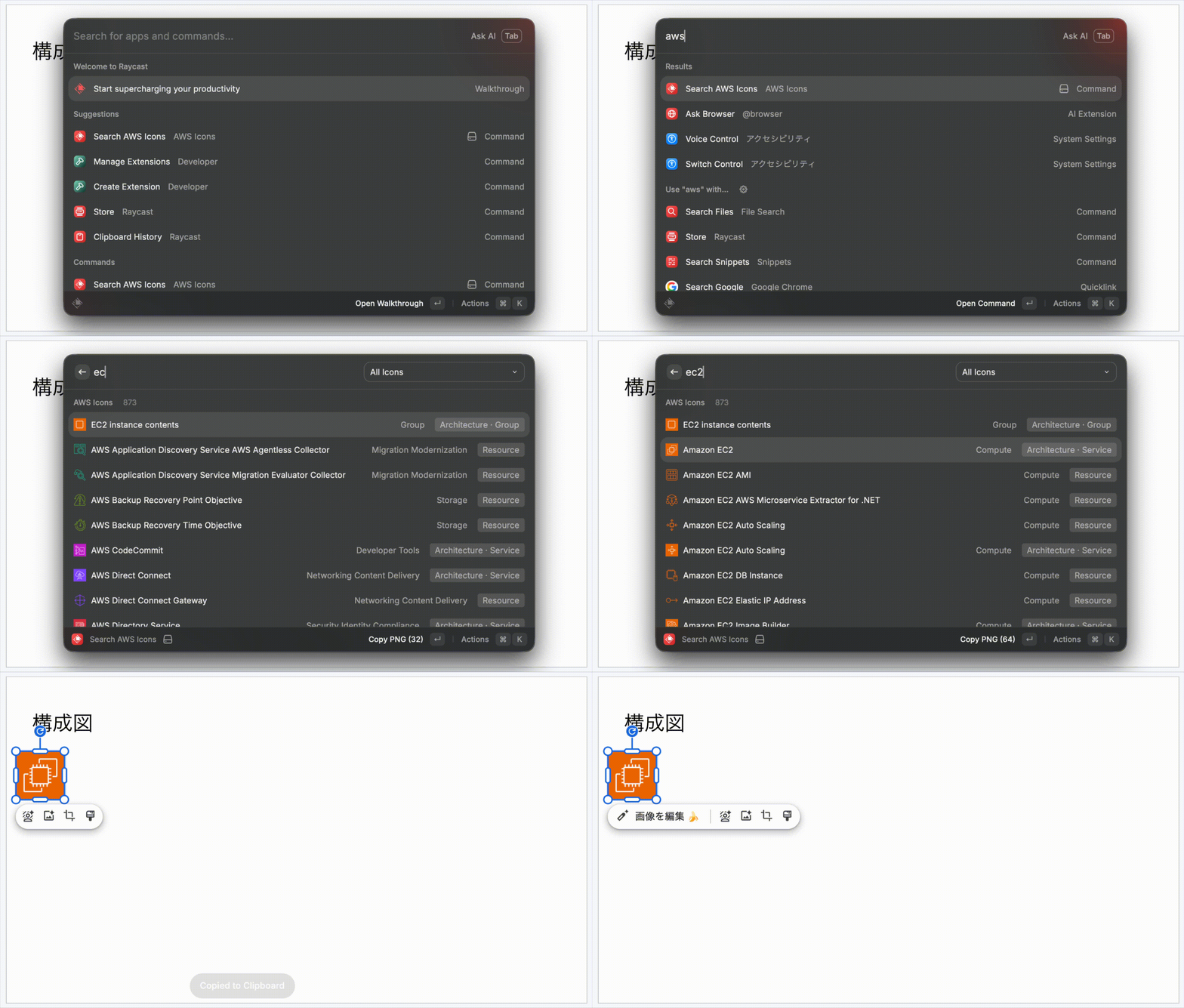
Usage is simple: launch the extension → search → press Enter to copy → paste wherever you like.
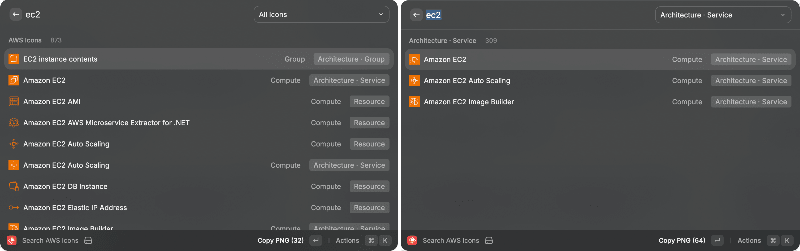
You can search all AWS architecture icon types by service name, resource name, or category name. You can also use the dropdown in the search bar to filter by type, such as service icons or resource icons.
Since there are many name overlaps across groups, this filtering feature turns out to be more useful than you might expect. (Image below — left: default, right: filtered to service icons)
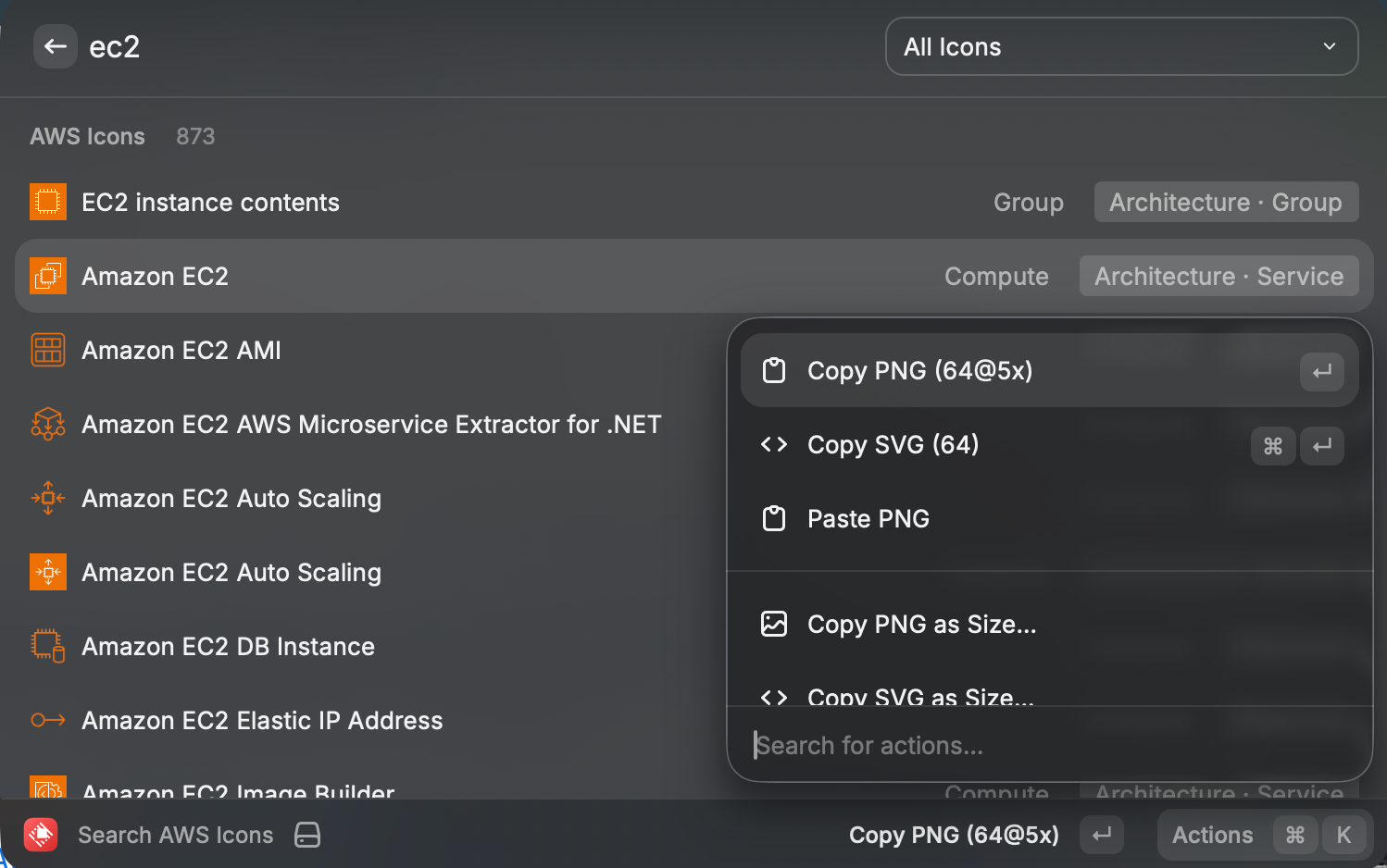
The selected icon is copied to the clipboard as a file, so it can be pasted directly into various documents. The default format is PNG, but you can also select SVG, individual sizes (16 / 32 / 48 / 64px), and Light / Dark variants for resource icons from the action panel.
Action List
| Action | Description |
|---|---|
| Copy PNG | Copy the largest PNG to clipboard (default · Enter) |
| Copy SVG | Copy SVG to clipboard (Command + Enter) |
| Paste PNG | Paste PNG into the frontmost app |
| Copy PNG / SVG as Size… | Copy with a specified size |
| Copy Icon Name | Copy the icon's display name as text |
| Show in Finder | Show the icon file in Finder |
How to Install
Build and install from the GitHub repository.
※ For detailed instructions, please refer to README.md!
1. Clone the repository
git clone git@github.com:etalocohc373/AWS-icon-searcher.git
cd AWS-icon-searcher
2. Download the official AWS icons
The icons themselves are not included in the repository, so you'll need to prepare them yourself.
- Download the "Icon Package" from AWS Architecture Icons
- Place the extracted
Asset-Package_*folder in the root of the repository
3. Install dependencies and generate the manifest
npm install
npm run generate-icons
generate-icons reads Asset-Package_*, copies the icons to assets/icons/, and generates the manifest src/icons.json.
4. Build and add to Raycast
npm run dev
This will add the extension to Raycast. Even after stopping the dev mode command, the added extension will remain.
To use it, launch Raycast and invoke the command name "Search AWS Icons".
Key Implementation Details
Generation script that scans icons and creates a manifest
Running npm run generate-icons recursively traverses the asset package and performs the following:
- Determines the icon type from the group folder name
- Parses file names (prefixes
Arch_/Res_/Arch-Category_,_<size>, retina@5x,_Dark/_Light) to extract service name, category, size, and theme - Consolidates size and format (PNG / SVG) variants of the same icon into a single entry
- Copies files to
assets/icons/and outputssrc/icons.jsonwith keywords for searching
The result is a manifest of approximately 870 entries, and the extension side only needs to read this JSON to perform listing, searching, and copying.
Implementation with the Raycast API
The UI is composed of Raycast API's List, List.Dropdown (type filtering), and ActionPanel. Searches are matched against keywords assigned to each entry (such as Amazon-EC2 / EC2 / AmazonEC2).
The key point is the copy process, where { file: absolute path } is passed to the content of Action.CopyToClipboard. Since it is placed on the clipboard as a file reference, the destination app treats it as an image. The absolute path is constructed from environment.assetsPath.
The key point is that by copying as a file reference rather than text, the image is automatically expanded when pasted into the destination application.
<Action.CopyToClipboard
  title={`Copy PNG (${png.label})`}
  content={{ file: join(environment.assetsPath, png.path) }}
/>
Summary
Compared to the days of searching for icons in Finder or within PowerPoint slides, the effort involved in creating architecture diagrams and slides has been greatly reduced.
This is a tool I made for personal use, but I think it will be useful for anyone who frequently creates AWS architecture diagrams, so please feel free to give it a try. PRs and contributions are very welcome!
