I tried running After Effects with AWS Deadline Cloud's CMF + my own S3 conda channel

This page has been translated by machine translation. View original
Introduction
In render farm operations for DCC (Digital Content Creation) applications used in 3DCG/VFX production, it is common to increase the number of DCC license contracts in proportion to the number of Workers. AWS Deadline Cloud has a mechanism called UBL (Usage-Based Licensing) that can supply licenses on a pay-as-you-go basis based on job execution time, and it is available by default in SMF (Service-Managed Fleet). The official documentation states that UBL can also be used in CMF (Customer-Managed Fleet) via a License Endpoint.
However, Adobe After Effects (AE) is not subject to UBL. The official Adobe Help explains that since After Effects CS6, aerender or Watch Folder can be run in non-royalty bearing mode (render-only mode), and serialization on render-only machines is not required. Therefore, the UBL framework itself does not apply to AE.
On the other hand, running AE on CMF presents a different challenge. deadline-cloud-for-after-effects does not provide a Worker-side CLI in the same form as adaptor packages for 3ds Max or Maya; in the configuration described in this article, the AE binary is supplied to Workers as a conda package. AWS provides an AE conda package for SMF from the deadline-cloud channel, but it cannot be referenced from CMF Workers. Therefore, when supplying AE to CMF Workers following the AWS official AE Submitter and conda Queue Environment flow, a configuration that places the AE conda package in your own S3 conda channel is the practical approach.
This article shares the results of confirming that AE rendering works in practice with this "CMF + self-managed S3 conda channel" configuration, along with three insights gained during verification.
What is AWS Deadline Cloud
AWS Deadline Cloud is a managed service that allows you to build render farms in the cloud for 3DCG/VFX production. It is equipped with features necessary for render farm operations, including Worker auto-scaling, job management, and license supply.
Target Audience
- Those who are building or considering building a CMF with AWS Deadline Cloud
- Those who want to build an Adobe After Effects render farm on AWS
- Those considering a render farm configuration using AE's render-only mode on AWS
References
- AWS Deadline Cloud Developer Guide: Using software licenses
- AWS Deadline Cloud Developer Guide: Create a conda channel using S3
- aws-deadline/deadline-cloud-for-after-effects
- aws-deadline/deadline-cloud-samples: aftereffects-25.1 recipe
- aws-deadline/deadline-cloud-samples: queue_environments
- Adobe After Effects CS6 Official Help PDF (non-royalty bearing mode, p.605)
Verification Goals and Configuration
The verification aimed to satisfy all of the following 4 points.
- A job submitted from the AE Submitter plugin runs through to SUCCEEDED on the Worker EC2
- aerender launches on the Worker during job execution without requiring Adobe sign-in
- The output PNG sequence can be retrieved via S3
- The Worker can resolve and install the AE conda package from the self-managed S3 conda channel
The verification configuration is as follows. The Submitter uses AE Trial and the Submitter plugin on macOS, and on the AWS side, one Render Worker EC2 (Windows Server 2022) and an S3 bucket with a self-managed conda channel were prepared. AE 2026 was used in the verification.
In addition to Python and the Worker Agent, the Render Worker requires py-rattler for conda package resolution, Git for Windows for calling bash inside the Queue Environment, and ae_render_only_node.txt to enable Adobe non-royalty bearing mode to be pre-installed. Since jobs will fail if these prerequisites are not in place, Worker setup occupies an important position in the build flow.
Verification Results
A minimal AEP project with a single flat layer placed in a 640 x 480 / 24fps / 1-second composition was prepared as the test scene, and a job was submitted from the Submitter plugin. The output module was set to PNG Sequence.
The job status transitioned from READY to STARTING, RUNNING, and through to SUCCEEDED, with 3 tasks completing in 36 seconds. The job output was retrieved locally with deadline job download-output, yielding 24 PNG frames in sequence.
In this verification, the following single-color gray PNG was output.

Checking CloudWatch Logs confirmed that aerender on the Worker output Finished composition and Total Time Elapsed: 1 Seconds before exiting with No errors detected, exiting with process return code: 0, and that no Adobe sign-in prompt appeared.
It was confirmed in practice that AE on a CMF Fleet can resolve conda packages from a self-managed S3 conda channel and render in non-royalty bearing mode.
Overall Flow
The verification proceeded through the following 6 phases. The purpose of each phase and what was done are briefly described below. For detailed steps, please refer to the reference links and official documentation.
Phase 1. AWS Resource Setup
Farm / Queue / Fleet / Queue Environment / Storage Profile / IAM roles / S3 buckets / security groups / Key Pairs are created together using the AWS CLI. The Fleet Worker Role specified when creating a new CMF Fleet requires manually attaching an inline policy for CloudWatch Logs permissions in addition to the managed policy AWSDeadlineCloud-FleetWorker. This differs from SMF, and the details are covered in our previous article Running 3ds Max with AWS Deadline Cloud CMF + UBL.
Phase 2. Obtaining the AE Binary and Uploading to S3
A Windows Server 2022 EC2 is temporarily launched, AE Trial is installed from the Creative Cloud Desktop App, and the AE Support Files folder is zipped and uploaded to S3 under the archive_files/ prefix. This follows the same procedure as the aftereffects-25.1 recipe README provided by AWS.
In this verification, an Adobe account was only required at this stage. It was confirmed that no Adobe sign-in prompt appears when executing rendering on the Render Worker.
Phase 3. Building the conda Package and Placing It in the S3 Channel
Miniforge and conda-build are installed on the local macOS, and an aftereffects-26.0 recipe is created based on AWS's official aftereffects-25.1 recipe. The version and sha256 in meta.yaml are updated, and the conda package is built targeting win-64 and uploaded to the S3 channel.
Normally, building through the AWS Deadline Cloud Package Build Queue is the officially recommended route, but since the AE conda package does not involve native code compilation (only copying Support Files and generating activate.d scripts), it can be cross-built from macOS. This method was adopted in this verification.
The S3 conda channel is created as a private bucket, and read permissions to s3://<your-bucket>/Conda/Default are granted from the Queue service role and the Worker role. The AWS official S3 conda channel procedure also shows an example of granting read-only permissions to the /Conda prefix for production queues.
Phase 4. Setting Up the Render Worker EC2
The Render Worker EC2 (Windows Server 2022) is launched, and Python 3.11, Worker Agent, py-rattler, Git for Windows, and ae_render_only_node.txt under the Administrator Documents folder are installed in order. py-rattler is version-pinned to >=0.18,<0.19. The 0.19 series was incompatible with API calls on the Queue Environment side, so the 0.18 series was adopted in this verification. When registering the Worker Agent service, run_jobs_as_agent_user=true in worker.toml is enabled, and the Worker Agent service is restarted to join the Fleet in IDLE state.
Phase 5. Setting Up the macOS Submitter
AE 2026 Trial is installed on the local macOS from the Creative Cloud Desktop App, and the AE script execution permission (Allow Scripts To Write Files And Access Network) is enabled. The AWS Deadline Cloud Submitter installer is run to install the AE Submitter plugin, and the deadline CLI was installed in a dedicated venv (~/venvs/ae-submitter) for isolation.
Phase 6. Job Submission and Verification
The test AEP was opened in AE, added to the Render Queue, and then the Submitter UI was launched to submit the job.
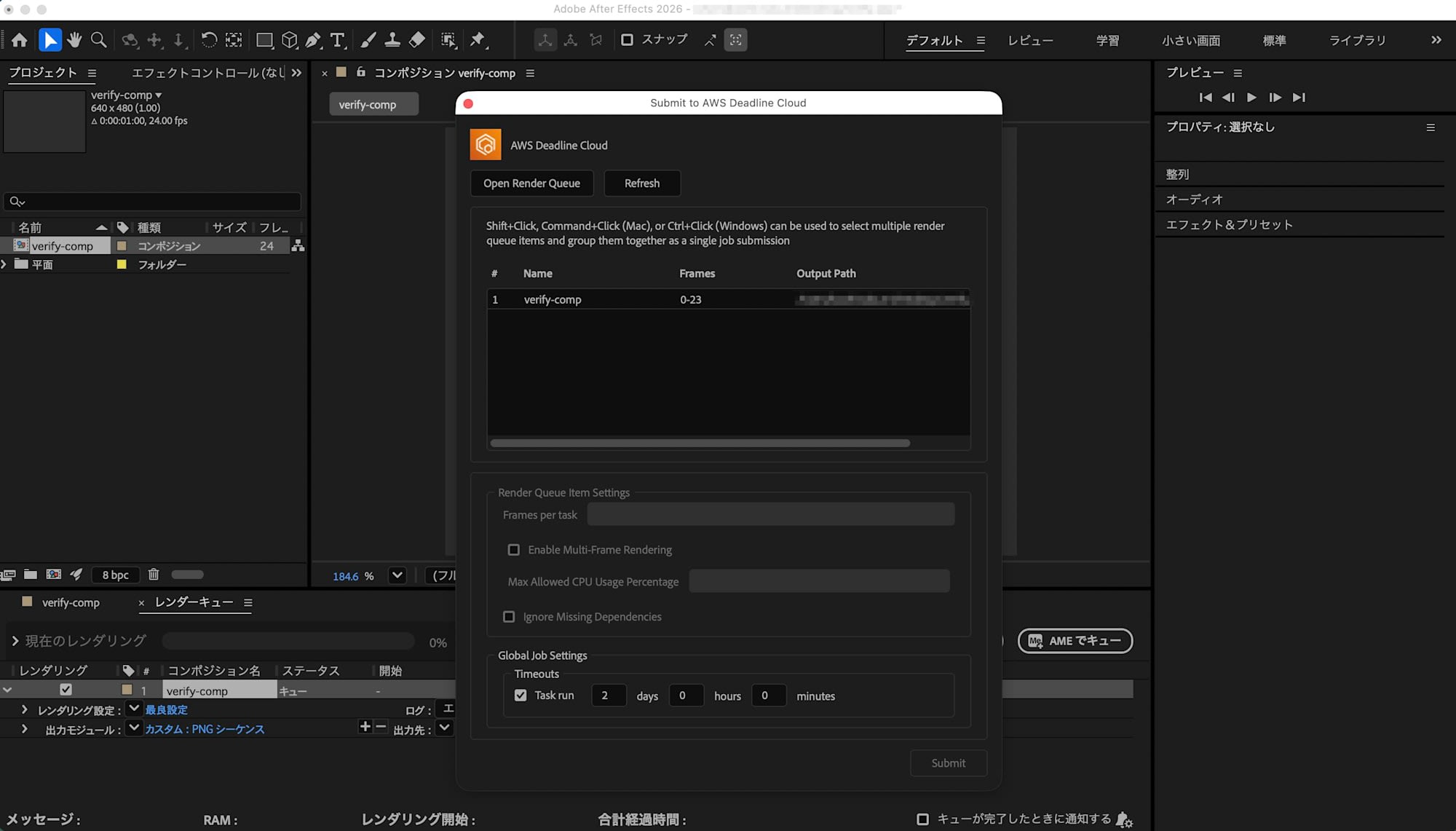
Job status transitions and aerender operation can be monitored with CloudWatch Logs and aws deadline list-jobs.
Insights Gained from Verification
deadline-cloud-for-after-effects Does Not Provide a Worker-Side CLI. Workers Obtain aerender via the conda Package
At the start of verification, it was assumed that, similar to adaptor packages for 3ds Max and Maya, pip-installing deadline-cloud-for-after-effects would add the Worker-side CLI to PATH. In the 3ds Max verification, pip-installing deadline-cloud-for-3ds-max added 3dsmax-openjd.exe to PATH, and this was executed by the Worker to run jobs.
However, checking pyproject.toml shows that the [project.scripts] section is empty, providing no Worker-side CLI at all. deadline-cloud-for-after-effects operates only on the Submitter side as an AE Submitter, and the created job bundle is structured so that the Worker uses aerender bundled with AE.
The path that worked in this verification is a design where the AE Submitter embeds the CondaPackages parameter (e.g., aftereffects=26.0) in the OpenJD job template, and the Worker resolves the AE conda package from the conda channel via the Queue Environment and launches aerender. The contents of the AE conda package are a zipped AE Trial installation. AWS provides AE 24.6 / 25.1 / 25.2 / 25.6 / 26.0 for SMF from the deadline-cloud channel, but since CMF Workers cannot reference it, you need to create your own AE conda package.
The pyrattler Version Queue Environment from AWS Samples Does Not Work on Windows Workers
The conda_queue_env_pyrattler.yaml from AWS Deadline Cloud Samples is a Queue Environment that can resolve conda packages via py-rattler without installing conda itself on the Worker. Since it lightens Worker setup, it was initially assumed that attaching it as-is would work.
However, when running a job on a Windows Worker, it fails at the conda env activation stage with FileNotFoundError: The system cannot find the file specified. The cause lies in the Python script inside the Queue Environment, which calls bash via subprocess.check_call(["bash", capture_script]) during activation, and the capture_script further calls Python using sys.executable. Since the Worker Agent launches Python with the relative path .\python.EXE, sys.executable propagates as a relative path, and when called from bash with a different CWD, the file cannot be found and it fails.
The path that worked in this verification was adding an absolute path fallback for sys.executable to the Python script inside the Queue Environment. The full patch is included in the appendix at the end of this article. Since no published cases of this were found at the time of writing, I hope this serves as a reference for those who get stuck with the same configuration.
conda Packages for Windows Can Be Cross-Built from macOS. However, Adding build.sh Is Required
For building the AE conda package, the AWS Deadline Cloud Samples README introduces a method of setting up a Package Build Queue (a configuration with a dedicated Build Fleet and Build Worker EC2). This was initially the planned approach.
However, since the AE conda package simply copies AE Support Files and generates activate.d scripts without any native code compilation, it can be cross-built from macOS by specifying CONDA_SUBDIR=win-64.
However, the AWS official AE recipe only contains bld.bat (Windows wrapper) and build_win.sh (bash body), and macOS conda-build cannot find the build script and generates an empty package (outputting WARNING: No files or script found for output).
The workaround adopted this time was simply copying build_win.sh as build.sh. macOS conda-build detects this and executes it with bash, correctly generating the win-64 conda package. The build time is approximately 30 minutes, significantly shorter compared to going through the Package Build Queue (90-120 minutes including Build Worker EC2 startup and configuration).
cp aftereffects-26.0/recipe/build_win.sh aftereffects-26.0/recipe/build.sh
chmod +x aftereffects-26.0/recipe/build.sh
CONDA_SUBDIR=win-64 conda-build aftereffects-26.0/recipe --no-test --output-folder ./conda-build-output
The output is generated as conda-build-output/win-64/aftereffects-26.0-0.conda (approximately 3.9 GB), and can be placed in the S3 conda channel with aws s3 sync.
Summary
It was confirmed in practice that AE rendering works with the combination of AWS Deadline Cloud's CMF and a self-managed S3 conda channel. In this verification, it was confirmed that aerender completes without an Adobe sign-in prompt on a Worker with ae_render_only_node.txt placed. Since this verification only covers a single minimal composition, confirming configurations that include plugins such as Pencil+ and V-Ray, multi-frame rendering, and Fleet scaling behavior are the next steps. I hope this article serves as a reference for those considering CMF and AE configurations with AWS Deadline Cloud.
Appendix: Scripts and Patches Created During Verification
Among the custom scripts and patches created during verification, those that cannot be directly reused from existing public information are listed below in collapsed sections.
Windows Compatibility Patch for the pyrattler Version Queue Environment
The Python script inside conda_queue_env_pyrattler.yaml from AWS Deadline Cloud Samples has a process that calls Python via sys.executable through bash during conda env activation. On Windows Workers, sys.executable propagates as a relative path (.\python.EXE), causing a failure because the CWD of bash differs from Python's CWD, making the file not found.
Therefore, a fallback logic is added that searches for Python from PATH using shutil.which if the file pointed to by sys.executable does not exist, and if still not found, tries C:\Program Files\Python311\python.exe as a hardcoded fallback.
The relevant section is the f.write(shlex.join([sys.executable, vars_capture_script, vars_file])) line in the Python script inside the Queue Environment's embeddedFiles. This is replaced as follows.
import shutil as _shutil
_py_exe = sys.executable
if not os.path.isfile(_py_exe):
    for _cand in (
        _shutil.which("python.exe"),
        _shutil.which("python"),
        r"C:\Program Files\Python311\python.exe",
    ):
        if _cand and os.path.isfile(_cand):
            _py_exe = _cand
            break
with open(capture_script, "w", encoding="utf8") as f:
    f.write(activation.script)
    f.write("\n")
    f.write(shlex.join([_py_exe, vars_capture_script, vars_file]))
    f.write("\n")
By applying the patch with aws deadline update-queue-environment using the YAML with the patch applied, the pyrattler version Queue Environment will work on Windows Workers as well.
build.sh for Cross-Building the AE conda Recipe on macOS
The AWS official aftereffects-25.1 recipe only contains two files, bld.bat and build_win.sh, and macOS conda-build does not recognize the build script and generates an empty package. By simply copying build_win.sh as build.sh, macOS conda-build detects it and processes it targeting win-64.
# Run in the recipe directory
cp aftereffects-26.0/recipe/build_win.sh aftereffects-26.0/recipe/build.sh
chmod +x aftereffects-26.0/recipe/build.sh
Before building, replace the version in meta.yaml (25.1 → 26.0) and the source sha256 with those of the zip uploaded in Phase 2. Also replace sourceArchiveFilename in deadline-cloud.yaml with the 26.0 version. The build is executed as follows.
mkdir -p archive_files
aws s3 cp s3://<your-bucket>/archive_files/Adobe_AfterEffects_26_0_Windows_installation.zip archive_files/

mkdir -p conda-build-output
CONDA_SUBDIR=win-64 conda-build aftereffects-26.0/recipe --no-test --output-folder ./conda-build-output

aws s3 sync ./conda-build-output/ s3://<your-bucket>/Conda/Default/
The S3 channel structure becomes s3://<your-bucket>/Conda/Default/win-64/aftereffects-26.0-0.conda, and the repodata.json generated by conda-build is also placed in the same directory. By setting the CondaChannels parameter to this S3 URL in the Queue Environment of the Render Queue, Workers can resolve conda packages when executing jobs.
Bulk PowerShell Script for Pre-Installing on Render Worker
After launching the Render Worker EC2 and connecting via RDP as Administrator, running the following PowerShell will install Python 3.11, Worker Agent, py-rattler 0.18.x, Git for Windows, and ae_render_only_node.txt all at once. Worker Agent service registration requires the Farm ID and Fleet ID as parameters, so it is assumed to be run separately.
# 1. Python 3.11 silent install
$pyUrl = "https://www.python.org/ftp/python/3.11.9/python-3.11.9-amd64.exe"
$pyInstaller = "$env:TEMP\python-3.11.9-amd64.exe"
Invoke-WebRequest -Uri $pyUrl -OutFile $pyInstaller
Start-Process -FilePath $pyInstaller -ArgumentList "/quiet","InstallAllUsers=1","PrependPath=1","Include_pip=1","Include_launcher=1" -Wait
$env:Path = [System.Environment]::GetEnvironmentVariable("Path", "Machine") + ";" + [System.Environment]::GetEnvironmentVariable("Path", "User")

# 2. boto3 region configuration
New-Item -ItemType Directory -Force -Path "$env:USERPROFILE\.aws" | Out-Null
@"
[default]
region = ap-northeast-1
output = json
"@ | Out-File -Encoding ASCII "$env:USERPROFILE\.aws\config"

# 3. Worker Agent + py-rattler install
python -m pip install --upgrade pip
python -m pip install deadline-cloud-worker-agent "py-rattler>=0.18,<0.19" "pyyaml>=6,<7"

# 4. Git for Windows silent install + Machine PATH addition
$gitUrl = "https://github.com/git-for-windows/git/releases/download/v2.45.2.windows.1/Git-2.45.2-64-bit.exe"
$gitInstaller = "$env:TEMP\GitInstaller.exe"
Invoke-WebRequest -Uri $gitUrl -OutFile $gitInstaller
Start-Process -FilePath $gitInstaller -ArgumentList "/VERYSILENT","/NORESTART","/SUPPRESSMSGBOXES" -Wait

$existingPath = [System.Environment]::GetEnvironmentVariable("Path", "Machine")
[System.Environment]::SetEnvironmentVariable("Path", "C:\Program Files\Git\bin;C:\Program Files\Git\usr\bin;$existingPath", "Machine")

# 5. Place Adobe non-royalty bearing mode activation marker
New-Item -Path "C:\Users\Administrator\Documents\ae_render_only_node.txt" -ItemType File -Force
py-rattler needs to be strictly version-pinned. In the 0.19 series, the solve() API changed and no longer accepts the channels keyword argument, causing the Python script inside the Queue Environment to fail with a TypeError.
Git for Windows silent installation does not automatically add to Machine PATH, so after installation, C:\Program Files\Git\bin and C:\Program Files\Git\usr\bin are manually added via PowerShell.