
The story of how it was unexpectedly difficult to intentionally make AWS Deadline Cloud jobs fail

This page has been translated by machine translation. View original
Introduction
In a separate article Testing AWS Deadline Cloud's AI Troubleshooting Feature, I verified the Deadline Cloud assistant feature. Since the assistant analyzes failed jobs, I needed "jobs that fail" for testing. This turned out to be surprisingly difficult.
To state the conclusion first, I tried multiple scenarios to intentionally fail Blender rendering jobs, but both Blender itself and the Deadline Cloud mechanisms absorbed errors more than expected, making it difficult to achieve a FAILED state. I finally managed to make it fail by breaking the Conda package specification.
This article documents this trial and error process, and paradoxically ends up showcasing the robustness of AWS Deadline Cloud's Service Managed Fleet (SMF) and the Blender adapter.
Terminology
- Blender Submitter: An addon integrated into local Blender. Submits jobs to Deadline Cloud
- BlenderAdaptor: A mechanism that launches and controls Blender on the worker side
- Service Managed Fleet (SMF): A worker fleet managed by AWS
Test Environment
- Region: ap-northeast-1
- Deadline Cloud farm, queue, and SMF already created
- Local environment: macOS, Blender 5.0, Blender submitter
- Job submission via Blender submitter or Deadline Cloud CLI
Target Audience
- People who have just started using Deadline Cloud and want to understand its behavior
- People who want to try Deadline Cloud Assistant but are struggling to prepare test failure jobs
- People considering render farm operations and concerned about error handling
References
- AWS Deadline Cloud
- AWS Deadline Cloud User Guide
- aws-deadline/deadline-cloud-for-blender (GitHub)
- Conda queue environment - AWS Deadline Cloud User Guide
Scenarios That Did Not Fail
Scenario A: Missing Texture
I expected rendering to fail if an image file referenced by a material was missing.
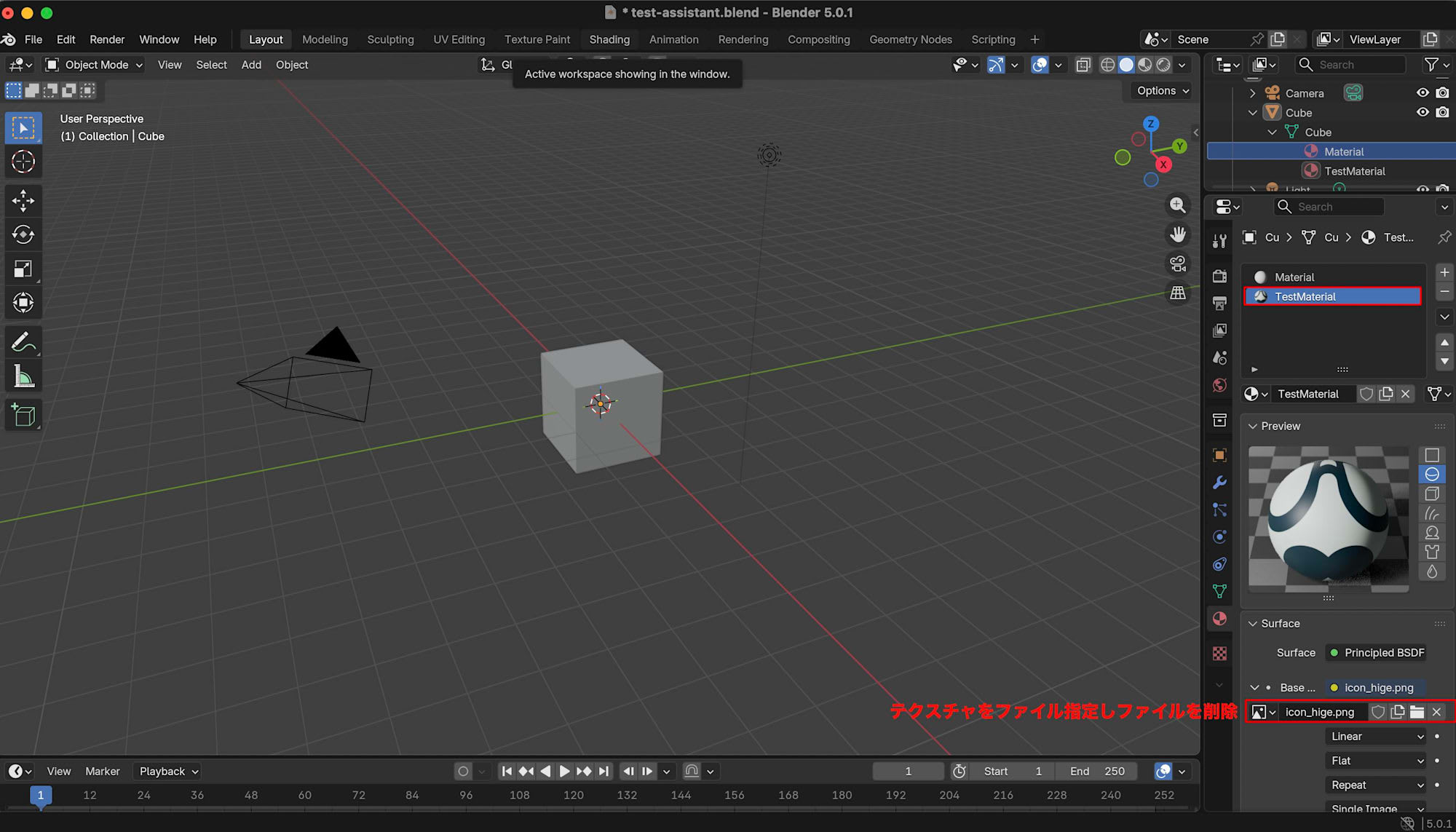
However, the job result was SUCCEEDED. Blender used a pink fallback texture to complete the rendering and uploaded the output PNG to S3.
Here's an excerpt from CloudWatch logs:
cycles | ERROR Image file '/sessions/.../textures/icon_hige.png' does not exist.
01:28.575 render | Saved: '/sessions/.../output/ViewLayer_Camera_Renamed_output_0001.png'
Even though it says ERROR, the rendering result is saved afterward. The Blender Cycles renderer seems to treat missing assets as non-fatal errors. This design philosophy likely reflects the value of getting partial output rather than none at all in production environments.
Scenario B: Camera Renaming
The default value for the job parameter Camera is Camera. I expected the job to fail if I renamed the camera in the scene to Camera_Renamed, causing a parameter mismatch.
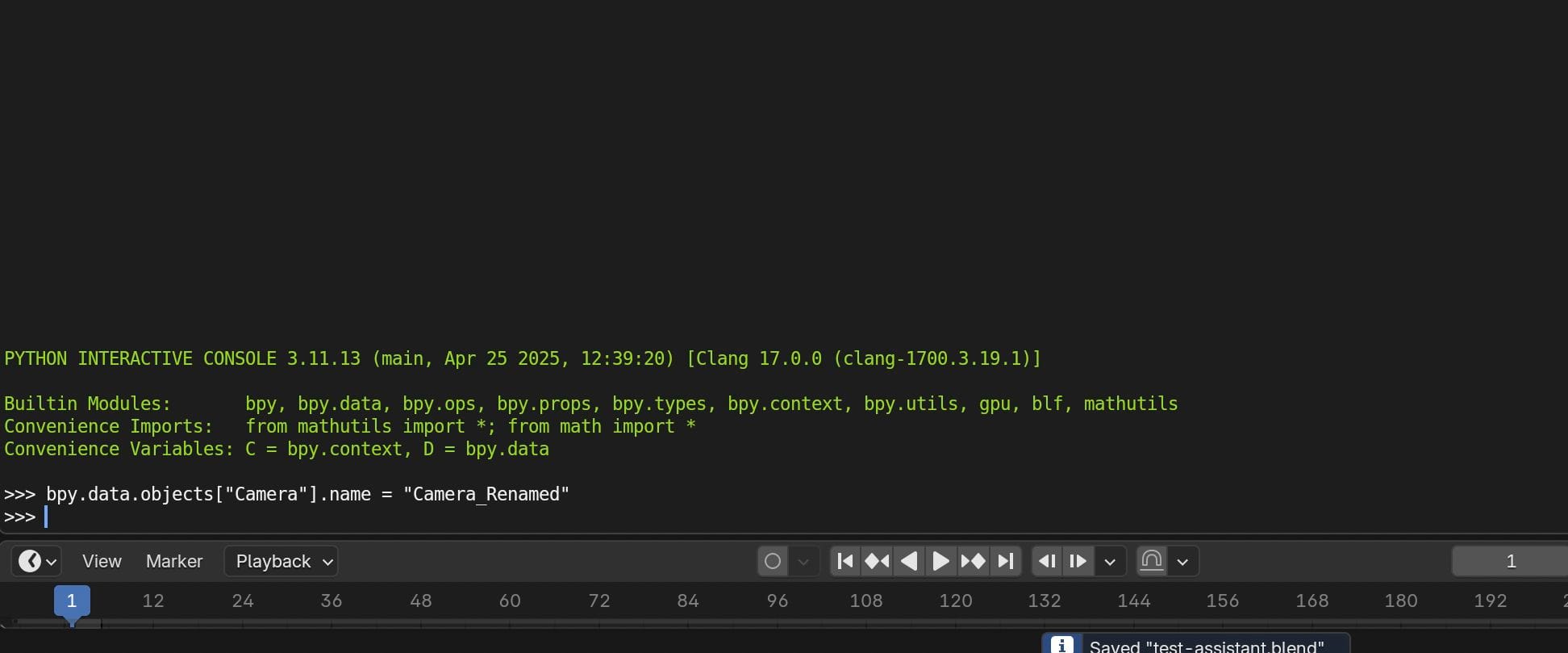
However, the result was SUCCEEDED. This was because the Blender submitter reads the camera name from the scene and passes it directly to the parameters.
Performing action: {"name": "camera", "args": {"frame": 1, "camera": "Camera_Renamed"}}
The renamed camera name Camera_Renamed is passed through as is.
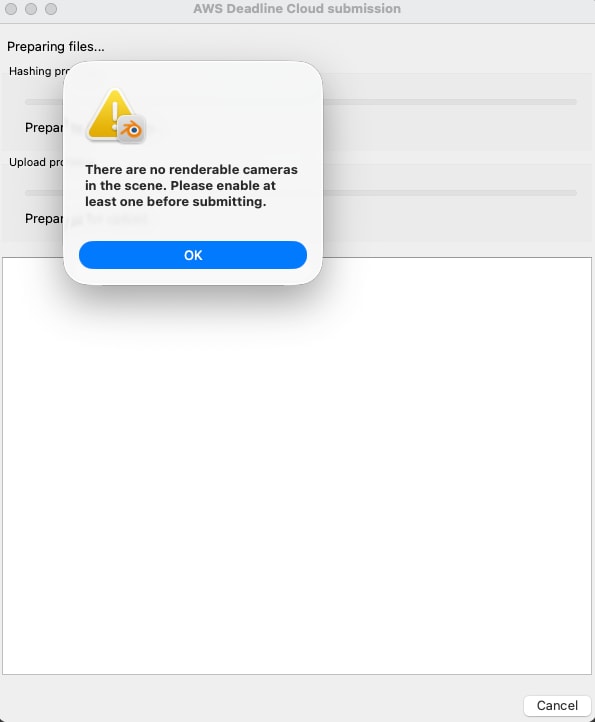
I also tried deleting all cameras, but the submitter validation blocked submission with the message There are no renderable cameras in the scene. The submitter seems designed to maintain consistency and prevent unintended mistakes by artists.
Scenario C: Enabling StrictErrorChecking Parameter
The job template defines a parameter called StrictErrorChecking. The default is false, but I expected errors like missing textures to cause failure if set to true.
However, the result was still SUCCEEDED. After examining the template, I found that while StrictErrorChecking is declared in parameterDefinitions, it's not actually included in the init-data passed to Blender. A parameter may appear in the UI, but if it's not referenced in the template body, it has no effect.
Scenario D: Using raise in Blender Startup Python Script
I expected that embedding a Python script with raise RuntimeError in a .blend file with use_module=True would cause an error during Blender startup and fail the job.
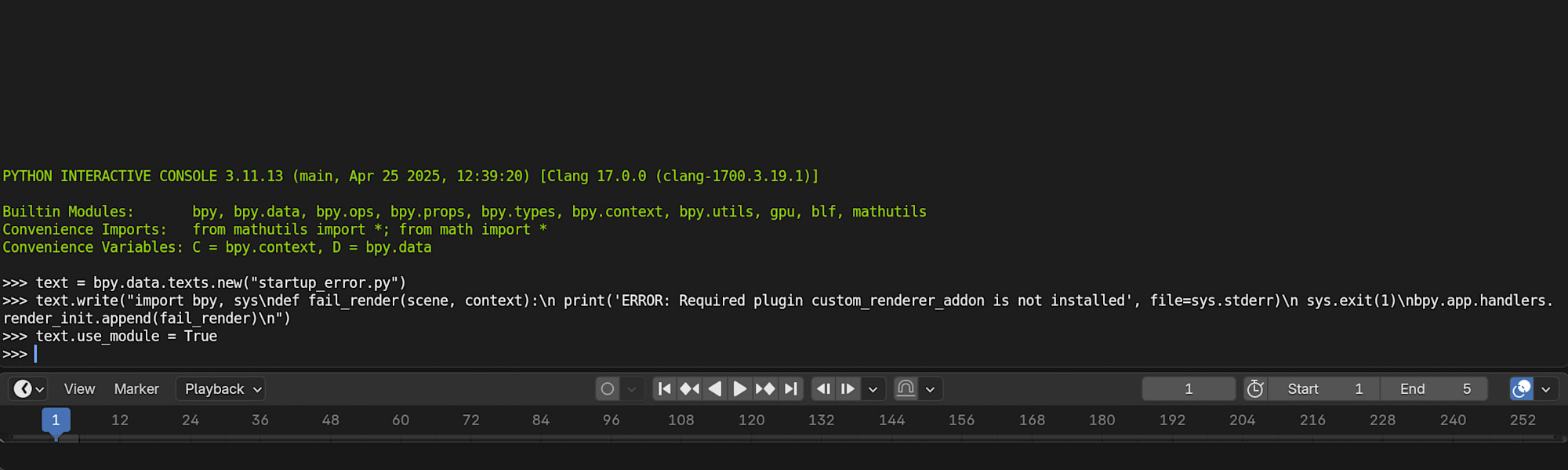
On local Blender, this causes an error that stops rendering.
% /Applications/Blender.app/Contents/MacOS/Blender /path/to/test.blend
00:00.631  blend            | Read blend: "/path/to/test.blend"
scripts disabled for "/path/to/test.blend", skipping 'startup_error.py'
00:04.871  blend            | Read blend: "/path/to/test.blend"
ERROR: Required plugin custom_renderer_addon is not installed
Error in bpy.app.handlers.render_init[0]:
However, on the worker side, the job was marked as SUCCEEDED.
There are several possible reasons for this. The worker starts Blender through BlenderAdaptor, so the startup sequence differs from local execution. Also, auto-executing scripts embedded in .blend files might be skipped due to security mechanisms. Even if the script is executed, how BlenderAdaptor handles that error depends on its implementation.
Note that when launching Blender locally for the first time, it displayed: For security reasons, automatic execution of Python scripts in this file was disabled.
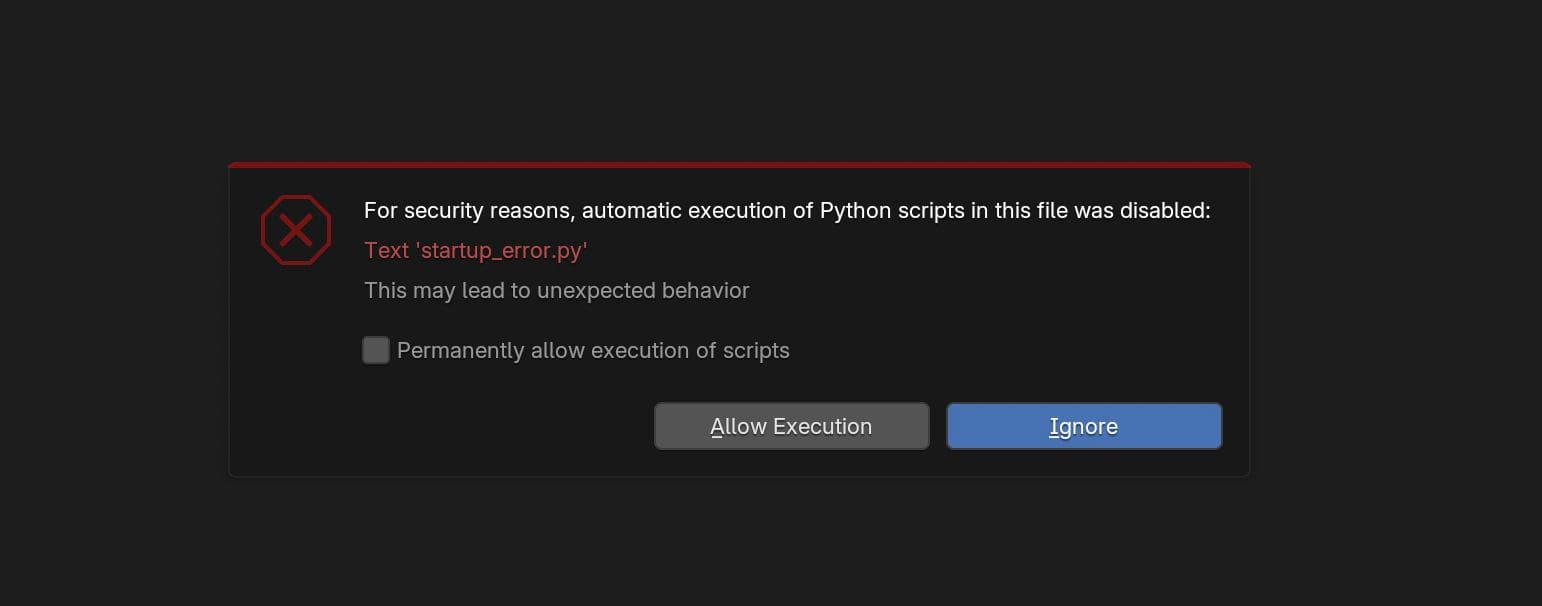
Enabling "Permanently allow execution of scripts" works locally, but this restriction likely remains on the worker side.
The Only Method That Reliably Failed
All four scenarios described above resulted in SUCCEEDED jobs. The only method that reliably caused failure was specifying a non-existent version (e.g., blender=99.0.*) in the CondaPackages job parameter. The SMF builds a Conda environment before executing the job. Specifying a non-existent package will certainly fail before rendering even begins.
I set CondaPackages in the job bundle's parameter_values.yaml as follows and submitted it using the Deadline Cloud CLI:
{
 "parameterValues": [
  {
   "name": "CondaPackages",
   "value": "blender=99.0.* blender-openjd=0.6.*"
  }
 ]
}
deadline bundle submit ./failed-job-bundle --yes --known-asset-path /path/to/blender-project --name "test-assistant-failure"
The job entered a FAILED state within seconds of submission.
PackagesNotFoundError: The following packages are not available from current channels:
  - blender=99.0*
openjd_fail: Conda environment setup failed with exit code 1.
Analysis
Reflecting on these trials, I've noted several insights.
The BlenderAdaptor isn't simply executing commands but seems to be a mechanism that works with Blender's rendering engine to absorb errors. Cycles ERROR outputs don't directly affect job status. While mechanisms like StrictErrorChecking seem to be provided, they have no effect in the current template.
This design philosophy makes sense for preventing interruptions to artists' workflows. Having partial output is often more valuable in production environments than having none at all. However, if you truly need to treat certain conditions as failures (for example, to build separate error detection mechanisms), you'll need to either stop at the Conda environment level or incorporate failure conditions in custom job templates.
Conclusion
Attempting to intentionally fail AWS Deadline Cloud jobs turned out to be much more difficult than expected. Missing textures, camera renaming, enabling the StrictErrorChecking parameter, and raising exceptions in Python scripts all failed to cause job failure, being absorbed by the robust mechanisms of Blender and Deadline Cloud. I finally achieved a FAILED state by breaking the Conda package level. I hope this is helpful for those using Deadline Cloud.