![[Update] AWS Managed Microsoft AD edition changes are now possible from the Management Console as well](https://images.ctfassets.net/ct0aopd36mqt/wp-thumbnail-4af392c07fd5f053f6eeed9b82dfc61b/c6a402f662ad0f87dc5c4cbd69e853b1/aws-directory-service?w=3840&fm=webp)
[Update] AWS Managed Microsoft AD edition changes are now possible from the Management Console as well

This page has been translated by machine translation. View original
Shibata here.
Today, AWS made an announcement titled "AWS Managed Microsoft AD now supports Standard to Enterprise Edition upgrade," stating that edition changes for AWS Managed Microsoft AD are now supported.
However, edition changes themselves were already supported as of last year, and I had already written a blog post about it.
I looked into how this update differs from last year's, so I'll share the results.
What does this mean?
After investigating, it turns out that this update simply means that edition changes, which were previously only possible via the API, can now also be done through the Management Console UI.
It seems that AWS is claiming full support now that GUI support has been added in addition to the conventional API.
The documentation has been updated with new steps for the Management Console.
There were also no changes to the limitations.
To list them again, they are as follows.
- Upgrades are only possible from
Standard EditiontoEnterprise Edition.Hybrid Editionis not eligible.- Upgrades are internally treated as "directory size expansion"
- Once upgraded to
Enterprise Edition, downgrading back toStandard Editionis not possible. - Snapshots taken with
Standard Editioncannot be used withEnterprise Edition. - The upgrade takes 4 to 5 hours.
- When I tried it in this article, it only took about 2 hours. This may vary depending on the environment, particularly the number of domain controllers.
- The upgrade process updates domain controllers one at a time. This means there is a possibility of downtime during the upgrade.
- In particular, DNS may temporarily enter a degraded state, so caution is advised.
- During the upgrade process, the hostnames of the domain controllers will change, but the IP addresses will be maintained.
- If you are using LDAPS, new certificates will be required.
Verification
From here, I'll actually try it out.
In my verification AWS account in the Tokyo region, I prepared one Standard Edition directory environment and one Windows Server 2025 EC2 instance for management.
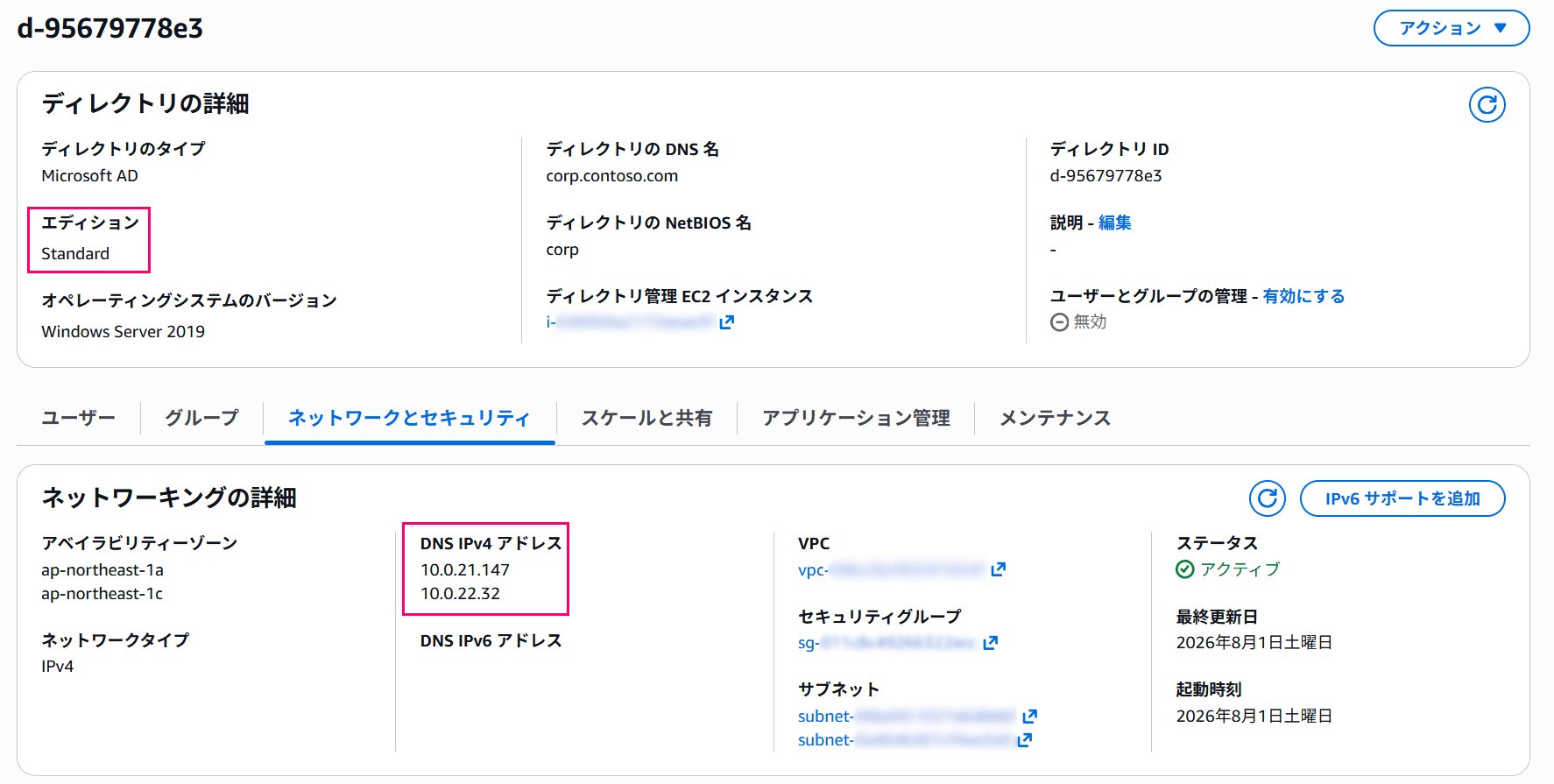
Directory prepared for verification (corp.contoso.com domain)
The domain name is corp.contoso.com, and the DNS server (= domain controller) IPs are 10.0.21.147 and 10.0.22.32.
There is nothing particularly unusual about the directory contents, but a new "Upgrade Edition" option has been added to the "Actions" menu in the upper right.
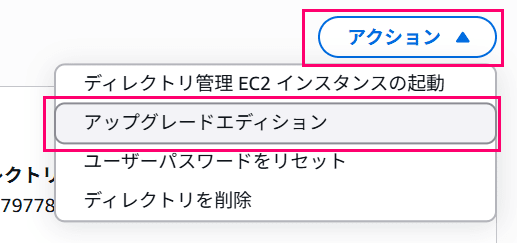
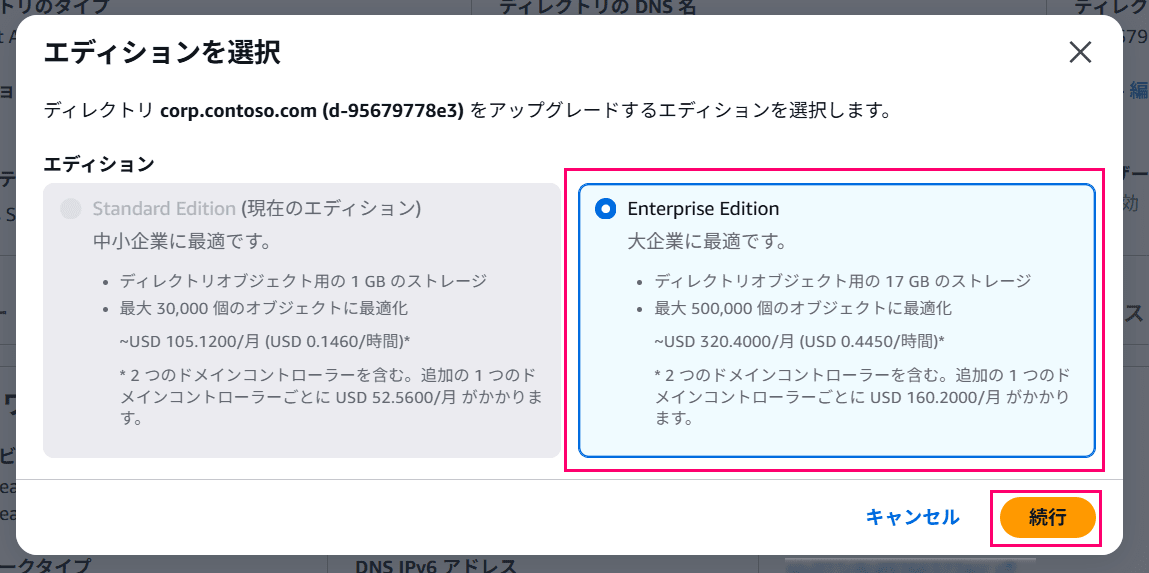
Clicking this displays the edition change dialog.
Select "Enterprise Edition" and click the "Continue" button.
A final confirmation dialog is displayed, showing the limitations and a warning that "once upgraded, downgrading is not possible."
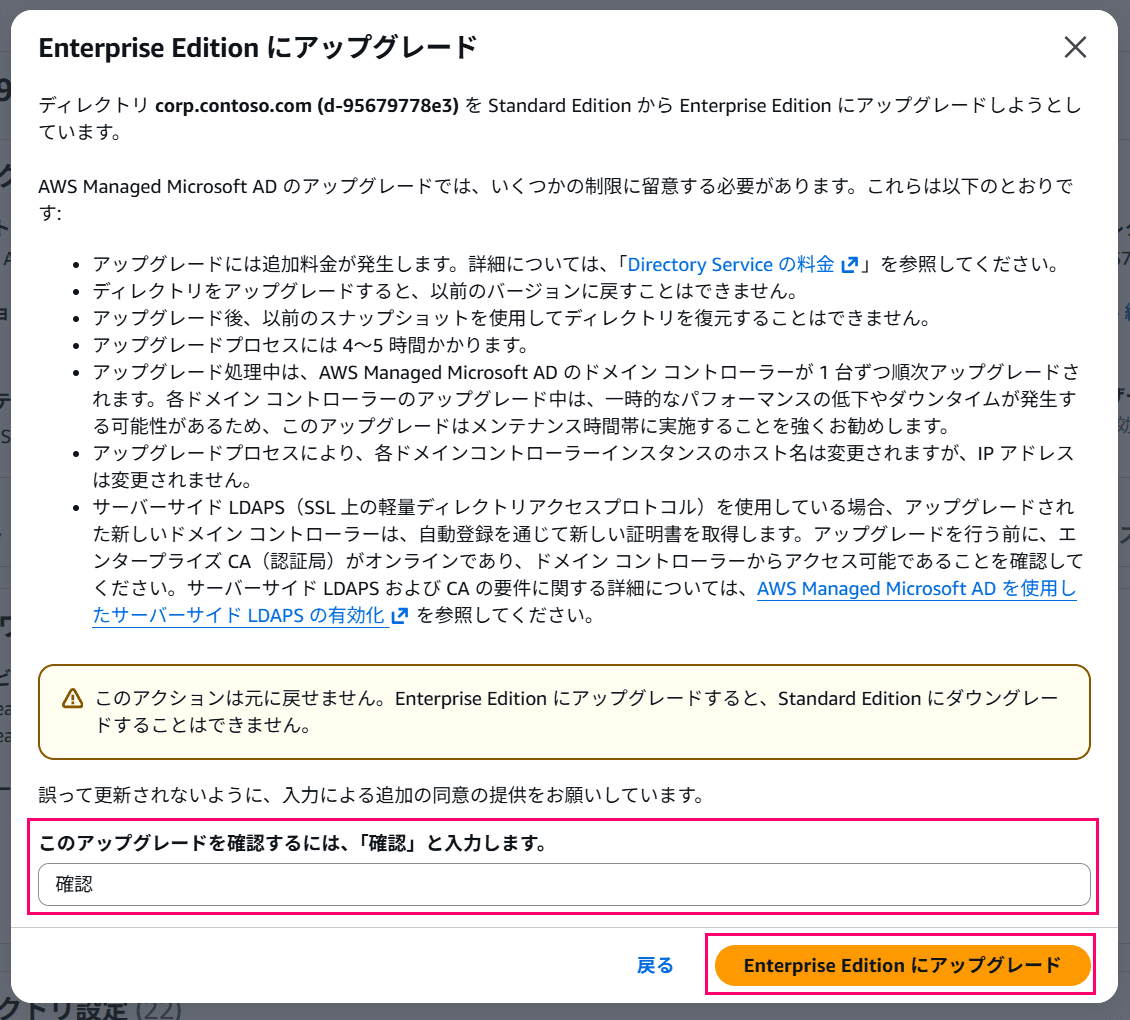
If there are no issues, type "confirm" and click the "Upgrade to Enterprise Edition" button.
After clicking, the upgrade process will begin.
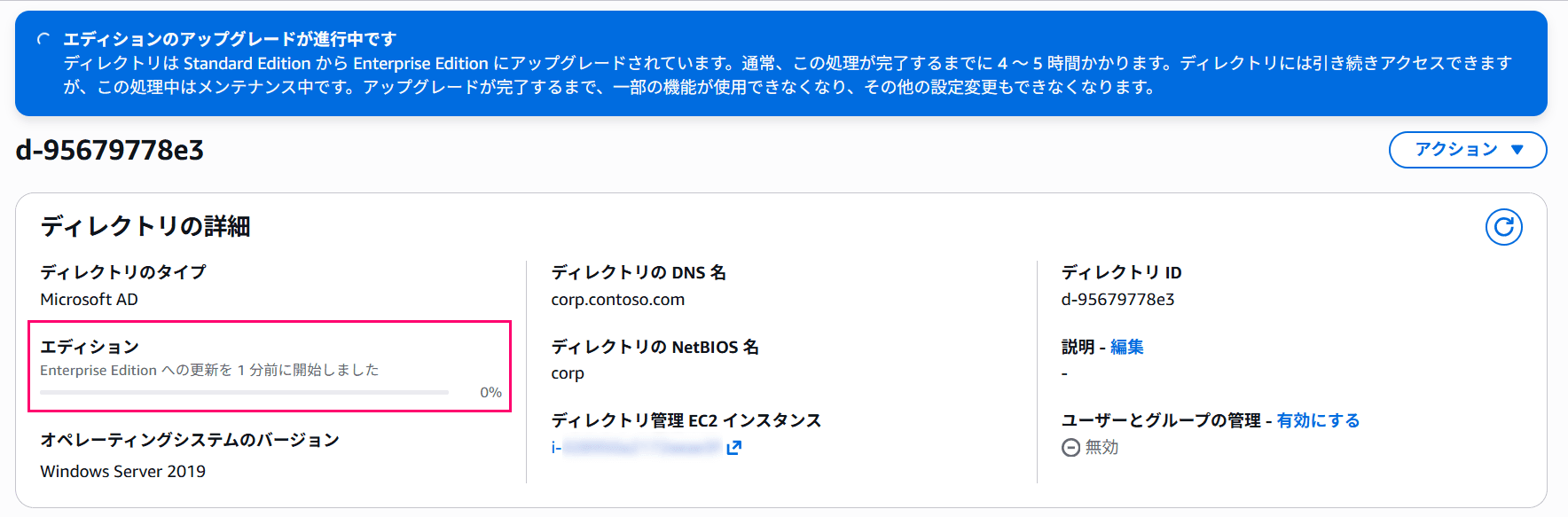
Unlike before, the progress is now displayed in the "Edition" field of the directory details.
The progress increases by percentage each time one domain controller is updated, so with the default 2 controllers, it increases in steps of 50% → 100%.
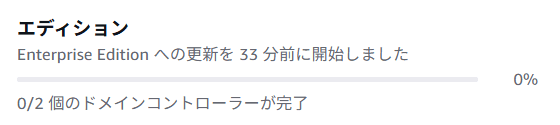
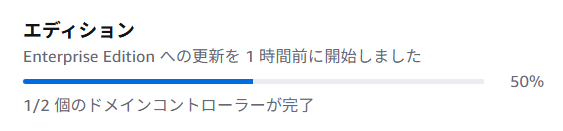
After waiting a while, the upgrade will complete.
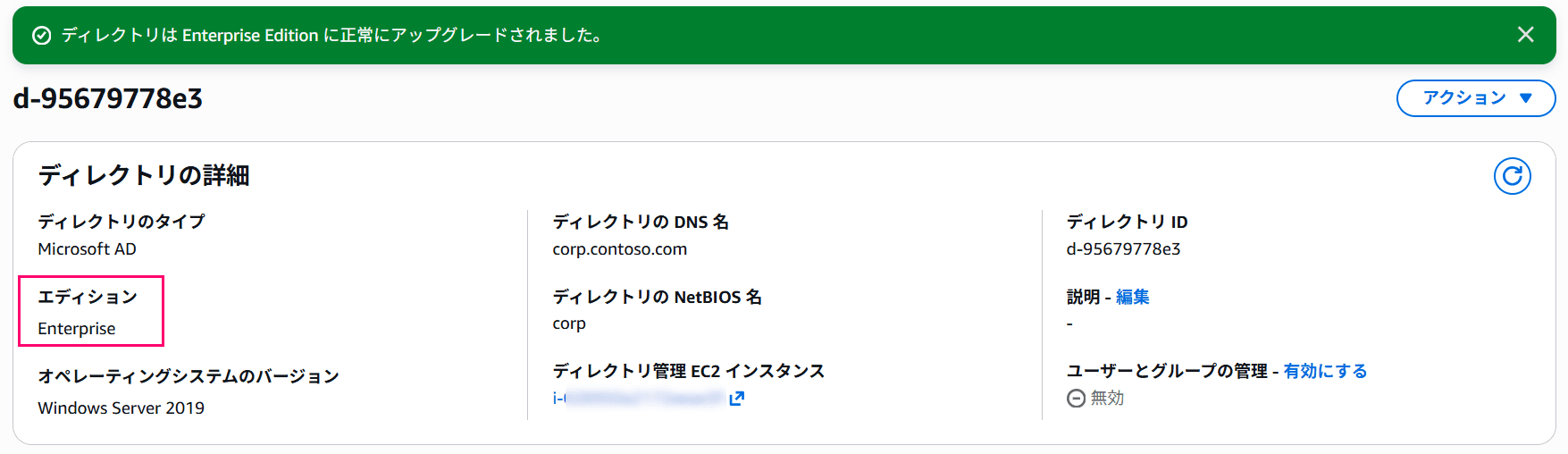
Based on what I could observe externally, the process progressed in the same way as the previous time, and the work also took about 2 hours.
After upgrading to Enterprise Edition, the "Upgrade Edition" option is hidden from the Actions menu.
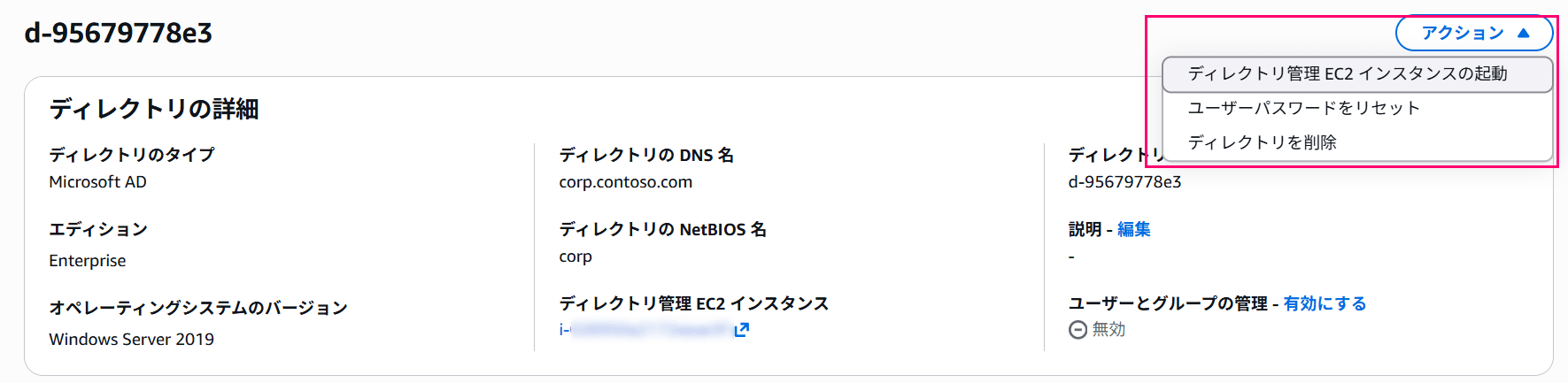
Side note 1: Status of the aws ds describe-domain-controllers command
In the previous article, I had completely forgotten about the aws ds describe-domain-controllers command and was unable to check its behavior during the upgrade.
This command allows you to check the status of each domain controller.
During the upgrade, the status of each domain controller changes to Updating one at a time, and the upgrade was complete when both controllers showed Active.
# Initial state: Both domain controllers are Active
~ $ aws ds describe-domain-controllers --directory-id d-95679778e3
{
    "DomainControllers": [
        {
            "DirectoryId": "d-95679778e3",
            "DomainControllerId": "dc-956716863d",
            "DnsIpAddr": "10.0.21.147",
            "VpcId": "vpc-xxxxxxxxxxxxxxxxxxx",
            "SubnetId": "subnet-xxxxxxxxxxxxxxxxx",
            "AvailabilityZone": "ap-northeast-1a",
            "Status": "Active",
            "LaunchTime": "2026-08-01T03:12:23.072000+00:00",
            "StatusLastUpdatedDateTime": "2026-08-01T03:43:15.119000+00:00"
        },
        {
            "DirectoryId": "d-95679778e3",
            "DomainControllerId": "dc-956716863e",
            "DnsIpAddr": "10.0.22.32",
            "VpcId": "vpc-xxxxxxxxxxxxxxxxxxx",
            "SubnetId": "subnet-yyyyyyyyyyyyyyyyy",
            "AvailabilityZone": "ap-northeast-1c",
            "Status": "Active",
            "LaunchTime": "2026-08-01T03:12:23.094000+00:00",
            "StatusLastUpdatedDateTime": "2026-08-01T03:43:15.148000+00:00"
        }
    ]
}

# ↓
# The status of the 1st controller (10.0.22.32) changes to Updating
~ $ aws ds describe-domain-controllers --directory-id d-95679778e3
{
    "DomainControllers": [
        {
            "DirectoryId": "d-95679778e3",
            "DomainControllerId": "dc-956716863d",
            "DnsIpAddr": "10.0.21.147",
            "VpcId": "vpc-xxxxxxxxxxxxxxxxxxx",
            "SubnetId": "subnet-xxxxxxxxxxxxxxxxx",
            "AvailabilityZone": "ap-northeast-1a",
            "Status": "Active",
            "LaunchTime": "2026-08-01T03:12:23.072000+00:00",
            "StatusLastUpdatedDateTime": "2026-08-01T03:43:15.119000+00:00"
        },
        {
            "DirectoryId": "d-95679778e3",
            "DomainControllerId": "dc-956716863e",
            "DnsIpAddr": "10.0.22.32",
            "VpcId": "vpc-xxxxxxxxxxxxxxxxxxx",
            "SubnetId": "subnet-yyyyyyyyyyyyyyyyy",
            "AvailabilityZone": "ap-northeast-1c",
            "Status": "Updating",
            "LaunchTime": "2026-08-01T03:12:23.094000+00:00",
            "StatusLastUpdatedDateTime": "2026-08-01T06:29:09.145000+00:00"
        }
    ]
}

# ↓
# Next, the status of the 2nd controller (10.0.21.147) changes to Updating
~ $ aws ds describe-domain-controllers --directory-id d-95679778e3
{
    "DomainControllers": [
        {
            "DirectoryId": "d-95679778e3",
            "DomainControllerId": "dc-956716863d",
            "DnsIpAddr": "10.0.21.147",
            "VpcId": "vpc-xxxxxxxxxxxxxxxxxxx",
            "SubnetId": "subnet-xxxxxxxxxxxxxxxxx",
            "AvailabilityZone": "ap-northeast-1a",
            "Status": "Updating",
            "LaunchTime": "2026-08-01T03:12:23.072000+00:00",
            "StatusLastUpdatedDateTime": "2026-08-01T07:20:22.596000+00:00"
        },
        {
            "DirectoryId": "d-95679778e3",
            "DomainControllerId": "dc-956716863e",
            "DnsIpAddr": "10.0.22.32",
            "VpcId": "vpc-xxxxxxxxxxxxxxxxxxx",
            "SubnetId": "subnet-yyyyyyyyyyyyyyyyy",
            "AvailabilityZone": "ap-northeast-1c",
            "Status": "Active",
            "LaunchTime": "2026-08-01T03:12:23.094000+00:00",
            "StatusLastUpdatedDateTime": "2026-08-01T07:20:22.425000+00:00"
        }
    ]
}

# ↓
# Both controllers have completed the upgrade and are now Active
~ $ aws ds describe-domain-controllers --directory-id d-95679778e3
{
    "DomainControllers": [
        {
            "DirectoryId": "d-95679778e3",
            "DomainControllerId": "dc-956716863d",
            "DnsIpAddr": "10.0.21.147",
            "VpcId": "vpc-xxxxxxxxxxxxxxxxxxx",
            "SubnetId": "subnet-xxxxxxxxxxxxxxxxx",
            "AvailabilityZone": "ap-northeast-1a",
            "Status": "Active",
            "LaunchTime": "2026-08-01T03:12:23.072000+00:00",
            "StatusLastUpdatedDateTime": "2026-08-01T08:13:49.287000+00:00"
        },
        {
            "DirectoryId": "d-95679778e3",
            "DomainControllerId": "dc-956716863e",
            "DnsIpAddr": "10.0.22.32",
            "VpcId": "vpc-xxxxxxxxxxxxxxxxxxx",
            "SubnetId": "subnet-yyyyyyyyyyyyyyyyy",
            "AvailabilityZone": "ap-northeast-1c",
            "Status": "Active",
            "LaunchTime": "2026-08-01T03:12:23.094000+00:00",
            "StatusLastUpdatedDateTime": "2026-08-01T07:20:22.425000+00:00"
        }
    ]
}
Side note 2: Was able to restore a snapshot from before the upgrade edition
As in the previous time, I intentionally tried restoring a snapshot taken before the upgrade.

As before, a pre-upgrade snapshot was already taken with the name "before-upgrade"
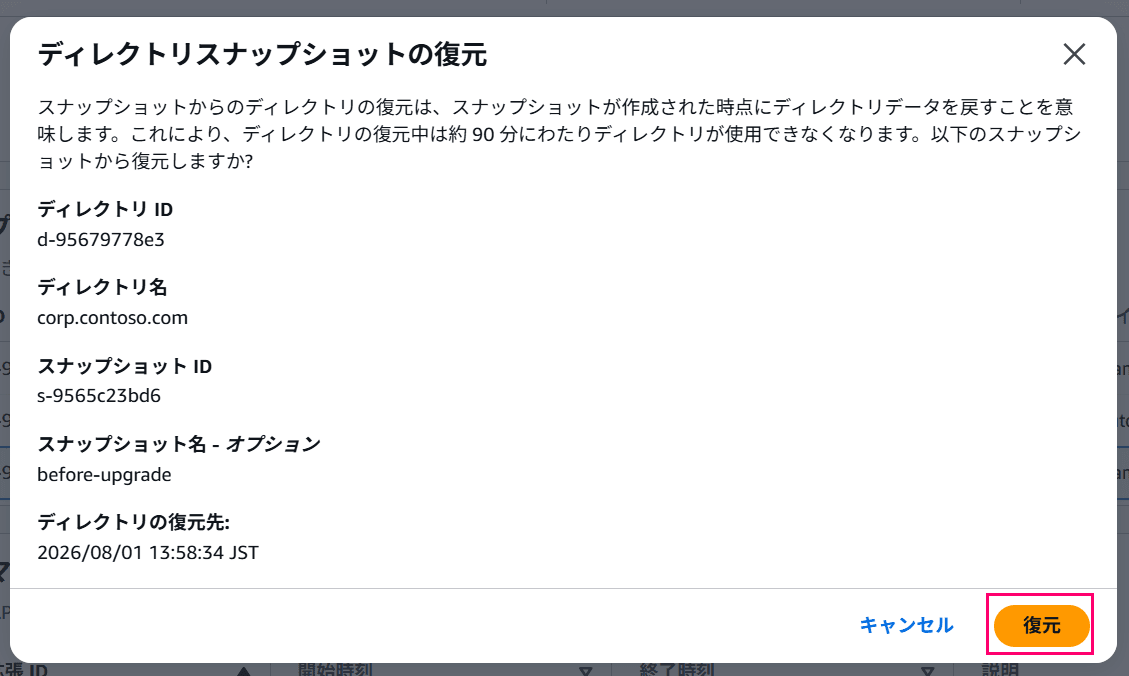
Intentionally restoring the pre-upgrade snapshot
As the restore process proceeded, I expected it to fail partway through as it did last time, but after about 2 hours, the restore actually completed successfully...

The restore process proceeding is unchanged from last time...
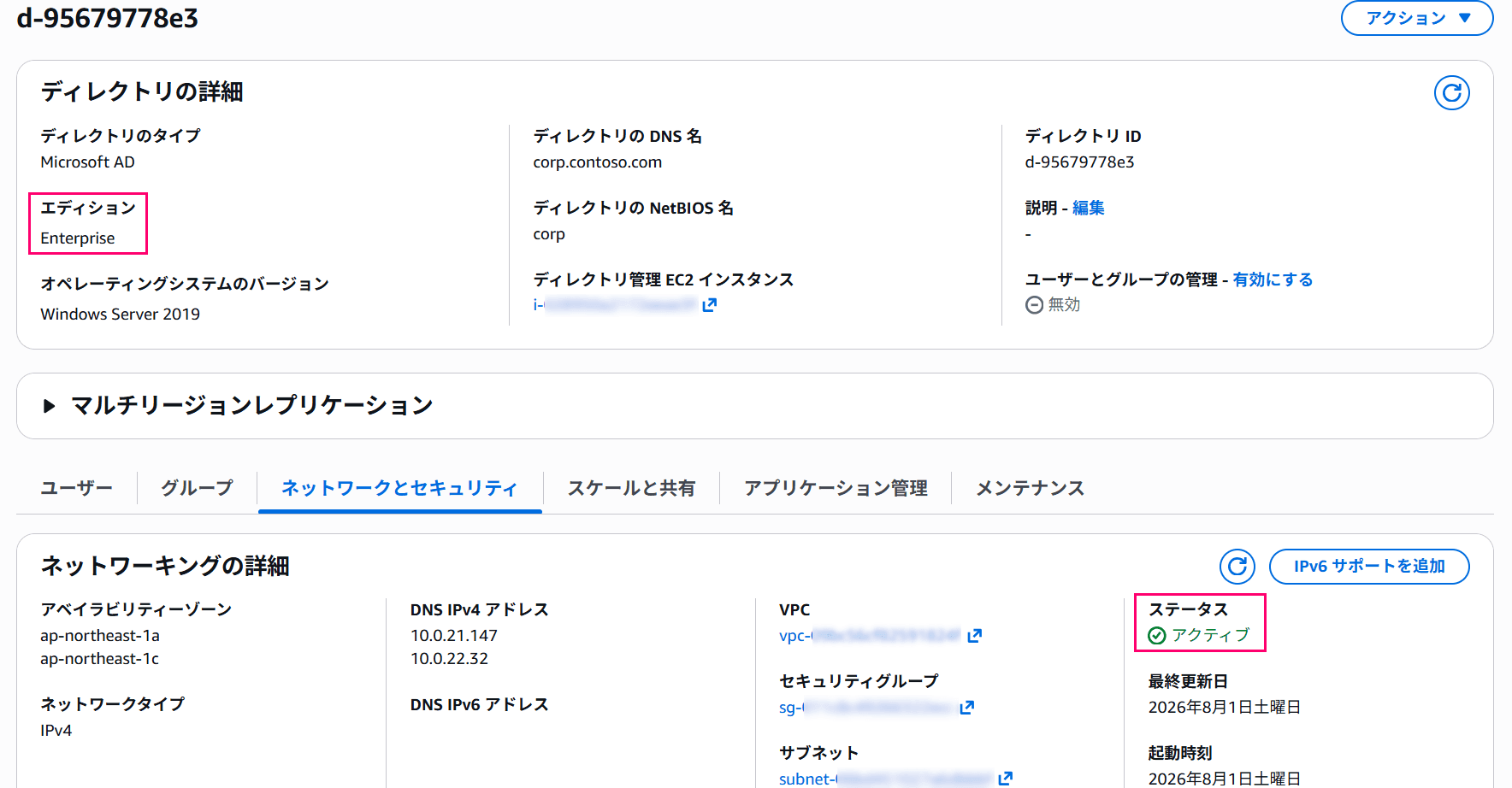
Contrary to expectations, the restore process completed successfully this time. The edition remains Enterprise
As stated in the limitations, "snapshots from Standard Edition cannot be used" is the correct specification, so please be careful not to execute this accidentally.
Conclusion
That's all.
Upgrades are now even easier than before.
If the required resources are unclear, I think choosing "start with Standard Edition for now" has become a viable option.
