
I tried the new "OAuth authentication" feature of AWS MCP Server with Kiro CLI

This page has been translated by machine translation. View original
Introduction
On July 9, 2026, AWS MCP Server added support for OAuth 2.0 authentication.
For details on OAuth authentication for AWS MCP Server, please refer to the following article.
Previously, using AWS MCP Server required installing the AWS CLI, setting up mcp-proxy-for-aws (via uvx), and preparing local credentials for the AWS CLI. With this OAuth support, a new method has been added that allows connection using only browser-based AWS Sign-In.
The main changes are summarized in the comparison table below.
| Item | Before (SigV4 only) | Now (OAuth added) |
|---|---|---|
| Authentication method | SigV4 (AWS CLI + mcp-proxy-for-aws required) | OAuth (browser Sign-In) available as additional option |
| Setup | uvx, AWS CLI, local credentials configuration | kiro-cli mcp add + OAuth authorization via browser |
| Authorization target | IAM user/role from local profile | Account/role active in browser at time of OAuth authorization |
| Web client support | Not supported | Also connectable from Claude.ai, ChatGPT.com, etc. |
The Kiro CLI used in this article has had the MCP OAuth authorization infrastructure established in the two most recent versions.
| Version | Added content |
|---|---|
| 2.11.0 (2026-07-02) | Added /mcp auth, /mcp cancel-auth, /mcp logout commands. Keyboard shortcuts in MCP panel (Ctrl+A for re-authentication, Ctrl+X to cancel, Ctrl+R to remove credentials) |
| 2.12.0 (2026-07-08) | Support for client_secret in MCP OAuth configuration. Token endpoint authentication for Confidential clients |
In this article, we use Kiro CLI 2.12.0 to connect to AWS MCP Server via the OAuth authorization flow. We will verify on an actual device that the role active in the browser at the time of OAuth authorization is used for AWS operations via MCP.
Official documentation:
- Sign-In with OAuth 2.0 (AWS Sign-In User Guide)
- Setting up the AWS MCP Server (Agent Toolkit User Guide)
Verification Details
Verification Environment
| Item | Value |
|---|---|
| Kiro CLI | 2.12.0 |
| AWS MCP Server endpoint | https://aws-mcp.us-east-1.api.aws/mcp |
| Local profile | IAM user with all operations denied (Deny *) |
| OAuth authorization target | Separate role (with AdministratorAccess, active via role switch) |
What We Want to Verify
We will show that the following two return different identities within the same Kiro CLI session, and confirm that local AWS credentials and MCP server authentication via OAuth are independent paths.
use_awstool (uses local AWS CLI credentials)aws___call_awstool (via MCP server, uses role authorized via OAuth)
Setup
Creating an IAM User (for local credentials)
For this verification, to demonstrate that the local and OAuth authentication paths are independent, we created an IAM user mcp-oauth-verify-test with all operations denied.
{
  "Version": "2012-10-17",
  "Statement": [
    {
      "Effect": "Deny",
      "Action": "*",
      "Resource": "*"
    }
  ]
}
Attaching IAM Policy (on the OAuth authorization target side)
OAuth authorization is based on the AWS Sign-In session active in the browser. For this verification, we performed OAuth authorization while switched to a role with AdministratorAccess in the verification AWS account.
If you do not have broad permissions such as AdministratorAccess or PowerUserAccess, please attach AWSMCPSignInOAuthAccessPolicy to the IAM entity used at the time of OAuth authorization.
Adding the MCP Server
Run the following command in Kiro CLI.
kiro-cli mcp add --name aws-mcp --url https://aws-mcp.us-east-1.api.aws/mcp
This alone registers the OAuth-based MCP server.
Verification Steps
1. Checking Local Credentials
First, we checked the current identity using local AWS CLI credentials (the use_aws tool).
{
  "UserId": "AIDA****************",
  "Account": "78**********",
  "Arn": "arn:aws:iam::78**********:user/mcp-oauth-verify-test"
}
The IAM user configured in the local profile with all operations denied (Deny *) was returned.
2. Performing OAuth Authorization
We ran /mcp auth aws-mcp in the Kiro CLI chat screen to start the OAuth authorization flow.
In the MCP panel, the server status changes to ⚠ auth-required, and the status bar displays aws-mcp requires OAuth — Ctrl+y to authenticate. Pressing Ctrl+y displays the authorization URL in the terminal, which you open in a browser.
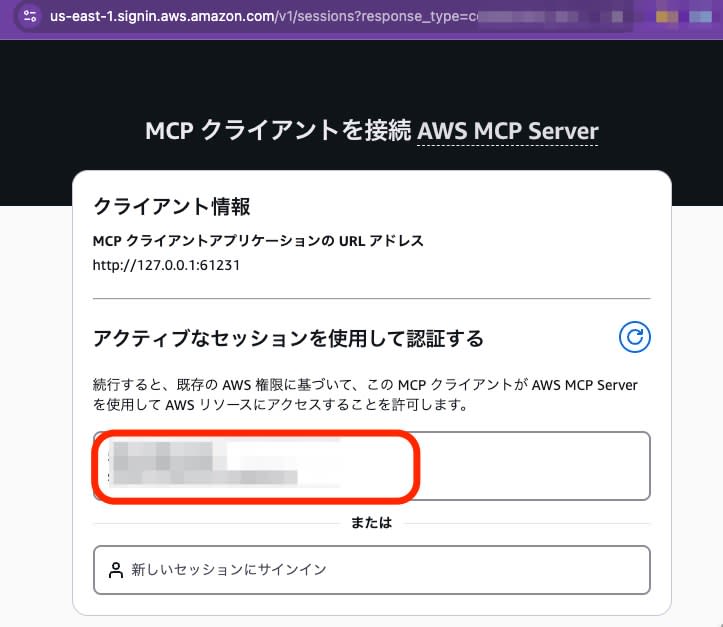
At this point, the browser was already in a state where we had switched roles in the AWS Console. After pressing the "Authorize" button to complete authorization, the browser displays "You can close this page now."
Returning to Kiro CLI, the authentication request in the status bar disappears, and the MCP panel status changes to ● running (9 tools).
3. Checking the Identity via MCP
After completing OAuth authorization, we ran sts get-caller-identity using the MCP server tool (aws___call_aws).
{
  "UserId": "AROA*****************:my-role-name",
  "Account": "78**********",
  "Arn": "arn:aws:sts::78**********:assumed-role/my-role-name/my-role-name"
}
The identity of the role session to which we had switched roles in the browser was returned.
Results Comparison
| Item | use_aws (local) | aws___call_aws (MCP / OAuth) |
|---|---|---|
| Identity | IAM user mcp-oauth-verify-test |
Role switched to (AssumeRole) |
| Authentication source | Access key from local profile | Browser AWS Sign-In session |
| Permissions | All operations denied (Deny *) |
AdministratorAccess |
We confirmed that within the same Kiro CLI session, the local credentials and MCP-based credentials are separated.
Re-authentication (Switching Account/Role)
After switching accounts or roles in the browser, you can re-authenticate from the MCP panel.
- Open the panel with
/mcp Ctrl+R(remove creds) — Deletes the existing OAuth token (panel display does not change)Ctrl+A(auth) — The server restarts and the status changes to⚠ auth-requiredCtrl+yorEnter— Retrieve the authorization URL and authenticate in the browser
In this verification, by switching to a different role in the browser before performing the above steps, we were able to switch the role used for AWS operations via MCP.
Summary
AWS MCP Server now supports OAuth authentication. Using Kiro CLI 2.12.0, you can connect to AWS MCP Server via OAuth authorization based on the browser's AWS Sign-In session, without needing to prepare AWS CLI profiles or access keys on your local machine.
In this verification, we confirmed that independently of local AWS CLI credentials, the role active in the browser at the time of OAuth authorization is used for AWS operations via MCP. Even within the same Kiro CLI session, the path using local AWS CLI credentials and the path through OAuth-authorized AWS MCP Server are separated.
With the conventional aws login or aws sso login, browser-based authentication was also possible. However, to activate or refresh AWS credentials while working in Kiro CLI, it was necessary to temporarily pause Kiro CLI or open a separate terminal to run commands.
With this OAuth support, after registering the MCP server, you can start the authorization flow from /mcp auth in Kiro CLI, complete AWS Sign-In in the browser, and proceed directly to AWS operations via MCP. The step of switching terminals to run AWS CLI authentication commands is no longer necessary, simplifying the flow to get started with AWS MCP Server.
For usage where you don't keep AWS CLI credentials locally and instead authorize MCP server use through a browser Sign-In session when needed, this is more convenient than the conventional aws login / aws sso login + mcp-proxy-for-aws approach. In environments where local credentials can be protected using EC2 instance profiles, MFA/1Password, etc., SigV4 remains an option as well.
