
I tried out AWS Parallel Computing Service's new support for node lifecycle actions

This page has been translated by machine translation. View original
Introduction
AWS Parallel Computing Service (AWS PCS) is a managed service for Slurm HPC clusters. A July 2026 update added node lifecycle actions. Node lifecycle actions are a feature that allows you to run scripts stored in S3 and other locations during the startup of compute nodes. For ParallelCluster users, this means custom bootstrap actions are now available.
What's the benefit?
In AWS PCS, EC2 instances with the same configuration are grouped together as a compute node group and associated with a queue to accept jobs. A PCS agent runs on each node to join it to the cluster. Previously, when you wanted to add configuration or install applications at node startup, you would use user data in the launch template.
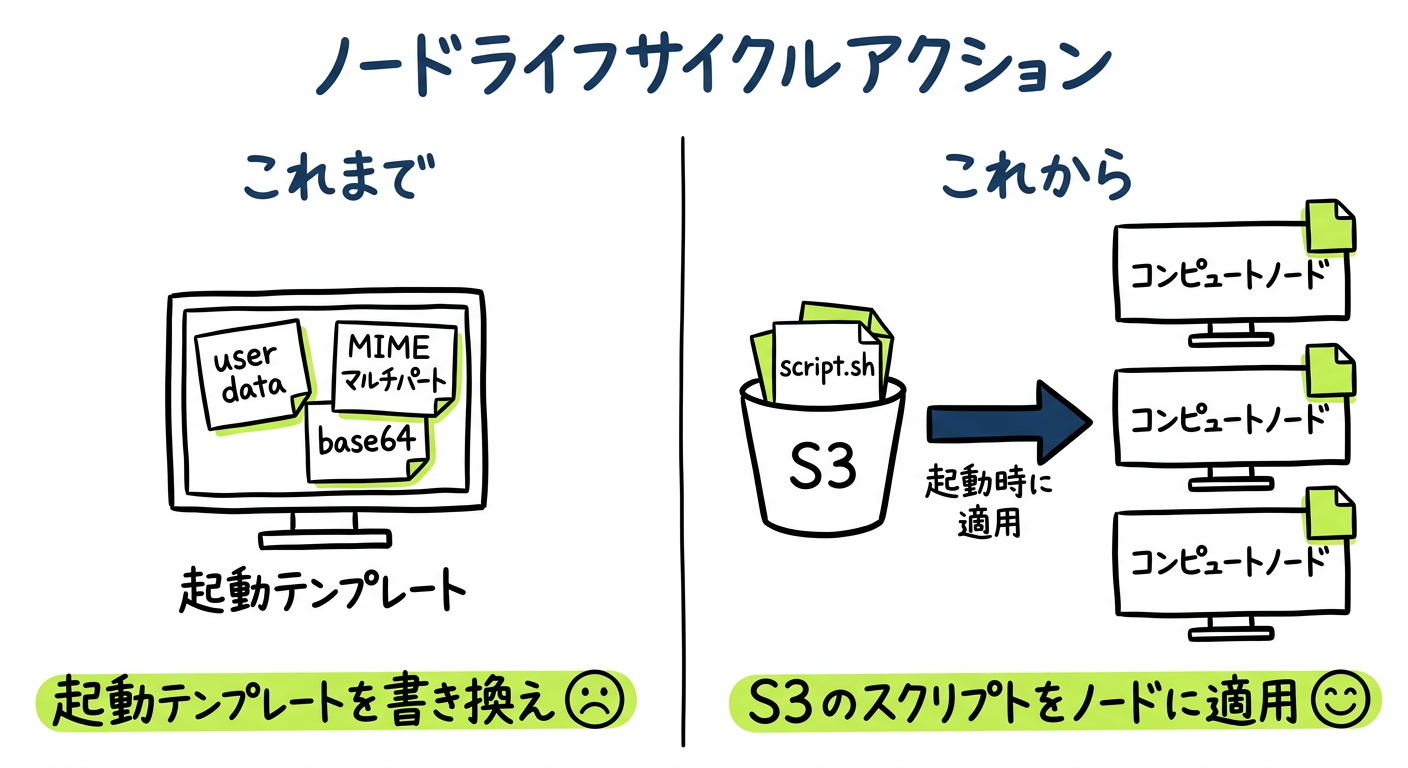
A feature equivalent to ParallelCluster bootstrap scripts
Lifecycle actions are the equivalent of AWS ParallelCluster's custom bootstrap actions (CustomActions). For ParallelCluster users from the v2 era, this corresponds to pre_install and post_install.
The official documentation includes the following correspondence table.
| AWS ParallelCluster | AWS PCS |
|---|---|
OnNodeStart |
nodeBootstrapped |
OnNodeConfigured |
nodeReady |
OnNodeUpdated |
No equivalent |
Most existing bootstrap scripts are said to work as-is. However, the default execution timing differs. ParallelCluster runs on every boot, but PCS runs only on the first boot. To match ParallelCluster behavior, specify EVERY_BOOT in executionPolicy.
No need to touch the launch template
User data is merged with the PCS-side user data. Therefore, it must be written in MIME multipart format. If passing it via CLI or SDK, base64 encoding is also required.
Execution on reboot and error handling can be selected per script
With user data, you cannot specify per script whether to re-run on reboot or what to do on failure. With lifecycle actions, these two behaviors can be specified per script.
The official documentation also recommends lifecycle actions for most configuration tasks. User data should only be used for processing that must occur before the PCS agent starts.
For most node configuration tasks, we recommend node lifecycle actions. They provide reusable, API-native configuration with per-script error handling and reboot control. Use launch template user data for tasks that must run before the AWS PCS agent starts.
Source: https://docs.aws.amazon.com/pcs/latest/userguide/working-with_ec2-user-data.html
How lifecycle actions work
Lifecycle actions are configured per compute node group. Scripts run as root, and you choose from 2 stages to execute.
| Stage | Execution timing | Slurm commands |
|---|---|---|
nodeBootstrapped |
After PCS node configuration, before slurmd starts | Not available |
nodeReady |
After slurmd registers with the controller | Available |
Since nodeReady runs after slurmd starts, jobs can be assigned even before the script completes.
The main settings specified per script are the following two.
| Setting | Value | Behavior | Use case |
|---|---|---|---|
executionPolicy |
FIRST_BOOT_ONLY (default) |
Runs only on first boot | One-time configuration such as package installation |
EVERY_BOOT |
Runs on every reboot | Configuration to redo after reboot | |
onError |
TERMINATE (default) |
Treats the node as failed and terminates it | Required configuration such as shared storage mounts |
STOP_SEQUENCE |
Skips remaining scripts in the same stage and keeps the node | Script debugging | |
CONTINUE |
Records the failure and proceeds to the next script | Optional processing that can fail |
The documentation covers which option to choose in which situation, so check the latest information there.
Verification environment
We start with a cluster and a login compute node group already created. The instance role has s3:GetObject for the S3 bucket where the scripts are stored. Lifecycle actions require PCS agent 1.5.0-1 or later. The cluster creation steps themselves are omitted. Please refer to the following article for how to create a PCS cluster.
| Item | Value |
|---|---|
| Region | ap-northeast-1 |
| Slurm | 26.05.4 |
| PCS agent | 1.5.1-1 |
| AMI | PCS sample AMI (aws-pcs-sample_ami-al2023-x86_64-2026-10-14) |
| Instance type | c7i.large |
| AWS CLI | 2.37.3 |
Scripts used in verification
Three scripts were placed under scripts/ in an S3 bucket.
record-boot.sh uses the first argument as a label and appends a single line along with environment variable values. The destination is /var/lib/lca-boot-record.log. This file is used to count how many times it has been executed before and after a reboot.
#!/bin/bash
set -euo pipefail
LABEL="${1:-unknown}"
echo "$(date -u +%Y-%m-%dT%H:%M:%SZ) label=${LABEL} first_boot=${PCS_IS_FIRST_BOOT:-unset} node=${PCS_NODE_ID:-unset} cng=${PCS_COMPUTE_NODE_GROUP_NAME:-unset}" >> /var/lib/lca-boot-record.log
echo "recorded ${LABEL}"
ready-check.sh is used in nodeReady and outputs the slurmd status and the result of scontrol show node. The Slurm node name (lca-static-1) differs from the hostname (ip-10-0-1-82). Therefore, PCS_NODE_ID is used to specify the node.
#!/bin/bash
set -uo pipefail
echo "slurmd: $(systemctl is-active slurmd 2>/dev/null || echo unknown)"
SLURM_BIN=$(ls -d /opt/aws/pcs/scheduler/slurm-*/bin 2>/dev/null | sort | tail -1)
"${SLURM_BIN}/scontrol" show node "${PCS_NODE_ID:-$(hostname -s)}" 2>&1 | head -5 || true
fail.sh always fails with exit code 1. It is used to verify onError.
#!/bin/bash
echo "intentional failure for verification" >&2
exit 1
Creating a compute node group with lifecycle actions configured
Two instances of record-boot.sh with different arguments were registered in nodeBootstrapped. One uses FIRST_BOOT_ONLY and the other uses EVERY_BOOT. The ready-check in nodeReady omits executionPolicy, and onError is set to CONTINUE so the node is preserved even if it fails.
{
  "stages": {
    "nodeBootstrapped": [
      {
        "name": "record-first-boot",
        "scriptSource": { "scriptLocation": "s3://<bucket name>/scripts/record-boot.sh" },
        "arguments": ["bootstrapped-first-boot-only"],
        "executionPolicy": "FIRST_BOOT_ONLY"
      },
      {
        "name": "record-every-boot",
        "scriptSource": { "scriptLocation": "s3://<bucket name>/scripts/record-boot.sh" },
        "arguments": ["bootstrapped-every-boot"],
        "executionPolicy": "EVERY_BOOT"
      }
    ],
    "nodeReady": [
      {
        "name": "ready-check",
        "scriptSource": { "scriptLocation": "s3://<bucket name>/scripts/ready-check.sh" },
        "onError": "CONTINUE"
      }
    ]
  }
}
This JSON is passed to --node-lifecycle-actions using file://.
aws pcs create-compute-node-group --region ap-northeast-1 \
  --cluster-identifier <cluster ID> \
  --compute-node-group-name lca-static \
  --subnet-ids <subnet ID> \
  --custom-launch-template id=<launch template ID>,version=1 \
  --iam-instance-profile-arn <instance profile ARN> \
  --ami-id <sample AMI ID> \
  --scaling-configuration minInstanceCount=1,maxInstanceCount=1 \
  --instance-configs instanceType=c7i.large \
  --node-lifecycle-actions file://<path to JSON file>
It became ACTIVE in about 3 minutes, so we created queue lca-queue and associated it.
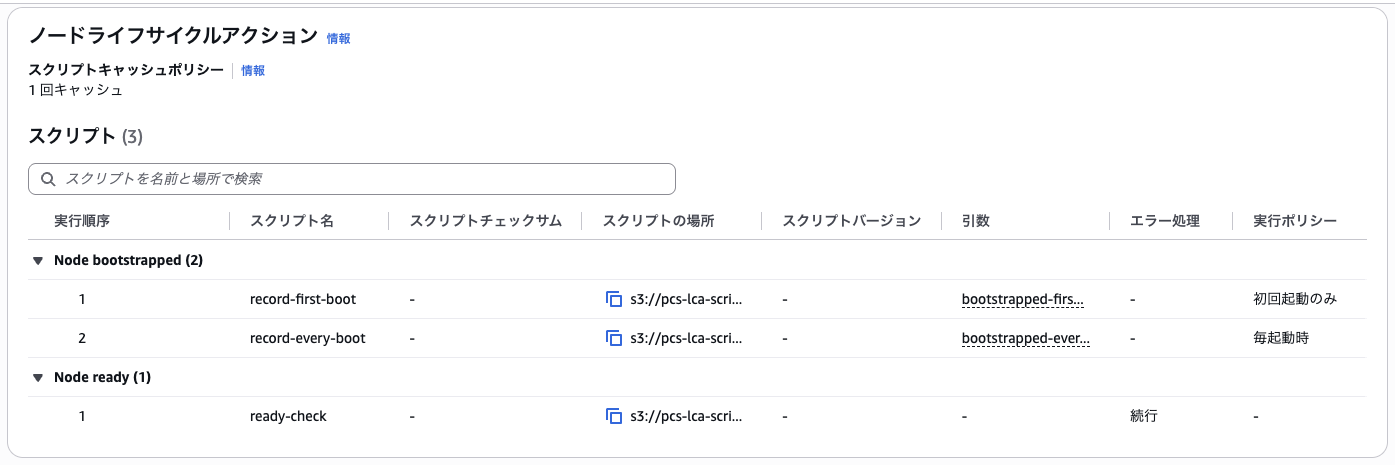
In the console, the registered scripts are displayed per stage. The omitted error handling and execution policy showed as "-".
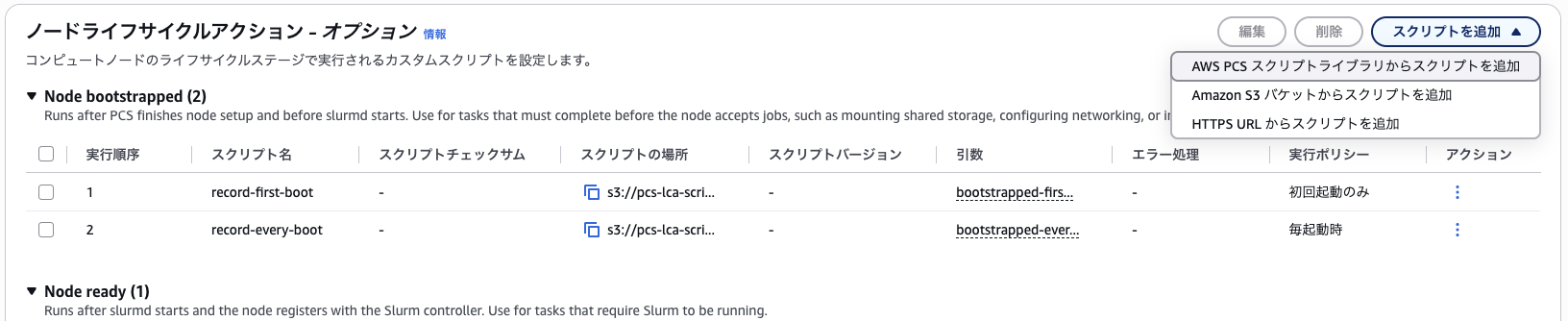
From the "Add script" button in the console, you can choose from script library, S3, or HTTPS URL to add scripts.
Logs from the first boot are saved in per-stage directories
After the node became idle, we checked the logs on the node using Systems Manager Run Command. Log files named after the scripts were created inside directories named after the stages.
/var/log/amazon/pcs/lifecycle/actions/:
-rw-r--r-- 1 root root 4334 2026-10-21 00:48:00.140915114 +0000 executor.log
drwxr-x--- 2 root root   64 2026-10-21 00:47:39.549764603 +0000 nodeBootstrapped
drwxr-x--- 2 root root   29 2026-10-21 00:48:00.070915040 +0000 nodeReady

/var/log/amazon/pcs/lifecycle/actions/nodeBootstrapped/:
-rw-r----- 1 root root 149 2026-10-21 00:47:39.551852990 +0000 record-every-boot.log
-rw-r----- 1 root root 159 2026-10-21 00:47:39.549764603 +0000 record-first-boot.log

/var/log/amazon/pcs/lifecycle/actions/nodeReady/:
-rw-r----- 1 root root 122 2026-10-21 00:48:00.140915114 +0000 ready-check.log
On reboot, only the EVERY_BOOT script was re-run from cache
We rebooted using scontrol reboot without replacing the instance.
Since it was executed from the login node via Run Command, Slurm commands are specified with full paths.
#!/bin/bash
/opt/aws/pcs/scheduler/slurm-26.05/bin/scontrol reboot ASAP nextstate=RESUME lca-static-1
About 45 seconds after execution, the EVERY_BOOT script was re-run. The instance ID had not changed. Only one line of bootstrapped-every-boot was added to lca-boot-record.log, and first_boot was 0.
 2026-10-21T00:47:39Z label=bootstrapped-first-boot-only first_boot=1 node=lca-static-1 cng=lca-static
 2026-10-21T00:47:39Z label=bootstrapped-every-boot first_boot=1 node=lca-static-1 cng=lca-static
+2026-10-21T00:49:33Z label=bootstrapped-every-boot first_boot=0 node=lca-static-1 cng=lca-static
Two entries were appended to the script log. The Reusing cached script (CACHE_ONCE) in executor.log shows it used the cache rather than fetching from S3 again.
== /var/log/amazon/pcs/lifecycle/actions/nodeBootstrapped/record-every-boot.log
[start record-every-boot args=["bootstrapped-every-boot"] @ 1792543659]
recorded bootstrapped-every-boot
[end record-every-boot exit=0 @ 1792543659]
[start record-every-boot args=["bootstrapped-every-boot"] @ 1792543773]
recorded bootstrapped-every-boot
[end record-every-boot exit=0 @ 1792543773]
== executor.log (after 00:48:30)
{"timestamp":"2026-10-21T00:49:33.129571Z","level":"INFO","message":"Reusing cached script (CACHE_ONCE)","script":"record-every-boot","stage":"nodeBootstrapped",...}
{"timestamp":"2026-10-21T00:49:33.148413Z","level":"INFO","message":"script completed","stage":"nodeBootstrapped","script":"record-every-boot",...}
The timestamps in the script log are in UNIX seconds, and the second run's 1792543773 matches the timestamp in the executor.log entry. The cache was stored under /etc/amazon/pcs/lifecycle/actions/config/scripts/.
The ready-check with executionPolicy omitted was not re-run, and its log's modification time remained from before the reboot.
/var/log/amazon/pcs/lifecycle/actions/nodeReady/:
-rw-r----- 1 root root 122 2026-10-21 00:48:00.140915114 +0000 ready-check.log
When omitted, it is treated as FIRST_BOOT_ONLY, so scripts that need to run on every reboot must explicitly specify EVERY_BOOT.
A node with onError set to STOP_SEQUENCE joined Slurm and could run jobs
We configured fail.sh, which always fails, at the beginning of nodeBootstrapped with STOP_SEQUENCE. A subsequent record-boot.sh was also configured.
{
  "stages": {
    "nodeBootstrapped": [
      {
        "name": "fail-stop-sequence",
        "scriptSource": { "scriptLocation": "s3://<bucket name>/scripts/fail.sh" },
        "onError": "STOP_SEQUENCE"
      },
      {
        "name": "record-after-fail",
        "scriptSource": { "scriptLocation": "s3://<bucket name>/scripts/record-boot.sh" },
        "arguments": ["after-fail"]
      }
    ],
    "nodeReady": [
      {
        "name": "ready-check",
        "scriptSource": { "scriptLocation": "s3://<bucket name>/scripts/ready-check.sh" },
        "onError": "CONTINUE"
      }
    ]
  }
}
The update command is as follows.
aws pcs update-compute-node-group --region ap-northeast-1 \
  --cluster-identifier <cluster ID> \
  --compute-node-group-identifier lca-static \
  --node-lifecycle-actions file://<path to JSON file>
The existing node was drained, and about 7 minutes after the update, the new instance became idle. On the new instance, fail-stop-sequence.log ended with exit=1. The lca-boot-record.log that the subsequent script would write was not created. The ready-check in nodeReady was executed, and slurmd was active.
 ls: cannot access '/var/lib/lca-boot-record.log': No such file or directory
 /var/log/amazon/pcs/lifecycle/actions/nodeBootstrapped/:
 -rw-r----- 1 root root 130 2026-10-21 00:57:27.862315978 +0000 fail-stop-sequence.log
 /var/log/amazon/pcs/lifecycle/actions/nodeReady/:
 -rw-r----- 1 root root 269 2026-10-21 00:57:54.192609490 +0000 ready-check.log
 == fail-stop-sequence.log
 [start fail-stop-sequence args=[] @ 1792544247]
 intentional failure for verification
+[end fail-stop-sequence exit=1 @ 1792544247]
 == ready-check.log
 [start ready-check args=[] @ 1792544274]
+slurmd: active
 NodeName=lca-static-1 Arch=x86_64 CoresPerSocket=1
 [end ready-check exit=0 @ 1792544274]
 == executor.log
 {"timestamp":"2026-10-21T00:57:27.868622Z","level":"ERROR","message":"lifecycle script failed; stopping remaining scripts","stage":"nodeBootstrapped","script":"fail-stop-sequence","on_error":"StopSequence","error":"script 'fail-stop-sequence' failed with exit status ExitStatus(unix_wait_status(256))",...}
 == bootstrap.log
 [2026-10-21T00:57:27.869+00:00] - /opt/aws/pcs/bin/pcs_bootstrap_finalize.sh: WARN: Lifecycle execute completed with exit 3 for stage nodeBootstrapped
Only the subsequent scripts within the same stage were skipped; the scripts in the next stage nodeReady were executed.
We also verified whether jobs could run on this node where a script had failed. Running srun -p lca-queue hostname from the login node completed with exit code 0. The scontrol show node status was also IDLE+CLOUD, meaning the node was ready to accept jobs.
State=IDLE+CLOUD ThreadsPerCore=1 TmpDisk=0 Weight=1 Owner=N/A MCS_label=N/A
ip-10-0-1-118.ap-northeast-1.compute.internal
srun exit=0
In the PCS scaling log as well, this node was recorded as a success. The scaling log is a feature that delivers node state transitions to CloudWatch Logs and other destinations.
Extracting the main items, what was recorded was BOOTSTRAP_SUCCESS, with no failure events.
00:55:45 lca-static-1 LAUNCHED MAINTAIN_MIN_CAPACITY i-046cb3897e5a0a6a3
00:57:03 lca-static-1 REGISTERED REGISTER_SUCCESS i-046cb3897e5a0a6a3
00:57:52 lca-static-1 ACTIVE BOOTSTRAP_SUCCESS i-046cb3897e5a0a6a3
No failures appeared in the scaling log, the Slurm node state, or the compute node group state. Failures were recorded only in the node-local files fail-stop-sequence.log, executor.log, and bootstrap.log. STOP_SEQUENCE can be used when you want to keep the node and investigate it. The documentation also states that its intended use is for debugging, which matched our findings.
Trying onError set to TERMINATE
We updated the JSON from the previous section by changing onError to TERMINATE and renaming the script to fail-terminate. In the scaling log, two consecutive replacement instances terminated with BOOTSTRAP_FAILED. We reverted to a configuration without the failing script while the third instance was starting, so the third instance was replaced by that update.
| Instance | Started | Registered | Terminated |
|---|---|---|---|
| 1st | 01:04:45 | 01:06:03 | 01:06:42 BOOTSTRAP_FAILED |
| 2nd | 01:09:44 | 01:11:17 | 01:12:42 BOOTSTRAP_FAILED |
| 3rd | 01:15:45 | None | 01:18:26 REPLACEMENT_REQUESTED |
During this period, the node never reached plain idle (the state for accepting jobs). In sinfo, it cycled through idle# (starting), idle% (powering down), and idle~ (powered off), with the failed instance ID displayed in the Reason field.
01:04:45 SINFO=lca-static-1 lca-queue idle# none
01:06:50 SINFO=lca-static-1 lca-queue idle# none
01:07:08 SINFO=lca-static-1 lca-queue idle% Backing Instance Failed To Bootstrap: i-059b4b99b4f2e9739 : Not responding
01:08:19 SINFO=lca-static-1 lca-queue idle~ Backing Instance Failed To Bootstrap: i-059b4b99b4f2e9739 : Not responding
01:09:12 SINFO=lca-static-1 lca-queue idle# none
01:13:04 SINFO=lca-static-1 lca-queue idle% Backing Instance Failed To Bootstrap: i-06644f6e5a2b001c9
01:14:15 SINFO=lca-static-1 lca-queue idle~ Backing Instance Failed To Bootstrap: i-06644f6e5a2b001c9
01:15:08 SINFO=lca-static-1 lca-queue idle# none
One cycle took about 5–6 minutes. TERMINATE is the default value for onError, and replacements continued until the configuration was reverted. Logs on the node are also lost along with the instance.
TERMINATE is suited for configurations where failure renders the node unusable, such as shared storage mounts. Unlike STOP_SEQUENCE in the previous section, a failed node does not enter a state where it can accept jobs. However, if the script keeps failing, replacements will not stop, so it's better to test with STOP_SEQUENCE during trial and error when developing scripts. The official documentation also mentions temporarily switching to STOP_SEQUENCE during debugging and forwarding logs to CloudWatch Logs.
About 7 minutes after reverting the configuration, the node returned to idle.
Summary
Node lifecycle actions now allow you to run scripts stored in S3 and other locations during compute node startup. There's no need to write user data in MIME multipart format, and re-execution on reboot and behavior on failure can be selected per script. Bootstrap scripts from ParallelCluster can also be brought over. The official documentation recommends lifecycle actions for most configuration tasks.
Closing
For ParallelCluster users like myself, this is a very welcome approach that we're already familiar with.
