
I tried automating the deployment of ACM exportable certificates with AWS Workload Credentials Provider

This page has been translated by machine translation. View original
Introduction
On June 11, 2026, AWS Workload Credentials Provider (hereafter abbreviated as "WCP") was announced.
ACM exportable public certificates have a validity period of 198 days, and ACM automatically renews them 45 days before expiration. However, deploying the renewed certificate to the server was the user's responsibility. Considering that the CA/B Forum's certificate validity period reduction mandate will increase renewal frequency, the burden of manual operations grows significantly.
WCP's Certificate Management feature provides a mechanism to address this challenge.
| Item | Before | After WCP |
|---|---|---|
| Certificate export | Manual or EventBridge + Lambda | Automated by WCP |
| File placement | Custom script | Written by WCP |
| Server reload | Custom script | Automated via refresh_command |
| Renewal check | Custom design with EventBridge / cron etc. | Automatic check every 24 hours |
| Idempotency | Custom implementation | Skip if no difference |
In this article, we configure WCP for Apache (httpd) and Nginx on EC2 and verify that automatic certificate placement and server reload work correctly.
Official documentation:
Verification Environment
| Item | Value |
|---|---|
| Region | ap-northeast-1 |
| EC2 instance | t3a.small / AL2023 |
| Web server | httpd (Apache 2.4) on :443 / Nginx on :8443 |
| WCP | v3.0.0 |
| Domain | wcp-demo.example.com |
IAM configuration:
- IAM user
wcp-demo-user:sts:AssumeRoleonly (Access Key authentication assuming on-premises) - IAM role
wcp-demo-role:acm:ExportCertificate,acm:DescribeCertificate(limited to certificate ARN. DescribeCertificate was also granted in this verification)
The environment credentials are given only the AssumeRole permission, and ACM operation permissions are separated on the role side.
Prerequisite: Exportable ACM Certificate
Issuing an exportable ACM public certificate is a prerequisite. The main difference in the issuance operation is enabling "exportable" at the time of request. Note that exportable certificates cost 7 USD for FQDN certificates and 79 USD for wildcard certificates at the time of issuance and renewal (as of June 2026).
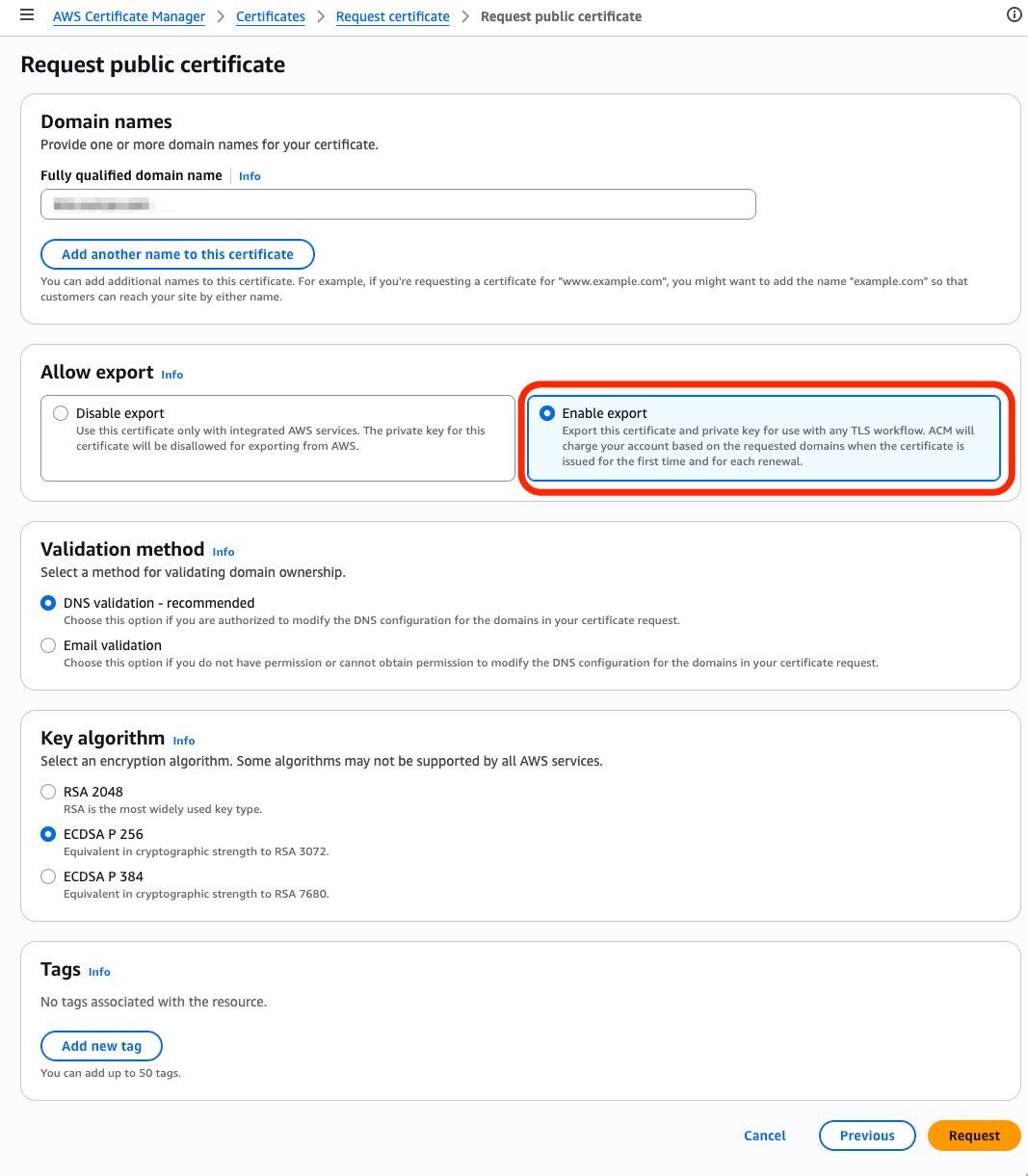
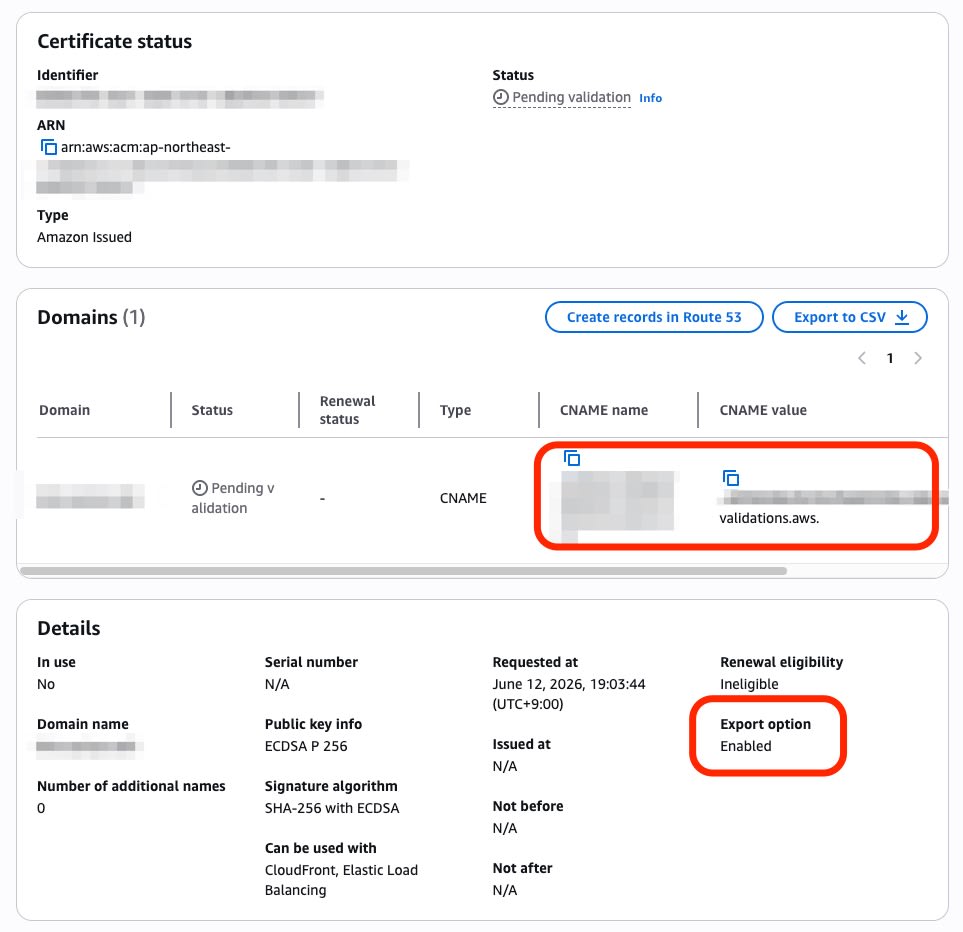
For details on the issuance procedure, please refer to the following articles.
CLI issuance example (same EC-prime256v1 as this verification):
aws acm request-certificate \
  --domain-name wcp-demo.example.com \
  --validation-method DNS \
  --key-algorithm EC_prime256v1 \
  --options ExportOption=ENABLED \
  --region ap-northeast-1
Before: Manual Export + Deployment
Here are the steps before introducing WCP.
# Package installation
sudo dnf install -y httpd mod_ssl nginx jq

# Certificate export (--passphrase is blob type, so specify Base64-encoded value)
# temppass is for verification. Use a sufficiently strong passphrase in production
aws acm export-certificate \
  --certificate-arn arn:aws:acm:ap-northeast-1:123456789012:certificate/xxxxxxxx-xxxx-xxxx-xxxx-xxxxxxxxxxxx \
  --passphrase $(echo -n 'temppass' | base64) \
  --region ap-northeast-1 \
  --output json > cert-export.json

# Extract each file from JSON
jq -r '.Certificate' cert-export.json > certificate.pem
jq -r '.CertificateChain' cert-export.json > chain.pem
jq -r '.PrivateKey' cert-export.json > encrypted_key.pem

# Remove passphrase from private key
openssl pkey -in encrypted_key.pem -out private.key -passin pass:temppass

# Create and place fullchain
cat certificate.pem chain.pem > fullchain.pem
sudo mkdir -p /etc/ssl/acm
sudo cp fullchain.pem /etc/ssl/acm/
sudo cp private.key /etc/ssl/acm/
sudo chmod 600 /etc/ssl/acm/private.key

# httpd SSL configuration
sudo sed -i 's|^SSLCertificateFile.*|SSLCertificateFile /etc/ssl/acm/fullchain.pem|' /etc/httpd/conf.d/ssl.conf
sudo sed -i 's|^SSLCertificateKeyFile.*|SSLCertificateKeyFile /etc/ssl/acm/private.key|' /etc/httpd/conf.d/ssl.conf
sudo systemctl start httpd && sudo systemctl enable httpd

# Change Nginx default port (to avoid conflict with httpd's port 80)
sudo sed -i 's/listen       80;/listen       8080;/' /etc/nginx/nginx.conf
sudo sed -i 's/listen       \[::]:80;/listen       [::]:8080;/' /etc/nginx/nginx.conf

# Nginx SSL configuration (port 8443, coexisting with httpd)
sudo tee /etc/nginx/conf.d/ssl.conf > /dev/null << 'EOF'
server {
    listen 8443 ssl;
    server_name wcp-demo.example.com;

    ssl_certificate /etc/ssl/acm/fullchain.pem;
    ssl_certificate_key /etc/ssl/acm/private.key;

    location / {
        root /usr/share/nginx/html;
        index index.html;
    }
}
EOF
sudo systemctl start nginx && sudo systemctl enable nginx

# Connectivity check
curl -sk https://localhost        # httpd (443)
curl -sk https://localhost:8443   # Nginx (8443)

# Delete temporary files (as they contain sensitive information)
rm -f cert-export.json certificate.pem chain.pem fullchain.pem encrypted_key.pem private.key
Repeating this procedure every few months becomes an increasing burden as the number of targets grows.
After: Automation with WCP
From here, execute as the root user on EC2.
Creating IAM User and Role
Create an IAM user for WCP environment credentials and an IAM role with ACM export permissions.
# Create user
aws iam create-user --user-name wcp-demo-user

# Create role (AssumeRole possible from user)
aws iam create-role \
  --role-name wcp-demo-role \
  --assume-role-policy-document '{
    "Version":"2012-10-17",
    "Statement":[{
      "Effect":"Allow",
      "Principal":{"AWS":"arn:aws:iam::123456789012:user/wcp-demo-user"},
      "Action":"sts:AssumeRole"
    }]
  }'

# Grant ACM export permissions to role
aws iam put-role-policy \
  --role-name wcp-demo-role \
  --policy-name acm-export-policy \
  --policy-document '{
    "Version":"2012-10-17",
    "Statement":[{
      "Effect":"Allow",
      "Action":["acm:ExportCertificate","acm:DescribeCertificate"],
      "Resource":"arn:aws:acm:ap-northeast-1:123456789012:certificate/xxxxxxxx-xxxx-xxxx-xxxx-xxxxxxxxxxxx"
    }]
  }'

# Grant AssumeRole permissions to user
aws iam put-user-policy \
  --user-name wcp-demo-user \
  --policy-name assume-role-policy \
  --policy-document '{
    "Version":"2012-10-17",
    "Statement":[{
      "Effect":"Allow",
      "Action":"sts:AssumeRole",
      "Resource":"arn:aws:iam::123456789012:role/wcp-demo-role"
    }]
  }'

# Issue Access Key (handle with care as the output contains SecretAccessKey)
aws iam create-access-key --user-name wcp-demo-user
acm:GetCertificate was not granted in this configuration and it worked correctly. acm:DescribeCertificate is not listed in the README's Required permissions, but it was granted during this verification.
Building WCP
# Add swap
dd if=/dev/zero of=/swapfile bs=1M count=2048
chmod 600 /swapfile && mkswap /swapfile && swapon /swapfile

# Install development tools and Rust
dnf -y groupinstall "Development Tools"
dnf -y install git
curl --proto '=https' --tlsv1.2 -sSf https://sh.rustup.rs | sh -s -- -y
export PATH=/root/.cargo/bin:$PATH

# Fetch source and build
git clone --branch v3.0.0 https://github.com/aws/aws-workload-credentials-provider.git /opt/aws-wcp
cd /opt/aws-wcp
cargo build --release
The build takes approximately 10 minutes, and the generated binary is 27 MB.
Since WCP is written in Rust, building from source requires a certain amount of memory. On t3a.micro (2 vCPU / 1 GiB), cargo build failed due to insufficient memory. This time, a 2 GB swap was added to a t3a.small (2 vCPU / 2 GiB). It is recommended not to bring build toolchains into the execution environment, but instead copy a binary built in a separate environment.
Placing the Binary and Creating a Dedicated User
# Place binary
mkdir -p /opt/aws/workload-credentials-provider/bin
cp /opt/aws-wcp/target/release/aws-workload-credentials-provider \
  /opt/aws/workload-credentials-provider/bin/
chmod +x /opt/aws/workload-credentials-provider/bin/aws-workload-credentials-provider
mkdir -p /opt/aws/workload-credentials-provider/logs

# Create dedicated user and group
useradd -r -s /sbin/nologin aws-wcp
groupadd -f awscreds
usermod -a -G awscreds aws-wcp

# Directory ownership
chown root:root /opt/aws/workload-credentials-provider
chmod 0755 /opt/aws/workload-credentials-provider
chown -R root:root /opt/aws/workload-credentials-provider/bin
chmod 0755 /opt/aws/workload-credentials-provider/bin/aws-workload-credentials-provider
chown -R aws-wcp:aws-wcp /opt/aws/workload-credentials-provider/logs
chmod 0750 /opt/aws/workload-credentials-provider/logs

# Certificate destination directory
mkdir -p /etc/ssl/acm
chown -R aws-wcp:aws-wcp /etc/ssl/acm
WCP runs as a dedicated system user aws-wcp (no login shell).
Creating config.toml
Place it at the default path /etc/aws-workload-credentials-provider/config.toml.
[logging]
log_level = "DEBUG"
log_to_file = true

[capabilities.secrets_manager]
enabled = false

[capabilities.acm]
enabled = true

[[capabilities.acm.certificates]]
certificate_arn = "arn:aws:acm:ap-northeast-1:123456789012:certificate/xxxxxxxx-xxxx-xxxx-xxxx-xxxxxxxxxxxx"
certificate_path = "/etc/ssl/acm/fullchain.pem"
private_key_path = "/etc/ssl/acm/private.key"
role_arn = "arn:aws:iam::123456789012:role/wcp-demo-role"
refresh_command = "/usr/local/bin/reload-webservers.sh"
certificate_and_chain_permission = { mode = "0644" }
key_permission = { mode = "0600" }
mkdir -p /etc/aws-workload-credentials-provider
# (Save the above content as config.toml)
chown root:awscreds /etc/aws-workload-credentials-provider/config.toml
chmod 0640 /etc/aws-workload-credentials-provider/config.toml
Main configuration items:
| Item | Description |
|---|---|
certificate_arn |
ARN of the ACM certificate |
certificate_path |
Output destination for the certificate PEM (when chain_path is omitted, combined as fullchain) |
private_key_path |
Output destination for the private key |
chain_path |
Chain certificate (when omitted, combined as fullchain in certificate_path) |
role_arn |
IAM role used for certificate export |
refresh_command |
Command to execute after writing certificate files |
This time, chain_path is omitted and fullchain mode is used. Both httpd and Nginx reference the same fullchain.pem.
In this verification, log_level = "DEBUG" is set, but for production, change it to INFO or similar and also consider log rotation. The log output destination is /opt/aws/workload-credentials-provider/logs.
Reload Script
cat > /usr/local/bin/reload-webservers.sh << 'EOF'
#!/bin/bash
set -euo pipefail
/bin/systemctl reload httpd
/usr/sbin/nginx -s reload
EOF
chown root:root /usr/local/bin/reload-webservers.sh
chmod 755 /usr/local/bin/reload-webservers.sh
Since WCP executes as sudo -n <refresh_command>, sudo is not needed inside the script. The script should be root-owned and not writable by general users. Shell syntax (pipes, &&, redirects, etc.) is not interpreted, so if multiple commands are needed, specify a wrapper script.
Running setup-config-based-permissions
/opt/aws/workload-credentials-provider/bin/aws-workload-credentials-provider \
  setup-config-based-permissions \
  --config /etc/aws-workload-credentials-provider/config.toml
This command automatically generates the following.
sudoers (/etc/sudoers.d/aws-workload-credentials-provider):
aws-wcp ALL=(ALL) NOPASSWD: /usr/local/bin/reload-webservers.sh
systemd drop-in (/etc/systemd/system/aws-workload-credentials-provider-acm.service.d/cert-paths.conf):
[Service]
ReadWriteDirectories=/etc/ssl/acm /opt/aws/workload-credentials-provider/logs
Since setup-config-based-permissions generates sudoers and the systemd drop-in from the contents of config.toml, it helps reduce configuration drift at the time of generation. Re-execution is required if config.toml is changed.
Note that setup-config-based-permissions is not explicitly described as a standalone step in the v3.0.0 README. In this case, its behavior was confirmed via --help and actual machine verification, and it was used for the purpose of incorporating only the permission settings into the manual configuration. The official main path is the install script.
systemd Service and Startup
cat > /etc/systemd/system/aws-workload-credentials-provider-acm.service << 'EOF'
[Unit]
Description=AWS Workload Credentials Provider - ACM
After=network-online.target
Wants=network-online.target

[Service]
User=aws-wcp
WorkingDirectory=/opt/aws/workload-credentials-provider
Type=simple
Restart=on-failure
RestartSec=5s
TimeoutSec=1min
ExecStart=/opt/aws/workload-credentials-provider/bin/aws-workload-credentials-provider acm start

[Install]
WantedBy=multi-user.target
EOF

# Configure AWS credentials via drop-in
mkdir -p /etc/systemd/system/aws-workload-credentials-provider-acm.service.d
cat > /etc/systemd/system/aws-workload-credentials-provider-acm.service.d/creds.conf << 'EOF'
[Service]
Environment="AWS_ACCESS_KEY_ID=<ACCESS_KEY>"
Environment="AWS_SECRET_ACCESS_KEY=<SECRET_KEY>"
Environment="AWS_REGION=ap-northeast-1"
EOF
chown root:root /etc/systemd/system/aws-workload-credentials-provider-acm.service.d/creds.conf
chmod 0600 /etc/systemd/system/aws-workload-credentials-provider-acm.service.d/creds.conf

# Start
systemctl daemon-reload
systemctl enable --now aws-workload-credentials-provider-acm
Start without the --config option. WCP loads /etc/aws-workload-credentials-provider/config.toml by default.
Access Key authentication was used this time assuming on-premises, but for EC2, an instance profile, or for on-premises, IAM Roles Anywhere are also options.
Note that in this AL2023 environment, the hardening settings (NoNewPrivileges etc.) in the unit generated by the official install script caused sudo -n in refresh_command to fail. Therefore, the unit was created manually. Only the sudoers and ReadWriteDirectories settings were incorporated via setup-config-based-permissions.
Also, on a clean installation, httpd / Nginx cannot start if certificate files do not exist. On the other hand, executing refresh_command (reload) when the web server is not running will fail. In this case, since httpd / Nginx were already running from the Before procedure when WCP was introduced, no problems occurred. When building in a clean environment, consider either placing the certificate manually only the first time, or using a refresh_command that accounts for the server not running (such as reload-or-restart).
Verification
Log after startup (on success):
INFO  ACM Scheduler starting with 1 certificate(s)
INFO  Certificate task started for arn:aws:acm:...
INFO  Starting certificate refresh
INFO  Certificate files written
INFO  Running refresh command: first cycle after provider startup
INFO  Refresh command succeeded
INFO  Certificate refresh successful
WCP operated as follows:
- Obtained temporary credentials via STS AssumeRole
- Exported the certificate via ACM ExportCertificate
- Wrote the certificate files
- Executed
refresh_command(httpd reload + Nginx reload)
It was also confirmed that even during the first cycle after service restart, if there is no difference in the certificate, "Certificate files written" and "Running refresh command" are not output and the operation is skipped (idempotent behavior).
Verifying certificate contents:
# File written by WCP
openssl x509 -in /etc/ssl/acm/fullchain.pem -noout -subject -issuer -serial -dates

# Certificate being served by httpd / Nginx
openssl s_client -connect localhost:443 -servername wcp-demo.example.com </dev/null 2>/dev/null \
  | openssl x509 -noout -subject -issuer -serial -dates
openssl s_client -connect localhost:8443 -servername wcp-demo.example.com </dev/null 2>/dev/null \
  | openssl x509 -noout -subject -issuer -serial -dates
The subject / issuer / serial / dates of the leaf certificate in the file and the leaf certificate being served by the server matched, confirming that placement and reload by WCP are working. The private key is owned by aws-wcp with 0600 permissions, but since httpd / Nginx's root-privileged master process reads the private key, no permission issues occur at reload time.
Permission path for refresh_command:
WCP (User=aws-wcp)
  → sudo -n /usr/local/bin/reload-webservers.sh
  → NOPASSWD allowed by /etc/sudoers.d/aws-workload-credentials-provider
  → Execute reload script as root
  → httpd reload + nginx reload
Summary
Using the Certificate Management feature of AWS Workload Credentials Provider, we confirmed the initial retrieval, file placement, web server reload, and skip behavior when there is no difference for ACM exportable certificates.
Previously, certificate export, private key passphrase removal, file placement, and web server reload had to be implemented manually or with custom scripts. With WCP, by performing the necessary IAM, systemd, and sudoers configuration and defining the certificate ARN, output path, and refresh_command in config.toml, these processes can be automated.
Note that this verification did not cover replacement across ACM's actual renewal date. The arrangement for certificate replacement after renewal is based on WCP's periodic check specification of every 24 hours.
For configurations using ACM exportable certificates on web servers on EC2 or on-premises, WCP can be considered as an option to reduce deployment work during certificate renewal.
Reference Links