I tried semi-automating double-check work in a Claude project

This page has been translated by machine translation. View original
Hello! I'm Harada, a non-engineer.
Introduction
At our company, we sometimes create resource groups for employees as Azure environments for internal verification,
and after creation, we have a practice of double-checking settings such as "role assignments, tags, and scopes" to ensure there are no errors.
Every time, I would follow the double-check procedure and verify each item one by one through the GUI, which I found to be a subtle hassle.
So, I wondered if AI could make this double-checking process easier.
This article introduces "how I built it" and "how it worked in practice"!
Prerequisites
In the actual double-check, the following items are verified on the console screen.
- Whether the target subscription is correct
- Whether the resource group exists
- Whether the required roles are assigned with the correct scope
- Whether the billing tags match the department stated in the request
To semi-automate these checks, the following were used.
- Claude Project (a feature that allows setting custom instructions)
- Azure CLI (executed from PowerShell in Azure Cloud Shell)
No special tools were used — it was accomplished simply by "teaching Claude the pattern for checks."
How It Was Built: A 3-Step Prompt Design
The custom instructions were structured in 3 steps: "1. Information gathering → 2. CLI command generation → 3. Result judgment."
STEP 1: Information Gathering
The information needed for the double-check (user's email address, department, resource group name) is asked at the beginning.
Copy-paste or pasting a screenshot both work!
STEP 2: Generating CLI Commands for Verification
Claude is made to generate commands with the gathered information embedded, and the user runs them in Azure CLI.
The commands retrieve the actually configured roles and tags.
(Values are dummy data)
$userEmail = "user@example.com"
$department = "SampleDept"
$resourceGroupName = "sample-rg"

# Subscription check
az account show --query "{name:name, id:id}" -o json
$subscriptionId = az account show --query id -o tsv
$subScope = "/subscriptions/$subscriptionId"
$rgScope  = "$subScope/resourceGroups/$resourceGroupName"

# Resource group existence check
az group show --name $resourceGroupName --query "{name:name, location:location}" -o json

# Role check (including inherited)
az role assignment list --scope $rgScope --include-inherited |
  ConvertFrom-Json |
  Where-Object { $_.principalName -like "*$userEmail*" } |
  Select-Object roleDefinitionName, scope, principalName | Format-List

# Tag check
az group show --name $resourceGroupName --query tags -o json
STEP 3: Result Judgment
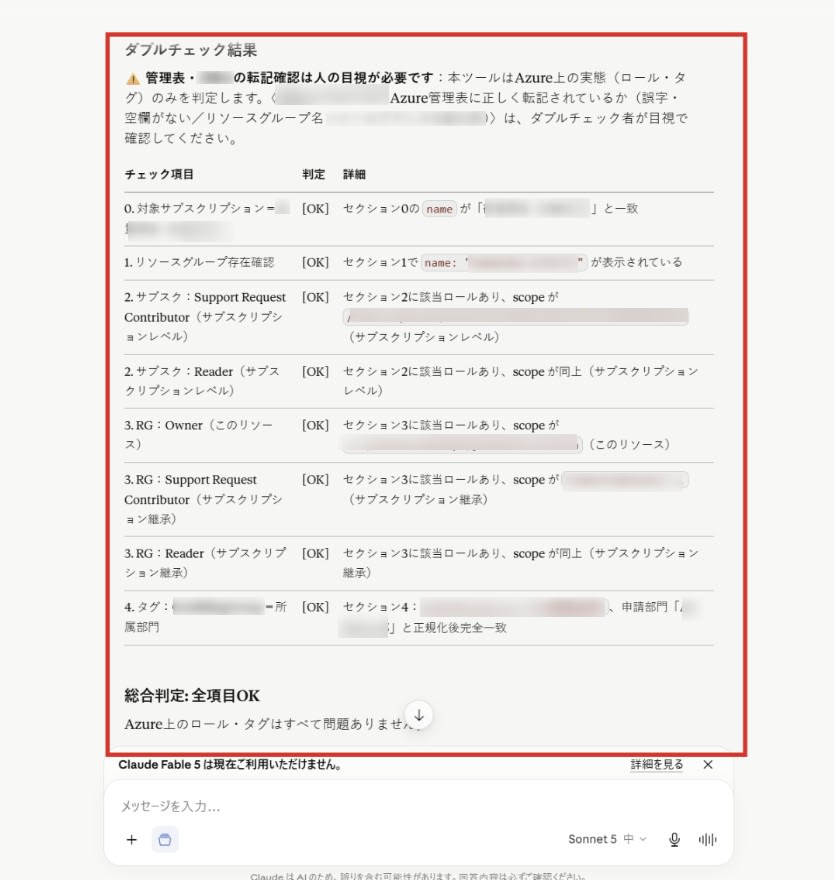
Based on the pasted execution results, each item is judged as OK/NG.
The judgment format is fixed, and the system is made to always show the basis for each judgment.
Also, to make it operable even for non-engineers or those unfamiliar with Azure CLI, the workflow involves pasting the full execution results as-is,
making it a non-engineer-friendly design.
Points of Ingenuity and Pitfalls
1. Do Not Automatically Mark Tag Notation Variations as "OK"
The department name in the request and the tag value can vary in notation due to full-width/half-width characters, upper/lower case, leading/trailing spaces, etc.
After normalizing and comparing, anything that is only a partial match is not automatically marked OK — it is flagged as "Needs Review" for a human to visually re-check.
2. Separating "What Machines Can Do" from "What Humans Should Do"
The actual state on Azure (roles, tags) can be judged by tools, but whether the request content has been correctly transcribed into the internal management sheet (using Google Sheets) requires human visual inspection.
The judgment results are designed to include instructions such as "Please verify this part manually."
Effects After Using It
-
Before: Confirmation items were checked manually every time. There were many items and console operations, with a risk of overlooking scopes or tags. The task took approximately 15–20 minutes.
-
After: Simply running the commands and pasting the results produces output in the judgment format. Variation in checks was reduced, ambiguous cases are now explicitly flagged as "Needs Review," and the work has been simplified. Time required is now 5–10 minutes — about half of Before!
Summary
While it was not possible to fully automate all double-check tasks, I drew a clear line by handling parts where mix-ups would be critical through manual visual inspection, and successfully achieved semi-automation.
This time I tried AI-ifying a small-scale procedure as a starting point, but I felt it could be applied to a wide variety of tasks.