The story of a Blender connector being added to Claude: Tried it in Claude Desktop and also connected it with Claude Code

This page has been translated by machine translation. View original
Introduction
On April 28, 2026, Anthropic announced 9 Claude connectors for creative tools (Claude for Creative Work). Alongside familiar names like Adobe and Affinity, Blender — the 3D creation software — was included. Many people were likely intrigued by the promise of analyzing scenes in natural language and applying Python scripts in bulk.
This article is a hands-on record of trying the Blender connector in both Claude Desktop and Claude Code. By the end of the article, the goal is for you to take away the following 4 points:
- What actually changed with this release
- How to get started with Claude Desktop
- Issues encountered when manually configuring MCP settings in Claude Code
- A hands-on impression of the features
What's New
The first thing to note is that the mechanism for controlling Blender from AI is not itself new. The unofficial project ahujasid/blender-mcp, developed independently by Siddharth, has been publicly available for more than half a year, and at the time of writing it had surpassed 20,900 GitHub stars as of April 2026. The README also explicitly states This is a third-party integration and not made by Blender., and it had already been usable from Claude Desktop.
With that in mind, here are the 3 things that changed with this release.
First, Blender Lab — part of the Blender Foundation — released an official Blender add-on and MCP server. Previously it was necessary to rely on community-made add-ons, but the provider has now switched to the organization that develops Blender itself.
Second, Anthropic became a patron of the Blender Development Fund. This makes it clear that this is an ongoing relationship rather than a one-off connector release.
Third, a pathway was established to add Blender in one click from the Claude Desktop connector directory. What previously required users to manually edit claude_desktop_config.json can now be done entirely through the GUI.
In other words, what's new is not the functionality itself, but rather the officialization and improved onboarding experience.
What Is Claude Desktop
Claude Desktop is a desktop application for Claude provided by Anthropic. It supports macOS and Windows, and allows you to interact with Claude models in a chat format.
What Is Claude Code
Claude Code is a terminal-based development assistant agent provided by Anthropic. It lets you proceed with development work in your local environment while delegating code editing and Bash command execution to Claude models.
What Is Blender
Blender is open-source 3D creation software. It is widely used as an all-in-one tool covering everything from modeling and animation to rendering and compositing.
Test Environment
- macOS (Darwin 25.4.0)
- Blender 5.1.1
- Blender Lab official MCP add-on v1.0.0
- Claude Desktop v1.5354.0
- Claude Code (Opus 4.7)
Target Audience
- Engineers who regularly use Claude Desktop or Claude Code
- Those who want to know how Claude connector updates can expand their development environment
- Those interested in the behavioral differences around MCP between Claude Desktop and Claude Code
References
- Claude for Creative Work
- MCP Server (Blender Lab)
- Using the Blender Connector in Claude
- Connect Claude Code to tools via MCP
- ahujasid/blender-mcp (unofficial community version)
- Anthropic releases 9 Claude connectors for creative tools (9to5Mac)
- Claude connectors added, now able to control Blender (npaka)
Trying It with Claude Desktop
First, let's get set up with Claude Desktop. For detailed steps, I'll defer to the official Anthropic tutorial and existing articles, and focus on the key points here.
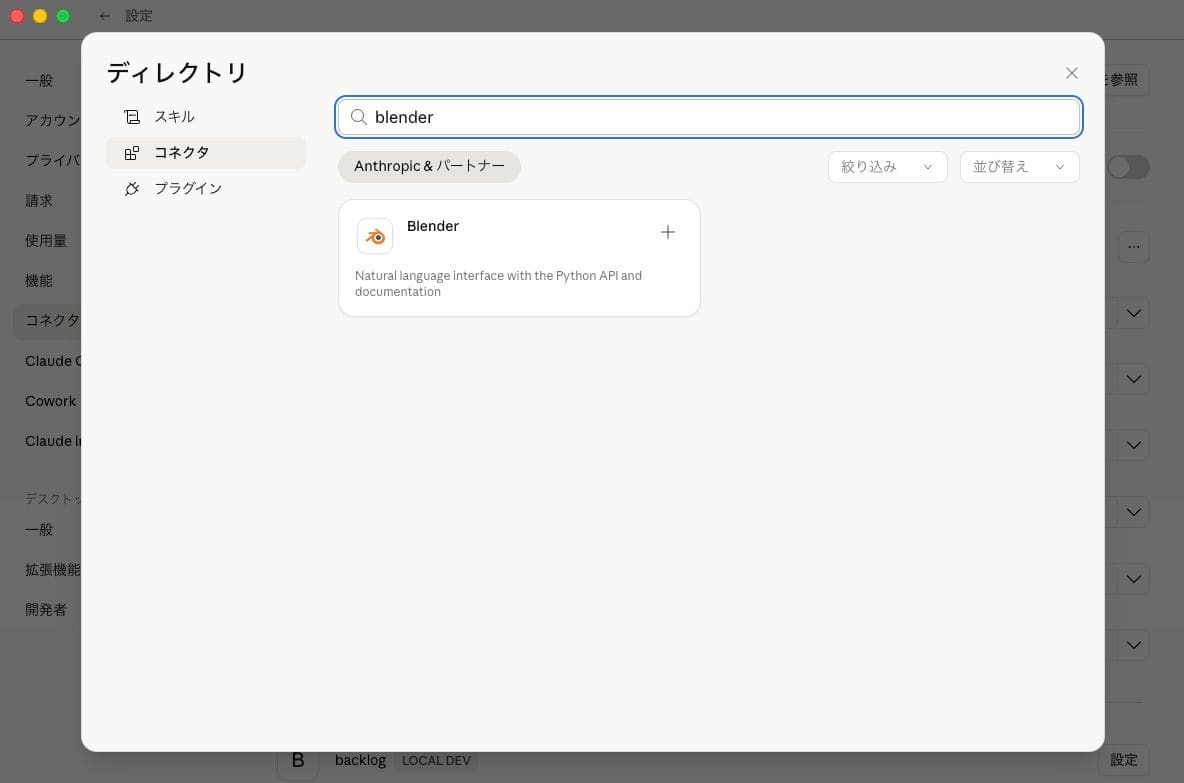
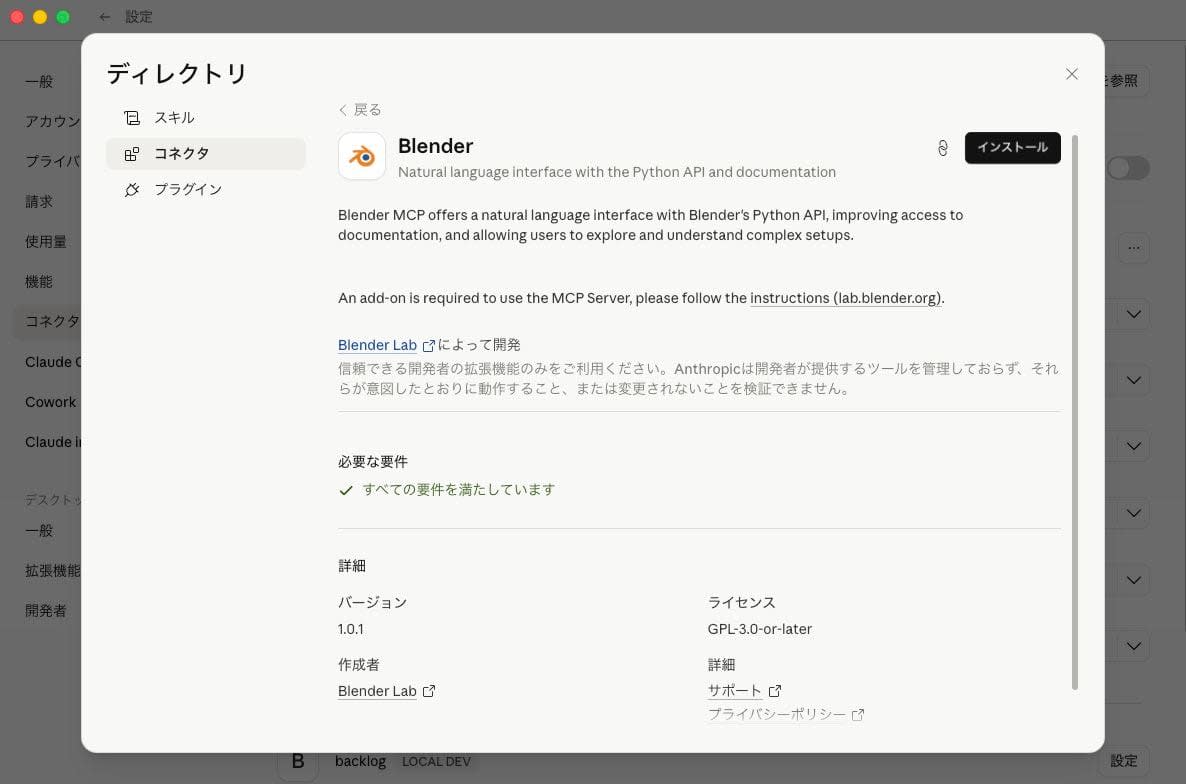
In Claude Desktop under Settings > Connectors, searching for "blender" shows the Blender connector under the Anthropic & Partners section. Simply pressing install on the details screen completes the setup on the Claude Desktop side.
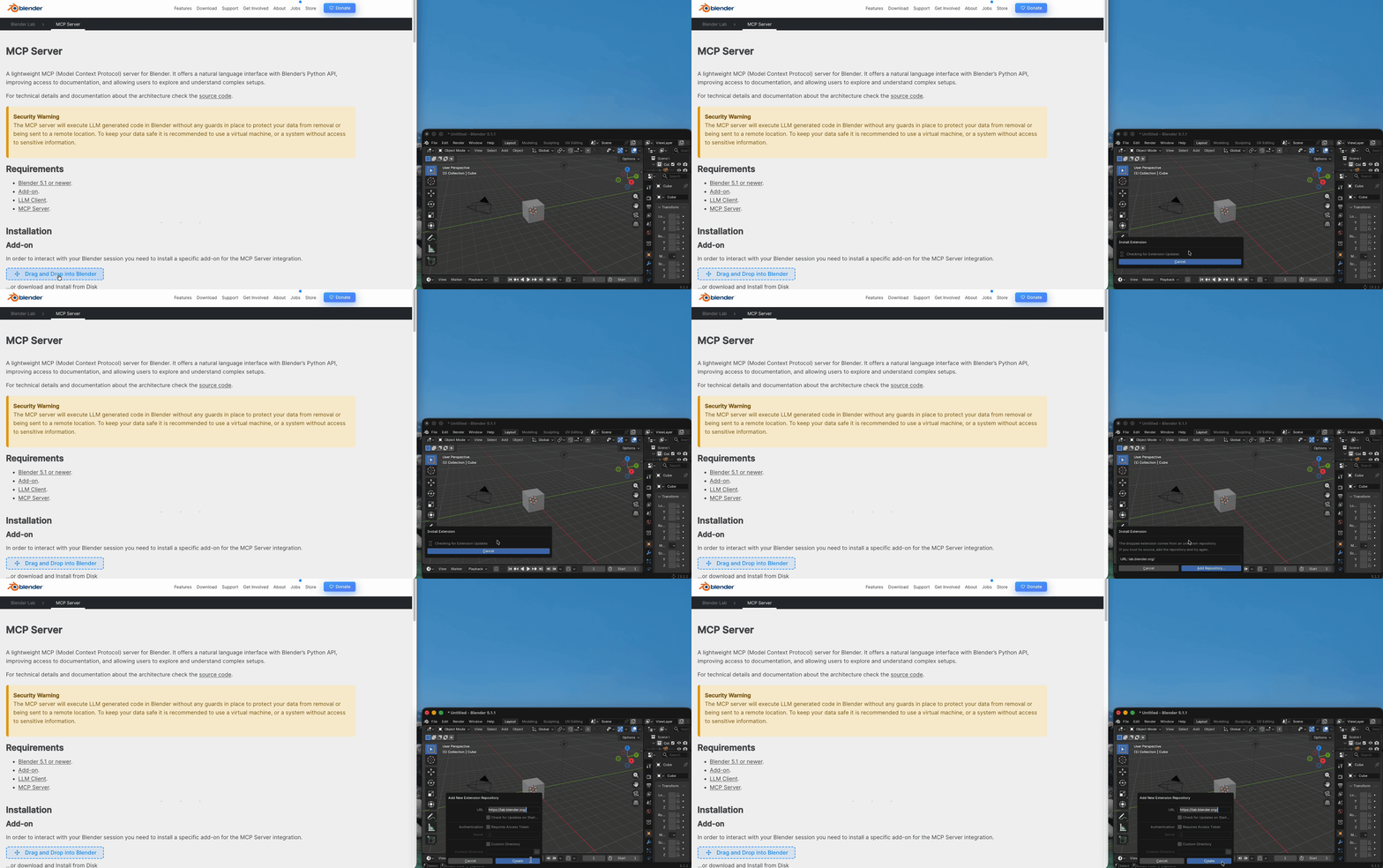
Next, the Blender side. Drag and drop the installation link found on the https://www.blender.org/lab/mcp-server/ page into the Blender window.
The first drag and drop adds the Blender Lab repository.
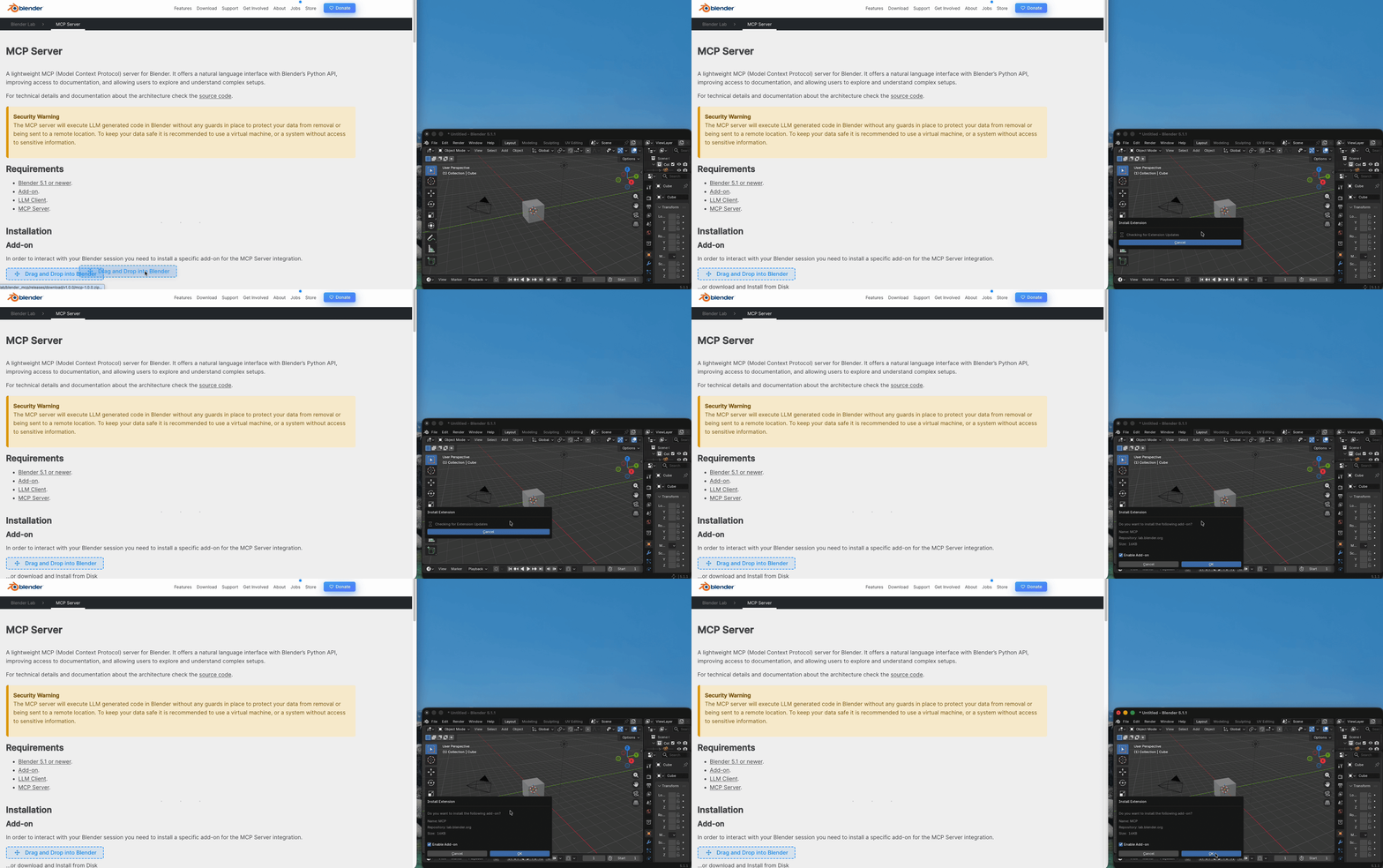
The second drag and drop installs the add-on itself.
Expanding Edit > Preferences > Add-ons > MCP shows Host set to localhost, Port set to 9876, Auto Start enabled, and a "Server is running" message.
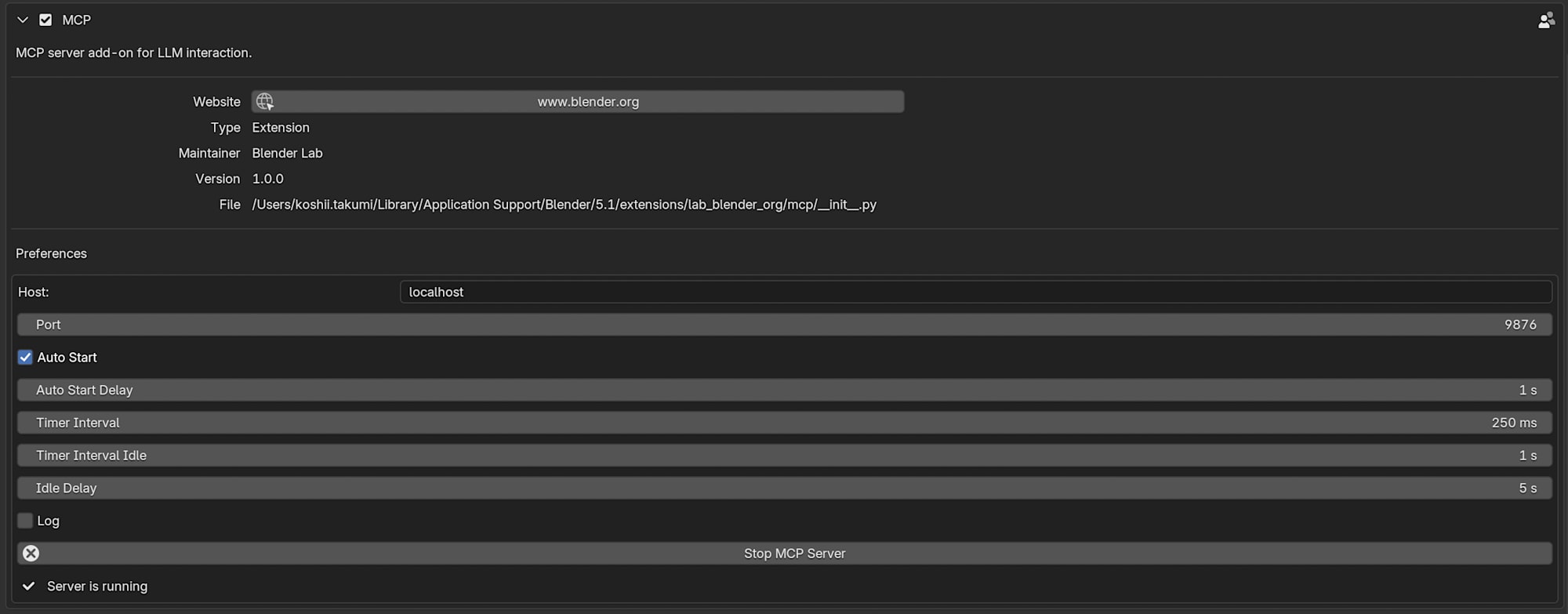
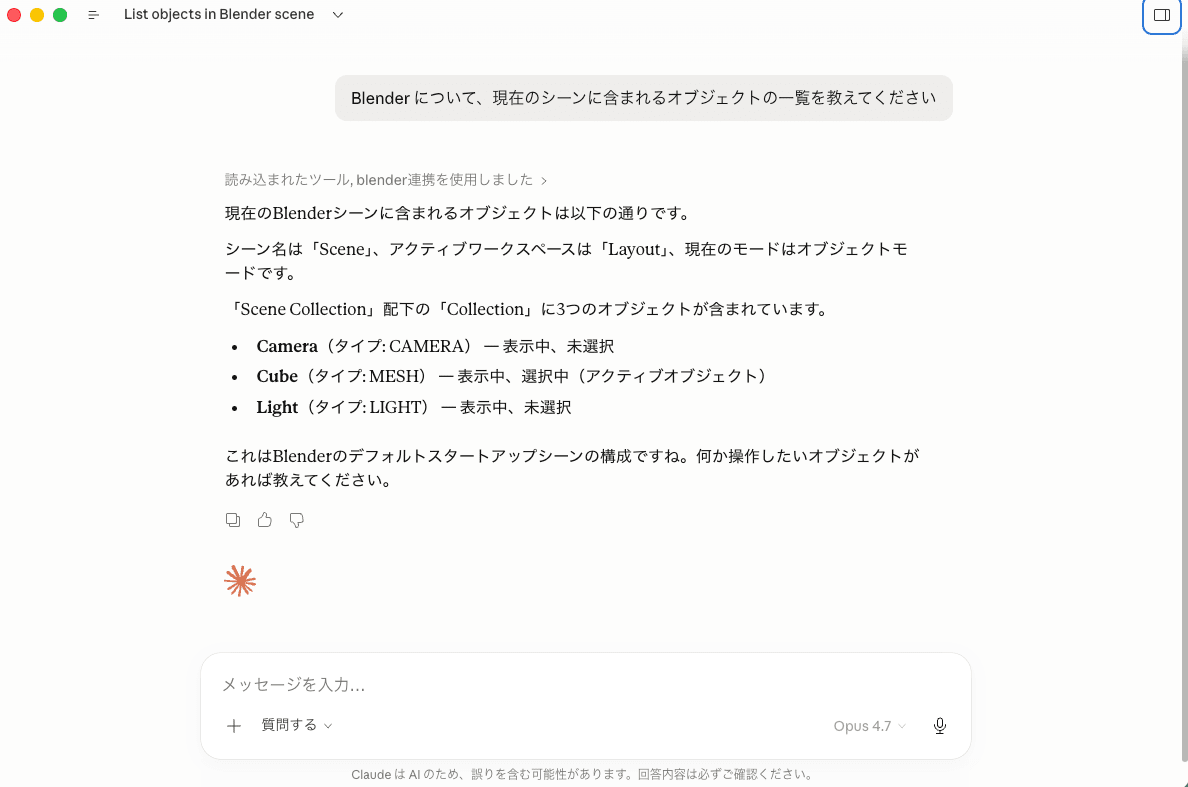
This completes the setup on both the Blender and Claude Desktop sides. Asking Please tell me the list of objects in the current scene regarding Blender from the Claude Desktop chat box returned a response showing the default scene composition of Camera, Cube, and Light. The connection is established.
Connecting from Claude Code
This is where the main focus of this article begins. Since Claude Code is a standard MCP client, it should in principle be able to connect to the same Blender. However, there is no GUI connector directory like in Claude Desktop, and you need to write the .mcp.json yourself following the Claude Code MCP guide.
Claude Code has a command called claude mcp add-from-claude-desktop that imports MCP settings from Claude Desktop. Since the Blender connector was already added on the Claude Desktop side, I assumed running this would import it. However, when I ran it, Blender did not appear as an option. Why, even though it was confirmed to be working in Claude Desktop?
The Cause: Two Systems for Managing MCP Servers
After investigating, I found that Claude Desktop's MCP server management is divided into two systems.
The traditional system is managed via ~/Library/Application Support/Claude/claude_desktop_config.json. In the test environment, this file only had a backlog entry — blender was not there.
The new system is managed under ~/Library/Application Support/Claude/Claude Extensions/. A directory with the identifier ant.dir.gh.blender.blender-mcp was created there, containing manifest.json, the Python package itself, and a .venv/ set up by uv. This is the actual content of the .mcpb bundle installed via the Claude Desktop connector directory.
claude mcp add-from-claude-desktop only references the former claude_desktop_config.json, so .mcpb bundles under Claude Extensions/ are not imported. This is why it didn't appear as an option.
Manual Registration Works
Once the logic is understood, the fix is simple. Observing the MCP process started by Claude Desktop with ps -ef, the startup command was as follows:
/Users/UserName/.local/bin/uv run blender-mcp
The absolute path to the executable resolved by uv is:
/Users/UserName/Library/Application Support/Claude/Claude Extensions/ant.dir.gh.blender.blender-mcp/.venv/bin/blender-mcp
Simply passing this binary path to claude mcp add registers it in Claude Code's .mcp.json.
claude mcp add --scope project blender -- "/Users/UserName/Library/Application Support/Claude/Claude Extensions/ant.dir.gh.blender.blender-mcp/.venv/bin/blender-mcp"
The resulting .mcp.json is as follows:
{
  "mcpServers": {
    "blender": {
      "type": "stdio",
      "command": "/Users/UserName/Library/Application Support/Claude/Claude Extensions/ant.dir.gh.blender.blender-mcp/.venv/bin/blender-mcp",
      "args": [],
      "env": {}
    }
  }
}
After restarting the Claude Code session, running claude mcp list shows blender as ✓ Connected, and the various mcp__blender__* tools appear in the tool list. Calling get_objects_summary to retrieve scene data returned the same Camera, Cube, and Light composition obtained from Claude Desktop. The connection from Claude Code is established.
Hands-On Impressions
I tested 3 features (scene debugging, bulk changes to all objects, and building new tools) in order. All operations were performed from Claude Code via MCP tools.
Building the Test Scene
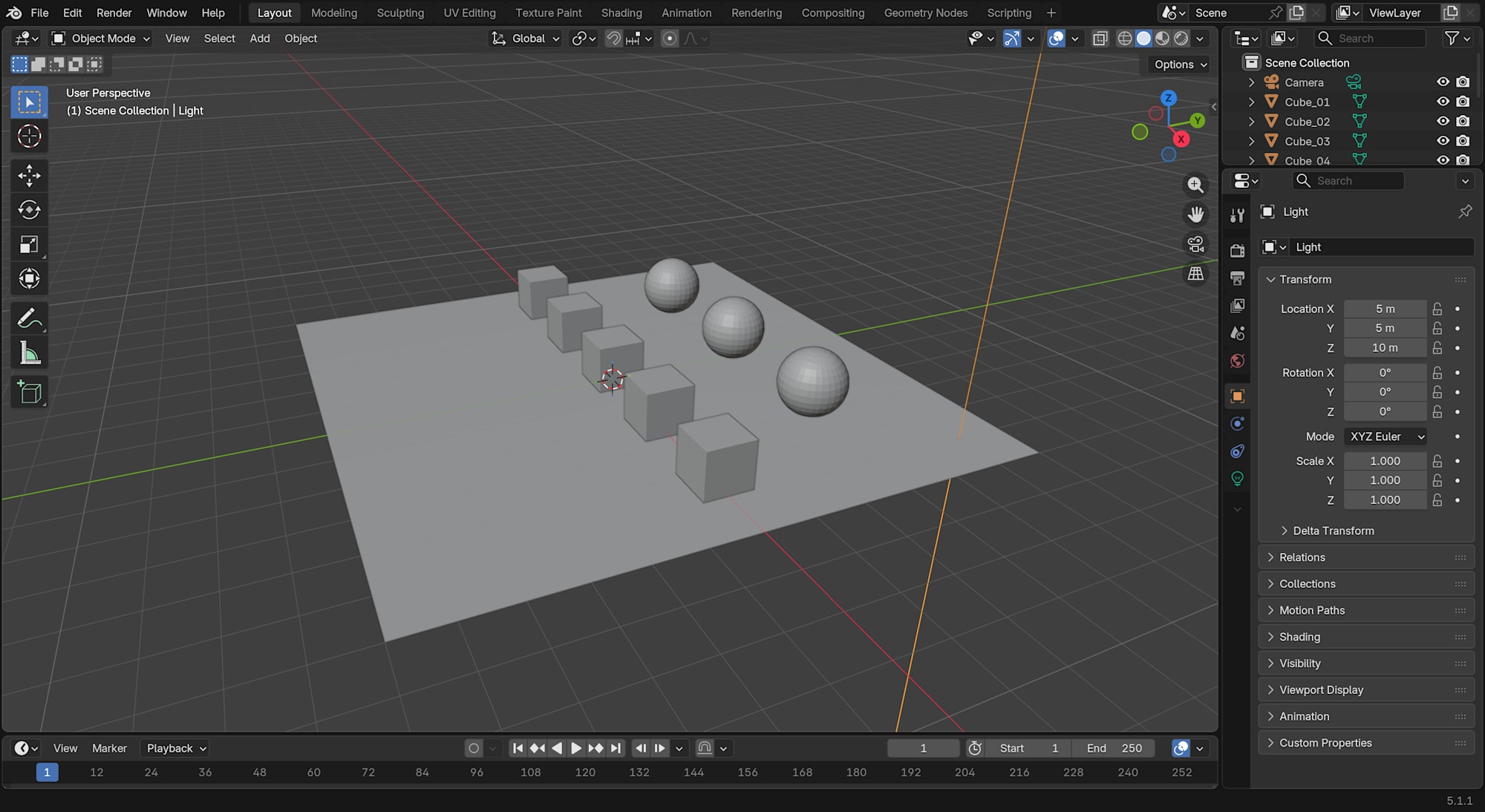
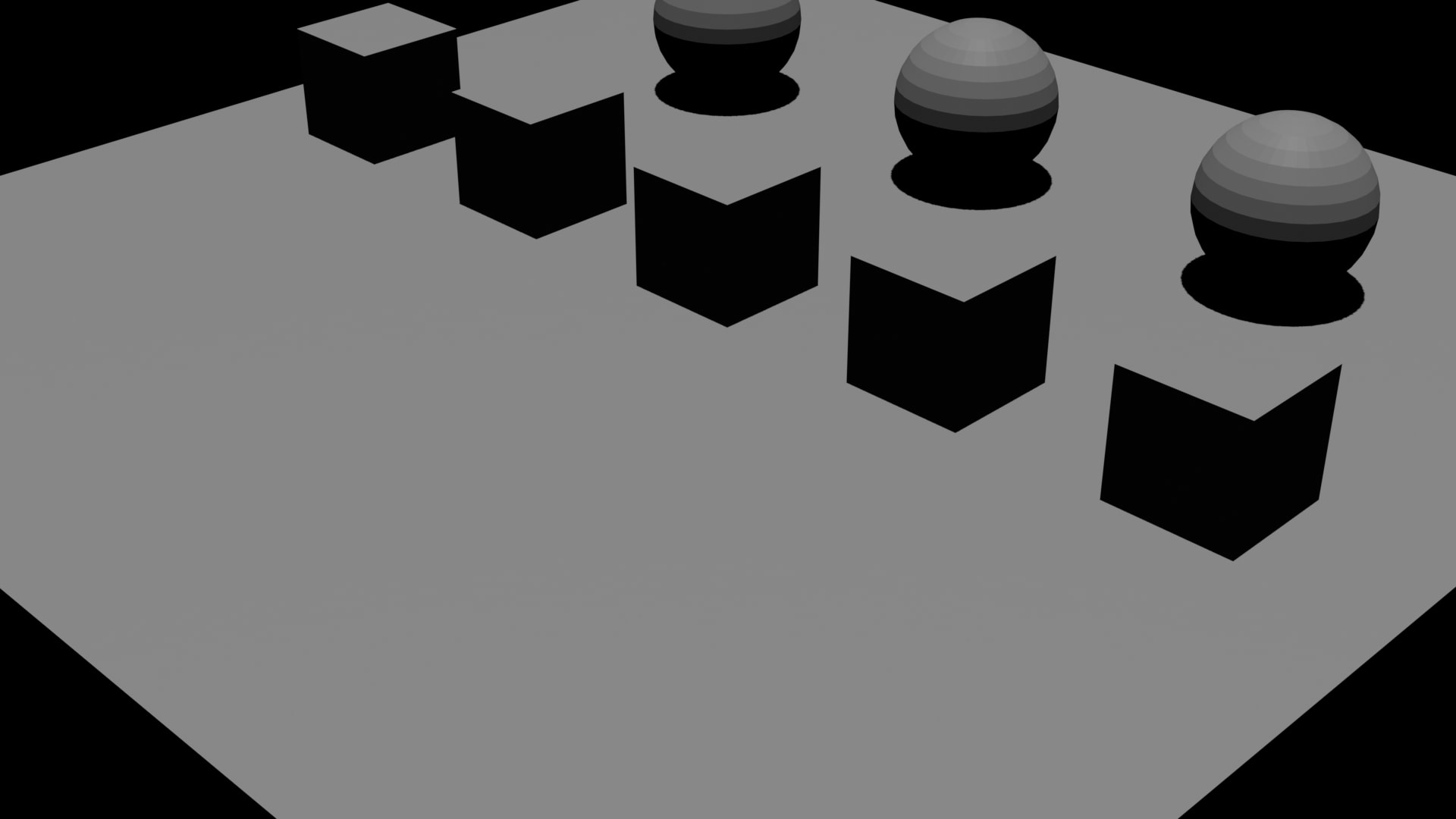
As a subject, I had Claude Code generate a scene with 5 cubes and 3 spheres arranged on a floor. By simply passing Python snippets like bpy.ops.mesh.primitive_cube_add to the execute_blender_code tool, the scene was assembled in seconds.
Scene Debugging
I moved one of the 5 cubes (Cube_03) by -1.5 along the z-axis to create a state where it was submerged below the floor. In the viewport, Cube_03 appeared to be gone.
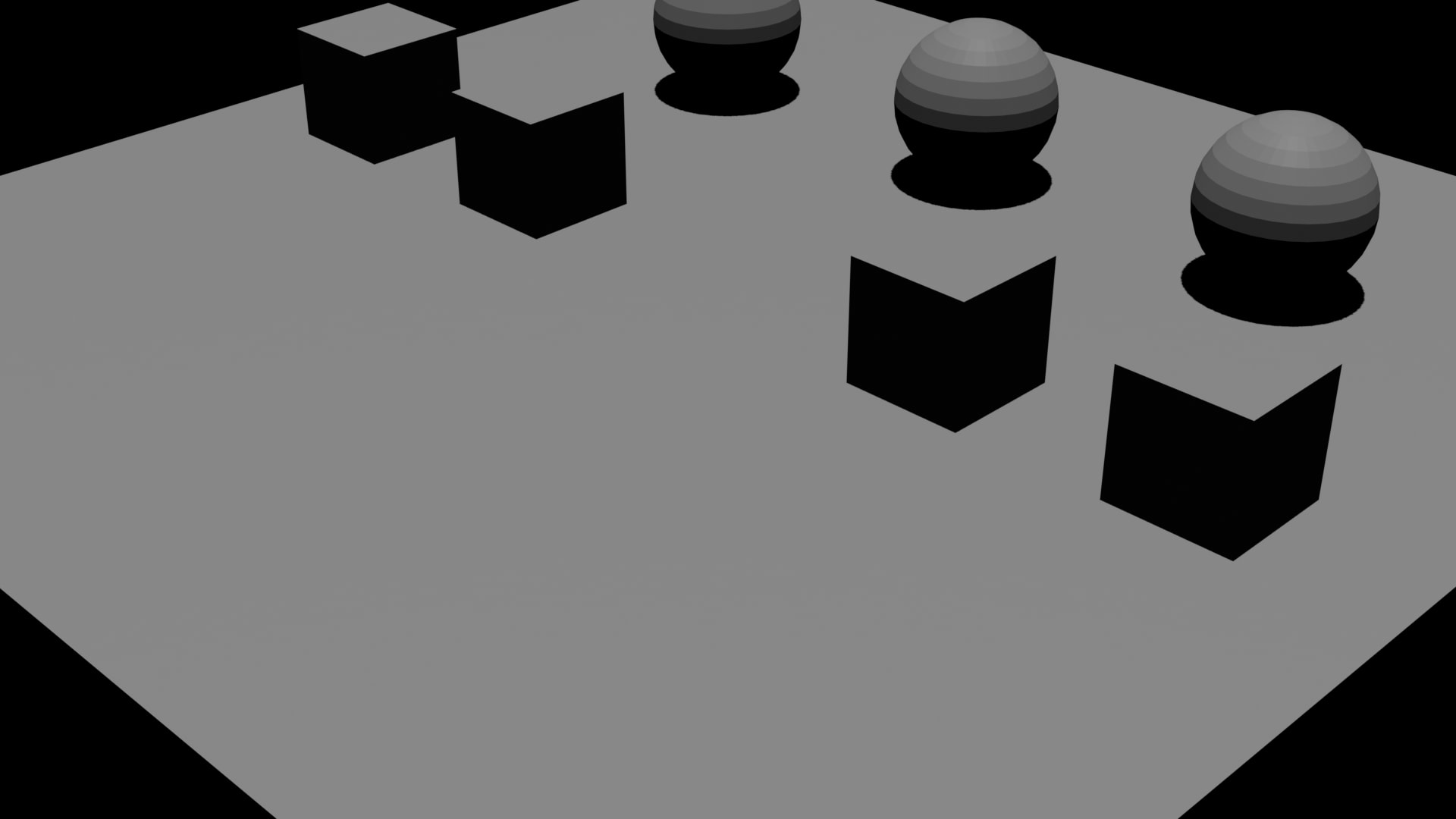
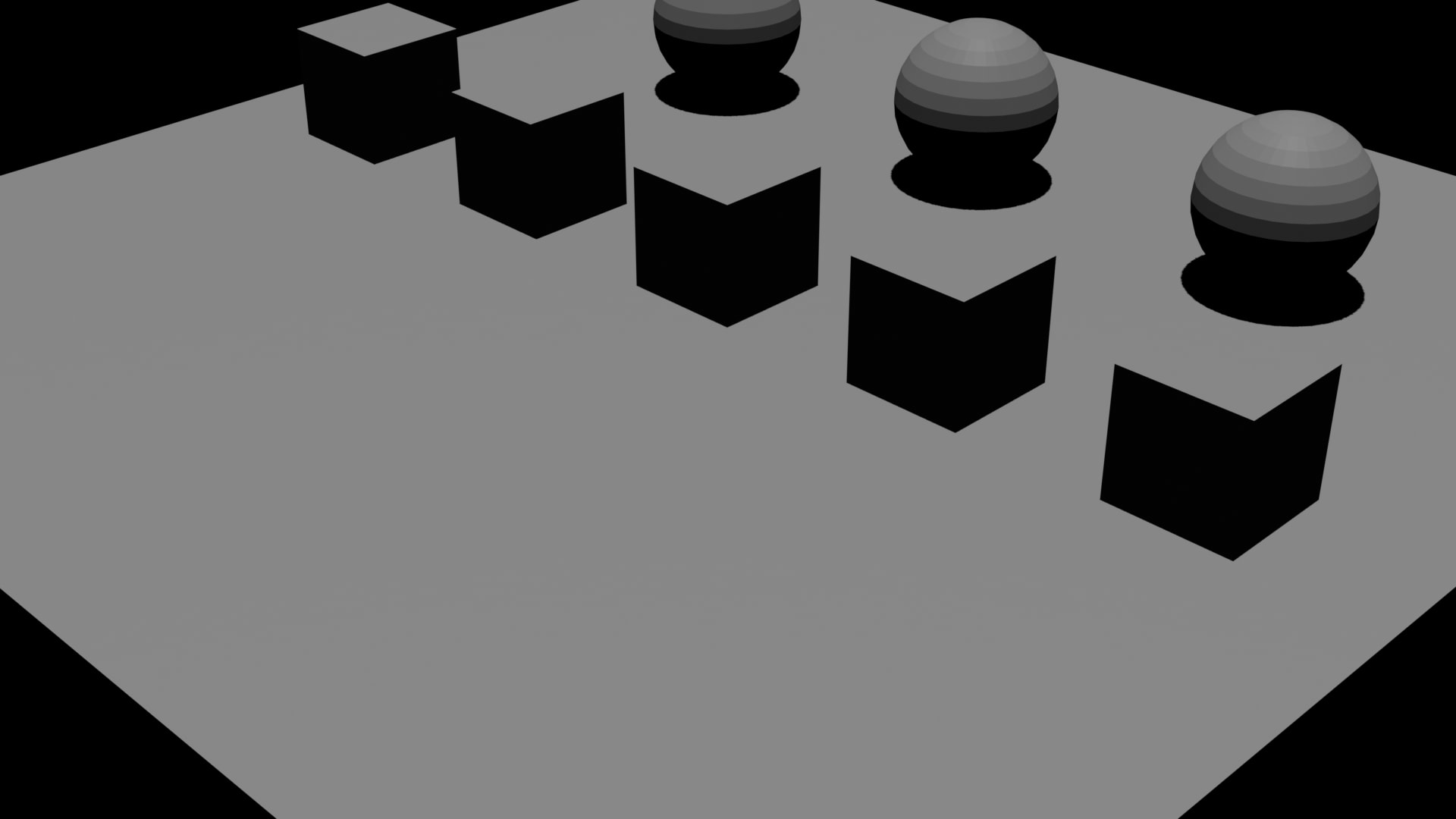
After retrieving the z-coordinates of all objects with get_objects_summary and comparing them, it was quickly identified that while 4 cubes were aligned at z=0.5, Cube_03 alone was at z=-1.5, submerged below the floor. The fix was completed with a single line: bpy.data.objects["Cube_03"].location.z = 0.5.
Bulk Changes to All Objects
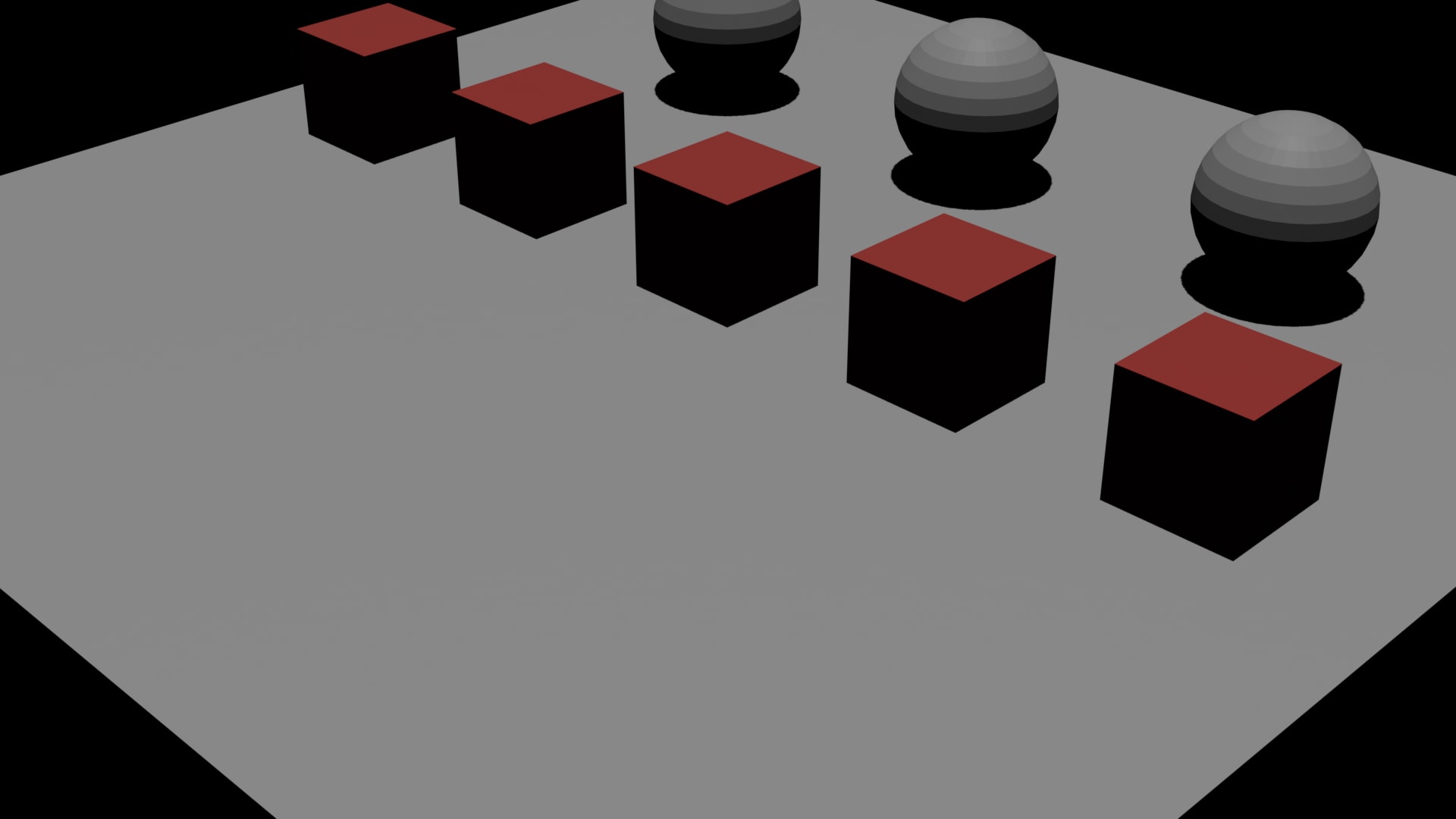
I applied a new material MAT-cube-red to all 5 cubes at once. It just takes creating a material with bpy.data.materials.new and looping through the cubes with data.materials.append. For operations of this level, I felt that giving instructions in natural language leads to fewer mistakes than writing Python yourself.
Building New Tools
When I asked Claude Code to "write a small add-on that applies random rotation to selected objects," it generated a Python file following Blender's add-on conventions. The beginning looks like this:
bl_info = {
    "name": "Random Rotation",
    "blender": (5, 1, 0),
    "category": "Object",
}

class OBJECT_OT_random_rotation(bpy.types.Operator):
    bl_idname = "object.random_rotation"
    bl_label = "Apply Random Rotation"
    bl_options = {"REGISTER", "UNDO"}
    ...
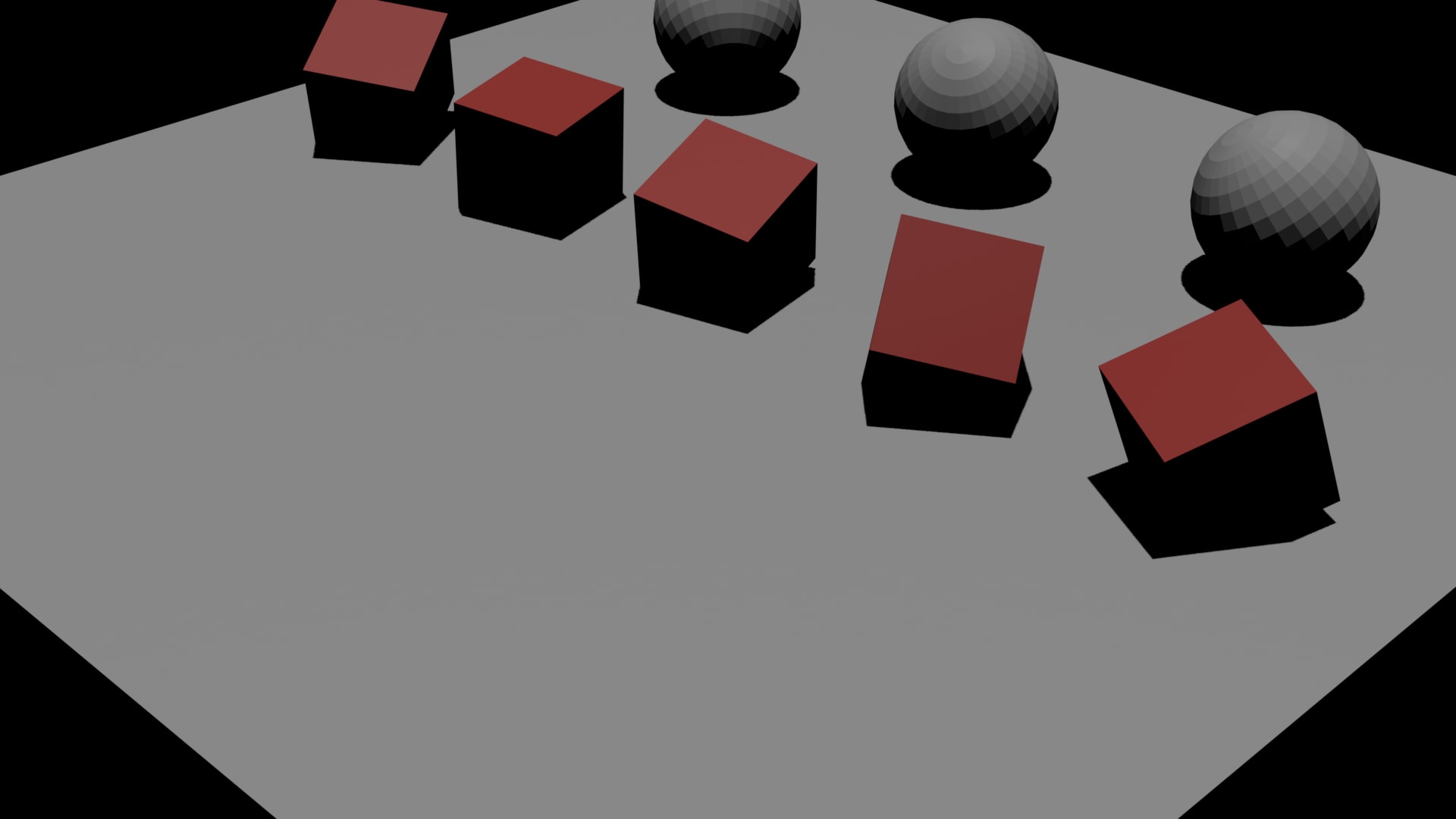
The full text was saved as random-rotation.py, and equivalent logic was run through execute_blender_code to verify it worked. The angles of each cube and sphere changed randomly.
Conclusion
What changed with this release is not Blender's functionality itself, but rather that the Blender Foundation side now officially provides the MCP mechanism and the onboarding pathway in Claude Desktop has been improved. Claude Desktop users can install it with one click from the connector directory, with no particular stumbling blocks.
On the other hand, Claude Code users face a pitfall where add-from-claude-desktop cannot import servers installed via the connector directory. The workaround is to directly specify in .mcp.json the executable binary that Claude Desktop has extracted under Claude Extensions/. I hope the steps in this article are helpful for those who want to try it.