
I've been using Claude Code × Obsidian Daily Notes for six months and tried three improvements

This page has been translated by machine translation. View original
Introduction
I am kasama from the Data Business Division.
It has been about six months since I started using Obsidian's Daily Note, and after much trial and error, I've implemented three major improvements. In this article, I'll share the lessons learned and improvements made from my previous operation.
Background
This article covers improvements to the daily-morning and daily-evening commands introduced in my previous blog.
Previous blog post Most recent blog post
Let me briefly explain the two commands introduced in the previous blog.
The daily-morning command is executed at the start of work in the morning. It retrieves "Tomorrow's tasks" from the previous day's Daily Note, reads Google Calendar schedules, and creates today's Daily Note.
The daily-evening command is executed at the end of work in the evening. It reads today's Daily Note, checks against Google Calendar, answers six questions (achievements for each project, reflections, tomorrow's tasks), and updates the Daily Note.
What I Noticed After Six Months
Ritualistic Reflection
When I first started, I recorded reflections using three categories: "Gratitude/Good/Motto". However, after about two months, I noticed that my responses were falling into the same patterns and weren't strongly connected to my growth goals. Specifically, my reflections became formulaic like "I worked hard on tasks today, concentrated well, felt tired, nothing special."
Question Process Burden
With the daily-evening command, I needed to sequentially answer six questions, which was time-consuming. For example, if Project A had three tasks, I had to voice or manually input all three tasks in a single question. However, the progress statuses were mostly the same - not started, in progress, in review, or completed - so I wanted to reduce this effort.
Task Status Visibility Issues
- [ ] API design
- [/] Implementation in progress
- [R] Waiting for code review
- [x] Testing complete
While these were distinguishable as symbols in editors like VS Code, in Obsidian they all displayed as checkboxes, making it difficult to visually distinguish progress states. The status management wasn't working correctly. This is how they actually appeared in Obsidian:
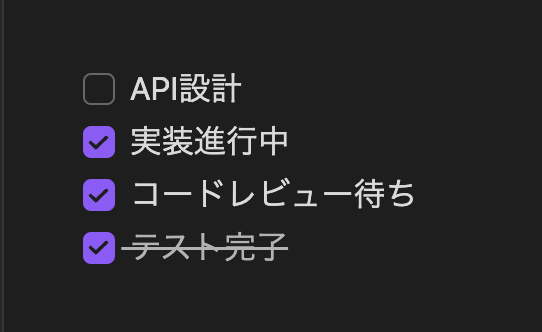
I've implemented modifications to address these three issues, which I'll now introduce.
Implementation
The implementation code is stored on GitHub for your reference.
I'll only introduce the content updated since the previous blog.
daily-evening Implementation
.claude/commands/daily-evening.md
---
allowed-tools: Bash(cd:*), Bash(date:*), Bash(TZ=:*), Bash(uv:*), Bash(find:*), Write, Read, Glob, Edit, LS
argument-hint: [YYYY-MM-DD]
description: Update daily note with achievements and tomorrow's plans (optional: specific date)
---

# Daily Note Evening Assistant (Update)

## Date Handling

- Use date argument ($1) in YYYY-MM-DD format if specified
- Use today's date (JST) if no argument is provided
- Target date: ${TARGET_DATE}

## Environment Variables

```txt
PROJECT_A = "Project A"
PROJECT_B = "Project B"
PROJECT_C = "Project C"
GOAL_1 = "Improve technical skills"
GOAL_2 = "Strengthen project management capabilities"
GOAL_3 = "Enhance communication skills"
```

## Tasks

1. Determine target date from argument or use today's date
2. Retrieve Google Calendar events for the target date
3. Search for and read the daily note for the target date
4. Ask user five questions about achievements and reflections, one at a time
5. Update the existing daily note file with responses and auto-generated tasks for tomorrow

### Step 0: Determine Target Date

```bash
TARGET_DATE="$1"
if [ -z "$TARGET_DATE" ]; then
  # Explicitly use JST timezone
  TARGET_DATE=$(TZ=Asia/Tokyo date +%Y-%m-%d)
fi
echo "Processing daily note for: $TARGET_DATE"
```

### Step 1: Retrieve Calendar Events

```bash
cd .claude && uv run today_cal/today-calendar.py --date "$TARGET_DATE"
```

Parse calendar output to understand events for the target date and generate relevant questions.

### Step 2: Search for Target Date Daily Note

- Important: Current directory is `.claude/` so when using Glob specify `path=".."`
- Use bash command `find ../01_Daily -name "${TARGET_DATE}.md" -type f` to search for target daily note
- Or use `Glob(path="..", pattern="01_Daily/**/[TARGET_DATE].md")`
- File must be in format `01_Daily/YYYY/MM/[TARGET_DATE].md`
- Read file to understand current content structure

### Step 3: Question User with Calendar Context (using AskUserQuestion tool)

First analyze Google Calendar events to map to projects, then use AskUserQuestion tool to ask checkbox-style questions.

Important: Use AskUserQuestion tool for ALL of the following questions. This provides an interactive checkbox/selection interface.

Status numbers: 1=Not started, 2=In progress, 3=In review, 4=Completed

Cancelled tasks can be entered in the "Other" field with strikethrough (e.g., ~~Task name~~)

#### Question Pattern (For Each Project)

Important: Use a SINGLE AskUserQuestion call with MULTIPLE questions (up to 4) for each project. This creates a tabbed interface where users can switch between questions.

For each project (PROJECT_A, PROJECT_B, PROJECT_C, Blog and Others):

1. Before asking questions, output a text message showing Google Calendar events for this project
2. Collect all tasks from the daily note for this project
3. Skip tasks marked as "TBD" - don't ask about status
4. Create one question for each task (max 3 tasks to leave room for additional task question)
5. Add a final question asking about additional tasks
6. If all tasks are "TBD", only ask about additional tasks
7. Send all questions in ONE AskUserQuestion call

First, output a text message like this:

```text
## {PROJECT_NAME} Task Progress

Google Calendar Events:
- [event 1]
- [event 2]
```

Then ask questions

Task Status Question Format (For each task in the project):

```text
Please tell me the status of the task "[task content]".
```

header: "Task[N]" (e.g., "Task1", "Task2", etc.)

multiSelect: false

Task status options:

- label: "Not started", description: "Haven't started the task yet"
- label: "In progress", description: "Working on the task"
- label: "In review", description: "Task is waiting for review"
- label: "Completed", description: "Task is complete"

Cancelled tasks can be entered from the "Other" field with strikethrough (e.g., ~~Task name~~)

Additional Task Question Format (Final question for the project):

```text
If you did any additional tasks for {PROJECT_NAME}, please enter them in "Other". If none, select "None".
```

header: "Additional Tasks"

multiSelect: false

Options (minimum 2 required):

- label: "None", description: "No additional tasks"
- label: "Enter", description: "Enter additional tasks in Other"

Note: Users can input additional tasks via the "Other" field.

Example: For PROJECT_A with 2 tasks, send ONE AskUserQuestion call with 3 questions (Task1, Task2, Additional Tasks) that will appear as tabs.

#### Question 1: PROJECT_A Task Progress

Use AskUserQuestion tool for each task in the PROJECT_A section

#### Question 2: PROJECT_B Task Progress

Use AskUserQuestion tool for each task in the PROJECT_B section

#### Question 3: PROJECT_C Task Progress

Use AskUserQuestion tool for each task in the PROJECT_C section

#### Question 4: Blog & Other Task Progress

Use AskUserQuestion tool for each task in the Blog and Other sections

#### Question 5: Today's Reflection (Aligned with Goals)

Do NOT use AskUserQuestion tool for reflections. Instead, output a text message asking for reflection:

```text
Please reflect on your day in KPT format aligned with your goals (please share relevant perspectives):

- Reflection related to {GOAL_1}
- Reflection related to {GOAL_2}
- Reflection related to {GOAL_3}
```

Wait for user's text response. User can provide free-form text responses for whichever categories they want to reflect on.

Important: After user responds once, proceed immediately to Step 4 without additional confirmation or questions. Accept what they provide even if they only mention one or two goals.

### Step 4: Update Daily Note File

After collecting all responses, update the daily note file:

1. Read the `01_Daily/YYYY/MM/[TARGET_DATE].md` file
2. Update MTG & Events section
   - Mark all Google Calendar events as `- [x]` (attended)
   - Mark events that exist in daily note but not in Google Calendar as strikethrough: `- [ ] ~~Event name~~ (not held)`
3. Update Today's Todo section
   - Mark completed items as `- [x]`
   - Update in-progress items as `- [/]`
   - Mark in-review items as `- [R]`
   - Mark cancelled items with strikethrough while keeping checkbox status: `- [ ] ~~Task name~~`
   - Keep not started items as `- [ ]`
   - Update progress details (e.g., "Implement" → "Implementation 80% complete, moving to verification")
4. Update Today's Reflection section
   - Only include goals that the user mentioned
   - Leave sections for unmentioned goals empty (just `-`)
   - Add user's responses as bullet points
5. Update Tomorrow's Tasks section
   - Auto-extract incomplete tasks (status not [x]) from "Today's Todo" section
   - Include tasks with status: [ ] Not started, [/] In progress, [R] In review
   - Exclude tasks: [x] Completed, tasks with strikethrough (cancelled)
   - Copy these tasks to "Tomorrow's Tasks" section, resetting all checkboxes to [ ]
   - If no tasks remain for a project, set to "[ ] TBD"

Execute all steps and update the file immediately.

Update Example:

```markdown
## MTG & Events

- [x] 08:30 - (Project A) Implementation # Event that was in Google Calendar
- [x] 11:00 - (Project B) Internal MTG # Event that was in Google Calendar
- [ ] ~~14:00 - (Project C) Internal MTG~~ (not held) # Event in Daily note but not in Google Calendar
- [x] All day - Home # Event that was in Google Calendar

## Today's Todo

- Project A
    - [x] Implementation 80% complete, moving to verification # Completed
    - [/] API test in progress # In progress
- Project B
    - [x] Unit test complete, starting integration test # Completed
    - [R] Waiting for code review # In review
- Project C
    - [x] Architecture review complete, creating diagram # Completed
    - [ ] ~~Meeting cancelled, postponed~~ # Cancelled
- Blog
    - [ ] (No plans) # Not started
- Others
    - [ ] (No plans)

## Today's Reflection

### {GOAL_1}

- [User's response only if mentioned]

### {GOAL_2}

-

### {GOAL_3}

-

## Tomorrow's Tasks

- {PROJECT_A}
    - [ ] [Auto-extracted incomplete tasks from Today's Todo]
- {PROJECT_B}
    - [ ] [Auto-extracted incomplete tasks from Today's Todo]
- {PROJECT_C}
    - [ ] [Auto-extracted incomplete tasks from Today's Todo]
- Blog
    - [ ] [Auto-extracted incomplete tasks from Today's Todo]
- Others
    - [ ] [Auto-extracted incomplete tasks from Today's Todo]
```
In the daily-evening command, I implemented two improvements:
The first was revising the reflection format. I set three perspectives (GOAL_1/2/3) directly linked to personal growth goals and changed to recording reflections in KPT format. This shifted daily reflections from "what I did" to "what I learned," enabling KPT (Keep-Problem-Try) analysis by goal during monthly reviews. Rather than abstract "good things," it clarifies "how I grew toward which goal." Personally, I struggle with mid-term and end-of-period reflections, finding it difficult to review goal achievement from Backlog tickets. I can honestly barely remember what I did a week ago, let alone six months ago. That's why I think recording achievements daily and having AI summarize them at evaluation time could greatly improve efficiency.
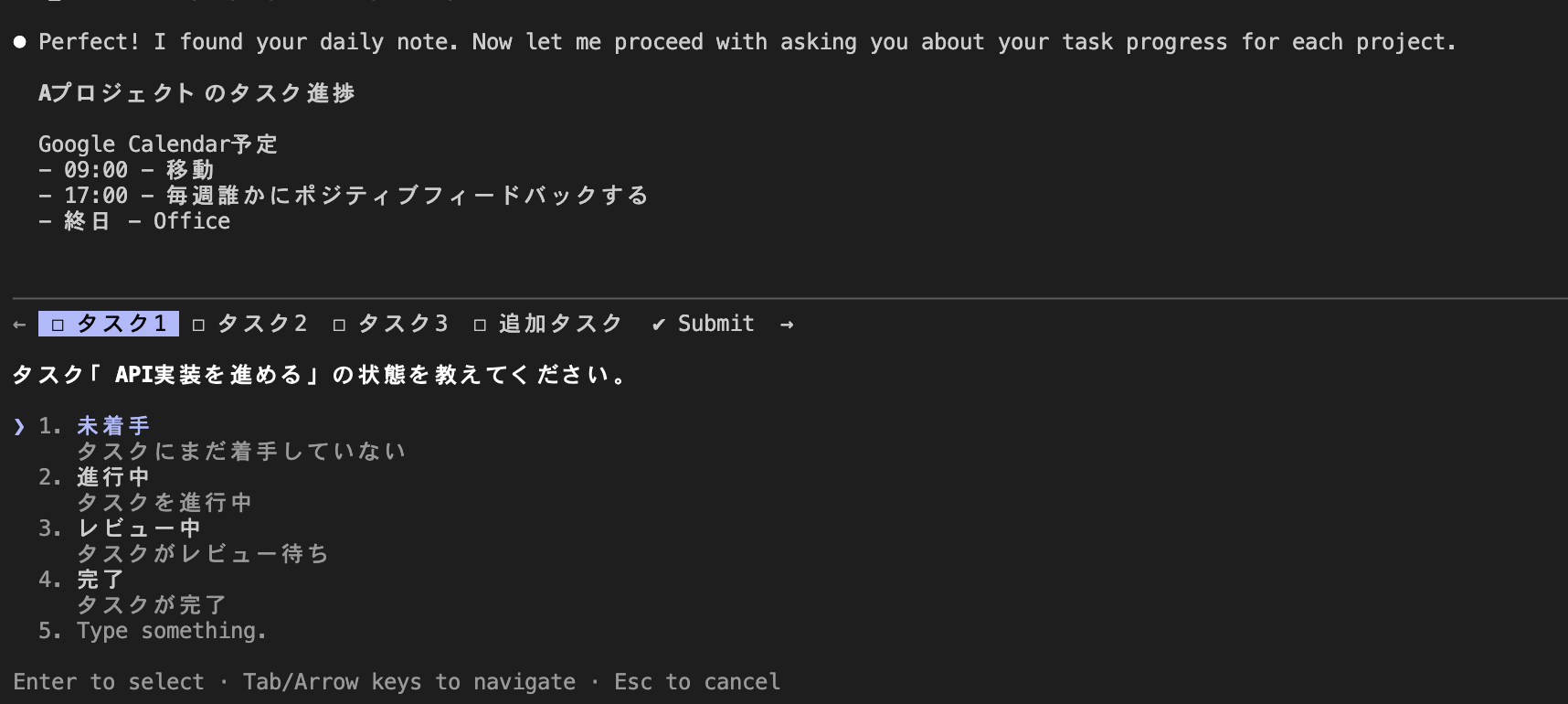
The second was introducing a Tab-format UI. Using the AskUserQuestion tool from Claude Code's Plan mode, I made it possible to question task status for each project in a tab format.
Previously, I had to answer project achievements as text:
Question 1: Please tell me the achievements for PROJECT_A
[User responds with text]

Question 2: Please tell me the achievements for PROJECT_B
With the new method, I can select status for multiple tasks by switching tabs within each project:
Question 1: PROJECT_A Task Progress

Tab1: Status of "Implement" task
  ○ Not started ○ In progress ○ In review ○ Completed

Tab2: Status of "Prepare for regular client meeting" task
  ○ Not started ○ In progress ○ In review ○ Completed

Tab3: Additional tasks
  ○ None ○ Enter

Question 2: PROJECT_B Task Progress
This change allows for checking and updating status of multiple tasks within each project by switching tabs, making responses quicker with just checkbox selections, and easier automatic updates.
monthly-review Implementation
.claude/commands/monthly-review.md
---
allowed-tools: Bash(cd:*), Bash(date:*), Bash(TZ:*), Bash(find:*), Write, Read, Glob, LS
argument-hint: [YYYY-MM]
description: Generate monthly KPT-format review from daily notes (current month if no args, specified month if provided)
---

# KPT Format Monthly Review Generation

## Date Handling

- No arguments: Summary for the execution month (e.g., 2025-12 when executed on 2025-12-26)
- One argument (YYYY-MM format): Summary for the specified month (e.g., 2025-11)
- Target dates: ${START_DATE} to ${END_DATE}

## Environment Variables

```txt
PROJECT_A = "Project A"
PROJECT_B = "Project B"
PROJECT_C = "Project C"
GOAL_1 = "Improve technical skills"
GOAL_2 = "Strengthen project management capabilities"
GOAL_3 = "Enhance communication skills"
```

## Tasks

Execute the following steps in order to generate a complete review

### Step 0: Determine Target Period

Use the current month if no argument is provided.

```bash
if [ -z "$1" ]; then
  # No argument: Use execution month
  TARGET_MONTH=$(date +%Y-%m)
  echo "Generating review for current month: $TARGET_MONTH"
else
  # One argument: Use specified month
  TARGET_MONTH="$1"
  echo "Generating review for: $TARGET_MONTH"
fi

# Calculate start and end dates
START_DATE=$(date -j -f "%Y-%m" "$TARGET_MONTH" +%Y-%m-01)
# Get end of month
NEXT_MONTH=$(date -j -v+1m -f "%Y-%m" "$TARGET_MONTH" +%Y-%m-01)
END_DATE=$(date -j -v-1d -f "%Y-%m-%d" "$NEXT_MONTH" +%Y-%m-%d)
```

### Step 1: Search and Read Daily Notes

- Important: Current directory is `.claude/` so we need to search from parent directory
- Use bash command `find ../01_Daily -name "*.md" -type f | sort` to search all daily notes
- If using Glob tool, explicitly specify `path=".."` parameter: `Glob(path="..", pattern="01_Daily/**/*.md")`
- Filter files within the target date range (START_DATE to END_DATE)
- Daily notes follow the pattern `01_Daily/YYYY/MM/YYYY-MM-DD.md`
- Read each file that falls within the target period

### Step 2: Extract and Analyze Information

Systematically extract the following from each daily note:

1. MTG & Events - Completed meetings and events (items that meet these conditions):
   - Have [x] mark
   - AND contain any of these keywords: "regular", "MTG", "meeting", "1on1", "○○会"
   - Exclude work time blocks (project work that starts with parentheses)
2. Today's Todo - Tasks and status tracking by project category:
   - [ ] Not started
   - [/] In progress
   - [R] In review
   - [x] Completed
   - [-] Cancelled
3. Today's Reflection section (analyze in KPT perspective):
   - Extract Keep (what went well), Problem (issues), Try (things to try next) elements from {GOAL_1} content
   - Extract Keep, Problem, Try elements from {GOAL_2} content
   - Extract Keep, Problem, Try elements from {GOAL_3} content
4. Tomorrow's Tasks - Plans that were created
5. Other important content or achievements

### Step 3: Fact-based Aggregation and Analysis (KPT Structure)

Organize extracted information based on facts

Important: Eliminate duplicates to create unique lists of tasks and MTG & events

1. Project-specific achievements - List completed tasks and results by {PROJECT_A}, {PROJECT_B}, {PROJECT_C}
   - Display each task name only once even if it appears on multiple days
2. Goal achievement status (KPT format) - For each goal {GOAL_1}, {GOAL_2}, {GOAL_3}:
   - Keep: What went well, effective approaches, things to continue
   - Problem: Issues, problems, what didn't go well, barriers
   - Try: Things to try next month, improvements, new approaches
3. Numerical achievements:
   - Total tasks: Count all unique tasks (completed, in progress, not started, in review, cancelled) without duplicates
   - Completed tasks: Count unique tasks with [x] mark
   - Completion rate: Completed tasks ÷ Total tasks × 100 (to first decimal place)
   - MTG & Events participation: Count unique events with [x] mark that meet keyword conditions
   - Daily note recording days: Count number of daily notes in target period
   - Important: Count all numbers accurately. Never include estimates or approximations.

### Step 4: Create Review File

Generate file at `02_Monthly/YYYYMM_review.md`

Use the following template structure and populate with actual data and insights

Review Template:

```markdown
# Monthly Review (KPT) - [Period Display]

## Target Period

- [START_DATE] to [END_DATE]

## Project-specific Achievements

### {PROJECT_A}

- Completed Tasks
    - [x] [Specific task content]
    - [x] [Specific task content]
- Attended MTG & Events
    - [Date] [MTG name]

### {PROJECT_B}

- Completed Tasks
    - [x] [Specific task content]
- Attended MTG & Events
    - [Date] [MTG name]

### {PROJECT_C}

- Completed Tasks
    - [x] [Specific task content]
- Attended MTG & Events
    - [Date] [MTG name]

### Others (Blog & Misc)

- Completed Tasks
    - [x] [Specific task content]

## Goal Achievement Status (KPT Format)

### {GOAL_1}

- Keep (Things to continue)
    - [What went well, effective approaches]
    - [Related completed tasks or MTG participation]
- Problem (Issues & problems)
    - [What didn't go well, barriers]
    - [Uncompleted tasks or problems that occurred]
- Try (Things to try next month)
    - [Improvements, new approaches]
    - [Specific action plans]

### {GOAL_2}

- Keep (Things to continue)
    - [What went well, effective approaches]
    - [Related completed tasks or MTG participation]
- Problem (Issues & problems)
    - [What didn't go well, barriers]
    - [Uncompleted tasks or problems that occurred]
- Try (Things to try next month)
    - [Improvements, new approaches]
    - [Specific action plans]

### {GOAL_3}

- Keep (Things to continue)
    - [What went well, effective approaches]
    - [Related completed tasks or MTG participation]
- Problem (Issues & problems)
    - [What didn't go well, barriers]
    - [Uncompleted tasks or problems that occurred]
- Try (Things to try next month)
    - [Improvements, new approaches]
    - [Specific action plans]

## Quantitative Achievements

- Total tasks: XX items (all unique tasks)
- Completed tasks: XX items
- Completion rate: XX.X%
- MTG & Event participation: XX items
- Daily note recording days: XX days
```

Execute all steps and create the file immediately.

Create a KPT format review file including:

1. Proper date calculation and range determination
2. Systematic extraction from all daily notes within range
3. Project-specific completed tasks and MTG participation records (unique lists with duplicates removed)
4. KPT analysis by goal:
   - Keep: Extract what went well and effective approaches from daily note reflections
   - Problem: Extract issues, problems, and things that didn't go well
   - Try: Propose things to try next month, improvements, and new approaches
5. Quantitative achievements (task count, completion rate, MTG count, etc.)

Important Notes:

- Avoid subjective evaluations or speculation; include only facts extractable from daily notes
- Eliminate duplicates and display each task name only once
- Extract only MTG & events containing keywords like "regular", "MTG", "meeting", "1on1", "○○会"
- Exclude work time blocks (project work starting with parentheses)
- For each KPT element, extract specific content from the daily notes' reflection sections
- Count all quantitative achievement numbers accurately. Never include estimates or approximations.
- Total tasks should count unique tasks of all statuses (completed, in progress, not started, in review, cancelled)

Save the final file to the `02_Monthly/` directory.
The monthly-review command automatically generates a monthly review from daily notes. Running it without arguments generates a summary for the current month, while running it with one argument (YYYY-MM format) generates a summary for the specified month.
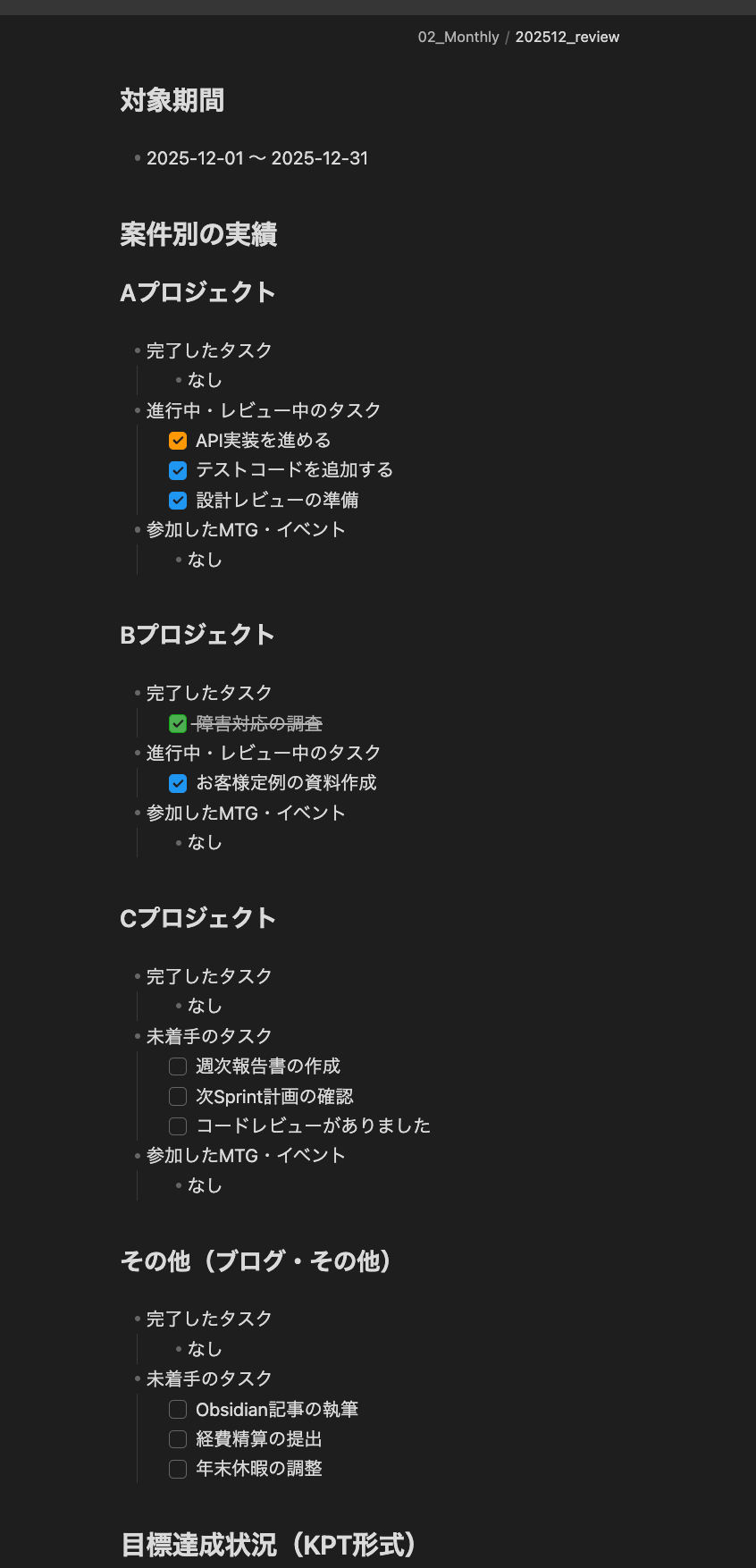
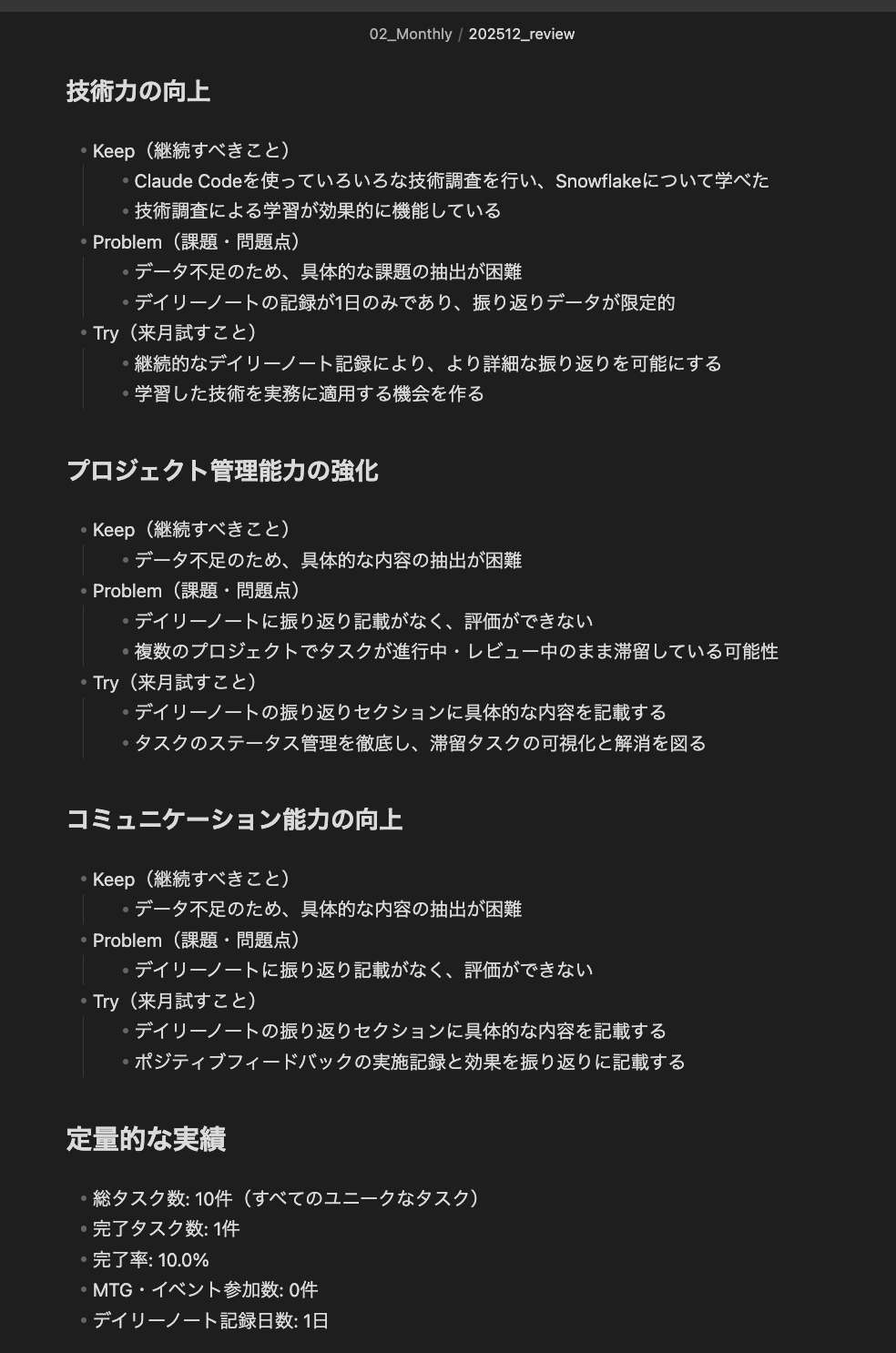
The generated review consists of project-specific achievements (completed tasks, attended meetings/events), KPT analysis by goal (Keep, Problem, Try perspectives), and quantitative achievements (completion rate, recording days, etc.).
For quantitative achievements, it automatically calculates total task count (all unique tasks), completed task count (tasks with [x] mark), completion rate (completed tasks ÷ total tasks × 100), meeting/event participation count (events containing "regular", "MTG", "meeting", "1on1", etc.), and daily note recording days.
Visualizing Task Status with CSS Snippets
.obsidian/snippets/custom-task-status.css
/* Custom Task Status - Color Coding */
/* Compatible with both Reading View & Live Preview */

/* [/] In Progress - Orange */
input[type="checkbox"][data-task="/"],
ul > li[data-task="/"] > input,
ul > li[data-task="/"] > p > input,
.HyperMD-task-line[data-task="/"] > .task-list-marker::before,
.markdown-preview-view ul > li[data-task="/"].task-list-item.is-checked::before {
    border-color: #ff9800 !important;
    background-color: #ff9800 !important;
}

/* [R] In Review - Blue */
input[type="checkbox"][data-task="R"],
ul > li[data-task="R"] > input,
ul > li[data-task="R"] > p > input,
.HyperMD-task-line[data-task="R"] > .task-list-marker::before,
.markdown-preview-view ul > li[data-task="R"].task-list-item.is-checked::before {
    border-color: #2196f3 !important;
    background-color: #2196f3 !important;
}

/* [x] Completed - Green */
input[type="checkbox"][data-task="x"],
ul > li[data-task="x"] > input,
ul > li[data-task="x"] > p > input,
.HyperMD-task-line[data-task="x"] > .task-list-marker::before,
.markdown-preview-view ul > li[data-task="x"].task-list-item.is-checked::before {
    border-color: #10a915 !important;
    background-color: #4caf50 !important;
}
For task status visualization, I color-coded checkboxes: [ ] not started as white, [/] in progress as orange, [R] in review as blue, and [x] completed as green.
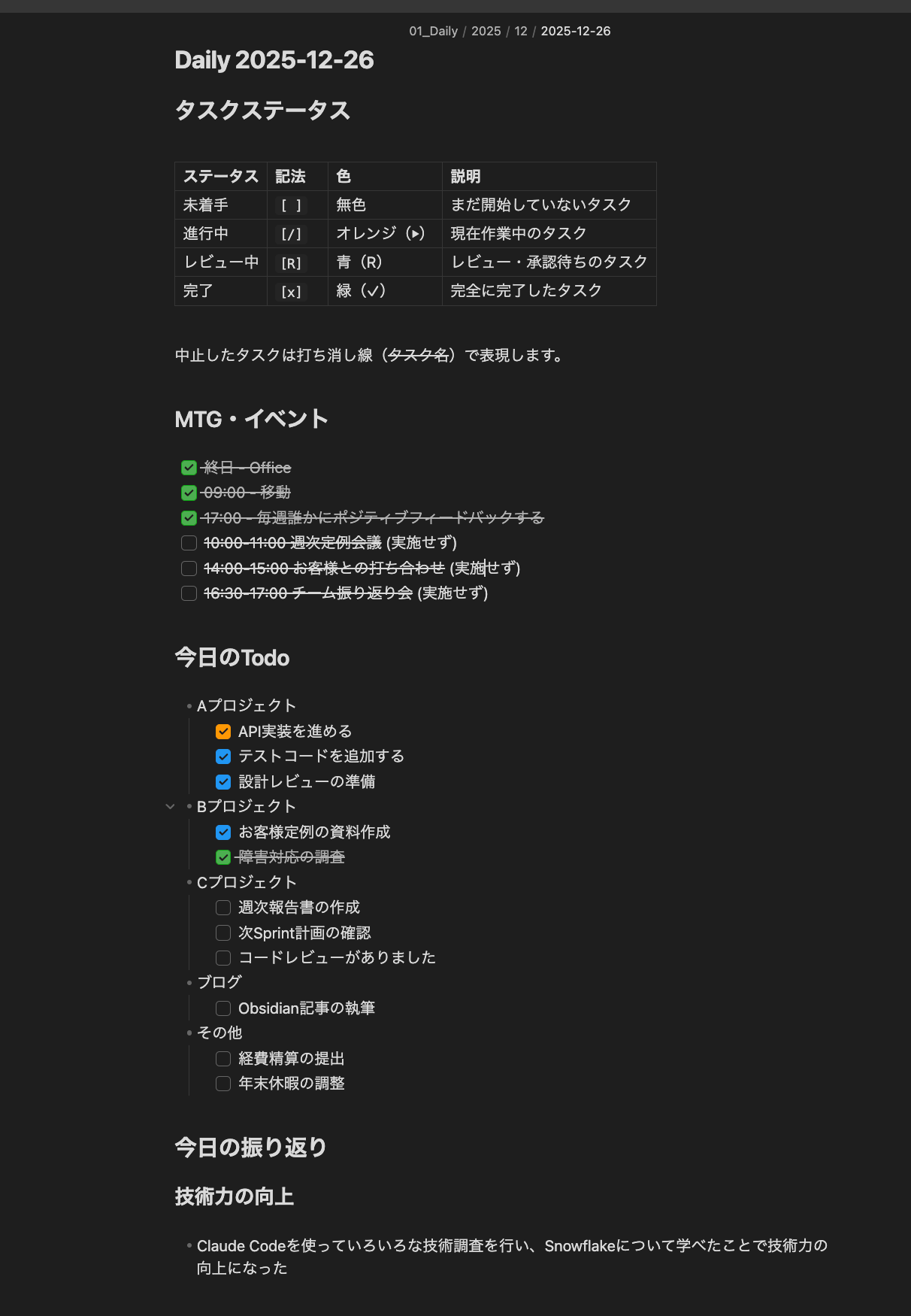
Previously, all tasks displayed as the same checkbox in Obsidian, but using CSS Snippets to color-code them makes the status visually clearer. As shown in the image below, you can grasp progress status as soon as you open the Daily Note, with color-coding making not started/in progress/in review/completed immediately obvious.
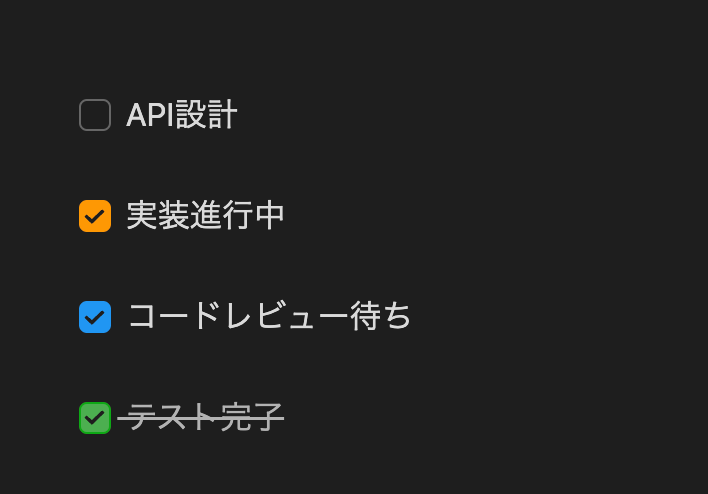
Just implement the CSS file above and enable custom-task-status in Obsidian's Settings → Appearance → CSS snippets, then reload the snippets. It will immediately apply to existing Daily Notes.
Trying It Out
daily-evening
Let's try running daily-evening with a sample Daily Note prepared.
2025-12-26.md
---
tags:
    - Project A
    - Project B
    - Project C
---

# Daily 2025-12-26

## Task Status

| Status | Syntax | Color | Description |
| ------ | ------ | ----- | ----------- |
| Not started | `[ ]` | None | Tasks not yet begun |
| In progress | `[/]` | Orange (⏵) | Tasks currently in progress |
| In review | `[R]` | Blue (R) | Tasks awaiting review/approval |
| Completed | `[x]` | Green (✓) | Fully completed tasks |

Cancelled tasks are represented with strikethrough (~~Task name~~).

## MTG & Events

- [ ] 10:00-11:00 Weekly regular meeting
- [ ] 14:00-15:00 Meeting with client
- [ ] 16:30-17:00 Team retrospective

## Today's Todo

- Project A
    - [ ] Implement API
    - [ ] Add test code
    - [ ] Prepare for design review
- Project B
    - [ ] Create materials for client regular meeting
    - [ ] Investigate incident response
- Project C
    - [ ] Create weekly report
    - [ ] Check next Sprint plan
- Blog
    - [ ] Write Obsidian article
- Others
    - [ ] Submit expense reimbursement
    - [ ] Adjust year-end vacation

## Today's Reflection

### Improve technical skills

-

### Strengthen project management capabilities

-

### Enhance communication skills

-

## Tomorrow's Tasks

- Project A
    - [ ] TBD
- Project B
    - [ ] TBD
- Project C
    - [ ] TBD
- Blog
    - [ ] TBD
- Others
    - [ ] TBD
When executed, it first asks about Project A's Task 1 in a selection format. As you move through tabs, it asks about Task 2, 3, and additional tasks, so you select the status with Enter and move on. Only the reflection part is in a free format that you can input by voice or manually.
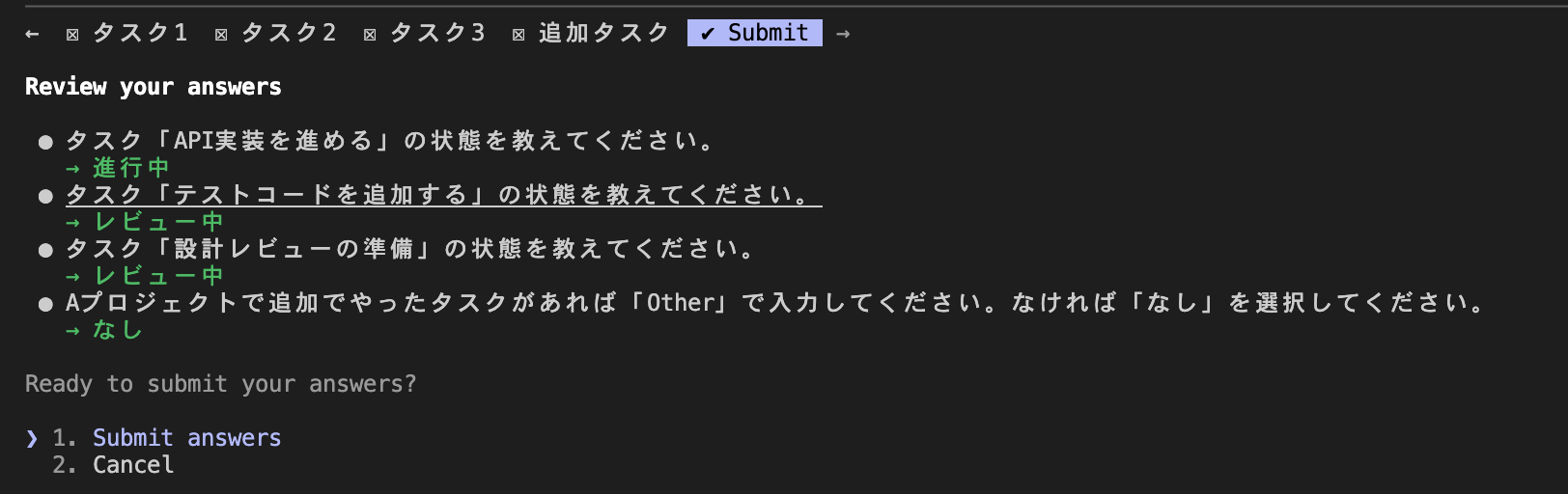
The completed md viewed from Obsidian looks like this. Initially it may take time to mentally match colors with statuses, but the visibility is much better this way.
monthly-review
I ran this targeting only the md file I just created.
Since it's aggregating just one file, it's not very meaningful, but I can see how daily accumulation could make a good summary.
Conclusion
I plan to continue using this method until I come up with something better. If I make significant updates, I'll share them in another report. I hope this has been helpful to someone.
Update 2026/01/11
There have been a flood of updates in early 2026, around Claude Code 2.1.0 and later.
Among them, a significant change is that skills can now be called with a slash /, making the difference between slash commands and skills almost non-existent. Considering that skills have become an open standard, I'm thinking it might be better to migrate.
Therefore, I've migrated all custom slash commands to skills. I've confirmed they work properly.
@ obsidian-claude-feedback-sample % tree -la
.
├── .claude
│   ├── format-md.sh
│   ├── requirements.txt
│   ├── settings.json
│   └── skills
│       ├── commit-msg
│       │   └── SKILL.md
│       ├── daily-evening
│       │   ├── SKILL.md
│       │   ├── instructions.md
│       │   └── template.md
│       ├── daily-morning
│       │   ├── SKILL.md
│       │   ├── instructions.md
│       │   └── template.md
│       ├── english-lesson
│       │   └── SKILL.md
│       ├── meeting-minutes
│       │   └── SKILL.md
│       ├── monthly-review
│       │   ├── SKILL.md
│       │   ├── instructions.md
│       │   └── template.md
│       └── scripts
│           ├── audio_video_to_text
│           │   ├── .env
│           │   ├── audio_video_to_text.py
│           │   ├── input
│           │   │   └── .gitkeep
│           │   └── output
│           │       └── .gitkeep
│           └── today_calendar
│               ├── cal_client_secret.json
│               ├── today-calendar.py
│               └── token.json
├── .gitignore
├── .obsidian
│   ├── snippets
│   │   └── custom-task-status.css
├── .prettierrc
├── 00_Configs
│   ├── Extra
│   │   └── .gitkeep
│   └── Templates
│       └── Daily.md
├── 01_Daily
│   ├── .gitkeep
│   └── 2026
│       └── 01
├── 02_Monthly
│   └── .gitkeep
├── 03_RoughNotes
│   └── 雑メモ.md
├── 04_EngStudy
│   └── .gitkeep
├── 05_Meetings
├── 06_Clippings
│   └── .gitkeep
├── Base.base
├── CLAUDE.md
├── README.md
├── package-lock.json
└── package.json
All modifications are on GitHub, so please check there for reference.