Creating App Store screenshots directly through Claude Code's simulator manipulation was inefficient, so I solved it by scripting it.

This page has been translated by machine translation. View original
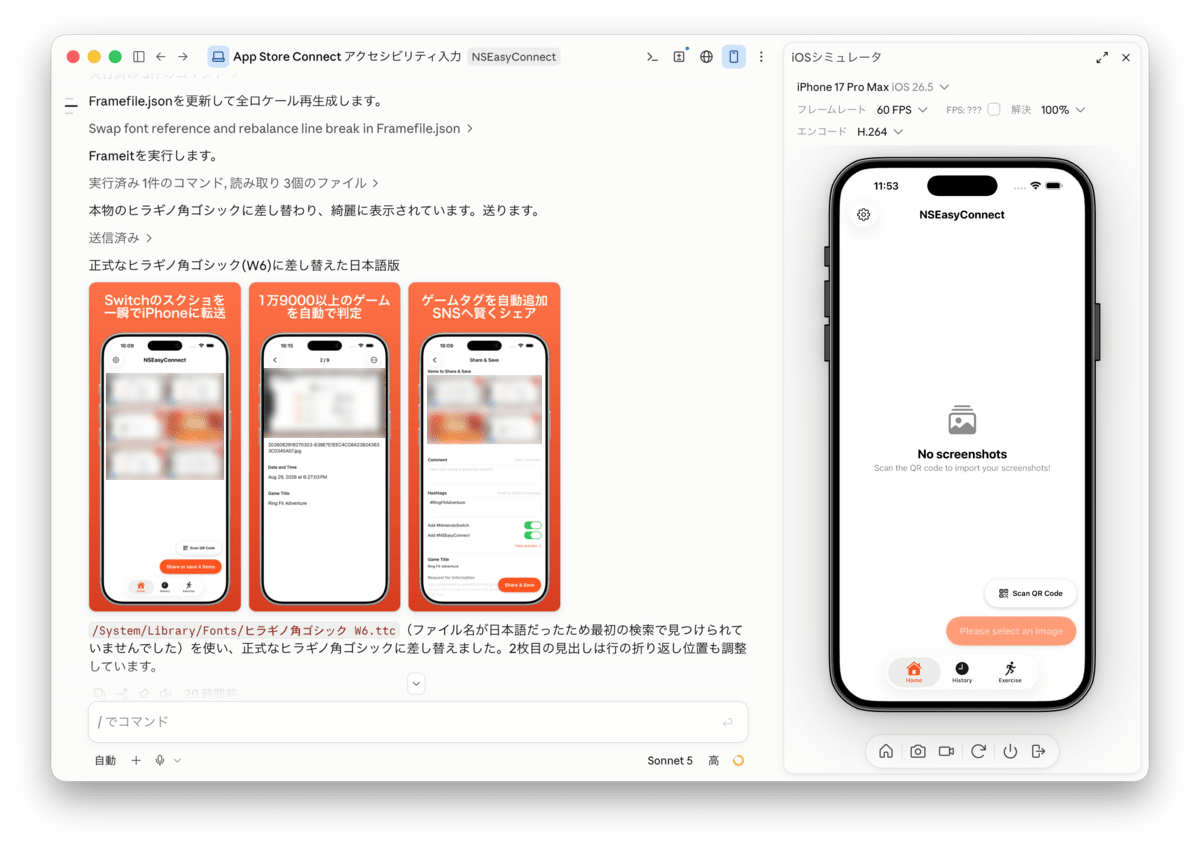
About a month ago, an iOS simulator panel was added to Claude Desktop, allowing Claude to operate and check iOS apps as if on a real device. This was already covered in the following article. This feature is available in Claude Desktop v1.24012.0 and later.
I thought this looked useful and decided to try using it to capture App Store Connect screenshots for my own app. This article introduces the high-cost problem I discovered through actual testing, and how I ended up scripting the process and creating a dedicated sub-agent as a workaround.
Test Environment
- MacBook Pro 2021 (Apple M1 Pro)
- macOS 26.5.2 (25F84)
- Xcode 26.6
- iPhone 17 Pro Max / iOS 26.5 (Simulator)
- Claude 1.40609.0 (f65e38)
Screenshots That Had Been Left Unattended
Currently, the screenshots for my app are simply the ones I manually captured right before release, left completely unmaintained.
App Store screenshots commonly include added descriptions and taglines. I had assumed this was a gray-area practice under the guidelines, but upon investigation, I found it was explicitly permitted in section 2.3.3 of the App Review Guidelines. After stating that "screenshots must show the app in use and not merely title art, login pages, or splash screens," it goes on to say that text and image overlays may be included. In other words, adding taglines was actually an expected practice. Note that misleading exaggerated presentations that diverge from the actual UI are prohibited under a different section, not 2.3.3, and the two need to be understood separately. For example, misleading marketing that shows nonexistent features falls under 2.3.1, and using screens from other platforms falls under 2.3.10. Once I confirmed there were no guideline issues, I took another look at my app's screenshots and found they were still missing those taglines.
So I decided to have Claude Code handle this entire screenshot-capture process. I'm very busy these days and rarely have time to sit in front of my PC, so having an AI that can do the work with just a few instructions is a great help.
Direct Simulator Operation Was High-Cost
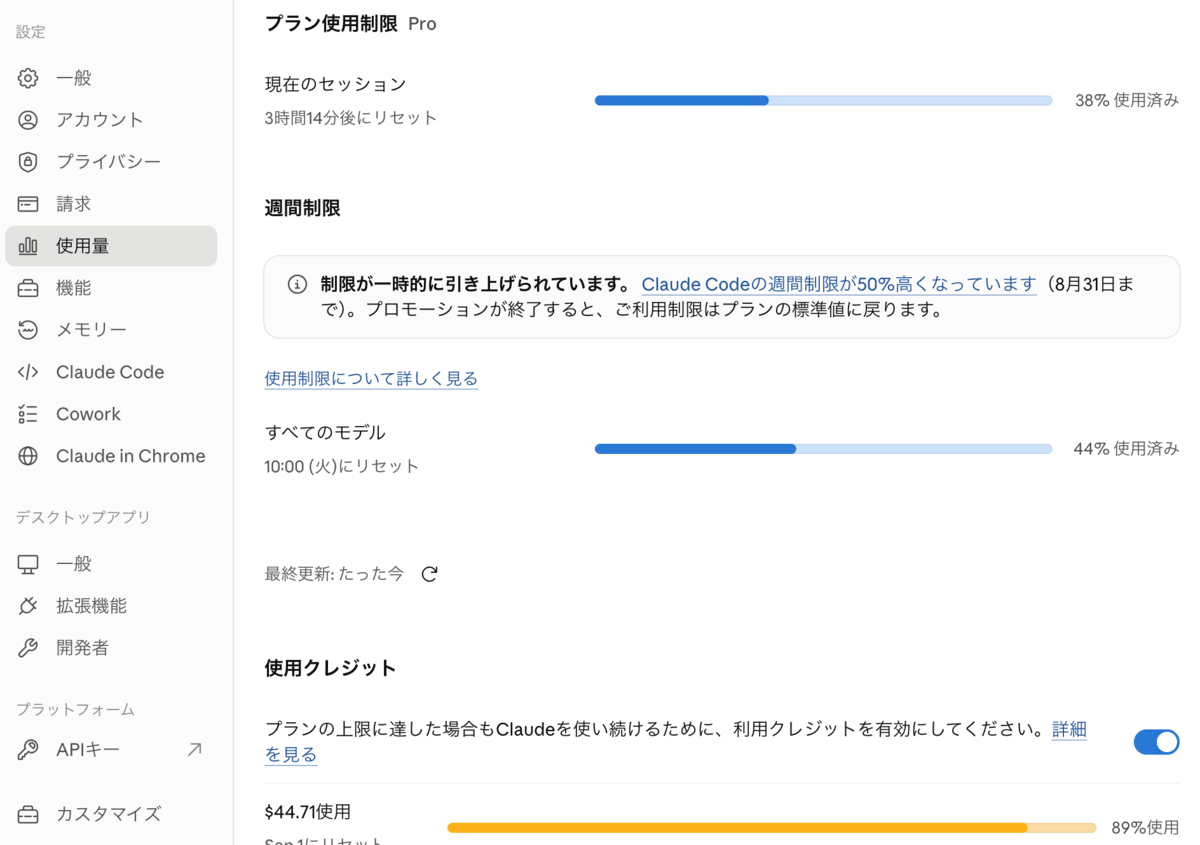
I personally subscribe to Claude Pro. I asked it to capture screenshots for 9 locales: Japanese, English, Korean, Simplified Chinese, Traditional Chinese, German, French, Portuguese (Portugal), and Portuguese (Brazil). Since it was taking a long time, I took a nap, and when I woke up I could see that it had used up the entire 5-hour limit and additionally consumed $44.71 worth of usage credits as overage.[1]
When I had it create screenshots for just one locale again, I found it consumed about 38% of Claude Pro's 5-hour limit.
Having Claude operate the simulator via taps and swipes means having it guess "where to tap next" each time while looking at screenshots. With 9 locales and multiple screens, the model gets called for each of these guesses, and costs balloon quickly. Using this approach for routine work like App Store screenshots was clearly uneconomical.
Solved with Scripting + Dedicated Sub-Agent
In the end, I stopped the manual simulator operation and switched to the following setup.
- Screenshots are captured via XCUITest. Since it's a UI test, there's no need for the AI to guess simulator coordinates, and it's also reproducible.
- The actual capturing uses fastlane's
snapshot. By listing the locales and target devices inSnapfile, it relaunches the app for each locale, runs UI tests, and automatically collects screenshots underscreenshots/<locale>/. - For post-capture device frame compositing and tagline overlaying, I use fastlane's
frameit. It overlays a real device frame on the raw screenshot and applies the taglines specified inFramefile.json, producing images ready to submit directly to App Store Connect.
Framefile.json
{
  "default": {
    "background": "../_frameit_assets/background.png",
    "show_complete_frame": false,
    "title": {
      "color": "#FFFFFF",
      "font": "../_frameit_assets/SFNS.ttf",
      "font_size": 110
    },
    "padding": 40,
    "title_min_height": 420
  },
  "data": [
    {
      "filter": "/en-US/01_home",
      "title": {
        "text": "Import Switch\nScreenshots in Seconds"
      }
    },
    {
      "filter": "/en-US/02_detail",
      "title": {
        "text": "Auto-Detects\n19,000+ Game Titles"
      }
    },
    {
      "filter": "/en-US/03_share",
      "title": {
        "text": "Share to SNS with\nSmart Hashtags"
      }
    },
    {
      "filter": "/de-DE/03_share",
      "title": {
        "text": "Mit smarten Hashtags\nauf Social Media teilen"
      }
    },
    {
      "filter": "/ja/03_share",
      "title": {
        "text": "ゲームタグを自動追加\nSNSへ賢くシェア",
        "font": "../_frameit_assets/HiraginoKakuGothic.ttc"
      }
    }
  ]
}
data elements for other locales continue in the same manner (full content omitted).
- This entire workflow (UI test execution → frame compositing) was scripted as
fastlane/process_screenshots.sh, and I created a dedicated sub-agent specifically for this task. I specified Haiku as the model.
The sub-agent is explicitly prohibited from using tools that directly tap or swipe the simulator, and instructed to always capture via UI tests. To prevent ad banners or database update banners from appearing in screenshots, a launch argument called -uitest-screenshot-mode is passed from the UI test side, and the app uses UITestMode.isScreenshotCapture to forcibly enable the subscription state and suppress banner display. If capture fails, the sub-agent is also set up not to try fixing the code itself, but only to report the failure point and error message, leaving the judgment to the caller (me).
The sub-agent definition is as follows.
---
name: screenshot_capture
description: >
  A sub-agent for cost-effectively capturing and processing App Store marketing
  screenshots for NSEasyConnect. Used when asked to "retake screenshots," "update
  screenshots," or similar requests involving screenshot capture and device frame
  compositing via UI tests. Rather than interactively operating the iOS simulator,
  it simply runs `NSEasyConnectUITests` and `fastlane/process_screenshots.sh`.
  Does not make copy changes, design decisions, or code fixes (reports results only).
tools: Bash, Read, Grep, Glob
model: haiku
color: purple
---
When I actually asked this sub-agent to retake three Japanese screenshots, the cost was $0.95 and it completed in 2 minutes 8 seconds of API time (33 minutes 45 seconds wall time).
With direct simulator operation, just one locale's worth of work consumed about 38% of the Pro plan's 5-hour limit, whereas after scripting, retaking three Japanese screenshots cost only $0.95 in API terms. These are numbers with different units, but that shows just how large the gap is.
Rather than having the AI manually operate the simulator, switching to a model where "the capture and processing procedure itself is scripted, and a cheaper model is called to run that script" dramatically reduced costs. Even as the number of locales and screens increases, costs grow almost linearly since the AI doesn't need to view the screen and guess operations each time.
Summary
Claude Code gaining the ability to directly operate the simulator is an interesting advancement, but it wasn't suited for routine, repetitive work like capturing App Store screenshots—the kind that just repeats the same steps every time. One benefit was that by scripting the simulator operations, costs grew almost linearly even as the number of locales and screens increased. On the other hand, the fact that it consumed a large portion of the Claude Pro limit before reaching that point was a problem I felt needed addressing.
For this kind of work, it's overwhelmingly better—in terms of both cost and reproducibility—to straightforwardly script it with UI tests and fastlane, and give the AI only the thin role of "run that script and report the results." I realized firsthand that it's not a matter of having Claude Code directly operate everything, but rather recognizing what it's suited for and using it accordingly. I hope this serves as a useful reference for anyone else struggling with the cost of simulator operations.
Looking back, I should have been checking the actual costs more regularly. At the very least, if I had run the
/usagecommand, I could have done a proper cost comparison, which is a shame. ↩︎