I set up an environment to learn English while working in Claude Code

This page has been translated by machine translation. View original
Introduction
I'm kasama from the Data Business Division.
In this post, I will combine Claude Code's output-styles, skills, and hooks to create an environment that exposes me to reading, listening, and writing English while working. Since my daily work is completed in Japanese, I thought that making Claude Code's responses in English would naturally expose me to English.
You might think, "Why not just set language to english and have conversations in English?", but my English level only allows me to give short instructions in English, and I'm not yet at the stage where I can handle long text input/output. So I switched the Kokoro TTS I implemented in a previous blog to English so I can listen to responses, and combined it with grammar correction and recording for English input, and immediate translation of unknown words, creating an environment where I can be exposed to English without reducing work efficiency.
Overall System Structure
Claude Code's configuration files are stored under ~/.claude/. This time, I'll build an English learning environment by combining settings.json, hooks/, output-styles/, and skills/.
I usually give instructions to Claude Code by voice input. For short instructions, I speak in English, but when I want to convey complex intentions in long sentences, there are situations where English alone is difficult. In such cases, I use Mac's standard voice input or Aqua Voice in Japanese mode to give instructions in Japanese.
I'm using these external tools instead of Claude Code's Voice mode because when language is set to english in settings.json, Voice mode recognizes Japanese speech as English. I don't want to change the language: english setting since I want to always receive responses in English, so I've chosen external tools.
The roles of each component are as follows:
settings.json(language: english+outputStyle: EnglishCoach): Makes responses always in English with educational commentary. Shows English translation for Japanese input and provides grammar correction for English input. Trains reading and writing skillsenglish-log(skill): Automatically records correction results in a Markdown table, accumulating patterns of my mistakessay-response.py+ Kokoro TTS (Stop hook): Reads responses aloud in English. Trains listening skills- DeepL Desktop: Instantly translates unknown words with
Shift+Ctrl+L
Implementation
The configuration files are stored on GitHub.
69_claude_code_english_setup/
├── settings-example.json
├── output-styles/
│   └── EnglishCoach.md
├── hooks/
│   ├── say-response.py
│   ├── tts-server-start.sh
│   ├── tts-server-stop.sh
│   └── kokoro-tts/
│       └── pyproject.toml
├── skills/
│   └── english-log/
│       ├── SKILL.md
│       └── references/
│           └── INSTRUCTIONS.md
└── samples/
    └── english_log.md
Settings
Set language, outputStyle, and various hooks in ~/.claude/settings.json.
With "language": "english", all Claude Code responses will be in English. "outputStyle": "EnglishCoach" specifies the custom output style described later.
TTS-related hooks (SessionStart/SessionEnd/Stop) only work when the environment variable CLAUDE_VOICE=1 is set. If the environment variable is not set, TTS-related processing is skipped.
Output Styles
Output Styles is a feature that replaces Claude Code's system prompt to change the voice, format, and behavior of responses. In addition to the built-in Default / Explanatory / Learning, you can define custom styles in Markdown files.
For differences in the behavior of built-in styles and basic usage, please refer to the following article.
This time, I defined a custom style EnglishCoach for English learning purposes in ~/.claude/output-styles/EnglishCoach.md and specified it with outputStyle in settings.json. It always responds in English, displays an English translation at the beginning for Japanese input, performs grammar correction for English input and automatically records it in a Markdown table with the english-log skill, and adds explanations in Insight blocks when code changes. It maintains standard coding instructions with keep-coding-instructions: true.
Skills
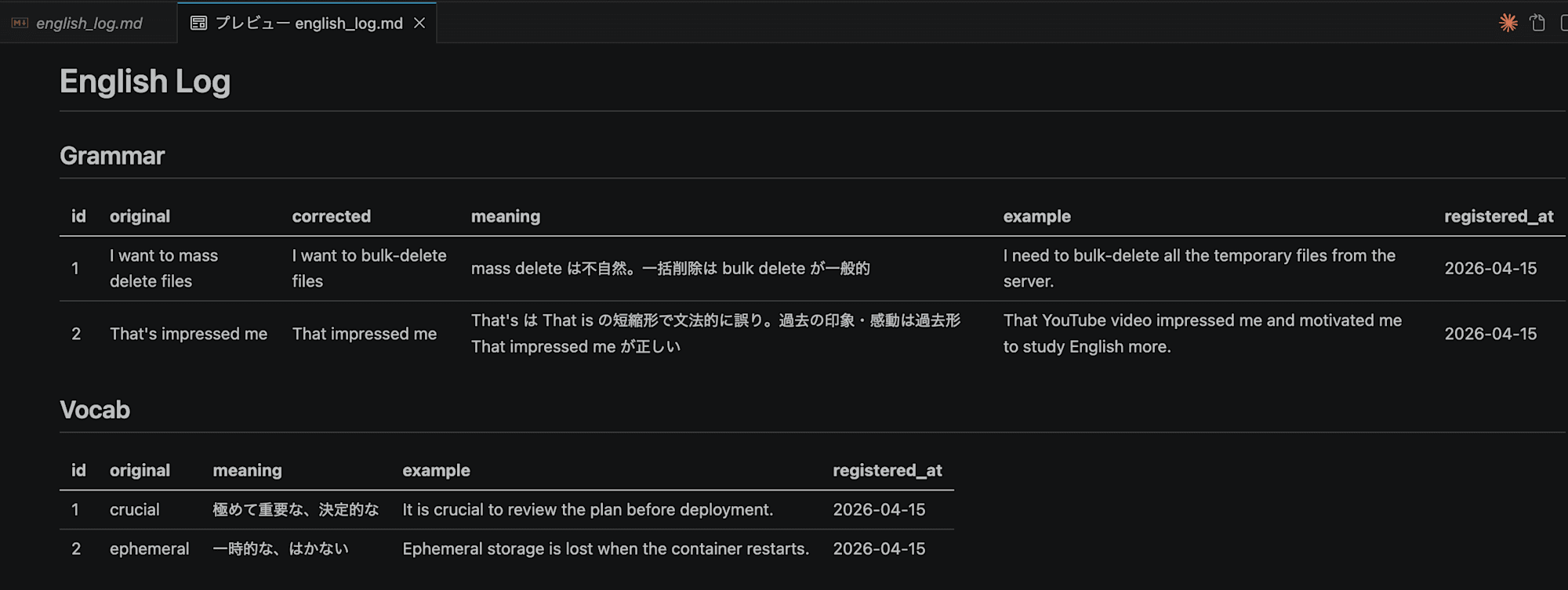
Place the skill in ~/.claude/skills/english-log/. This skill is automatically called when the EnglishCoach style outputs corrections, and records the correction content in english_log.md as a Markdown table. It has a structure with two tables, Grammar and Vocab, in one file.
Hooks
I modified the Kokoro TTS Stop hook implemented in the previous blog for English. I changed the voice to one for English (af_heart) and adjusted the language code and reading limits for English. Kokoro TTS has rich English training data, so speech is more natural and faster than Japanese.
TTS server startup and shutdown are managed by tts-server-start.sh / tts-server-stop.sh. The server is started with the SessionStart hook and stopped with the SessionEnd hook.
Peripheral Tools
I use external tools for voice input and word translation, which cannot be completed with Claude Code alone.
Voice Input (Mac Standard / Aqua Voice)
When it's difficult to convey long instructions in English, it's convenient to use Mac's standard voice input or Aqua Voice in Japanese mode.
Mac's voice input can be enabled in System Settings > Keyboard > Dictation, and you can set a shortcut key (e.g., press the Control key twice).
Aqua Voice is a voice input tool with high recognition accuracy.
DeepL Desktop
When Claude Code's responses are in English, you may encounter words you don't understand. Since searching in a browser each time is cumbersome, I use DeepL Desktop alongside.
DeepL Desktop can be used for free. After installation, set a shortcut for "Translate selected text" in Settings > Keyboard shortcuts (e.g., Ctrl+Shift+L). If you encounter an unknown word in Claude Code's terminal, just select the text and press the shortcut to display a translation popup.
Setup
Clone the repository and copy the necessary files to ~/.claude/.
git clone https://github.com/cm-yoshikikasama/blog_code.git
cd blog_code/69_claude_code_english_setup
1. Place Output Style
mkdir -p ~/.claude/output-styles
cp output-styles/EnglishCoach.md ~/.claude/output-styles/
2. Add Settings to settings.json
Add the following to ~/.claude/settings.json. If you already have a settings.json file, merge it.
# If there is no existing settings.json
cp settings-example.json ~/.claude/settings.json

# If there is an existing settings.json, manually add the following
# "language": "english",
# "outputStyle": "EnglishCoach"
3. Place english-log Skill
mkdir -p ~/.claude/skills/english-log/references
cp skills/english-log/SKILL.md ~/.claude/skills/english-log/
cp skills/english-log/references/INSTRUCTIONS.md ~/.claude/skills/english-log/references/
cp samples/english_log.md ~/english_log.md
4. Set up TTS (Optional)
Set up only if voice reading is needed.
mkdir -p ~/.claude/hooks/kokoro-tts
cp hooks/say-response.py ~/.claude/hooks/
cp hooks/tts-server-start.sh ~/.claude/hooks/
cp hooks/tts-server-stop.sh ~/.claude/hooks/
chmod +x ~/.claude/hooks/tts-server-start.sh ~/.claude/hooks/tts-server-stop.sh

# Set up Kokoro TTS
cp hooks/kokoro-tts/pyproject.toml ~/.claude/hooks/kokoro-tts/
cd ~/.claude/hooks/kokoro-tts
uv sync
To enable TTS, launch Claude Code with CLAUDE_VOICE=1.
Trying It Out
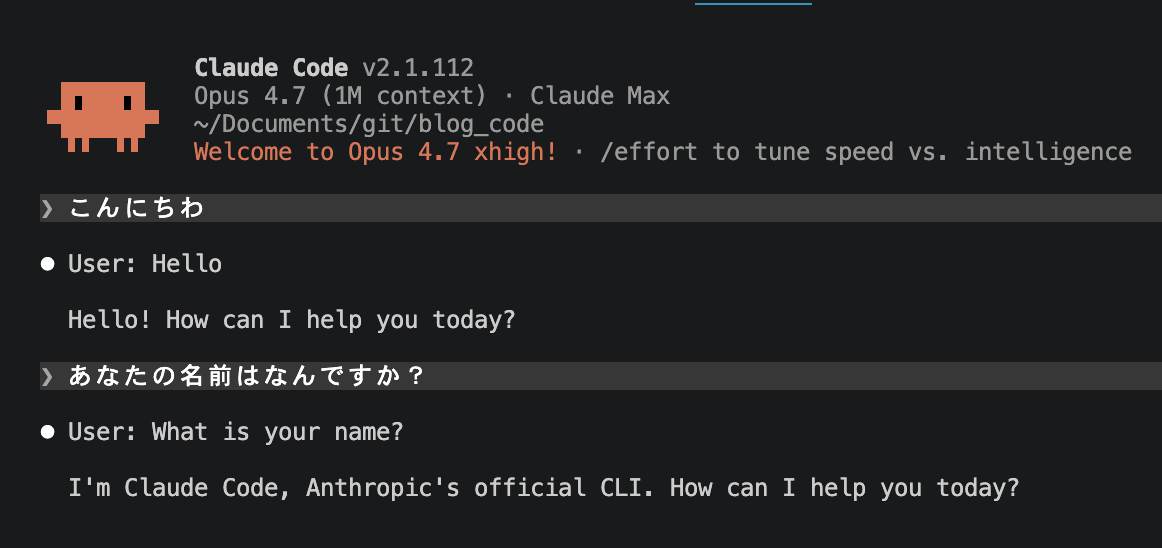
Testing Japanese Input
When I speak in Japanese, the EnglishCoach style displays an English translation and responds in English according to the instructions.
Testing English Correction
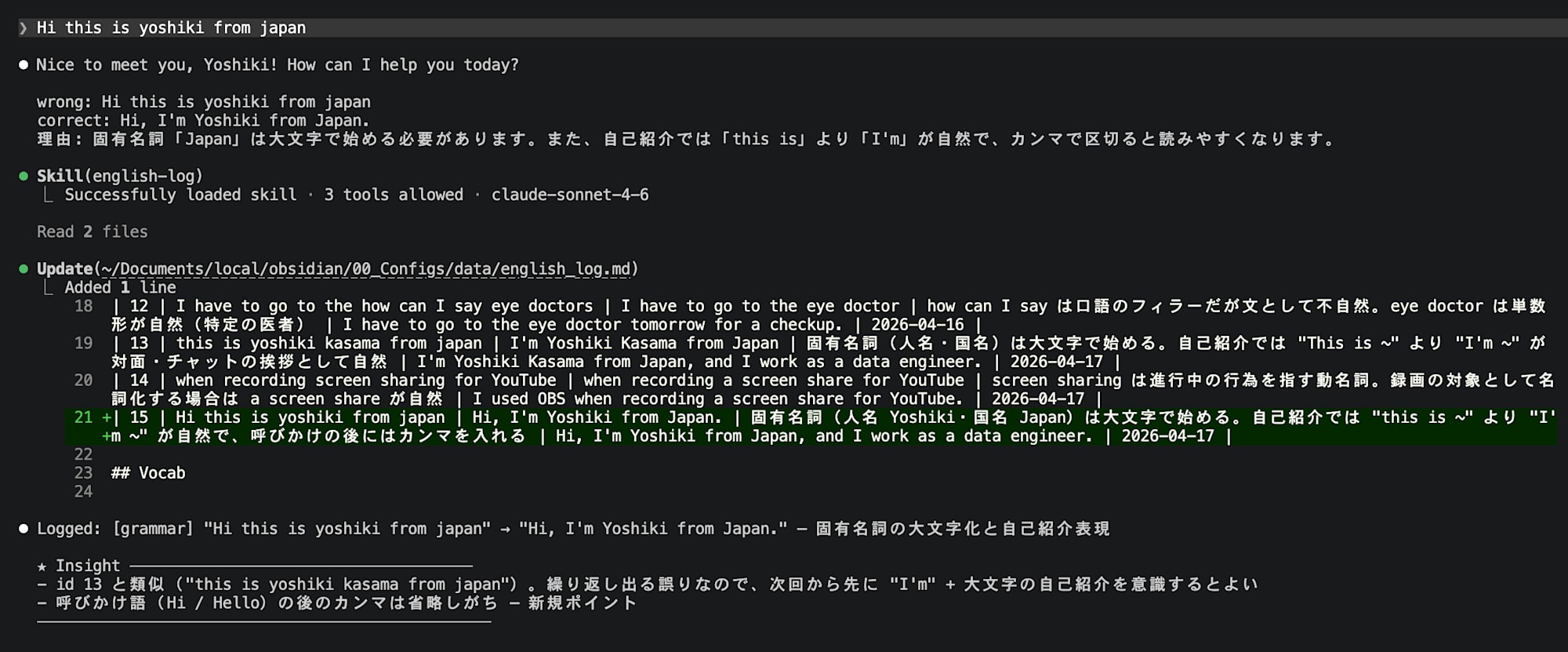
I'll try speaking in intentionally unnatural English.
Corrections were added at the end of the response. The reasons are written in Japanese, making it easier to understand why a certain expression is better. The corrections are automatically recorded in a Markdown table by the english-log skill.
As an example of english_log.md, it outputs English logs in the following format.
Translation with DeepL Desktop
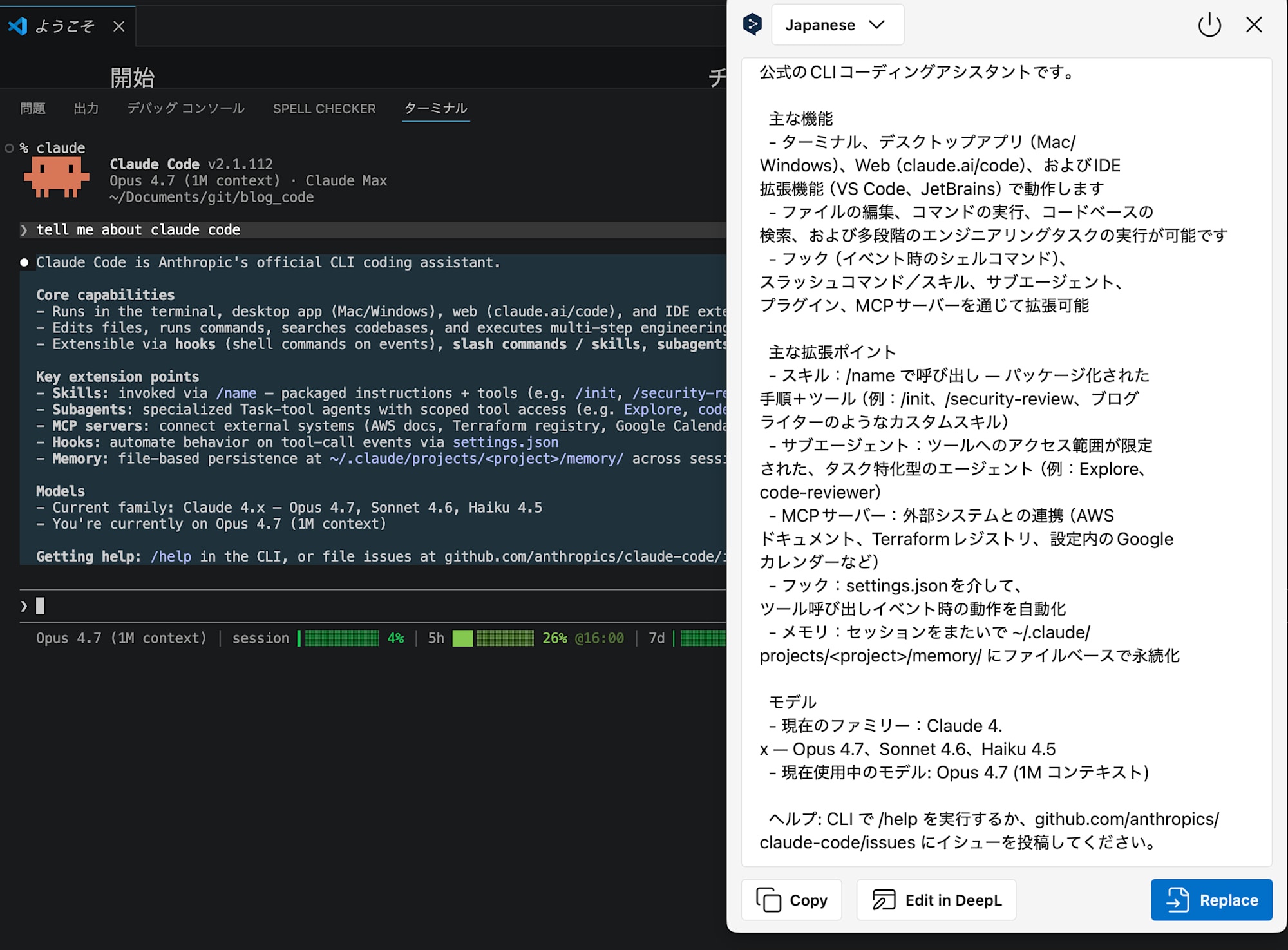
This is the operation of translating unknown words in English responses with DeepL Desktop. Select text in the terminal and press Shift+Ctrl+L to display a translation popup.
This may not work properly if CLAUDE_CODE_NO_FLICKER=true is set or if there are shortcut key conflicts in VS Code, etc. In that case, review your shortcut assignments.
Checking English Responses
Launch with CLAUDE_VOICE=1 claude and try speaking in English. It might feel a bit slow, but responses come back in English.
Conclusion
This year, I'm planning to actively learn English, so if there's no inconvenience, I'd like to do my usual work in this format. I hope this is helpful for those in a similar situation!