Using what Claude learned in Chat in Cowork. I tried checking, rewriting, and deleting memory topics.

This page has been translated by machine translation. View original
Hey there! I'm Yuji Nishimura from the Operations team!
A little while back, on August 25, 2026, Anthropic announced an update to Claude's memory.
If premises shared in Chat could also be used in Claude Cowork tasks, it would save the trouble of writing preambles every time you make a request. So, I used Claude Desktop to have Chat memorize a fictional project, then ran through the whole process: checking and rewriting it in the settings screen, referencing it from Cowork, and deleting it.
What Changed This Time
The changes explained in the official blog come down to three points:
- Chat and Claude Cowork now use the same memory ("the memory you use in chat is the same as in Claude Cowork")
- Instead of summarizing after a conversation ends, Claude now adds topics to memory during the conversation ("Claude now adds topics to memory as you chat")
- Everything remembered is listed as files under Topics in Memory settings, where you can read, edit, or delete each one ("Everything Claude remembers is in a list of files under Topics in Memory settings, where you can read, edit, or delete each one.")
Testing Environment
- Claude Desktop 2.31226.1 (macOS)
- Max plan, model is Opus 5.5, UI set to Japanese
- Verified on October 11, 2026
For testing, I used only a fictional project called "Kanpachi-42" and its deadline.
Note that according to the Help Center, a new interface that removes the "Chat" / "Cowork" toggle from the input area is being rolled out gradually for Pro / Max plans. The environment used this time still had the toggle. The steps below may appear differently in the new interface.
Let's Try It
1. Having Chat Remember Something
I selected "Chat" in the home input area and sent the following message:
This is a note for blog verification. Please remember: the deadline for my verification project "Kanpachi-42" is December 18, 2026.
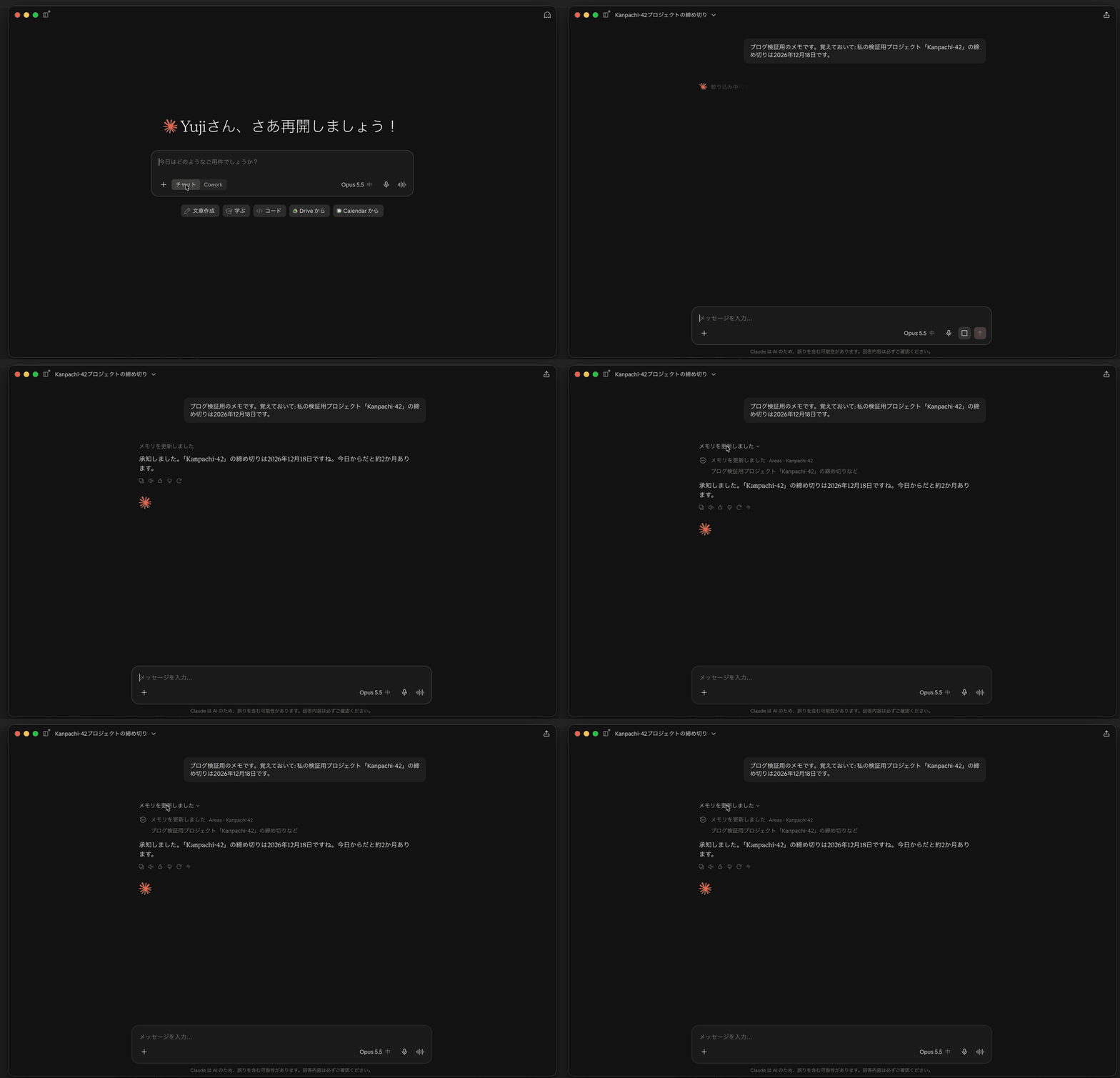
"Memory updated" appeared before the response. True to the official "as you chat" description, the memory was rewritten during this exchange without waiting for the conversation to end.
Clicking this notification shows which topic was updated.
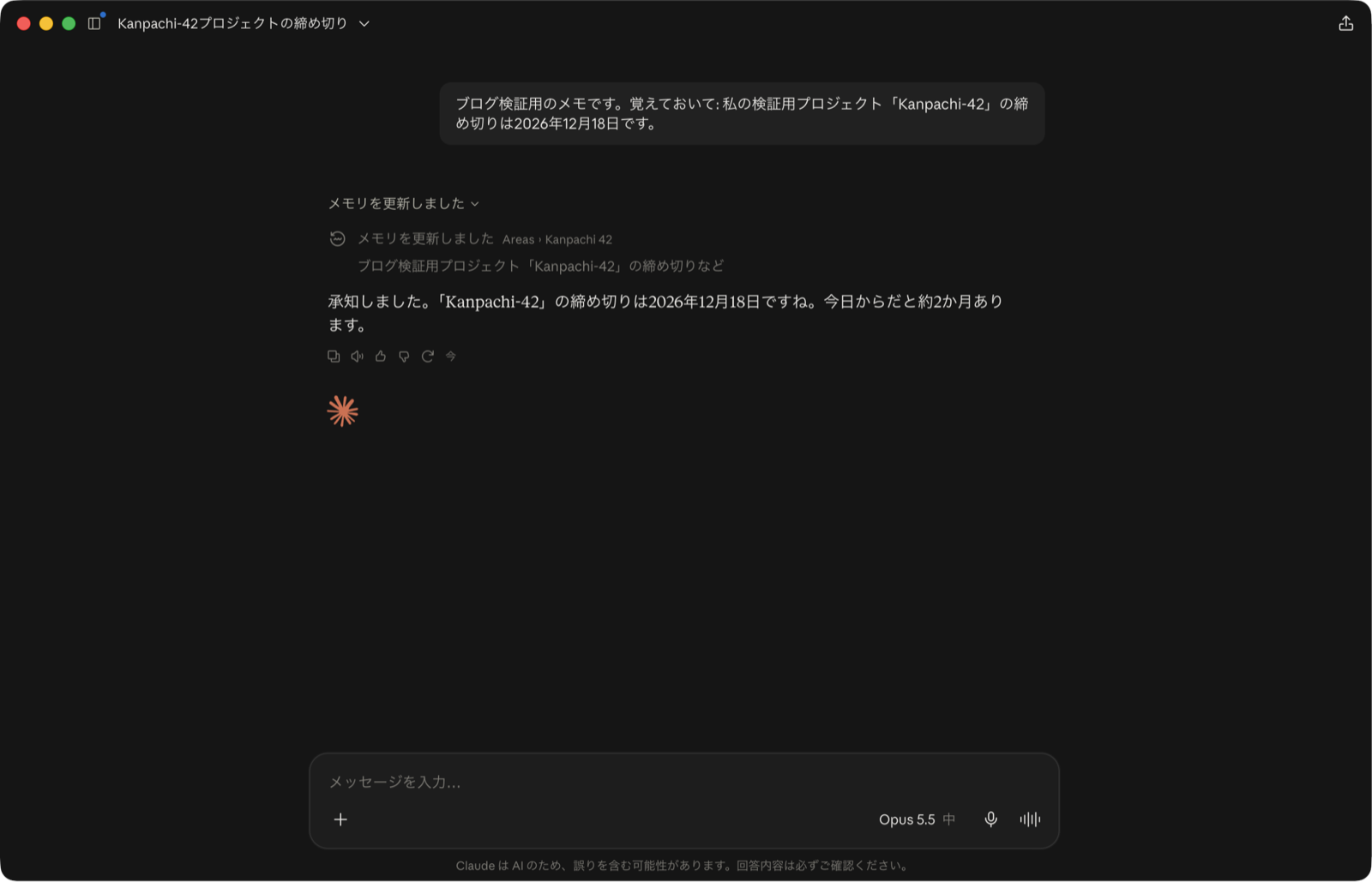
A topic called "Areas › Kanpachi 42" was created, with the summary "Deadline and other details for blog verification project 'Kanpachi-42'."
2. Checking the Topic in Settings
I opened "Claude" → "Settings…" from the menu, selected "Memory," and scrolled down.
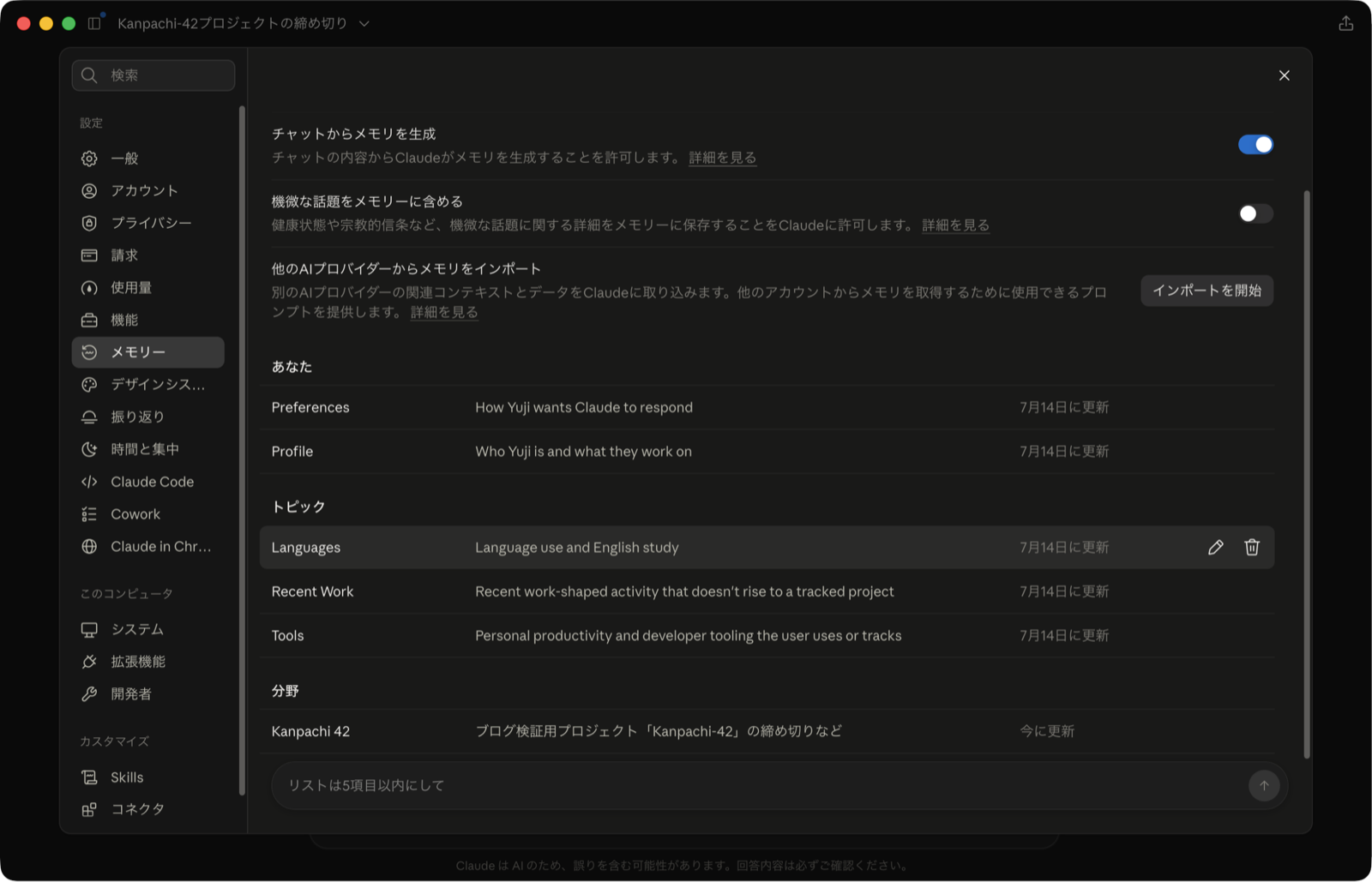
At the top of the screen are toggles such as "Generate memory from chats" and "Include sensitive topics in memory." Below that, the content was divided into three sections: "You," "Topics," and "Areas." The topic from earlier was added under the "Areas" section, displayed in the UI as "Updated now."
The official blog described a list appearing under "Topics," but the topic created in Chat went into "Areas," not "Topics." The criteria for which section something gets assigned to could not be confirmed from the official explanation.
Clicking a row lets you read the contents of a topic.
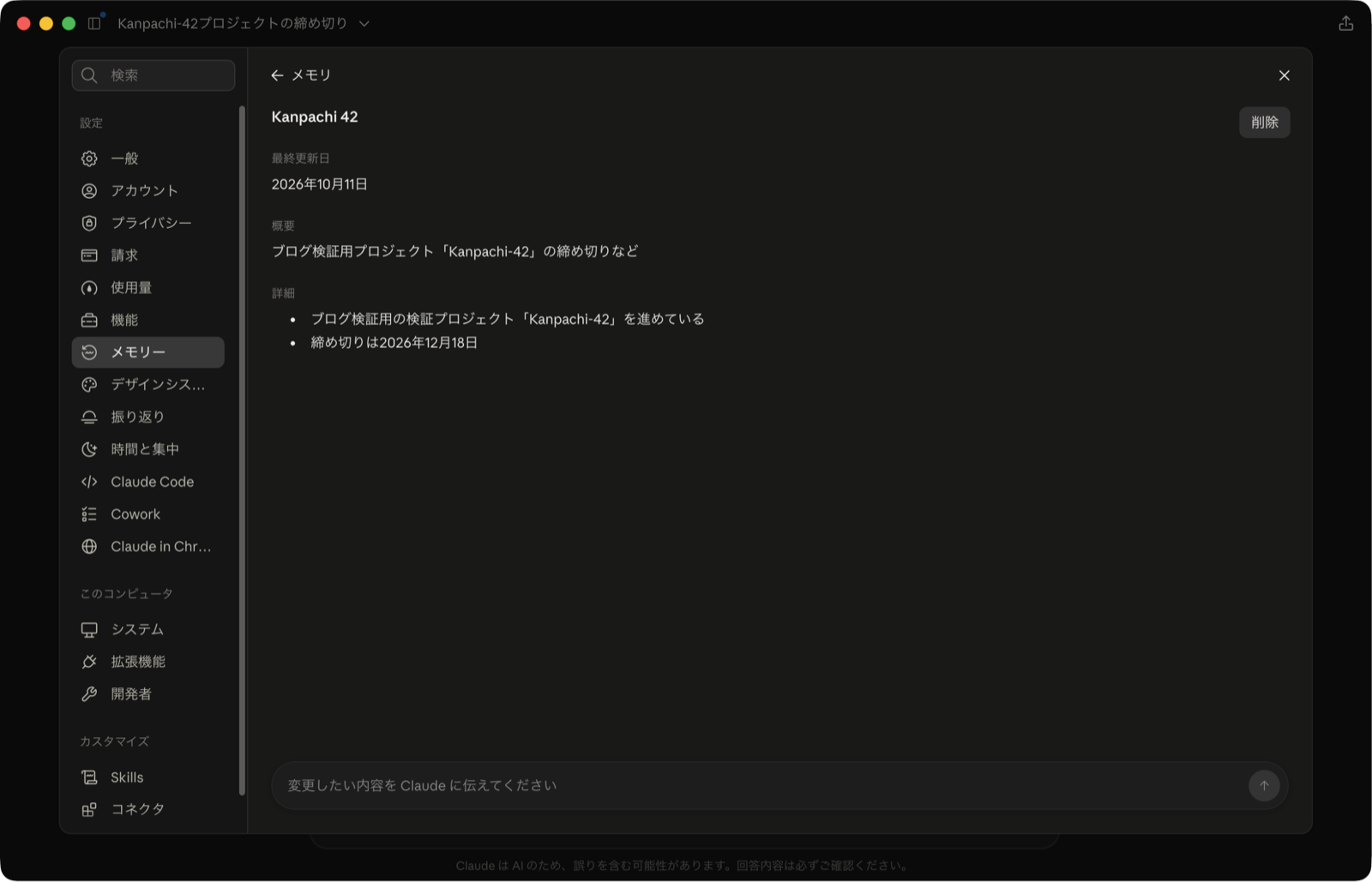
The detail screen is divided into "Last updated," "Summary," and "Details." The details contained two lines: "Working on the blog verification project 'Kanpachi-42'" and "Deadline is December 18, 2026."
3. Rewriting in Natural Language
At the bottom of the detail screen is an input field that says "Tell Claude what you'd like to change." I sent "Change the deadline to January 15, 2027."
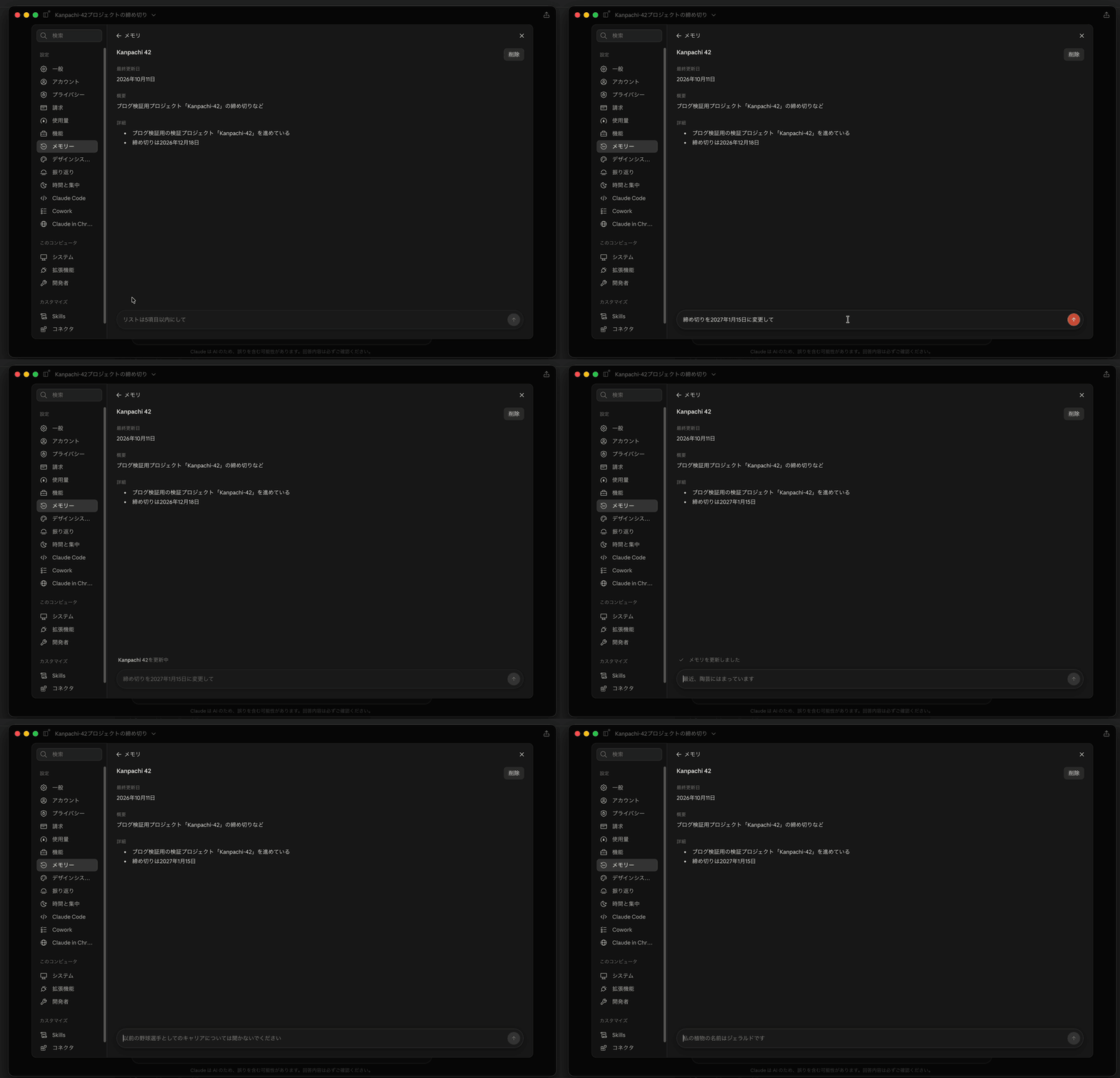
Following the "Updating Kanpachi 42" message, the second line in the details changed to "Deadline is January 15, 2027." There's no need to edit the topic text yourself.
4. Reading the Same Memory from Cowork
I selected "Cowork" in the home input area and asked it to answer using only memory.
Please answer using only your memory, without using any files or tools. When is the deadline for my verification project "Kanpachi-42"?
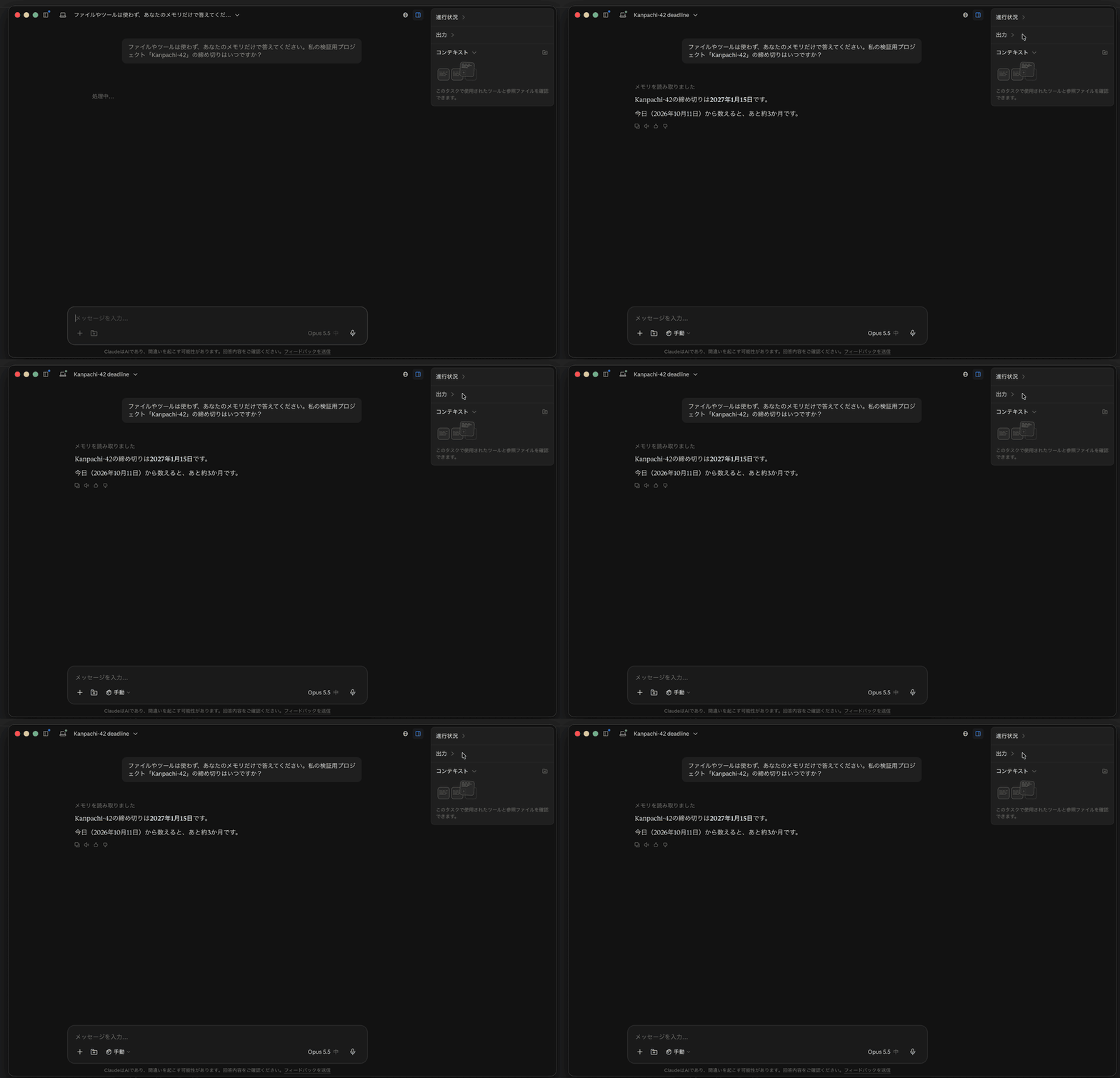
Cowork went through "Reading memory," read "Areas › Kanpachi 42," and answered "The deadline for Kanpachi-42 is January 15, 2027." This is the value after being created in Chat and rewritten in the settings screen.
The Help Center explains that memory sharing varies depending on where Cowork runs (covered in the next section). So I hovered over the computer icon in the upper left of the task screen to check what was displayed.
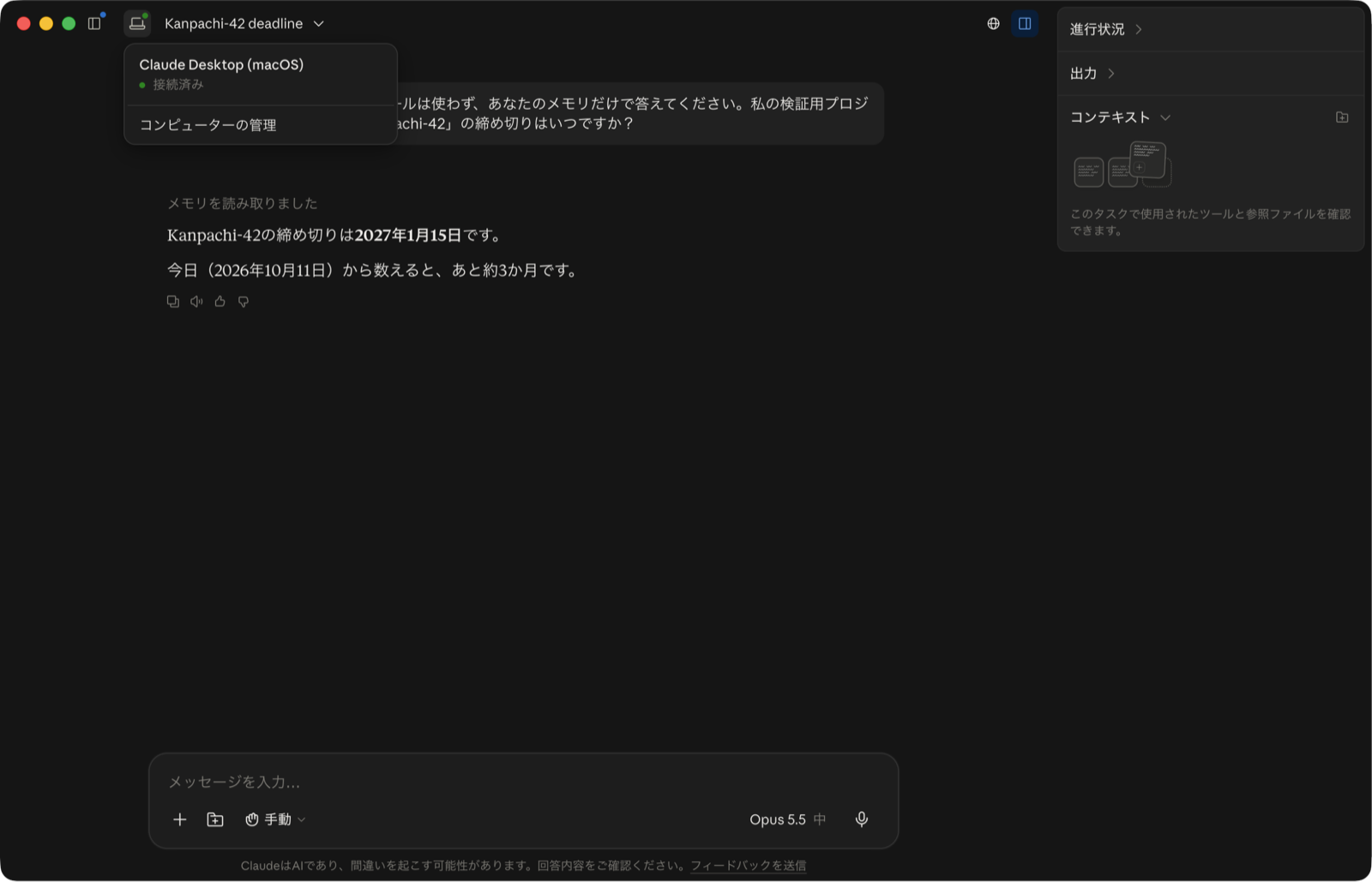
"Claude Desktop (macOS) Connected" and "Manage computer" were displayed.
5. Deleting the Topic
Finally, I deleted the verification topic from the Memory settings screen.
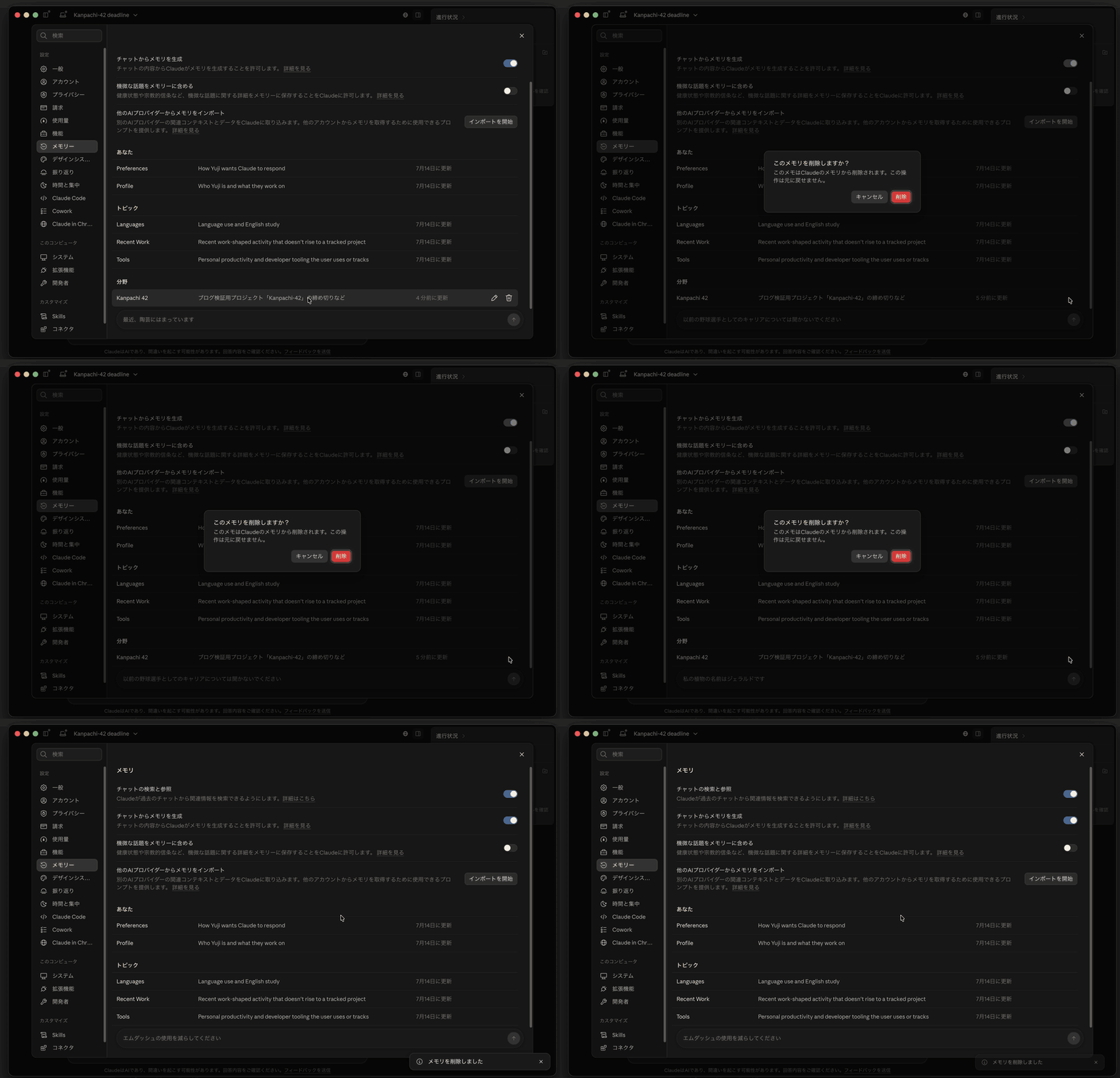
Pressing the trash icon shows a confirmation: "Delete this memory?" and "This action cannot be undone." Selecting "Delete" displays "Memory deleted," and the entry disappeared from the list along with the entire "Areas" section. Other topics remained intact.
Conditions for Memory to Be Used in Cowork
The Help Center states the sharing conditions as follows:
Memory is shared between Chat and Claude Cowork when Cowork runs in the cloud; Cowork sessions that run locally on your computer don't use memory.
(Use Claude's chat search and memory to build on previous context)
This explains that only Cowork running in the cloud uses memory — sessions running locally on your PC do not.
On the other hand, the Help page covering how to use Cowork states for Pro / Max plans: "On October 6, 2026, new Cowork tasks on Pro and Max plans run in the cloud." and "There's no setting to choose where a task runs on Pro and Max plans." The same Help page explains that even cloud sessions can read and write to local PC folders via the desktop app.
Since this was a Max plan task newly created on October 11, it was running in the cloud, and being able to read memory is consistent with the Help explanation. I interpreted the "Claude Desktop (macOS) Connected" display in step 4 as showing the PC that's connected so the task can access local files and such. However, I was unable to find any official documentation explaining the meaning of this display.
Cowork tasks started on a PC before October 6, or sessions running locally on Team / Enterprise plans, do not use memory according to the Help explanation. Since I didn't test those conditions this time, it would be worth checking once if you're in one of those environments.
Settings and Specs Not Tested
The following is a summary of the official blog and Help Center descriptions. Pause and Reset affect the entire memory, so I did not execute them during this verification. The other items are included here as a reference for the specs.
| Item | Official Explanation |
|---|---|
| Pause | Stops memory usage and creation of new memories while keeping existing memory intact. Conversations during the pause are not added to memory even after resuming |
| Reset | Permanently deletes all memory, including project memory |
| Sensitive topics | Health conditions, race, ethnicity, religious beliefs, politics, gender identity, etc. are not saved by default. Turning it on in settings makes subsequent conversations subject to saving |
| Things that won't be saved even if asked | Government-issued ID numbers and other identifying numbers, criminal history, financial account numbers, immigration status, content that violates the Terms of Service |
| Default values by plan | Free / Pro / Max have memory on by default. Team / Enterprise is decided by the administrator, and remains off until each member turns it on themselves |
| Incognito chat | Not saved to memory or chat history on any plan |
Summary
Using Claude Desktop, I was able to confirm that content shared in Chat is saved on the spot as a topic, and that Cowork returns the value rewritten in the settings screen directly. In the environment used this time, a premise shared once in Chat could be used in Cowork tasks without re-explaining it.
However, only Cowork running in the cloud shares memory. New tasks on Pro / Max run in the cloud, but other environments may not be eligible. Also, you can check what content is carried over to Cowork in the topic list on the "Memory" settings screen. When you want to skip preambles, checking this list first makes it easier to judge what needs to be re-explained.
I hope this is useful to someone.
Reference Links: