
I tried converting Word to PDF using Google Cloud Translation API, then back to Word and translating it

This page has been translated by machine translation. View original
Hello, I'm Kema.
When translating documents created in Word, the body text and tables can be translated, but text placed inside text boxes and shapes sometimes remains in Japanese.
This is a known behavior when translating DOCX files directly with Cloud Translation's Document Translation, and it is officially documented that "content inside text boxes isn't translated and remains in the source language."
The more a document uses concept diagrams, flowcharts, and callout bubbles, the more this "untranslated text box" issue becomes a problem.
In this article, I tested whether converting a Word file to PDF first and then using Cloud Translation's PDF→DOCX conversion (the format_conversions option in batch translation) would produce a DOCX with the contents of text boxes and shapes translated as well.
This is a verification of the hypothesis that routing through PDF makes text boxes eligible for translation.
This article is a continuation of a series verifying document translation by file format.
So far the series has covered PDF, Word, Excel, and PowerPoint; this fifth installment is an applied case using PDF→DOCX conversion to translate text boxes in Word.
Specifications and behavior were verified against the official Google Cloud documentation, with relevant passages quoted.
I then ran the actual process to confirm whether the results matched the official descriptions.
Series Articles
| Format | Article |
|---|---|
| Translating an Entire PDF with Google Cloud Translation API | |
| Word | Translating an Entire Word Document with Google Cloud Translation API |
| Excel | Translating an Entire Excel File with Google Cloud Translation API |
| PowerPoint | Translating an Entire PowerPoint File with Google Cloud Translation API |
| PDF→DOCX Conversion (this article) | - |
Target audience: Anyone who wants to translate text placed inside Word text boxes and shapes
1. Conclusion: Official Documentation vs. Verified Results
For those who just want the bottom line quickly, here is a summary upfront.
Translating Word as DOCX leaves text boxes untranslated, but converting to PDF first and using batch translation's PDF→DOCX conversion produces a DOCX with the contents of text boxes and shapes translated as well.
First, here are the differences between the three translation methods.
| Method | Input→Output | Text box / shape content | Attribution | Processing time |
|---|---|---|---|---|
| ① Translate Word directly (sync) | DOCX → DOCX | Not translated (remains in source) | None | Fast |
| ② Translate PDF (sync) | PDF → PDF | Translated | Burned in | ~1.4 seconds |
| ③ PDF→DOCX conversion (batch, this article) | PDF → DOCX | Translated | None | ~9.6 minutes |
Following that, here is a summary of the official documentation versus verified results for method ③, PDF→DOCX conversion.
| Aspect | Official documentation | Verified result (confirmed in this article) |
|---|---|---|
| PDF→DOCX conversion availability | Batch translation only, native PDFs only | Could output as DOCX using format_conversions |
| Text box / shape content | "Not translated" explicitly stated for direct DOCX translation | Translated when routing through PDF |
| Glossary (fixing custom term translations) | Translations can be fixed using a glossary | Applied to body text, tables, shapes, and text boxes |
| Images | (Not explicitly stated) | Retained as images; text inside remained in Japanese |
| Tables | Formatting may break for complex layouts | Became positioned text with borders rather than Word tables |
| Layout fidelity | Native formats retain layout better than PDF | Text boxes were preserved, but font shrinkage, table breakage, and other issues occurred |
The most important point is that text boxes and shapes that are not translated when using DOCX directly are translated when routing through PDF.
However, PDF→DOCX conversion is only available in batch translation, takes several minutes to process, and offers lower layout fidelity than direct DOCX translation.
It is best positioned as a method specifically for cases where you absolutely need to translate the contents of text boxes and shapes.
2. What Is PDF→DOCX Conversion (format_conversions)?
Cloud Translation's Document Translation is a feature that translates a file while preserving its formatting and layout.
An overview of the feature and authentication were covered in previous articles.
Citation: DevelopersIO: Translating an Entire PDF with Google Cloud Translation API
The Specification That Text Boxes Are Not Translated
The first thing to understand is the note in the supported formats table.
For DOC and DOCX, it is explicitly stated that "content inside text boxes isn't translated and remains in the source language."
Content inside text boxes aren't translated and remain in the source language.
Citation: Official documentation: Translate documents | Google Cloud
On the other hand, looking at the input-output correspondence table, you can see that PDF output can be either PDF or DOCX.
| Input | Output |
|---|---|
| DOCX | DOCX |
| PDF, DOCX | |
| PPTX | PPTX |
| XLSX | XLSX |
Citation: Official documentation: Translate documents | Google Cloud
Requirements for PDF→DOCX Conversion
This PDF→DOCX conversion has several requirements.
Support for PDF to DOCX conversions is available for batch document translations on native PDF files only.
Citation: Official documentation: Translate documents | Google Cloud
- Available only in batch translation (
batchTranslateDocument). PDF→DOCX conversion is not available with real-time synchronous translation (translateDocument). - Native PDFs only. Mixing in scanned PDFs will cause the entire request to be rejected (PDFs exported from Word are native PDFs, so this is not an issue).
- Batch translation uses Cloud Storage for both input and output and is a long-running operation (LRO) that waits for completion.
- Like glossaries, the
globallocation cannot be used; you must specify a location such asus-central1.
The official documentation also explicitly states that complex PDF layouts may result in formatting loss.
Complex PDF layouts can also result in some formatting loss, which can include data tables, multi-column layouts, and graphs with labels or legends.
Citation: Official documentation: Translate documents | Google Cloud
In other words, PDF→DOCX conversion comes with the advantage of being able to translate text boxes, but at the cost of potential layout degradation.
I verified this trade-off by actually running the process.
3. Preparing for Verification
3.1 Prerequisites
The prerequisites are the same as for the Word, Excel, and PowerPoint articles (macOS, Python 3.12 venv, google-cloud-translate 3.26.0, personal project with billing enabled).
The steps for enabling the API, ADC authentication, and installing libraries into the venv are also the same.
Since batch translation uses Cloud Storage, permissions to read input files and write to the output destination (such as roles/storage.objectViewer) are required.
3.2 Sample Document (Converting Word to PDF First)
For verification, I used the same Word document from the fictional anime "Hoshirei Monogatari: Lumina Chronicle" used throughout the series.
This Word file intentionally includes elements that were not translated in the Word article, in addition to body text and tables.
- Text boxes containing "highlights" and character introductions
- Text placed inside shapes such as rectangles, rounded rectangles, and ellipses
- A two-column world-building memo (text box)
- A bar chart pasted as an image
- A key visual image
This Word file was first exported as a PDF.
Using Word's "File" → "Save As" or "Export as PDF," a native PDF was created (a PDF containing text data, not a scan).
The original Word file converted to PDF has a total of 4 pages.
All pages before translation are shown below.
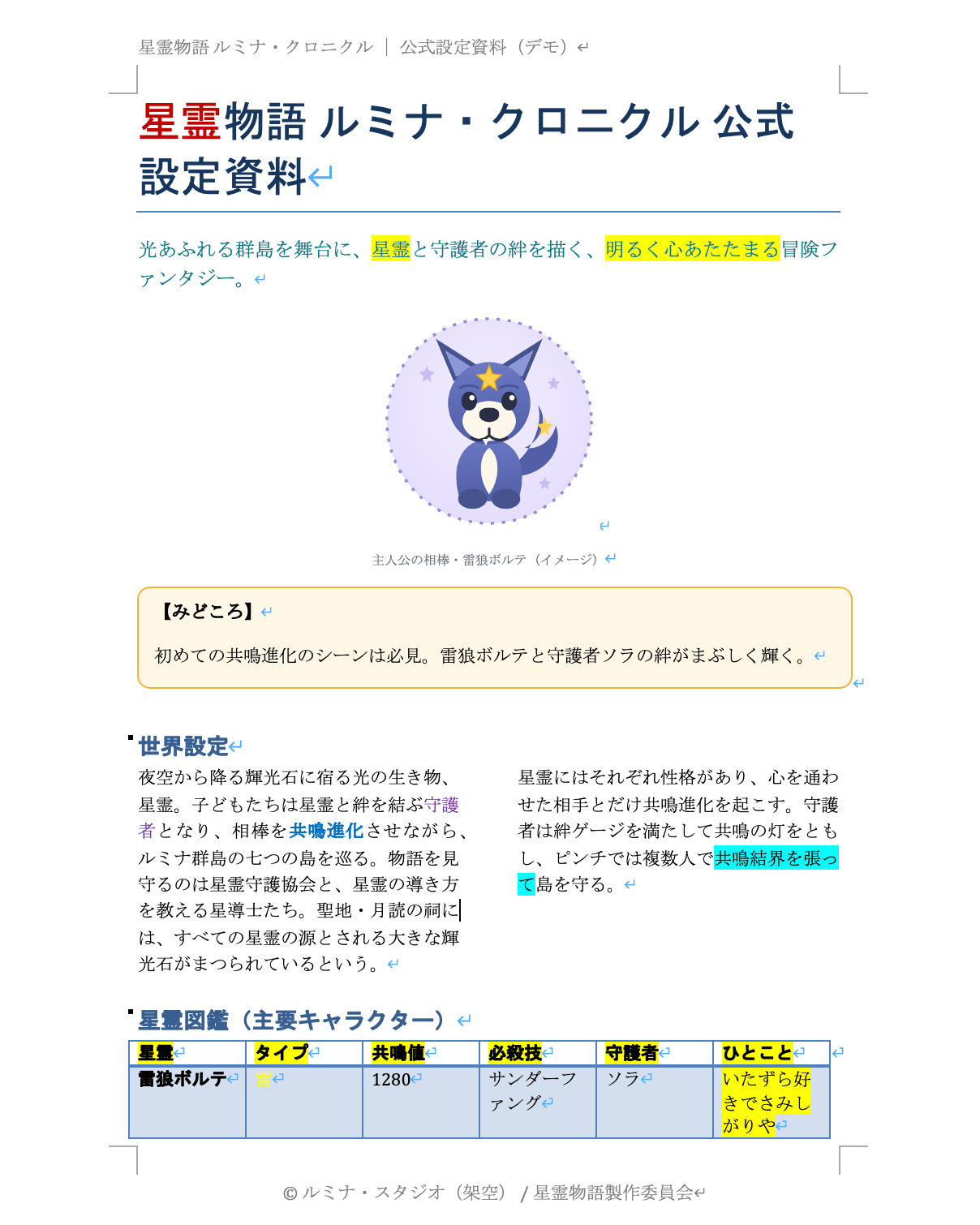
Pre-translation page 1: Title, body text, key visual image, "highlights" text box, two-column world-building memo, and Hoshirei Codex table
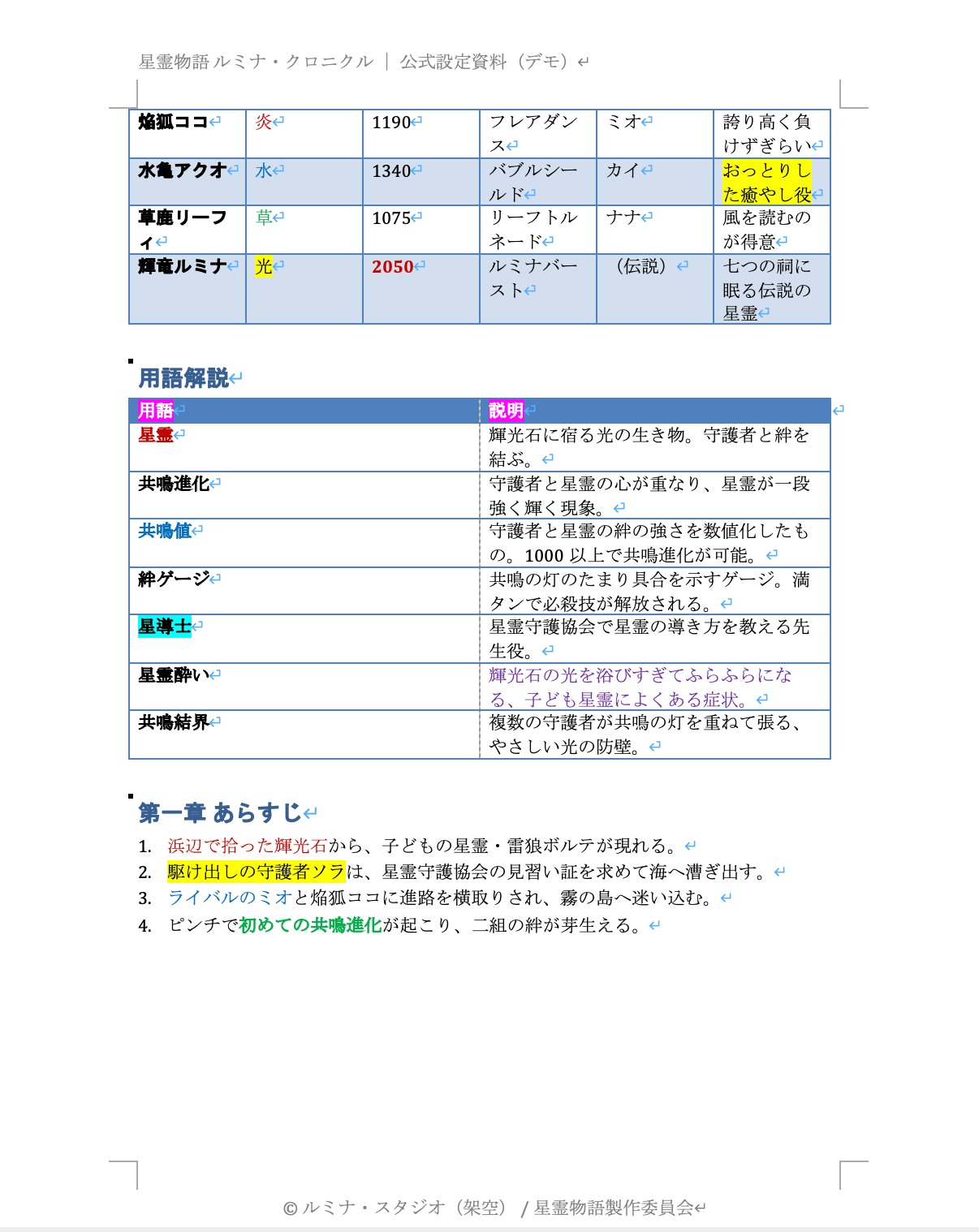
Pre-translation page 2: Hoshirei Codex table (continued), glossary, and Chapter 1 synopsis
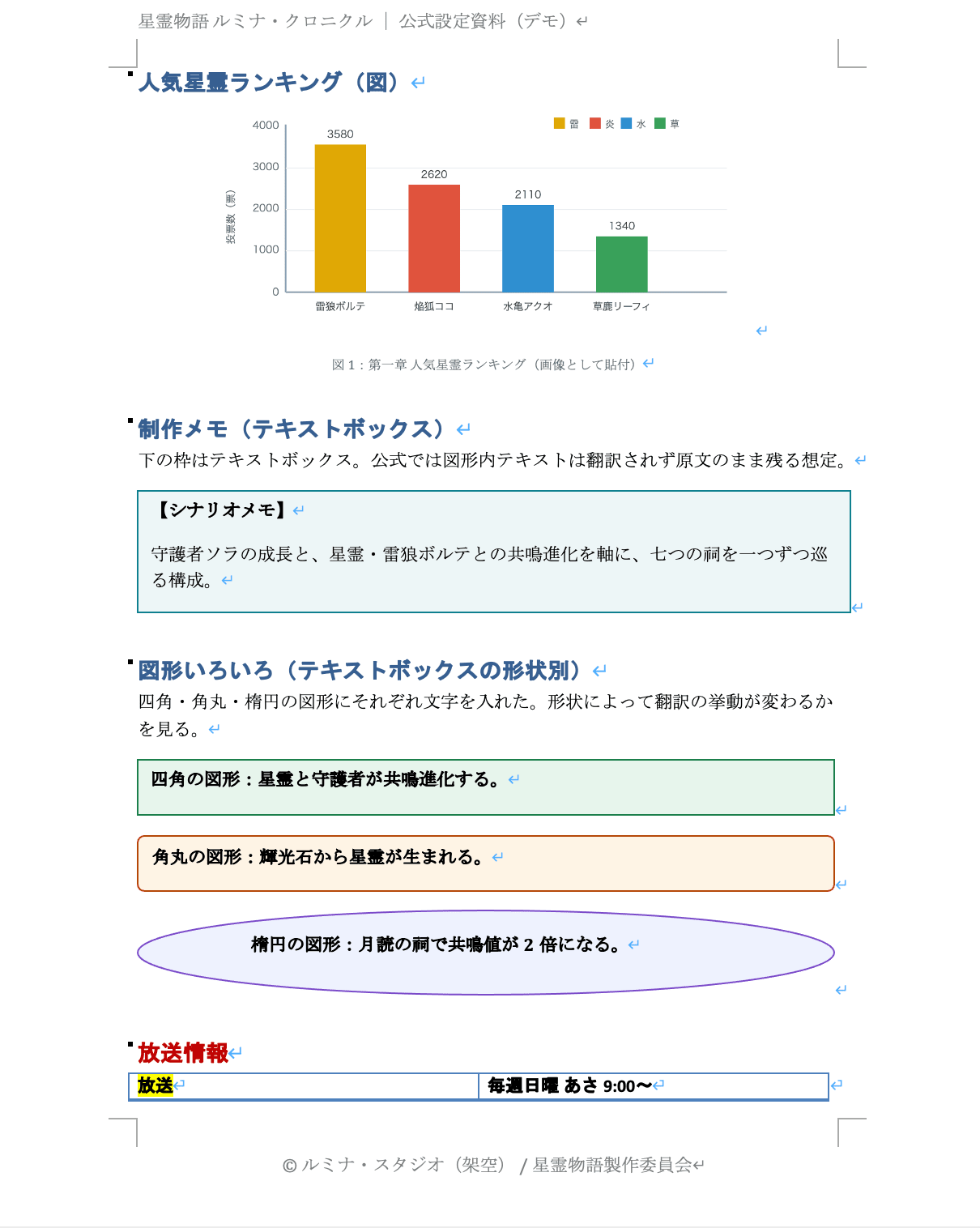
Pre-translation page 3: Popular Hoshirei ranking bar chart (image), production memo (text box), rectangle/rounded rectangle/ellipse shapes, and broadcast information table
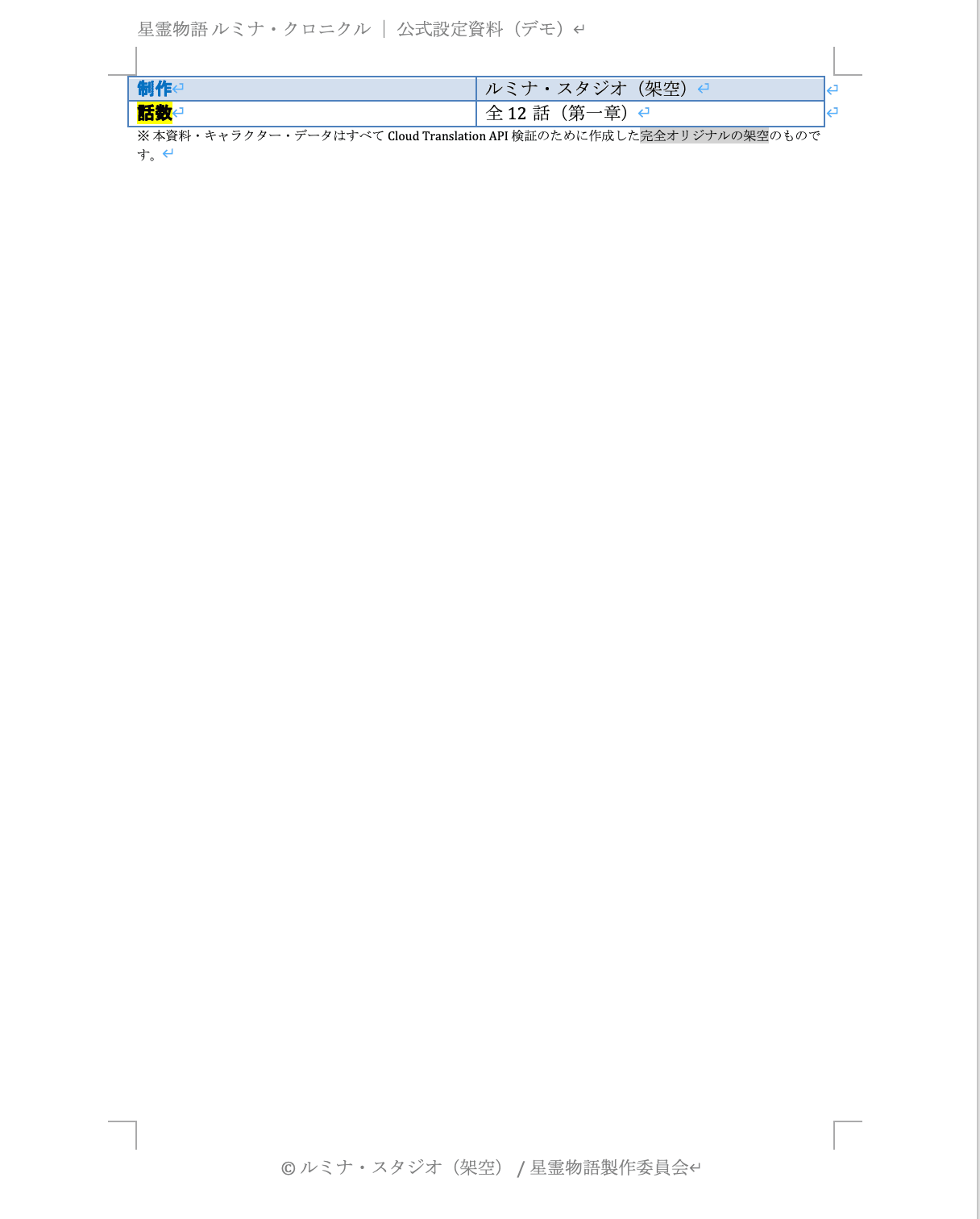
Pre-translation page 4: Broadcast information table (continued) and disclaimer
4. Preparing a Glossary
For this test, translation was run from the start with a glossary applied to fix custom terms to specific translations.
Therefore, the glossary was prepared first, and then translation was executed in §5.
The glossary mechanism and TSV conventions were covered in previous articles.
Here, the steps for creating a glossary are reprinted so this article is self-contained (if you have already created one, proceed to §5).
4.1 Preparing the Glossary TSV
The glossary is prepared as a TSV with source language (Japanese) and target language (English) separated by tabs.
For this article, 20 coined terms used throughout the series were prepared as glossary_ja_en.tsv.
星霊	Hoshirei
共鳴進化	Reso-Evolution
輝光石	Lumina Shard
雷狼ボルテ	Voltefang
焔狐ココ	Pyrofox Coco
水亀アクオ	Aquortle
草鹿リーフィ	Leafawn
輝竜ルミナ	Lumidragon
月読の祠	Moonread Shrine
守護者	Warden
星導士	Starwright
星霊守護協会	Hoshirei Warden Guild
共鳴値	Reso-Value
共鳴の灯	Resonance Flame
絆ゲージ	Bond Gauge
星霊酔い	Hoshirei-sickness
星霊図鑑	Hoshirei Codex
ルミナ群島	Lumina Archipelago
七つの祠	Seven Shrines
共鳴結界	Reso-Barrier
4.2 Creating the Glossary Resource
Place the TSV in Cloud Storage and create the glossary resource from its GCS URI. Make the bucket in the same us-central1 region as the glossary.
gcloud storage cp glossary_ja_en.tsv \
    gs://<YOUR_BUCKET>/glossaries/glossary_ja_en.tsv
Creating the glossary resource is a long-running operation (LRO), so run it from the client library and wait for completion.
Full contents of setup_glossary.py (click to expand)
from google.cloud import translate_v3 as translate

PROJECT_ID = "<YOUR_PROJECT_ID>"
LOCATION = "us-central1"   # Glossaries are only available in us-central1
GLOSSARY_ID = "hoshirei-ja-en"
INPUT_URI = "gs://<YOUR_BUCKET>/glossaries/glossary_ja_en.tsv"

client = translate.TranslationServiceClient()
name = client.glossary_path(PROJECT_ID, LOCATION, GLOSSARY_ID)
glossary = translate.Glossary(
    name=name,
    # Unidirectional (ja→en) glossary
    language_pair=translate.Glossary.LanguageCodePair(
        source_language_code="ja", target_language_code="en"
    ),
    input_config=translate.GlossaryInputConfig(
        gcs_source=translate.GcsSource(input_uri=INPUT_URI)
    ),
)
parent = f"projects/{PROJECT_ID}/locations/{LOCATION}"
operation = client.create_glossary(parent=parent, glossary=glossary)
result = operation.result(180)   # Wait up to 180 seconds for completion
print(f"Creation complete: {result.name} (entry count: {result.entry_count})")
python setup_glossary.py
5. Translating with PDF→DOCX Conversion
Now that the glossary is ready, translation is run with PDF→DOCX conversion enabled.
5.1 The Batch Script
Since batch translation uses Cloud Storage for both input and output, a separate script from the synchronous translation script is needed.
The key point is specifying format_conversions to instruct "convert PDF to DOCX."
For the glossary, batch translation uses glossaries (a map per target language) rather than the synchronous translation's glossary_config (singular).
Full contents of batch_translate_convert.py (click to expand)
from __future__ import annotations

import argparse
import time

from google.cloud import translate_v3 as translate

# Batch translation, glossaries, and PDF→DOCX conversion require us-central1 (global not available)
DEFAULT_LOCATION = "us-central1"

PDF_MIME = "application/pdf"
DOCX_MIME = "application/vnd.openxmlformats-officedocument.wordprocessingml.document"

def parse_args() -> argparse.Namespace:
    p = argparse.ArgumentParser(
        description="Cloud Translation batch translation (with native PDF→DOCX conversion)"
    )
    p.add_argument("--project", required=True, help="GCP project ID")
    p.add_argument("--input-uri", required=True, help="GCS URI of the input file (gs://...)")
    p.add_argument(
        "--output-uri", required=True, help="Output GCS URI prefix (empty directory)"
    )
    p.add_argument("--source", default="ja", help="Source language code (default: ja)")
    p.add_argument("--target", default="en", help="Target language code (default: en)")
    p.add_argument("--location", default=DEFAULT_LOCATION)
    p.add_argument("--glossary-id", default=None, help="Glossary ID (applies glossary if specified)")
    p.add_argument(
        "--convert-to-docx",
        action="store_true",
        help="Convert native PDF to DOCX for output",
    )
    p.add_argument("--timeout", type=int, default=600, help="Seconds to wait for LRO completion")
    return p.parse_args()

def build_request(args: argparse.Namespace) -> dict:
    parent = f"projects/{args.project}/locations/{args.location}"
    request: dict = {
        "parent": parent,
        "source_language_code": args.source,
        "target_language_codes": [args.target],
        "input_configs": [{"gcs_source": {"input_uri": args.input_uri}}],
        "output_config": {"gcs_destination": {"output_uri_prefix": args.output_uri}},
    }
    # Native PDF → DOCX conversion
    if args.convert_to_docx:
        request["format_conversions"] = {PDF_MIME: DOCX_MIME}
    # Glossary (batch uses a map per target language; format differs from sync's glossary_config)
    if args.glossary_id:
        glossary_path = (
            f"projects/{args.project}/locations/{args.location}"
            f"/glossaries/{args.glossary_id}"
        )
        request["glossaries"] = {
            args.target: translate.TranslateTextGlossaryConfig(glossary=glossary_path)
        }
    return request

def main() -> None:
    args = parse_args()
    client = translate.TranslationServiceClient()
    request = build_request(args)

    print(f"Input : {args.input_uri}")
    print(f"Output: {args.output_uri}")
    print(f"Conversion: {'PDF→DOCX' if args.convert_to_docx else 'None (same format)'}")
    print(f"Glossary: {args.glossary_id or 'None'}")

    started = time.perf_counter()
    operation = client.batch_translate_document(request=request)
    print("Batch translation started (LRO). Waiting for completion...")
    response = operation.result(args.timeout)
    elapsed = time.perf_counter() - started

    print(f"Processing time : {elapsed:.2f} seconds")
    print(f"Total pages     : {response.total_pages}")
    print(f"Translated chars: {response.translated_characters}")
    print(f"Failed chars    : {response.failed_characters}")

if __name__ == "__main__":
    main()
5.2 Uploading the Input PDF and Running the Script
First, upload the PDF exported from Word to the bucket.
The output directory is required by the official documentation to exist and be empty.
The destination of output. The destination directory provided must exist and be empty.
Be careful not to specify a directory that already contains files as the output destination; use an empty prefix.
# Upload the input PDF
gcloud storage cp hoshirei_word_ja.pdf \
    gs://<YOUR_BUCKET>/batch_in/hoshirei_word_ja.pdf
Run with the glossary specified and PDF→DOCX conversion enabled.
--convert-to-docx enables format_conversions (PDF→DOCX), and --glossary-id enables the glossary created in §4.
python batch_translate_convert.py \
    --project <YOUR_PROJECT_ID> \
    --input-uri gs://<YOUR_BUCKET>/batch_in/hoshirei_word_ja.pdf \
    --output-uri gs://<YOUR_BUCKET>/batch_out/ \
    --glossary-id <YOUR_GLOSSARY_ID> \
    --convert-to-docx
# Example output
Input : gs://<YOUR_BUCKET>/batch_in/hoshirei_word_ja.pdf
Output: gs://<YOUR_BUCKET>/batch_out/
Conversion: PDF→DOCX
Glossary: hoshirei-ja-en
Batch translation started (LRO). Waiting for completion...
Processing time : 577.18 seconds
Total pages     : 4
Translated chars: 3916
Failed chars    : 0
Processing time was approximately 9.6 minutes (577 seconds).
Compared to roughly 1.4 seconds for synchronous translation, this is orders of magnitude slower, as batch translation is a long-running operation that waits for completion.
If you need to use PDF→DOCX conversion, it is best to design it as a batch process run in bulk with this processing time in mind.
5.3 Downloading the Output
When batch translation completes, an index file and translation results are written to the output destination.
Since a glossary was specified, both a result without the glossary (..._translation.docx) and a result with the glossary (..._glossary_translation.docx) are output.
gcloud storage ls gs://<YOUR_BUCKET>/batch_out/
# index.csv
# ..._en_translation.docx
# ..._en_glossary_translation.docx

gcloud storage cp "gs://<YOUR_BUCKET>/batch_out/*" ./output/
5.4 Checking the Translation Results
Opening the resulting DOCX showed that, in addition to the body text and tables, the contents of text boxes and shapes were also translated.
The before and after for all 4 pages are shown below.
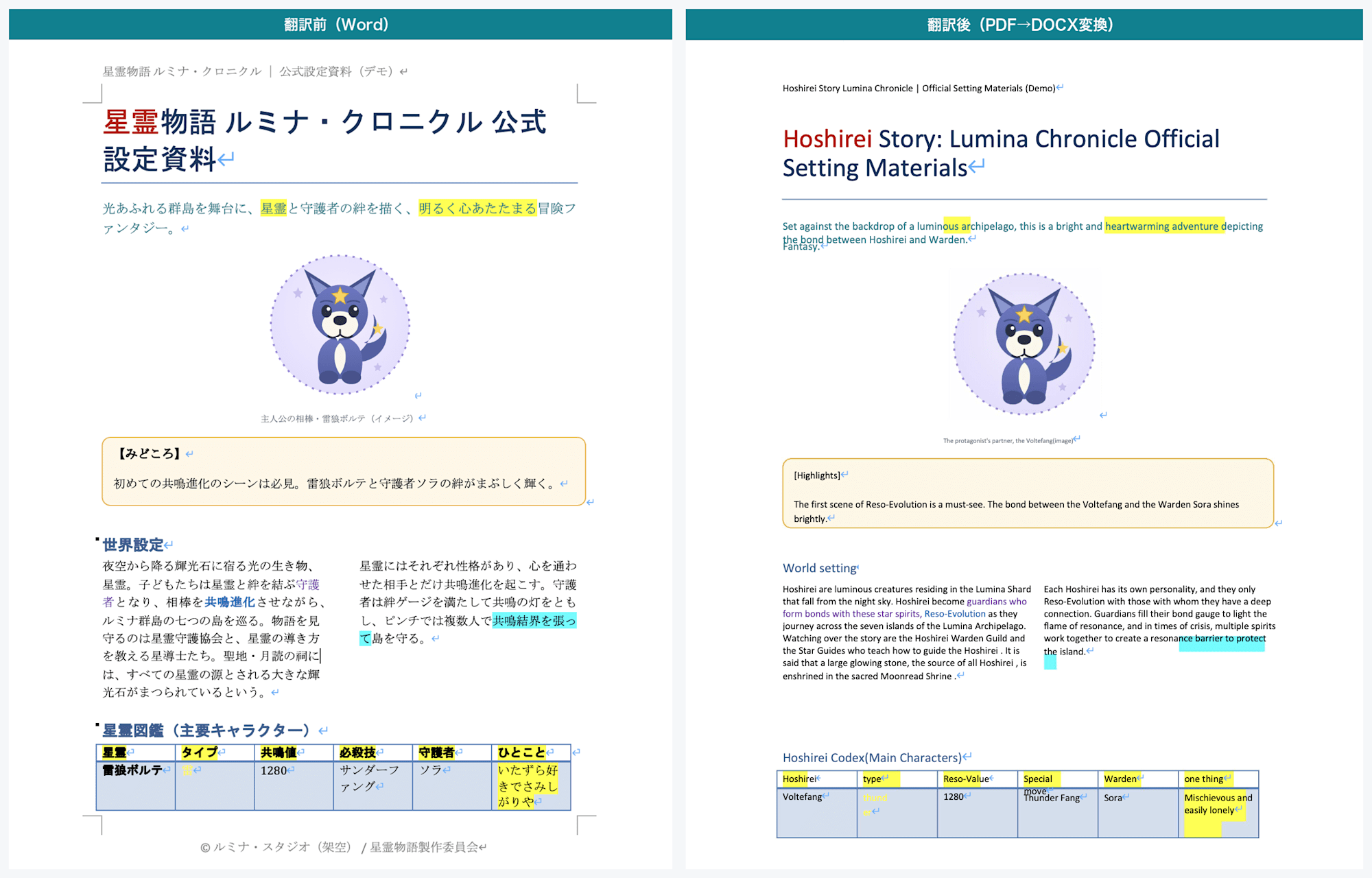
Page 1: Left is before translation (Word), right is after (PDF→DOCX conversion). The "highlights" text box and the two-column world-building memo are both translated
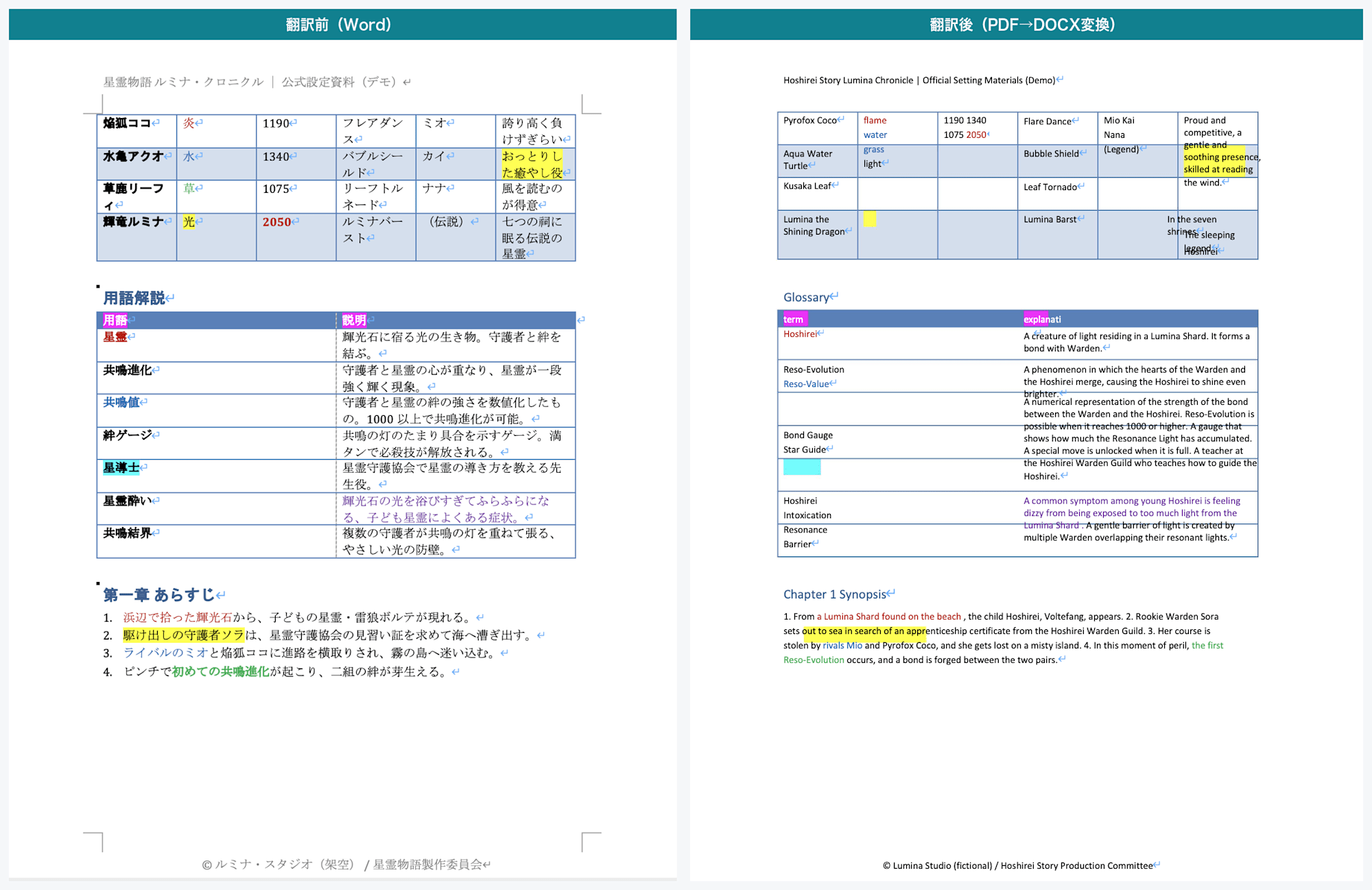
Page 2: Left is before, right is after. Hoshirei Codex, glossary, and synopsis are translated
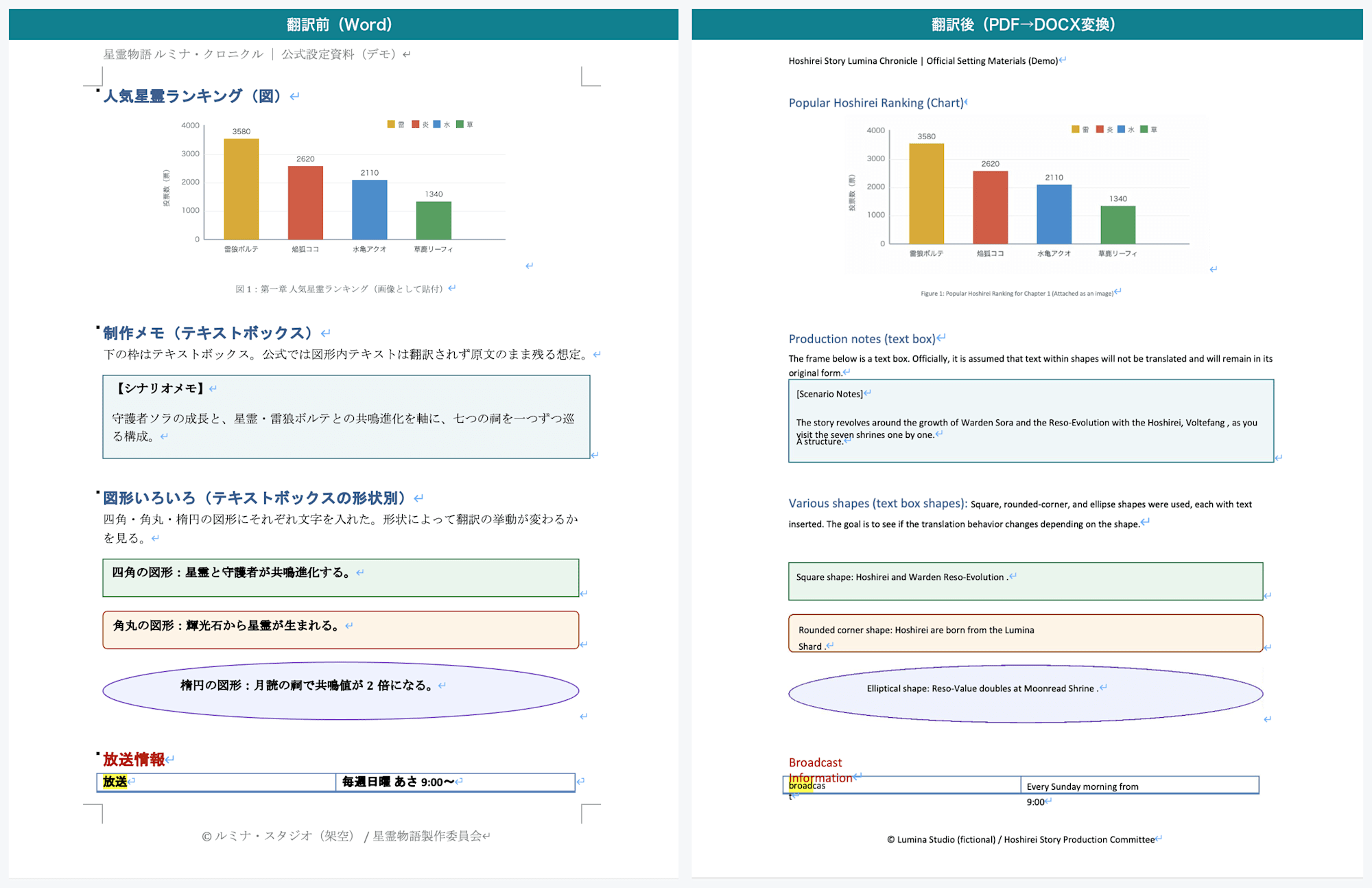
Page 3: Left is before, right is after. Contents of rectangle, rounded rectangle, and ellipse shapes are translated. Text inside the bar chart (image) remains in Japanese
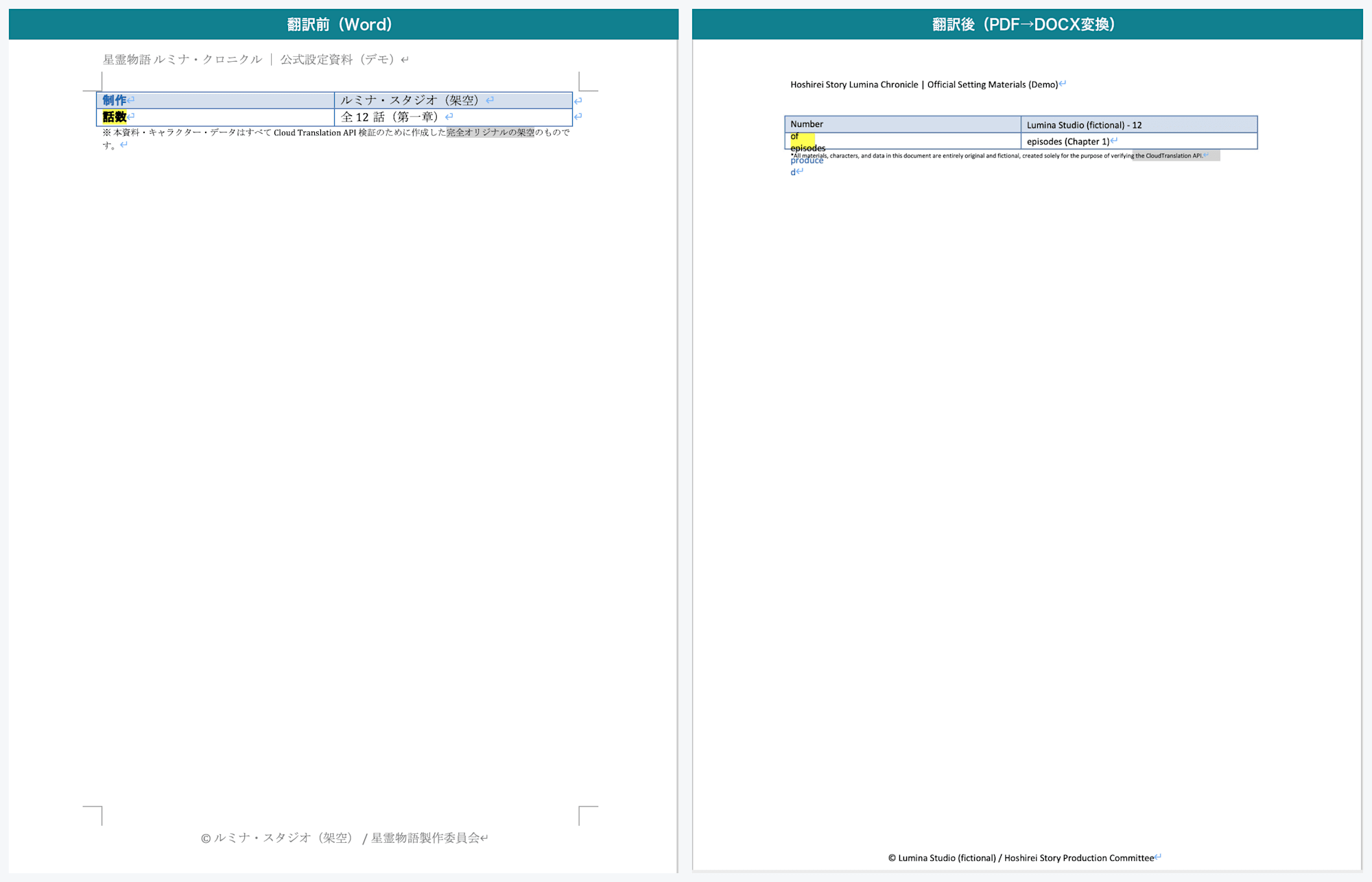
Page 4: Left is before, right is after. Broadcast information and episode numbers are translated
Shape and Text Box Contents Are Also Translated
When translating Word as DOCX directly, the contents of text boxes and shapes were not translated and remained in the source language.
With PDF→DOCX conversion, however, all of these were translated.
- Rectangle shape:
Square shape: Hoshirei and Warden Reso-Evolution. - Rounded rectangle shape:
Rounded corner shape: Hoshirei are born from the Lumina Shard. - Ellipse shape:
Elliptical shape: Reso-Value doubles at Moonread Shrine.
The two-column world-building memo and the "highlights" and "production memo" text boxes were also translated.
Elements that remain untranslated when translating DOCX directly become eligible for translation when routed through PDF.
This was the most impactful finding of this article.
Images Are Not Translated
The popular rankings bar chart looks like a chart but was pasted as an image.
As a result, the labels within the chart (category names such as Voltefang and axis labels) remained in Japanese.
The key visual image was similarly unaffected; text that is part of an image is part of the image and is not translated.
The original image was retained as-is in the output DOCX.
Tables Become Something Other Than "Word Tables"
Looking at the translation results, the Hoshirei Codex and glossary tables appear visually to have borders.
However, examining the DOCX internals revealed that these are not Word tables but rather positioned text with borders.
Furthermore, some cells had mismatched correspondence between rows.
For example, in the Hoshirei Codex, a cell for one character ended up containing multiple values that belonged to different rows.
This is exactly as the official documentation warns: "complex PDF layouts can result in tables breaking." Caution is needed if you intend to re-edit the tables.
Some Layout Elements Are Preserved, Others Are Not
Paragraphs and images were preserved, and the page structure (4 pages in this case) was reproduced in a form close to the original document.
Highlight formatting applied in the original Word file was also largely retained after translation.
On the other hand, there were areas that broke down.
- Font size: When translating Word as DOCX directly, font sizes were preserved, but with PDF→DOCX conversion, some text was placed at a smaller font size than the original, presumably to fit English text within the Japanese layout width.
- Background color (cell shading): Background colors for headers such as those in the Hoshirei Codex were not fully reproduced in correspondence with the Japanese cells, and were applied with some positional offset in places.
- Table layout: As mentioned above, some cells had mismatched correspondence with values mixed together.
The goal of translating text boxes and shapes was achieved successfully, but the layout reality is that "some parts are preserved and some parts break down."
Since the output is a Word file (DOCX), there is room to manually fix it after opening, but it was not at a level where it could be used as a finished document as-is.
5.5 Glossary Effectiveness
Comparing the DOCX without the glossary against the DOCX with the glossary made it very clear how much the translated terms were aligned (verified using Claude).
For example, counting the English translations of 星霊, which appears 34 times in the source text, in the no-glossary version yielded the following breakdown of major translations:
Translation of 星霊 (without glossary) |
Occurrences |
|---|---|
| Star Spirit | 16 |
| star spirits | 5 |
| star spirit | 3 |
| Celestial Spirit | 2 |
| celestial spirits | 1 |
| celestial spirit | 1 |
Including capitalization variants, singular/plural, and even an alternate translation Celestial Spirit, the wording was inconsistent.
Switching to the glossary version, all 34 occurrences of 星霊 in the source were unified to Hoshirei (the occurrence count of Hoshirei in the glossary version also matched the source at 34).
Other coined terms were also standardized to their registered translations: 守護者 → Warden, 共鳴進化 → Reso-Evolution, 輝光石 → Lumina Shard.
However, the result was not 100% perfect.
星導士 (registered in the glossary as Starwright) remained as the literal translation Star Guide even in the glossary version and was not fixed.
It appears that when a term is followed by additional characters (such as 星導士たち) or when a sentence is split by line breaks or column layouts in the PDF, the glossary's word boundary matching may fail to catch it.
6. Pricing
Document translation pricing is per page for the standard NMT model.
| Item | Unit price |
|---|---|
| NMT document translation | $0.08 / page |
Citation: Pricing page: Pricing | Google Cloud
Within what could be confirmed on the pricing page, there was no mention of a distinction between synchronous and batch pricing, nor any additional charge for PDF→DOCX conversion (billing is per page, and the batch processing metadata also has a page count field).
The sample used in this article (4 pages) is small enough that the total, including both with and without glossary, comes to less than $1.
7. Attribution (Machine Translated by Google)
In the PDF article, the text "Machine Translated by Google" was burned into the upper left of the translated PDF.
In contrast, the DOCX obtained through PDF→DOCX conversion in this article did not include this attribution.
Upon investigation, whether the attribution is included depends not on "whether PDF was used as an intermediate" but on the output file format.
Even with the same PDF as input, if the output is PDF the attribution is burned in, and if the output is DOCX it is not.
This is presumably because PDF reconstructs the translated text overlaid on the page and is more amenable to adding attribution, whereas the way editable DOCX output is produced differs — but this is speculation and not backed by official documentation.
The attribution text itself can be specified in the API request as customizedAttribution; if not specified, the default is "Machine Translated by Google."
This is a field common to both translateDocument and batchTranslateDocument.
customizedAttribution
stringOptional. This flag is to support user customized attribution. If not provided, the default is Machine Translated by Google.
Citation: API reference: Method: projects.locations.translateDocument | Google Cloud
Note that separate from whether attribution is burned into the output file, there is a brand guideline obligation to disclose explicitly.
When showing translation results to users, it is the responsibility of the user to make clear that the content is machine-translated, regardless of file format.
Whenever you display translation results from Google Translate directly to users, you must make it clear to users that they are viewing automatic translations from Google Translate using the appropriate text or brand elements.
Citation: Brand guidelines: Attribution requirements | Google Cloud
8. Summary
Translating Word as DOCX directly leaves text boxes and shape contents untranslated, but converting to PDF first and using batch translation's PDF→DOCX conversion produced a DOCX with the contents of text boxes and shapes translated as well.
A glossary was used in combination, successfully fixing custom terms — for example, all 34 occurrences of 星霊 in the source were unified to Hoshirei (with some misses).
On the other hand, the trade-offs are clear.
- Tables become positioned text with borders rather than Word tables (with some cell correspondence breakage)
- Some layout elements break, such as font sizes and background colors
- Text inside images is not translated (retained as images)
- Processing takes several minutes (due to batch translation)
The official documentation also explicitly states that "native format (DOCX, PPTX) translation preserves layout better than PDF."
If clean layout preservation is the goal, translating in the original format is the recommended approach.
PDF→DOCX conversion is best positioned as an option specifically for cases where you absolutely need to translate the contents of text boxes and shapes that would otherwise not be translated.
Combining this with the rest of the series, when translating Word documents the following approach seems appropriate:
- When layout preservation is important and text boxes are not heavily used: translate DOCX directly
- When there are many text boxes and shapes and their contents must also be translated: convert to PDF first and use PDF→DOCX conversion (accepting layout degradation)
I hope this series serves as a useful reference for anyone thinking about automating translation of Word documents.