![[Copilot Studio] I tried answer based on files in Knowledge: also compared with Web search off](https://images.ctfassets.net/ct0aopd36mqt/wp-thumbnail-00eddef75cb5ee39286e0aa370a96e4f/040bbf127b84da0ee2c483485da1dd29/microsoft-eyecatch.jpg?w=3840&fm=webp)
[Copilot Studio] I tried answer based on files in Knowledge: also compared with Web search off

This page has been translated by machine translation. View original
Introduction
Hello, I'm Kema.
After creating an agent, the next request that comes up is "I want it to answer based on our company's materials." An agent that answers only with general knowledge cannot respond to internal figures or content from proprietary documents. In Copilot Studio, you can add "Knowledge" to enable answers grounded in uploaded materials (grounding).
In this article, I cover the Knowledge feature in Copilot Studio, with hands-on testing conducted as of June 2026. I uploaded a docx file containing KPI data for three fictional SaaS companies and verified whether grounded answers based on the materials could be produced. I also compare the difference when Web search—which is on by default—is turned off to restrict answers to the materials only. I hope this serves as a reference for those who want to build an agent that answers based on their company's materials.
This article is the second in a series on building agents with Copilot Studio.
The series as a whole aims to build an agent that handles the entire flow of "collection → aggregation → charts → insights → documentation," and this article covers the first step: "collection (Knowledge)."
Target audience: Those who want to build an agent in Copilot Studio that answers based on their company's materials (files)
Series Article List
| # | Theme | Article |
|---|---|---|
| Part 1 | First agent | Creating Your First Agent |
| Part 2 | Knowledge (this article) | (This article) |
In the previous article (Part 1), we created an agent, gave it instructions, and tested it. This time, we load our company's materials into that agent so it can answer with grounded responses.
What We'll Do This Time
- Upload a KPI comparison report (docx) for three fictional SaaS companies as Knowledge
- Wait for indexing in Dataverse, then test grounded answers
- Compare answer sources with Web search on vs. off
What Is Knowledge?
Knowledge is an information source that an agent can use as the basis for its answers. There are multiple ways to add it.
- File upload: Supports text-based formats such as Word (doc/docx), Excel (xls/xlsx), PowerPoint (ppt/pptx), PDF, text (txt/md/log), HTML, CSV, XML, JSON, YAML, etc. Images, audio, video, and executable files are not supported; images can only be handled when they are embedded in a PDF with annotations (alt-text) (alt-text is text that describes the content of an image)
- External source connections: SharePoint / OneDrive / public websites / Dataverse (tables) / enterprise data via connectors (organizational data indexed by Microsoft Search, including knowledge articles from Salesforce, ServiceNow, Confluence, Zendesk, etc.)
The file upload limit is a maximum of 512 MB per file and a maximum of 500 files per agent. However, the actual number of files that can be uploaded also depends on the Dataverse file storage capacity of the environment.
Image, video, executables, and audio files can't be used as uploaded documents.
Images are only supported when they're embedded in PDF files.
Source: Upload files as a knowledge source | Microsoft Learn
When a file is uploaded, it is stored in Dataverse and automatically indexed. During testing, the agent searches the Knowledge, and responds while citing the matched content as reference sources.
Copilot Studio agents require Dataverse search to use this knowledge source. If you can't add a Dataverse-enabled file to an agent, ask your administrator to turn on Dataverse search in your environment.
Source: Unstructured data as a knowledge source | Microsoft Learn
This time, we'll try the simplest method: "file upload."
Step 1: Prepare the Knowledge File
For verification purposes, I prepared a docx file summarizing quarterly KPI data for three fictional SaaS companies.
| Company Name | ARR (million yen) | NRR (%) | Churn Rate (monthly %) | Operating Profit Margin (%) | Number of Customers | ARPA (10K yen/month) |
|---|---|---|---|---|---|---|
| CloudNova | 1,800 | 118 | 1.2 | 12.5 | 1,250 | 12.0 |
| StreamForge | 1,150 | 104 | 2.1 | -3.0 | 2,400 | 4.0 |
| Datapeak | 2,600 | 126 | 0.8 | 18.4 | 640 | 33.9 |
All data is fictional. It has no relation whatsoever to any real companies.
Step 2: Upload the File
Click "Add Knowledge" from the Knowledge tab and select file upload. You can select a file by drag-and-drop or by clicking "Browse from device."
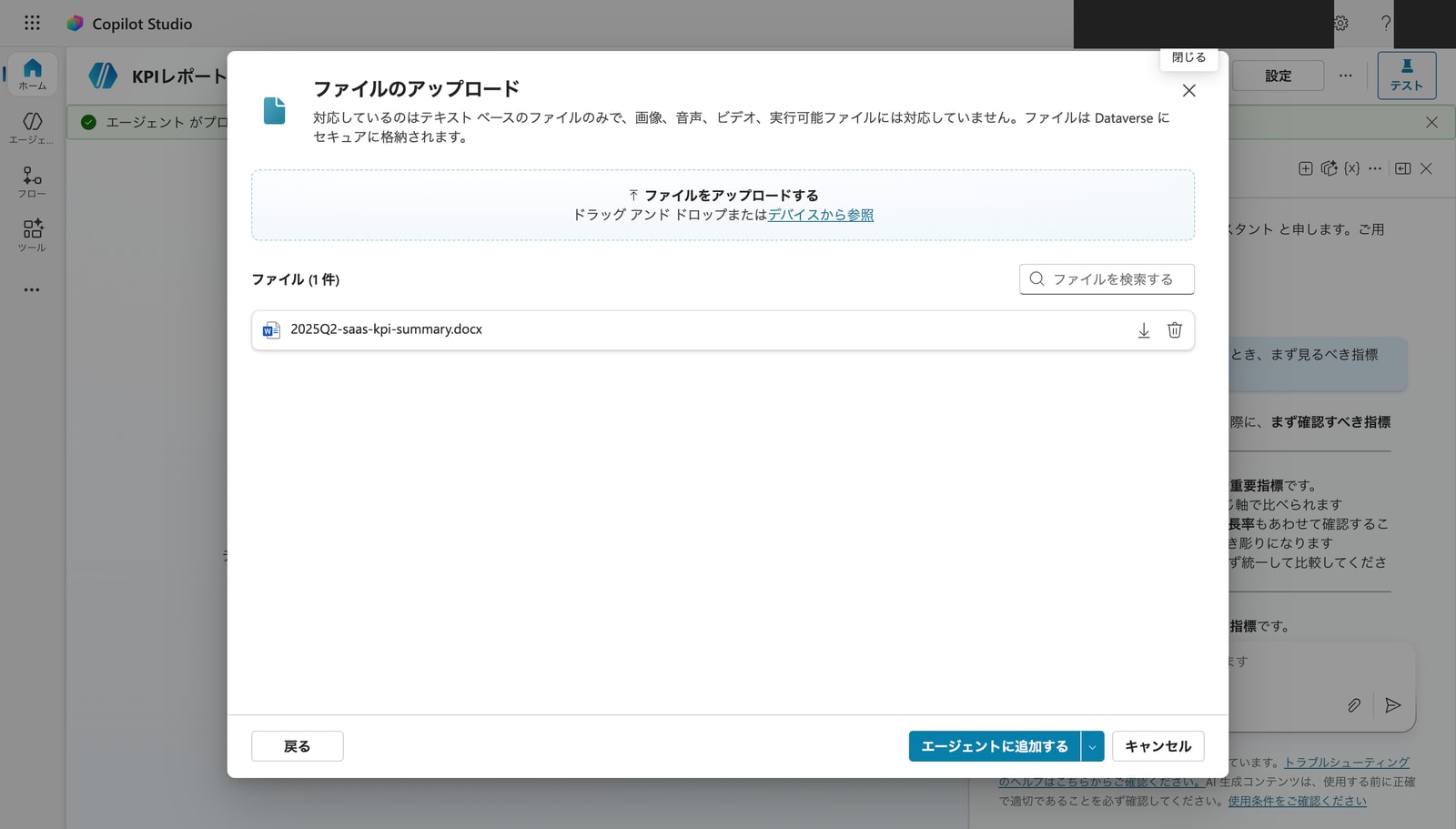
Select 2025Q2-saas-kpi-summary.docx and click "Add to agent."
Step 3: Confirm Indexing Is Complete
Returning to the Knowledge tab, the uploaded file will be displayed in the list. While a spinner is shown in the "Status" column, indexing is in progress. After waiting a few minutes, it will change to a green checkmark, indicating the agent can search and cite it.
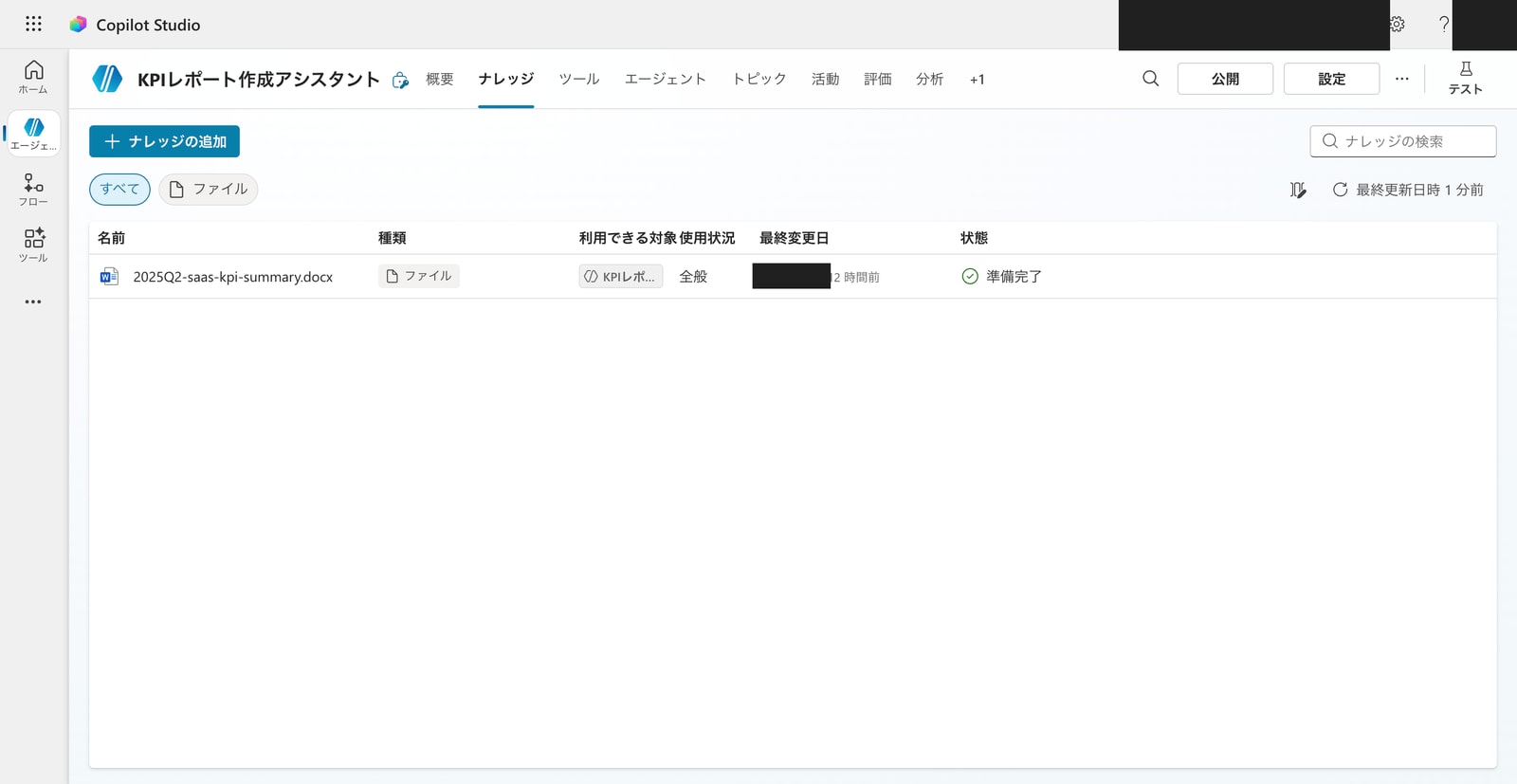
The list shows "Name, Type, Available to, Usage, Last modified date, Status." "Available to" indicates which agents can use this Knowledge.
Step 4: Test Grounded Answers
In the test chat, let's ask a question about the content of the uploaded file.
What is Datapeak's operating profit margin?
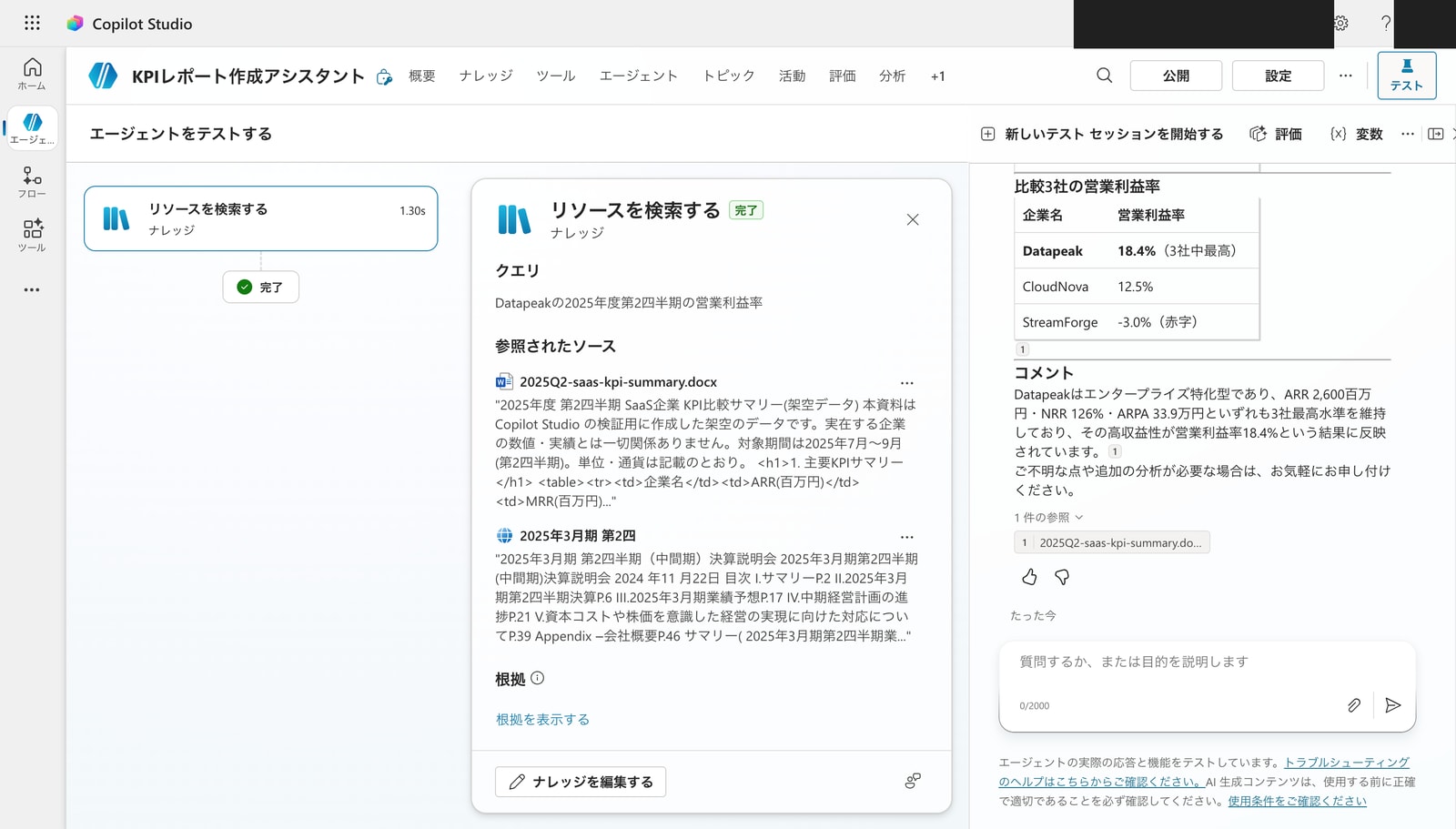
It accurately answered Datapeak's operating profit margin of 18.4%, and also included a comparison table and comments for CloudNova (12.5%) and StreamForge (-3.0%). Below the answer, 2025Q2-saas-kpi-summary.docx is explicitly listed as a "Referenced source."
Grounded answers based on the file content are working correctly.
Note on Web Search Being On
Here I noticed something. In my environment, Web search was enabled from the moment the agent was created. When checking search activity, not only the docx but also actual publicly available financial documents from the web (such as publicly released earnings presentation materials from companies) were included as reference source candidates.
This time it had no impact on the final answer, but in situations where you want answers based only on internal data, there is a risk of unintended external information being mixed in.
Step 5: Turn Off Web Search and Compare
Web search on/off can be toggled in the Knowledge section on the Overview page (or in "Generative AI" settings). This Web search ("Use information from the web") setting is only available for agents with generative orchestration enabled.
You can find the Use information from the web setting on the Generative AI settings page. You can also find the Web Search setting in the Knowledge section of the agent's Overview page. This setting requires that the agent has generative orchestration turned on.
Source: Knowledge sources summary | Microsoft Learn
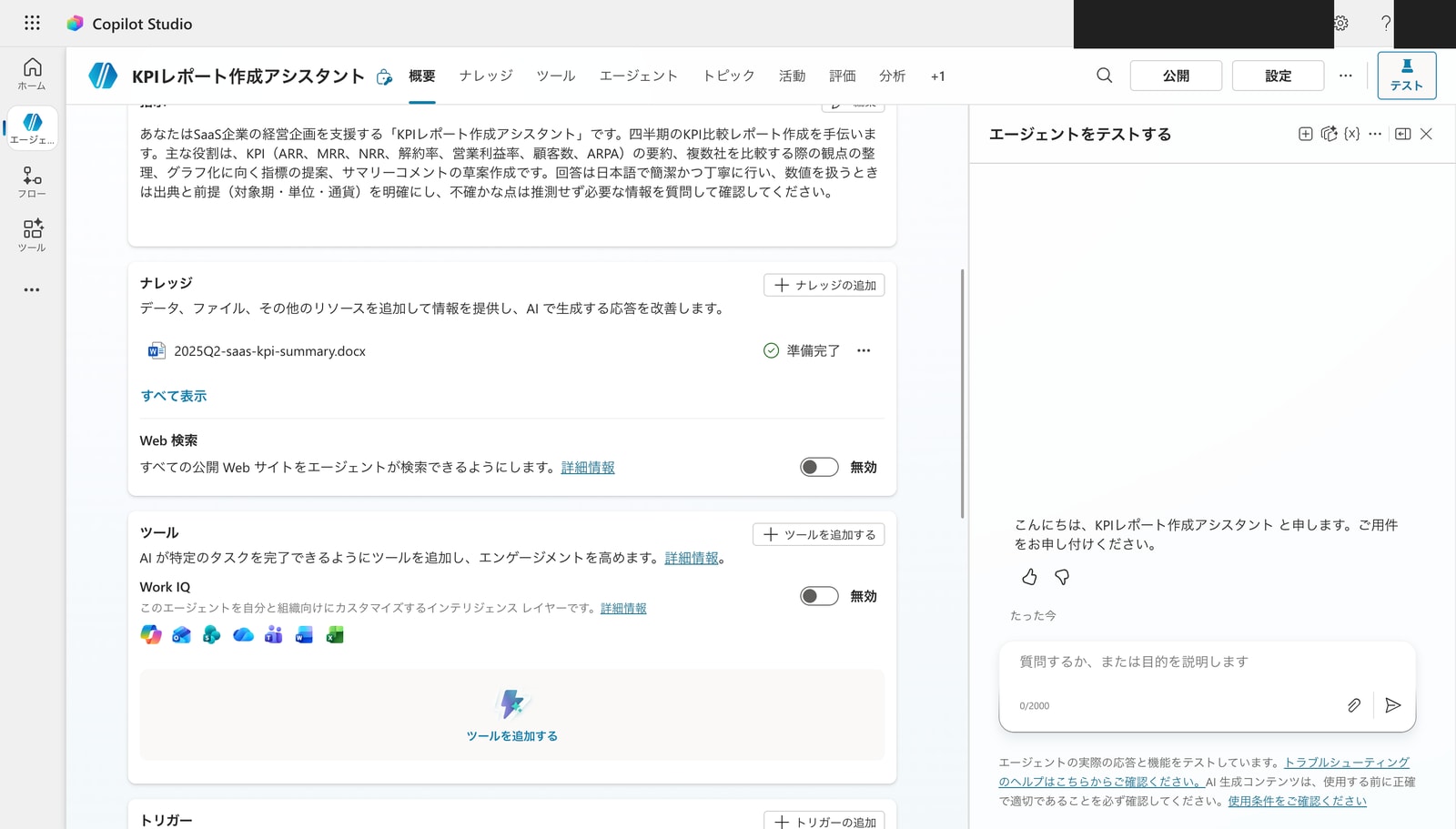
Turn off the "Web Search" toggle. In my environment, this change took effect immediately (no save operation was required).
Test the Same Question with Web Search Off
With Web search turned off, let's test the same question: "What is Datapeak's operating profit margin?"
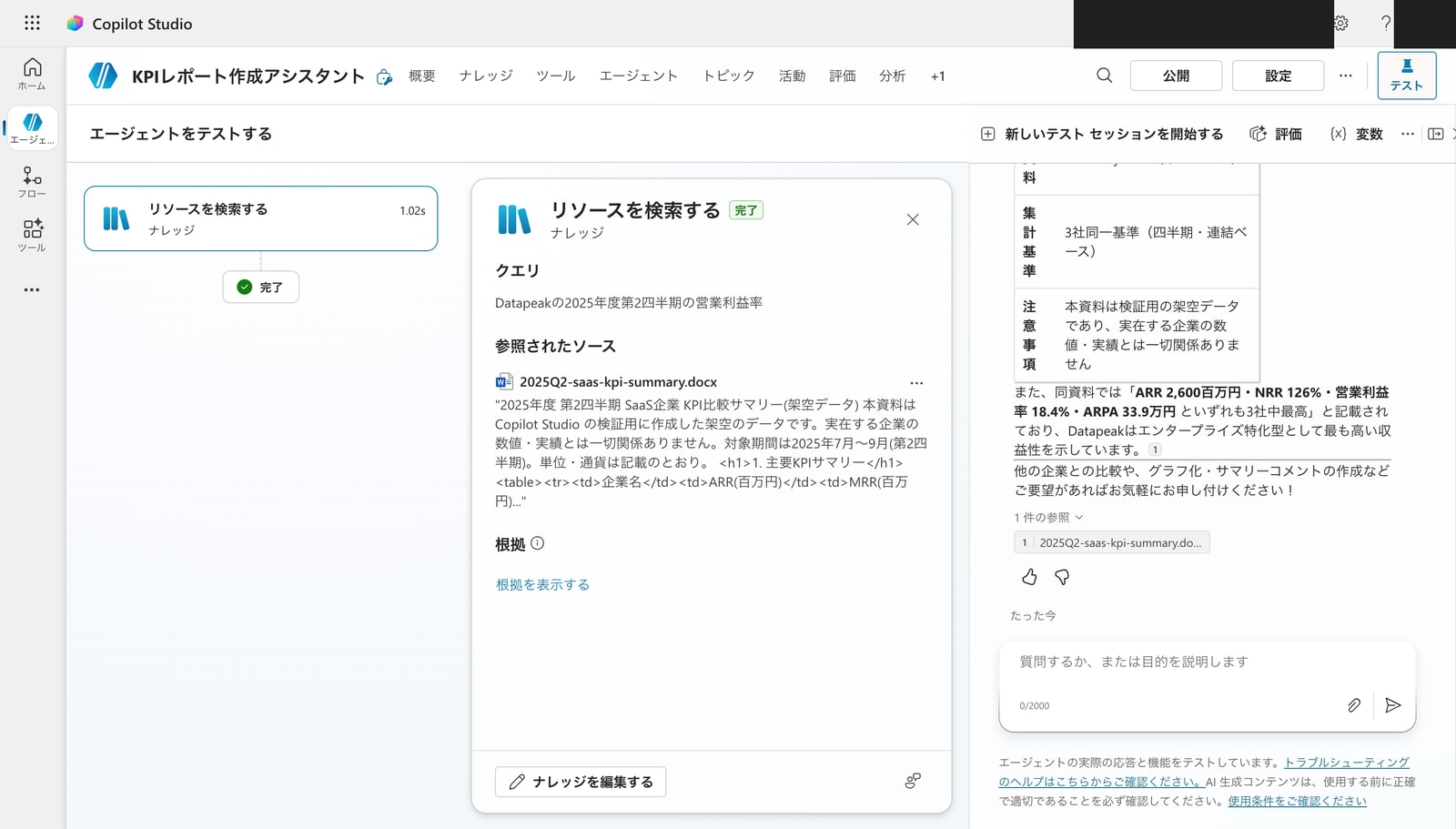
The referenced sources were limited to only the docx file. No external web materials were referenced at all. The answer content is also based solely on the data from the uploaded materials.
Comparison: Web Search On vs. Off
| Web Search On | Web Search Off | |
|---|---|---|
| Reference sources | Uploaded files + public web | Uploaded files only |
| Mixing of external data | Possible | None |
| Use case | When you want broad answers including general knowledge | When you want answers based only on internal materials or specific data |
In cases where mixing with external information would be problematic—such as confidential internal data or fictional data like in this example—turning Web search off is the safer choice. Conversely, if you want to use public information supplementally, you can leave it on.
Stumbling Points This Time
- Indexing takes a few minutes: If you test immediately after uploading, the Knowledge won't be found and the agent will answer based on general knowledge. Make sure the "Status" in the Knowledge list shows a green checkmark before testing.
- Be mindful of supported file formats: Text-based files are the target. Images, videos, audio, and executable files cannot be uploaded (images can only be handled when embedded in a PDF with annotations (alt-text)).
- Web search may be enabled: In my environment, Web search was enabled from the moment the agent was created. If you want the agent to answer based only on internal materials, explicitly turn it off. Note that this setting is available when generative orchestration is enabled.
Summary
Simply by uploading a single file, the agent was able to return answers grounded in its content. Since the "Referenced sources" are explicitly displayed, you can see at a glance which materials the answer is based on. Being able to control the range of answer sources by toggling Web search on or off is also practical.