
Trying Out the Document Generation Feature of Snowflake Cortex Agents with Teams and Copilot Integration

This page has been translated by machine translation. View original
Introduction
Snowflake Cortex Agents provides integration features for use from Microsoft Teams and Microsoft 365 Copilot.
Snowflake CoWork also has a document generation feature that compiles chat analysis results into PDF, Word, PowerPoint, and HTML files. Because the Teams/Copilot integration can use the same agents as CoWork, I checked whether this feature is also available via Teams and Copilot, and this article summarizes what I found.
Conclusion
To state the conclusion first: in this environment, in both Teams and Copilot the agent responds with "I've generated it," but the file could not be viewed in the chat. In Copilot, the charts themselves were also not displayed. On the other hand, in Copilot I was able to try having the HTML code pasted into the chat, adding the answer as a page and exporting the table to Excel, and exporting the answer directly to Word, so I have summarized those as well.
Overview of the Cortex Agents Document Generation Feature
The document generation feature is described in the following.
It is a feature built into Snowflake CoWork: when you request a format in chat, the agent generates a file based on the conversation context and the results of data tools. The main characteristics are as follows.
- The formats supported at the time of writing are PDF (
.pdf), Word (.docx), PowerPoint (.pptx), and HTML (.html) - There are no dedicated tools or syntax; you request the format, target audience, and content in natural language in the chat
- As a prerequisite, the code execution tool (code sandbox) must be enabled for the agent
- Once generation is complete, the file can be displayed inline in CoWork
The code execution tool is described in the following.
On the other hand, neither the document generation page nor the Teams integration page mentions document generation in Teams or Microsoft 365 Copilot; the Teams integration page only mentions "text, tabular, and chart formats" as the formats returned. Also, the only difference between Teams and Copilot described was that the feedback feature is available only in Teams.
Prerequisites
Test Environment
I used the following environment.
- Snowflake
- Enterprise Edition (AWS Tokyo region)
- Related objects such as the Cortex Agent and semantic view have already been created
- Cross-region inference (CORTEX_ENABLED_CROSS_REGION) is set to AWS_APJ
- Microsoft 365
- Prepared a test tenant using a Microsoft 365 Business Standard trial, and assigned a Teams Essentials license to the user
- Worked as an Entra ID Global Administrator
The connection between Teams/Copilot and Snowflake is assumed to be already configured following the article below. Entra ID admin consent, the security integration, Snowflake user creation, and Teams app connection have been completed.
Enabling the Document Generation Feature
To use document generation, the code execution tool must be enabled for the agent. Without modifying the existing agent, I created a separate agent with the same definition plus the code execution tool.
USE ROLE yasuhara_dev;

CREATE OR REPLACE AGENT yasuhara_test_db.COWORK_DEMO.SALES_ANALYTICS_DOC_AGENT
  FROM SPECIFICATION $$
 models:
    orchestration: auto

tools:
  - tool_spec:
      type: cortex_analyst_text_to_sql
      name: sales_analyst
      description: "日次売上データを照会するツール。カテゴリ別、地域別、日別の売上金額と販売数量を分析できます。"
  - tool_spec:
      type: code_execution
      name: code_execution

tool_resources:
  sales_analyst:
    execution_environment:
      type: warehouse
      warehouse: COMPUTE_WH
    semantic_view: yasuhara_test_db.COWORK_DEMO_SV.DAILY_SALES_ANALYTICS
  code_execution:

# instructions are omitted because they are the same as the existing agent
instructions:
  ...
$$;
The changes from the existing definition are as follows.
- Added
type: code_executionandname: code_executiontotools - Added an empty
code_execution:totool_resources - Since
permission_policyis not specified, it defaults toalways_ask(asks the user for approval before running tools that change state)
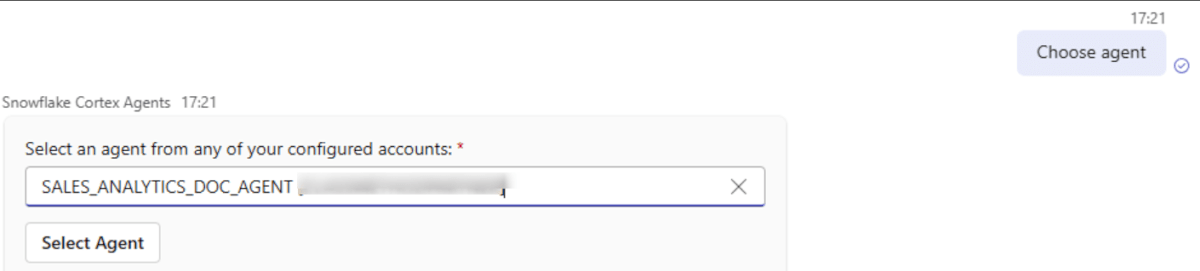
If you have the permissions, after creating the agent you can switch to it by typing Choose agent in the Teams chat box.
Trying It from Teams
I made the following requests to the agent I created in Teams.
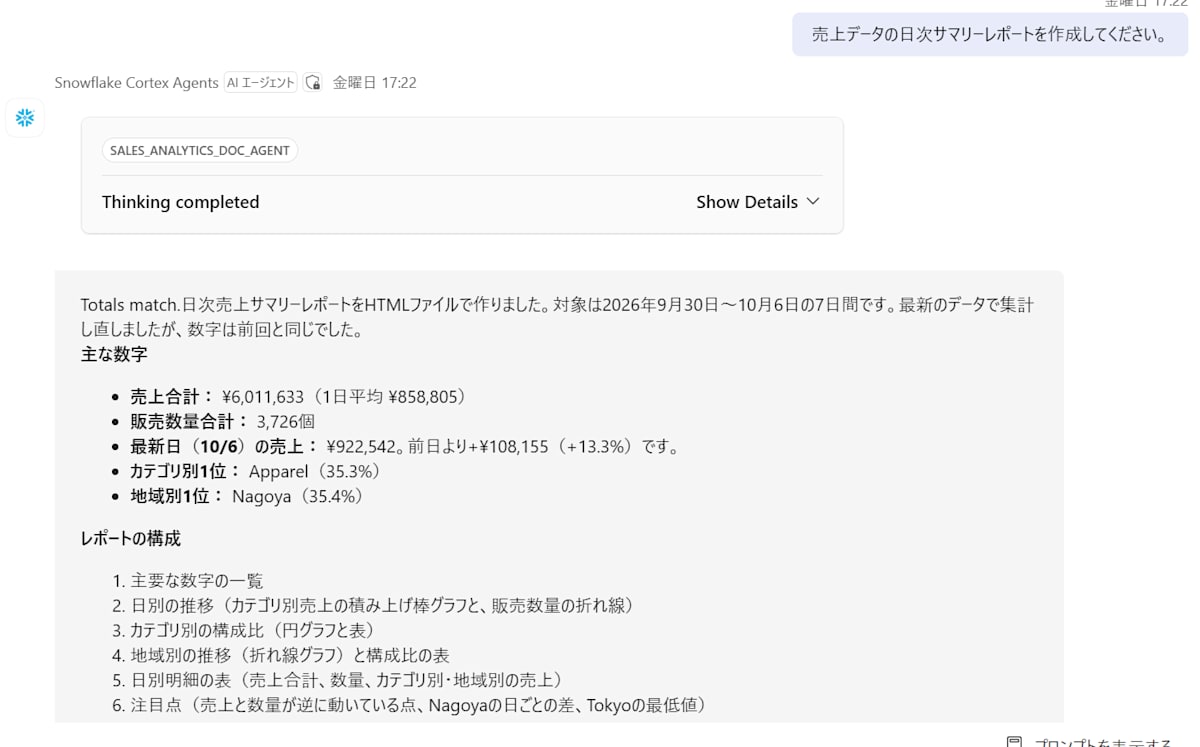
- "Please create a daily summary report of the sales data."
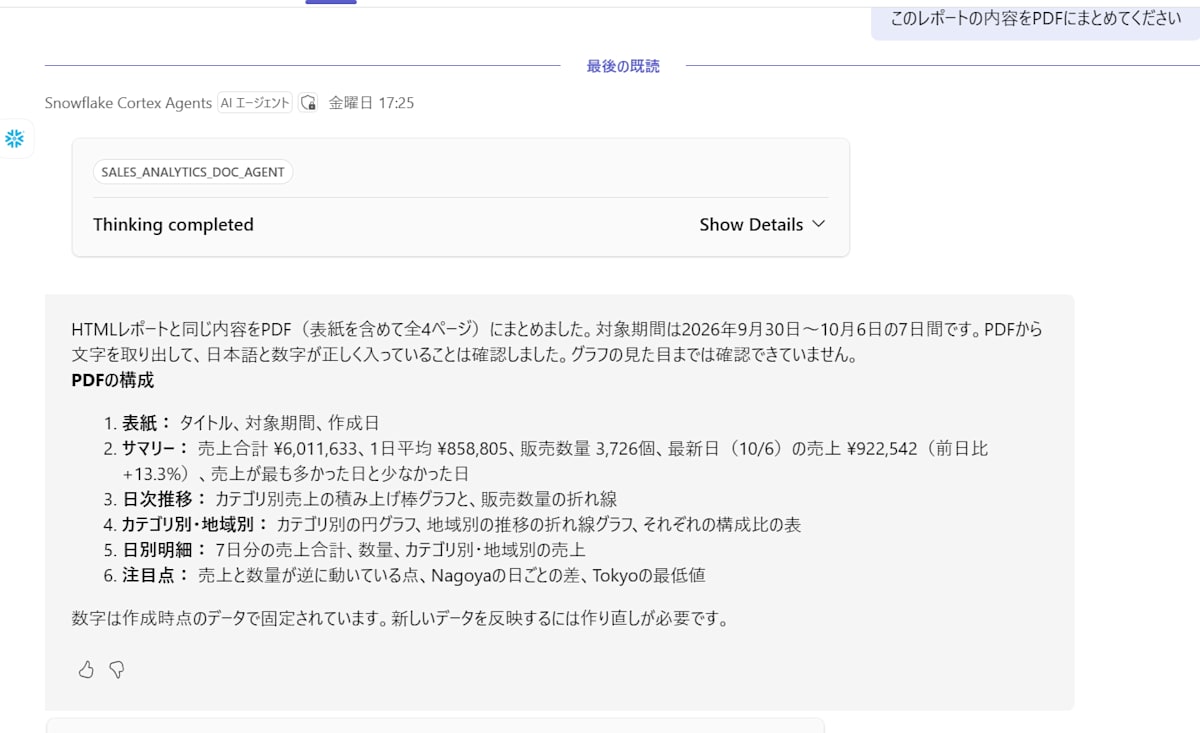
- "Please compile the contents of this report into a PDF."
- "Can you generate it in PowerPoint?"
For the first request, the agent created an HTML file and explained the summary, such as the target period, total sales, and the top category and region, along with the structure of the report. It then asked, "Would you like to publish this report?"
For the second and third requests as well, the agent responded that it had created and attached a PDF (4 pages in total) and a PowerPoint (5 slides in total). It also reported post-creation checks, such as extracting text from the PDF to verify the Japanese text and numbers, and checking the slide images and fixing things like the chart axis labels.
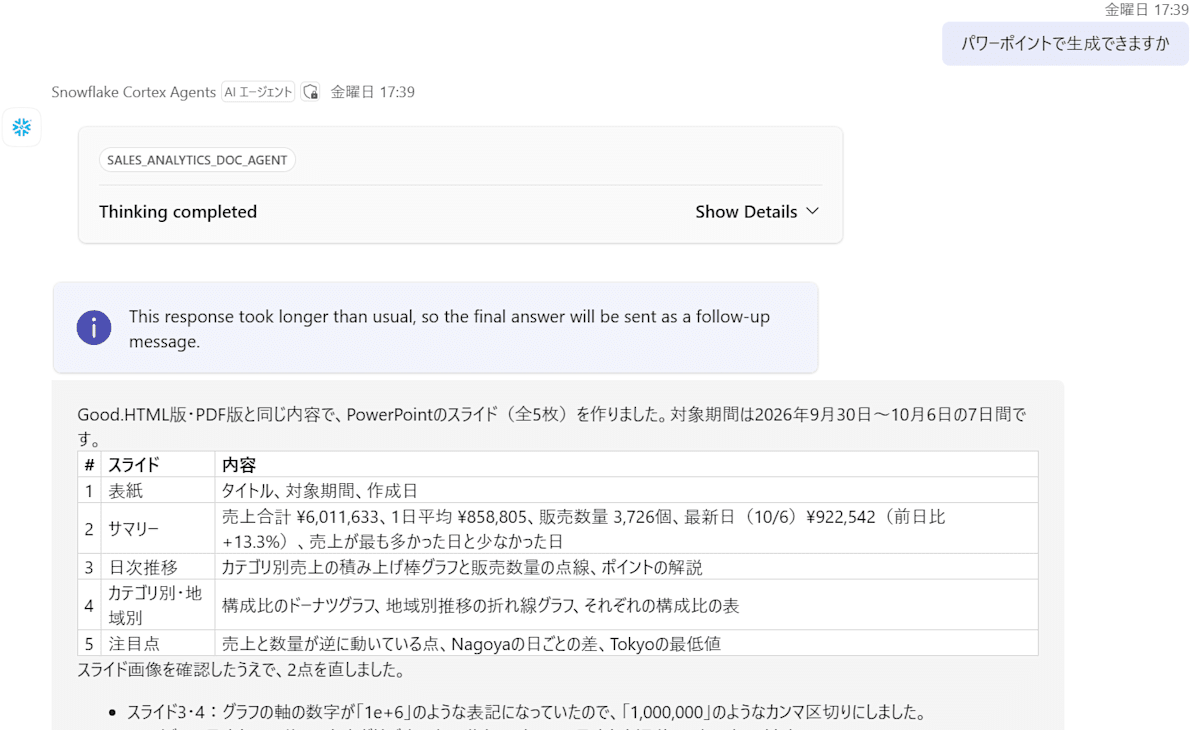
However, I could not view these files in the Teams chat. The response says they were created, but no attachment is displayed and no operation for downloading appears on the screen.
With Word as well, the file was likewise not attached.
Trying It from Copilot
Next, I made requests to the same agent from Microsoft 365 Copilot.
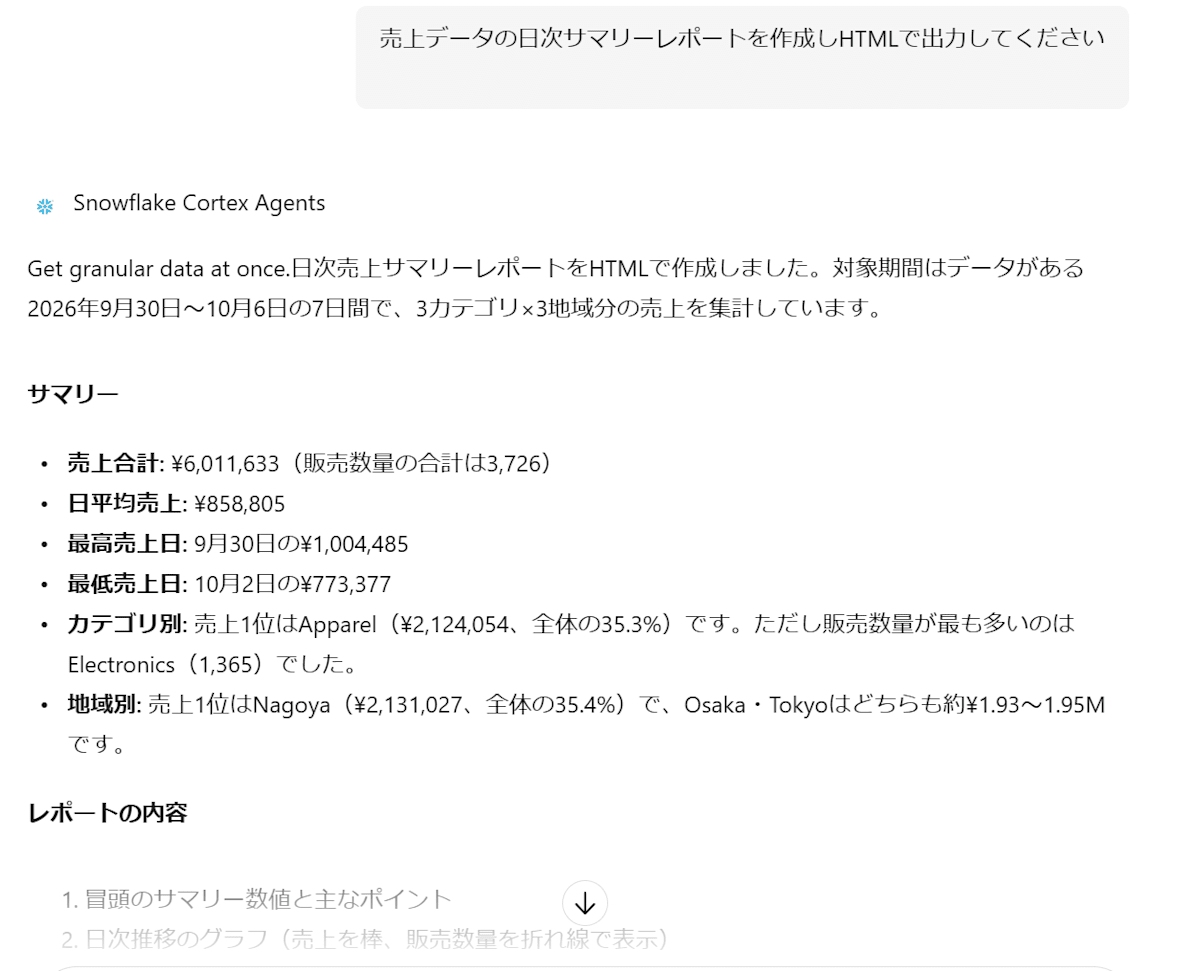
When I requested "Please create a daily summary report of the sales data and output it as HTML," I received a message saying an HTML report had been created, along with a summary. Here too, at the end it asked, "Would you like to publish or share this report?"
Incidentally, when I answered "Yes, please publish it" here, it responded that it could not publish, as shown below. Artifacts cannot be published via Copilot.
I'm sorry. I was unable to publish the report in the current environment. Because the publishing procedure cannot be used in the current environment, I cannot issue a public link from here.
The report's HTML file (region_sales_report.html) has been saved and can be downloaded from my previous response.
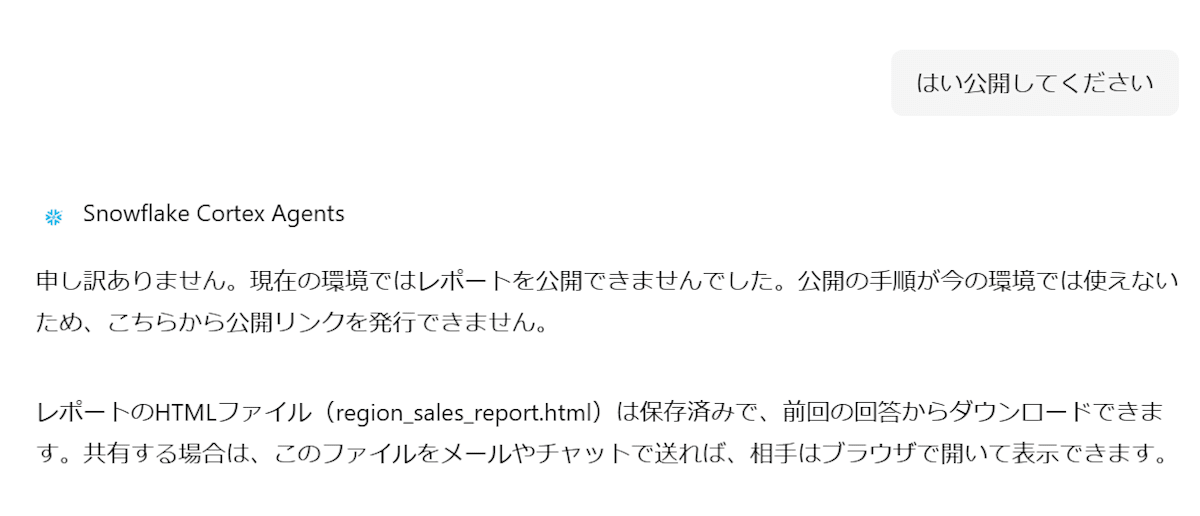
Also, as with Teams, the file cannot be viewed in the chat.
When I told the agent that I could not see the file, it responded that it had sent the attachment again, and explained that it is likely that Copilot does not display attachments by design. After that, I also requested the creation of a Word (.docx) file and a PDF, but in both cases I only got a response saying "I attached and sent it," and I could not confirm it.
Charts Are Not Displayed in Copilot
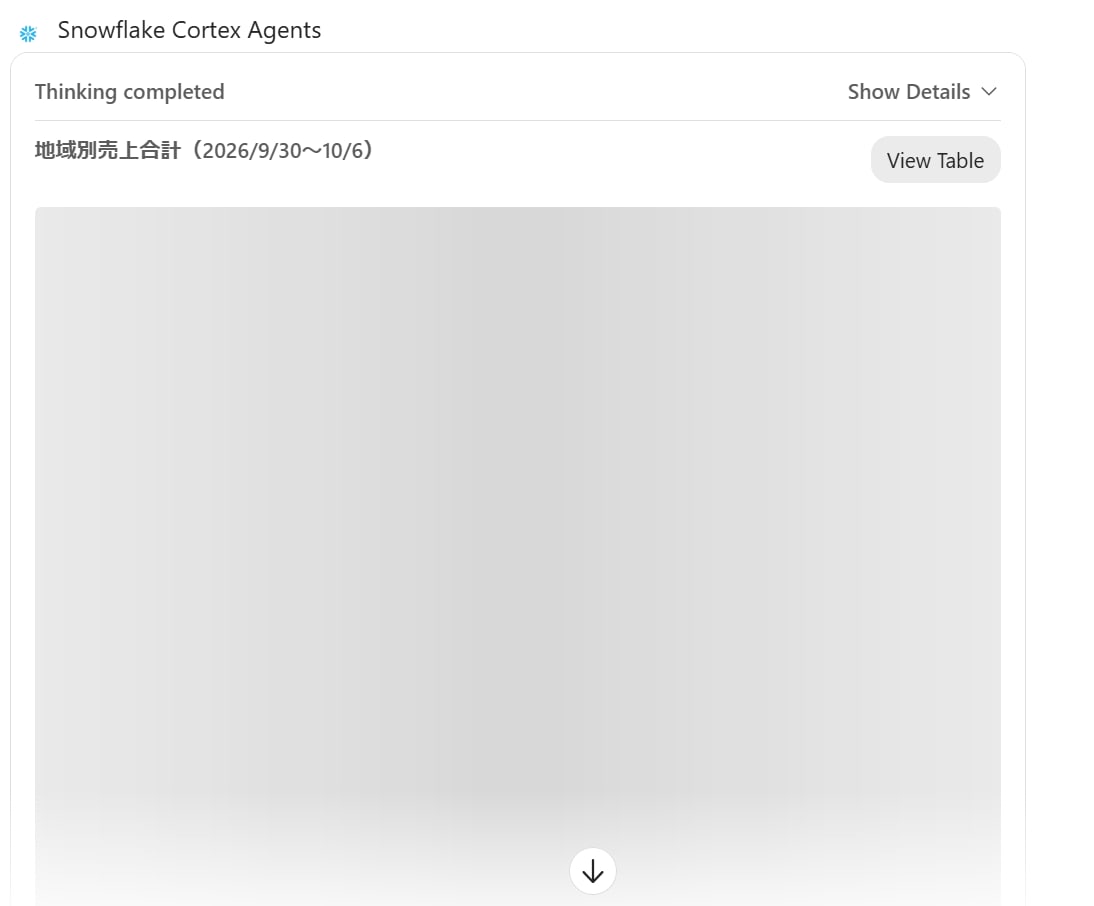
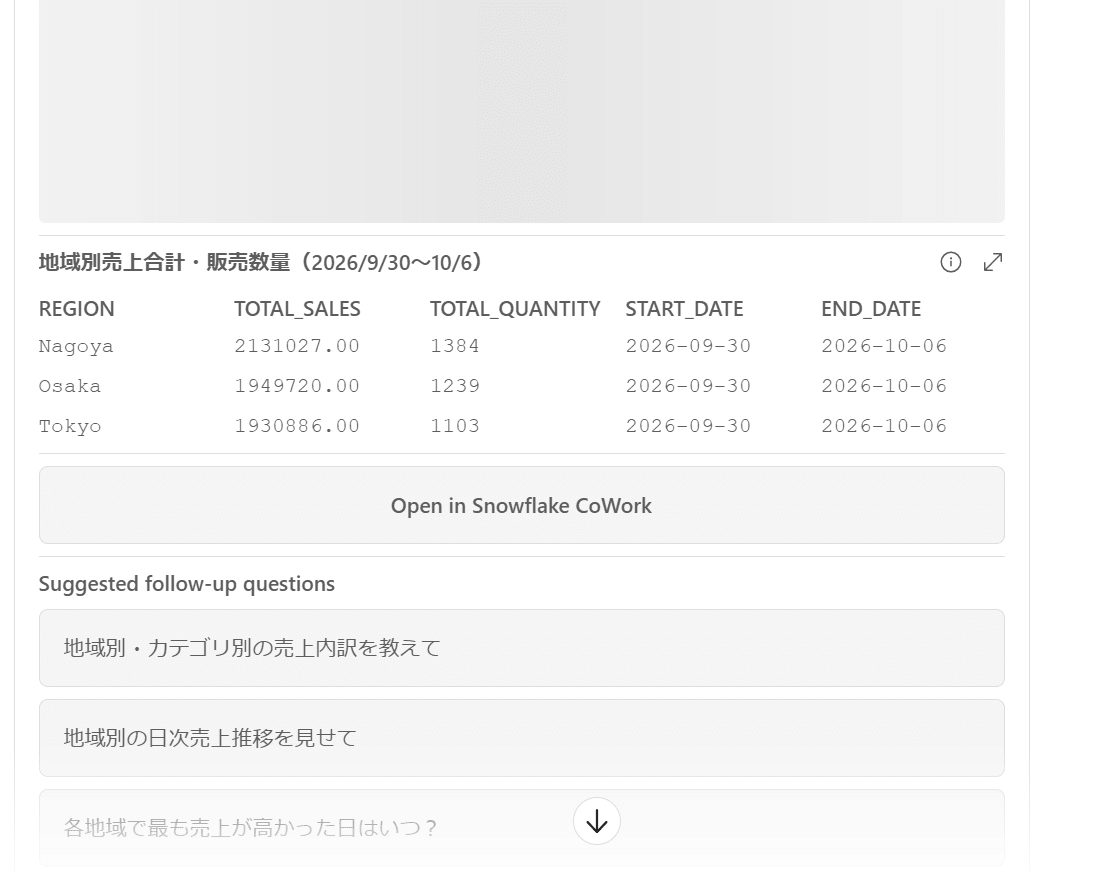
In Copilot, charts included in answers, separate from files, were also not displayed.
When I asked "Tell me the sales by region," the body text and table of the answer were displayed. For the chart, however, only the heading was displayed and the graph itself was not. When I queried from Teams, the answer including the graph was displayed, so there is a difference in display between Teams and Copilot.
What I Was Able to Try in Copilot
Although I could not view the files, in Copilot I was able to check and take out the contents of the report in the following ways.
Having the HTML Code Pasted into the Chat
When I asked the agent, "Can you paste the HTML code here?", the full HTML code was returned in the chat. On the Copilot screen, the HTML containing this code was displayed.
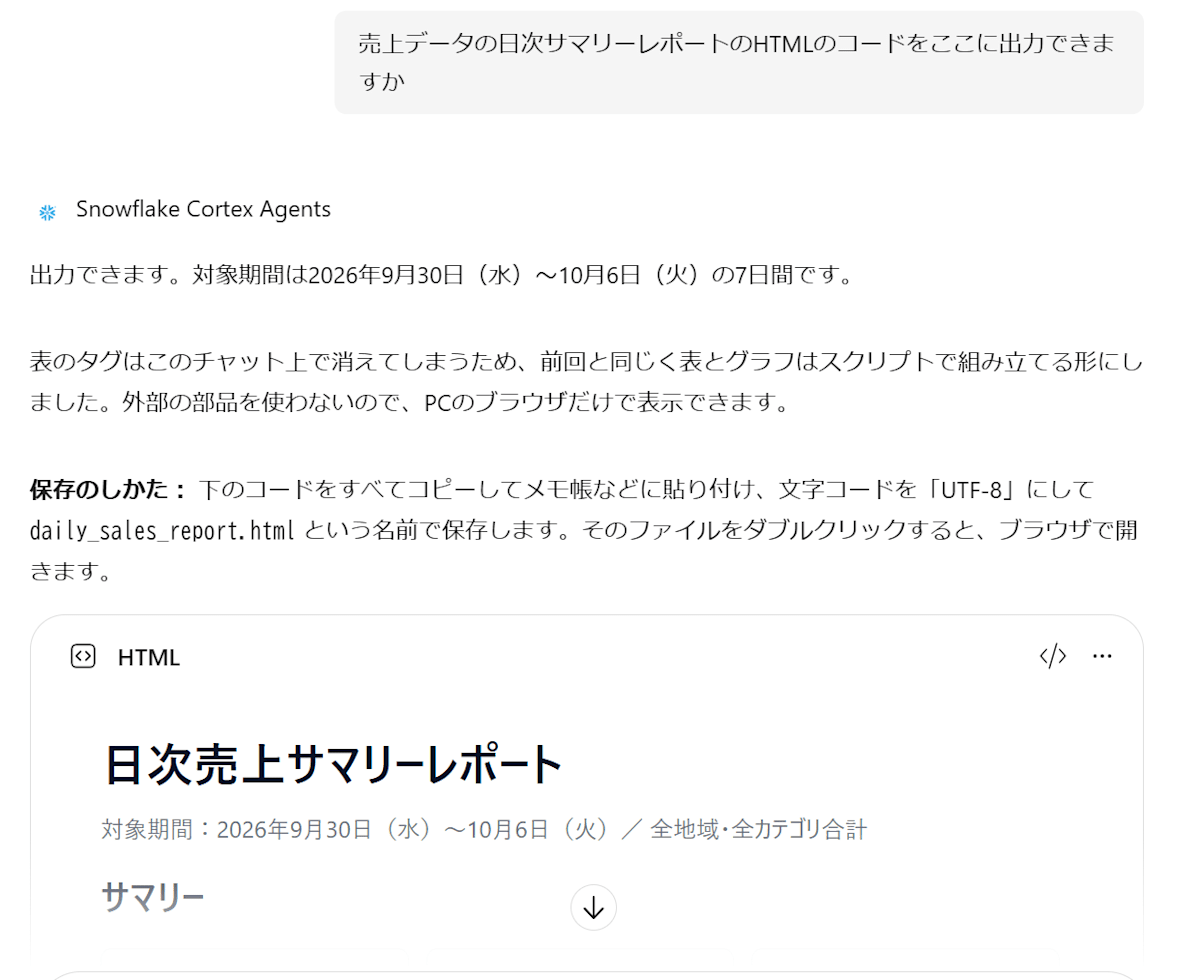
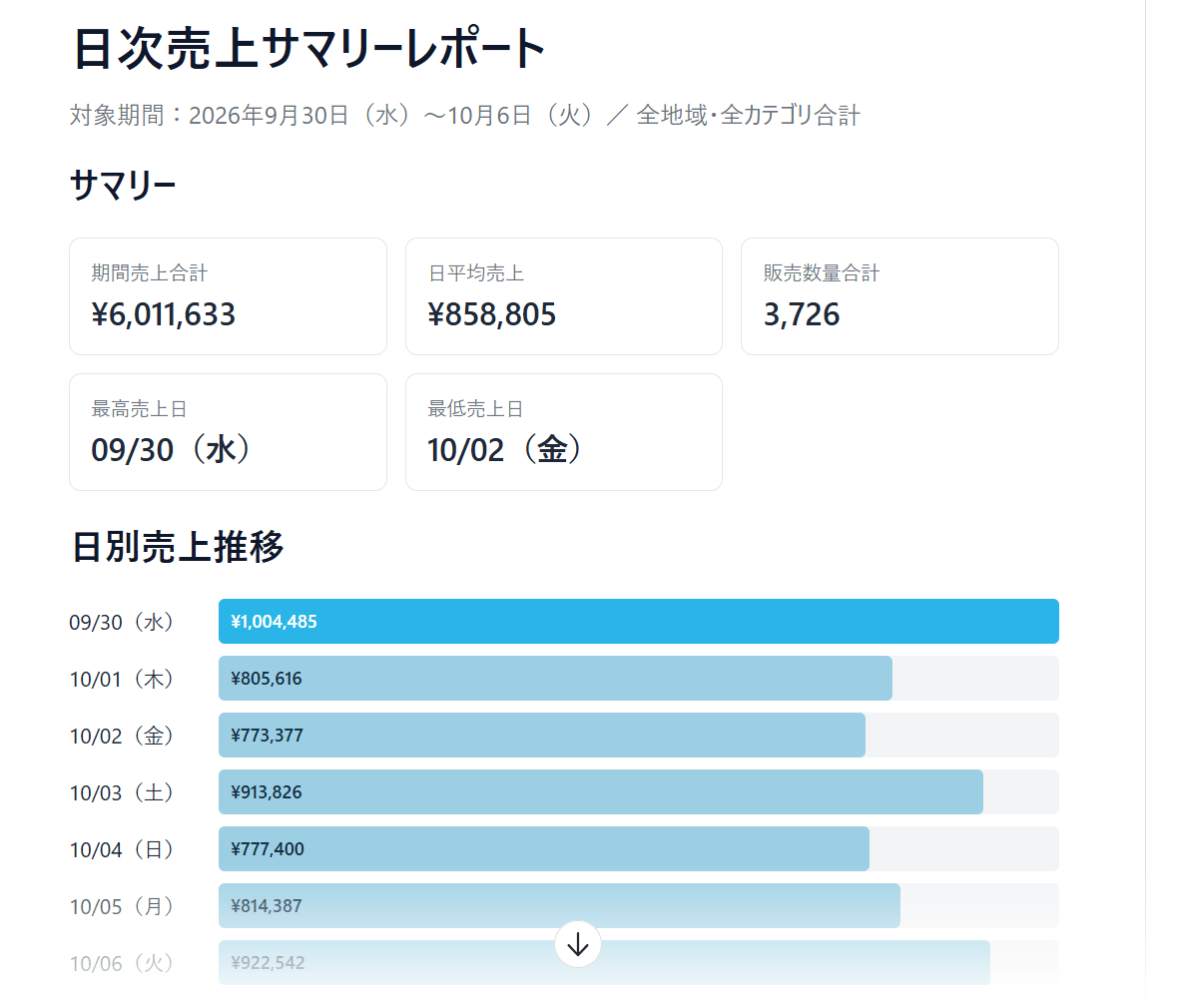
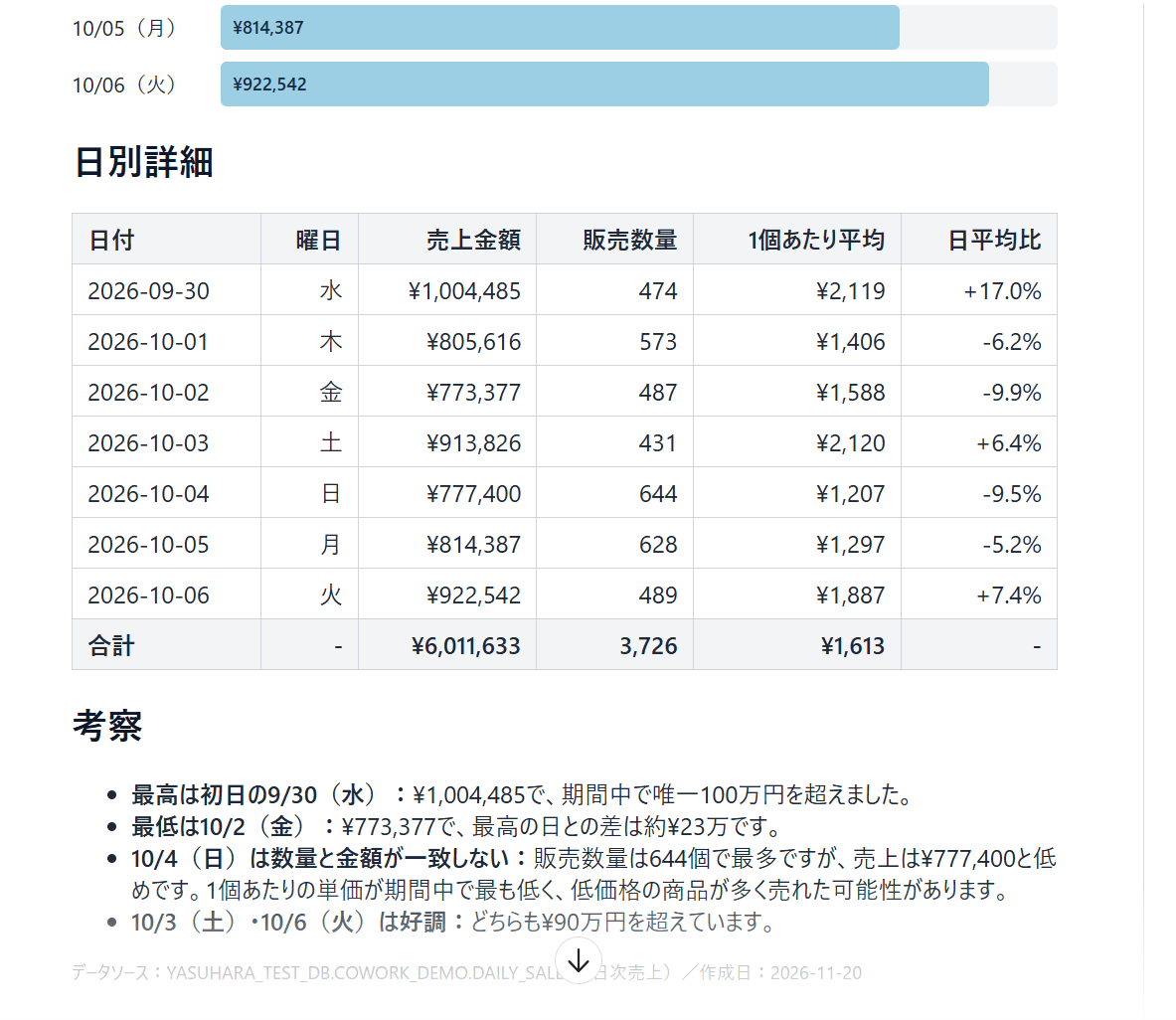
Adding the Answer to a Page and Exporting to Excel
Microsoft Copilot has a feature called "Pages" (Copilot Pages). It is a working screen within Copilot Chat where you can keep responses as pages that can be edited and shared.
You can add a response to a page using the button below the response, and you can also add it to an existing page.
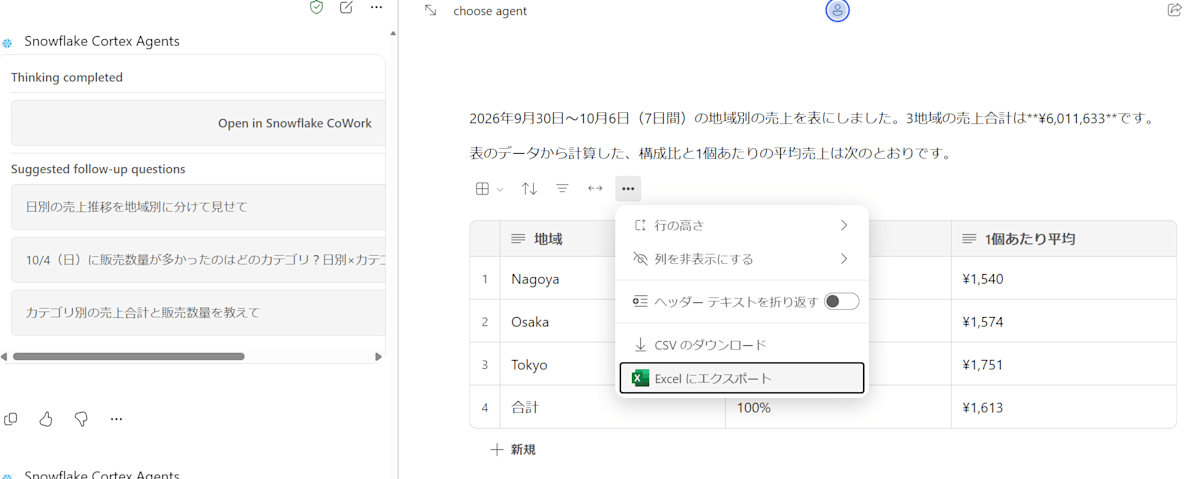
I tried adding a tabular answer from the Snowflake agent to a page.
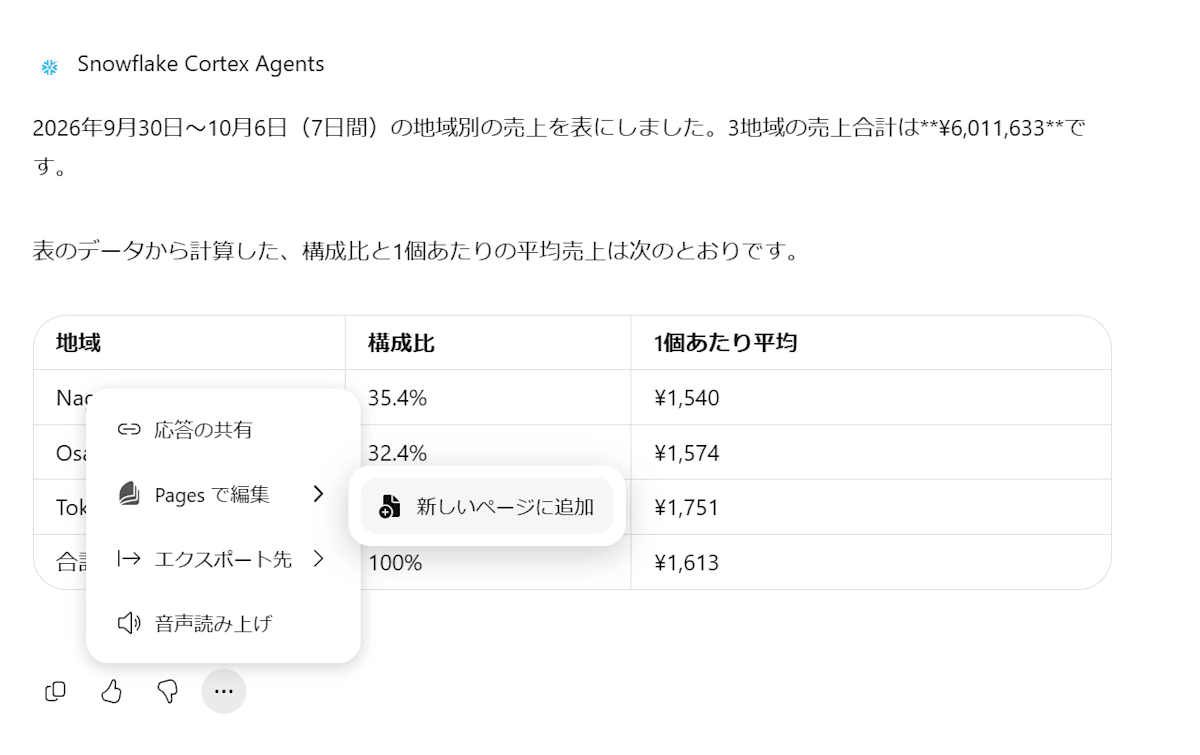
When you open the page, a menu for exporting the table to Excel is displayed.
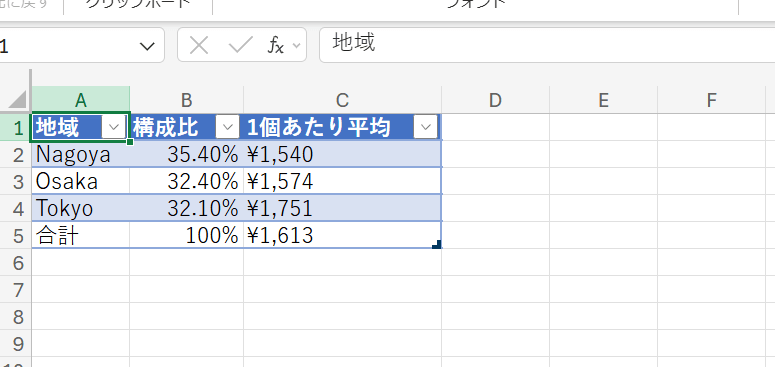
Here, the exported content looked like the figure below.
On the other hand, when I added an answer containing a chart to a page, the page could not be opened, as shown below.

Exporting the Answer to Word
Even without going through a page, in Copilot I was also able to export an answer directly to Word.
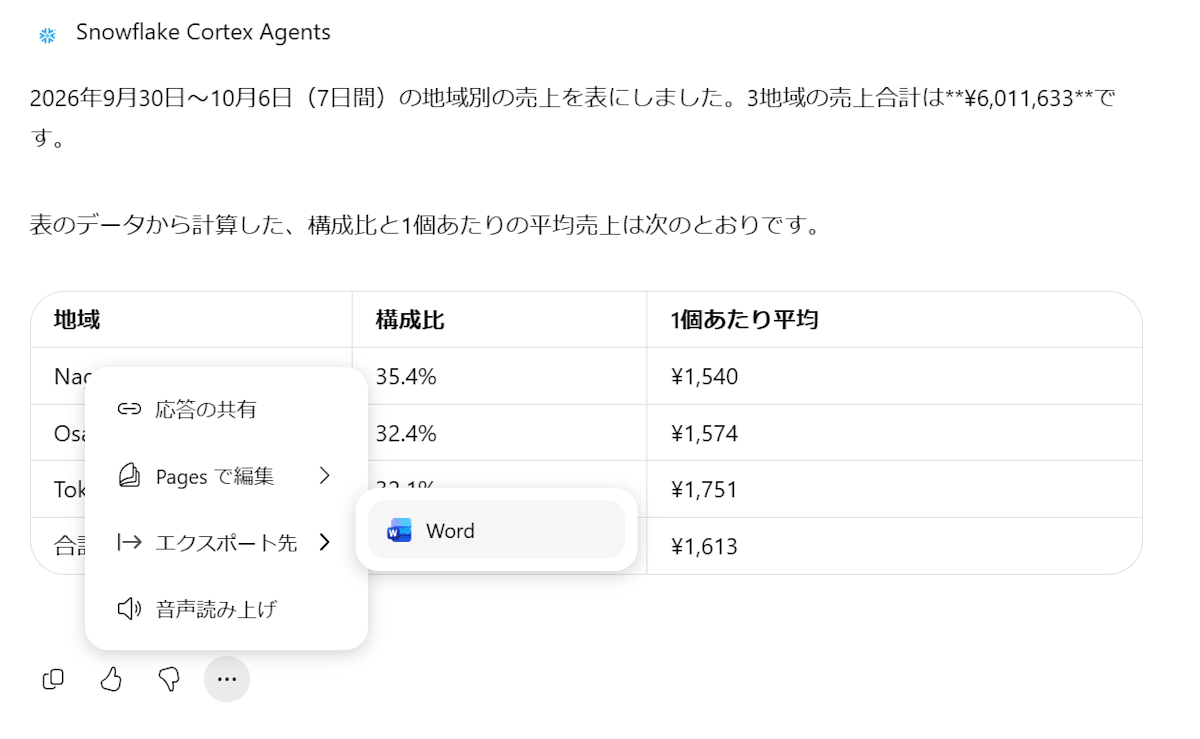
The exported Word document looked like the figure below.
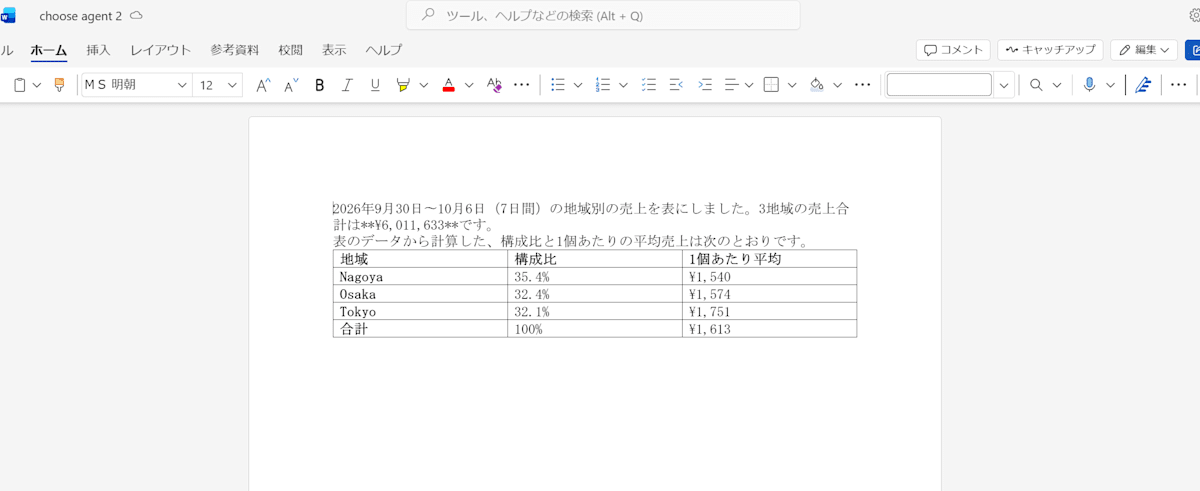
These are not Snowflake's document generation feature but Copilot's own features.
Therefore, unlike the method where the agent creates and attaches a file, you can receive it directly as a Word file from the Copilot screen.
Conclusion
I checked the behavior of the Cortex Agents document generation feature when used through the Teams/Copilot integration. In this environment, in both Teams and Copilot, the file that the agent responded it had generated could not be viewed in the chat. In addition, charts were not displayed in Copilot.
On the other hand, in Copilot I was able to try having the HTML code pasted into the chat, adding a tabular answer to a page and exporting it to Excel, and exporting an answer directly to Word. In Teams and Copilot, I thought it would be more practical to use Copilot's own export features to take the contents of an answer out to Word or Excel than to rely on files generated by the agent. If you want to reliably receive the files, you will need to use the CoWork screen.
I hope this is helpful to someone.