
I Tried Out the Integration of Snowflake Cortex Agents with Microsoft Teams and Microsoft 365 Copilot

This page has been translated by machine translation. View original
Introduction
Snowflake provides an integration that lets you use Cortex Agents from Microsoft Teams and Microsoft 365 Copilot.
This article covers the setup required to query an agent from Teams, along with what I observed when checking user mapping and network policy behavior.
Overview of the Cortex Agents Microsoft Teams Integration
This feature is described in the following documentation.
This feature embeds Cortex Agents into Microsoft Teams and Microsoft 365 Copilot, allowing you to query Snowflake data in natural language from a chat. Responses are returned as text, tables, and charts. You can use it as a dedicated Bot app in Teams, and as an agent within Copilot in Microsoft 365 Copilot.
Authentication uses External OAuth via Microsoft Entra ID. Based on the token issued by Entra ID, the request is mapped to a Snowflake user, and the agent runs with that user's default role.
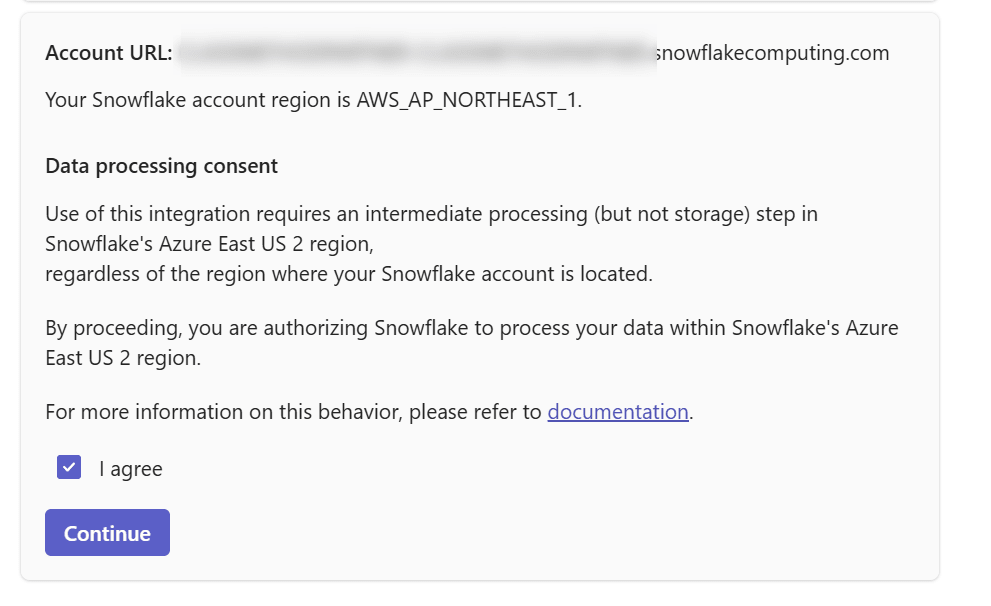
Regarding data processing, the Bot backend runs in Snowflake's Azure East US 2 region. Therefore, regardless of which region your Snowflake account is in, intermediate processing in Azure East US 2 takes place when using this integration. For accounts in regions other than Azure East US 2, you must consent to this when connecting the Teams app to your Snowflake account.
The overall flow is as follows.
Teams の Bot に問い合わせ
  → Entra ID にサインイン
  → Entra ID がトークン(JWT)を発行
  → Bot がトークンを付けて Cortex Agents API を呼び出し
  → Snowflake のセキュリティ統合がトークンを検証し、Snowflake ユーザーに紐づけ
  → ユーザーのデフォルトロールでエージェントを実行
The main prerequisites and limitations are as follows.
- Entra ID users and Snowflake users must be mapped one-to-one
- Agent execution depends on the user's default role. Administrative roles such as ACCOUNTADMIN cannot be used as the default role
- It cannot be used with accounts configured with Private Link
Prerequisites
Verification Environment
I used the following environment.
- Snowflake
- Enterprise Edition (AWS Tokyo region)
- Related objects such as the Cortex Agent and semantic view have already been created
- Cross-region inference (
CORTEX_ENABLED_CROSS_REGION) is set toAWS_APJ
- Microsoft 365
- Prepared a verification tenant with a Microsoft 365 Business Standard trial, and assigned a Teams Essentials license to the user
- Worked as an Entra ID Global Administrator
Microsoft 365 Business Standard Trial
First, start a Microsoft 365 Business Standard trial from the following page.
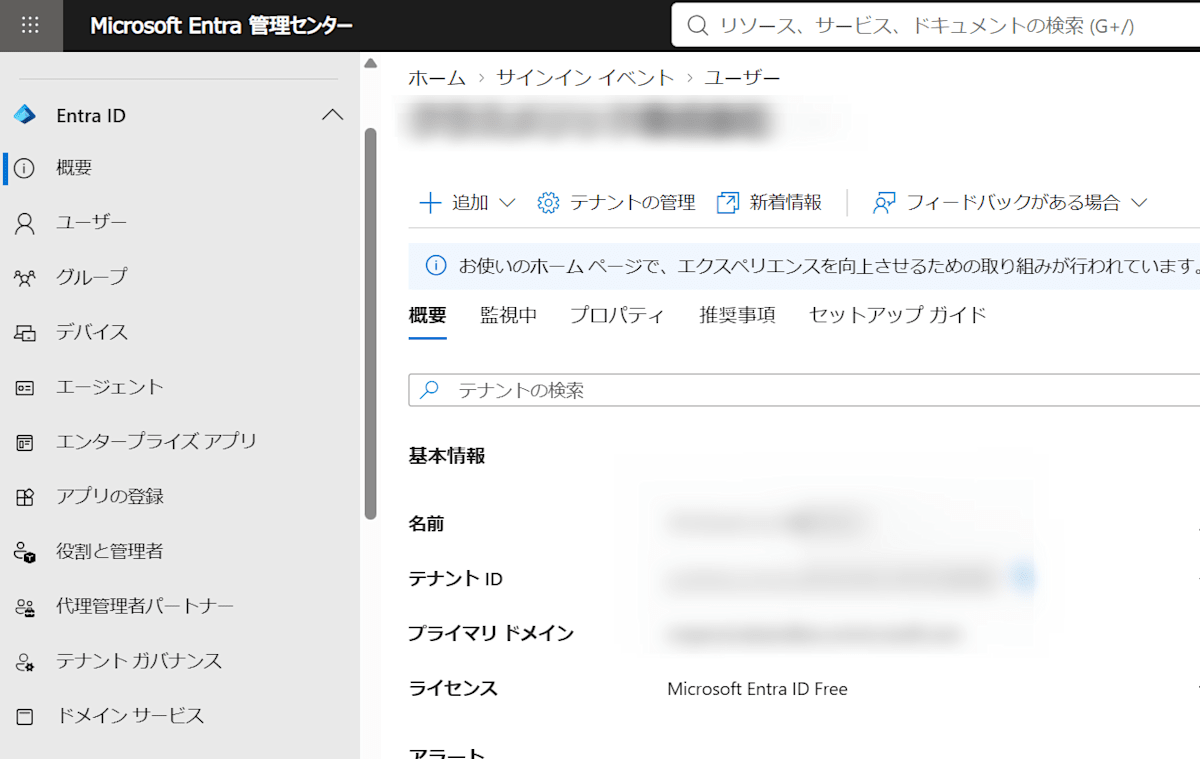
Once the trial has started, note down the Entra ID tenant ID from "Overview" in the Microsoft Entra admin center. The tenant ID will be used later to create the Snowflake security integration and for the Entra ID admin consent.
Creating a Cortex Agent
On the Snowflake side, I use the agent created following the contents of the article below. The agent is used with the yasuhara_dev role.
Assigning a Teams License
From the Microsoft 365 admin center, select "Add other products."
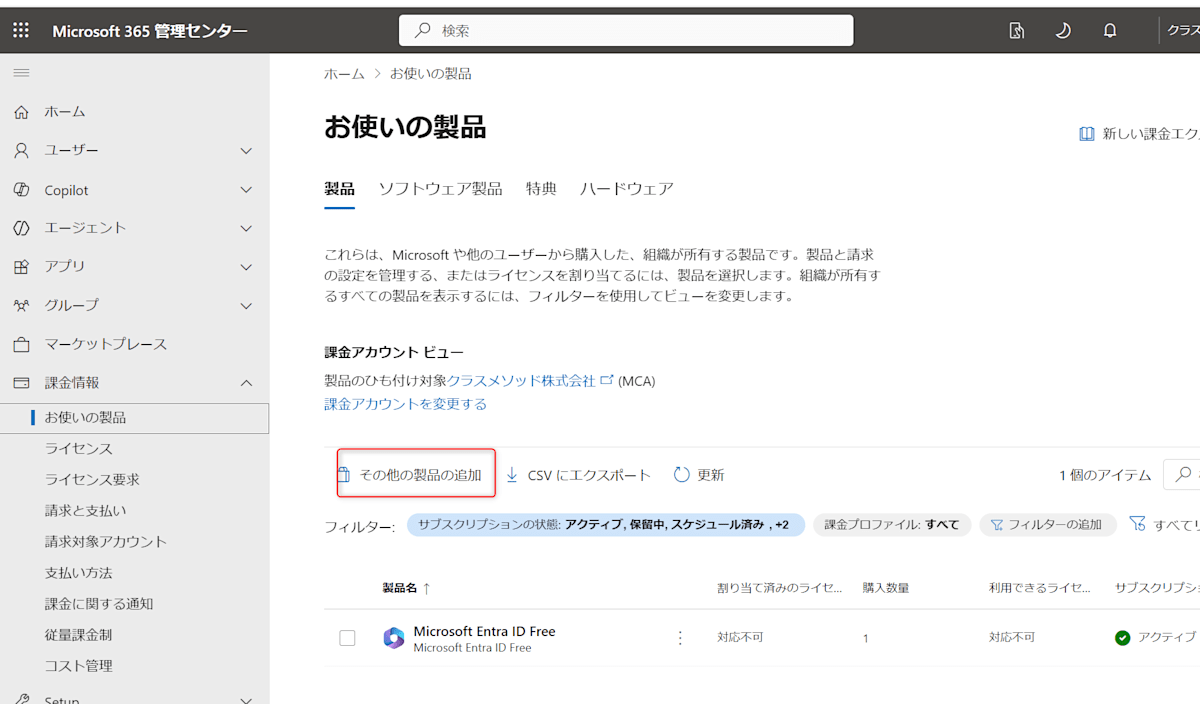
Here, I added Microsoft Teams Essentials.
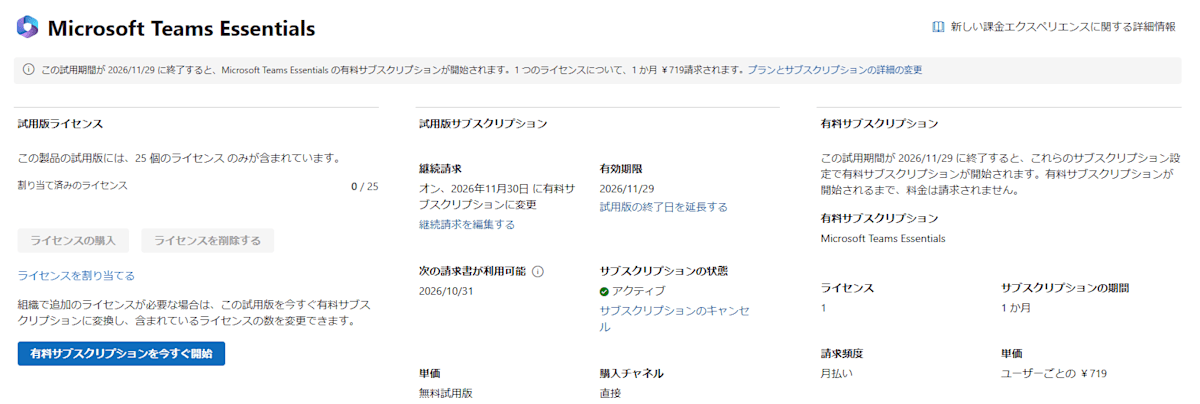
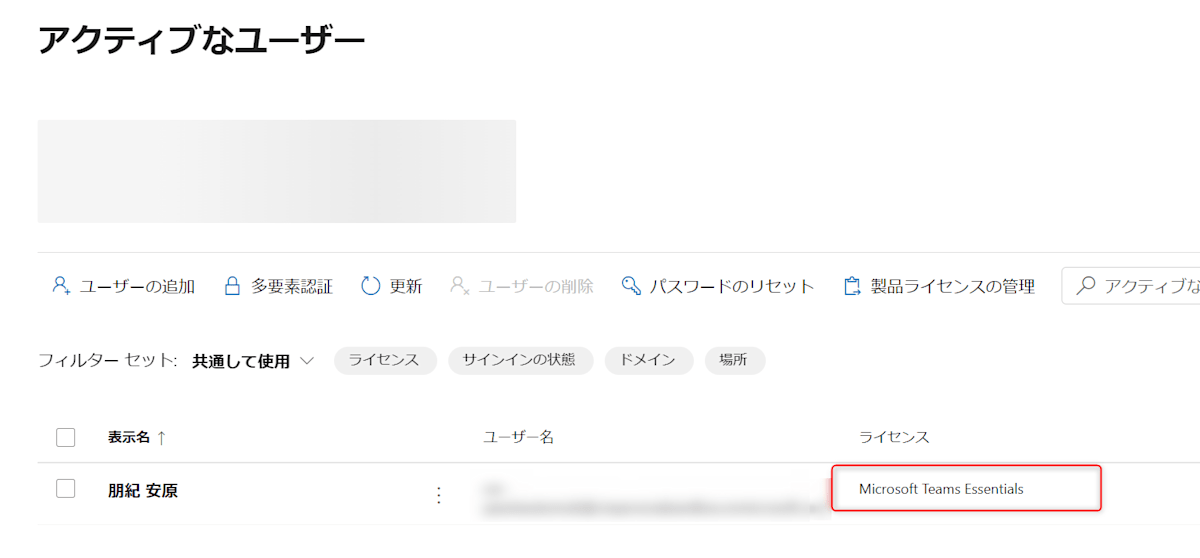
After adding the license, select the target user, check "Microsoft Teams Essentials" in the "Licenses and apps" tab, and save the changes.
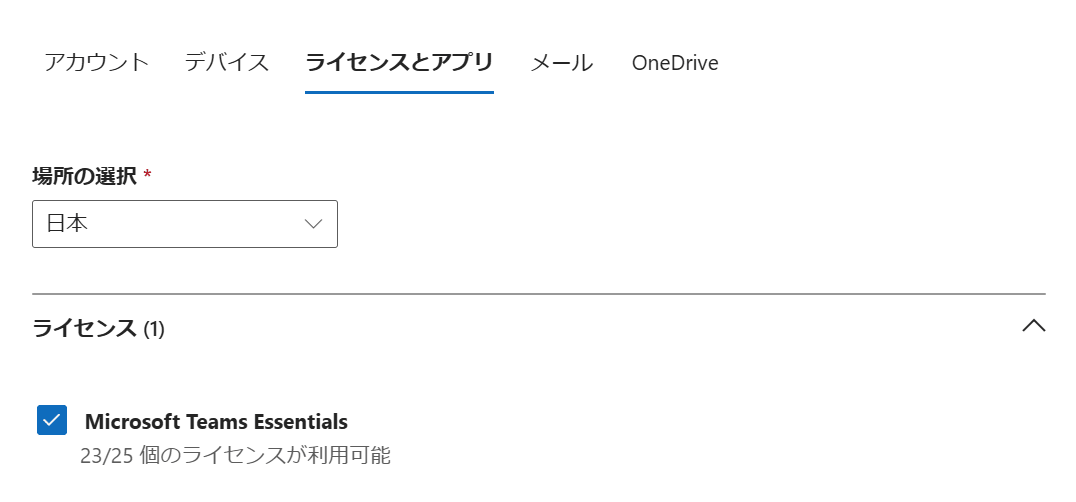
After saving, confirm that the license is active for the target user.
Next, open https://teams.microsoft.com with the verification user and sign in.
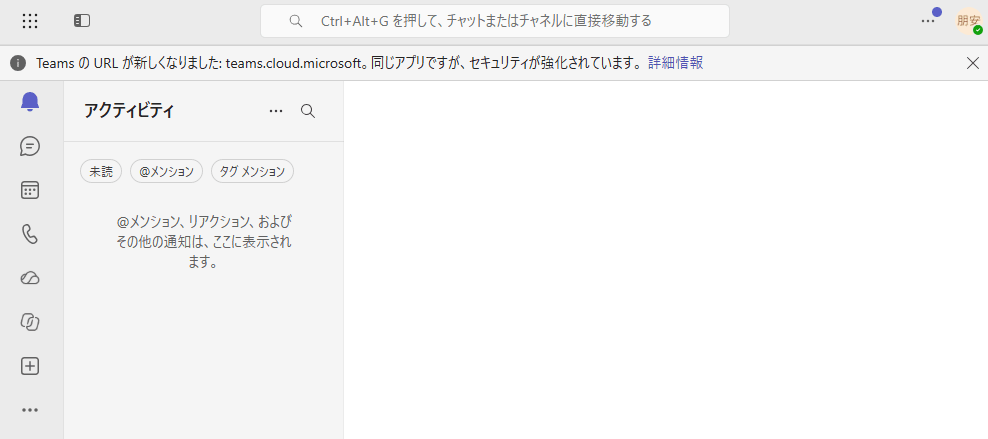
If everything is fine, the Teams screen is displayed as shown below.
Snowflake-Side Configuration
Creating the Security Integration
First, create an External OAuth security integration with ACCOUNTADMIN. It is based on the template in the official documentation, with some modifications.
USE ROLE ACCOUNTADMIN;

CREATE OR REPLACE SECURITY INTEGRATION entra_id_cortex_agents_integration
    TYPE = EXTERNAL_OAUTH
    ENABLED = TRUE
    EXTERNAL_OAUTH_TYPE = AZURE
    EXTERNAL_OAUTH_ISSUER = 'https://login.microsoftonline.com/<tenant-id>/v2.0'
    EXTERNAL_OAUTH_JWS_KEYS_URL = 'https://login.microsoftonline.com/<tenant-id>/discovery/v2.0/keys'
    EXTERNAL_OAUTH_AUDIENCE_LIST = ('5a840489-78db-4a42-8772-47be9d833efe')
    EXTERNAL_OAUTH_TOKEN_USER_MAPPING_CLAIM = 'email'
    EXTERNAL_OAUTH_SNOWFLAKE_USER_MAPPING_ATTRIBUTE = 'EMAIL_ADDRESS'
    EXTERNAL_OAUTH_ANY_ROLE_MODE = 'ENABLE'
    EXTERNAL_OAUTH_ALLOWED_ROLES_LIST = ('YASUHARA_DEV');
For <tenant-id>, specify the tenant ID you noted earlier. Other points are as follows.
EXTERNAL_OAUTH_AUDIENCE_LIST- This is the ID of the "Snowflake Cortex Agents Bot OAuth Resource" app provided by Snowflake, and is a fixed value
EXTERNAL_OAUTH_TOKEN_USER_MAPPING_CLAIM- This time I limited the mapping to email addresses
EXTERNAL_OAUTH_ALLOWED_ROLES_LIST- Limits the roles that can be used via Teams
Note that I did not specify EXTERNAL_OAUTH_BLOCKED_ROLES_LIST. Even when it is not specified, ACCOUNTADMIN, ORGADMIN, GLOBALORGADMIN, and SECURITYADMIN are blocked by default.
Creating a Snowflake User
Next, create a Snowflake user corresponding to the user who will sign in to Teams. The key point is that EMAIL must match the Entra ID user name. Since the user logs in only via External OAuth, no password is set.
This user will also be used later to connect the Teams app to the Snowflake account (an administrator operation). For that reason, I set DEFAULT_SECONDARY_ROLES = ('ALL') so that ACCOUNTADMIN, which will be granted later, can be used as a secondary role.
USE ROLE USERADMIN;

CREATE OR REPLACE USER teams_test_user
    TYPE = PERSON
    EMAIL = '<user>@<tenant>.onmicrosoft.com'
    DEFAULT_ROLE = 'YASUHARA_DEV'
    DEFAULT_WAREHOUSE = 'COMPUTE_WH'
    DEFAULT_SECONDARY_ROLES = ('ALL');

USE ROLE SECURITYADMIN;
GRANT ROLE yasuhara_dev TO USER teams_test_user;
The default role YASUHARA_DEV has already been granted usage privileges on the agent, semantic view, warehouse, and so on, as well as the SNOWFLAKE.CORTEX_AGENT_USER database role.
Entra ID Admin Consent
Next, grant admin consent for the Snowflake apps on the Entra ID side. As a Global Administrator, open the following two URLs in a browser and consent to each. For <tenant-id>, specify the tenant ID.
https://login.microsoftonline.com/<tenant-id>/adminconsent?client_id=5a840489-78db-4a42-8772-47be9d833efe
https://login.microsoftonline.com/<tenant-id>/adminconsent?client_id=bfdfa2a2-bce5-4aee-ad3d-41ef70eb5086
The first is the OAuth Resource. It is an app representing the Snowflake API, and a confirmation screen is displayed once.
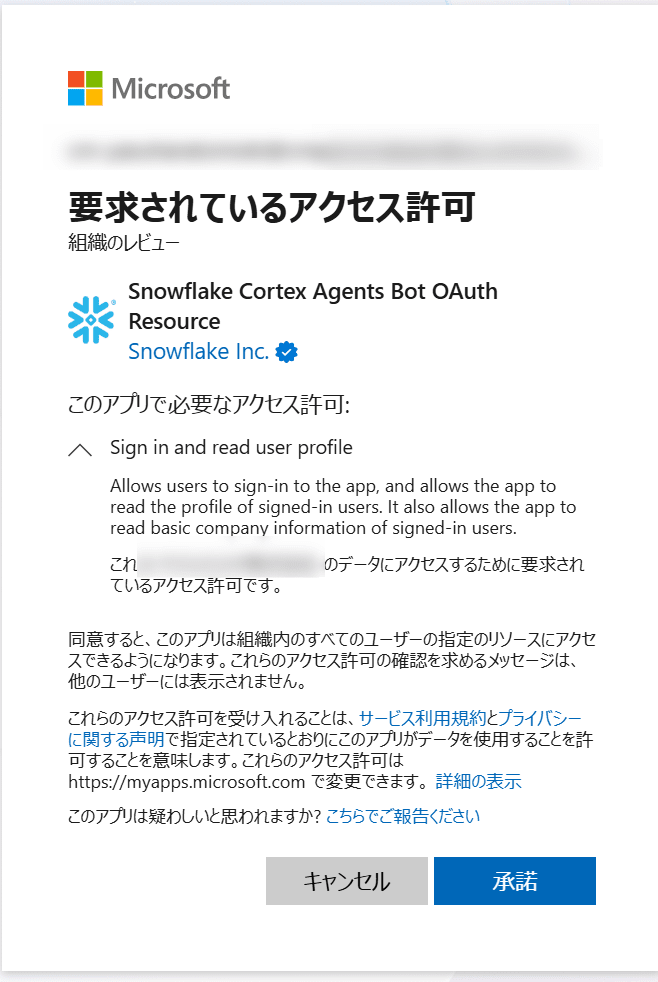
The second is the OAuth Client. It is an app representing the Teams app backend, and the confirmation screen is displayed twice.
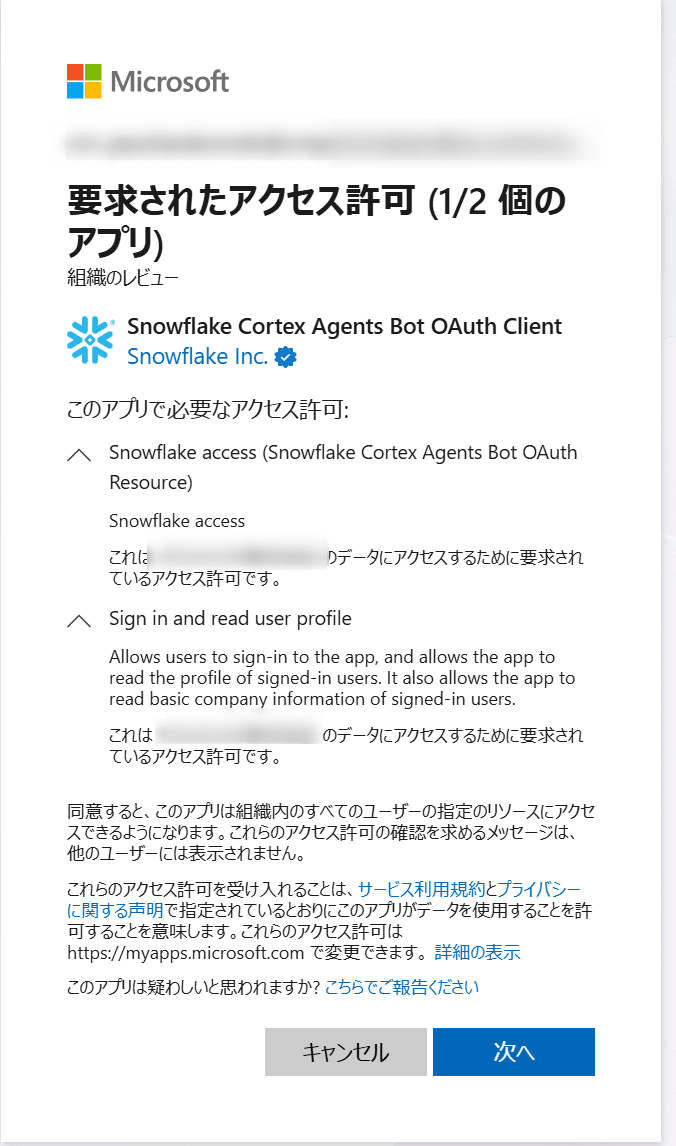
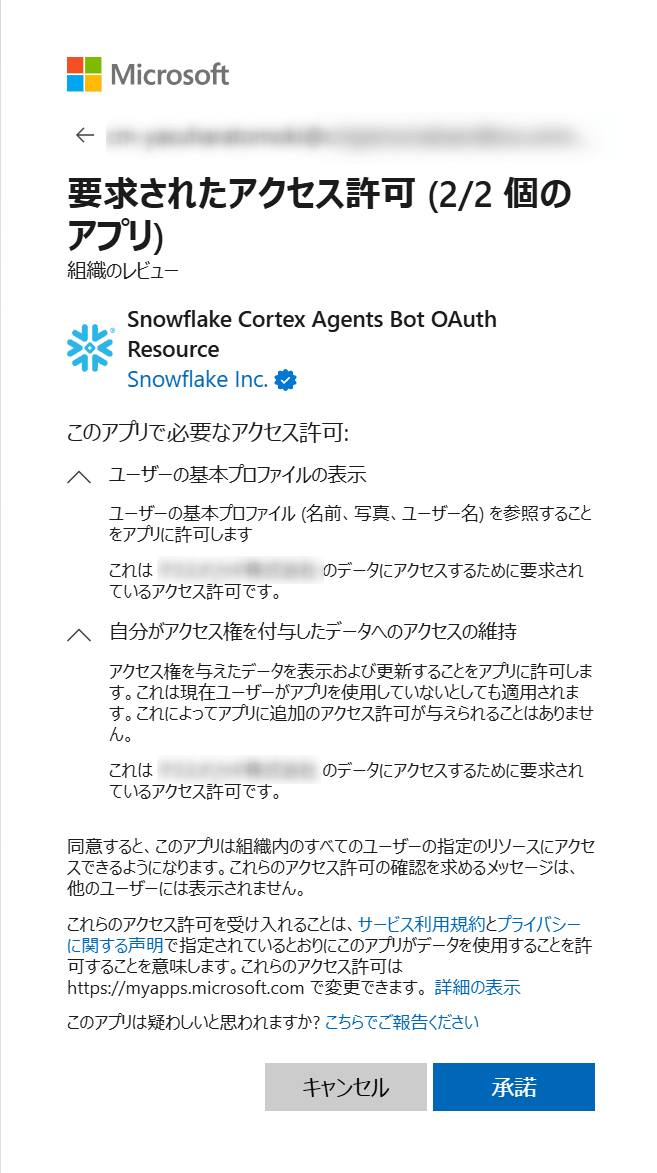
After consenting, the following error is displayed in the browser, but as stated in the documentation, the consent has been completed. You can also confirm that the URL contains admin_consent=True.
{
  "error": {
    "code": "ServiceError",
    "message": "Missing required query string parameter: code. Url = https://unitedstates.token.botframework.com/.auth/web/redirect?admin_consent=True&tenant=<tenant-id>"
  }
}
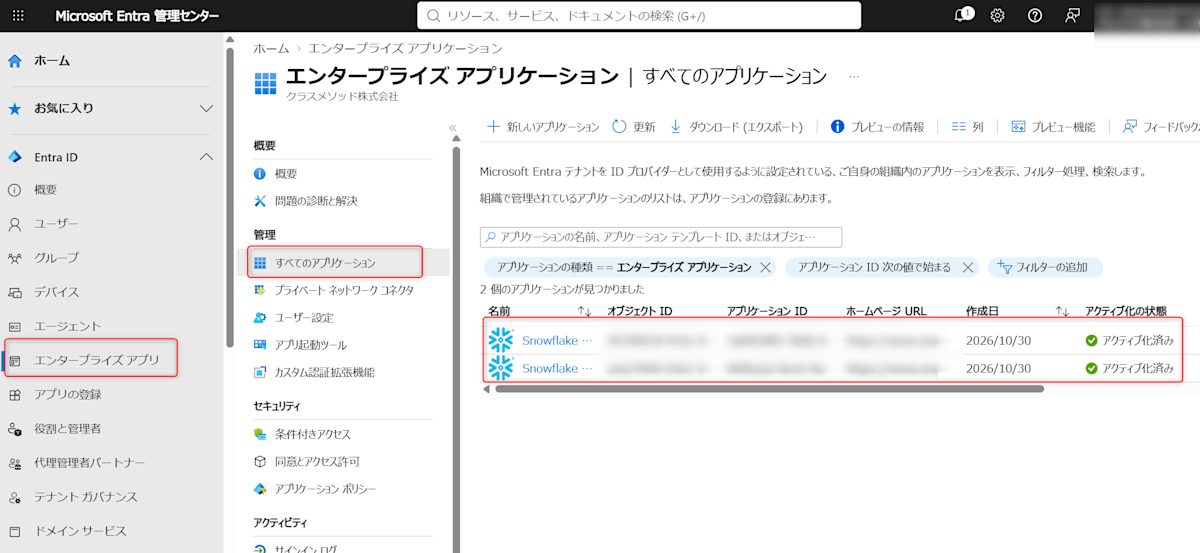
After consenting, it is fine if the following two apps appear under "Enterprise applications" in the Entra admin center.
- Snowflake Cortex Agents Bot OAuth Resource
- Snowflake Cortex Agents Bot OAuth Client
Querying from Teams
Connecting the Teams App
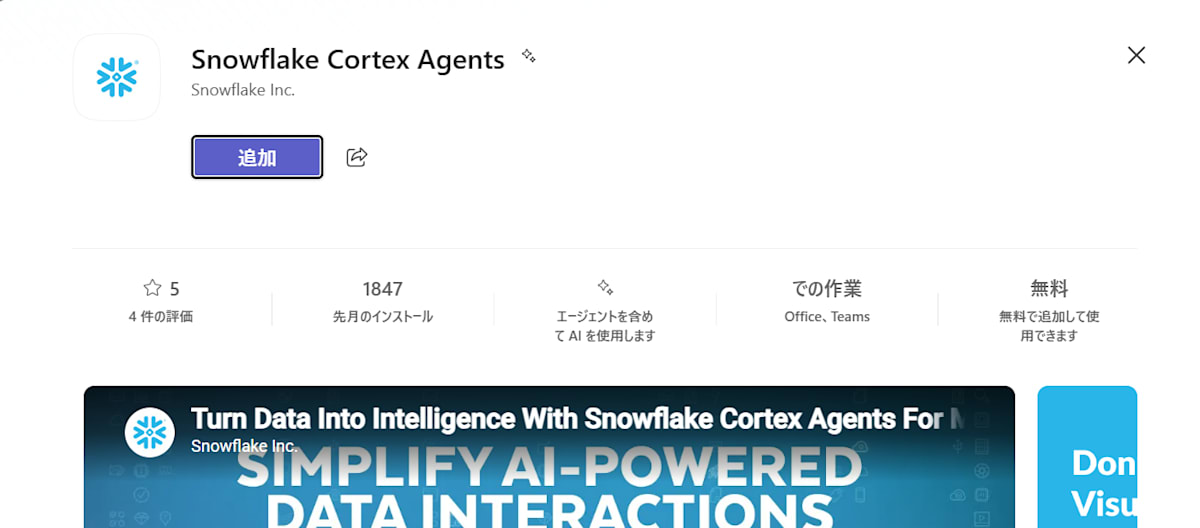
Search for "Snowflake Cortex Agents" in "Apps" in Teams.
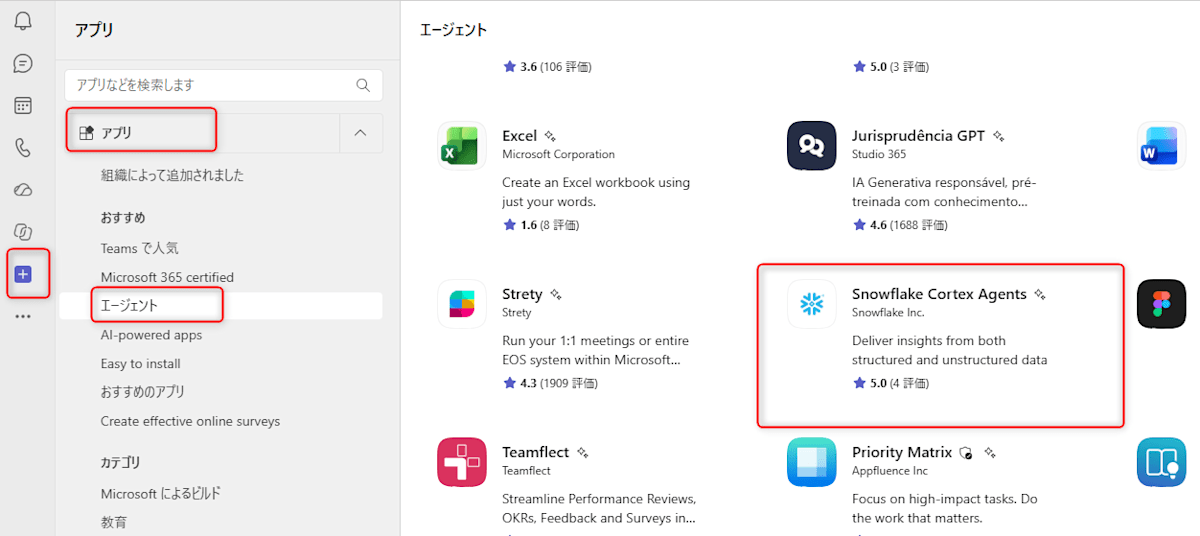
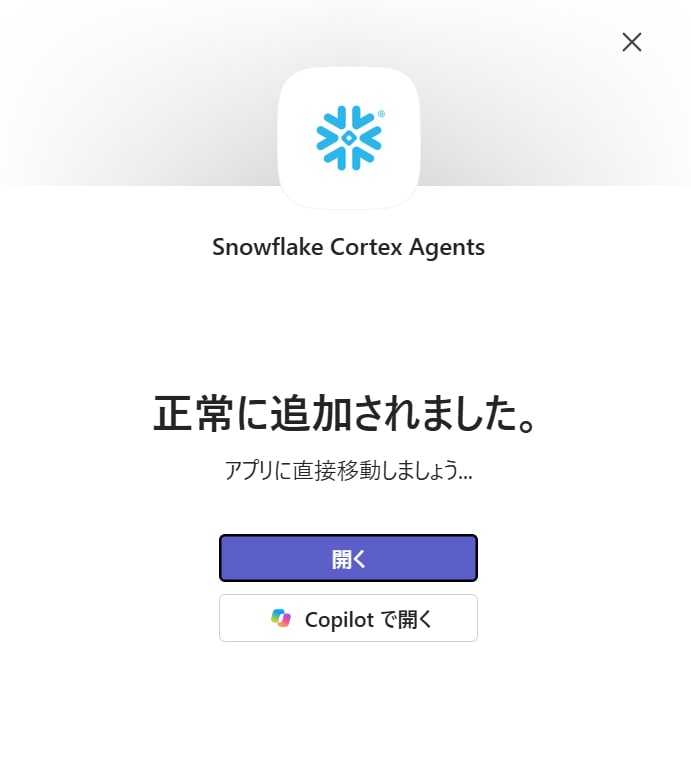
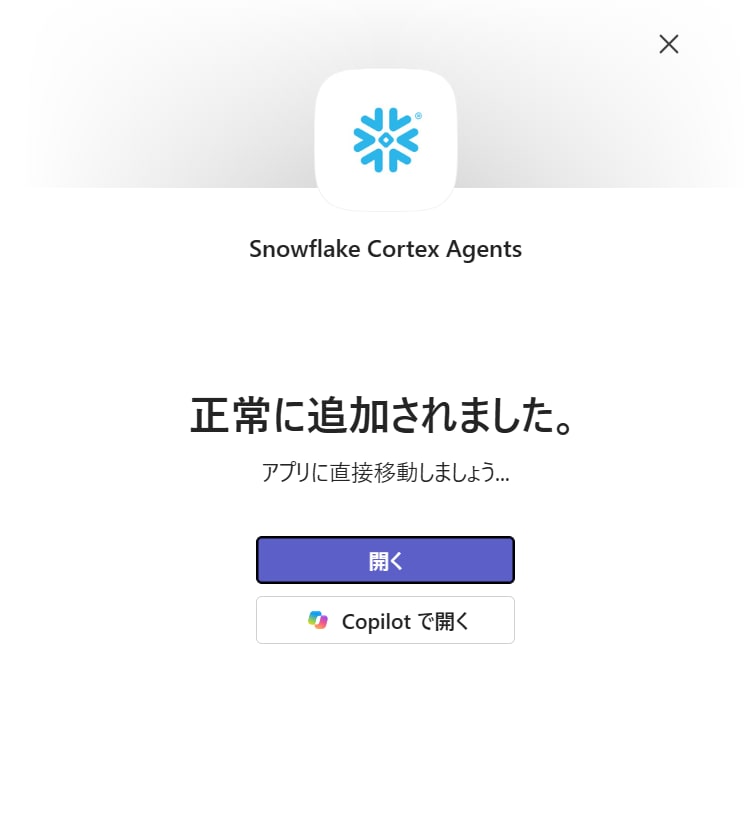
Select "Add" to add the app.
Once added, the chat screen with the Bot opens as shown below.
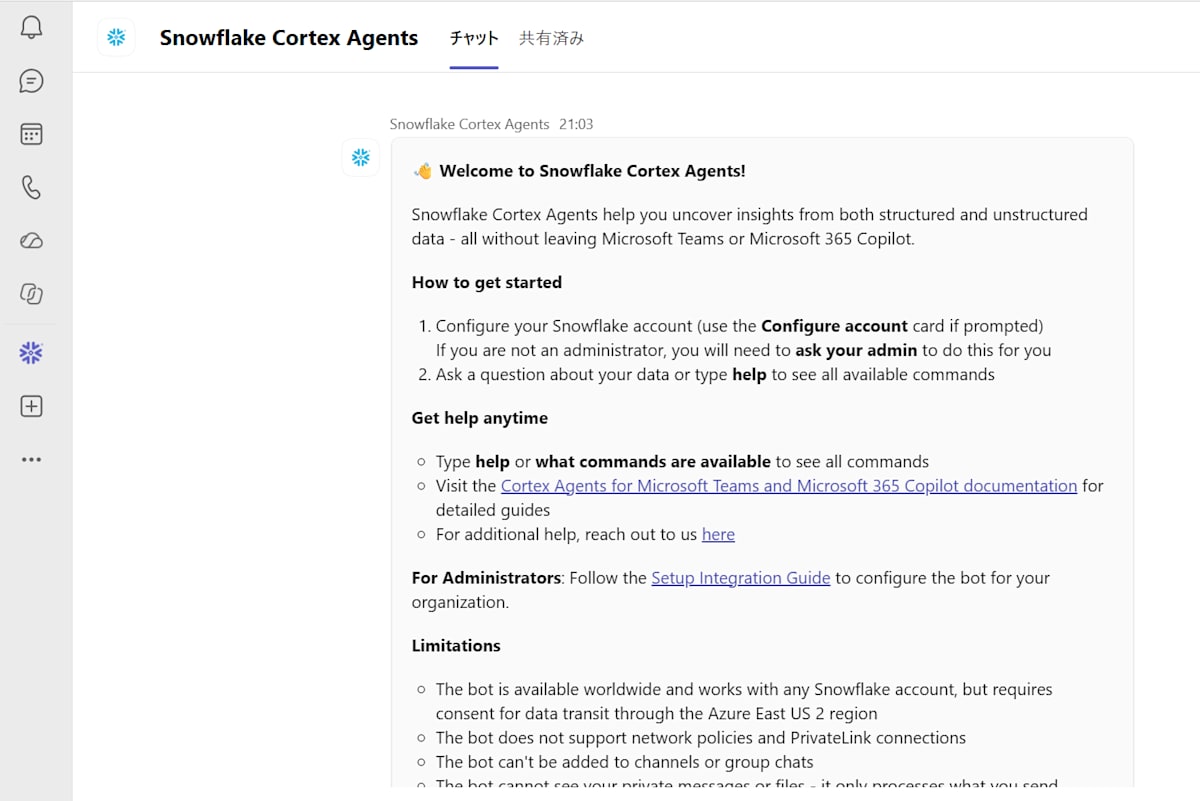
The first user in the organization to use the app needs to connect a Snowflake account to the app. This operation requires having the ACCOUNTADMIN or SECURITYADMIN role on the Snowflake side.
Here, I granted ACCOUNTADMIN to the user created earlier. As mentioned above, the default role remains YASUHARA_DEV, and ACCOUNTADMIN is used as a secondary role.
USE ROLE ACCOUNTADMIN;
GRANT ROLE ACCOUNTADMIN TO USER teams_test_user;
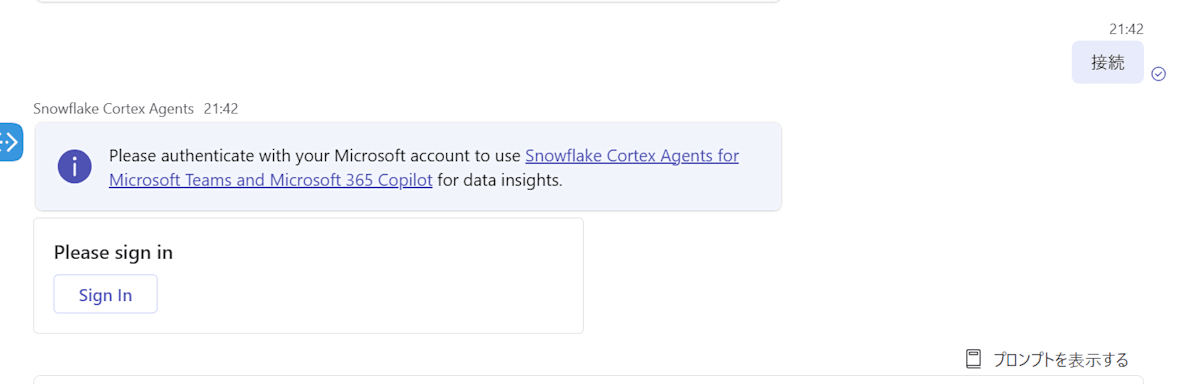
When you talk to the Bot, you are asked to sign in, so sign in with your Entra ID account via "Sign in."
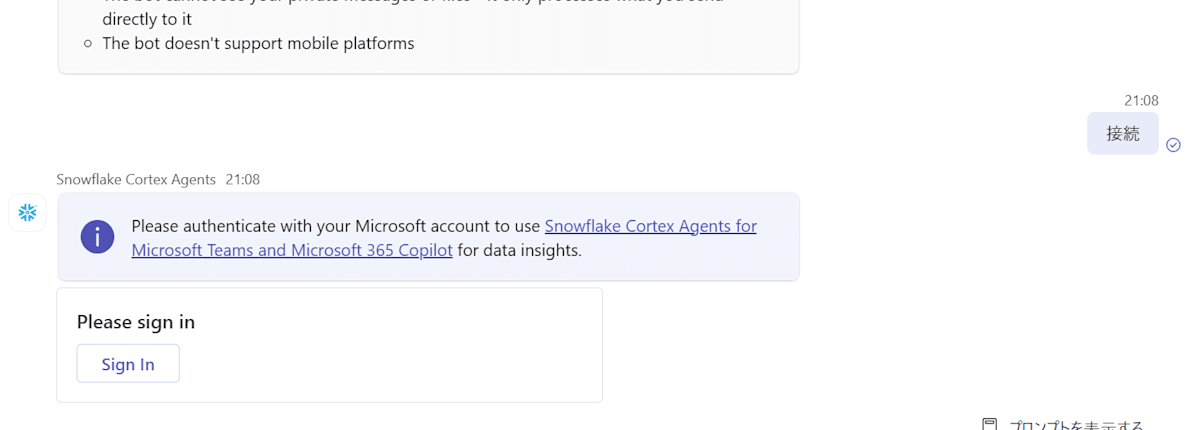
Because the Snowflake account connection needs to be configured the first time, select that you are the administrator (I'm the Snowflake administrator).
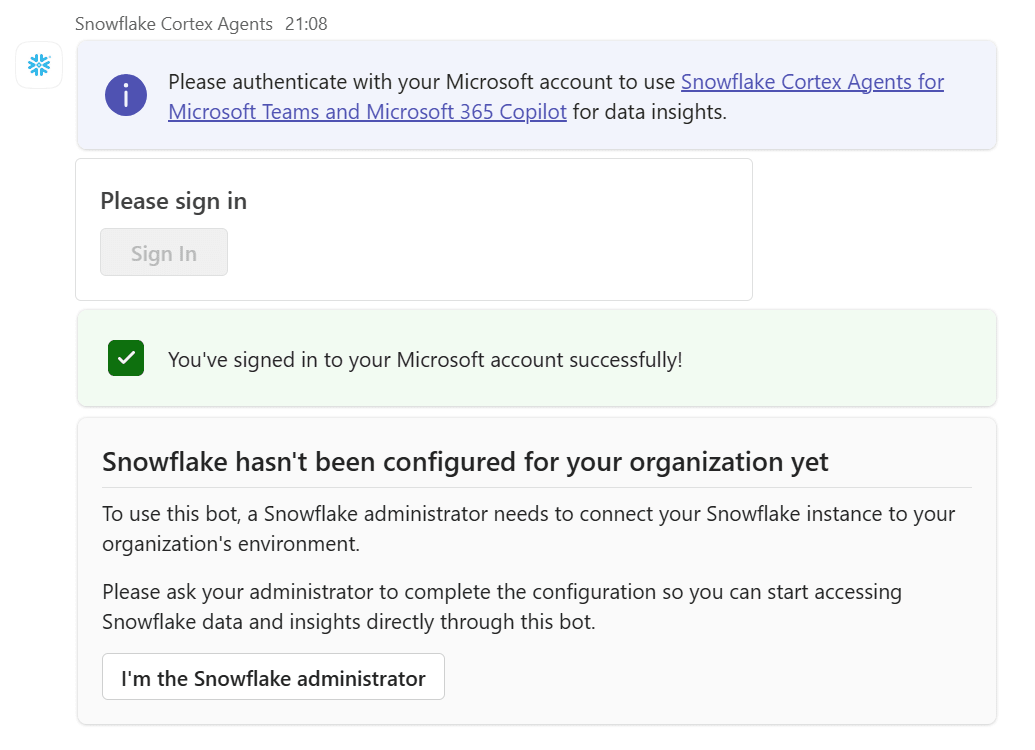
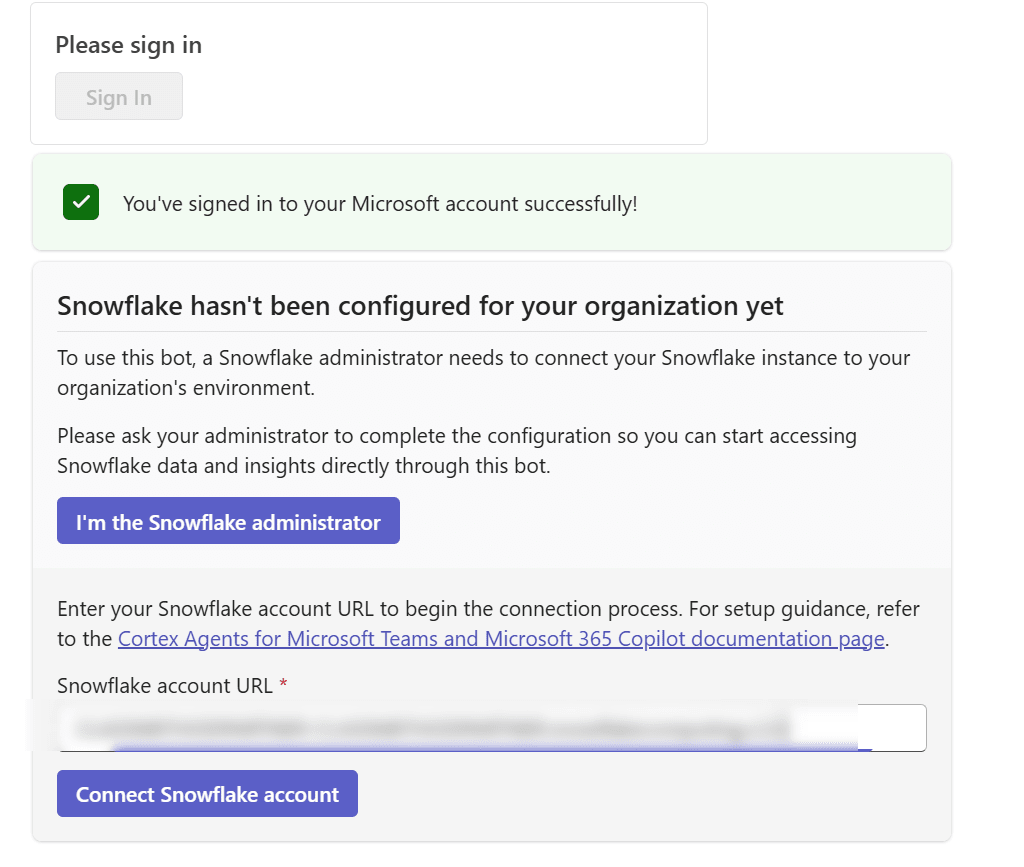
Specify the Snowflake account URL (<org>-<account>.snowflakecomputing.com) and connect.
Since this account is in the AWS Tokyo region, you are asked to consent to intermediate processing in Azure East US 2 (no data is stored). Review the content and consent.
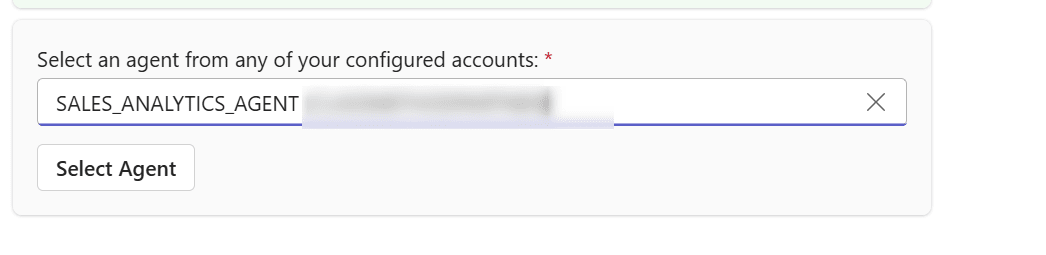
Once connected, you can select the agent to use.
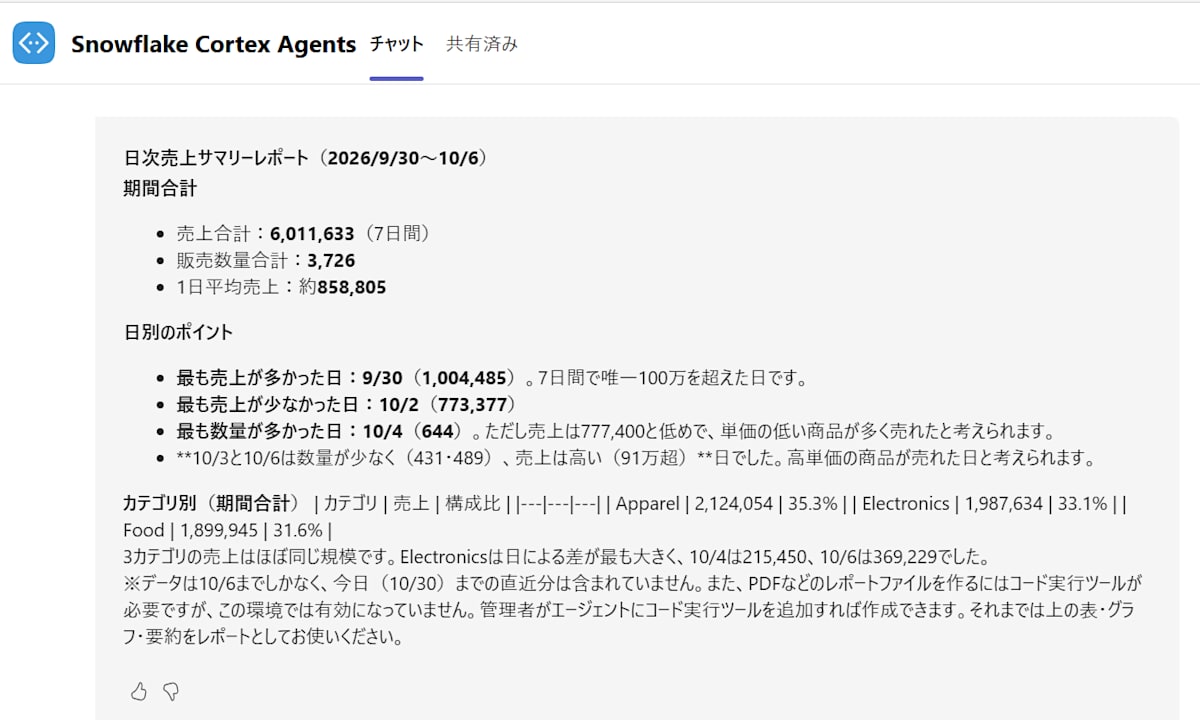
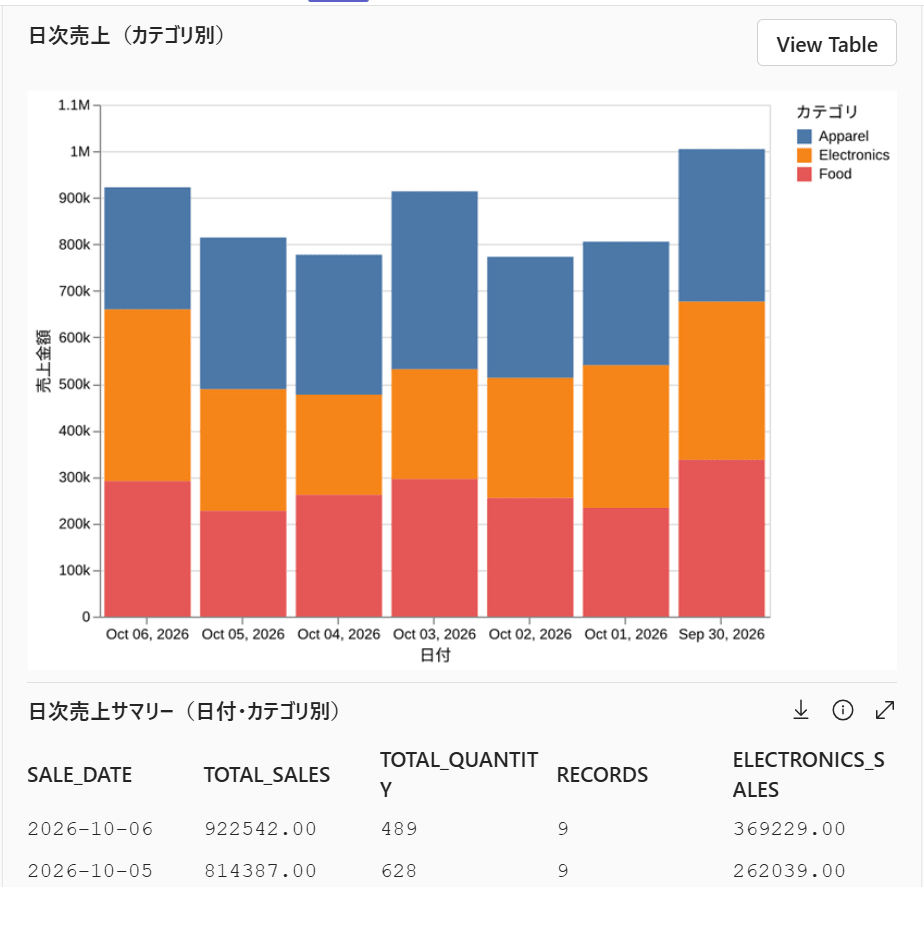
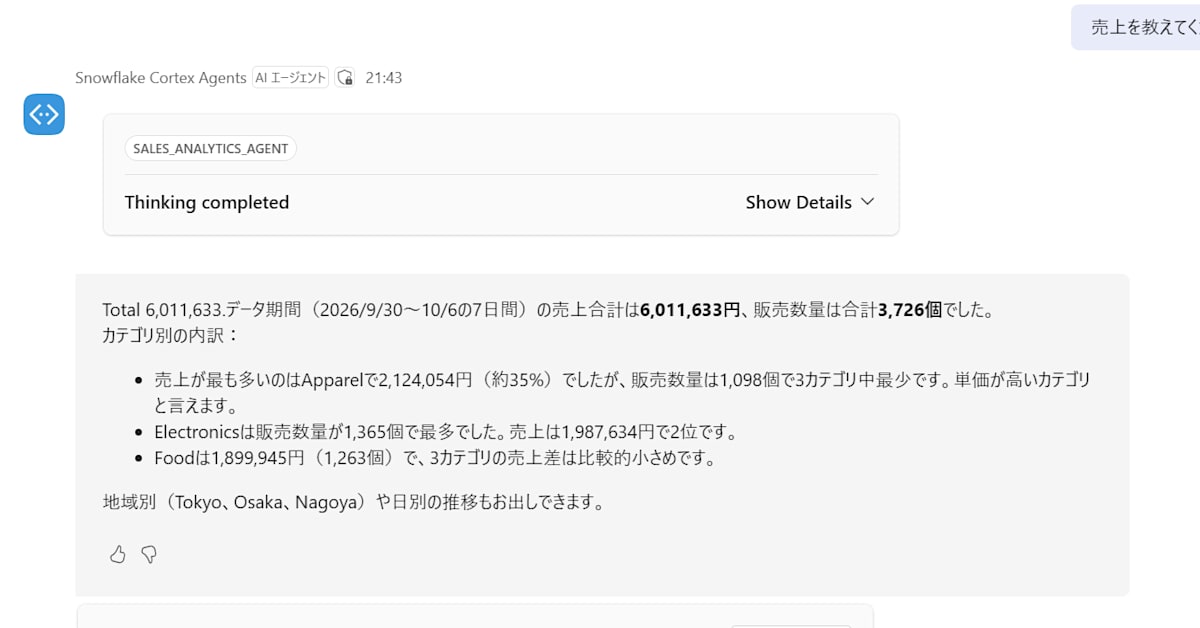
In this state, I asked, "Please create a daily summary report of the sales data."
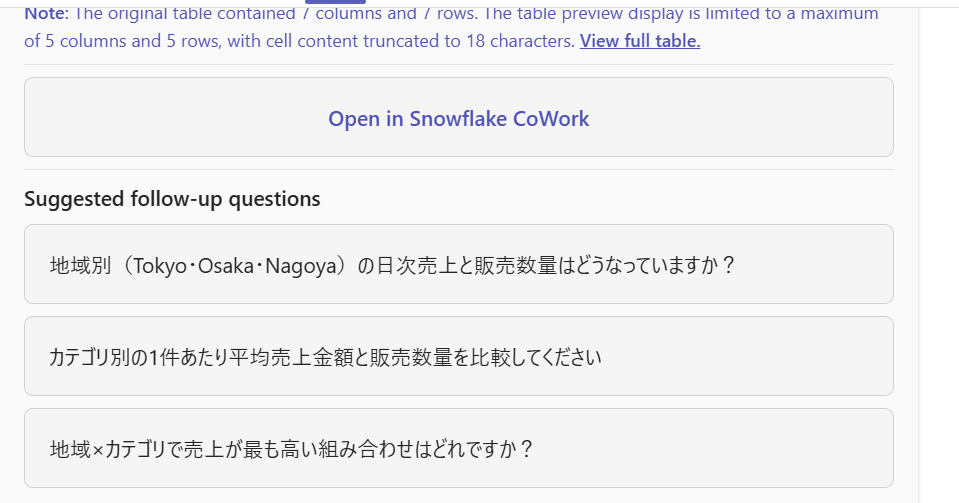
As shown below, a response including tables and charts was returned.
Querying as a Non-Administrator User
Next, I add a user without administrator privileges to both Entra ID and Snowflake and try querying.
First, add the user in the Microsoft 365 admin center and assign a Teams license.
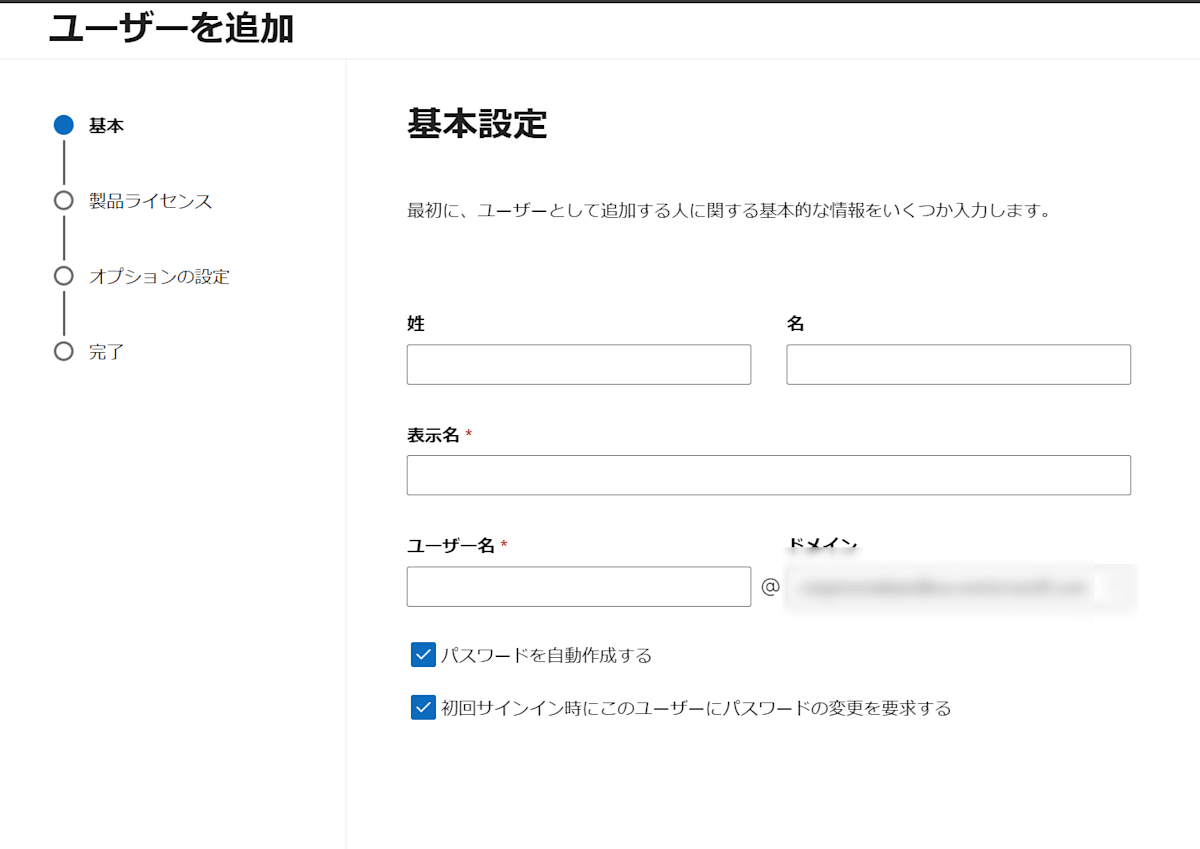
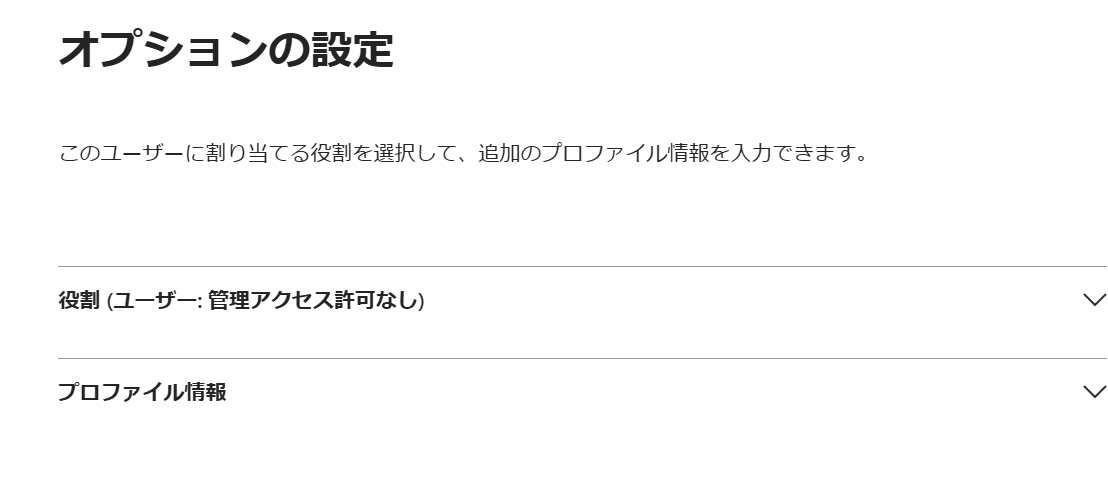
On the Snowflake side, I added the user with the following query. Here too, the Snowflake user's EMAIL must match the email address on the Entra ID side (in this case, the same as the user name, <user2>@<tenant>.onmicrosoft.com).
USE ROLE USERADMIN;
CREATE USER IF NOT EXISTS teams_min_user
    TYPE = PERSON
    EMAIL = '<user2>@<tenant>.onmicrosoft.com'
    DEFAULT_ROLE = 'YASUHARA_DEV'
    DEFAULT_WAREHOUSE = 'COMPUTE_WH'
    DEFAULT_SECONDARY_ROLES = ();

USE ROLE SECURITYADMIN;
GRANT ROLE yasuhara_dev TO USER teams_min_user;
For this user, the secondary roles are left empty so that it operates only with the privileges of the default role.
Sign in to Teams with the added user.
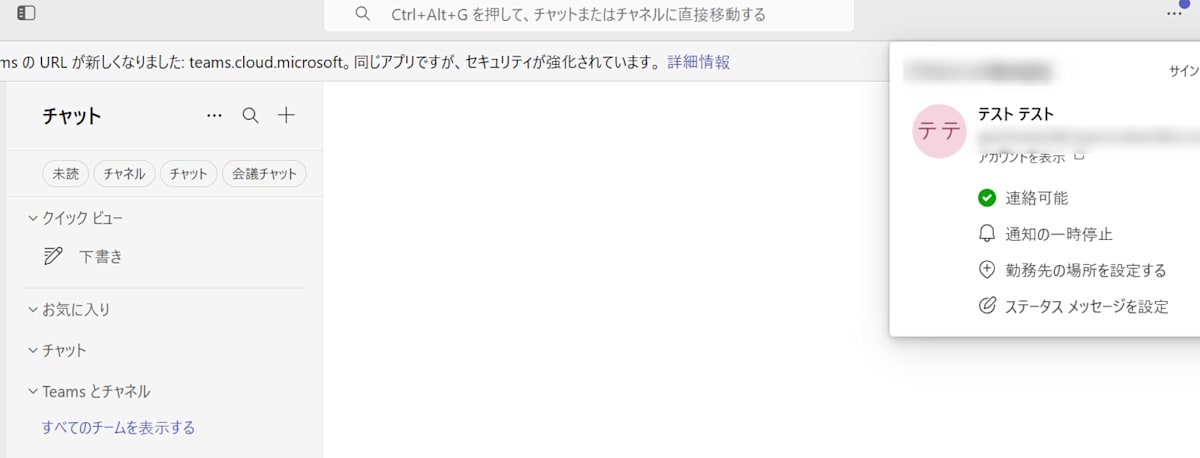
Add the Snowflake Cortex Agents app following the same steps as before, and sign in from the Bot.
The Snowflake account connected by the administrator could be used as is, the agents shown were those within the scope of the role's privileges, and no administrator settings were displayed.
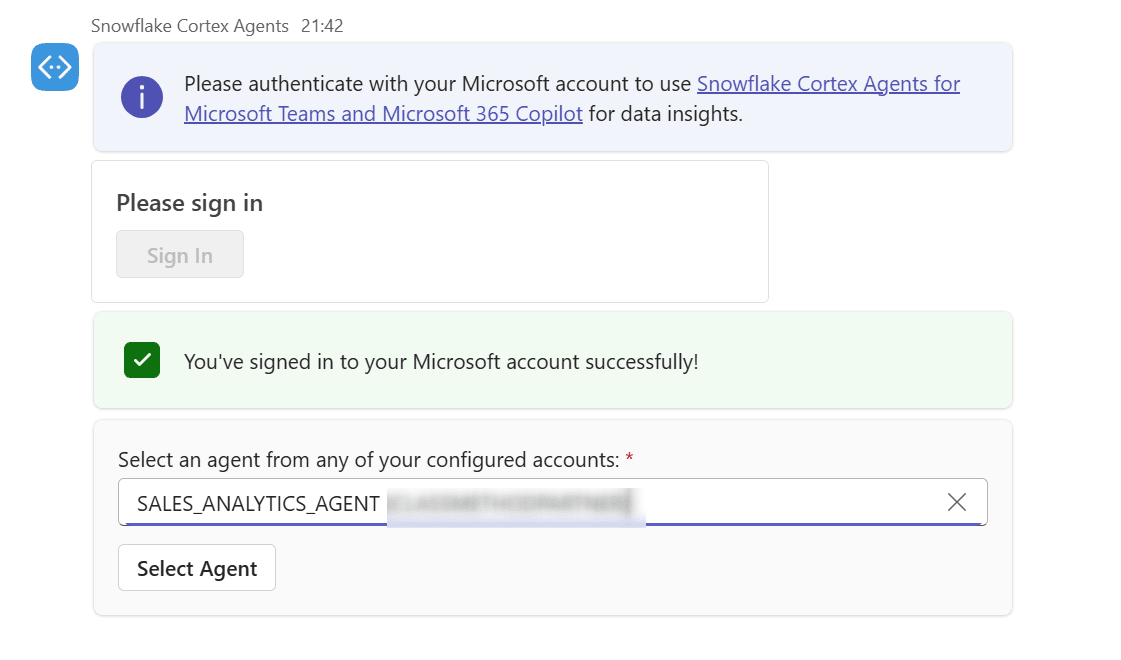
I confirmed that a response was returned for the same query.
Network Policy Behavior
Network access control is described in the documentation below.
The main characteristics, including what I found in this verification, are as follows.
- Existing network policies apply. However, a network policy set on the security integration does not apply, so set it at the user level or account level
- The
ipaddrclaim contained in the Entra ID token (the IP at the time of signing in to Microsoft) is used for evaluation - The IP used for evaluation is not updated until you sign out of the Bot and sign in again
- If the connection to Microsoft is over IPv6, you need to add a network rule with
TYPE = IPV6- At the time of writing, IPv6 network rules are supported only for Snowflake accounts on AWS
Let's try this behavior. I set a user-level network policy on the non-administrator user from earlier. It allows my local IPv4 address and IPv6 range.
USE ROLE SECURITYADMIN;

CREATE NETWORK RULE IF NOT EXISTS <db>.<schema>.teams_test_allow_rule
    MODE = INGRESS
    TYPE = IPV4
    VALUE_LIST = ('<手元の IPv4 アドレス>/32');

CREATE OR REPLACE NETWORK RULE <db>.<schema>.teams_test_allow_rule_v6
    MODE = INGRESS
    TYPE = IPV6
    VALUE_LIST = ('<手元の IPv6 プレフィックス>::/64');

CREATE OR REPLACE NETWORK POLICY teams_test_policy
    ALLOWED_NETWORK_RULE_LIST = ('<db>.<schema>.teams_test_allow_rule', '<db>.<schema>.teams_test_allow_rule_v6');

ALTER USER teams_min_user SET NETWORK_POLICY = teams_test_policy;
With this in place, I connect from a network other than the allowed one. When blocked, an error like the one below is displayed in Teams.
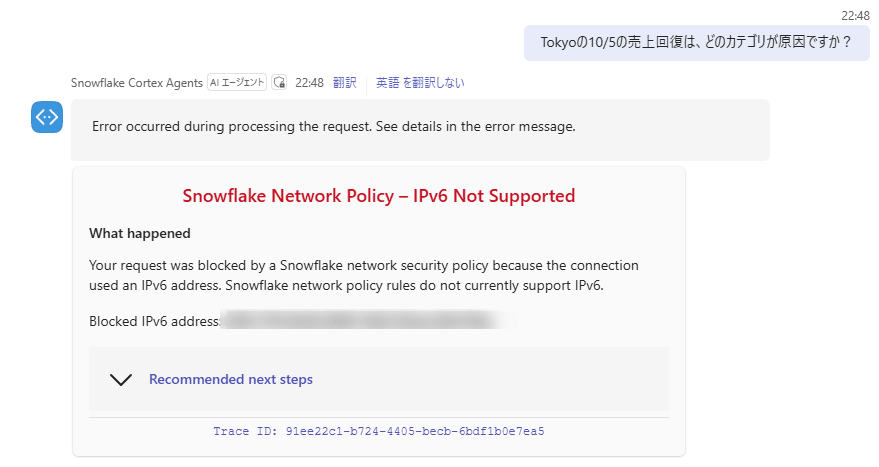
The IP shown in the error matched the IPv6 address recorded in the Entra admin center sign-in logs ("Monitoring & health" → "Sign-in logs"). On the other hand, when logging in to Snowsight from the same PC and connection, it is recorded with IPv4.
This is because the connection in the verification environment supports both IPv4 and IPv6, and the address used differs depending on the destination. Microsoft's endpoints support IPv6, whereas Snowsight (app.snowflake.com) was connected to over IPv4. Which one is used depends on the user's network environment, so on an IPv4-only corporate network, for example, evaluation would likely be done with IPv4 even via Teams.
Also, logins via Teams are recorded in LOGIN_HISTORY, but CLIENT_IP was 0.0.0.0 in all cases. The IP used for evaluation could not be confirmed from the login history.
As described above, I confirmed that queries succeed from within the allowed range and are blocked from outside it.
On the other hand, after trying several patterns, I thought the following two points require attention.
Network policies are applied per network identifier type (IPv4 / IPv6)
The rules in an allowed list restrict only identifiers of the same type as the rule. With a policy containing only IPv4 rules, queries from Teams that were evaluated over IPv6 were not restricted and succeeded. Once an IPv6 rule is added, IPv6 connections are also evaluated against the allowed list, and anything outside the allowed range is blocked.
Therefore, if you operate with only IPv4 allow rules, IPv6 connections via Teams are not restricted. When restricting by IP, you need to check the IP used when users connect to Microsoft in the Entra sign-in logs, and then set rules for both IPv4 and IPv6.
The Bot retains the IP from the time of the first sign-in
I switched from the connection used for the first sign-in to a different connection, logged out of Teams, signed in again, and then tried querying. Even in this case, the IP of the first connection was used for evaluation.
Specifically, with only the first connection's range allowed, queries succeeded even from the other connection. Conversely, with only the other connection's range allowed, queries were blocked, and the error showed the IP of the first connection. The IP of the other connection was also recorded in the Entra sign-in logs, but the token used by the Bot appears not to have been updated.
As stated in the documentation, evaluation is based not on "where it is being used from now" but on "the IP at the time of signing in to Microsoft." If a user signs in within the corporate network and then takes the device outside, access may continue to be allowed until the token is refreshed. If you want strict location-based control, I think it is also worth considering combining it with Entra ID Conditional Access.
Querying from Microsoft 365 Copilot
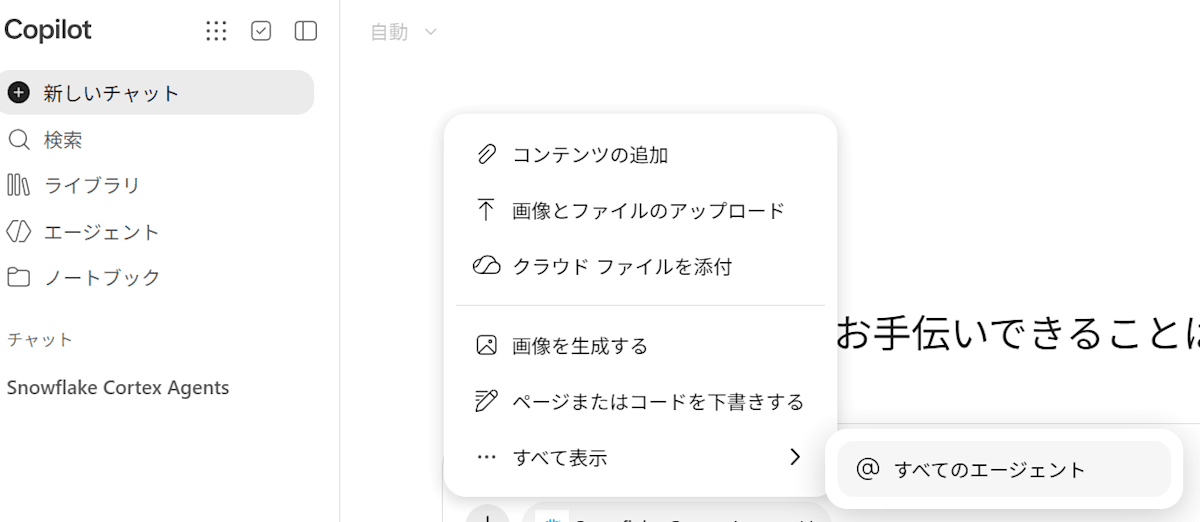
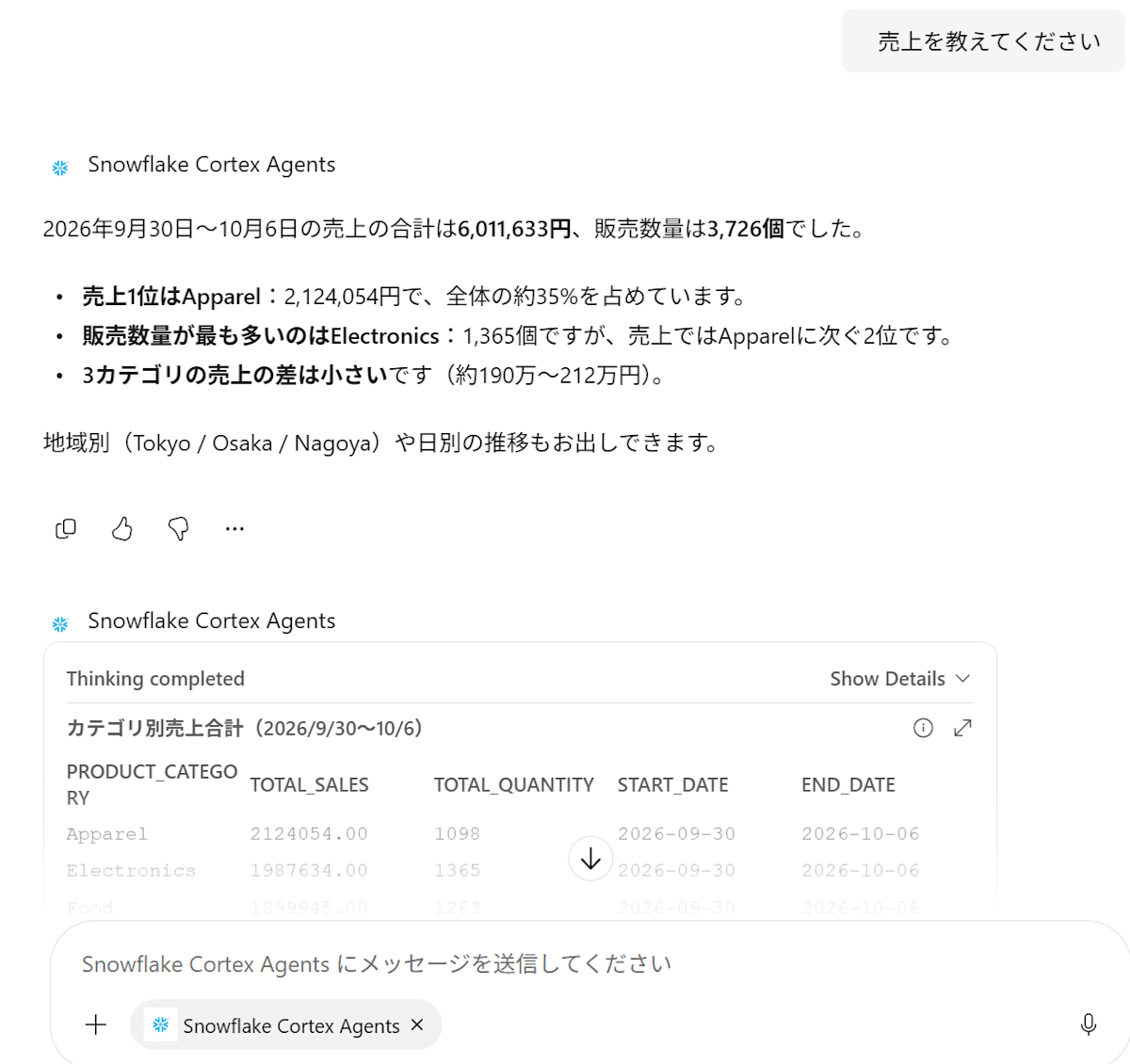
Finally, I try querying from Microsoft 365 Copilot with the same settings. No additional configuration was needed on the Snowflake or Entra ID side.
After signing in from Copilot, I could select an agent just as in Teams, and querying was possible.
Conclusion
I tried out the Microsoft Teams integration of Cortex Agents and the behavior of network policies. The setup itself is simple, and I found it convenient that you can use Snowflake agents from a chat tool you use every day. Authentication is also OAuth-based via Entra ID, so users can simply sign in with their usual Microsoft account, and no Snowflake-side password is needed.
I hope this is helpful to someone.