
Cursor's Customize now allows centralized management of plugins, skills, MCP, subagents, and hooks

This page has been translated by machine translation. View original
Hey there! I'm Yuji Nishimura from the Operations Division!
A Customize page has been added to Cursor, allowing you to centrally manage plugins, skills, MCP, subagents, rules, commands, and hooks across user / team / workspace scopes. The official Cursor Changelog - Customize Cursor announces this as Cursor 3.9 on June 22, 2026.
What Changed This Time
The official Changelog introduces the following 4 points:
- Customize page: A new page where you can add and manage plugins, skills, MCPs, subagents, rules, commands, and hooks across user / team / workspace scopes
- Marketplace leaderboard: Popular plugins, skills, and MCPs across the entire team are displayed in a ranking
- Plugin canvases: Setup templates that can be shared with the team. Hex Canvas and Atlassian Canvas are given as examples
- Team marketplaces: In addition to the conventional GitHub, you can now import from GitLab, BitBucket, and Azure DevOps repositories as well
Looking at the Cursor Plugins documentation, a plugin is described as a unit that bundles and distributes rules, skills, subagents, commands, MCP servers, and hooks together. The key point is that it's not simply "you can install extensions" — it's leaning toward being able to distribute the components that determine agent behavior all at once to the team.
Easy to Take Stock of Whether for Teams or Individuals
I found the Customize page particularly useful in situations where you want to align AI development environments across a team.
- Want to distribute common rules and skills to the team
- Want to manage MCP servers while checking their state, rather than through individual configuration files
- Want to reuse subagents and commands across projects
- Want to separate plugins into optional installs and required installs
There are also benefits for those using Cursor individually. With MCPs and hooks, it can sometimes be hard to know just from configuration files "whether they are currently loaded," "whether authentication is required," or "when hooks will trigger." Since the management screen for each component is consolidated on the Customize page, I found it easy to use for taking stock of my own environment as well.
Trying It Out
Environment
- macOS
1. Open Customize from the Agents Window
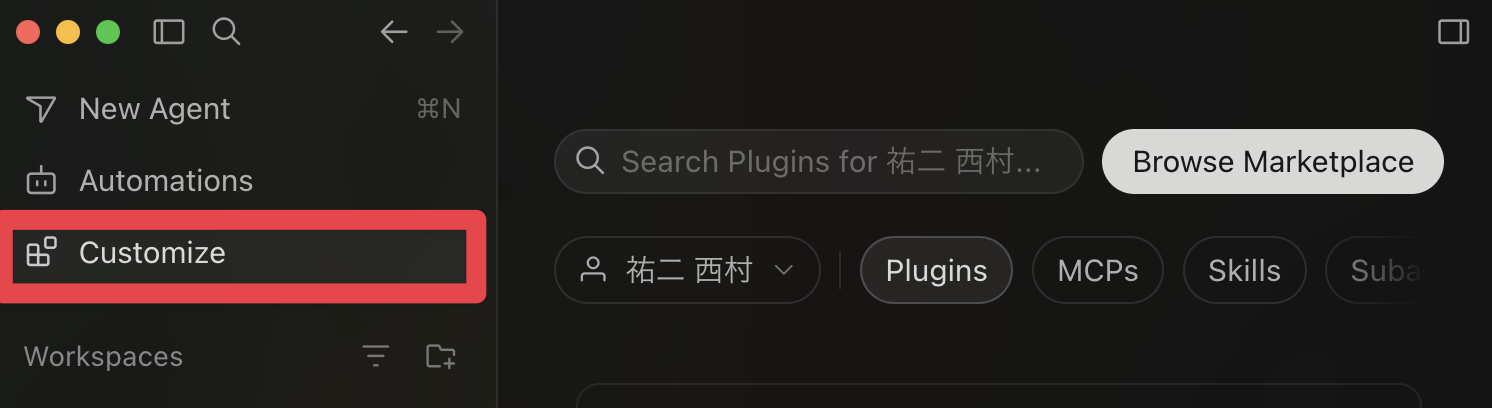
With this update, a Customize menu has been added to the left sidebar of the Agents Window. You can open the Customize page from here.
2. Switch Between Chip-Style Tabs on the Customize Page
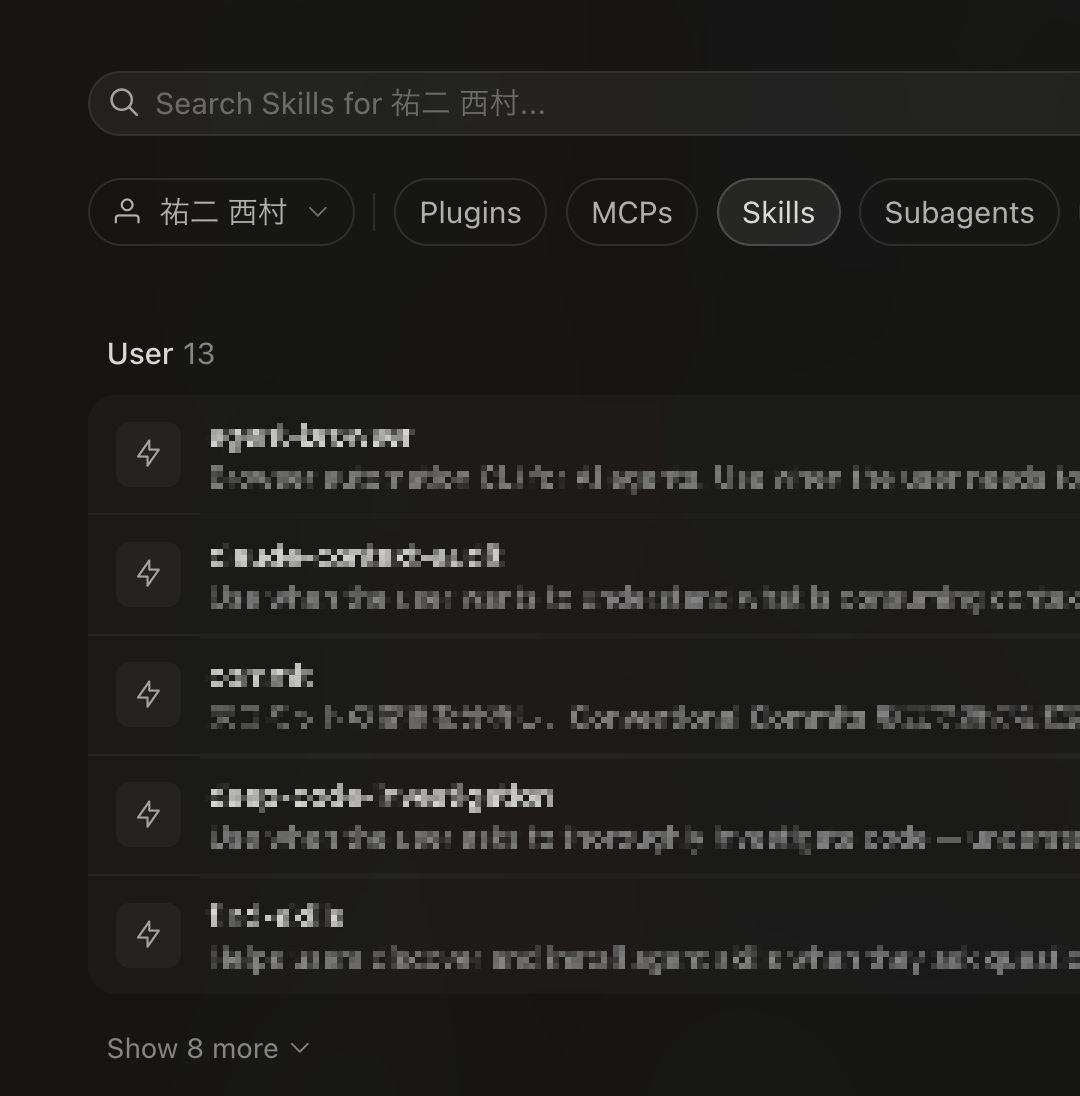
The Customize page has chip-style tabs lined up horizontally: Plugins / MCPs / Skills / Subagents / Rules / Commands / Hooks.
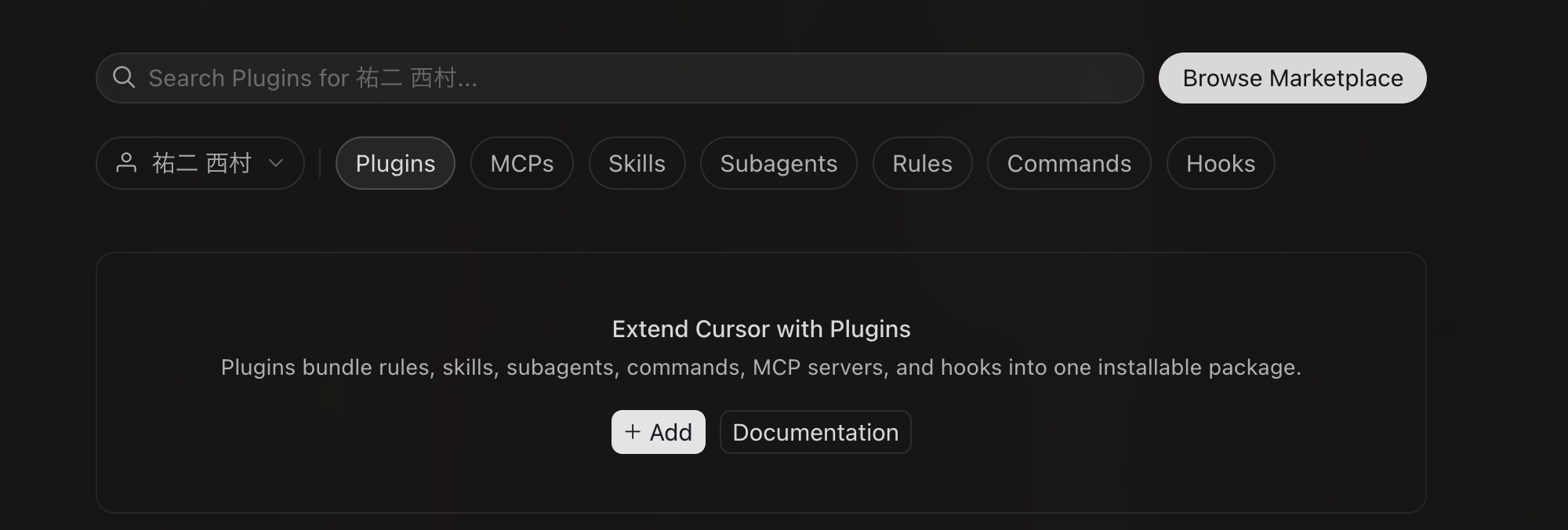
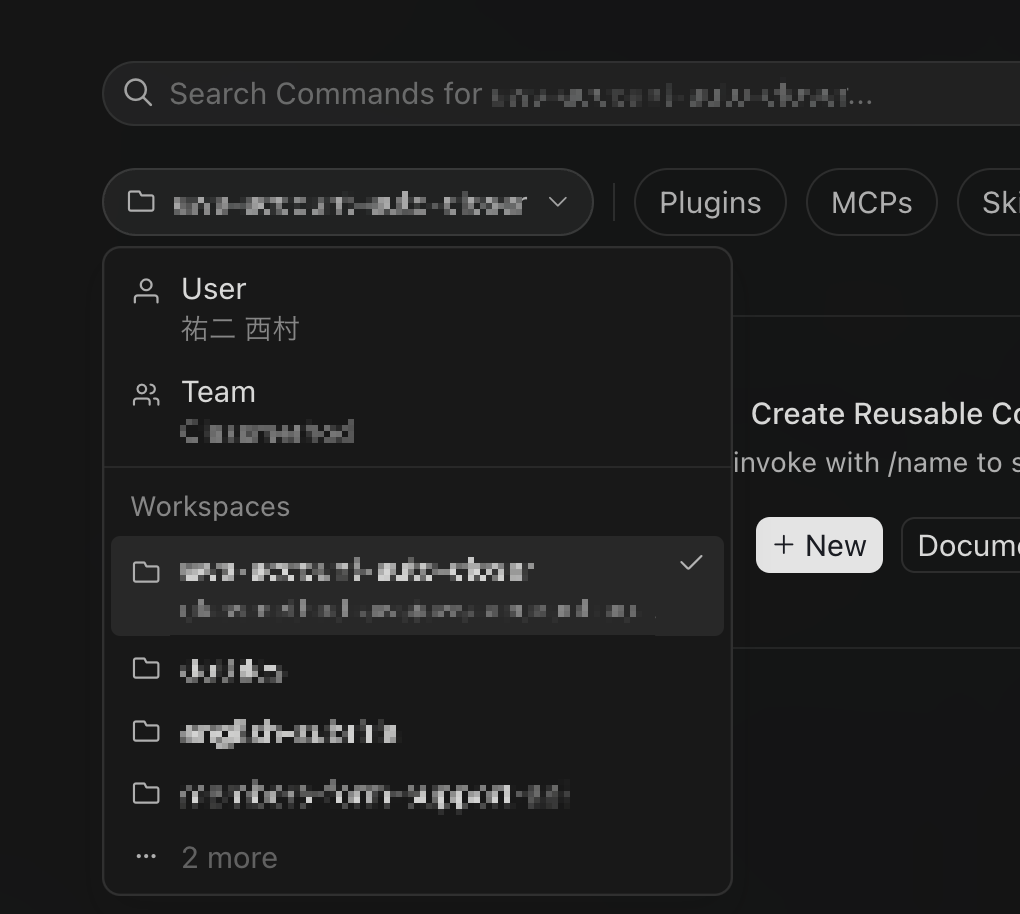
The header consolidates a search field, Browse Marketplace, and scope selection (personal / team / workspace), creating a structure where you can browse while switching between the type of component and scope.
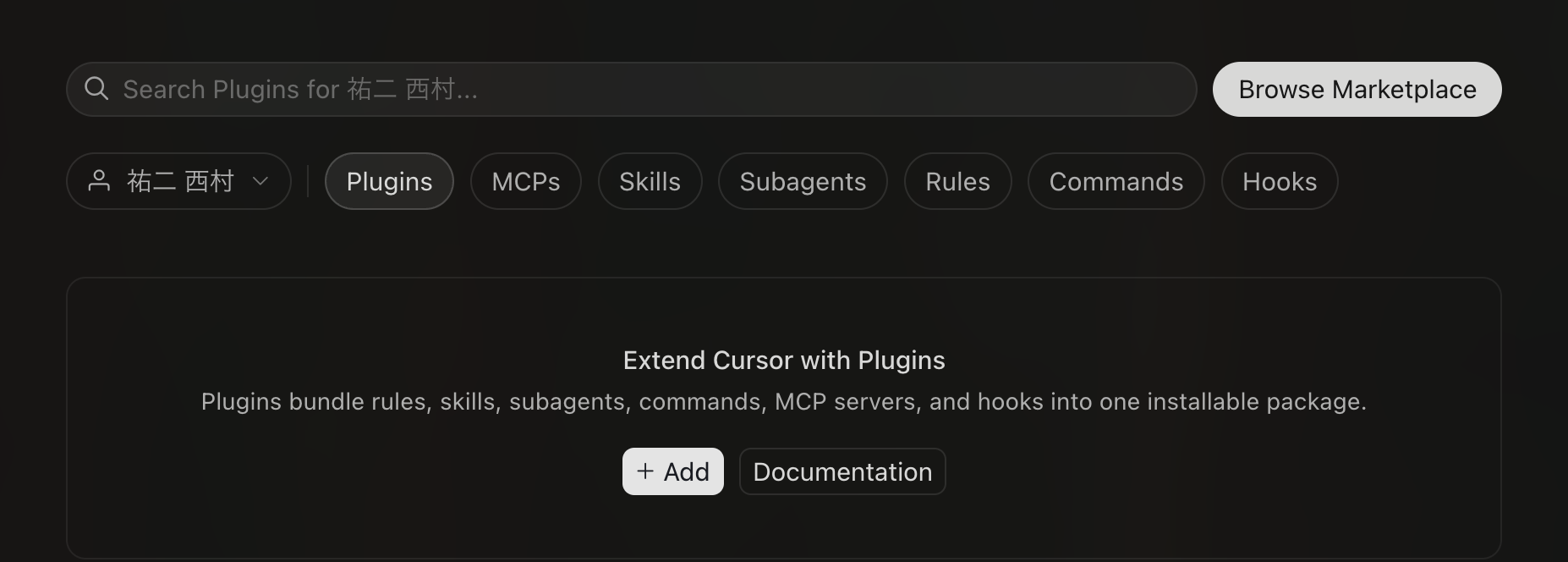
The Plugins tab displays "Plugins bundle rules, skills, subagents, commands, MCP servers, and hooks into one installable package.", making it explicit that plugins are structured to distribute multiple components as a single installable unit.
When I selected the Skills tab, the registered skills were listed by scope. In my environment, 13 skills were lined up under the User scope, with each row displaying the skill name and a short description. You can also narrow down results using the search field in the header, or expand the rest with Show 8 more.
You can proceed to the Marketplace via Browse Marketplace, but this time I refrained from operations that would change the team's Marketplace or authentication, limiting myself to confirming the UI structure.
Team Marketplace Expansion
The official Changelog introduces 3 updates on the Team marketplace side:
- Marketplace leaderboard: Popular plugins / skills / MCPs across the entire team are displayed in a ranking
- Plugin canvases: Setup templates that can be shared with the team. Examples include Hex Canvas (for building data visualizations) and Atlassian Canvas (real-time display of issues, projects, and documents)
- New integrations: In addition to conventional GitHub, you can now import from GitLab, BitBucket, and Azure DevOps repositories as Team marketplaces
The update behavior for Team marketplaces is organized as follows in the official documentation:
- When you import a repository as a Team marketplace, plugins are indexed at the time of the first import
- When
Enable Auto Refreshis enabled, it automatically updates after a push to the target branch - Auto refresh requires installation of the git hosting app (such as the Cursor GitHub App)
- Marketplace re-indexing occurs at most once every 10 minutes, and consecutive pushes in a short period are consolidated into the latest commit
- Manual updates can be performed from
Refresh - Updates to existing plugins are subject to Auto Refresh, but to pick up newly added plugins, re-importing the repository URL is required
This time I did not perform verification by pressing Save or Refresh on the Team marketplace management screen. Since team distribution, authentication, and repository import are operations that change external state, I limited myself to confirming the behavior described in the official documentation.
Summary
With Cursor's Customize update, a pathway to handle plugins, skills, MCP, subagents, rules, commands, and hooks all together from Customize in the Agents Window left sidebar has been established. You can switch between components using search and chip-style tabs, and scope (personal / team / workspace) can also be selected from the same screen.
The Marketplace leaderboard, Plugin canvases, and Team marketplaces supporting GitLab / BitBucket / Azure DevOps have also been added, broadening the scope for team distribution.
When using Cursor as a team, it becomes easier to organize rules, skills, and MCP servers as components of a development environment that can be distributed and updated. Even for individual use, since you can check the status of MCPs and hooks that tend to be scattered across configuration files directly in the UI, I found it easy to use as a starting point for reviewing your own environment.
I hope this is helpful to someone.
Reference Links: