
I tried importing a Tableau .twbx file using the /importBI command in Databricks AI/BI Dashboard

This page has been translated by machine translation. View original
This is Kawabata.
A new feature has been added to Databricks AI/BI Dashboard: the /importBI command, which allows you to import files from external BI tools. This feature reconstructs Tableau workbook/data source files or Power BI template files as AI/BI Dashboards.
Previously, migrating BI from Tableau to Databricks often required a lot of manual work to rebuild dashboards, but this feature now allows AI/BI Dashboards to be automatically generated based on Tableau .twbx files. I actually tried importing a .twbx file obtained from Tableau Cloud, so I'll summarize the steps and results.
Feature Overview
/importBI is a command available in Databricks AI/BI Dashboard's Genie Code (Agent mode). It imports Tableau workbook/data source files or Power BI template files and reconstructs them as AI/BI Dashboard visualizations and Metric Views.
There are two ways to import:
- Direct upload: Upload a file directly after running the
/importBIcommand (up to 100MB) - Volume reference: Reference a file placed on Unity Catalog Volume (used for files exceeding 100MB or when you want to manage files in a permission-controlled location)
This time, I'll try using the Volume reference method.
Supported Formats
| Format | Description |
|---|---|
.twb |
Tableau Workbook (XML-based workbook definition file. Does not include extracted data) |
.twbx |
Tableau Packaged Workbook (Package format that can bundle extracted data and related files) |
.tds |
Tableau Data Source |
.tdsx |
Tableau Packaged Data Source |
.pbit |
Power BI Template |
This time I'll verify with a .twbx file. .twbx is the Tableau Packaged Workbook format, a package that bundles the workbook definition (.twb) with extracted data and related files. Downloads from Tableau Cloud are often obtained in .twbx format, which is also directly supported by /importBI. It is suitable for scenarios where you migrate and reconstruct existing BI assets while mapping them to tables and views on Unity Catalog prepared on the Databricks side.
Prerequisites
Official Requirements
- Required setting 1: Partner-powered AI features must be enabled at both the account and workspace levels
- Required setting 2: The "Import from External BI to AI/BI" Beta feature must be enabled in the workspace
Verification Prerequisites for This Time
- Databricks workspace: AWS cloud version
- Feature status: Beta as of June 27, 2026
- Data source: Tables corresponding to the data used in the Tableau workbook are prepared on Unity Catalog
- Tableau: An environment where
.twbxfiles can be downloaded from Tableau Cloud
Preparation
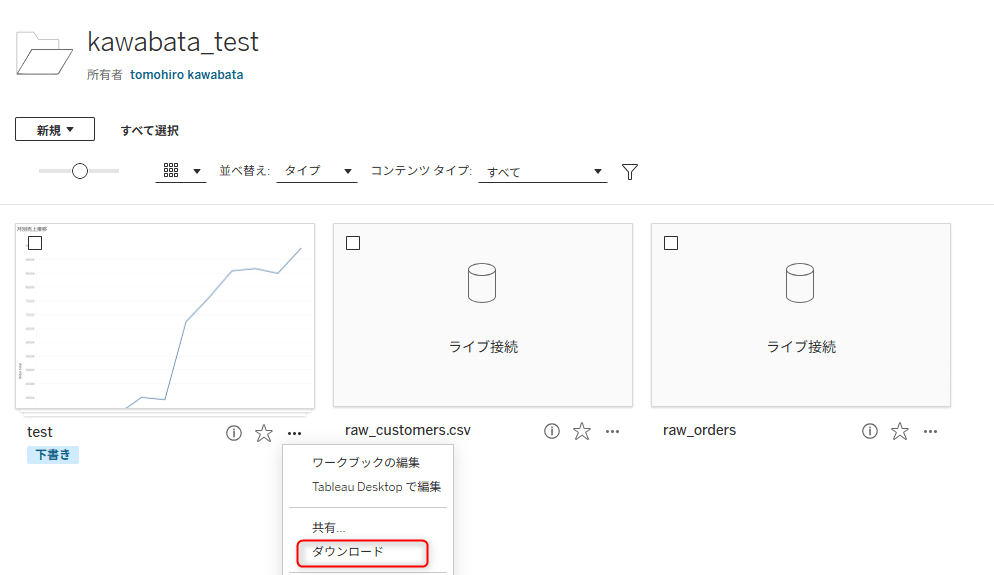
Download the .twbx File from Tableau Cloud
Open a workbook in Tableau Cloud, click the Download button at the top of the screen, and select Tableau Workbook to download the workbook file. In this environment, it was downloaded as a .twbx file. Depending on the environment, permissions, and workbook configuration, the available format may be .twb or .twbx.
Note that the download formats available in Tableau Cloud depend on the permissions granted by the content owner or site administrator. Check in advance before proceeding.
Upload the .twbx File to Unity Catalog Volume
Upload the downloaded .twbx file to a Unity Catalog Volume on Databricks.
Open Catalog in the Databricks workspace and navigate to the destination Volume (/Volumes/{catalog}/{schema}/{volume}/). Click the Upload to this volume button and upload the .twbx file.
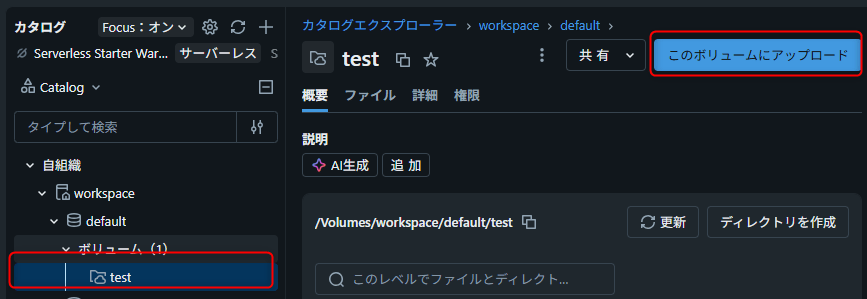
Clicking "Upload to this volume" will pop up the following screen.
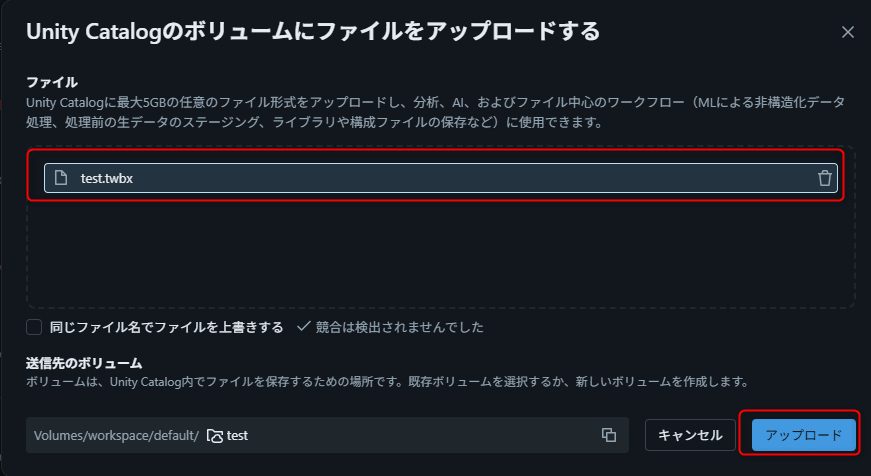
After uploading, it's fine if the .twbx file appears in the file list.
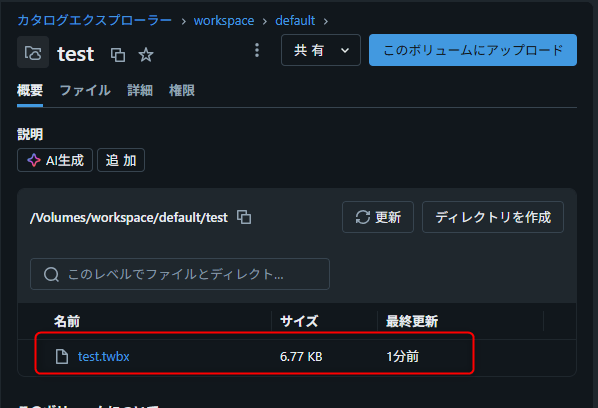
Note the upload destination path. You'll use it in later steps.
/Volumes/{catalog}/{schema}/{volume}/{filename}.twbx
Enable Beta Features
The following two settings must be enabled to use the /importBI command.
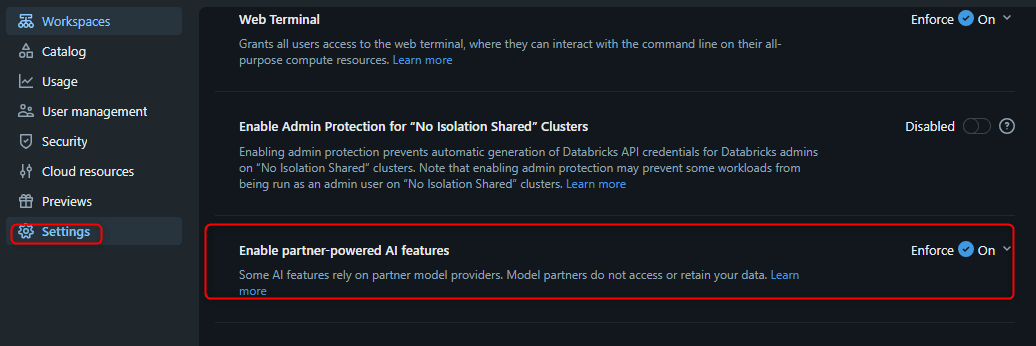
1. Partner-powered AI features
At the account level, log in to the Account Console (https://accounts.cloud.databricks.com), and enable "Enable partner-powered AI features" from Settings → Feature enablement tab.
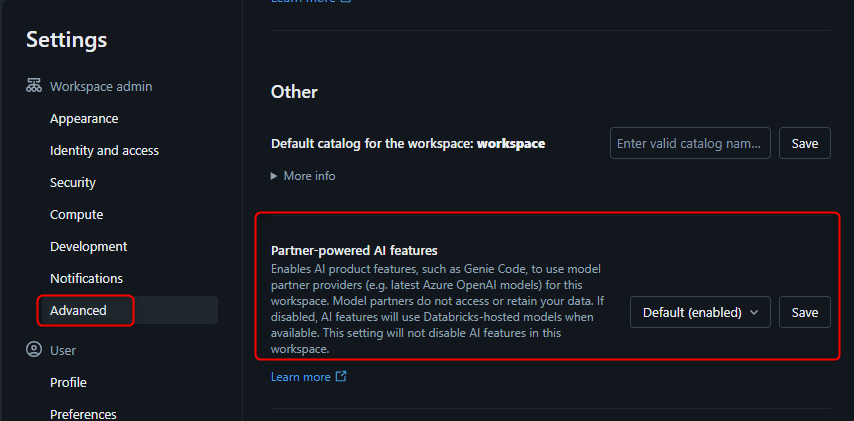
At the workspace level, from the username menu at the top right of the workspace, go to Settings → Advanced tab under Workspace admin and confirm that Partner-powered AI features is enabled.
2. Import from External BI to AI/BI (Beta feature)
From the username menu at the top right of the workspace, open Previews and enable "Import from External BI to AI/BI".
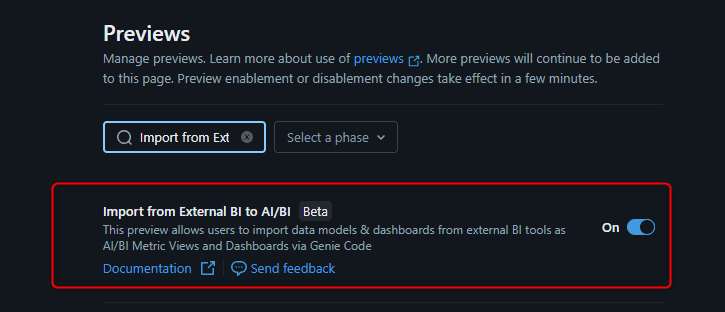
There's no problem if both settings are enabled.
Trying It Out
Run the /importBI Command in AI/BI Dashboard
Create a new AI/BI Dashboard. If using an existing dashboard, open it in draft mode.
Click the Genie Code icon at the top right of the screen.
Type /importBI in the chat field. Then specify the Volume path noted during preparation with an @ prefix.
/importBI
@/Volumes/{catalog}/{schema}/{volume}/{filename}.twbx
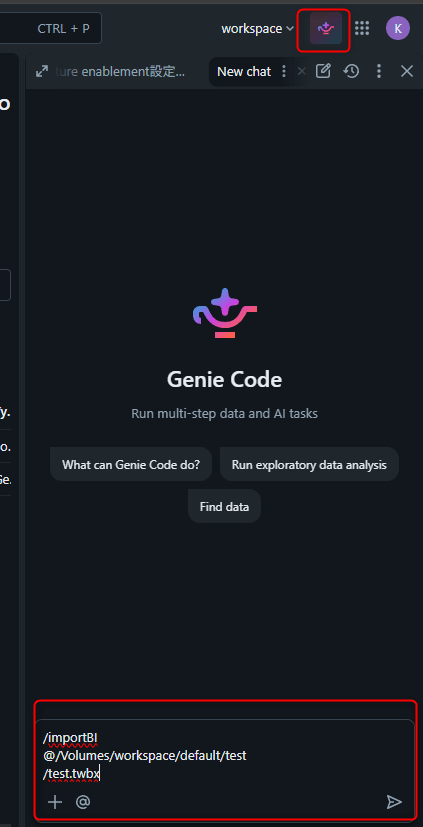
Once executed, the import process begins. Since there were only a few workbooks this time, it completed in about 3 to 5 minutes.
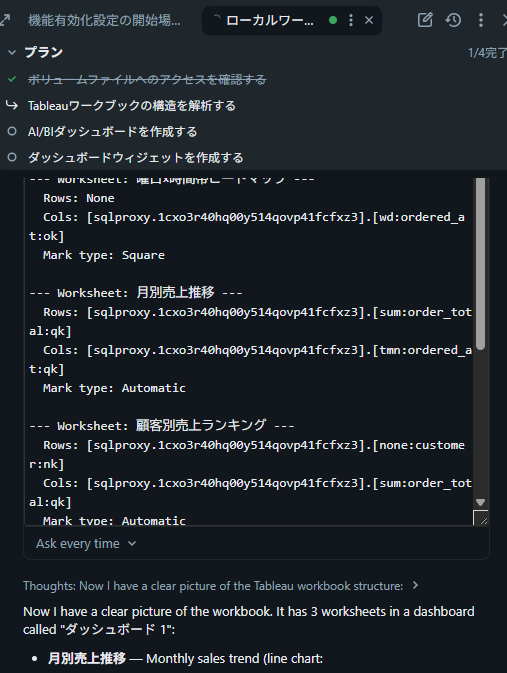
You're good once the import is complete and visualizations are generated on the dashboard.
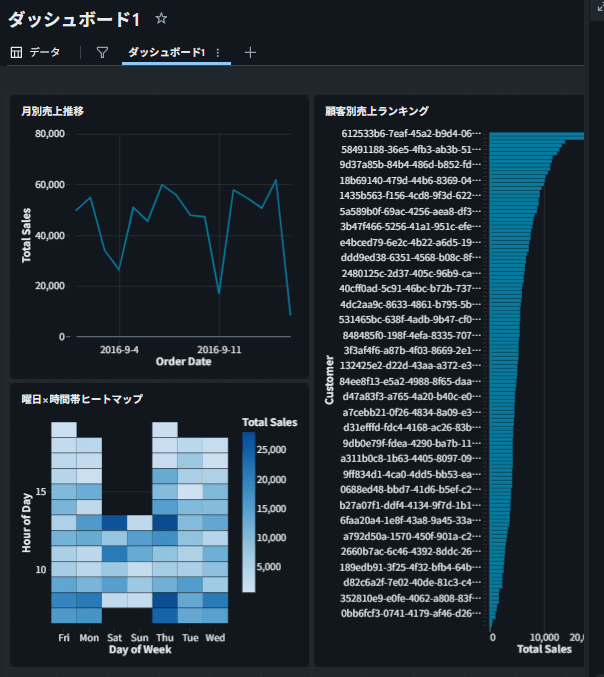
Check the Import Results
Review the content of the generated dashboard.
Compare it with the original Tableau dashboard to check whether the main visualizations have been reproduced.
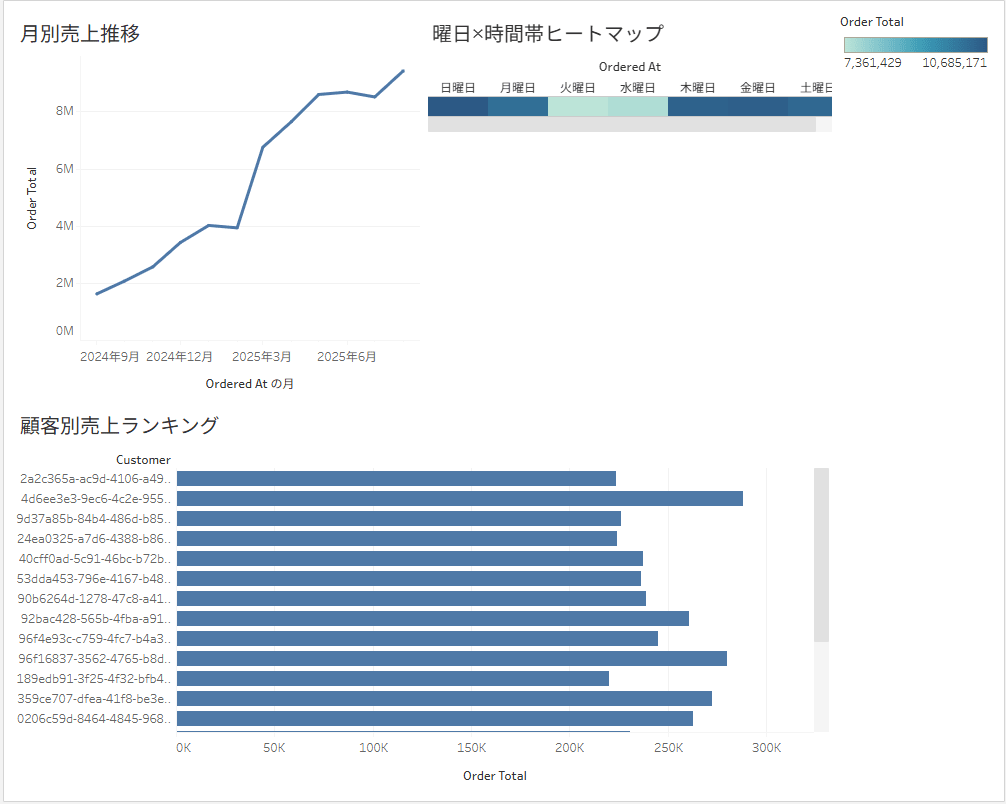
Since I had the impression that the details weren't quite there, I attached a screenshot and asked Genie Code.
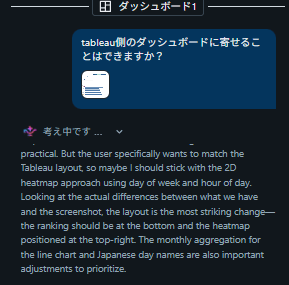
It got quite close to the original dashboard.
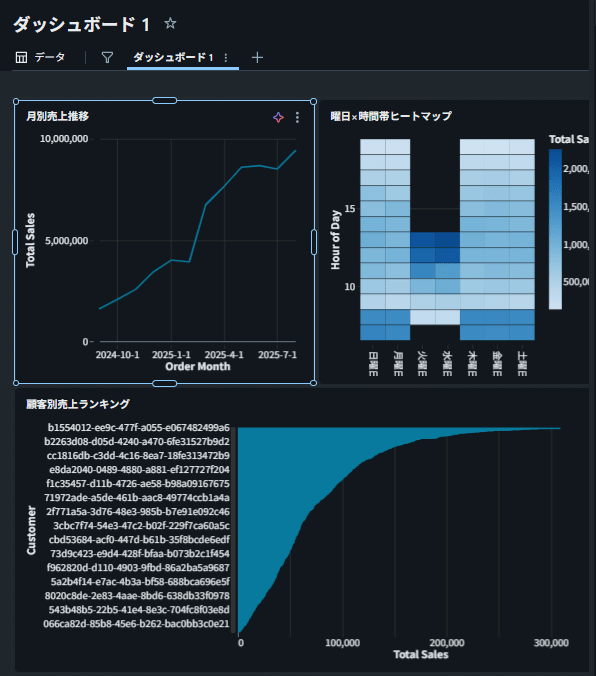
After that, by reviewing and configuring the details, it seems like it will be able to serve the purpose of the dashboard I had previously reviewed.
Closing
I confirmed that by using the /importBI command in Databricks AI/BI Dashboard, it is possible to import a Tableau .twbx file and reconstruct it as an AI/BI Dashboard.
In situations where you want to migrate existing Tableau assets to Databricks, I think it's worth trying as a first step in your evaluation.
I hope this article serves as a useful reference!