Datadog Agent can now start in read-only mode, so I tried it on ECS Fargate

This page has been translated by machine translation. View original
Hello. My name is Shiina from the Operations Department.
Introduction
From a container security perspective, enabling a read-only root filesystem has now become a standard measure.
It is also a best practice recommended by AWS Security Hub's ECS.5 [1].
However, when configuring the Datadog Agent as a sidecar container, there was a troublesome issue where it could not start with a read-only filesystem.
Good news for those who don't want to compromise on either security or monitoring.
I found information that Datadog now supports container configurations for read-only root filesystems. [2]
This can also be confirmed in the official documentation.
In this article, I tested a read-only container configuration in ECS Fargate to verify if the sidecar container can start and monitor properly.
Conclusion
With the following container configuration, the sidecar container (Datadog Agent) can be started even with a read-only root filesystem:
- Providing writable volumes to necessary directories
- Using an init container to copy default configuration files in advance
- Mounting volumes to both the init container and the Datadog Agent container
Various metrics beginning with ecs.fargate can also be collected through ECS Fargate integration.
Is it really impossible to start with a read-only filesystem?
Let's try starting a sidecar container (Datadog Agent) with a simple read-only root filesystem.
Let's try it
Let's enable the readonlyRootFilesystem parameter in ECS Fargate, which defines read-only access to the root filesystem, and try starting the sidecar container (Datadog Agent).
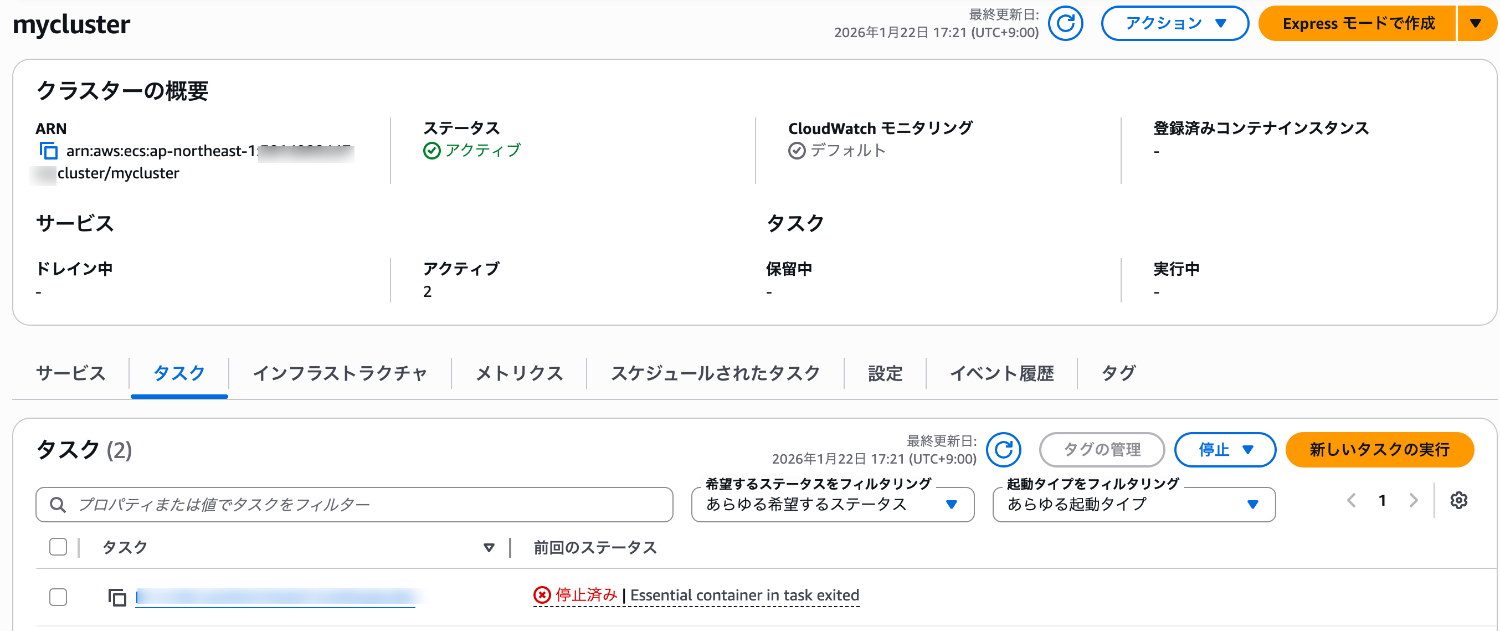
Looking at the task status, it immediately shows as stopped.
Let's check the Datadog Agent logs in the CloudWatch Logs log group specified as the log driver.
[s6-init] making user provided files available at /var/run/s6/etc...exited 0.
[s6-init] ensuring user provided files have correct perms...exited 0.
[fix-attrs.d] applying ownership & permissions fixes...
[fix-attrs.d] done.
[cont-init.d] executing container initialization scripts...
[cont-init.d] 01-check-apikey.sh: executing...
[cont-init.d] 01-check-apikey.sh: exited 0.
[cont-init.d] 50-ci.sh: executing...
[cont-init.d] 50-ci.sh: exited 0.
[cont-init.d] 50-ecs-managed.sh: executing...
[cont-init.d] 50-ecs-managed.sh: exited 0.
[cont-init.d] 50-ecs.sh: executing...
ln: failed to create symbolic link '/etc/datadog-agent/datadog.yaml': Read-only file system
rm: cannot remove '/etc/datadog-agent/conf.d/file_handle.d/conf.yaml.default': Read-only file system
rm: cannot remove '/etc/datadog-agent/conf.d/cpu.d/conf.yaml.default': Read-only file system
rm: cannot remove '/etc/datadog-agent/conf.d/io.d/conf.yaml.default': Read-only file system
rm: cannot remove '/etc/datadog-agent/conf.d/memory.d/conf.yaml.default': Read-only file system
rm: cannot remove '/etc/datadog-agent/conf.d/network.d/conf.yaml.default': Read-only file system
rm: cannot remove '/etc/datadog-agent/conf.d/uptime.d/conf.yaml.default': Read-only file system
rm: cannot remove '/etc/datadog-agent/conf.d/disk.d/conf.yaml.default': Read-only file system
rm: cannot remove '/etc/datadog-agent/conf.d/load.d/conf.yaml.default': Read-only file system
rm: cannot remove '/etc/datadog-agent/conf.d/ntp.d/conf.yaml.default': Read-only file system
rm: cannot remove '/etc/datadog-agent/conf.d/telemetry.d/conf.yaml.default': Read-only file system
[cont-init.d] 50-ecs.sh: exited 123.
[cont-finish.d] executing container finish scripts...
[cont-finish.d] done.
[s6-finish] waiting for services.
[s6-finish] sending all processes the TERM signal.
[s6-finish] sending all processes the KILL signal and exiting.
We can see that the Datadog Agent configuration file write is failing during the 50-ecs.sh[3] process.
The script terminates abnormally, causing the task to stop, so it cannot start with a read-only filesystem.
Why writing is necessary
There are mainly three reasons why the agent needs write access:
- State management
The agent records collected data positions and checkpoints to manage its state. - Inter-process communication
Socket files need to be created to receive APM traces and DogStatsD metrics, which are used for inter-process communication. - Configuration files
Writing to configuration files occurs when dynamically generating container configurations.
Directories requiring write access
The target directories are as follows:
| Directory | Purpose | Write Required |
|---|---|---|
/etc/datadog-agent/ |
Configuration files | Yes |
/opt/datadog-agent/run/ |
Maintaining runtime state | Yes |
/var/run/datadog/ |
APM & DogStatsD sockets | Yes |
/var/log/datadog/ |
Log output | No |
/tmp/ |
Temporary files for diagnostics | No |
Container configuration for read-only root filesystem
Configuration overview
Configure the Datadog Agent using the sidecar pattern:
- Volume preparation
Define five volumes needed for the Datadog Agent container. - Initialization process
Copy configuration files to the volume (datadog-config) using an init container (datadog-init). - Dependencies
Start the sidecar container (datadog-agent) as read-only after the init container successfully terminates (dependsOn: SUCCESS). - Mounting
Mount each volume to its corresponding mount point.
Container configuration
| Container Name | Role | readonlyRootFilesystem |
|---|---|---|
datadog-init |
Configuration file copying (initialization) | false |
datadog-agent |
Datadog Agent main (sidecar) | true |
Mount point list
| sourceVolume | containerPath | Purpose |
|---|---|---|
datadog-config |
/etc/datadog-agent |
Directory storing Datadog Agent configuration files |
datadog-run |
/opt/datadog-agent/run |
Storage for Agent runtime data (checkpoints, etc.) |
datadog-sockets |
/var/run/datadog |
Used for UNIX socket communication for DogStatsD and APM traces |
datadog-tmp |
/tmp |
Storage area for temporary files |
datadog-logs |
/var/log/datadog |
Output for Datadog Agent's own log files |
Task definition
{
    "family": "datadog-agent-readonly",
    "containerDefinitions": [
        {
            "name": "datadog-init",
            "image": "public.ecr.aws/datadog/agent:latest",
            "cpu": 0,
            "portMappings": [],
            "essential": false,
            "command": [
                "sh",
                "-c",
                "cp -r /etc/datadog-agent/* /opt/datadog-agent-config/"
            ],
            "environment": [],
            "mountPoints": [
                {
                    "sourceVolume": "datadog-config",
                    "containerPath": "/opt/datadog-agent-config"
                }
            ],
            "volumesFrom": [],
            "logConfiguration": {
                "logDriver": "awslogs",
                "options": {
                    "awslogs-group": "/ecs/datadog-agent-readonly",
                    "awslogs-region": "ap-northeast-1",
                    "awslogs-stream-prefix": "init"
                },
                "secretOptions": []
            },
            "systemControls": []
        },
        {
            "name": "datadog-agent",
            "image": "public.ecr.aws/datadog/agent:latest",
            "cpu": 0,
            "portMappings": [
                {
                    "containerPort": 8125,
                    "hostPort": 8125,
                    "protocol": "udp"
                }
            ],
            "essential": true,
            "environment": [
                {
                    "name": "DD_SITE",
                    "value": "datadoghq.com"
                },
                {
                    "name": "ECS_FARGATE",
                    "value": "true"
                }
            ],
            "mountPoints": [
                {
                    "sourceVolume": "datadog-config",
                    "containerPath": "/etc/datadog-agent"
                },
                {
                    "sourceVolume": "datadog-run",
                    "containerPath": "/opt/datadog-agent/run"
                },
                {
                    "sourceVolume": "datadog-sockets",
                    "containerPath": "/var/run/datadog"
                },
                {
                    "sourceVolume": "datadog-tmp",
                    "containerPath": "/tmp"
                },
                {
                    "sourceVolume": "datadog-logs",
                    "containerPath": "/var/log/datadog"
                }
            ],
            "volumesFrom": [],
            "secrets": [
                {
                    "name": "DD_API_KEY",
                    "valueFrom": "arn:aws:secretsmanager:ap-northeast-1:XXXXXXXXXXXX:secret:DdApiKeySecret-XXXXXXXX-XXXXX"
                }
            ],
            "dependsOn": [
                {
                    "containerName": "datadog-init",
                    "condition": "SUCCESS"
                }
            ],
            "readonlyRootFilesystem": true,
            "logConfiguration": {
                "logDriver": "awslogs",
                "options": {
                    "awslogs-group": "/ecs/datadog-agent-readonly",
                    "mode": "non-blocking",
                    "awslogs-create-group": "true",
                    "max-buffer-size": "25m",
                    "awslogs-region": "ap-northeast-1",
                    "awslogs-stream-prefix": "ecs"
                },
                "secretOptions": []
            },
            "systemControls": []
        }
    ],
    "taskRoleArn": "arn:aws:iam::XXXXXXXXXXXX:role/ecs-service-taskrole",
    "executionRoleArn": "arn:aws:iam::XXXXXXXXXXXX:role/ecsTaskExecutionRole",
    "networkMode": "awsvpc",
    "volumes": [
        {
            "name": "datadog-config",
            "host": {}
        },
        {
            "name": "datadog-run",
            "host": {}
        },
        {
            "name": "datadog-sockets",
            "host": {}
        },
        {
            "name": "datadog-tmp",
            "host": {}
        },
        {
            "name": "datadog-logs",
            "host": {}
        }
    ],
    "placementConstraints": [],
    "requiresCompatibilities": [
        "FARGATE"
    ],
    "cpu": "1024",
    "memory": "3072"
}
Let's try it
Let's prepare the volumes and start an init container and a sidecar container (datadog-agent) with readonlyRootFilesystem set to true.
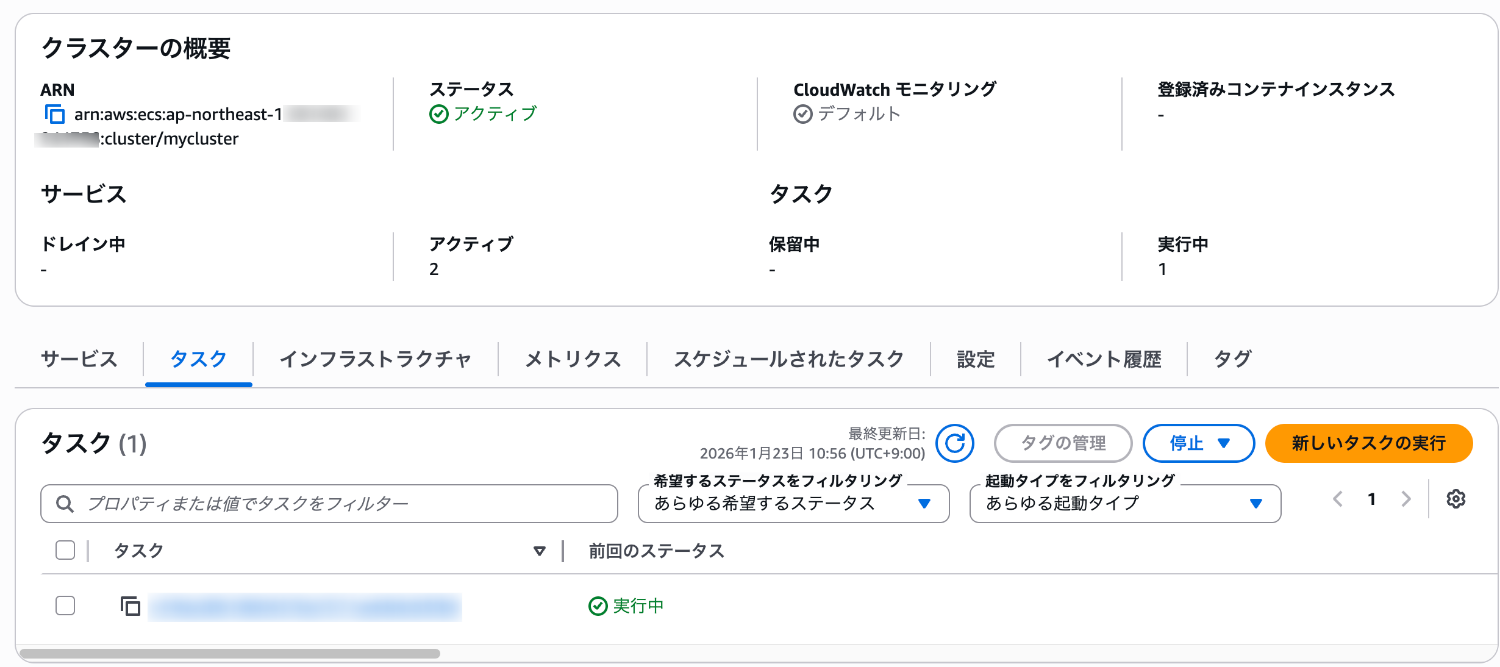
The task status shows as running.
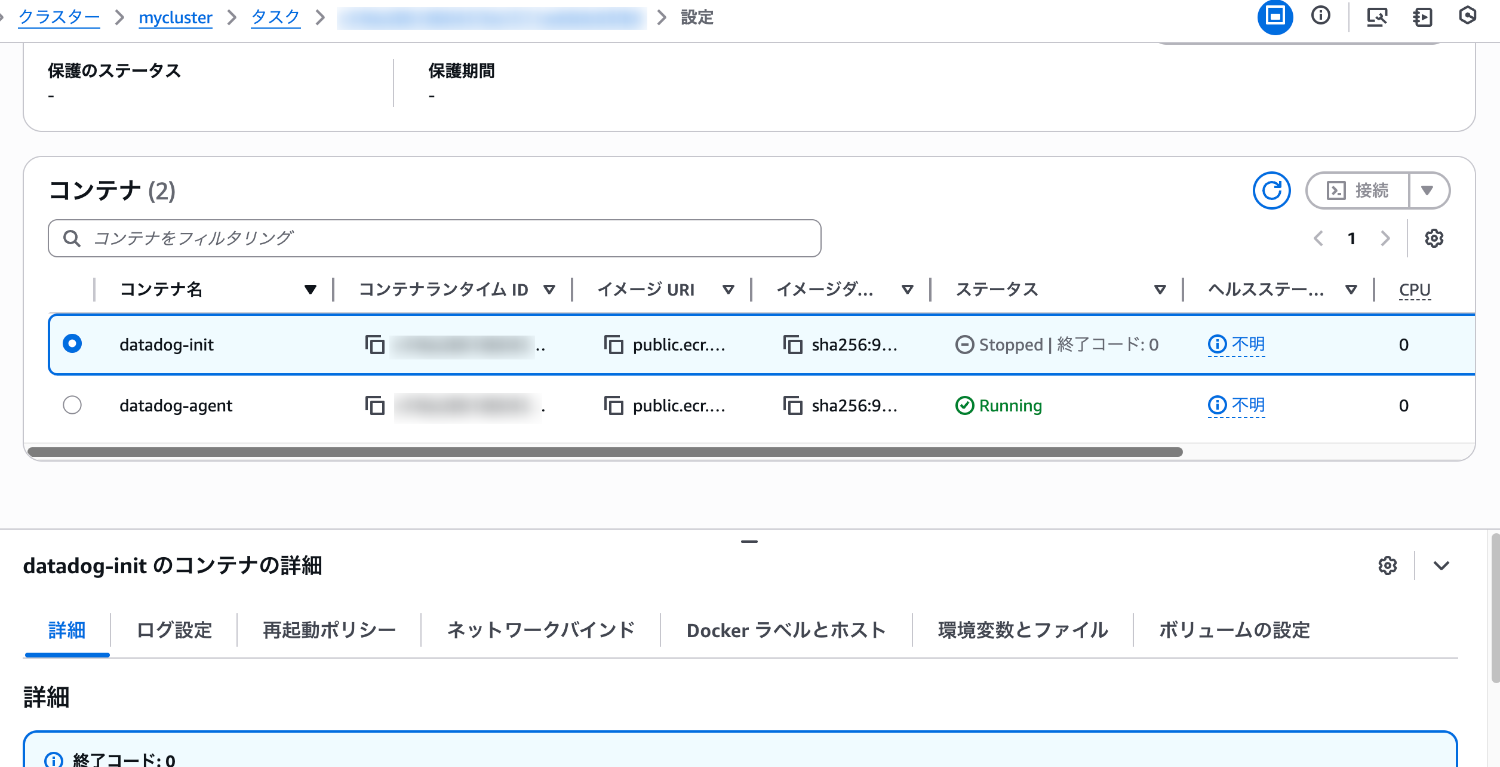
Looking at the container status, the init container (datadog-init) has successfully terminated (exit code 0).
The main sidecar container (datadog-agent) is running.
Let's check the Datadog Agent logs in the CloudWatch Logs log group specified as the log driver.
[s6-init] making user provided files available at /var/run/s6/etc...exited 0.
[s6-init] ensuring user provided files have correct perms...exited 0.
[fix-attrs.d] applying ownership & permissions fixes...
[fix-attrs.d] done.
[cont-init.d] executing container initialization scripts...
[cont-init.d] 01-check-apikey.sh: executing...
[cont-init.d] 01-check-apikey.sh: exited 0.
[cont-init.d] 50-ci.sh: executing...
[cont-init.d] 50-ci.sh: exited 0.
[cont-init.d] 50-ecs-managed.sh: executing...
[cont-init.d] 50-ecs-managed.sh: exited 0.
[cont-init.d] 50-ecs.sh: executing...
[cont-init.d] 50-ecs.sh: exited 0.
[cont-init.d] 50-eks.sh: executing...
[cont-init.d] 50-eks.sh: exited 0.
[cont-init.d] 50-kubernetes.sh: executing...
[cont-init.d] 50-kubernetes.sh: exited 0.
[cont-init.d] 50-mesos.sh: executing...
[cont-init.d] 50-mesos.sh: exited 0.
[cont-init.d] 51-docker.sh: executing...
[cont-init.d] 51-docker.sh: exited 0.
[cont-init.d] 59-defaults.sh: executing...
[cont-init.d] 59-defaults.sh: exited 0.
[cont-init.d] 60-network-check.sh: executing...
[cont-init.d] 60-network-check.sh: exited 0.
[cont-init.d] 60-sysprobe-check.sh: executing...
[cont-init.d] 60-sysprobe-check.sh: exited 0.
[cont-init.d] 89-copy-customfiles.sh: executing...
[cont-init.d] 89-copy-customfiles.sh: exited 0.
[cont-init.d] done.
[services.d] starting services
starting security-agent
starting process-agent
starting agent
starting trace-agent
starting system-probe
[services.d] done.
2026-01-23 01:49:18 UTC | TRACE-LOADER | INFO | (pkg/util/log/setup/log.go:60 in SetupLogger) | TRACE-LOADER: using slog logger
2026-01-23 01:49:18 UTC | TRACE-LOADER | INFO | (pkg/util/log/log.go:738 in func1) | Starting to load the configuration
2026-01-23 01:49:18 UTC | TRACE-LOADER | INFO | (pkg/util/log/log.go:738 in func1) | Loading proxy settings
2026-01-23 01:49:18 UTC | TRACE-LOADER | INFO | (pkg/util/log/log.go:738 in func1) | Starting to resolve secrets
2026-01-23 01:49:18 UTC | TRACE-LOADER | INFO | (pkg/util/log/log.go:738 in func1) | Finished resolving secrets
2026-01-23 01:49:18 UTC | TRACE-LOADER | INFO | (pkg/util/log/log.go:743 in func1) | Agent did not find PodResources socket at /var/lib/kubelet/pod-resources/kubelet.sock
2026-01-23 01:49:18 UTC | TRACE-LOADER | INFO | (pkg/util/log/log.go:743 in func1) | 2 Features detected from environment: ecsfargate,ecs_orchestratorexplorer
2026-01-23 01:49:18 UTC | TRACE-LOADER | INFO | (cmd/loader/main_nix.go:85 in main) | Socket-activation for the trace-agent is disabled, running the trace-agent directly...
2026-01-23 01:49:18 UTC | TRACE-LOADER | INFO | (cmd/loader/main_nix.go:261 in execOrExit) | Starting the trace-agent...
We can confirm that it has started correctly with a read-only filesystem.
Checking metrics
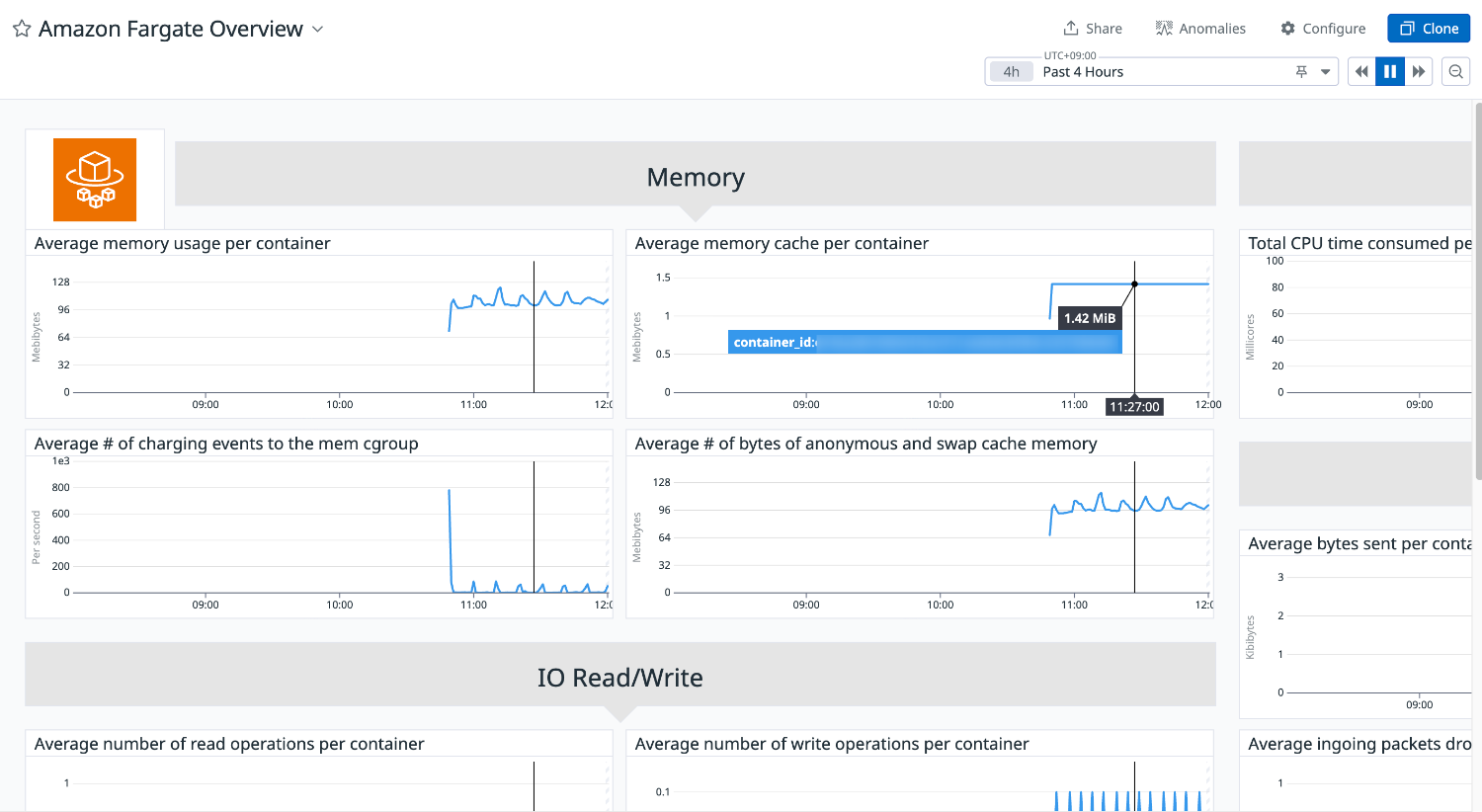
Let's check if ECS Fargate and container-related metrics are being properly collected by the sidecar container started with a read-only filesystem.
Dashboard (Amazon Fargate Overview)
The dashboard shows key metrics for Amazon ECS clusters running on AWS Fargate (CPU usage, memory usage, I/O usage, network, ephemeral storage, etc.).
We can confirm that the relevant task is displayed.
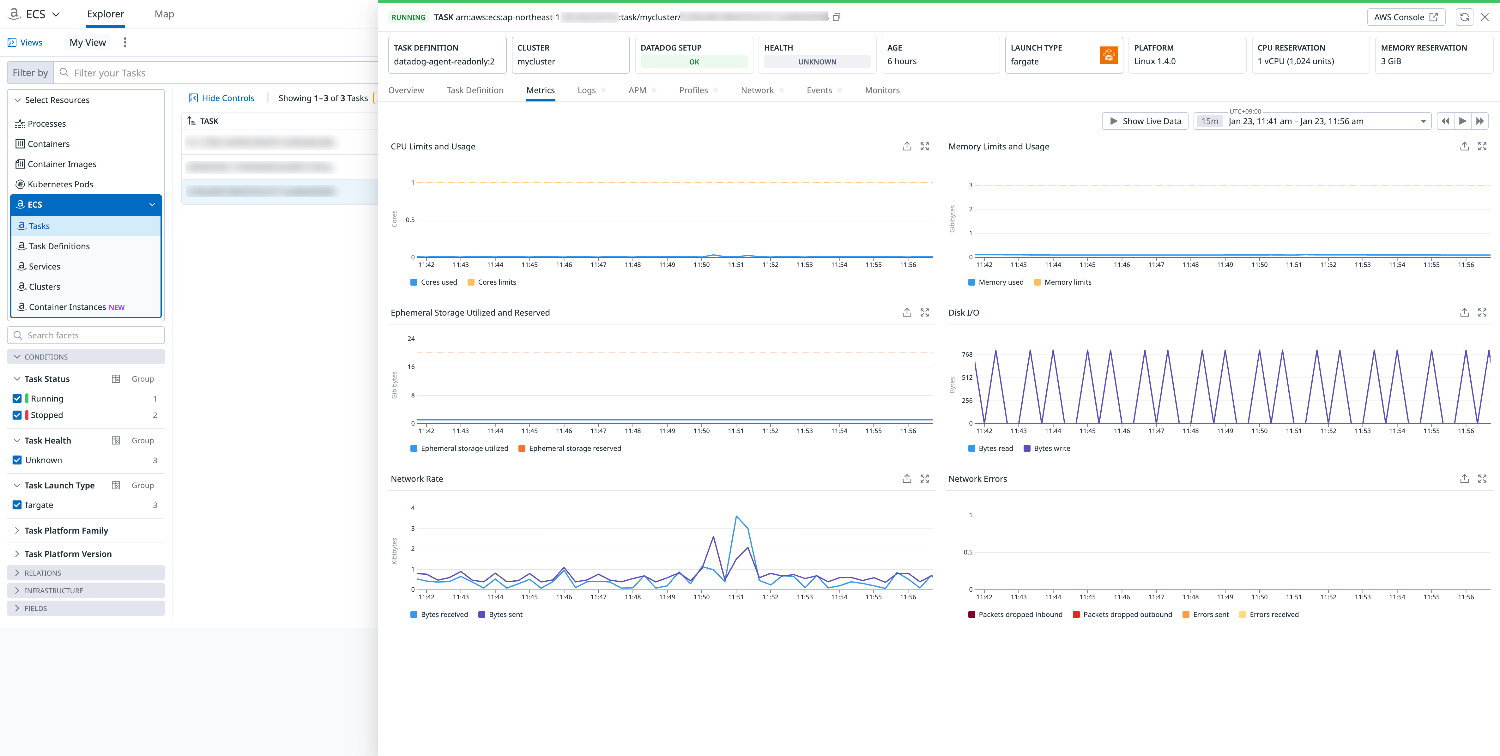
Amazon Elastic Container (ECS) Explorer
The explorer shows the status of ECS components such as Fargate tasks and services across all AWS accounts.
The relevant task is also displayed here.
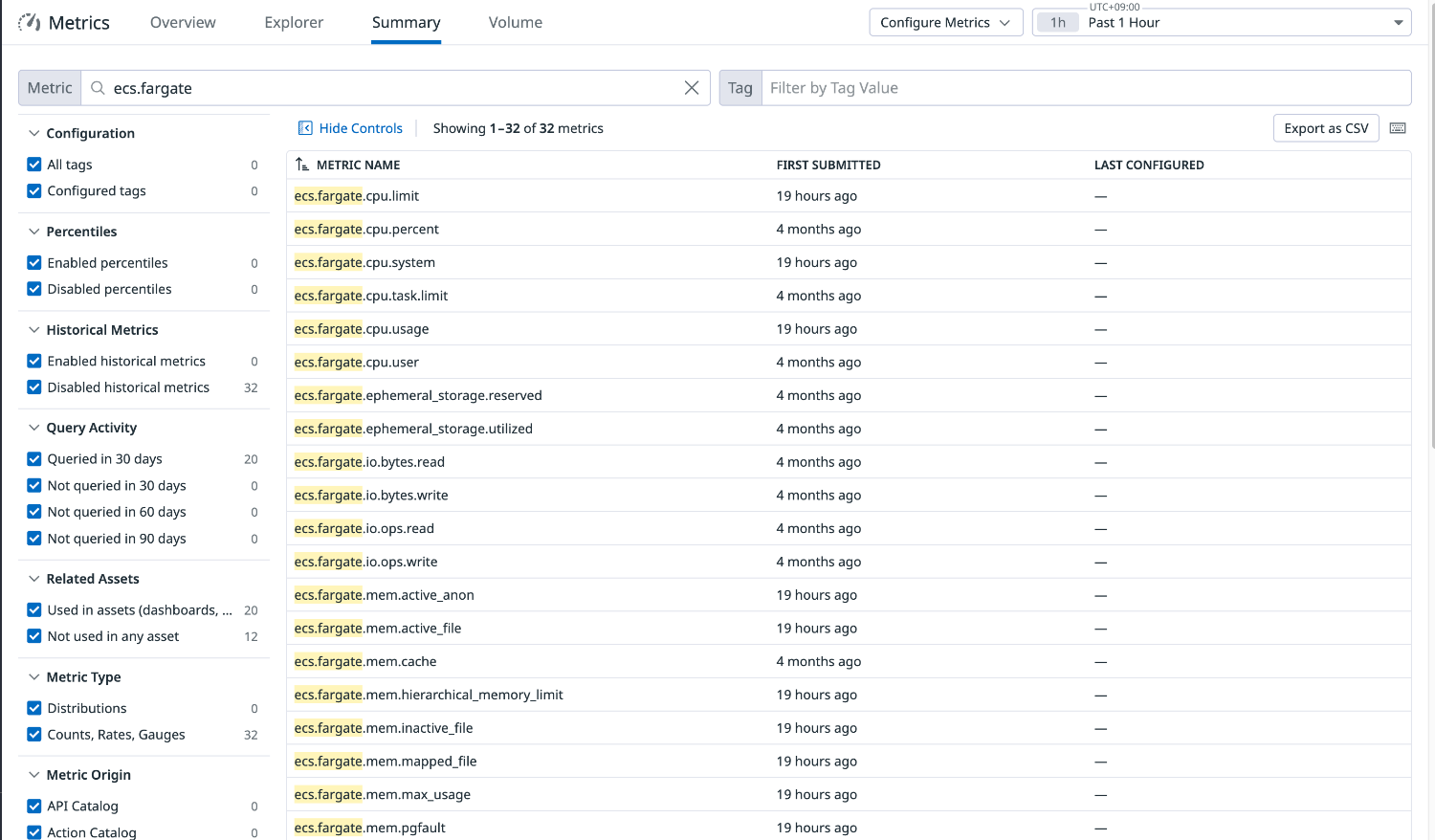
Metrics Summary
We can check the list of metrics reported to Datadog.
We can see that metrics[4] starting with ecs.fargate are being reported through ECS Fargate integration.
Summary
I tested a container configuration for starting the Datadog Agent with a read-only root filesystem in ECS Fargate.
By using an init container to copy configuration files in advance and mounting volumes to five directories that require write access, I confirmed that it can start without issues even in read-only mode.
Metrics starting with ecs.fargate are also being collected normally, enabling Datadog monitoring even in environments with strict security requirements.
If you want to comply with container security best practices while maintaining observability, please give this a try.
I hope this article has been helpful.
References