I Tried Using Datadog Archive Search to Search Archived Logs in Real Time

This page has been translated by machine translation. View original
Hello. I'm Shiina from the Operations Department.
Introduction
There are often times when you want to investigate past logs that have exceeded the retention period, such as when you want to check application logs from several months ago in Datadog, or when you need to investigate logs from that time for an incident investigation.
Logs past the retention period cannot be viewed from the Datadog console, so you had to perform Rehydration from the archive.
However, since it runs in the background, the drawback was that it took time to complete.
Using Archive Search, newly introduced in Datadog, you can search archived logs in real time without Rehydration.
I actually tried it out, and have summarized an overview of the feature and the differences from Rehydration.
What is Archive Search
Archive Search is a feature that lets you directly query archived logs stored in external object storage such as S3, Azure Storage, and GCS, without Rehydration.
When you run a search, logs are streamed in real time, and up to 100,000 logs are temporarily stored for 24 hours at no charge.
Rehydration is also introduced in the blog below, so please refer to it.
Differences from Rehydration
| Comparison | Archive Search | Rehydration |
|---|---|---|
| Execution method | Real time | Background |
| Immediacy of results | A few seconds | A few minutes to several hours |
| Retention period | 24 hours (up to 100,000 logs) | Customizable (3 to 180 days) |
| Cost | Charged only for scanned volume | Scan + index retention cost |
| Analysis/aggregation | Partially possible | Possible |
| Suitable cases | Spot investigation | Continuous analysis |
The biggest differences are the immediacy of results and cost.
Archive Search charges only for what you scan and gives results in real time, but its analysis and aggregation features are limited.
On the other hand, Rehydration is background processing so it takes time to complete, but once it's done, you can analyze and investigate logs in Log Explorer.
Cost
Archive Search is charged only for the scanned volume.
Pricing for the US site is as follows.
| Plan | Price |
|---|---|
| Annual contract | $0.05 / GB per month |
| On-demand | $0.07 / GB per month |
Please refer to the official documentation for the latest pricing.
When to Use Which
- Continuous analysis is required → Rehydration
- Spot investigation requiring more than 100,000 logs or retention of more than 24 hours → Archive Search (Search & Rehydration mode)
- Spot investigation that can be completed within 24 hours → Archive Search (Search mode)
Prerequisites
- An external archive has been configured
- Datadog has permission to read from the archive[1]
Trying It Out
Archive Search
Let's search logs from 2026/1/1 to 2/28 from logs archived in Amazon S3 using Archive Search.
-
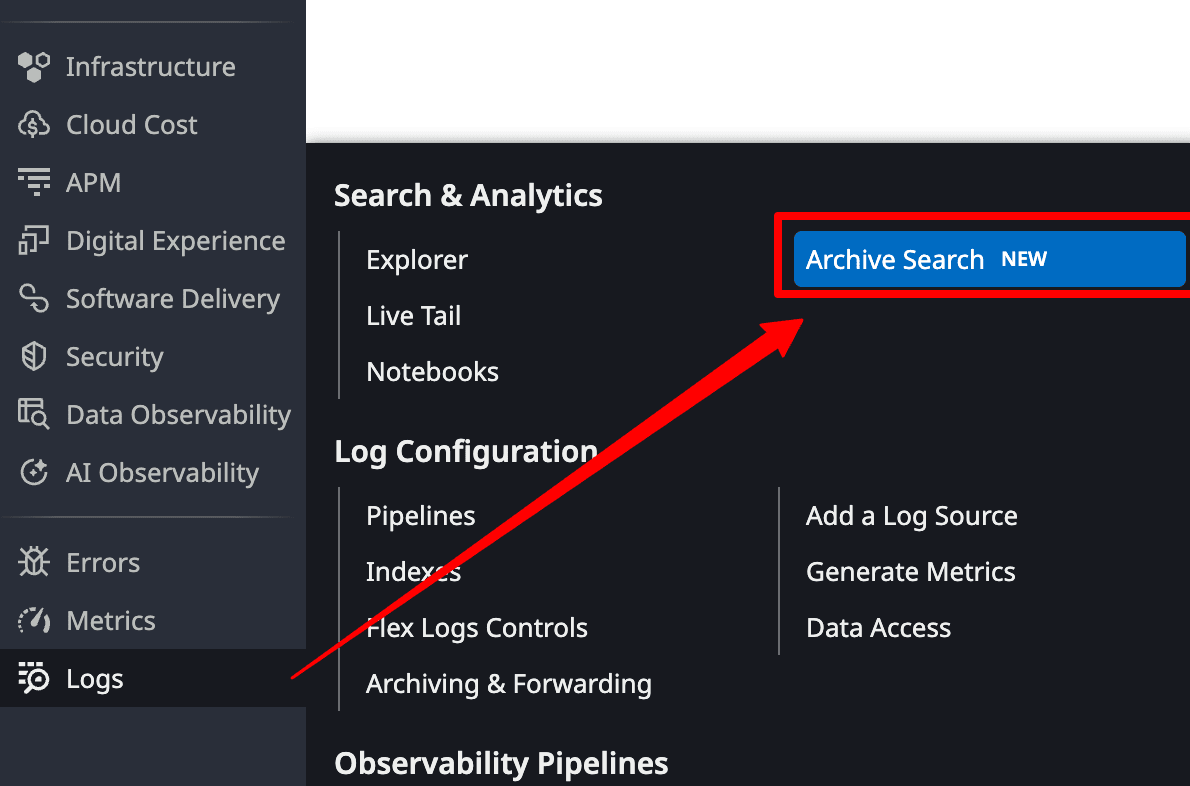
In the Datadog console, select Logs > Archive Search.
-
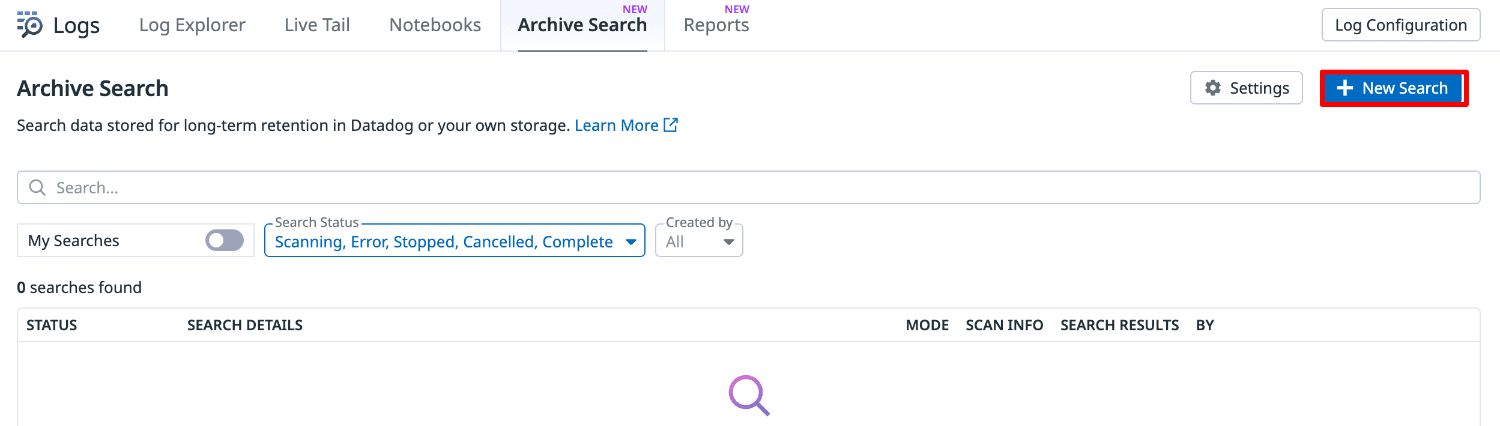
Select "New Search".
-
Set the following conditions and select "Search".
- Archive: The target archive name
- Time Range: The search range
- Mode: Search or Search & Rehydration
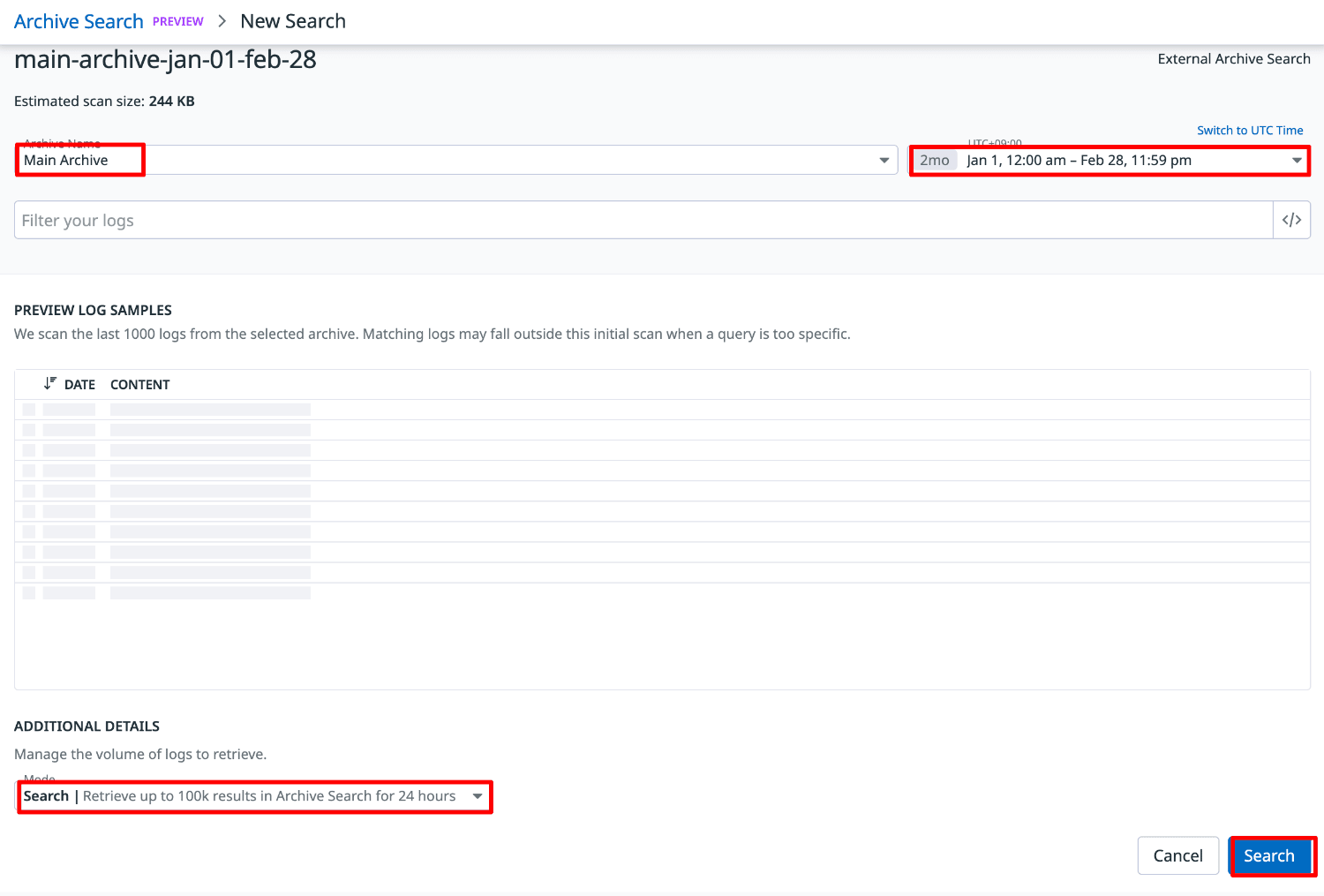
- The search starts, and logs begin streaming in real time.
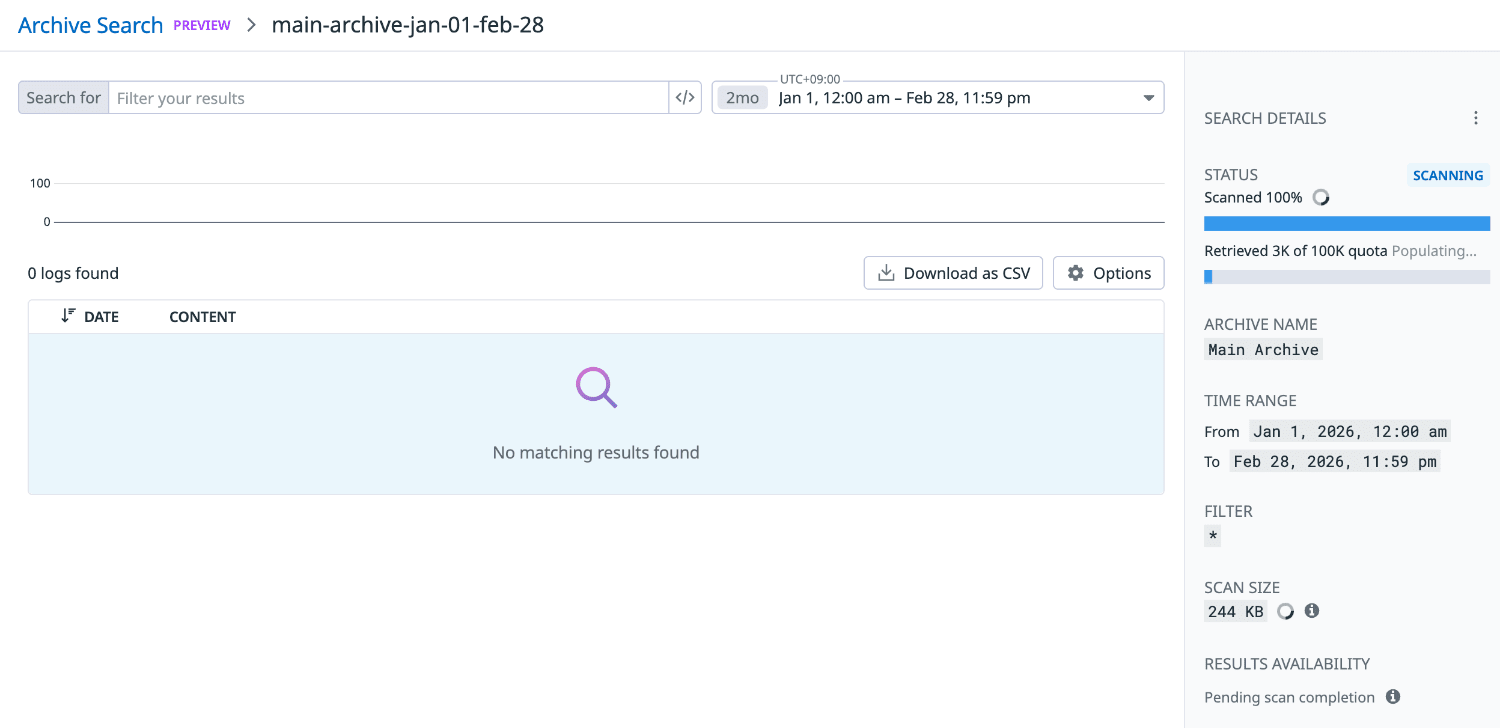
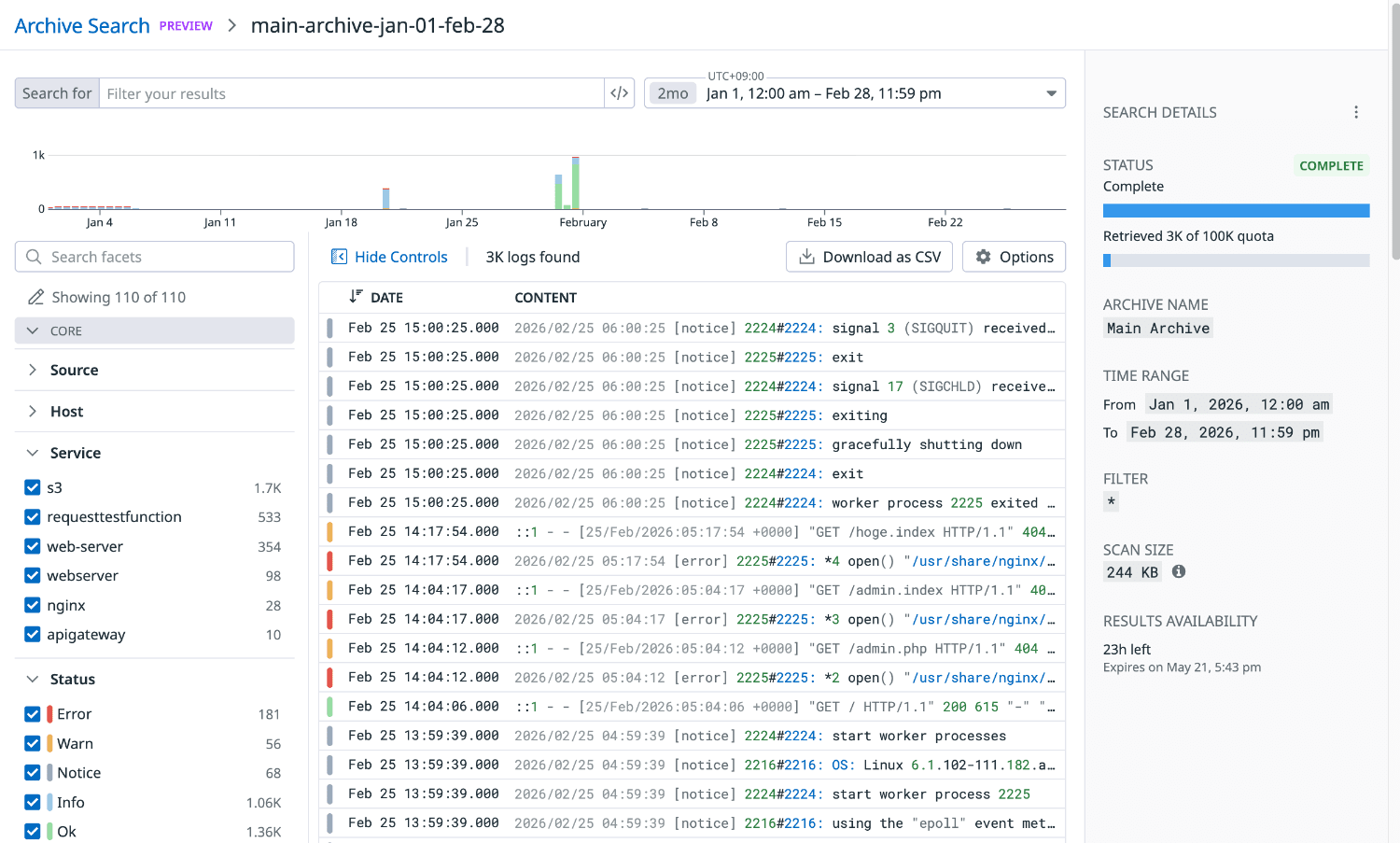
- When the search completes, you can check log messages and filter them.
This time, let's narrow down to accesses to a specific path.
@http.url_details.path:"/admin.html"
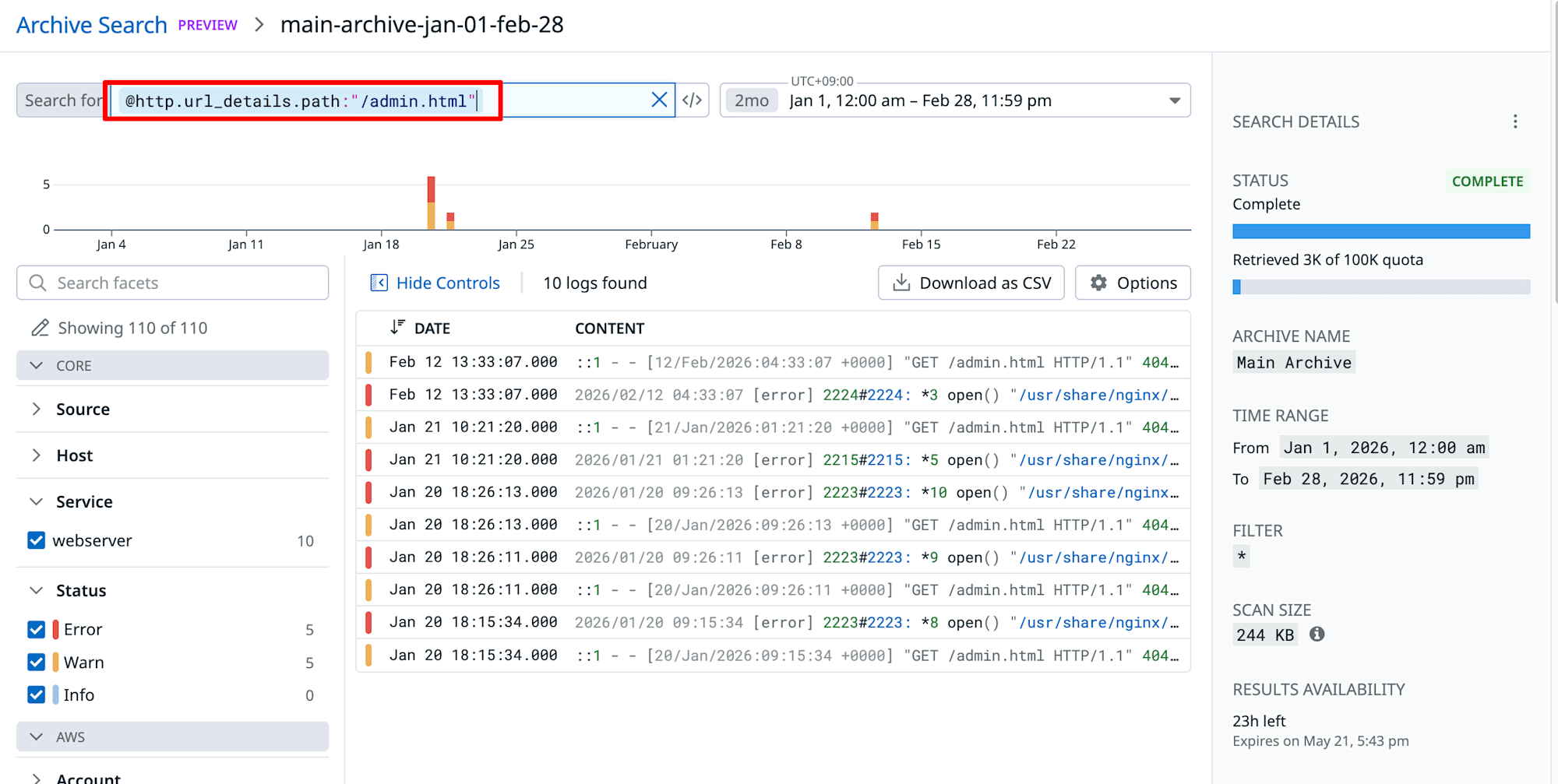
We were able to narrow down to only the logs corresponding to accesses to /admin.html.
Rehydration from Archive Search
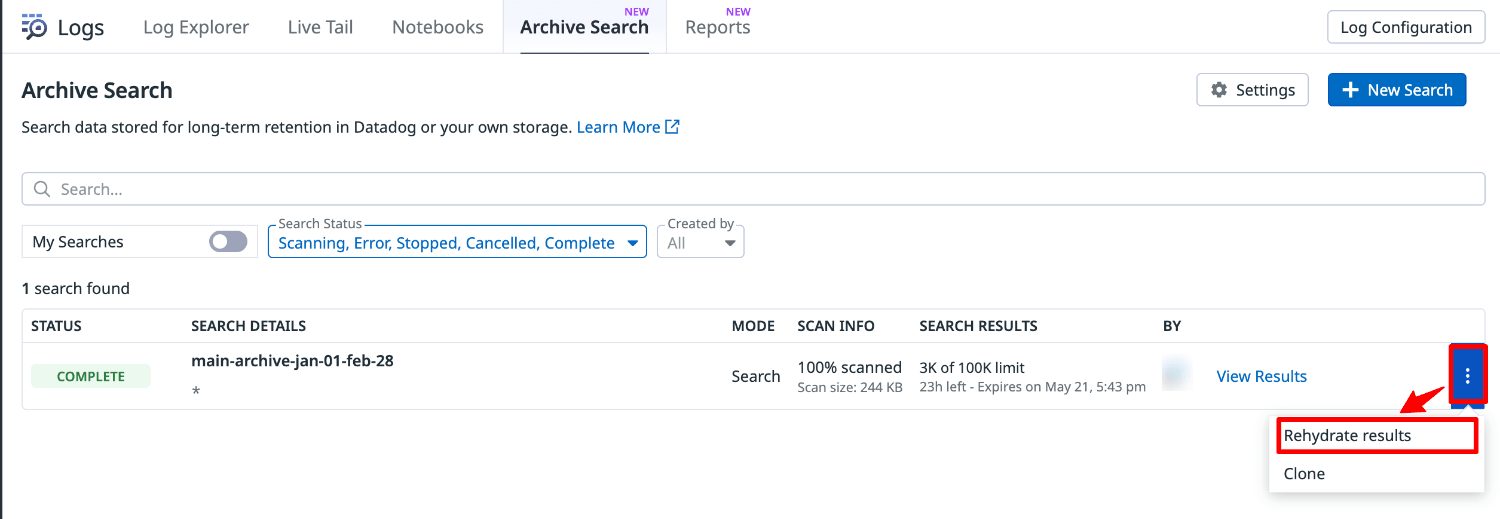
Within 24 hours, you can also Rehydrate from Archive Search results.
-
In the Datadog console, select Logs > Archive Search.
-
Select "Rehydrate results" from the target Search results.
-
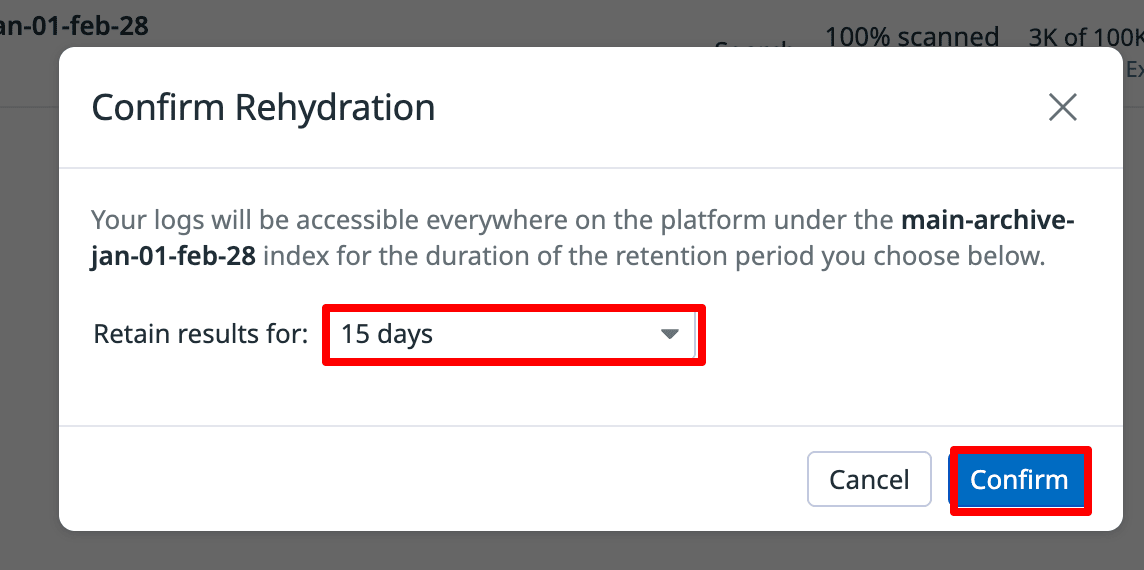
Select the retention period and select "Confirm".
-
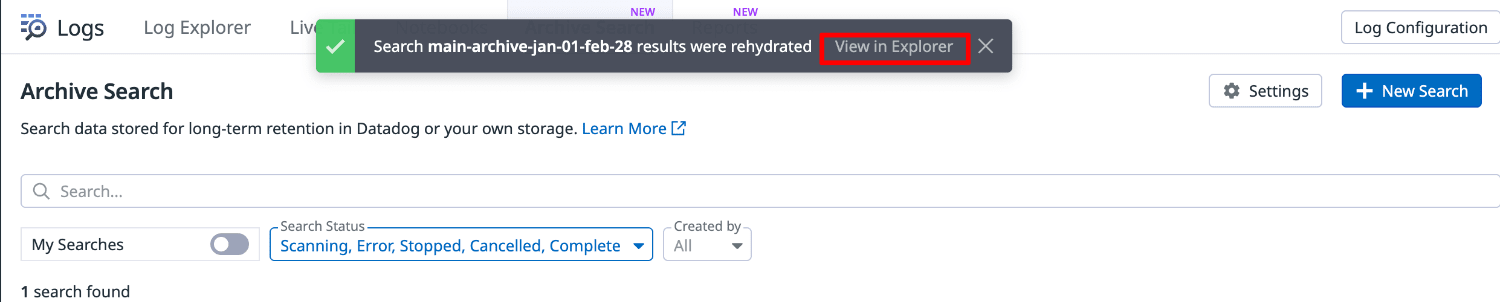
When it completes, a message is displayed at the top, so select "View in Explorer".
-
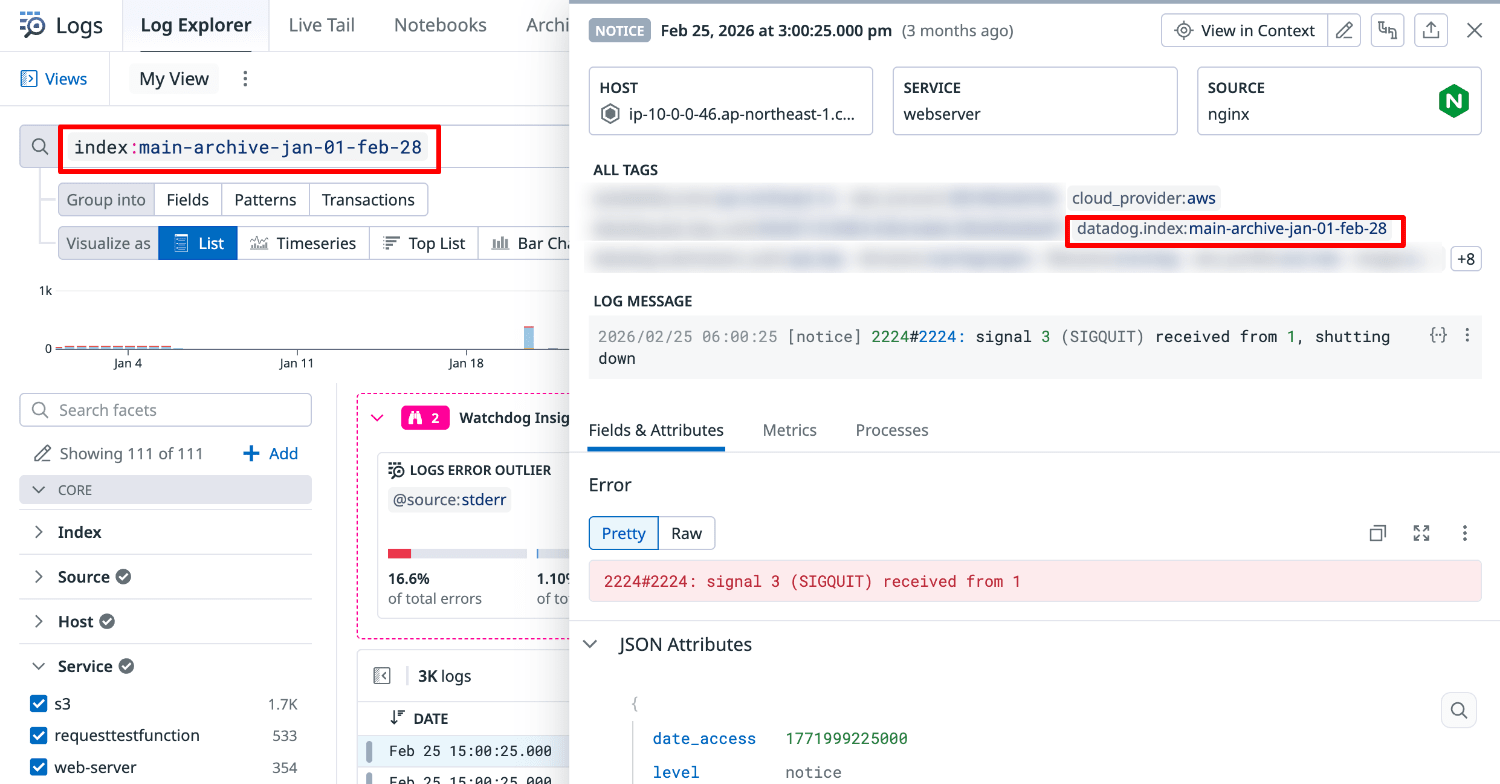
You will be taken to Logs Explorer.
In addition to filtering and analysis, you can use all the features of Logs Explorer, such as integration with dashboards and Notebooks.
Note that Rehydrated logs appear to be given the datadog.index tag.
Conclusion
Using Archive Search, we were able to search archived logs in real time without Rehydration.
Since it is charged only for the scanned volume and requires no index creation, it can keep costs lower than Rehydration for spot investigations.
For spot investigations of logs past the retention period, results are available immediately with no waiting time, so it seems useful for incident investigations and audit responses.
Also, since you can Rehydrate after the investigation as needed to enable analysis in Log Explorer, I recommend using them appropriately depending on the purpose.
I hope this article is helpful.
References