Things to Check When Building a Custom PC with Used Parts

This page has been translated by machine translation. View original
Introduction
Hello everyone, this is Akaike.
I bought new memory as described in the blog below, so the memory I had originally been using was left over.
In a world where memory shortages are being loudly proclaimed, leaving memory unused is simply unacceptable...
So I used the spare memory to build a custom PC for the first time in a while.
And since it turned out to be more fun than I expected, in this blog I'll summarize what to check when building with used parts, partly as a way of evangelizing for building your own PC.
Parts needed for a custom PC
First, let's go over the parts needed for a custom PC.
| Part | Notes |
|---|---|
| Motherboard | The socket and chipset determine which CPUs you can use, so choose one that matches the CPU you want to use. The maximum amount of memory you can install is also determined by the motherboard, so check that too. |
| CPU | Compatible motherboards differ by manufacturer and generation, so be careful. |
| CPU cooler | Choose one that can be attached to the motherboard's CPU socket. |
| Memory | The more the better. Install as much as possible according to what the motherboard supports. |
| Storage | Choose an SSD if you prioritize speed, or an HDD if you prioritize low cost per capacity. There are multiple M.2 standards, so check beforehand whether your motherboard supports it. |
| GPU | Required if the CPU has no integrated graphics, so get one in that case. |
| Power supply | For the power supply capacity, check the total power consumption of each part and choose one with some headroom. GPUs tend to consume a lot of power, so at the very least take that into account. |
| Case | It works without one, but prepare one as needed. Choose one that supports your motherboard's size (ATX, microATX, Mini-ITX, etc.). Also, large GPUs may not fit in the case, so check beforehand. |
| Monitor | Even if you'll use it via remote access, you need it for installing the OS and configuring the BIOS (UEFI), so get one. |
When you buy the above parts new, accessories like the following often come with them.
However, used items usually don't come with such accessories, so check before buying.
| Accessory | Notes |
|---|---|
| Thermal grease | Anything is fine. Personally, I don't feel much difference whichever I use. |
| SATA cable | Required if you use SATA-connected storage. |
| ATX power cable | Usually sold together with the power supply. |
| AC power cable | Usually sold together with the power supply. |
| Case fan | It's better to buy these if you're putting everything in a case. Check the fan size and connector standard. |
| Front panel connector cable | If you don't have a case, you have no way of turning on the power, so buy one. |
| Video output cable | Prepare cables that connect to each video output port. |
Used or new?
Ideally I'd like to buy everything new, but realistically there's the issue of money.
PC parts in particular get quite a lot cheaper once they're used and a few generations old, so choosing used is perfectly fine.
What to check when buying online
As a premise, buy used parts that have been confirmed to work.
If something is really cheap you can try your luck with untested junk, but it's basically a gamble, so I don't recommend it.
When buying online, such as on Yahoo Auctions or Mercari, also check the following.
Since you can't see the actual item before choosing, oversights are easy to make, so check carefully.
- Details of the operation check
- It's recommended that the listing states how far they checked (power-on only, BIOS booted, recognized by the OS, etc.).
- If it isn't stated, asking in the comments is also an option.
- Photos of the actual item
- Are there photos of the places you want to check (the CPU socket, the back of the CPU, etc.)?
- If not, asking for photos in the comments is also an option.
- Seller's ratings
- Check that there aren't many bad ratings. (Unless they're really bad, you don't need to worry that much.)
- Market price
- Search only for sold items and compare with prices at which items actually sold to see that it isn't too expensive.
- Be suspicious if something is much cheaper than the market price and wonder whether there's a reason.
What to check for each part
I've summarized what to check for each part in tables.
I've written a lot of things, but as long as it's been confirmed to work it's mostly fine, so choose casually.
Motherboard
Used is fine, but it has many small components such as capacitors and is more fragile than other parts. Be sure to choose one that's been confirmed to work.
| Item to check | What to check |
|---|---|
| CPU socket and chipset | Check that it supports the CPU you want to use. Even if the CPU socket is OK, it won't work if the chipset isn't supported, so check on the manufacturer's product page. |
| Memory generation | Check that it supports the memory generation you want to use (DDR4, DDR5, etc.). |
| Size (form factor) | ATX, microATX, Mini-ITX, etc. If you're using a case, check that it fits in the case. https://www.dospara.co.jp/parts_accessory/str_parts_atx.html |
| M.2 slot | If you want to use an M.2 SSD, check whether there's a slot and whether it supports NVMe or SATA. |
| Capacitors | Are any swollen or leaking? |
| Board | Are there any burn marks or chipped components? |
| CPU socket | Are any pins bent? |
CPU
Used is fine.
CPUs are relatively durable parts, so as long as there are no visible problems such as bent pins or modifications, used is often fine.
| Item to check | What to check |
|---|---|
| Performance | With older CPUs, it's hard to tell the performance difference from current CPUs from the model number alone, so look up scores on benchmark sites such as PassMark and compare. https://www.cpubenchmark.net/ |
| CPU socket and generation | Check that the motherboard supports it. |
| Integrated graphics | If you won't use a graphics card, check that it has integrated graphics. For example, Intel CPU models with an "F" at the end of the model number (such as Core i5-9400F) have no integrated graphics, so you can't get a display without a graphics card. |
| Pins | For types with pins on the CPU side (such as AMD CPUs up to AM4), check that the pins aren't bent. |
| Contacts on the back | For types with pins on the motherboard side (such as Intel CPUs and AMD AM5 CPUs), check that the contacts have no scratches or dirt. Unless the condition is really bad, it's fine. |
| Board | Check that there are no chips or cracks. |
| Delidding | Whether the metal cover on top of the CPU has been removed. They're rarely sold, but basically avoid buying them. |
Also, I've never encountered a counterfeit CPU (remarked, etc.), but apparently they really do exist. So especially for expensive CPUs, buy from a trustworthy seller.
CPU cooler
Used CPUs are often sold as the CPU alone, so you'll need to prepare a CPU cooler separately.
| Item to check | What to check |
|---|---|
| Supported sockets | Check that it can be attached to the socket of the CPU you'll use (LGA1151, AM4, etc.). |
| Cooling performance | Check that the cooling performance is sufficient for the CPU's TDP (a guide to heat output). |
| Size | If you're using a case, check that it fits in the case. |
Air CPU coolers are fine used. However, reapply the thermal grease between it and the CPU.
All-in-one liquid coolers (the type that circulates coolant with a pump to cool) have concerns about pump lifespan and leaks, so it's safer to avoid used ones.
Memory
Used is fine.
Memory is a part that rarely breaks unless something extraordinary happens, so as long as it's been confirmed to work, it's basically fine.
| Item to check | What to check |
|---|---|
| Generation | Check that it's a generation the motherboard supports (DDR3, DDR4, DDR5, etc.). The notch position differs by generation, so unsupported generations physically won't fit. |
| Form factor | Check whether it's for desktops (DIMM) or laptops (SO-DIMM). This is obvious at a glance, so it should be fine. |
| Type | Check that it isn't server-use Registered memory (RDIMM). RDIMM basically can't be used on consumer motherboards. It's circulating cheaply on the used market, so be careful not to buy it by mistake. |
| Capacity | Check that the number of modules is within the motherboard's slot count and the total capacity is within the maximum capacity the motherboard supports. |
| Clock speed | A number indicating memory speed; for example, for DDR4-2666 it's the "2666" part. Check it if you care about fine performance details. However, it basically can't run faster than the speed supported by the motherboard or CPU, so you may not need to worry that much. |
Storage
Used is fine, but storage degrades depending on usage time and the amount of data written.
Especially for SSDs, choose one whose health status is stated.
| Item to check | What to check |
|---|---|
| Type | Choose an SSD if you prioritize speed, or an HDD if you prioritize low cost per capacity. |
| Connection type | Check whether it's SATA or M.2 (NVMe). If you use an M.2 SSD, check things like whether the motherboard's M.2 slot supports it. Also, NVMe has several standards, so be careful. https://www.buffalo.jp/topics/knowledge/detail/m2ssd.html |
| SSD health | Check whether it states an estimate of remaining lifespan checked with diagnostic software or similar. Proper sellers mostly write this. |
| HDD health | You don't need to be as nervous as with SSDs, but choosing one with this stated gives peace of mind. |
Graphics card
If the CPU has integrated graphics and you'll only use it as a normal server, you can do without one.
Also, used is mostly fine if it's been confirmed to work. However, because of recent circumstances even used ones cost quite a bit, so it takes a spirit of adventure.
| Item to check | What to check |
|---|---|
| Performance | As with CPUs, look up scores on benchmark sites such as PassMark and compare. https://www.videocardbenchmark.net/high_end_gpus.html |
| VRAM capacity | For uses like local LLMs, the VRAM capacity determines the size of model you can run, so choose an appropriate one for your purpose. |
| Video output ports | Does it have ports matching your monitor (HDMI, DisplayPort, etc.)? |
| Size | If you're using a case, will the length and thickness fit in the case? |
| Fans | Are any missing/chipped? |
| Board | Are there any burn marks? |
| PCIe connector | Are there scratches or dirt on the connector that goes into the motherboard? |
Also, units that have been used under high load for long periods for things like mining are often degraded.
If the description states past usage, be sure to check it.
Power supply
Used is dangerous.
I've never had a problem with a used power supply, but since it handles a large amount of power, I'd like to use a new one if possible.
Especially for a server that runs all the time, used is quite dangerous.
If you still want to run a used power supply around the clock, first take out fire insurance.
| Item to check | What to check |
|---|---|
| Capacity (wattage) | Check that there's headroom relative to the total power consumption of each part such as the CPU and graphics card. Roughly 2 to 3 times the normal power consumption is fine. If you might want to install a huge GPU in the future, you can buy a larger one. |
| Conversion efficiency | Check the 80 PLUS certification grade (Bronze, Gold, etc.). The higher the grade, the less power is lost as heat. But unless you're doing heavy processing around the clock, I think you don't need to care that much. |
| Connectors | Check that there are enough CPU auxiliary power connectors (4+4 pin, etc.), PCI-E connectors for the graphics card, and SATA power connectors. |
| Size | ATX power supply or SFX power supply, etc. If you're using a case, check that it fits in the case. |
Case
Anything is fine if you don't care about looks.
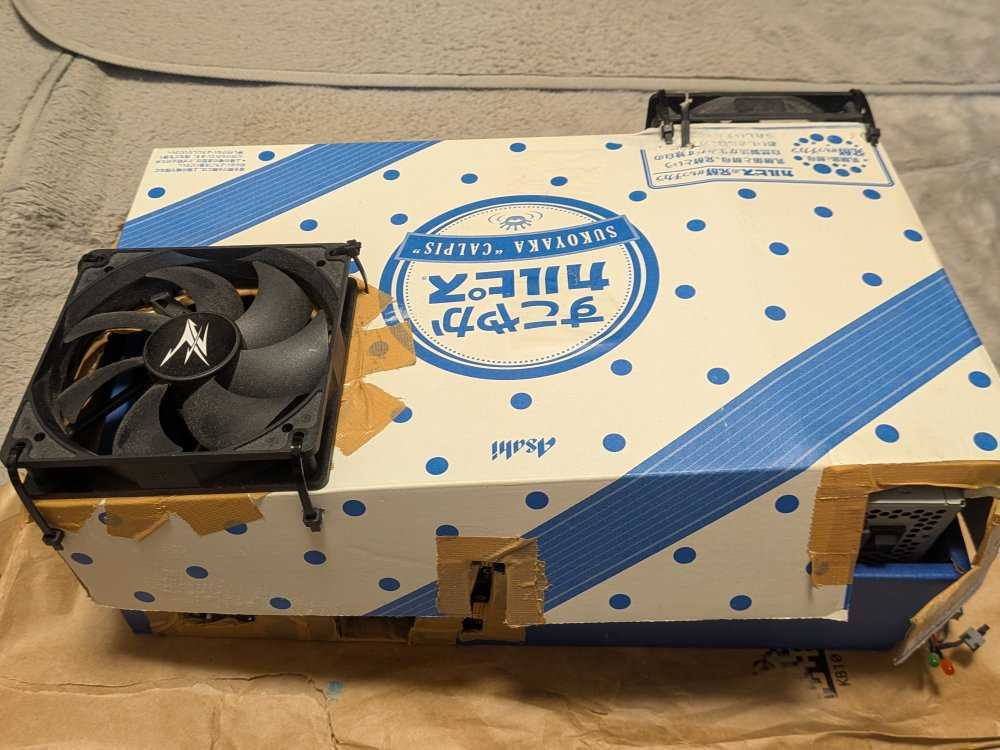
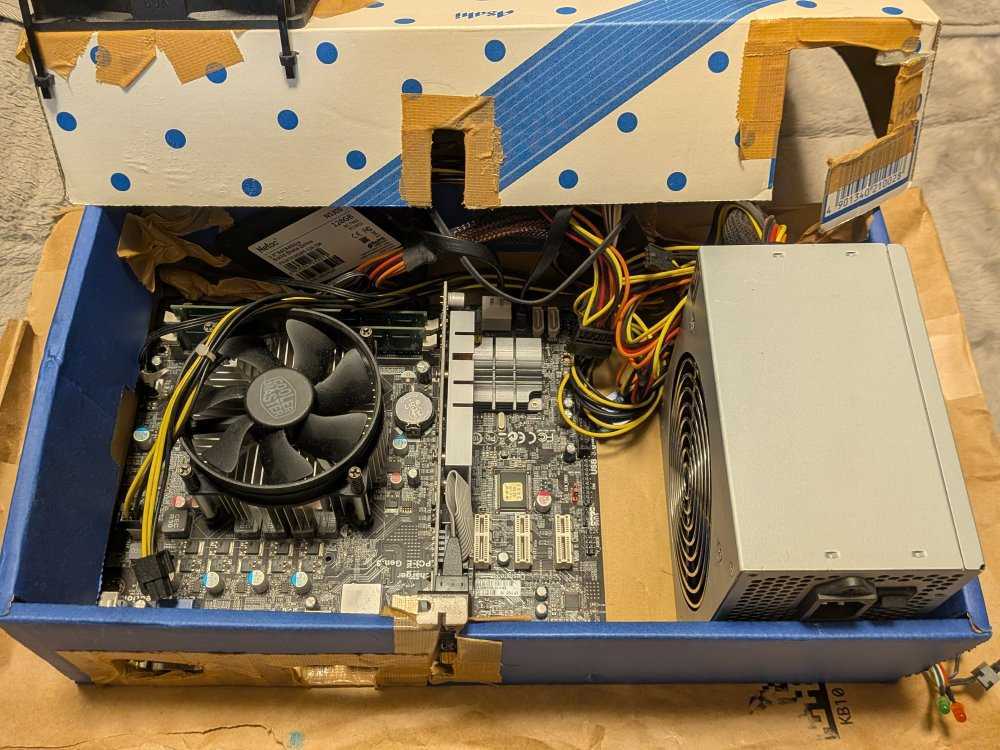
Cardboard is fine too, and at worst you can do without one.
As an example, this is what the first custom PC I ever built looked like.
If you're using a case, check the following.
| Item to check | What to check |
|---|---|
| Motherboard size | Does it support the size of the motherboard you'll use, such as ATX or microATX? |
| CPU cooler and graphics card size | Do the height of the CPU cooler and the length of the graphics card fit? |
Also, if you build without a case, be careful not to place the motherboard directly on something that conducts electricity, such as metal, as it can cause a short circuit.
Also, without a case there is naturally no power button either, so think separately about how to turn it on, such as buying a front panel connector cable.
Other parts
Parts other than the above (case fans, cables, etc.) aren't that expensive to begin with, so I think buying new is fine. If cost bothers you, used is OK too.
What to check when it arrives
With used parts, test that they work as soon as possible after they arrive.
First, confirm that it boots with a minimal configuration. That makes it easier to narrow down which part is the cause if it doesn't work.
- Boot with a minimal configuration
- Connect only the motherboard, CPU, CPU cooler, one memory module, and power supply, and check whether the BIOS (UEFI) screen appears
- Memory
- Is it recognized correctly on the BIOS screen, etc.?
- Storage
- Is it recognized correctly on the BIOS screen, etc.?
- Motherboard
- BIOS settings may remain, so reset to the initial state with a CMOS clear as needed
The configuration I built this time
From here, I'll introduce the PC I built this time.
Purpose and goal
- Purpose
- I want to make use of the spare memory
- Goal
- A budget of around 20,000 yen
Parts list
The parts list and prices are as follows.
I don't remember the purchase prices of the things I already had at home, so I'm counting them as 0 yen, which feels like a rules violation.
| Part | Product | New/Used | Purchased from | Price |
|---|---|---|---|---|
| Motherboard | ASUS PRIME B365-PLUS | Used | Mercari | 4,500 yen |
| CPU | Intel Core i5-8400 | Used | Mercari | 5,000 yen |
| Memory | CORSAIR VENGEANCE LPX DDR4-2666 8GB×4 | Used | Had at home | 0 yen |
| SSD | KIOXIA EXCERIA G2 2TB | Used | Had at home | 0 yen |
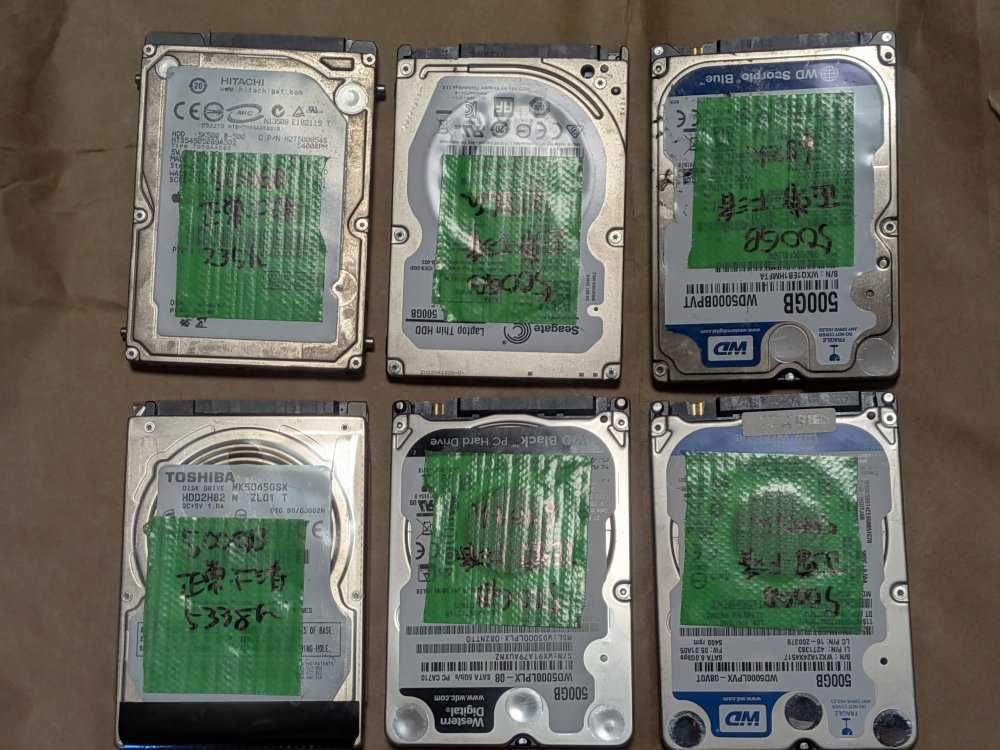
| HDD | 2.5-inch HDD 500GB×2 | Used | Had at home | 0 yen |
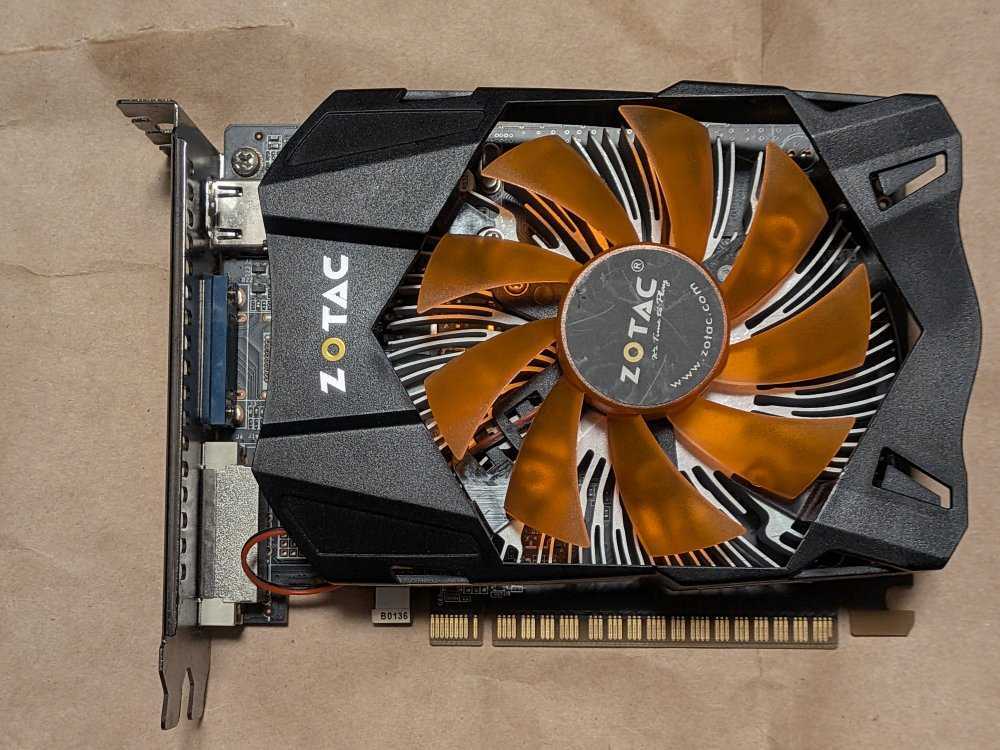
| Graphics card | ZOTAC GeForce GTX 650 | Used | Had at home | 0 yen |
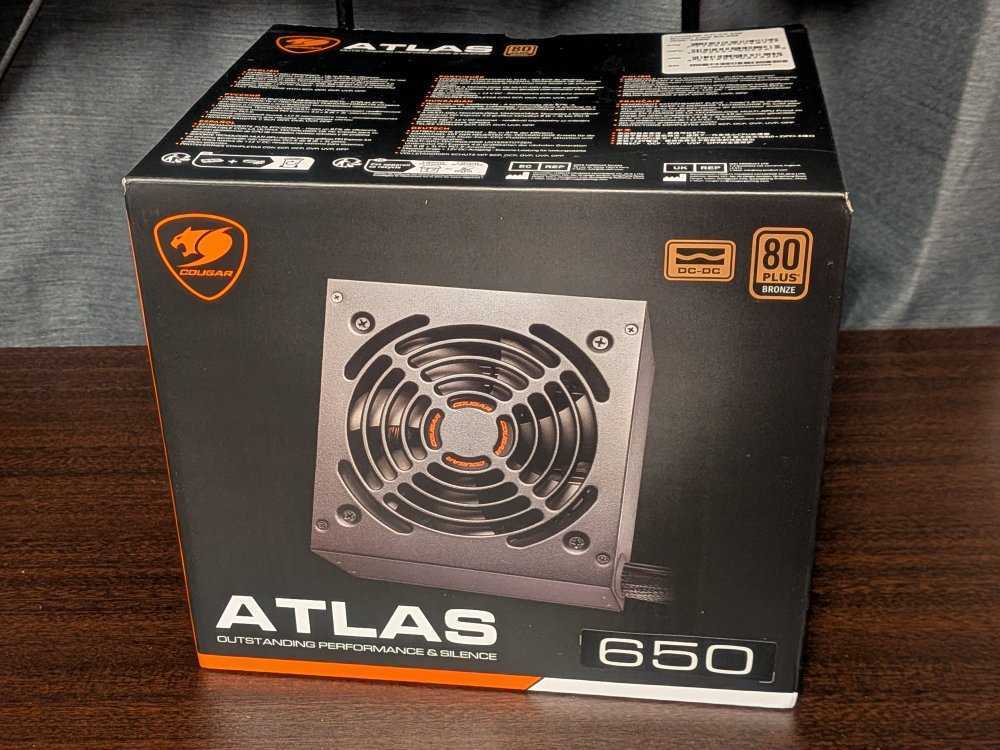
| Power supply | COUGAR ATLAS 650 | New | Amazon | 4,020 yen |
| Case | None | - | - | 0 yen |
| Other | CPU fan Front panel connector cable SATA cable HDMI cable USB cable LAN cable |
Used | Had at home | 0 yen |
| Total | 13,520 yen |
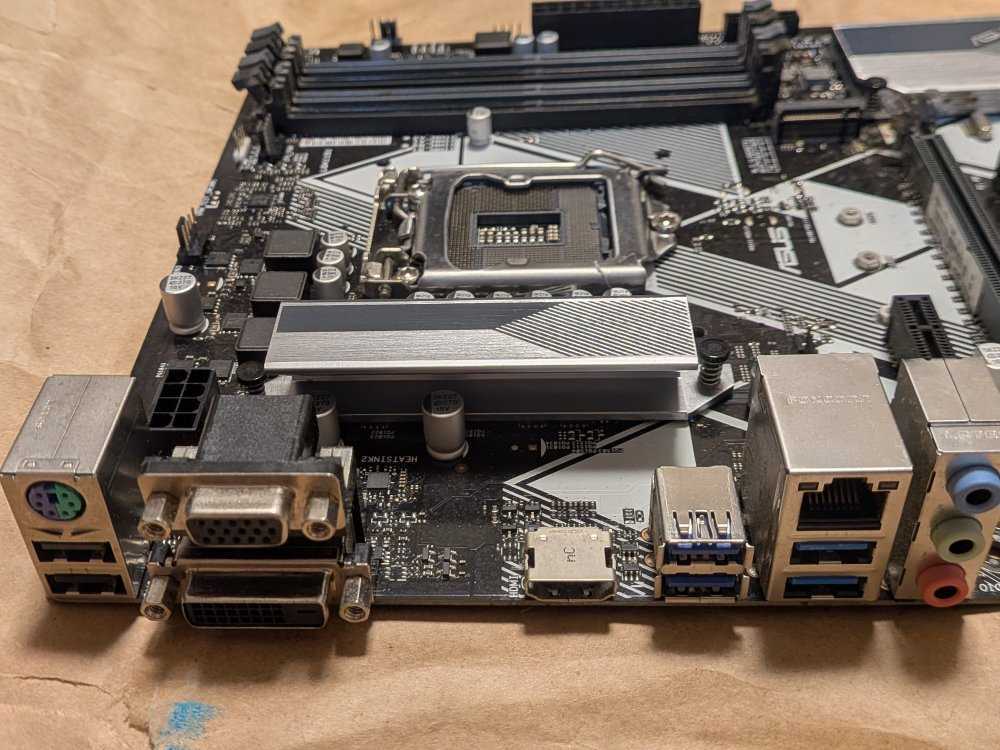
Motherboard
I found a decent one on Mercari, so I went with this.
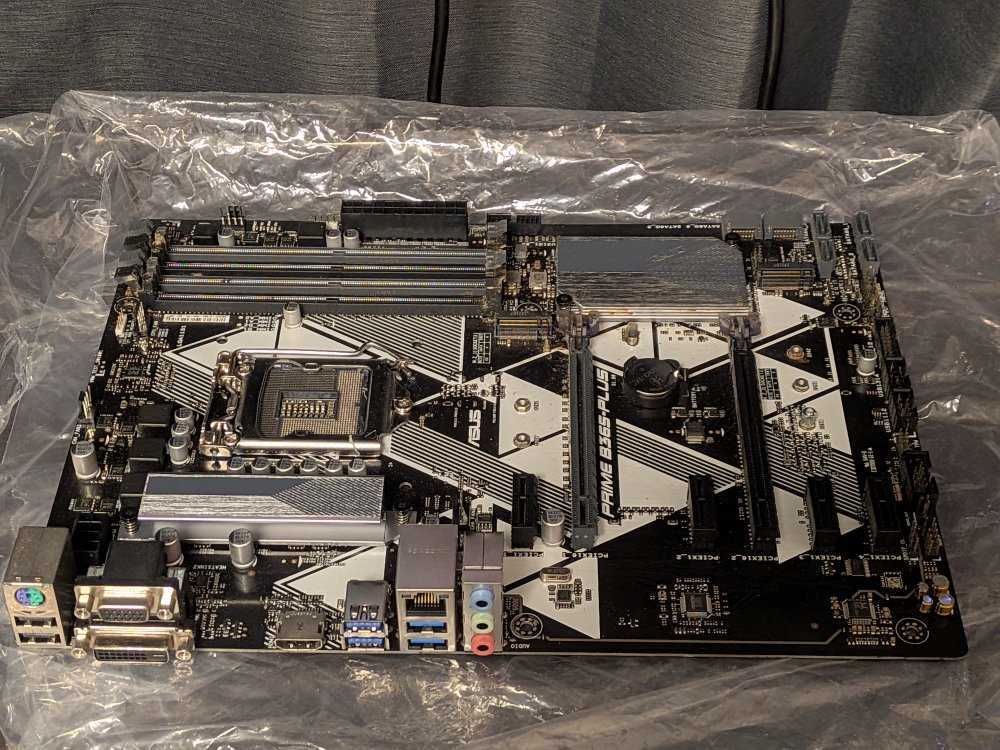
It's an LGA1151 socket motherboard that supports 9th- and 8th-generation Intel Core processors.
It supports DDR4 memory, so I'll use the spare DDR4 memory as is.
CPU
To match the motherboard, I found a decent one on Mercari and went with this.
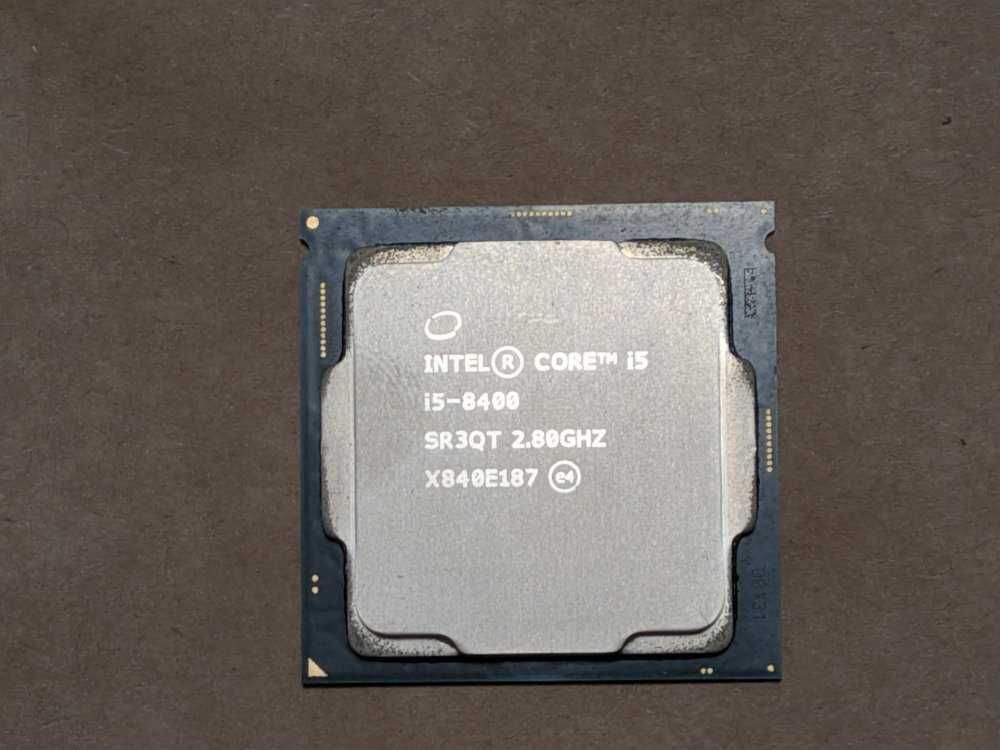
Note that although the PRIME B365-PLUS socket is LGA1151, its chipset is B365, so it does not support 6th- and 7th-generation Core processors. The Core i5-8400 is 8th generation, so it works without problems.
Memory
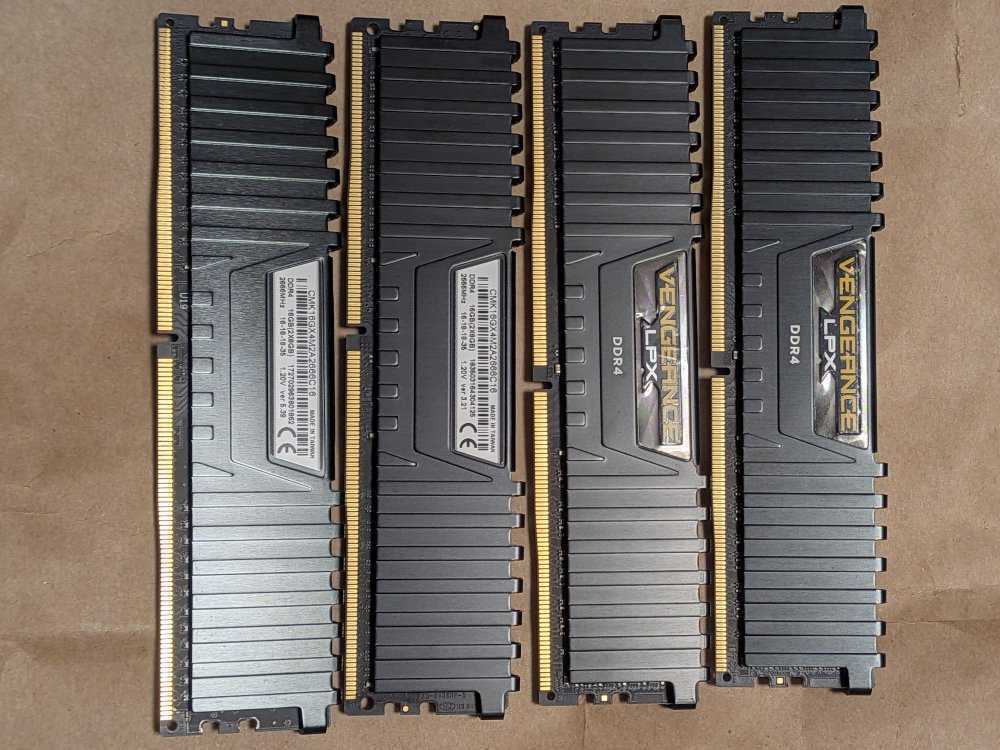
This is the spare memory I mentioned at the beginning.
It's CORSAIR VENGEANCE LPX (DDR4-2666, 8GB×4 modules, 32GB total).
It happened to be exactly the same standard as the DDR4-2666 supported by the PRIME B365-PLUS.
Storage
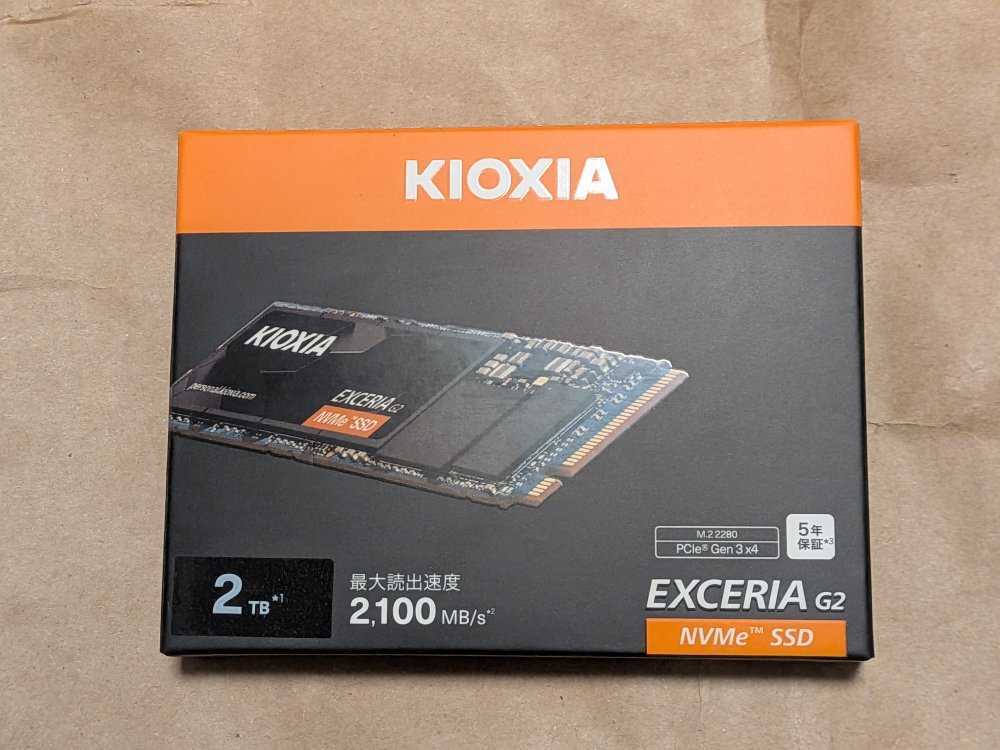
These were also lying around at home.
I found them when I was cleaning my room on a day off.
- SSD: KIOXIA EXCERIA G2 2TB (M.2 NVMe)
- HDD: 2 × 2.5-inch 500GB HDDs
For the HDDs, I used two from the ones below.
They're probably leftovers from when I bought in bulk on Mercari.
Graphics card
It's an ancient graphics card.
I think I got it from a friend.
The i5-8400 has integrated graphics so it would work without one, but I had it at home so I installed it.
Power supply
I was scared, so I went with a new one.
I chose the COUGAR ATLAS 650, which was on sale on Amazon.
Case
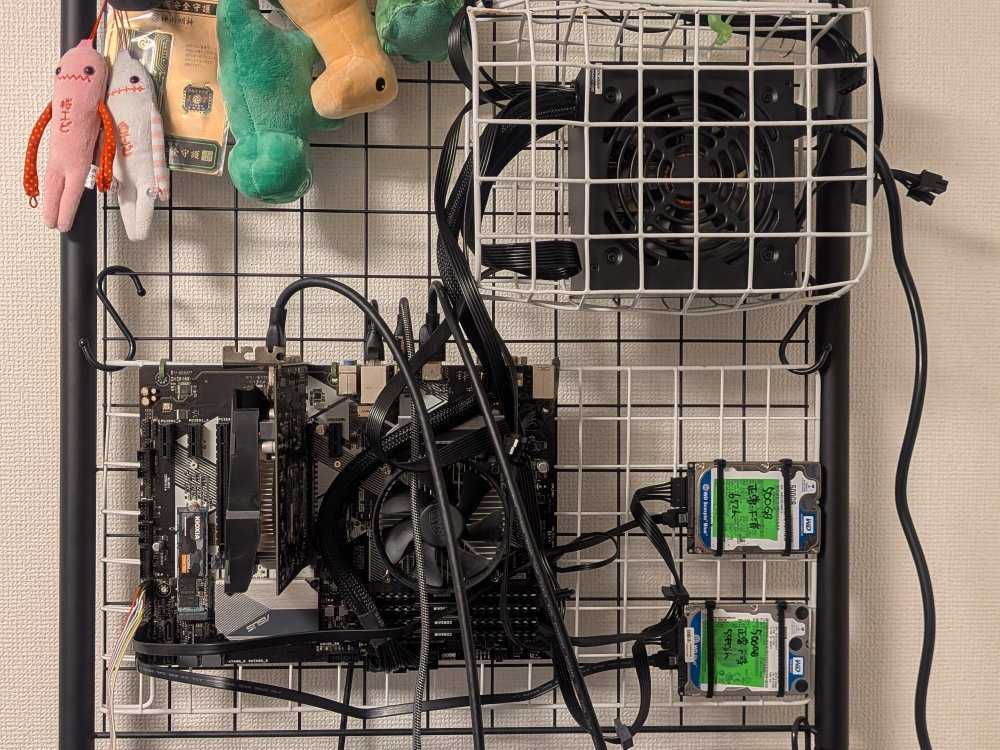
I had no place to put it, so I hung it on the wall.
I fixed the motherboard's holes to a 100-yen-store wire net with cable ties in a reasonably nice way.
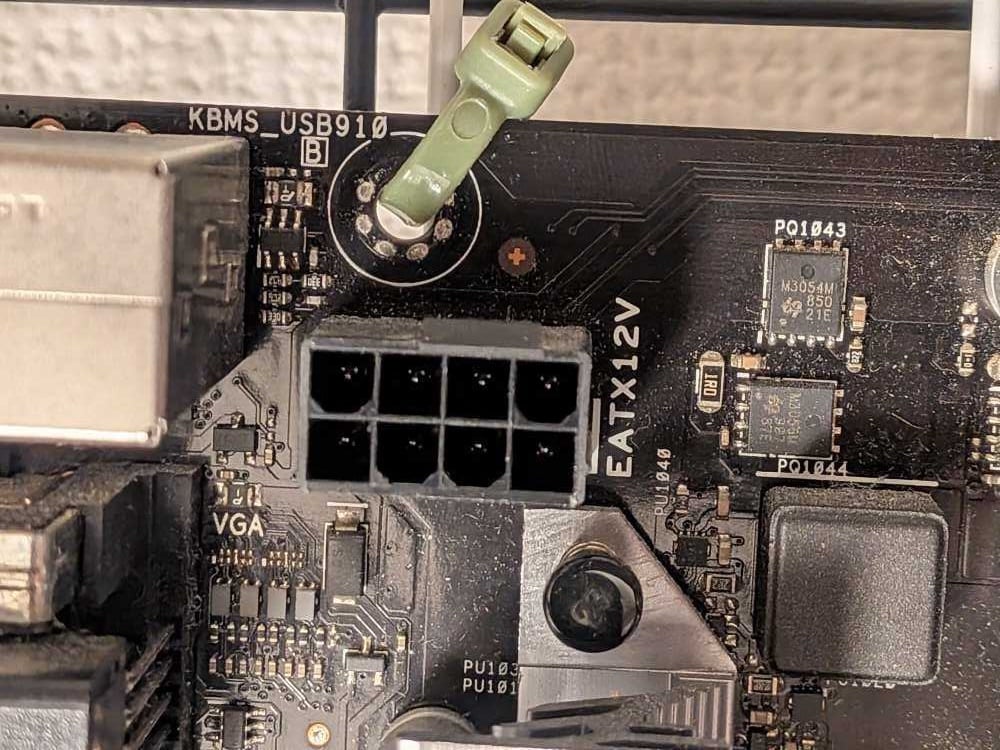
Note that I used a type of wire net with a coated surface so that the motherboard doesn't touch metal directly.
The finished product
Here's the assembled result.
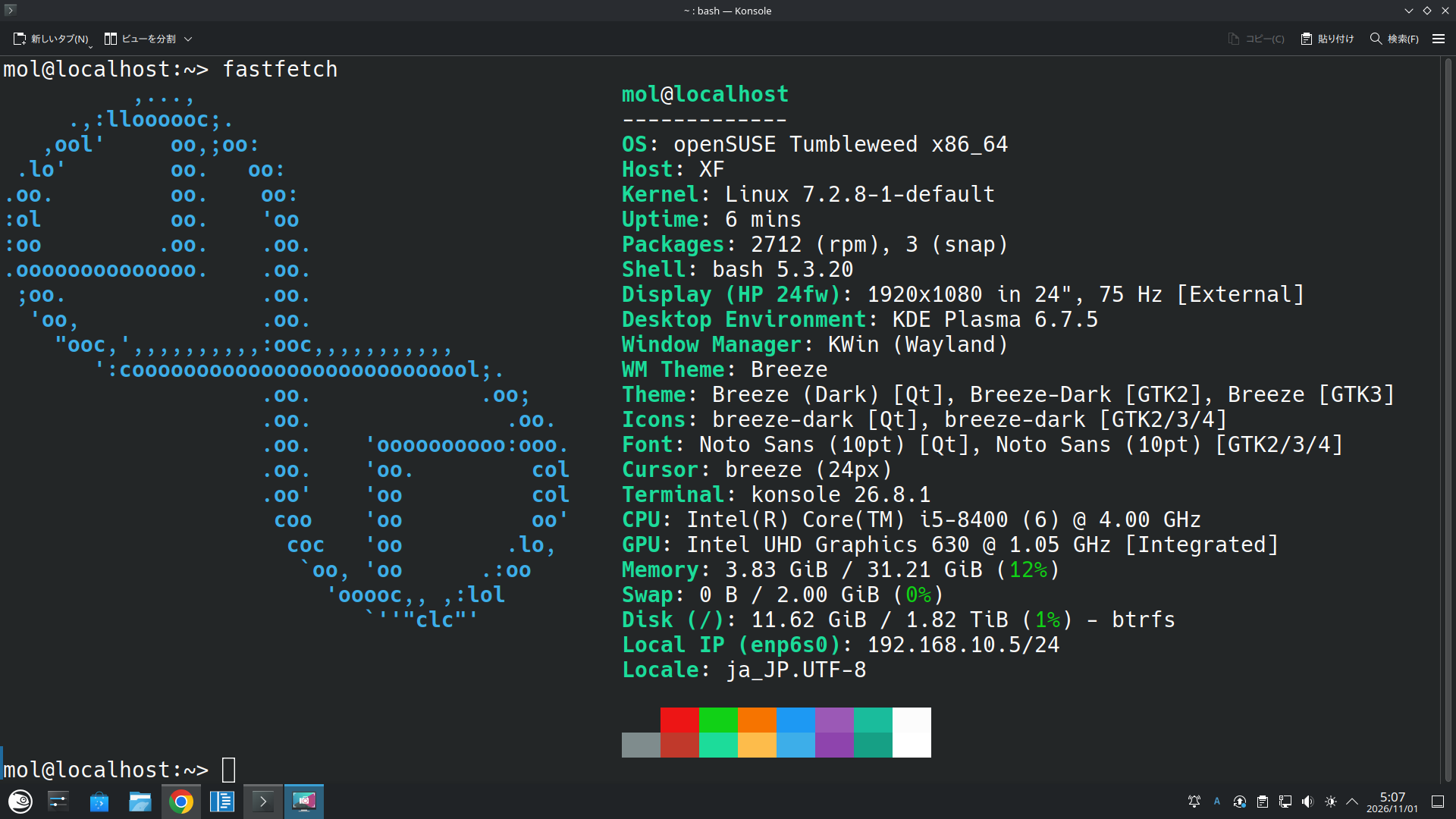
I chose openSUSE for the OS. Because Geeko is cute.
Conclusion
That was what to check when building a custom PC with used parts.
It was my first custom PC in a while, but I enjoyed it more than I expected.
If you can judge the condition of used parts, you can build far more cheaply than with new ones.
However, my personal recommendation is to buy only the power supply new.
If you have parts sleeping at home, please take this opportunity to build a custom PC.
I hope this article helps someone with their custom PC life.