I tried the "Deployment" tab of the Amazon ECS console that supports Canary / Linear / Blue-Green

This page has been translated by machine translation. View original
Introduction
With the September 21, 2026 update, the "Deployments" tab in the Amazon ECS console now supports Linear, Canary, and Blue-Green deployment types.
This timeline view was previously made available in July for rolling deployments, and has now been extended to support other deployment strategies as well.
Previously, with Canary and Linear deployments, since production traffic is gradually shifted during deployment, it was difficult to determine what proportion of traffic was being routed to the new versus old revision based solely on changes in task count.
With this update, the "Deployments" tab now allows you to monitor green/blue traffic distribution and lifecycle stage progression on the same screen. In this article, we performed a Canary deployment on Fargate and verified these displays as well as failure diagnostics.
Test Environment
We used a Fargate service in ap-northeast-1 with an ALB and two target groups for blue/green. We selected Canary as the deployment strategy and configured 10% of traffic to shift to green during the Canary phase. The bake time was set to 5 minutes for the Canary stage and 3 minutes after the 100% shift.
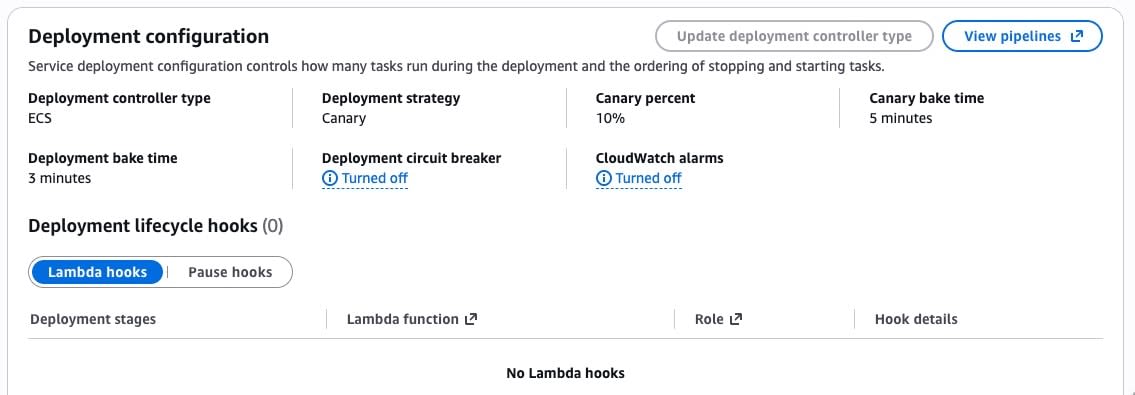
Display During a Successful Canary Deployment
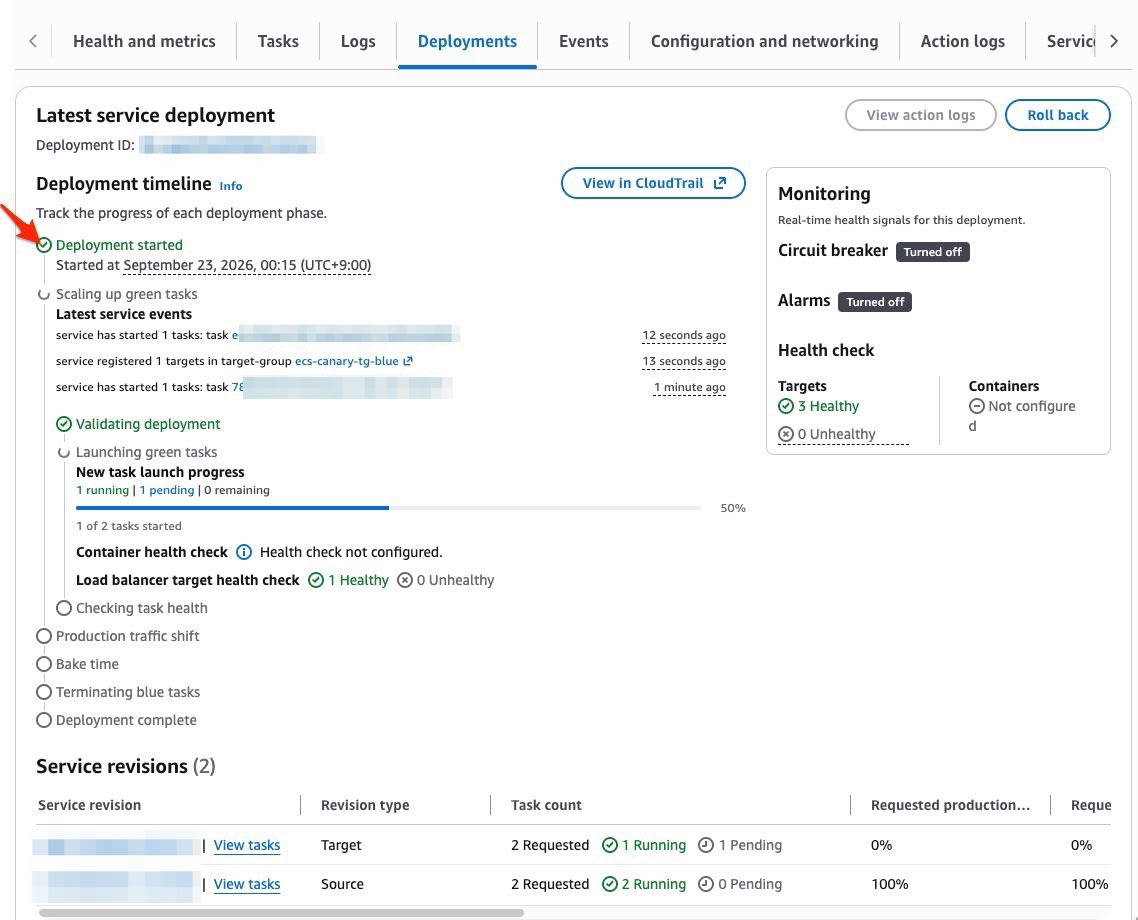
We initiated a Canary deployment using task definition revision 2, which updated the nginx image from 1.27 to 1.28.
While the green tasks were launching, the number of healthy targets in the load balancer had not yet reached the required count, so production traffic remained on blue.
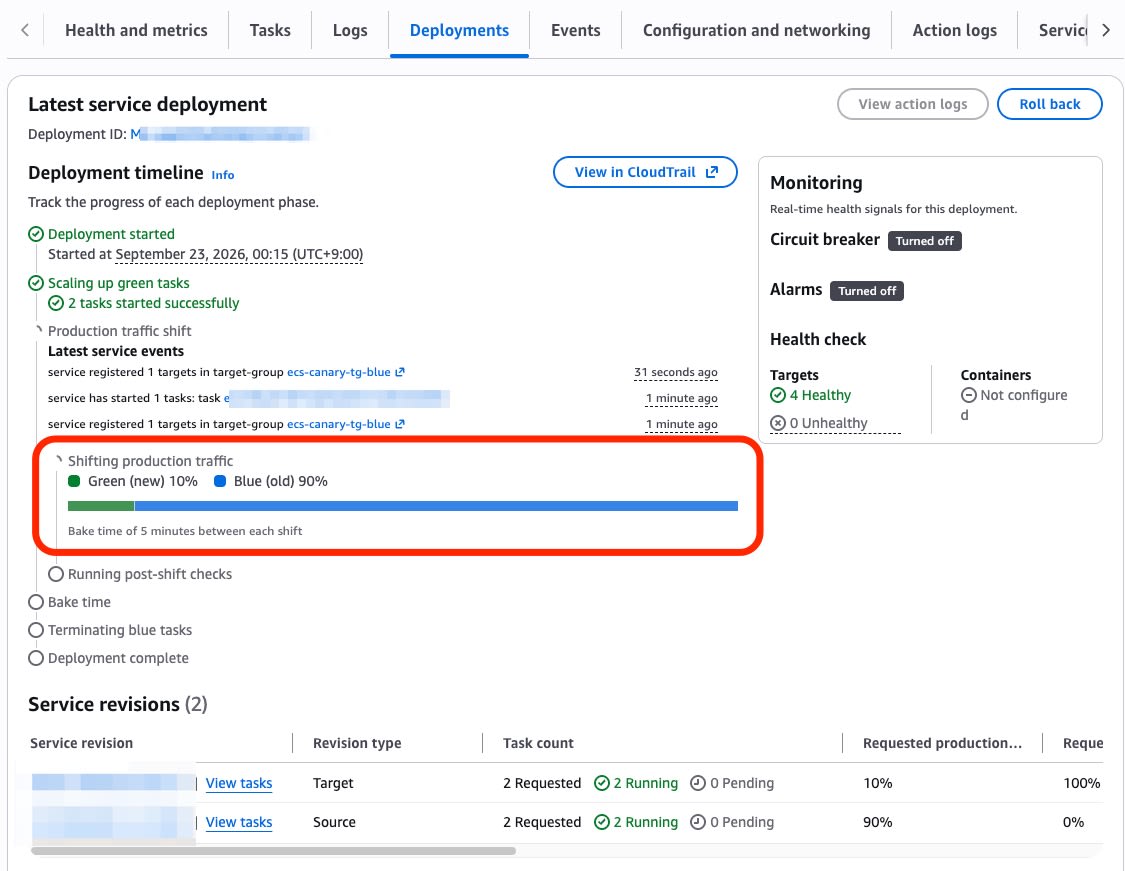
After all green targets became healthy, the deployment advanced to the traffic shift stage. Since there is only one traffic shift step in this Canary configuration, the green 10% / blue 90% state was maintained for 5 minutes.
After the 5-minute bake completed, green shifted to 100% and the post-migration bake (3 minutes) began.
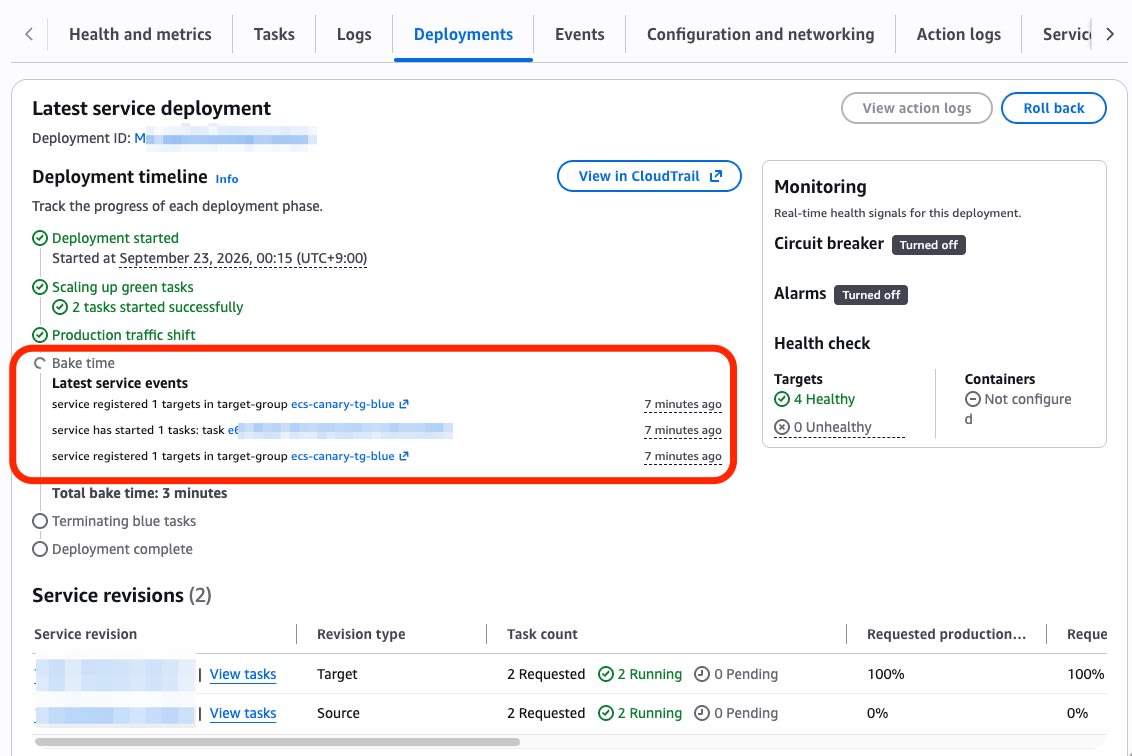
This deployment took 11 minutes and 31 seconds from start to finish. Since this includes the total bake time of 8 minutes, the time required will vary depending on the configured values.
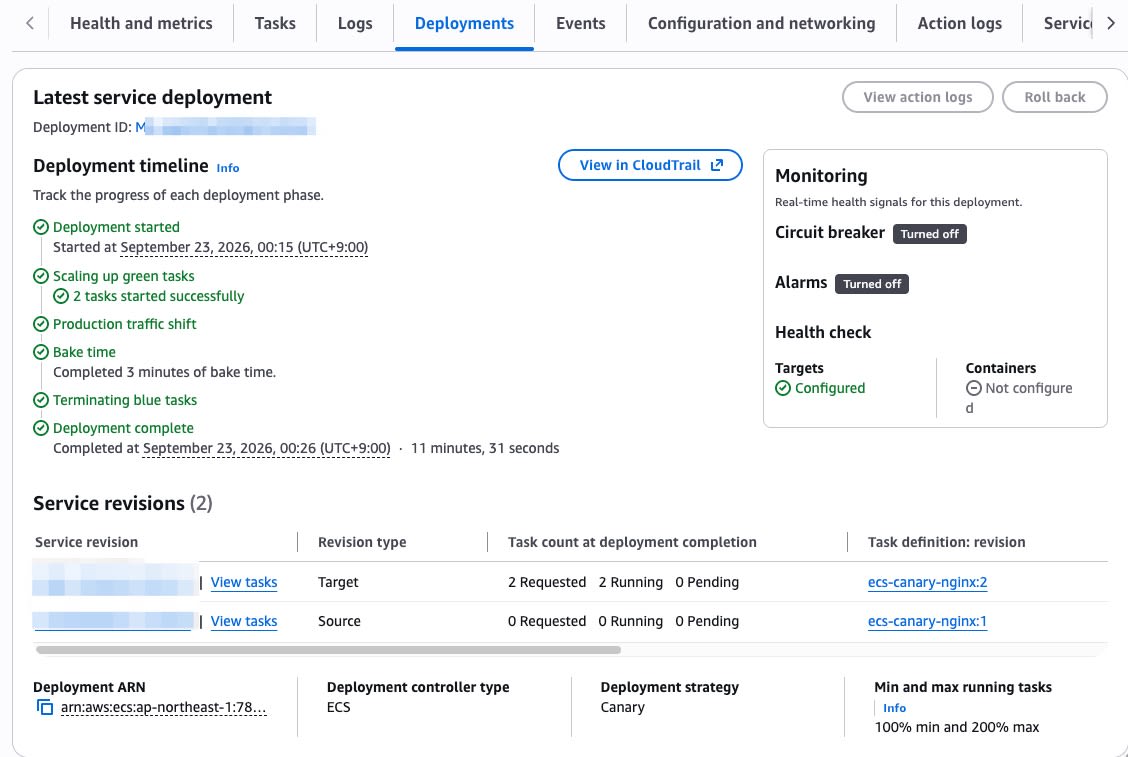
Diagnosing and Rolling Back a Failed Canary Deployment
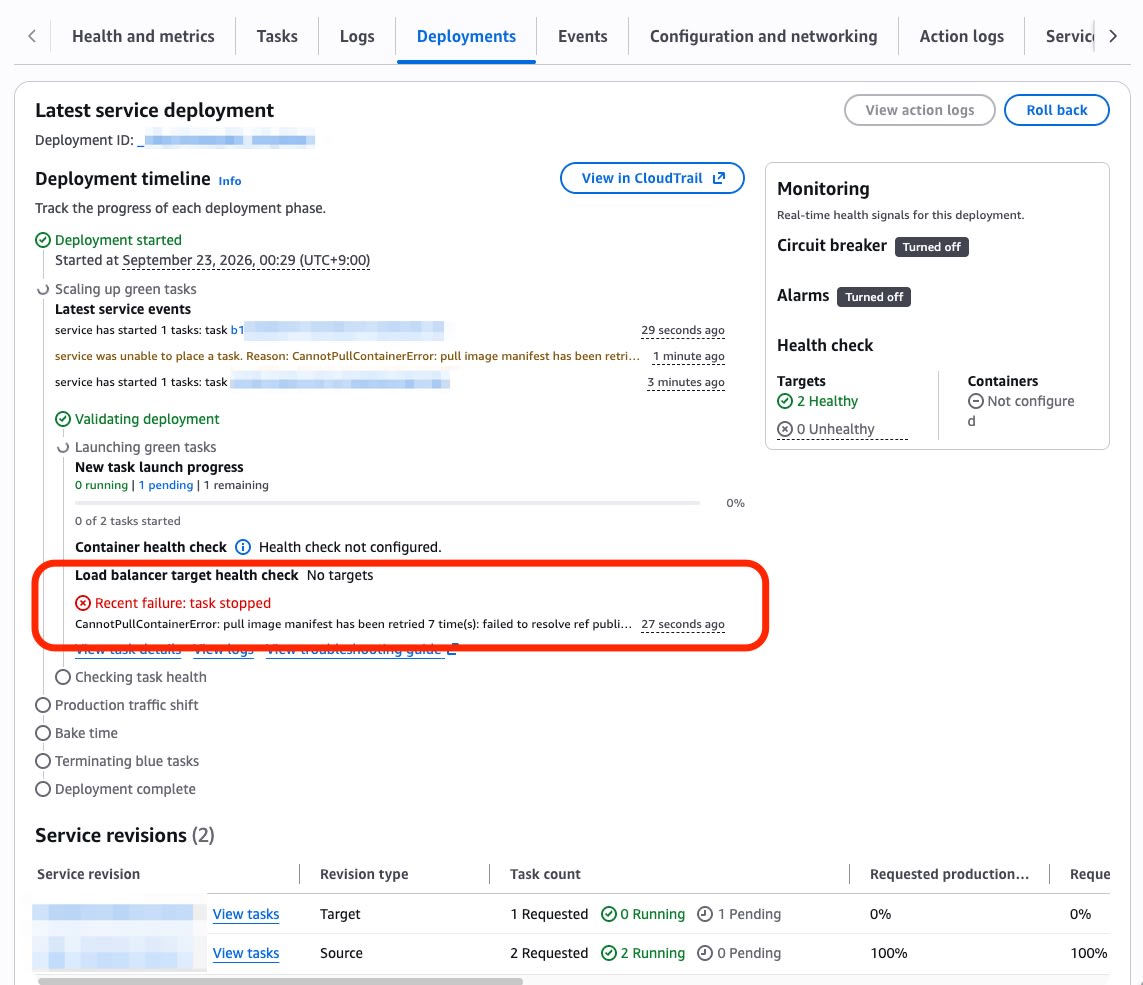
Next, we intentionally caused a deployment failure using a task definition (revision 3) that specified a non-existent image tag.
When the green task stopped, the timeline displayed Recent failure: task stopped along with the CannotPullContainerError error details. Since the deployment had not progressed to the traffic shift stage, 100% of production traffic continued to be routed to revision 2 on the blue side. Links to task details, logs, and a troubleshooting guide were also displayed on the same screen.
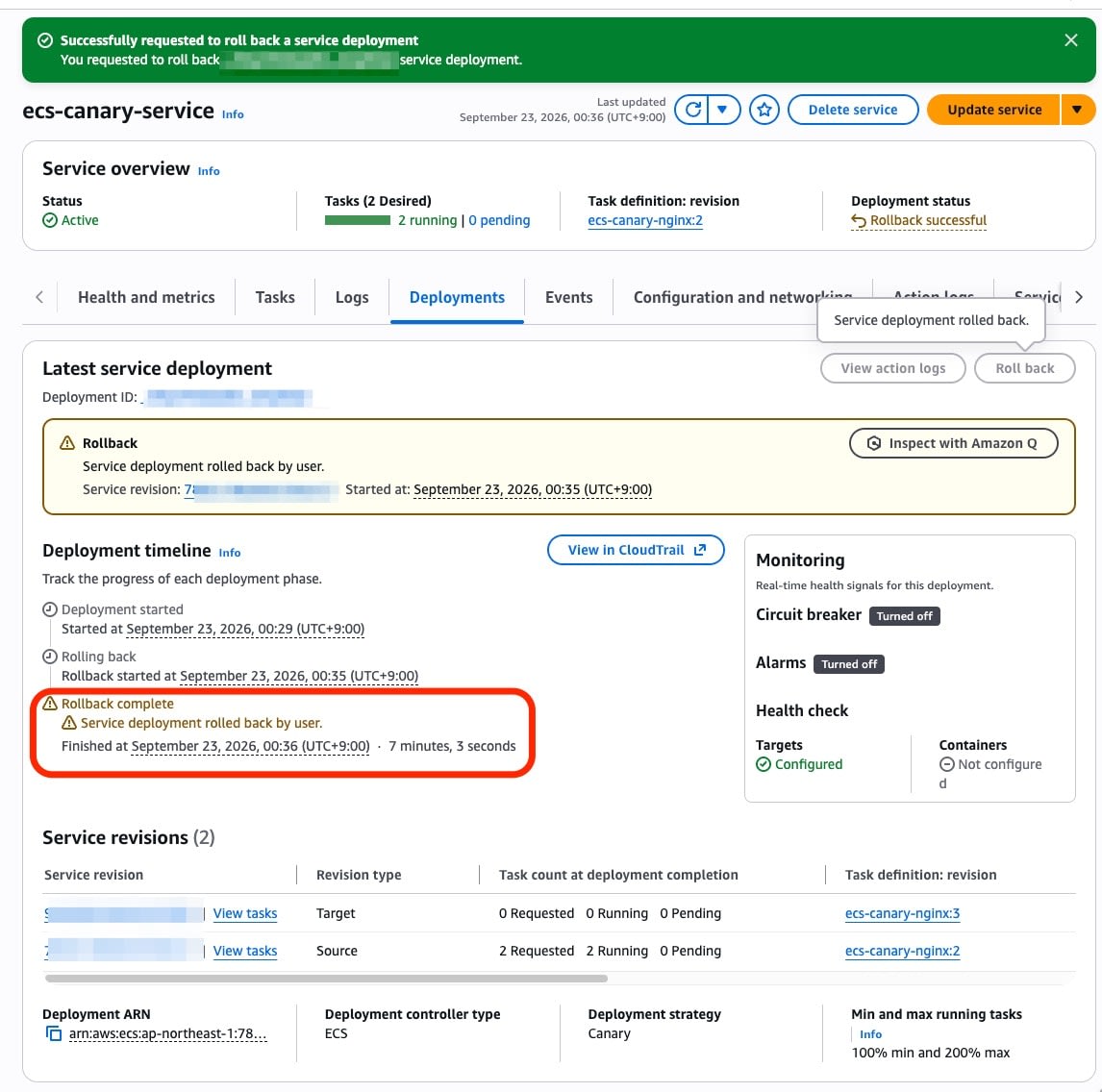
From this state, we performed a manual rollback using the Roll back button on the screen.
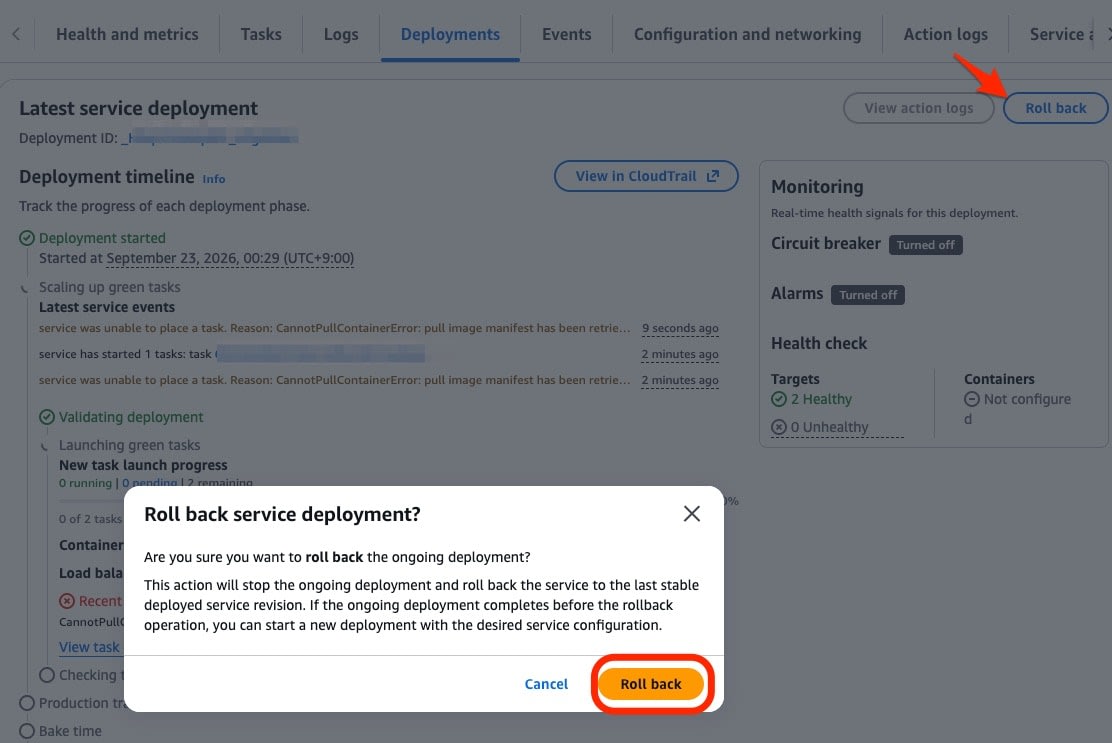
After the rollback completed, revision 3 tasks dropped to 0, and the service was maintained with 2 tasks from revision 2 running. Since the failure occurred before the traffic shift, the blue side had maintained 100% throughout.
Confirming the Root Cause with "Inspect with Amazon Q"
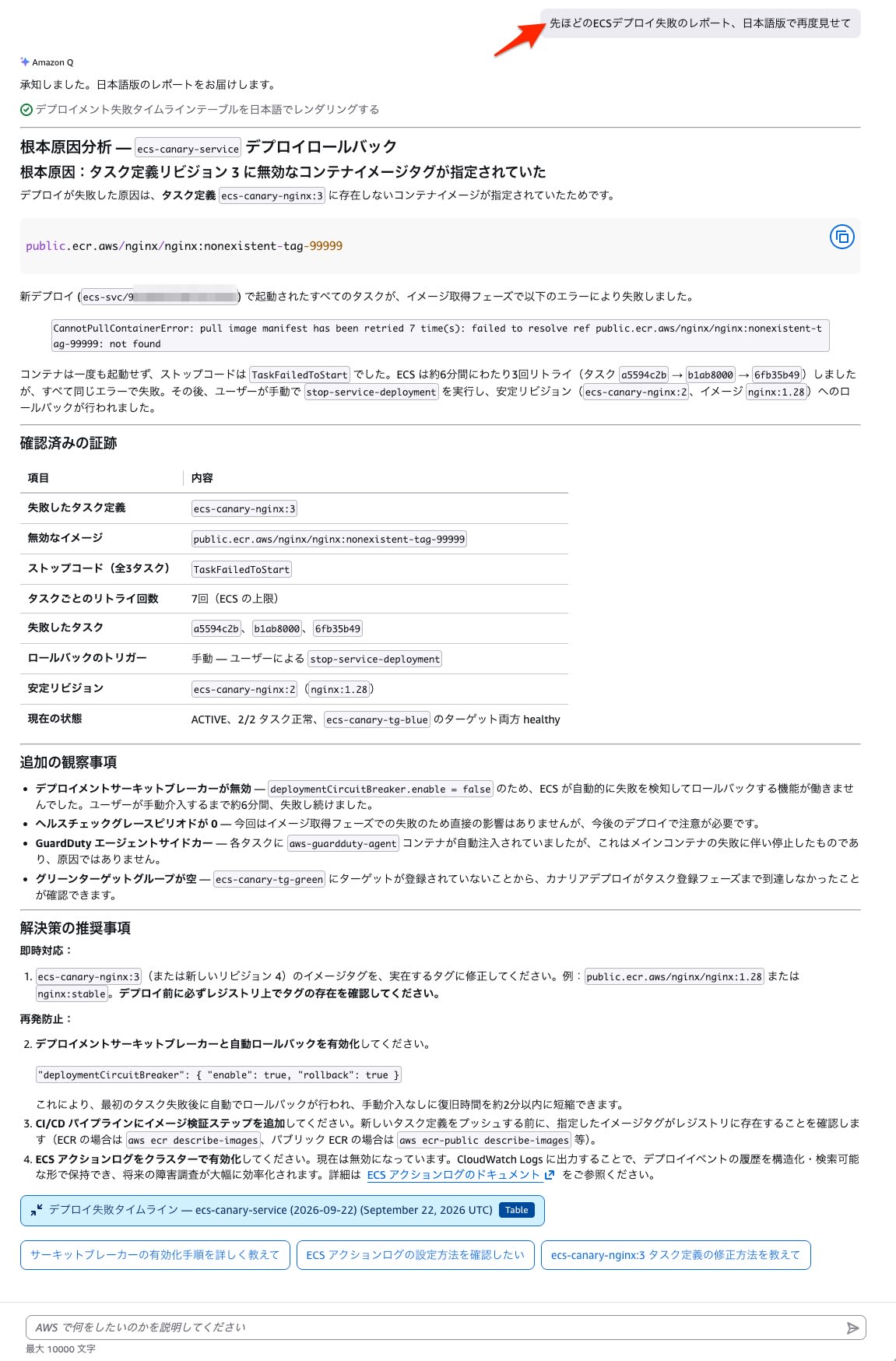
The failure screen includes an "Inspect with Amazon Q" button. Clicking it opens a chat, and in this case, a report was returned in English. To view it in Japanese, you can make the following request:
Please display the ECS deployment failure report from earlier again in Japanese.
A Japanese-language analysis identifying an invalid container image tag as the root cause was returned. A supporting evidence table and recommended remediation steps were also displayed in Japanese.
Summary
The "Deployments" tab in the ECS console has been enhanced, making it possible to monitor the status of Canary, Linear, and Blue-Green deployments directly from the console.
The "Deployments" tab can be used as a monitoring screen to check deployment progress and anomalies. When an issue occurs, you can execute a rollback to stop an in-progress deployment and quickly revert.
Amazon Q also enables investigation of deployment errors. If you want to review the response in Japanese, you can make a follow-up request in the chat. Give it a try.
Related Articles
