
What is the difference between "App registrations" and "Enterprise applications" in Entra ID?

This page has been translated by machine translation. View original
Hi there! I'm Yuji Nishimura from the Operations Division!
Microsoft Entra ID has two sections: "App registrations" and "Enterprise applications" (hereinafter referred to as enterprise apps). The same app appears in both, but the settings you configure are different.
- App registrations: Configure app information such as the URL to return to after login
- Enterprise apps: Configure organizational usage such as assigning users
Let's look at actual screens using an internal web app as an example.
The screens are from the Entra Admin Center on October 21, 2026. I registered a test app with Entra ID Free, verified it, and then deleted it. Email addresses, tenant names, and IDs have been hidden, and red borders have been added. This time, I only verified the admin screens and did not test web app login or access control.
Set the redirect destination after login in "App registrations"
The URL that redirects back to the web app after signing in with Entra ID is called a redirect URI. As an example, I'll register http://localhost:5000/auth/redirect.
Open the target app via "Entra ID" → "App registrations."
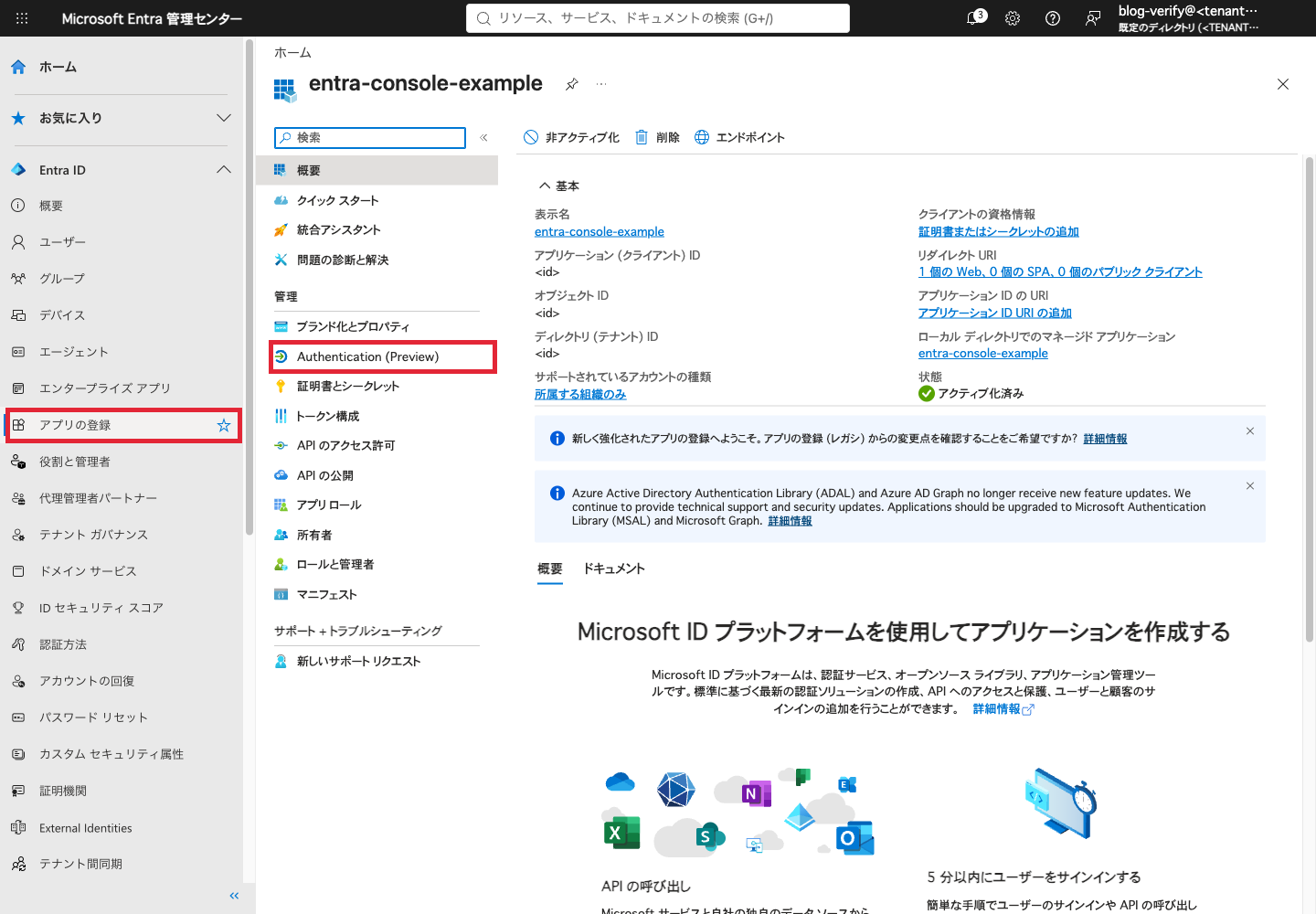
The "Authentication (Preview)" highlighted with a red border is the authentication menu. After adding a redirect URI for the web, it appeared in the list.
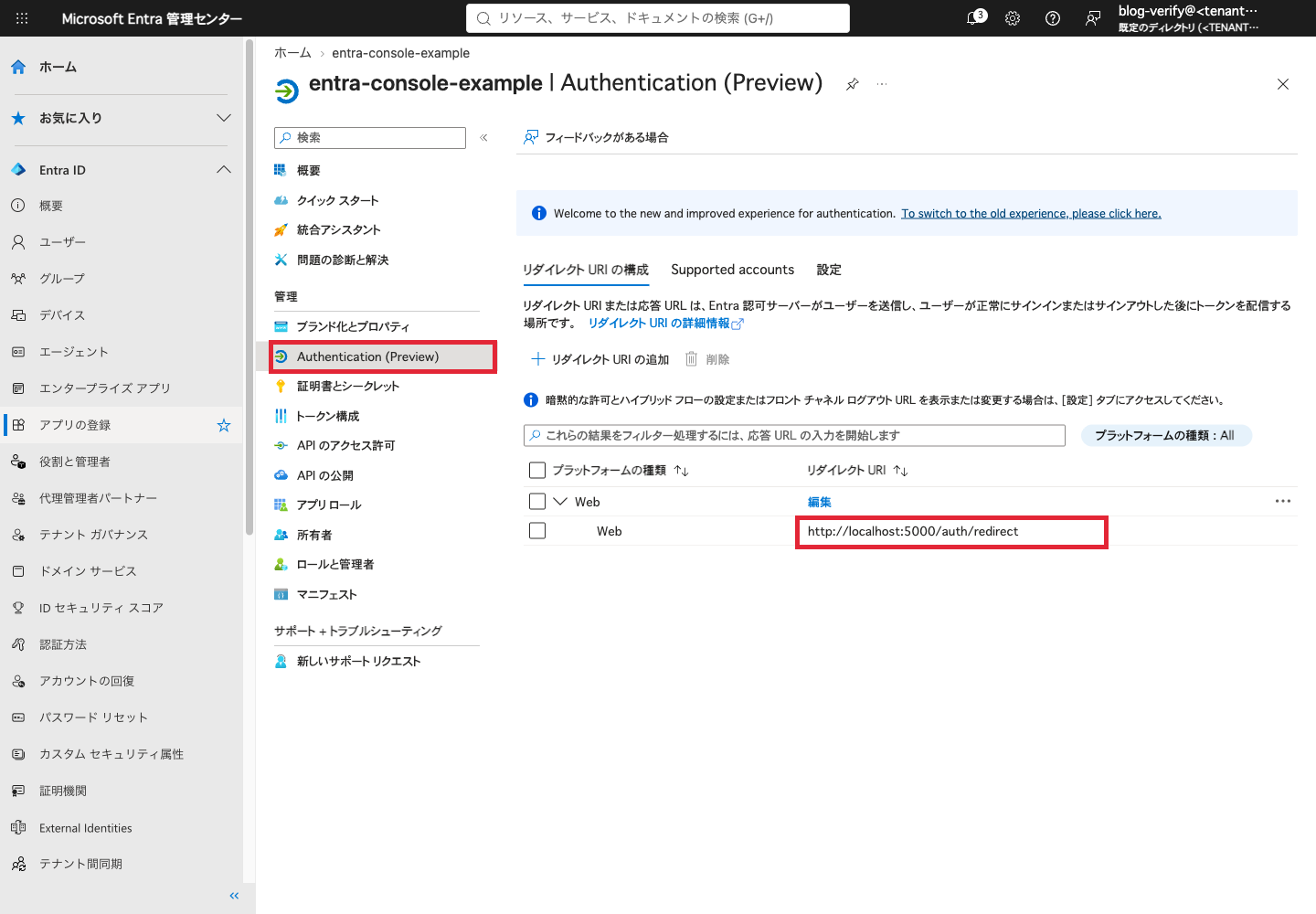
The URL in the red border is the redirect destination. In practice, you specify the URL where the app has implemented logic to receive the login result.
Set user assignments in "Enterprise applications"
User assignments are managed in enterprise apps. You can navigate there via the "Managed application in local directory" link in the app registration overview.
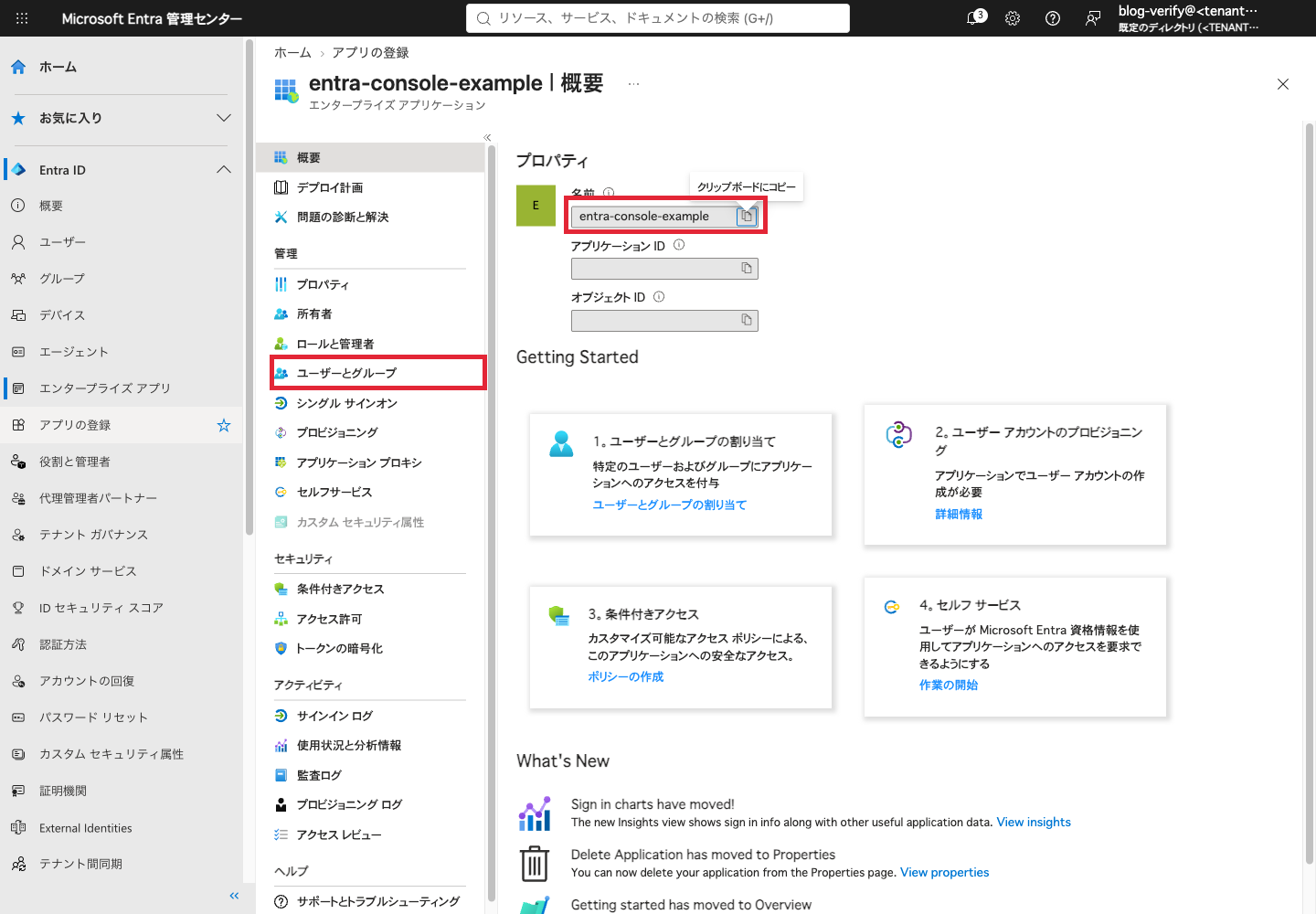
Even though it's the same entra-console-example, the configuration menu has changed. Open "Users and groups" highlighted with a red border.
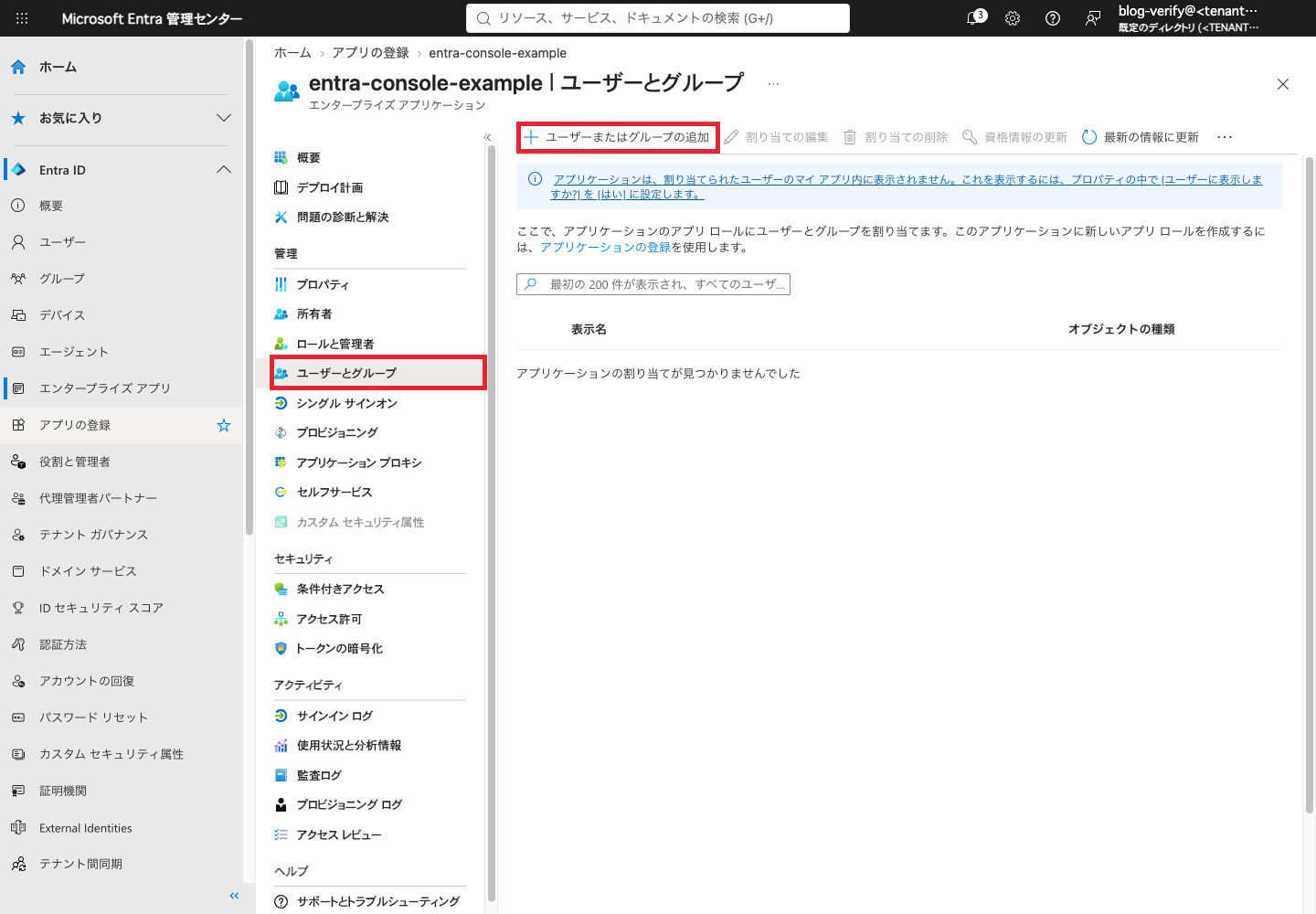
The "Add user/group" in the red border is the entry point for assignments. Since no assignments were made this time, the list is empty.
To restrict usage to only assigned users, you also need to enable the setting that requires user assignment under "Properties." Official access management documentation
With Free, you can assign individual users. Group-based assignments require P1 or P2. Official assignment procedure
Why are there two apps with the same name?
Internally, the following two objects are managed.
| Object | Role | Management screen |
|---|---|---|
| Application object | App-wide information | App registrations |
| Service principal | Represents the app within the tenant | Enterprise applications |
A tenant is an Entra ID directory that manages users and apps. When you register an app for your own tenant in the admin center as in this case, both objects are created. This is not a duplicate registration — the information being managed is simply separated.
When using an IAM role for an EC2 program in AWS, you also think of the program itself and the target to grant permissions to separately. In Entra ID as well, it helps to think of it as: in addition to the app itself, there is a separate target to which permissions are granted. However, IAM roles and service principals are not the same mechanism.
When used by another organization
When multiple companies use the same web app, common app information is managed by the provider, and user assignments are managed per consumer. Therefore, for one application object, a service principal is created per tenant.
The diagram below is a conceptual diagram I created. The arrows indicate relationships between objects and do not represent copies of app code.
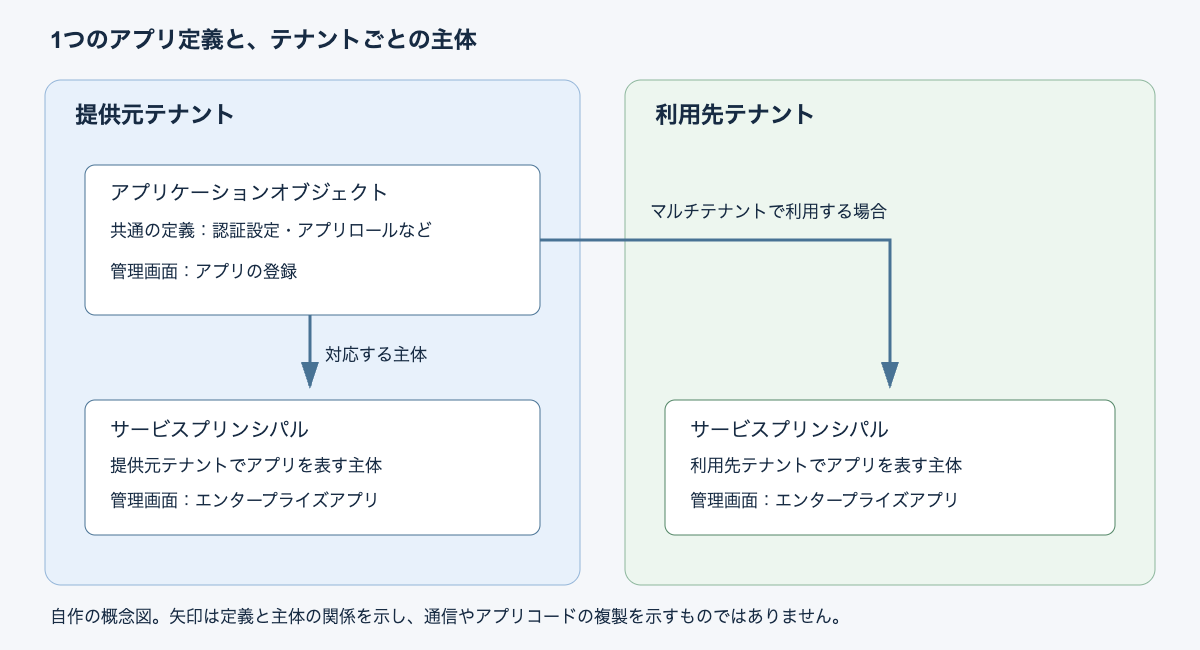
The multi-tenant relationship is explained based on official documentation. The screen verification in this article was performed on a single tenant.
Settings reference when you're unsure
| What you want to configure | Primary setting location |
|---|---|
| Redirect URL after login | App registrations → Authentication (Preview) |
| Certificates and secrets for app authentication | App registrations → Certificates & secrets |
| Creating app roles such as Viewer | App registrations → App roles |
| Assigning users to roles such as Viewer | Enterprise applications → Users and groups |
With app roles, "creating a role called Viewer" and "assigning this person as a Viewer" are configured in different locations. The actual permission or denial of actions is determined by the app itself based on the received role.
Also, on both overview screens, the Application ID was shared, while the Object ID was different. When specifying via API, it's important to distinguish between them. Graph application・servicePrincipal
Summary
App information is managed in "App registrations," and organizational usage settings are managed in "Enterprise applications." Using the redirect URL and user assignments as examples makes it easier to choose the right place to configure settings.
The flow from user creation to signing in to a web app is introduced in a previous article.