![[2026 Edition] The Story of How I Failed to Use Entra Cloud Sync in an AWS Managed Microsoft AD Environment](https://images.ctfassets.net/ct0aopd36mqt/wp-thumbnail-4c76bbdf9d31ea69baca535bce476c36/6a4c372e63788f6173c877a01b935ce7/eyecatch_microsoft_entra_id?w=3840&fm=webp)
[2026 Edition] The Story of How I Failed to Use Entra Cloud Sync in an AWS Managed Microsoft AD Environment

This page has been translated by machine translation. View original
Shibata here.
In recent articles, I tried ID synchronization using AWS Managed Microsoft AD and Entra Connect Sync.
- 【2026 Edition】How to sync IDs to Entra ID using AWS Managed Microsoft AD and Entra Connect Sync v2 (Pass-through Authentication)
- 【2026 Edition】The story of failing to sync IDs to Entra ID using AWS Managed Microsoft AD and Entra Connect Sync v2 (Password Hash Sync)
In this article, I will verify Entra Cloud Sync for the first time in 4 years.
I retried the content of this previously written article.
Conclusion
As of today, the setup of Entra Connect Sync still requires credentials of a user belonging to Domain Admins or Enterprise Admins for the Active Directory environment, so installation fails at the permission check in a standard AWS Managed Microsoft AD environment (Standard Edition and Enterprise Edition).
Unfortunately, there appears to be no workaround.
In a Hybrid Edition environment, it may be possible to resolve the permission issue, but this has not been verified in this article.
Experiencing the Failure
From here, I will explain specifically what kind of situation occurred.
Prerequisites
The prerequisites for Entra Cloud Sync are summarized in the following document.
The requirement mentioned previously,
Domain Administrator or Enterprise Administrator credentials to create the Microsoft Entra Connect cloud sync gMSA (group managed service account) to run the agent service.
remains unchanged.
While gMSA itself can be used normally in AWS Managed Microsoft AD, Domain Admins or Enterprise Admins privileges are required to grant the prescribed permissions to this gMSA.
For reference, the permissions required for gMSA are listed below as a supplementary note.
Verification Environment
The procedure reuses the environment from the recent article.
After uninstalling Entra Connect Sync and related software once, deleting all synchronized Entra ID users, and waiting sufficient time, I will proceed to install the Connect Sync software again.
Creating a Group Managed Service Account (gMSA)
As before, I will create the gMSA first this time as well.
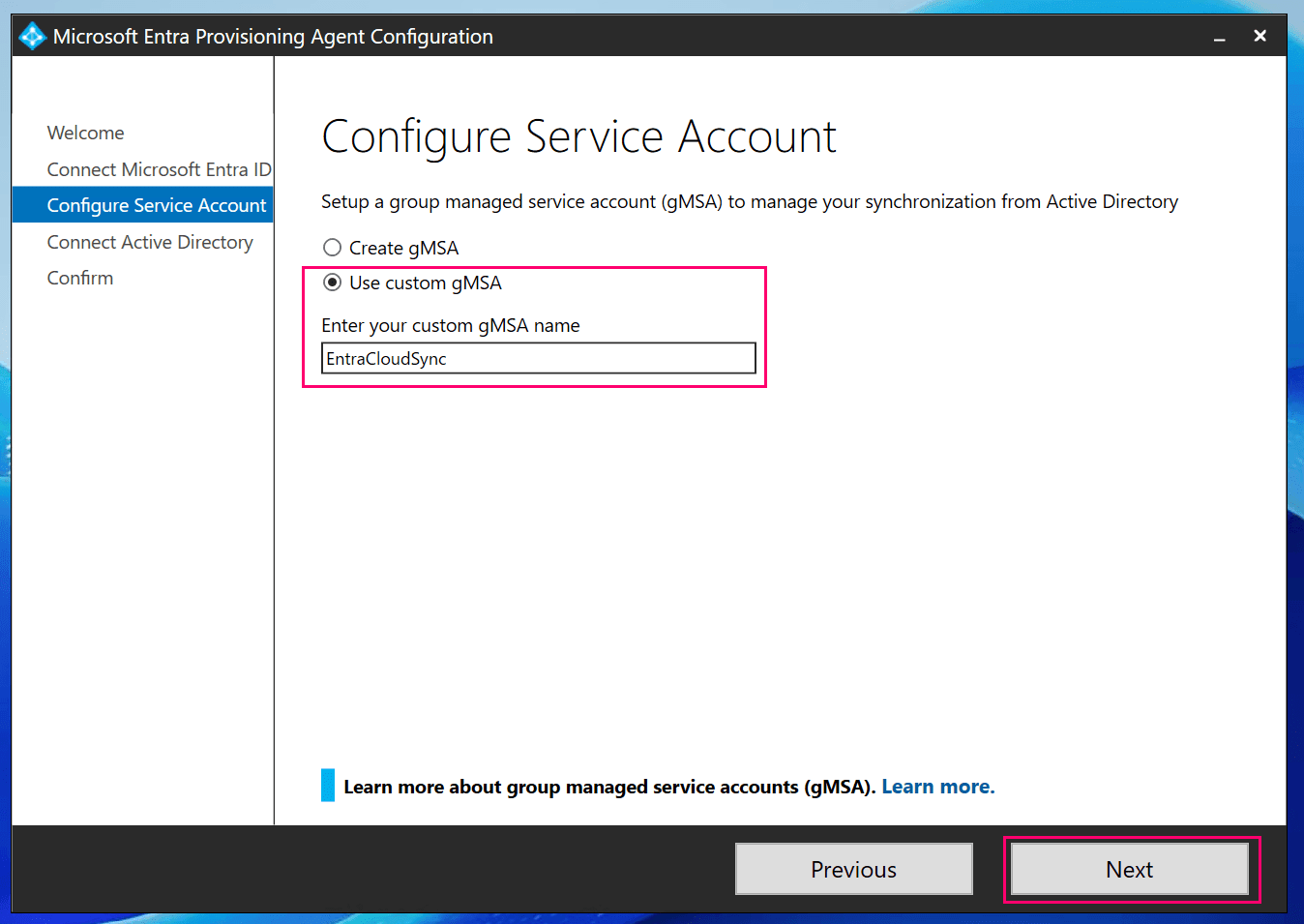
This time, I created an account with the name EntraCloudSync.
# Create gMSA
New-ADServiceAccount -Name 'EntraCloudSync' -DNSHostName 'entra-conn-01'
The creation result looks like this.
PS C:\> Get-ADServiceAccount -Identity EntraCloudSync

DistinguishedName : CN=EntraCloudSync,CN=Managed Service Accounts,DC=shibata,DC=local
Enabled           : True
Name              : EntraCloudSync
ObjectClass       : msDS-GroupManagedServiceAccount
ObjectGUID        : e95c5acf-7f96-4a8c-a204-31d9921bdedc
SamAccountName    : EntraCloudSync$
SID               : S-1-5-21-2400552237-3779835047-3989926218-1612
UserPrincipalName :
(Failure) Installing Entra Cloud Sync
The Entra Cloud Sync installer is downloaded from the Entra admin center.
From the Entra admin center, select "Microsoft Entra Connect" → "Get started" → "Manage" to download the installer.
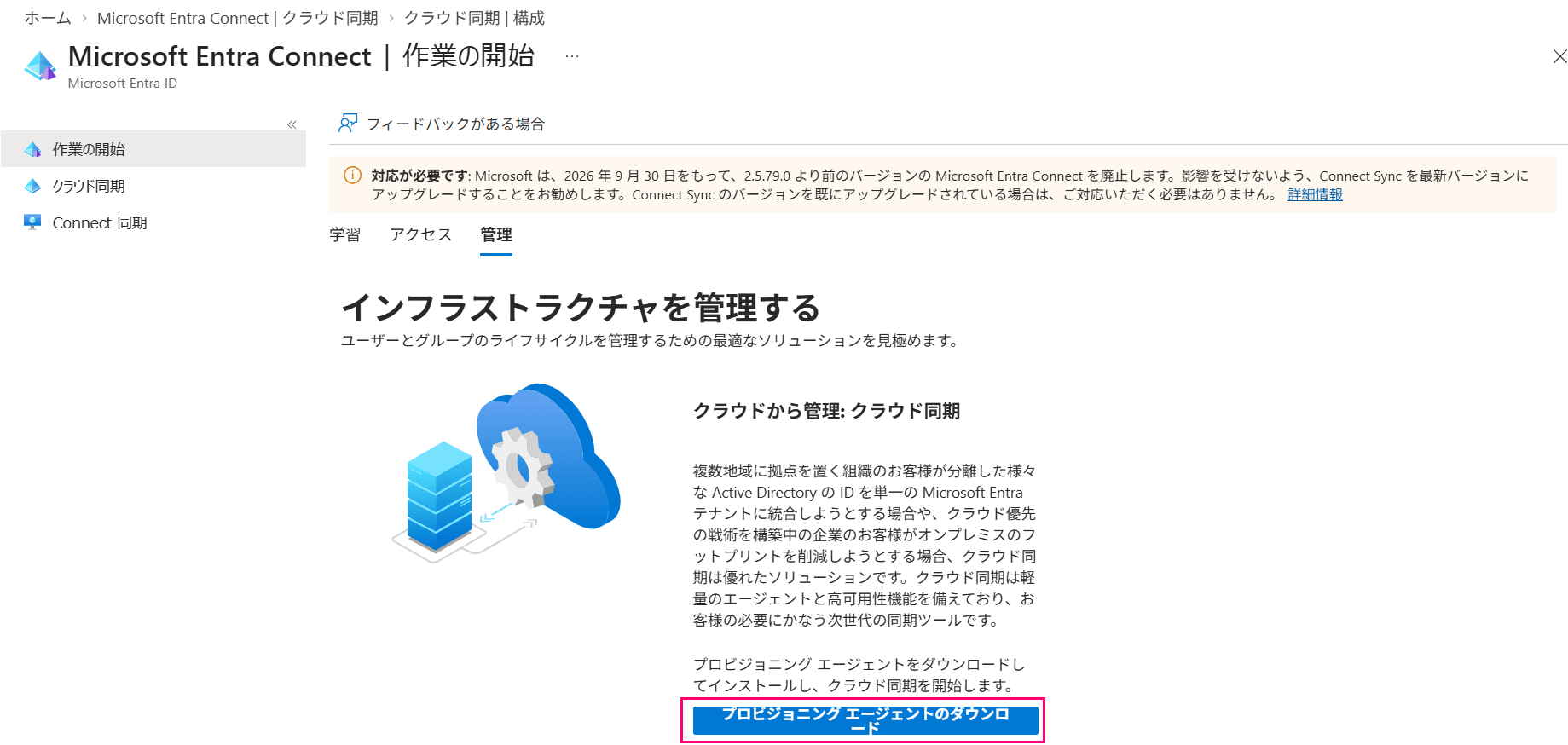
Click "Download provisioning agent", agree to the terms of use, and download.
The installer will be named AADConnectProvisioningAgentSetup.exe.
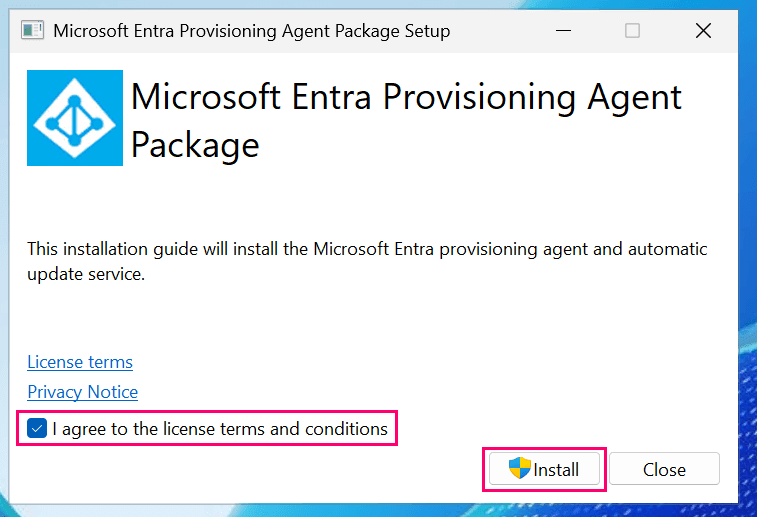
Run the installer, agree to the terms of use, and click "Install" to proceed.
Once installation is complete, the initial setup wizard will start.
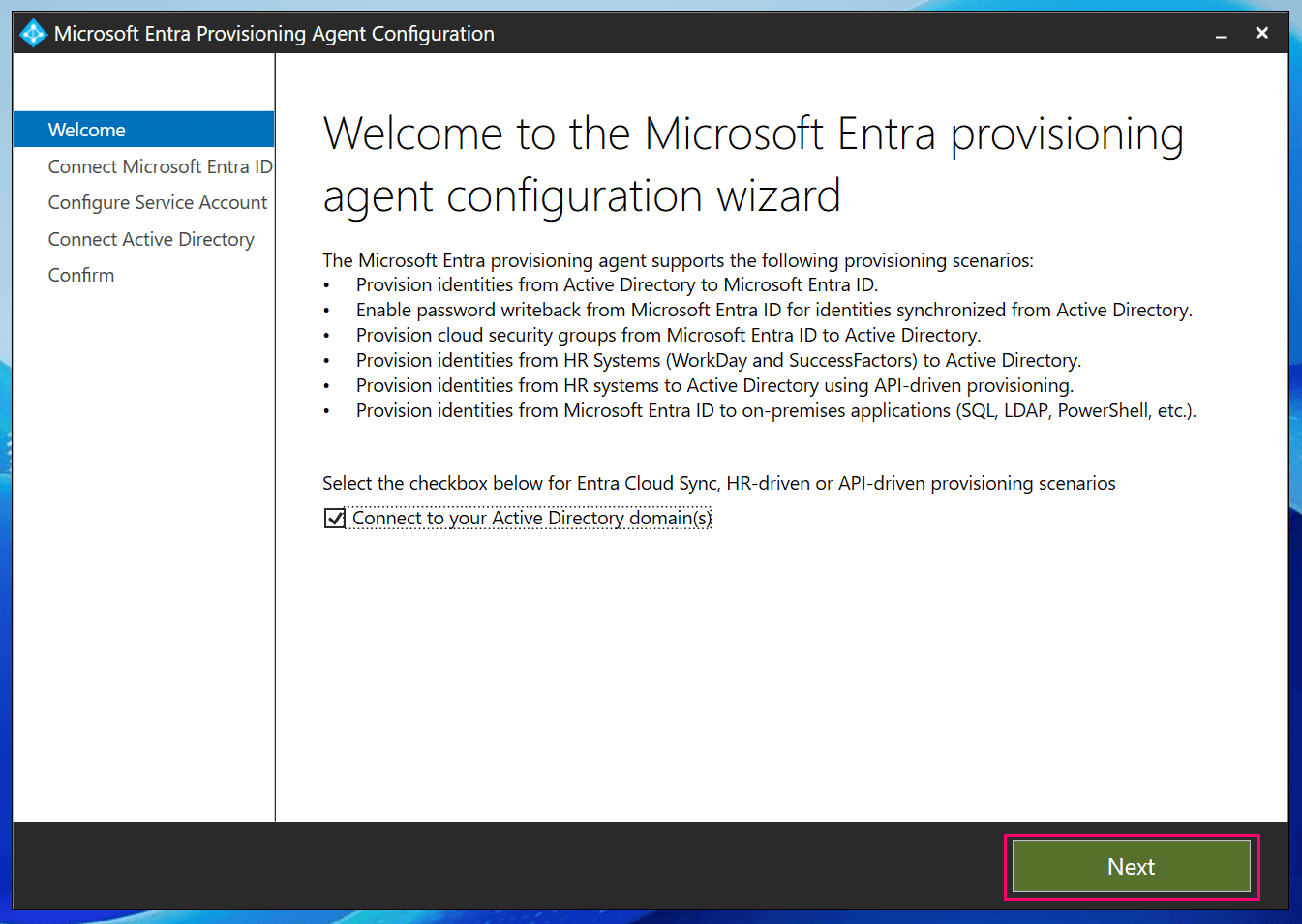
Clicking "Next" will prompt you to authenticate as an Entra ID administrator (Hybrid Identity Administrator), so sign in.
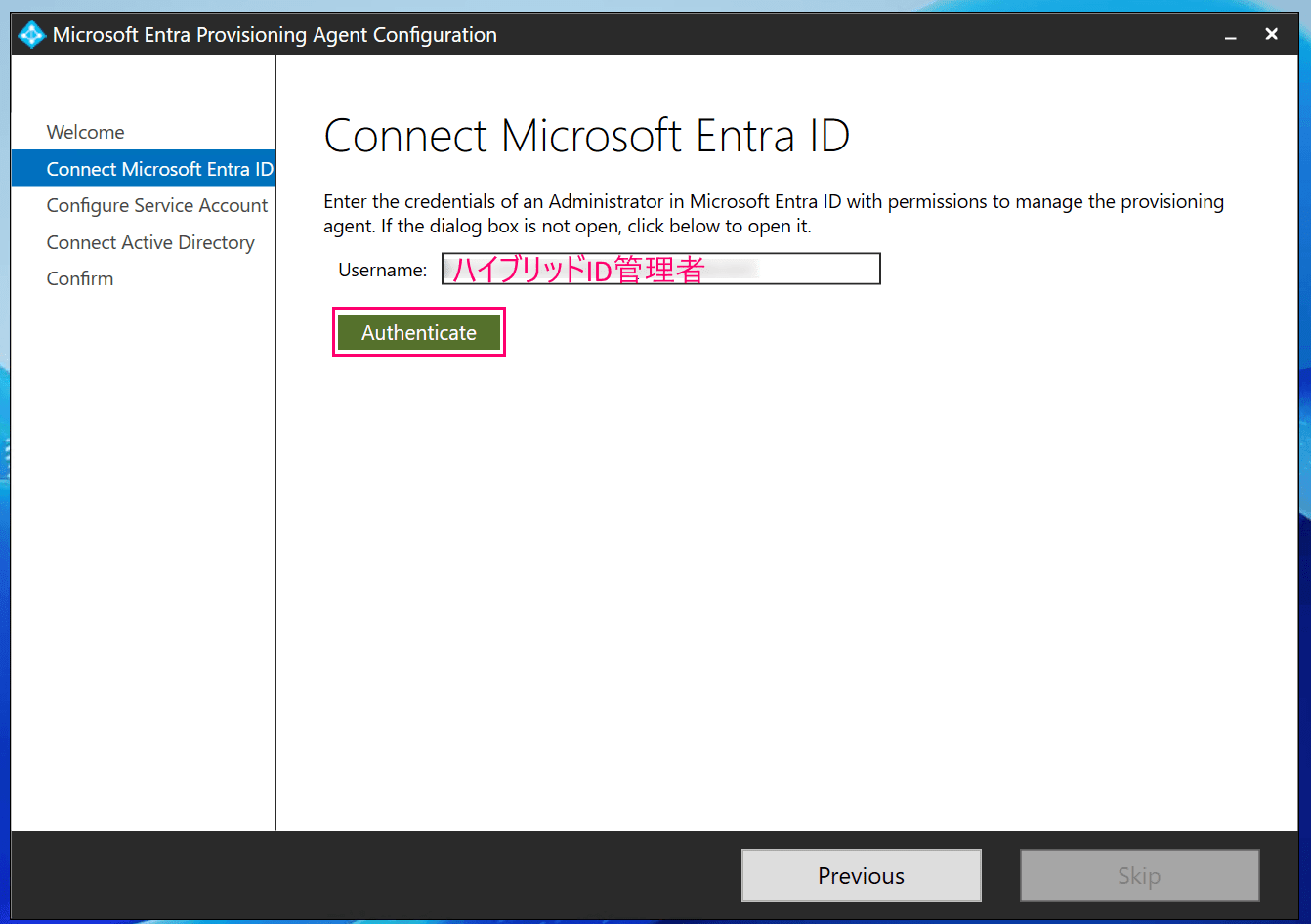
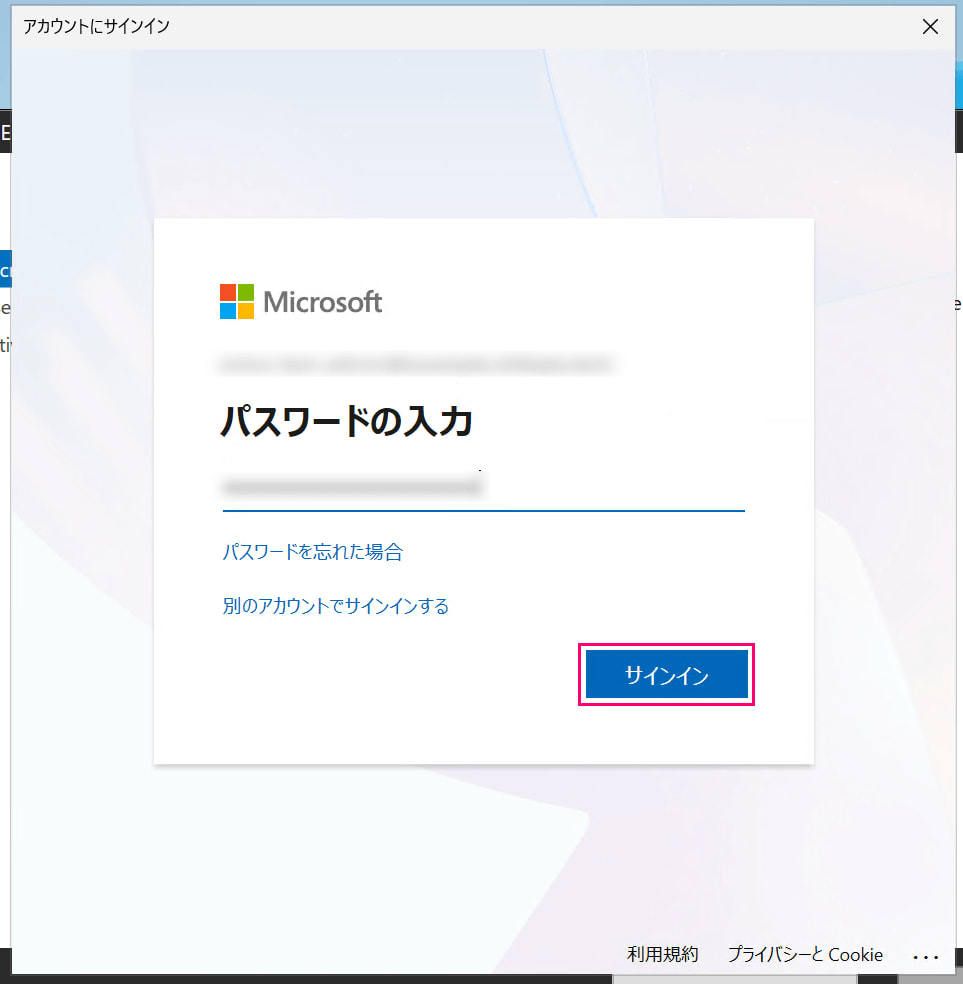
You will be asked to choose the gMSA to use, so specify the EntraCloudSync created earlier.
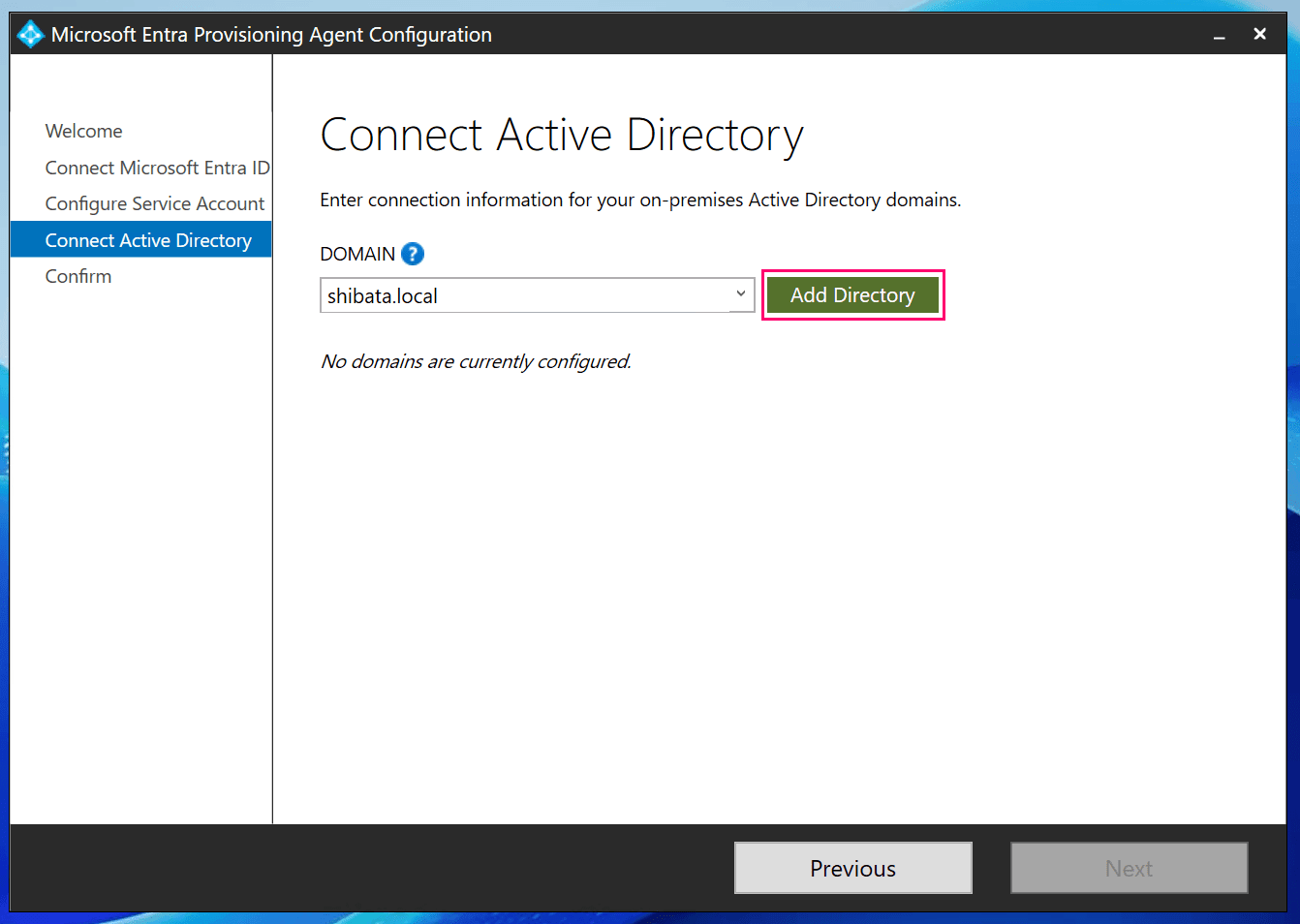
Next, you will select the Active Directory domain to connect to, so select shibata.local and click "Add Directory",
Here, select Admin, the administrator user of AWS Managed Microsoft AD, and click "OK".
(The domain controller priority is left at the default)
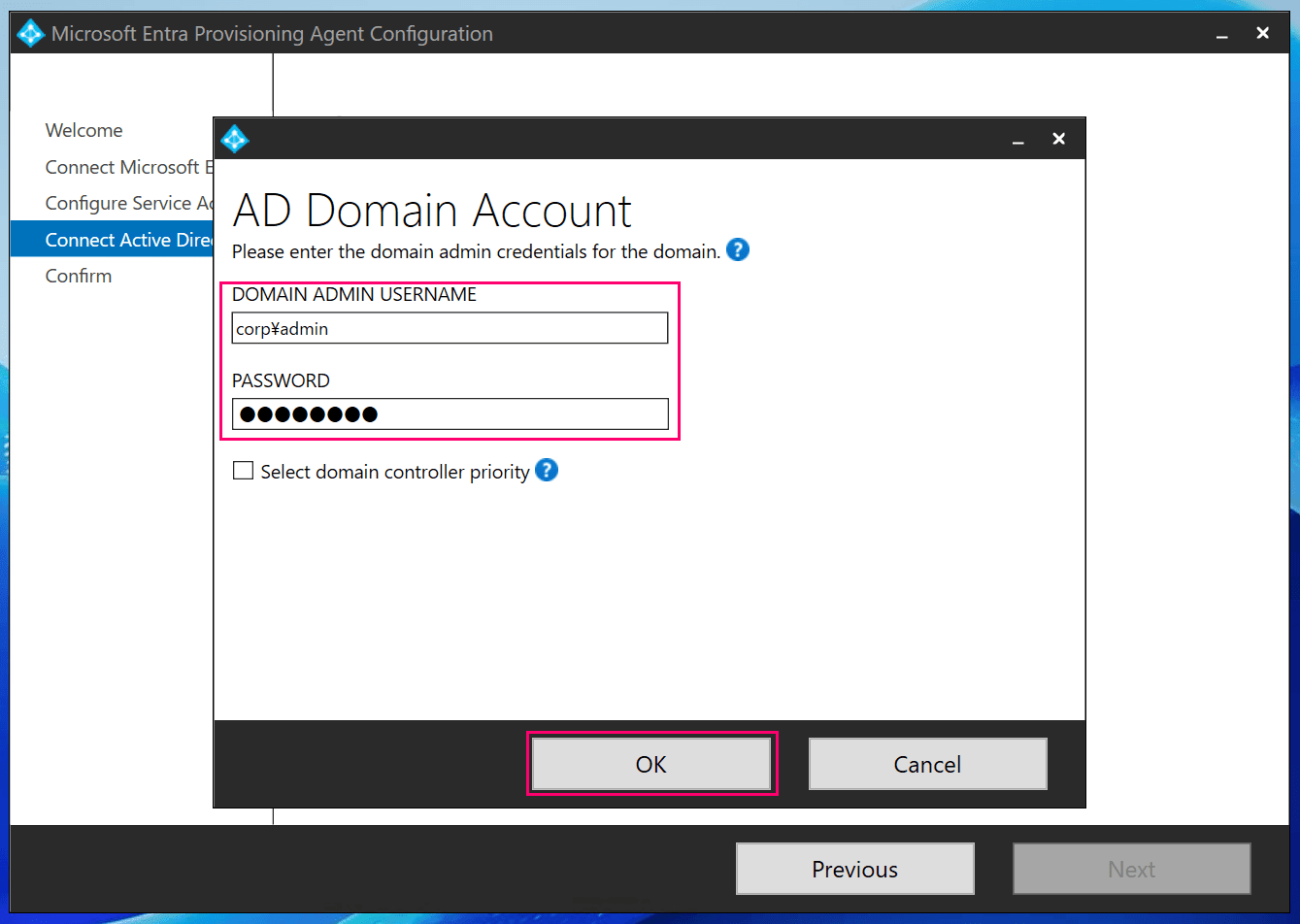
After processing continued for a while, as before,
Provided credentials are not in Domain Admin or Enterprise Admin group.
the error occurred again.
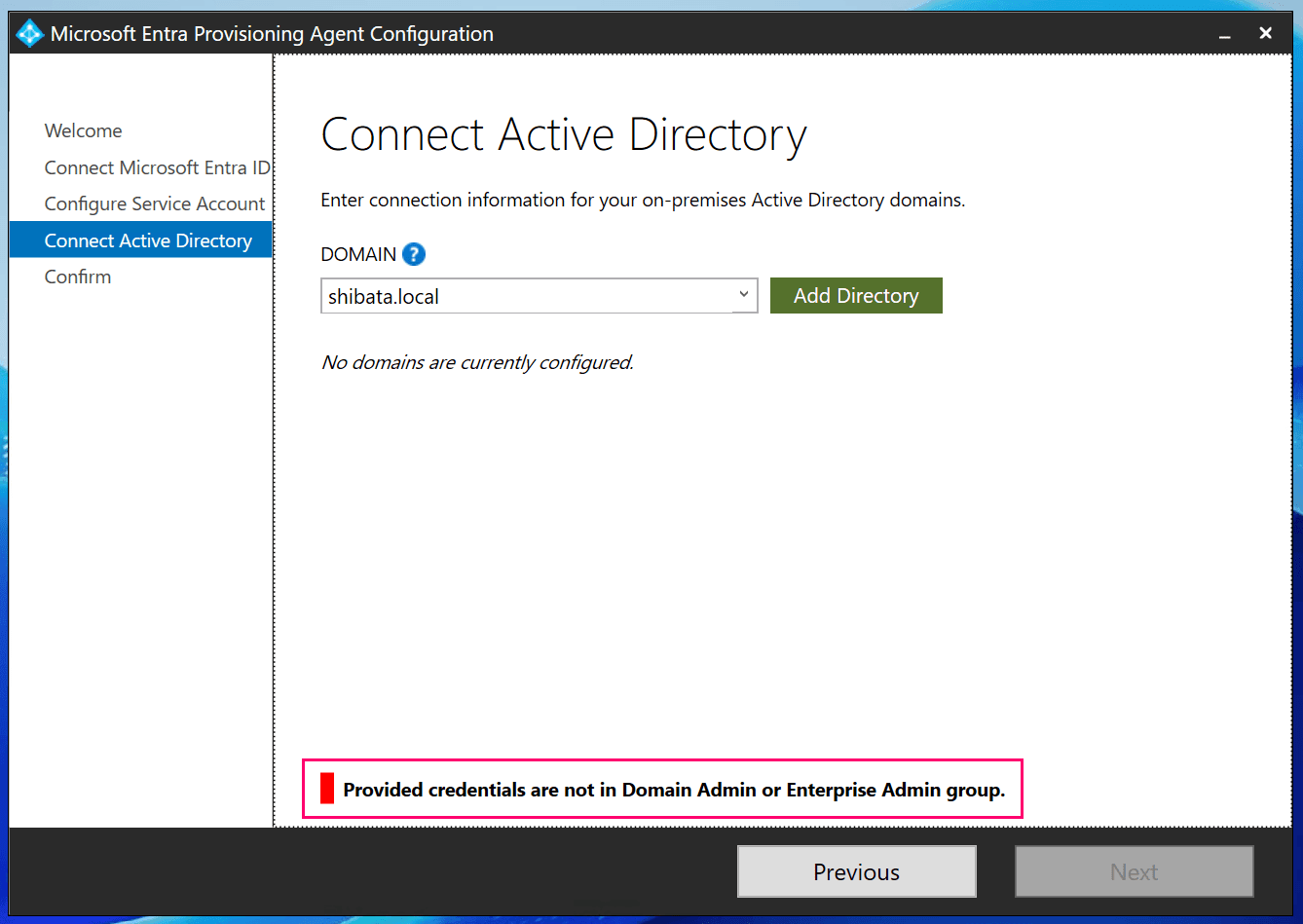
I also tried setting permissions on the gMSA via CLI, but that also ended in failure...
Side Note: Entra Cloud Sync May Work with Hybrid Edition?
The environment I tested was the standard Standard Edition, but if it is a Hybrid Edition where users have domain administrator privileges, the issue may be resolved.
However, as mentioned in the previous article, Hybrid Edition itself has limited use cases, and in its place,
- Issues specific to the existing Active Directory environment
- Issues due to AWS-side restrictions
may occur.
For those who absolutely need Entra Cloud Sync right now, it might be worth verifying.
Finally
That's all.
As expected, it still didn't work.
Since the beginning of this year, Microsoft has officially started recommending migration from Entra Connect Sync to Entra Cloud Sync, so my honest feeling is that I really want AWS Managed Microsoft AD to support this as well.
