
A non-engineer GitHub beginner tried using GitHub for issue management and pull request review requests

This page has been translated by machine translation. View original
Introduction
Hello, I'm Harada.
Recently, I had the opportunity to try using GitHub within my team for task management and review requests.
Up until then, I had a vague image of it as "a tool that hardcore engineers use to store code and do all sorts of amazing things," and when my supervisor suggested "Let's try using it!", I thought "Who am I to use something like that!" (laughs)
Once I actually tried it, I found that GitHub can be used for more than just code management, including the following:
- Managing tasks with Issues
- Visualizing assignees and statuses with Projects
- Standardizing ticket content with Issue templates
- Compiling operational rules in README
- Submitting review requests with Pull Requests
In this article, I will write about what I actually did, what I struggled with, and what I found convenient when using GitHub for the first time.
What I Tried This Time
What I tried this time was using GitHub for task management and review requests as well.
Specifically, I tried the following:
- Joining a GitHub Organization
- Having Repository permissions granted to me
- Granting Repository permissions to others
- Joining GitHub Projects
- Creating an Issue
- Creating an Issue template
- Managing Issues with Projects
- Compiling operational rules in README
- Submitting review requests with Pull Requests
I tested whether GitHub could be used not just as "a place to store code," but as a place to consolidate team tasks and review statuses.
In this article, I will touch on some of these points and share what I felt after actually trying them.
First Stumbling Block: There Are Multiple Steps Just to Get Into GitHub
Before even getting started, I learned that there are several steps involved with GitHub.
Even if you just have a GitHub account, you need to be granted access to your team's Repository and Project.
- Submit a GitHub usage request
- Join the Organization
- Have permissions granted for the target Repository
- Join GitHub Projects
- Adjust Project-side permissions as needed
At first, I thought "If I can join the Organization, I can see everything under it."
However, in reality, participation status and permissions were separated for each of the Organization, Repository, and Project.
At this point, I learned that GitHub has the following concepts:
- Organization
- Repository
- Project
- Issue
- Pull Request
- Reviewer
- README
- Permissions
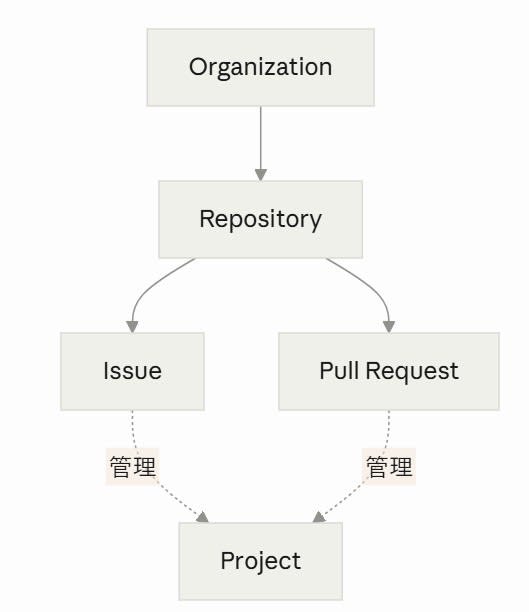
I'm still not fully used to it, but thinking of it as "there are Repositories inside an Organization, Repositories have Issues and Pull Requests, and Projects can be used to manage all of these in a list" made it a little easier to understand.
Trying to Create Tasks with Issues
Next, I tried registering actual work tasks as GitHub Issues.
An Issue is a unit for managing tasks and problems.
At first, I thought "I just need to write a title and body,"
but when trying to use it for task management, I felt the following information was also necessary.
So here are the fields my team supervisor suggested:
- Assignee
- Status
- Type
- Priority
- Due date
- Related links
- Additional notes
Simple setup and easy to understand!
It seems best to start with the minimum necessary fields and add missing ones as you go!
Creating Issue Templates Makes Ticket Submission Easier
After trying to create Issues, team members said "It's hard to write from scratch every time."
Indeed, when faced with a blank Issue creation screen, it's easy to get lost on what to write, and having everyone write differently makes it harder to read.
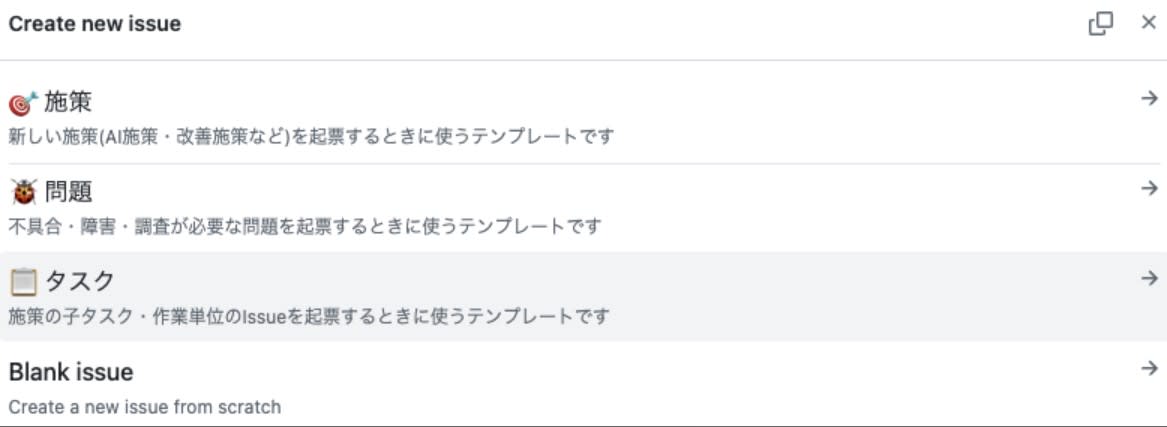
So we prepared the following templates according to use case:
- For initiatives
- For bug reports
- For tasks
- No template
With templates in place, the person creating the Issue can fill in the fields accordingly.
This makes it easier to reduce inconsistencies in how tickets are submitted.
Trying to Submit a Review Request with a Pull Request
Next, I tried submitting a review request using a Pull Request.
Previously, review requests for AI-generated code were handled via Visual Studio Code and Backlog, but this time I tried completing the entire process within GitHub for the first time.
The flow I tried this time was as follows:
- Create the changes as a Pull Request
- Set a Reviewer
- Request a review
- Check the comments
- Make revisions as needed
- Merge if there are no issues
Currently, the workflow is set up so that when a reviewer comments in Backlog, it is linked to Slack,
but with GitHub, it is necessary to check email for review notifications and similar alerts.
This was a point where I felt that in the future, a design that makes it easy for both the requester and reviewer to notice would be needed.
Progressing with the Help of AI
Throughout the process of working with GitHub this time, I also used AI as a supplementary tool.
For example, in the following situations:
- Confirming GitHub terminology
- Organizing the wording of Issues
- Confirming the steps for Pull Request operations
- Polishing the text for review requests
Even without being familiar with GitHub, asking AI helped lower the barrier to getting work done.
On the other hand, rather than adopting AI responses as-is, I made sure to verify whether they matched our actual team operations and GitHub best practices as I went along.
Things I Got Stuck On
Everything Is in English — Oh No
All items in GitHub are in English, and there is no Japanese translation feature built into GitHub!
I checked with AI, and when I turned on Chrome's "Translate this page" feature, I thought it seemed okay at first... but then...

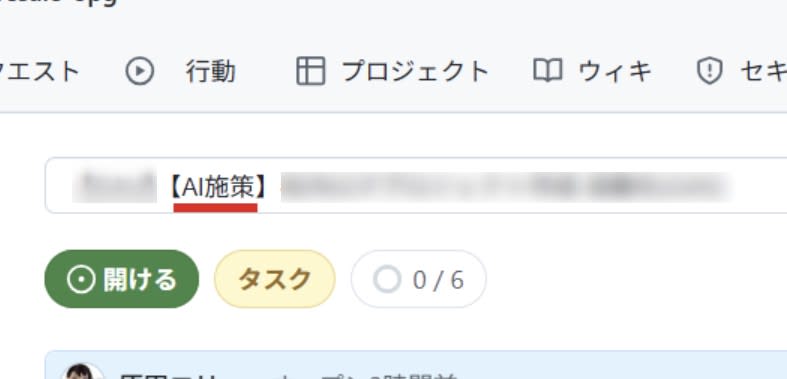
The "【AI__施策__】" I had entered in the Title was bizarrely translated to "【AI__一歩__】," which left me confused.
· With translation feature OFF
↓ ↓ ↓ ↓
· With translation feature ON
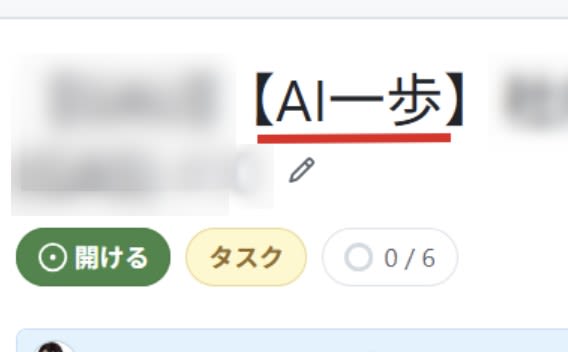
It's kind of got an enka ballad feel to it and really hits you in the heart. (laughs)
So, I turned off Chrome's "Translate this page" feature.
It seems there's no choice but to get used to the English field names.
Summary
I used to think GitHub was only for engineers, but after actually using it, I felt there are many ways that non-engineers can make use of it too!
Here is what I learned this time:
- GitHub can also be used for task management and review operations
- Having Issue templates makes it easier even for beginners to submit tickets
- Using Projects makes it easy to visualize assignees and statuses
- Notification rules are also important for Pull Request reviews
- Use AI as a supplement, while leaving the final judgment to people
I think starting small by creating just one Issue is the easiest way to understand how to use GitHub.