![[Quick Tip] How to cleanly expand comma-separated CSV in Google Sheets](https://images.ctfassets.net/ct0aopd36mqt/6IiHR81tlfYpizFO7r4aFz/61fd9bd78a3dbe99c245f6c4adcaba27/googleworkspace_workspace_gws.png?w=3840&fm=webp)
[Quick Tip] How to cleanly expand comma-separated CSV in Google Sheets

This page has been translated by machine translation. View original
Hi there! I'm Yuji Nishimura from the Operations Department!
Sometimes I receive CSV files with comma-separated values. When I paste them into Google Sheets, everything sometimes gets crammed into a single column. I was able to convert it cleanly using "Split text to columns" from the Data menu, so I'm putting together a summary here.
What We'll Cover
I'll introduce the steps to expand comma-separated CSV into columns using "Split text to columns" from the Data menu.
What you'll learn from this article:
- CSV pasted into a single column can be split into columns from the
Datamenu - The delimiter is detected automatically, but you can also explicitly choose comma
- For "digit-only strings" like AWS account IDs, adding
'at the beginning prevents them from being converted to numbers
Prerequisites
Environment
- Browser-based Google Sheets
- Plain text CSV with comma separators (copied directly from Slack messages or systems)
Steps
This time, we'll use the following sample CSV assuming a list of AWS accounts.
アカウント名,AWSアカウントID,リージョン
dev,123456789012,ap-northeast-1
stg,234567890123,ap-northeast-1
prod,345678901234,ap-northeast-1
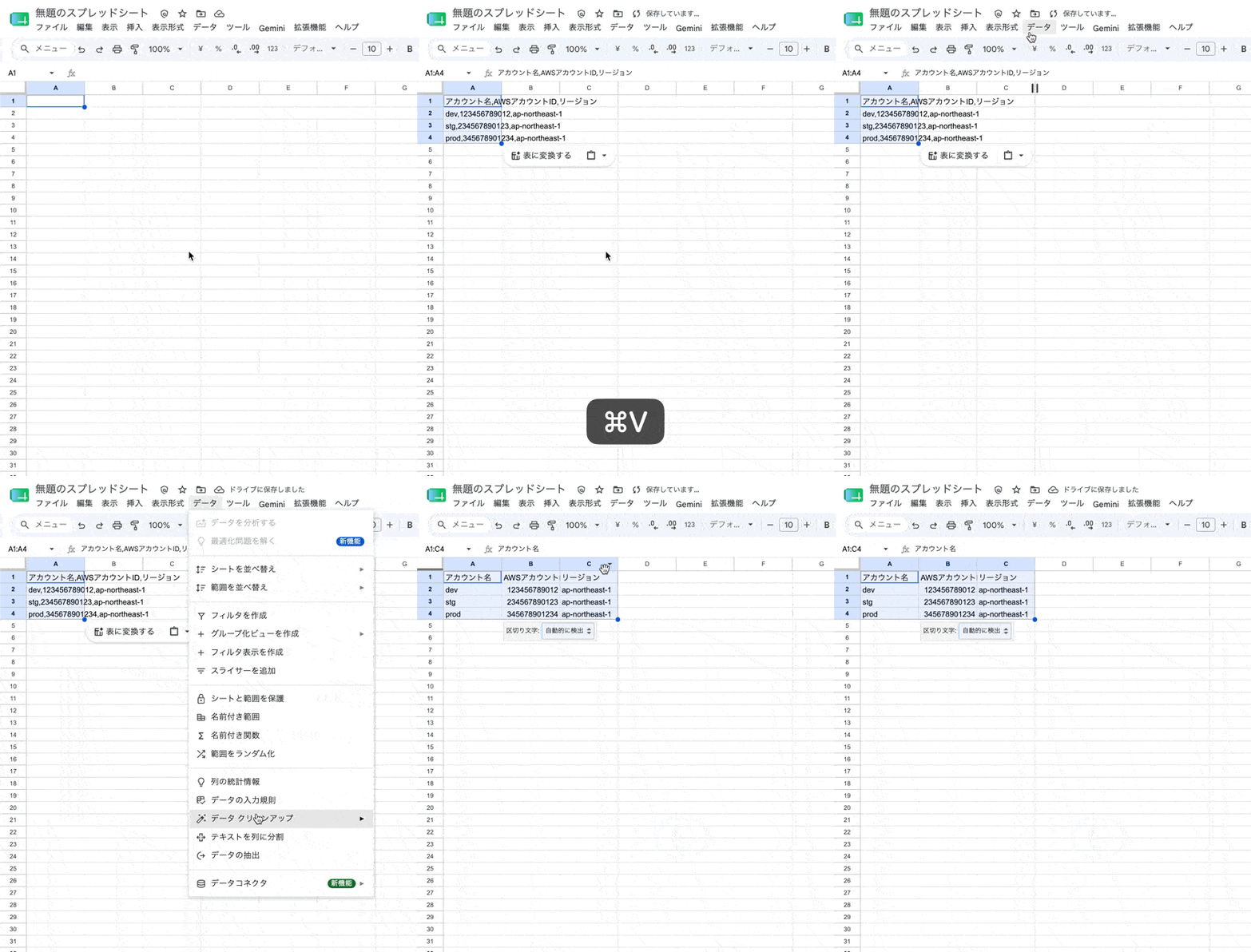
- Select the destination cell in Google Sheets and paste (Cmd+V / Ctrl+V). At this point, everything will be entered crammed into a single column
- Select the cell range that is crammed into a single column
- Click
Datain the top menu - Select
Split text to columns
Once split, it will be expanded into 3 columns as shown below.
| Account Name | AWS Account ID | Region |
|---|---|---|
| dev | 123456789012 | ap-northeast-1 |
| stg | 234567890123 | ap-northeast-1 |
| prod | 345678901234 | ap-northeast-1 |
Add ' at the Beginning of AWS Account IDs to Treat Them as Strings
Among the values split by "Split text to columns," those consisting only of digits will be interpreted as numbers. If you have values like AWS account IDs that are "digit-only but should be treated as strings," an ID starting with 0 like 012345678901 will be changed to 12345678901, resulting in a missing digit.
For such values, you can treat them as strings by adding a single quote (') at the beginning in the source data before pasting. Sheets treats the leading ' as a signal meaning "interpret this value as a string," so the ' itself will not be displayed in the cell.
アカウント名,AWSアカウントID,リージョン
dev,'012345678901,ap-northeast-1
prod,'987654321098,ap-northeast-1
When you paste this and split into columns, the AWS account ID column will be a string with the leading zero preserved.
Summary
There were times when I wanted to paste comma-separated CSV into a spreadsheet. Ever since I learned Data → Split text to columns, I've been able to quickly format CSV received from Slack in Sheets. For digit-only columns like AWS account IDs, you can prevent leading zeros from being dropped by adding ' at the beginning in the source data.
I hope this is helpful for someone.
Reference Links: