
Installing a Japanese language pack on a Windows Server that cannot connect to the Internet

This page has been translated by machine translation. View original
Introduction
Hello everyone, this is Akai-ke.
Have you ever needed to install a Japanese language pack on a Windows Server EC2 instance that couldn't connect to the Internet? I have.
However, on Windows Servers placed in closed networks without Internet access, you can't download language packs using the usual methods (such as adding language packs from the GUI language settings).
So in this article, I obtained an ESD file on an Internet-connected server, transferred it to a Windows Server without Internet access, and installed it using DISM.
About Offline Package Installation Methods
There are several methods for installing packages in offline environments,
but since I had a small number of target servers and only needed to install a language pack, I chose the ESD file transfer method.
- Via ISO
- Method of obtaining and mounting an ISO containing the package from VLSC or Visual Subscription
- Official method, but often requires some form of registration or contract to obtain ISOs
- ESD File Transfer
- Method of obtaining ESD files on an Internet-connected server, transferring them, and installing
※ I haven't verified this, but it seemed that language packs couldn't be installed via WSUS, so I excluded that option
Environment for this Blog
- Server for obtaining language pack
- Windows Server 2019 EC2 instance (Internet access available)
- Target server for installation
- Windows Server 2019 EC2 instance (No Internet access)
- AMI
- Both instances use the same AWS Marketplace Windows Server 2019 AMI (License Included)
- Installation target
- Japanese language pack (ja-JP)
Procedure
1. Download the Language Pack
On the EC2 instance that can connect to the Internet, execute the language pack download from the settings screen.
Add Japanese from Settings > Time & Language > Language and download the language pack.
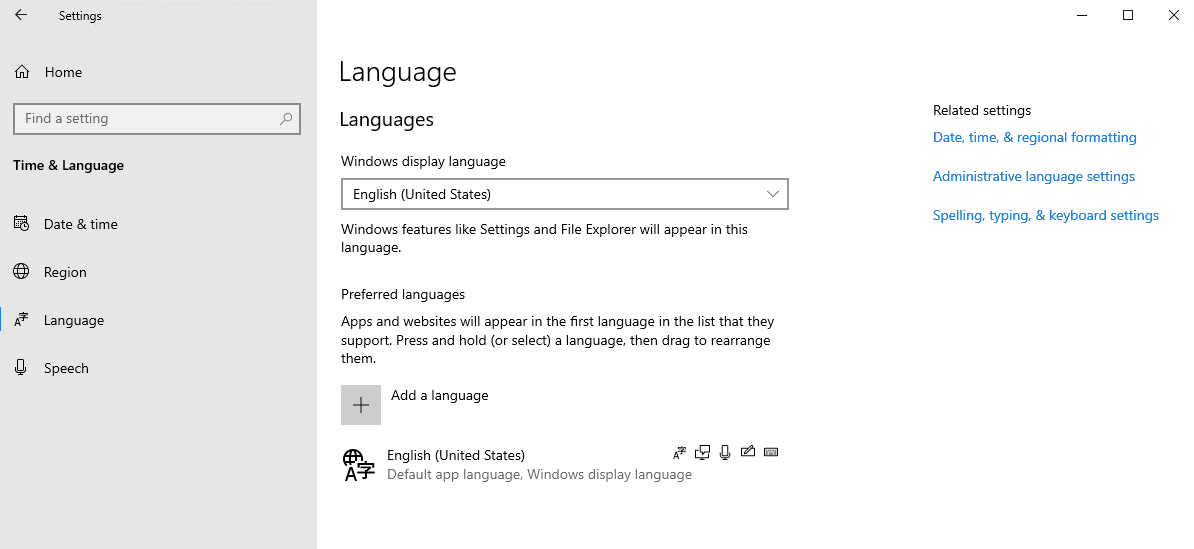
Once the download is complete, it is saved as an ESD file under C:\Windows\SoftwareDistribution\Download.
2. Obtain the ESD File
Search for the downloaded Japanese language pack ESD file using PowerShell.
> Get-ChildItem -Path C:\Windows\SoftwareDistribution\Download -Filter "*ja-jp*" -Recurse
Directory: C:\Windows\SoftwareDistribution\Download\045c8e33827d1625d358590f3e4fbd47

Mode                LastWriteTime         Length Name
----                -------------         ------ ----
-a----        3/31/2026  11:52 AM       45470939 Microsoft-Windows-Server-LanguagePack-Package_ja-jp~31bf3856ad364e35~amd64~ja-jp~.esd

Directory: C:\Windows\SoftwareDistribution\Download\045c8e33827d1625d358590f3e4fbd47\Metadata

Mode                LastWriteTime         Length Name
----                -------------         ------ ----
-a----       11/15/2018   2:14 PM          48440 DesktopBaselessCompDB_ja-jp.CompDB.xml
-a----         3/5/2026   2:58 PM          23493 DesktopBaselessCompDB_ja-jp.CompDB.xml.cab
-a----       11/15/2018   2:13 PM          37594 DesktopTargetCompDB_ja-jp.xml
-a----         3/5/2026   2:58 PM          21550 DesktopTargetCompDB_ja-jp.xml.cab
You need the .esd file, so copy it to your working directory.
> New-Item -ItemType Directory -Path C:\temp -Force
Directory: C:\

Mode                LastWriteTime         Length Name
----                -------------         ------ ----
d-----        3/31/2026  12:06 PM                temp
> $esd = Get-ChildItem -Path C:\Windows\SoftwareDistribution\Download -Filter "*LanguagePack*ja-jp*.esd" -Recurse
> Copy-Item $esd.FullName -Destination C:\temp\
> Get-Item C:\temp\*.esd
Directory: C:\temp

Mode                LastWriteTime         Length Name
----                -------------         ------ ----
-a----        3/31/2026  11:52 AM       45470939 Microsoft-Windows-Server-LanguagePack-Package_ja-jp~31bf3856ad364e35~amd64~ja-jp~.esd
Transfer this ESD file to the installation target server.
Use a method suitable for your environment, such as S3 or RDP file sharing.
3. Install the Language Pack from the ESD File Using DISM
After transferring the ESD file to the target server, install it using the DISM command.
PS C:\Users\Administrator> DISM /Online /Add-Package /PackagePath:"C:\temp\Microsoft-Windows-Server-LanguagePack-Package_ja-jp~31bf3856ad364e35~amd64~ja-jp~.esd"
Deployment Image Servicing and Management tool
Version: 10.0.17763.5830

Image Version: 10.0.17763.8511

Processing 1 of 1 - Adding package Microsoft-Windows-Server-LanguagePack-Package~31bf3856ad364e35~amd64~ja-JP~10.0.17763.1
[==========================100.0%==========================]
The operation completed successfully.
After installation is complete, restart to recognize the language pack.
Restart-Computer -Force
4. Apply Japanese Language Settings
After restarting, apply various Japanese settings using PowerShell.
# Set user language list (prioritize Japanese, keep English as well)
Set-WinUserLanguageList -LanguageList ja-JP, en-US -Force

# Set default input method to Japanese IME
Set-WinDefaultInputMethodOverride -InputTip "0411:00000411"

# Set language bar options
Set-WinLanguageBarOption -UseLegacySwitchMode -UseLegacyLanguageBar

# Set UI display language to Japanese
Set-WinUILanguageOverride -Language ja-JP

# Synchronize culture settings with Windows language
Set-WinCultureFromLanguageListOptOut -OptOut $False

# Set home location to Japan
Set-WinHomeLocation -GeoId 0x7A

# Set system locale to Japanese (applied after restart)
Set-WinSystemLocale -SystemLocale ja-JP
Restart again to apply the system locale changes.
Restart-Computer -Force
5. Check Settings
After restarting, verify that all settings have been properly applied.
Confirm that UI language, system locale, user language list, home location, and culture are all set to Japanese.
PS C:\Users\Administrator> # UI language
>> Get-WinUILanguageOverride
>>
>> # System locale
>> Get-WinSystemLocale
>>
>> # User language list
>> Get-WinUserLanguageList
>>
>> # Home location
>> Get-WinHomeLocation
>>
>> # Culture
>> Get-Culture

LCID             Name             DisplayName
----             ----             -----------
17               ja               日本語
1041             ja-JP            日本語 (日本)

LanguageTag     : ja
Autonym         : 日本語
EnglishName     : Japanese
LocalizedName   : 日本語
ScriptName      : 日本語
InputMethodTips : {0411:{03B5835F-F03C-411B-9CE2-AA23E1171E36}{A76C93D9-5523-4E90-AAFA-4DB112F9AC76}}
Spellchecking   : True
Handwriting     : True

LanguageTag     : en-US
Autonym         : English (United States)
EnglishName     : English
LocalizedName   : 英語 (米国)
ScriptName      : ラテン文字
InputMethodTips : {0409:00000409}
Spellchecking   : True
Handwriting     : False

GeoId        : 122
HomeLocation : 日本

1041             ja-JP            日本語 (日本)
Conclusion
That's how to install a Japanese language pack on a Windows Server without Internet access.
While I tested this with a Japanese language pack, I believe the same procedure would work for other ESD files as well (though I haven't verified this).
I hope this article is helpful to someone.