
The Kiro Mobile app has been released, so I tried it out

This page has been translated by machine translation. View original
Introduction
On November 24, 2026, an iPhone app for Kiro Enterprise was released.
Kiro Mobile for Android has also been released.
Kiro Mobile is an app that connects to the same cloud sessions as Kiro Web, letting you start sessions, check progress, and reply to the agent from your smartphone.
In this article, I sign in to an organization account in the Android app, create a cloud session, and check how it appears in Kiro Web and on an iPhone signed in with the same account.
Test Environment
- Android app: Kiro Mobile v.1.0 (10002325)
- iPhone app: Kiro Enterprise (App Store)
- Sign-in: AWS IAM Identity Center organization account
Getting the Apps
The apps are available from Google Play for Android and the App Store for iPhone.
| Platform | App | Where to get it | Supported OS |
|---|---|---|---|
| Android | Kiro Mobile | Google Play | Android 10 or later |
| iPhone | Kiro Enterprise | App Store | iOS 26 or later |
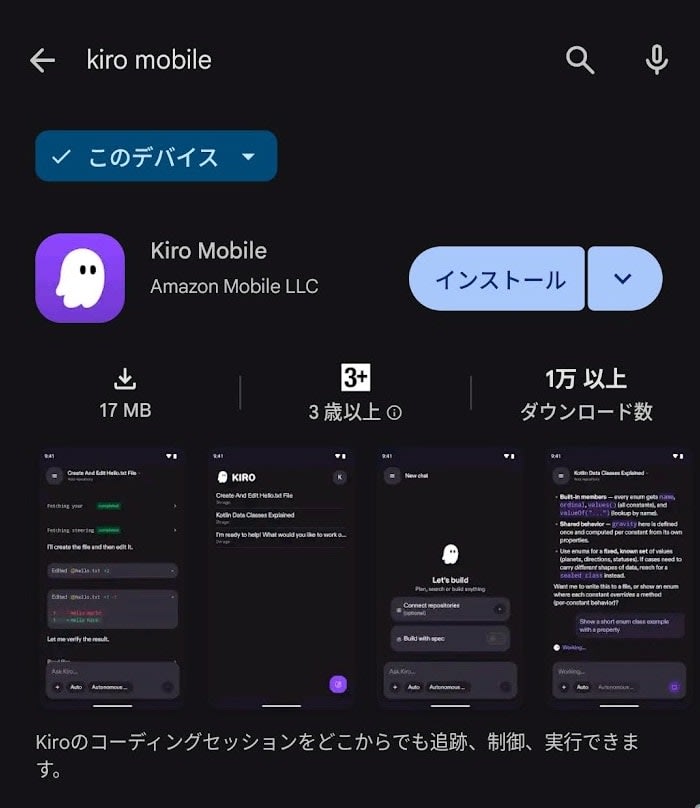
On Android, search for "Kiro Mobile" on Google Play. The publisher is Amazon Mobile LLC.
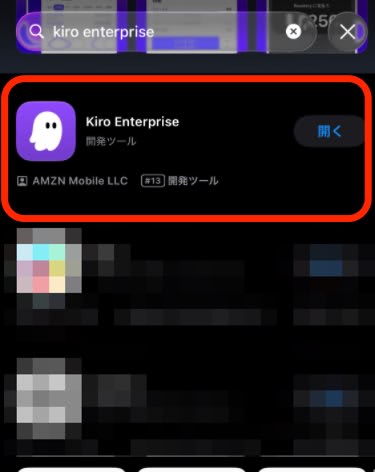
On iPhone, search for "Kiro Enterprise" on the App Store. The publisher is AMZN Mobile LLC.
Signing In
On Android, I signed in with an AWS IAM Identity Center organization account.
-
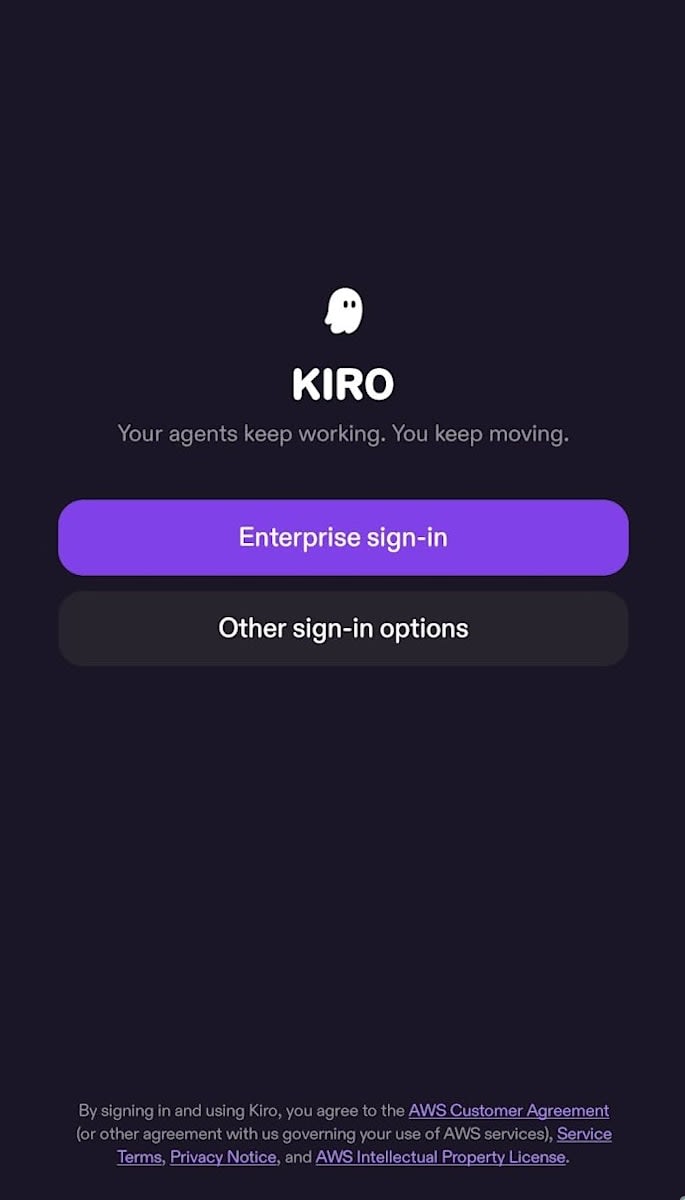
Launch the app and tap Enterprise sign-in on the sign-in screen.
-
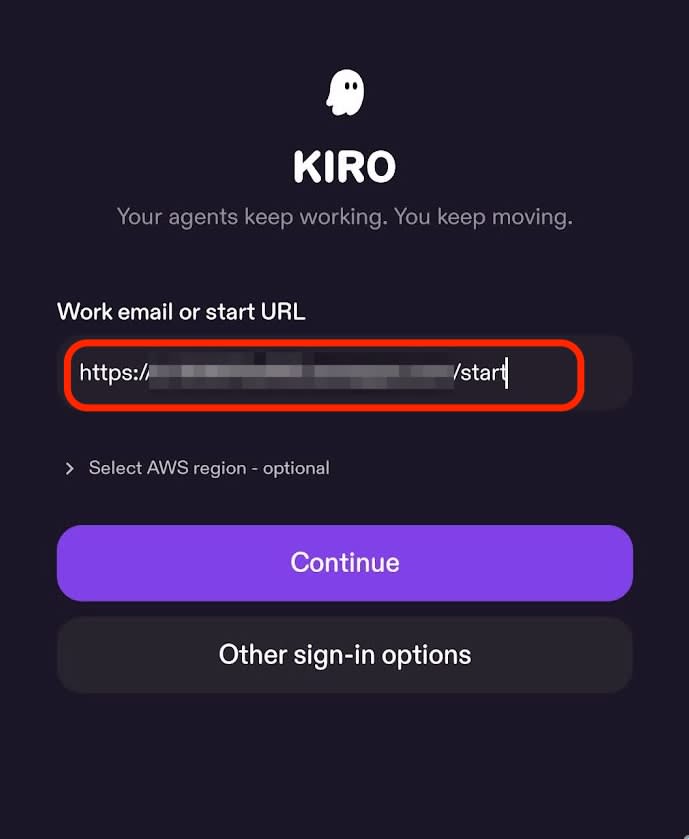
In Work email or start URL, enter your AWS IAM Identity Center start URL. For an external IdP, enter your work email or the Kiro start URL given to you by your administrator. If your administrator specified an AWS Region, enter it in Select AWS region - optional. Finally, tap Continue.
-
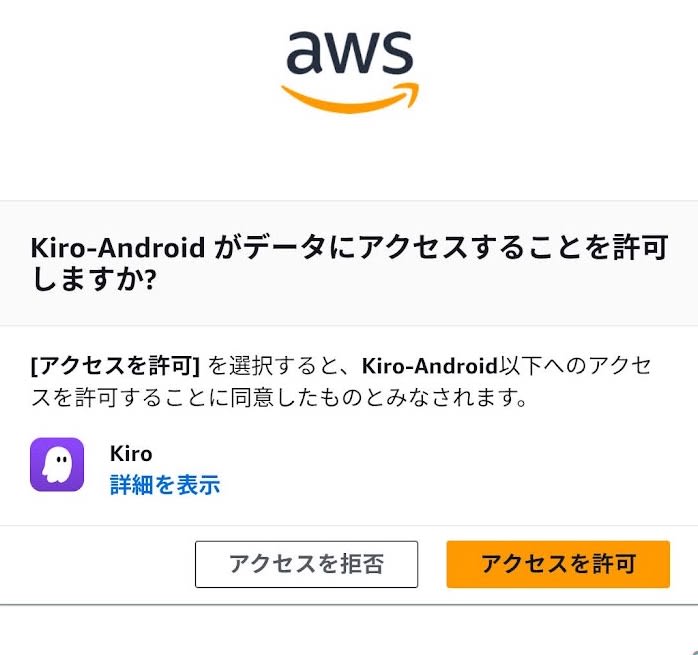
A browser opens, where you authenticate with your organization. On the authorization screen, tap "Allow access".
-
When you return to the app from the "Continue to Kiro" screen, sign-in is complete.
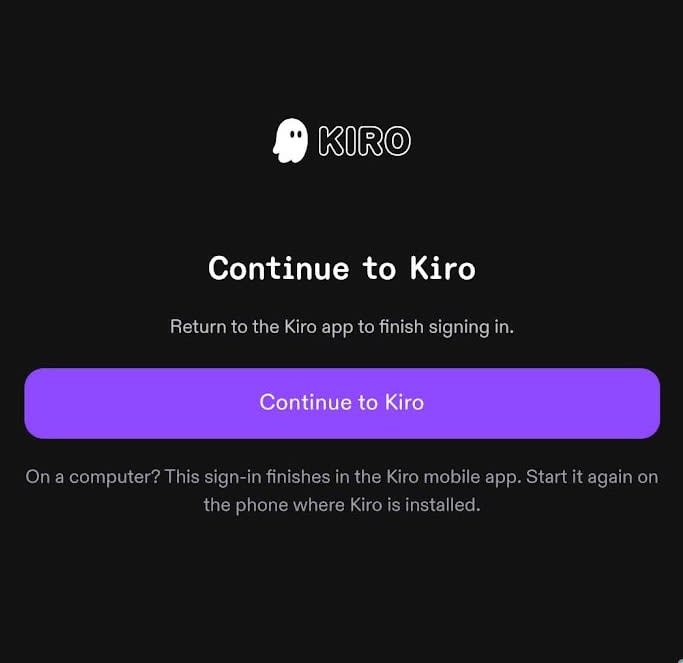
The flow is the same in Kiro Enterprise on iPhone, except that the browser is different. Details of the steps are in the Setup documentation.
Creating a Session
New Session
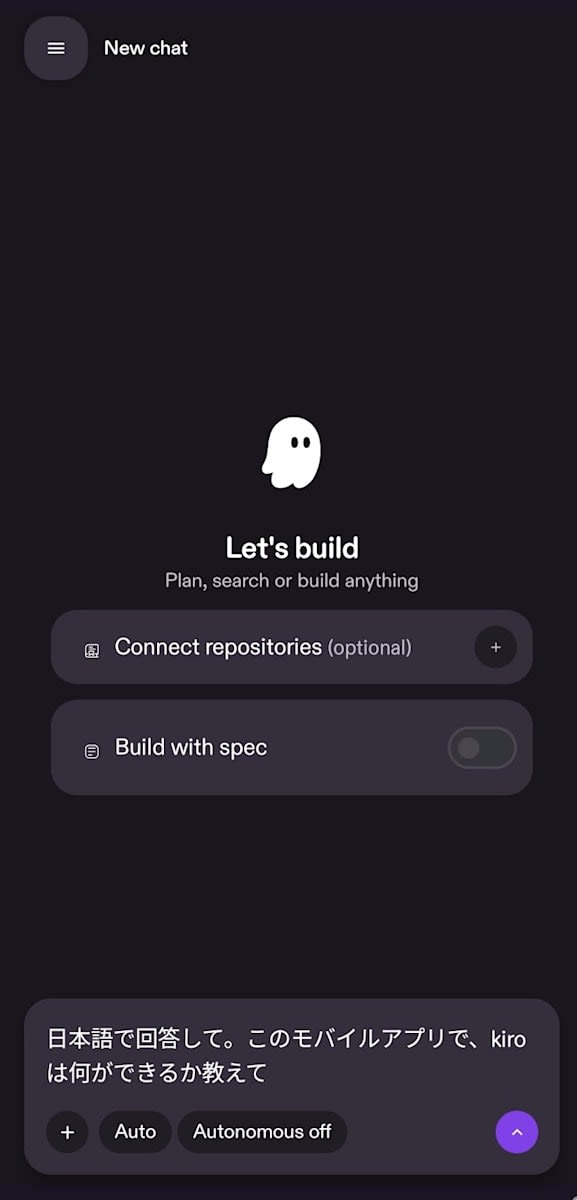
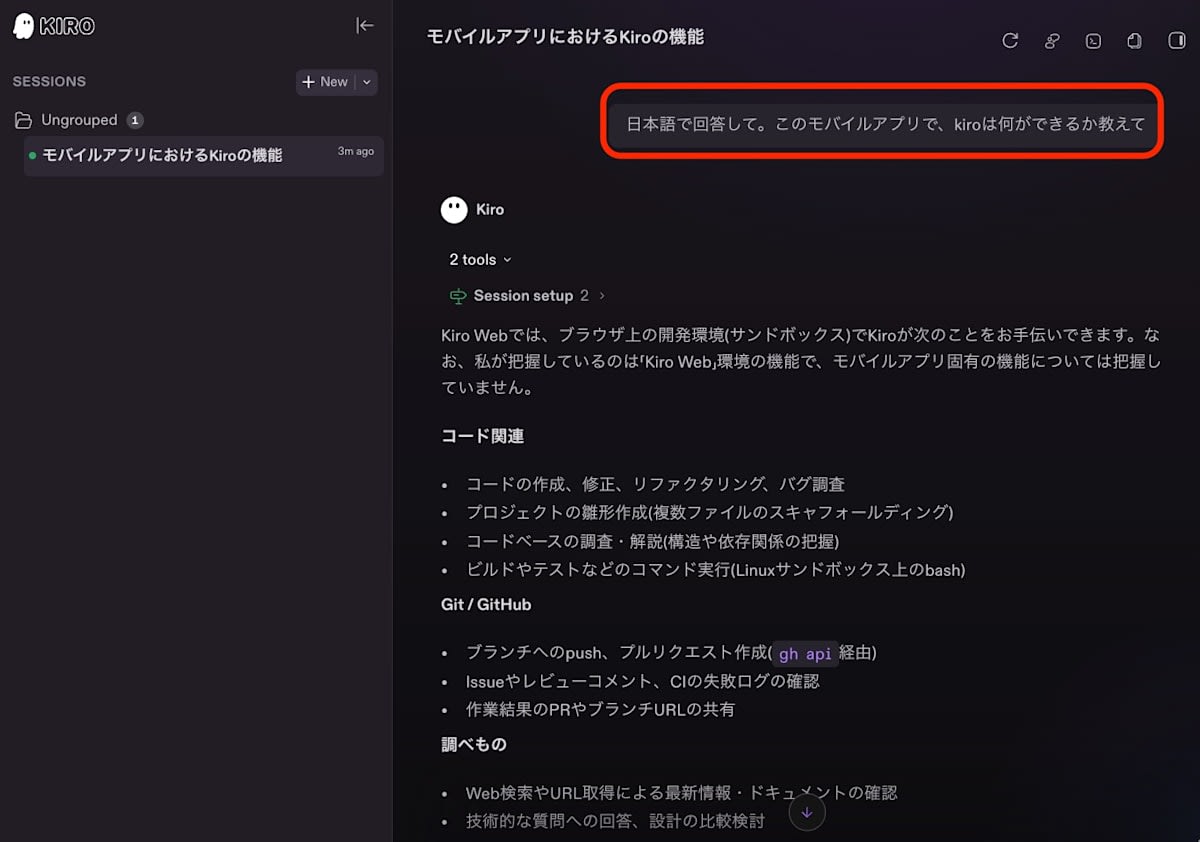
Open the New chat screen from the new session button at the bottom right of the session list. Connect repositories is labeled (optional), so you can start a session without connecting a repository. Above the input field there is a Build with spec toggle. On this screen, I entered "Answer in Japanese. Tell me what Kiro can do in this mobile app" and sent it.
Selecting a Model
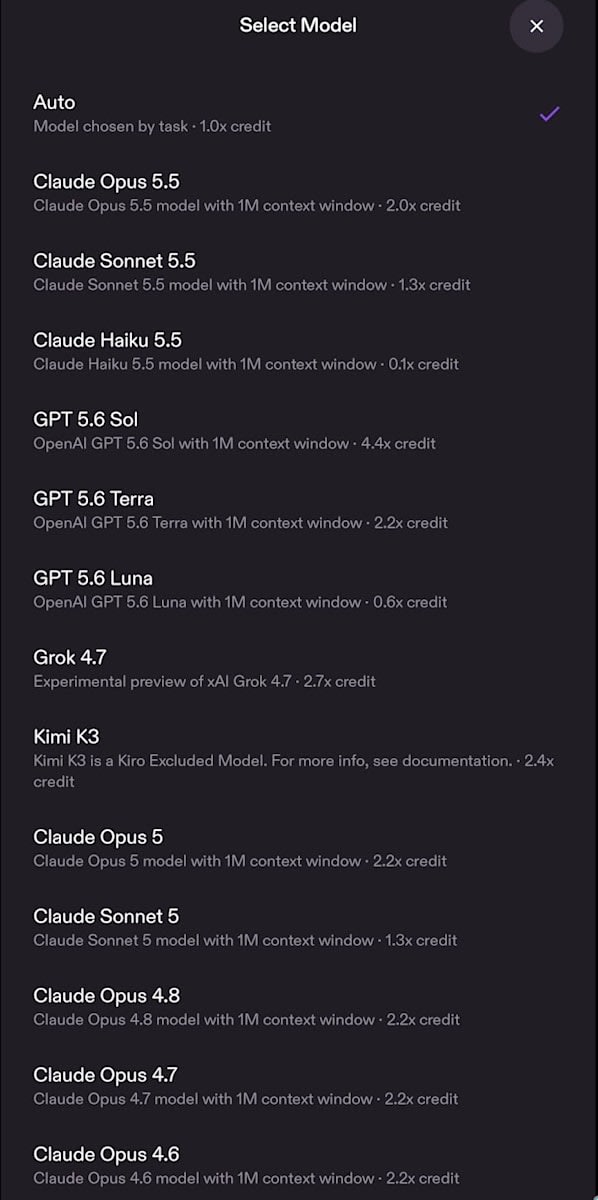
On the New chat screen, choose the model to use with Select Model.
Build with spec
Creating a spec
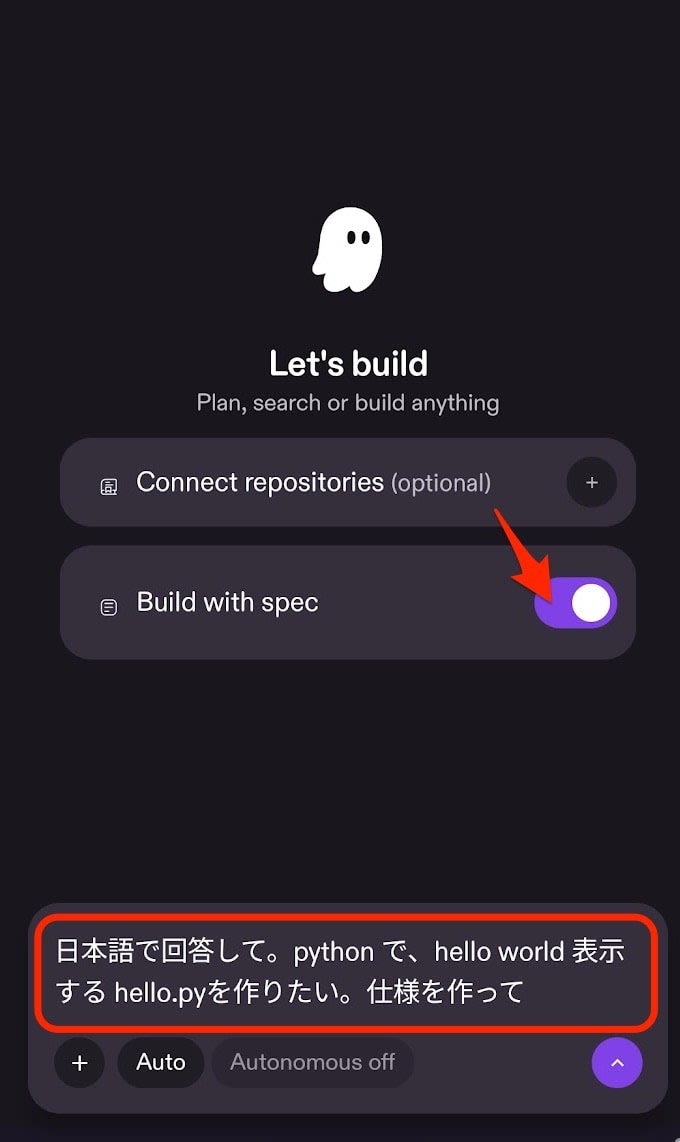
I turned on Build with spec and sent "Answer in Japanese. I want to create hello.py in Python that displays hello world. Create a spec."
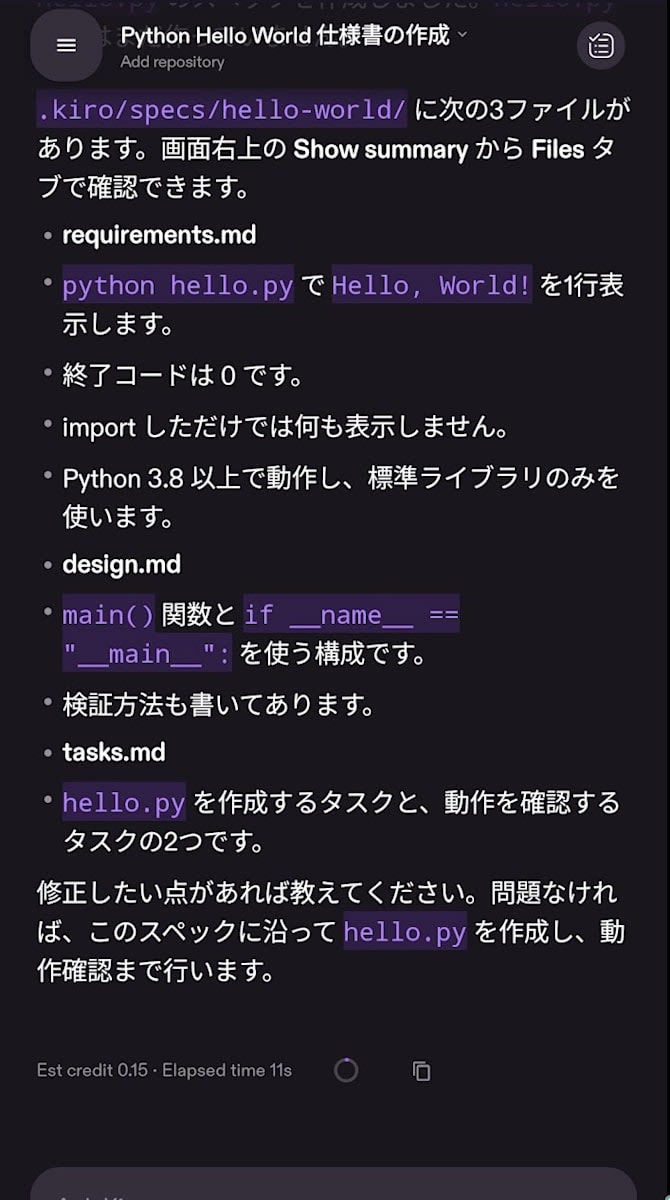
The documentation says the agent first asks for the type of spec (Feature, Bugfix, Quick). This time, no choices were displayed, and three files — requirements.md, design.md, and tasks.md — were created in .kiro/specs/hello-world/.
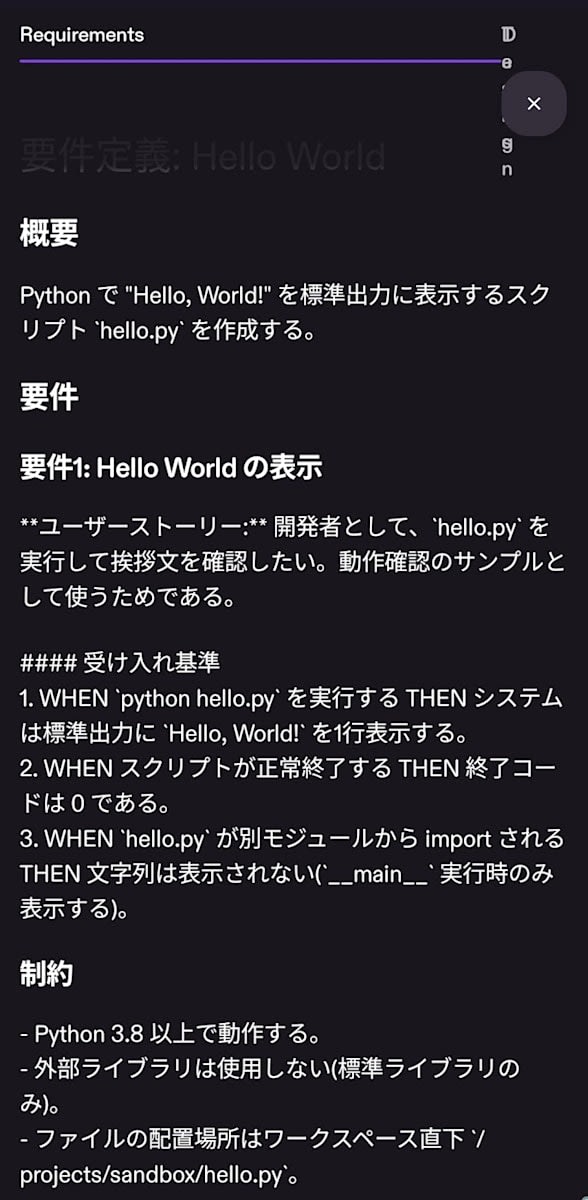
spec Viewer
Open the spec viewer from the spec button at the top right of the session screen header. In the Requirements tab, you can read the generated requirements definition in the app.
Replying to Questions and Implementation
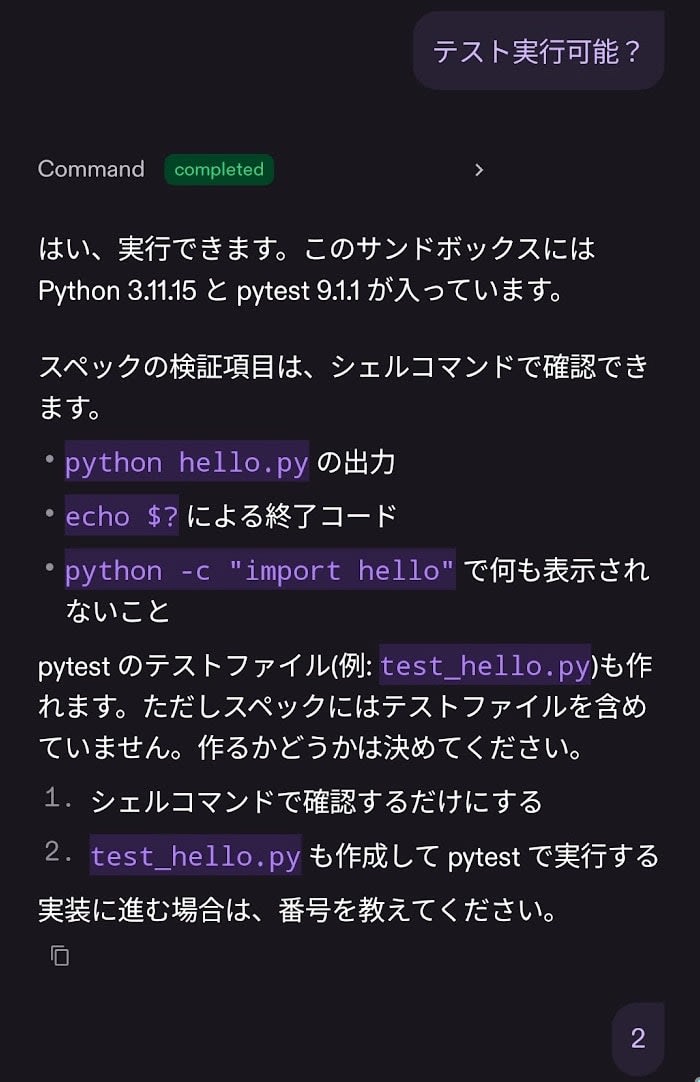
When I asked "Can tests be run?", the agent described the sandbox's Python and pytest environment and presented options 1 and 2. I replied "2" from the app's input field and proceeded to implementation.
The implementation produced hello.py and test_hello.py, and three pytest tests passed. According to the agent, the files are directly under /projects/sandbox/, outside a Git repository, so it did not commit or push.
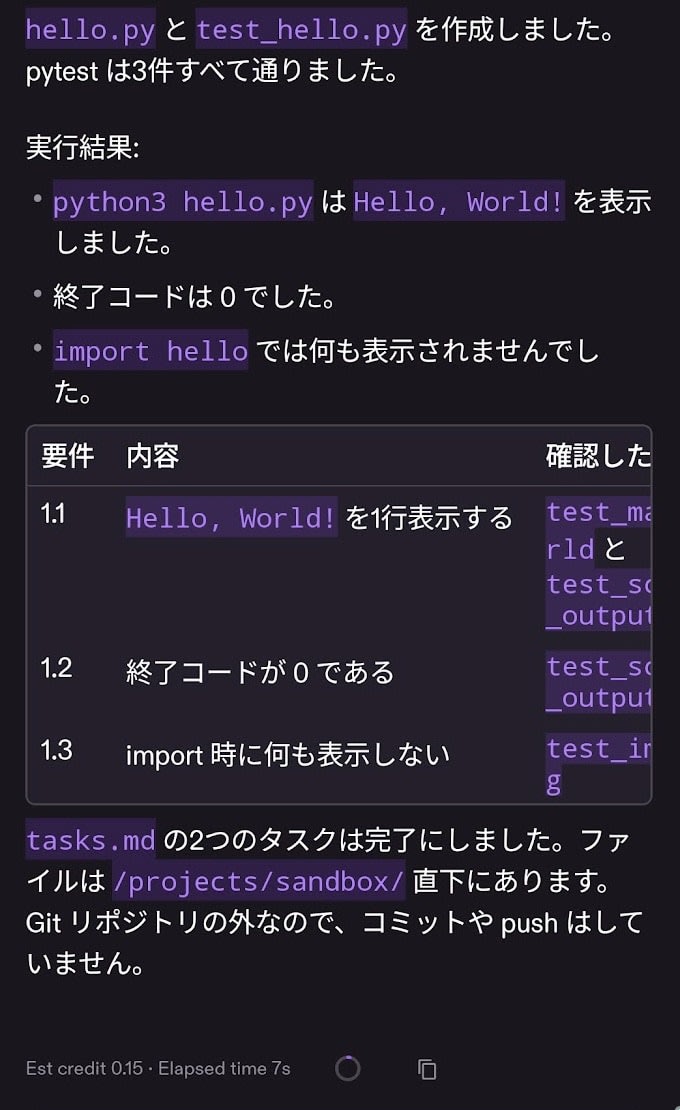
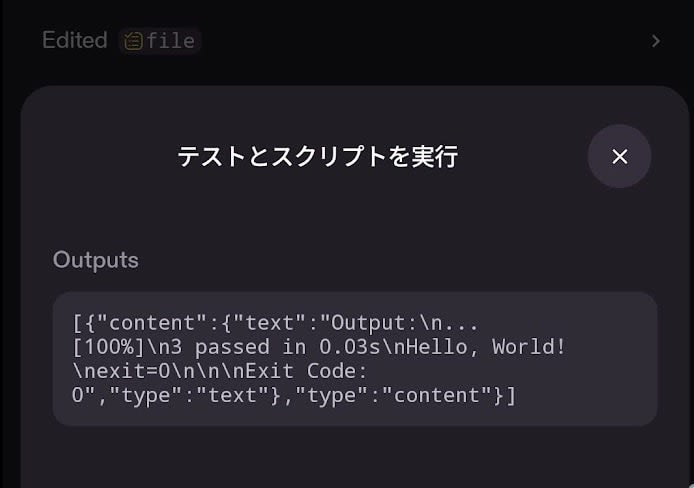
Tapping a line for a tool the agent ran lets you check its input and output.
Display in Kiro Web and on iPhone
Display in Kiro Web
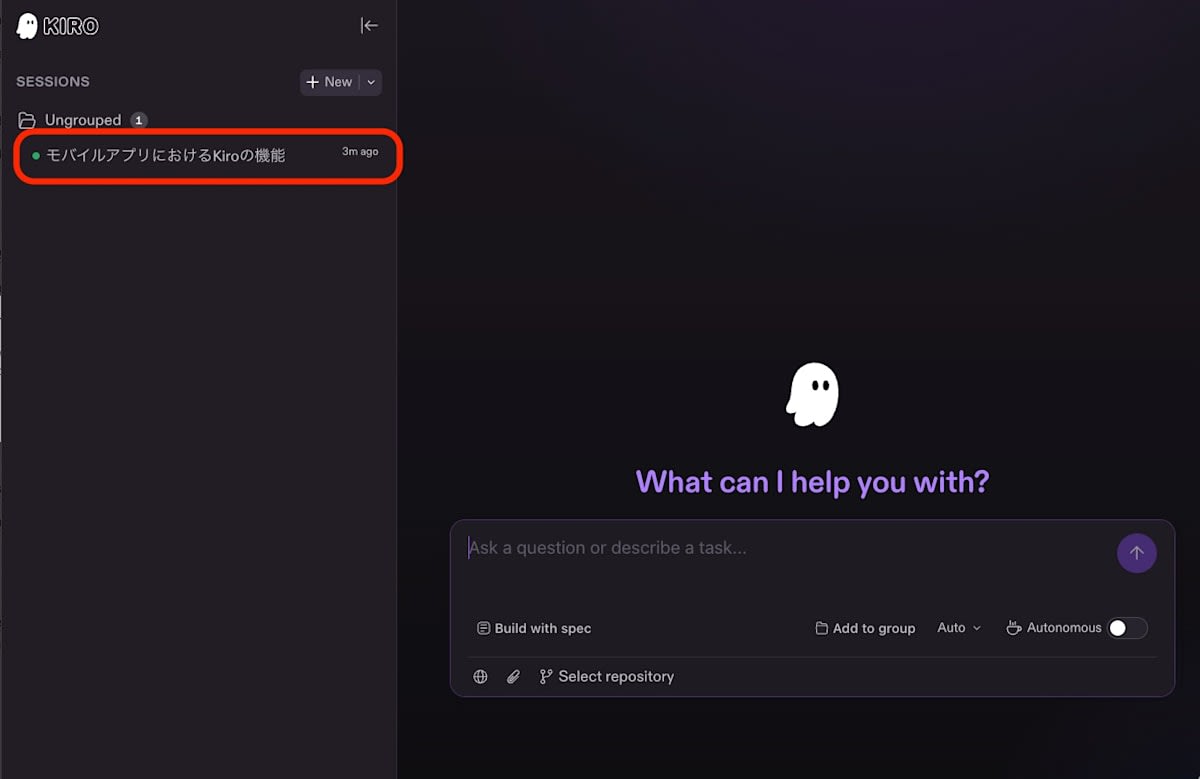
The session sent from New chat appeared in the Kiro Web Sessions list under the automatically assigned name "Kiro's features in the mobile app", and when opened, I could view the conversation.
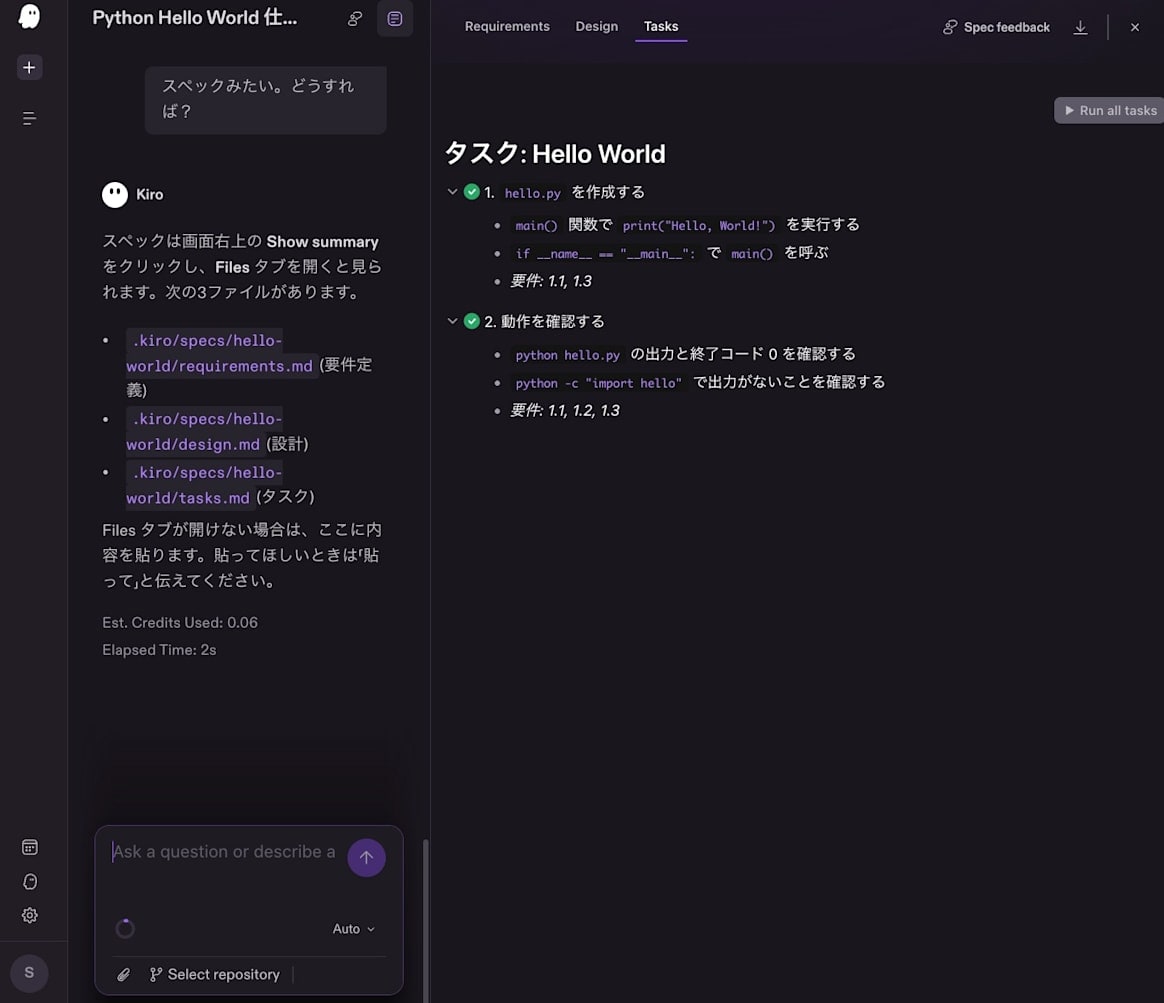
When I opened the spec session I had worked on in Android in Kiro Web, the spec panel showed Requirements, Design, and Tasks tabs. In Tasks, the implemented tasks 1 and 2 are checked as complete.
Display on iPhone
On Android, I also created a session that searches for DevelopersIO articles.
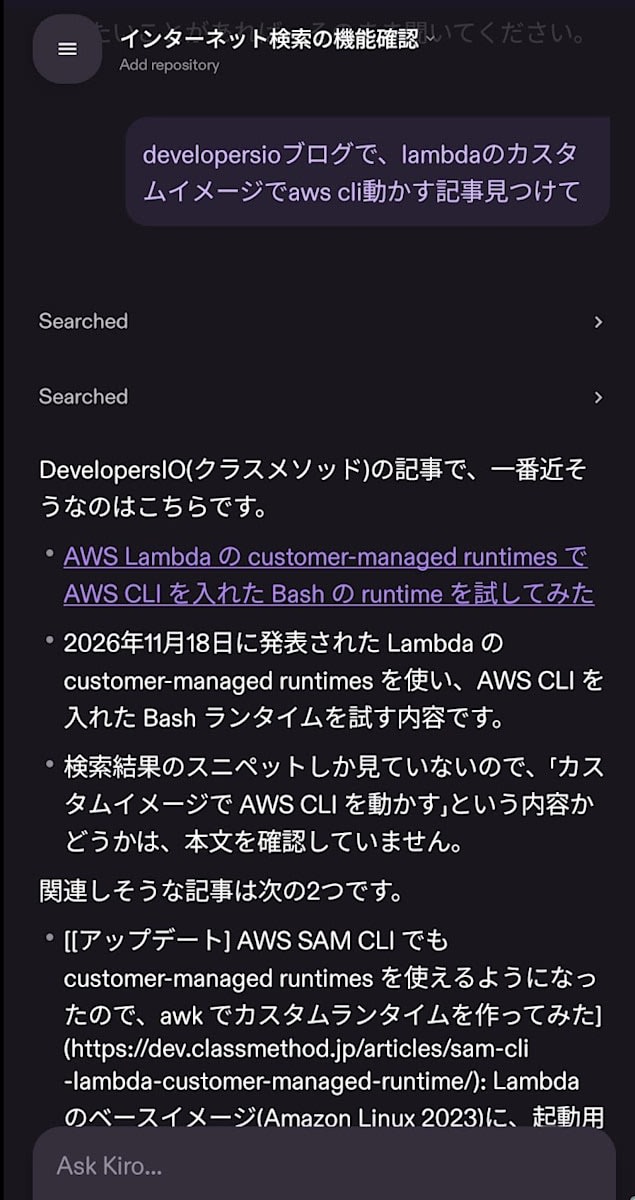
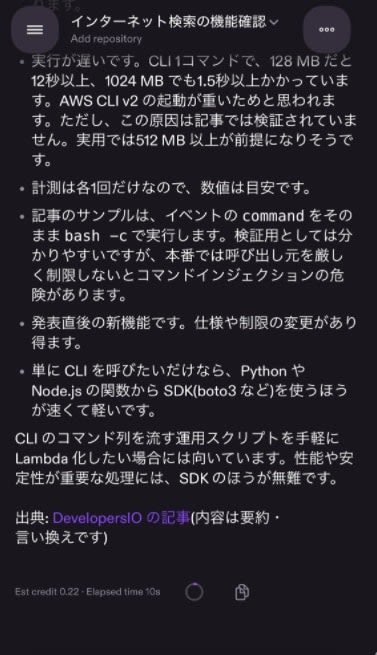
I was able to open the same session in Kiro Enterprise on iPhone as well. The image shows the continuation of the response.
Settings
Settings Screen
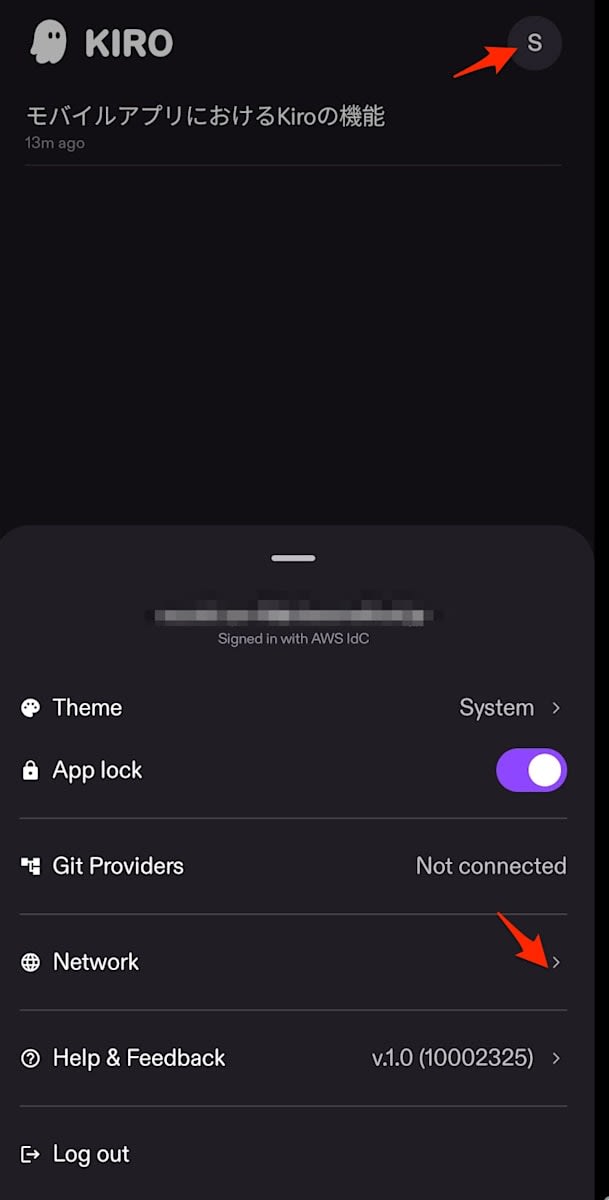
Tap the round icon with your name's initial at the top right of the session list to open settings.
Network
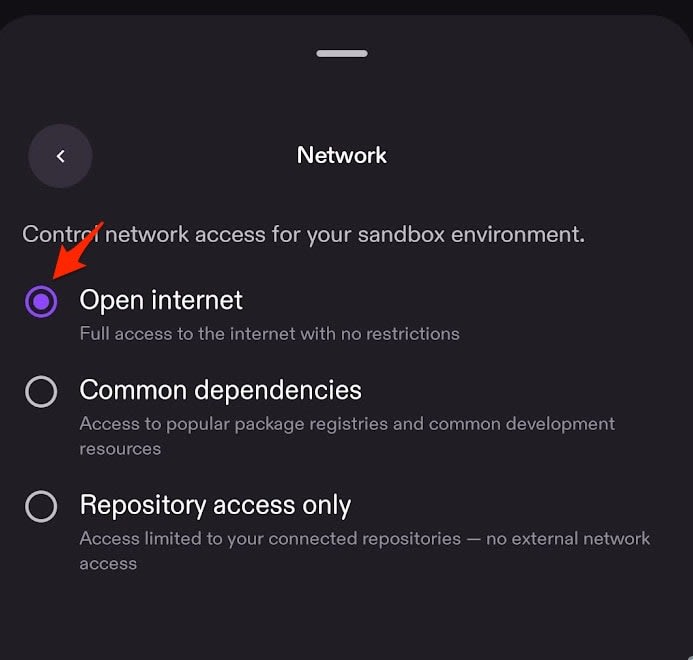
In Network, you choose the range of the internet the sandbox can access. The options are Open internet, Common dependencies, and Repository access only. As with changes made in Kiro Web, the setting here applies to sessions used from both the app and Kiro Web.
Operations Done in Kiro Web
The following operations cannot be done in the app, so you do them in Kiro Web.
- Connecting and changing GitHub and GitLab (required before having the agent work on a repository)
- Managing Schedule and Configuration Sync
- Browsing a session's files in the file explorer
Summary
I signed in to Kiro Mobile for Android with an organization account and, on the cloud sandbox provided by Kiro, was able to proceed from creating a spec with Build with spec through implementation, all from my smartphone.
Sessions can also be carried over to Kiro Web signed in with the same account, and to other devices such as an iPhone.
Chats and specs created in the mobile app can be carried over to your main development environment, such as a PC, via Kiro Web or a repository. You can also use the mobile app to check progress on and approve work being done in Kiro Web and elsewhere. This division of roles seems likely to help you work efficiently.
If you are on a plan that lets you use Kiro Mobile, please give it a try.