I tried using Microsoft 365 Copilot Cowork

This page has been translated by machine translation. View original
Introduction
Hello, I'm Keima.
On June 16, 2026, Cowork for Microsoft 365 Copilot became generally available. Anthropic's Claude had already launched a similar feature called Claude Cowork slightly earlier. I use Claude Cowork regularly and find it extremely easy to use and convenient. However, depending on the company, many organizations may find it difficult to newly adopt Claude due to security policies or existing Office environment constraints. For people working in such environments, Cowork for Microsoft 365 Copilot is a noteworthy service.
This article covers Cowork for Microsoft 365 Copilot, based on hands-on testing as of July 2026. It focuses on the overall screen layout, simple questions via chat, auto-generation of Word, Excel, and PowerPoint files, and where generated files are saved. I hope this serves as a useful reference for those who want to understand what Cowork is about.
Target audience: Those who want to understand what Cowork for Microsoft 365 Copilot can do
0. What is Cowork?
It has a distinct role from the regular Copilot Chat, which answers questions one at a time.
| Aspect | Copilot Chat | Cowork |
|---|---|---|
| What it does | Always-available AI for drafting, summarizing, and Q&A | Agentic AI that completes multi-step tasks across Microsoft 365 |
| Best suited for | Quick, focused, one-off tasks | End-to-end tasks spanning multiple apps |
| Time required | Seconds to minutes | Minutes to hours (autonomous execution) |
Source: Copilot Cowork common questions | Microsoft Learn
1. Looking at the Screen
When you open Copilot, "Chat" and "Cowork" tabs appear at the top. Selecting "Cowork" takes you to a screen where you can start a new task on the spot, and also switch to a list of past tasks.
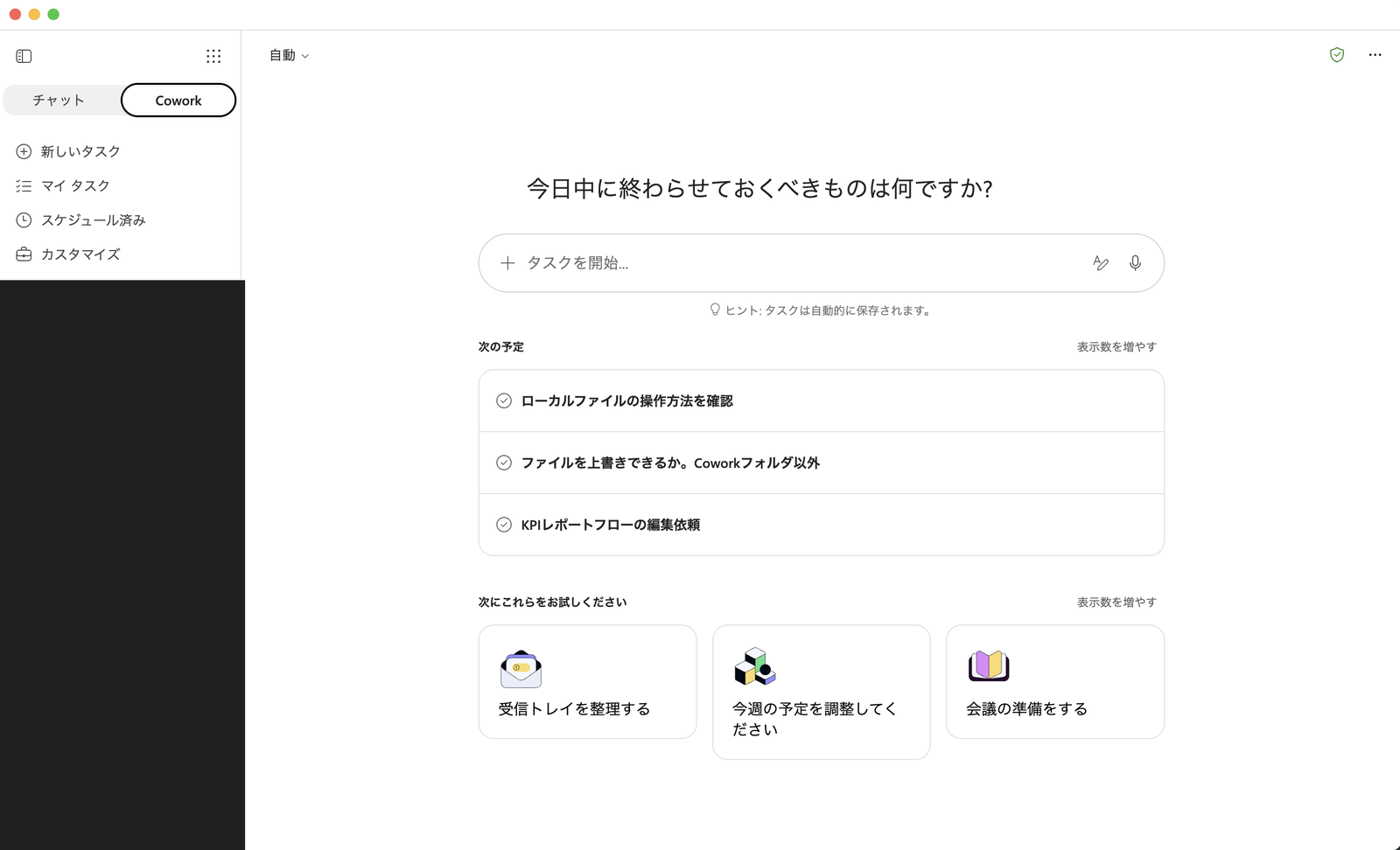
Cowork home screen. Use the tabs at the top to switch between "Chat" and "Cowork"
The left navigation shows "New Task," "My Tasks," "Scheduled," and "Customize."
Opening "My Tasks" displays a list of tasks you've previously executed. I'll take a closer look at how to read the statuses and anything that caught my attention in "3. Things I Noticed in My Tasks."
Opening "Scheduled" shows a list of your registered scheduled tasks. When nothing has been registered yet, an empty list is displayed as follows.
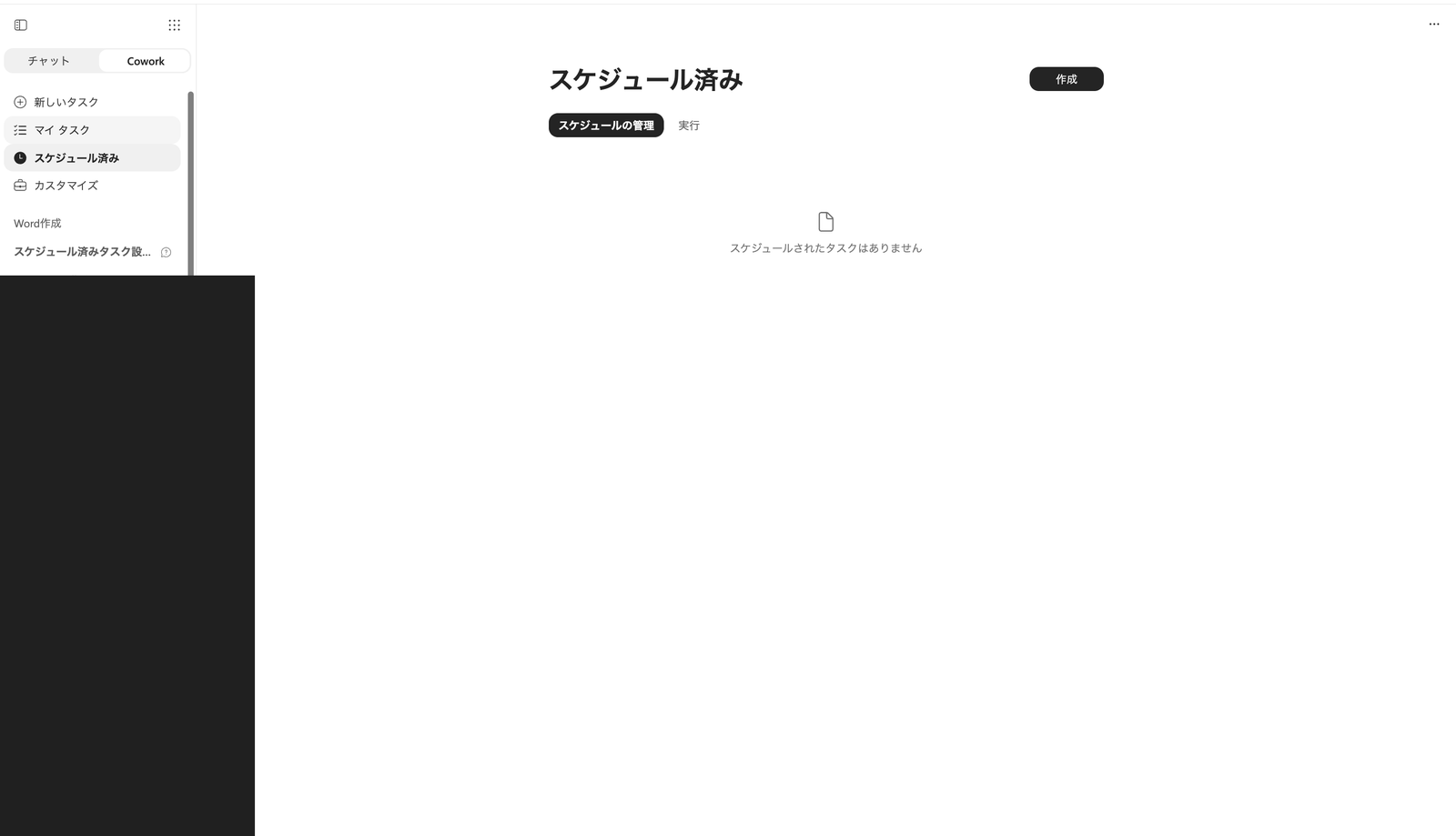
Scheduled screen. Once you register scheduled tasks, they will appear in this list
Under the "Plugins" tab in "Customize," you can add external plugins such as Dynamics 365, Atlassian, and Canva.
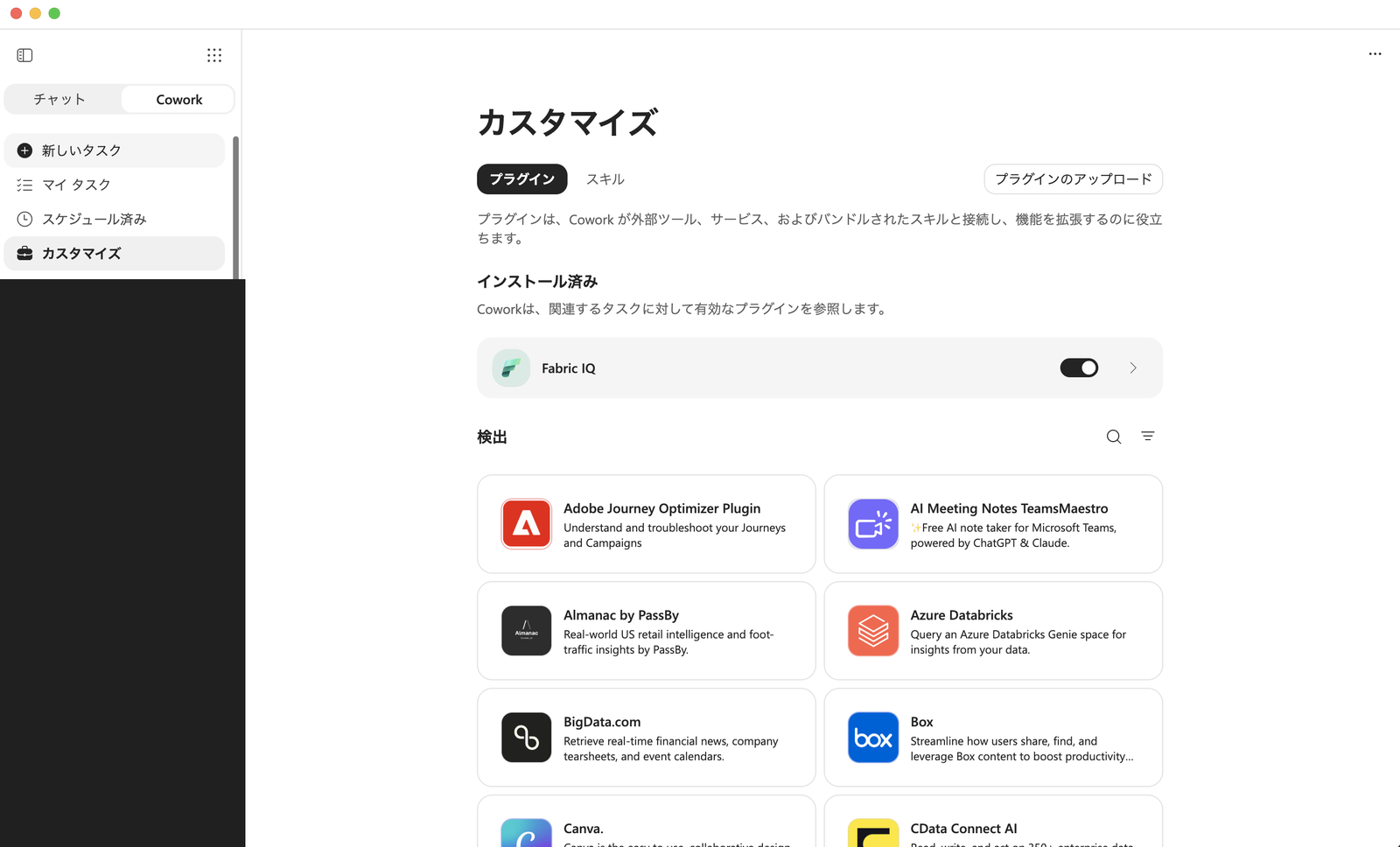
Customize → Plugins. Connect external tools to extend Cowork's functionality
The "Skills" tab lets you check the built-in skills that Cowork has by default. You can see that reading and writing Word, Excel, PowerPoint, and PDF files are available as standard skills.
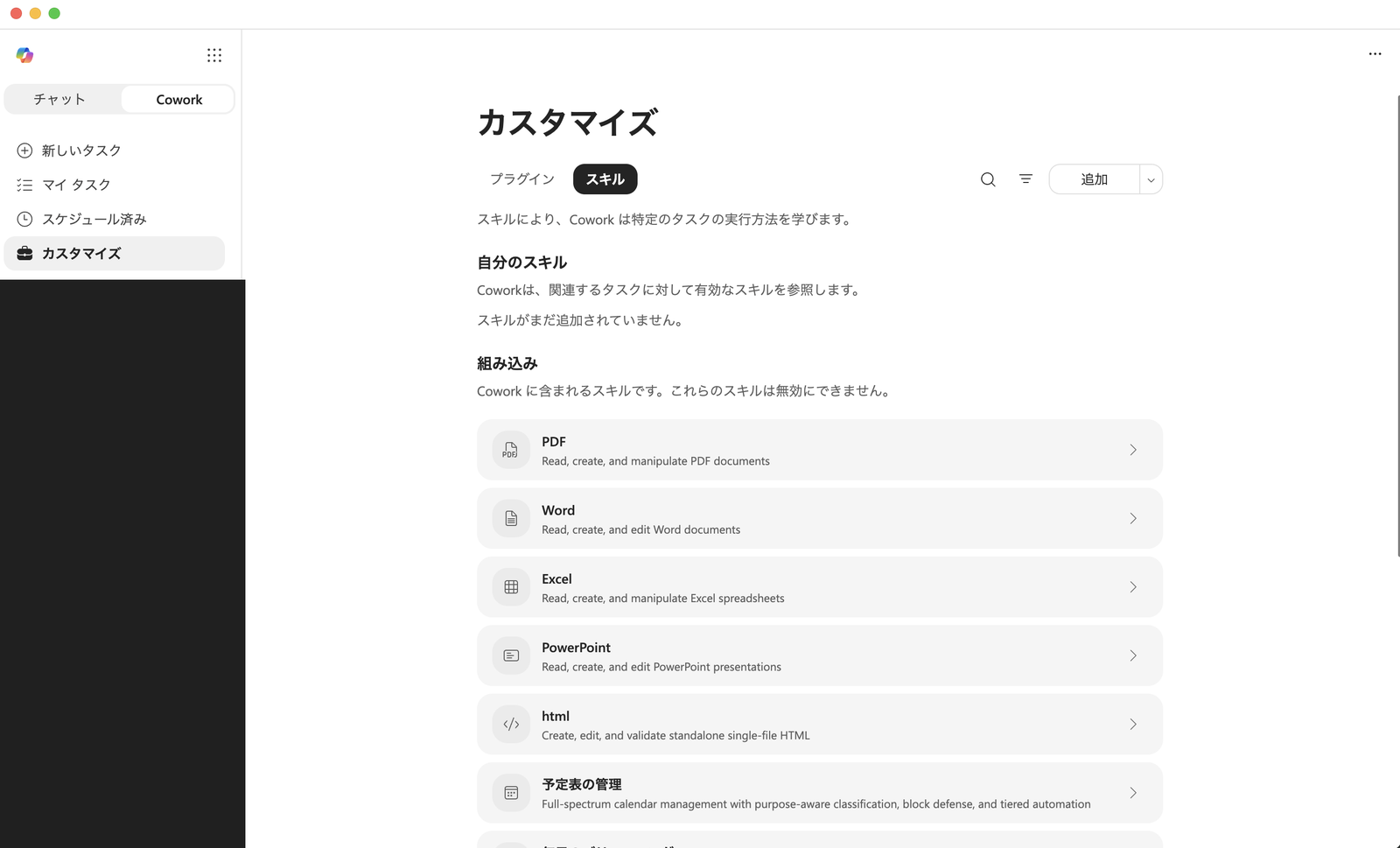
Customize → Skills. Creating and editing Word/Excel/PowerPoint is available from the start as a built-in skill
At the top left of the task input field, there is a dropdown for selecting which model to use. In my environment, in addition to "Auto," I could choose from Claude Sonnet 5, Claude Opus 4.8, GPT 5.6 Sol, GPT 5.6 Terra, and GPT 5.5.
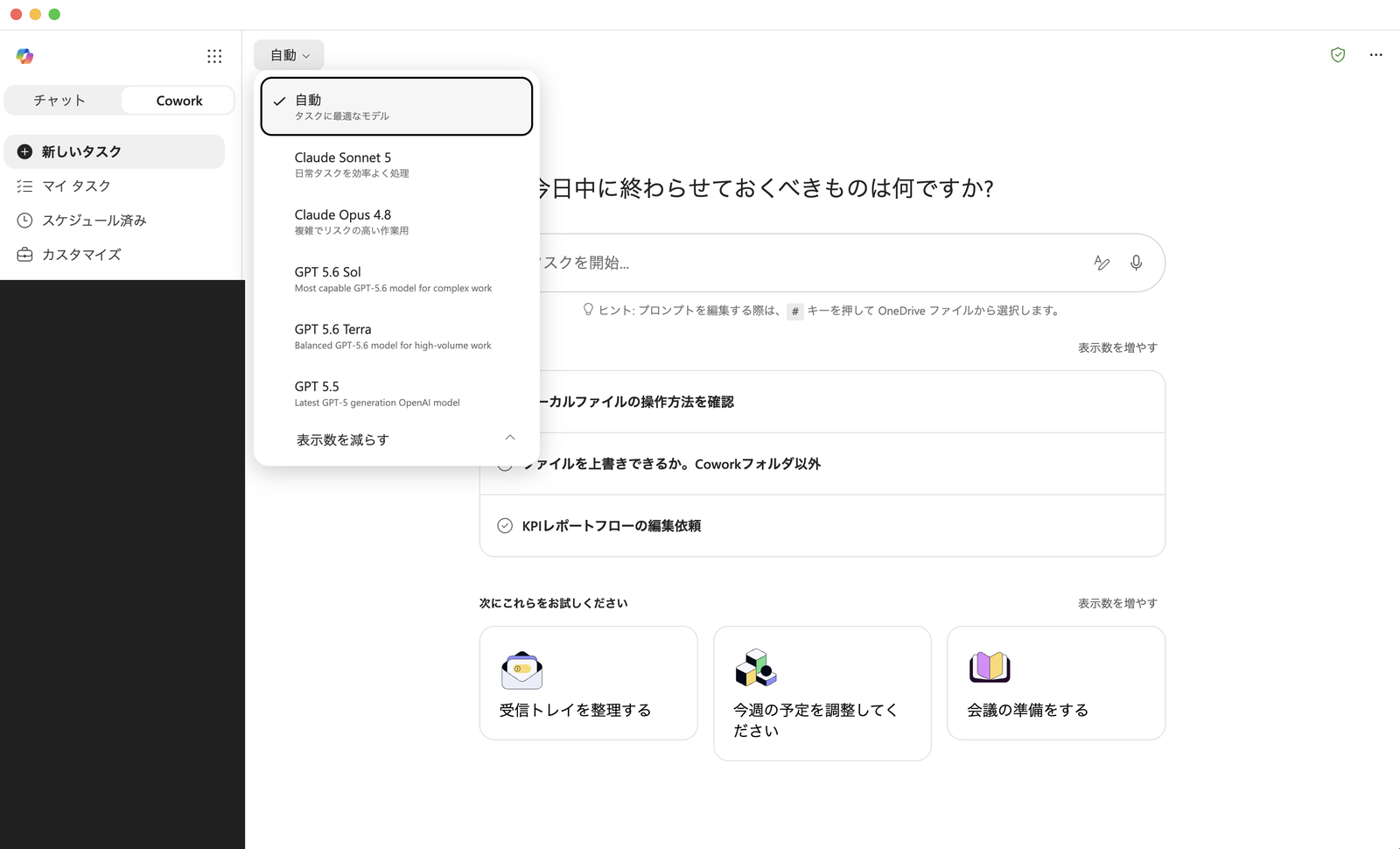
Model selection in the task input field. Default is "Auto," which selects the optimal model based on the task
2. Trying Questions and Web Search with Cowork
I tried sending a simple question from the "Cowork" tab. For questions requiring up-to-date information, web search is used automatically.
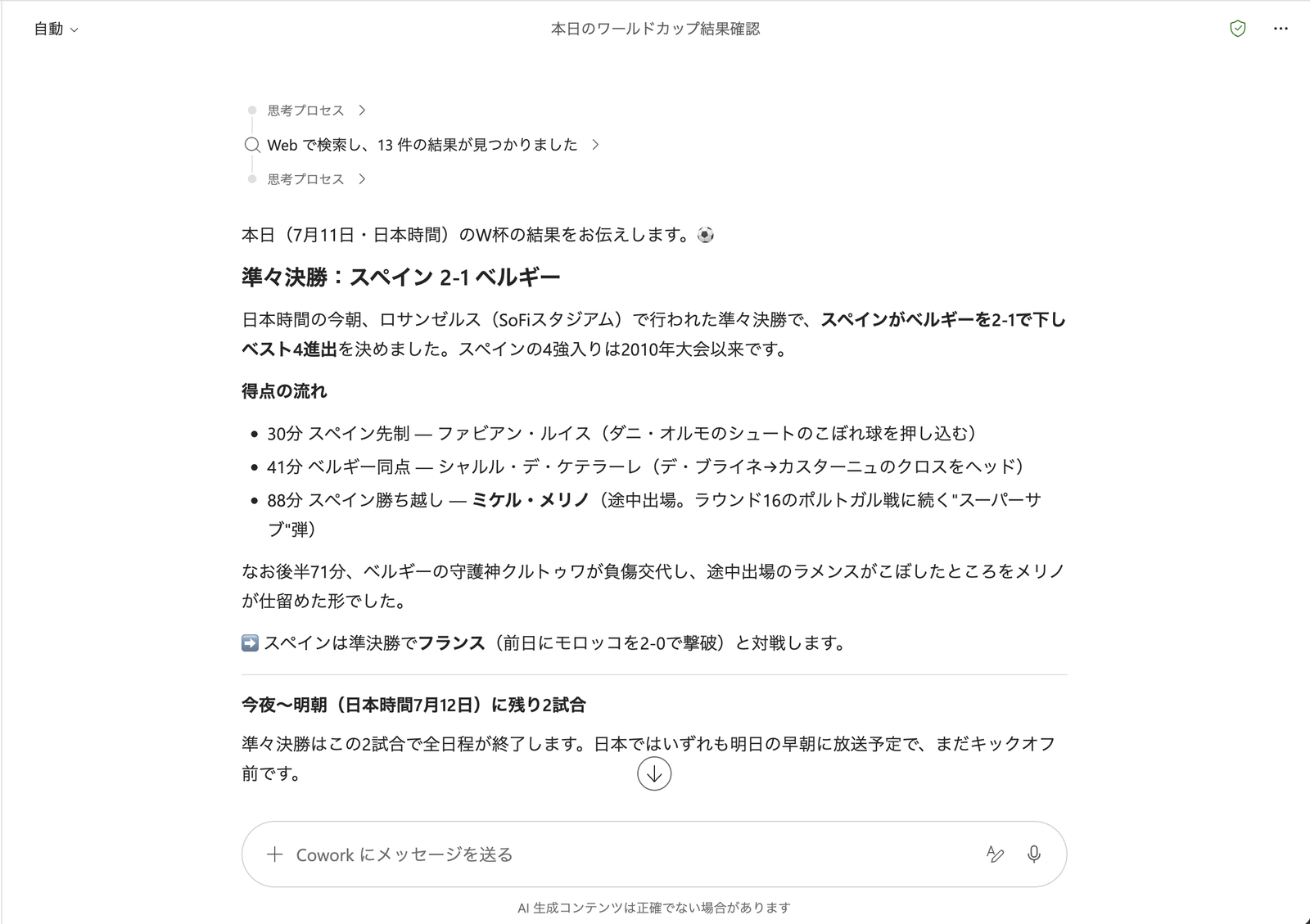
Example of asking about that day's World Cup results. Web search execution is explicitly shown, and match results are returned as a summary
The use of web search was clearly indicated with a message like "Searched the web and found 13 results," and the match results were summarized based on that information. Even when asking about the latest information from that very day, it had no trouble looking it up and providing an answer.
3. Things I Noticed in My Tasks
Opening "My Tasks" displays a list of running and completed tasks. Statuses are defined in the official documentation as follows:
1. Needs your input: Tasks that require you to answer one or more questions before they can run.
2. In progress: Tasks currently being executed.
3. Complete: Tasks that have finished.
4. Scheduled: Tasks set to run at a specific date and time.
5. Unread: Displays results of tasks you haven't reviewed yet.
Source: Use Copilot Cowork | Microsoft Learn
In my environment, there were some concerning displays in this list.
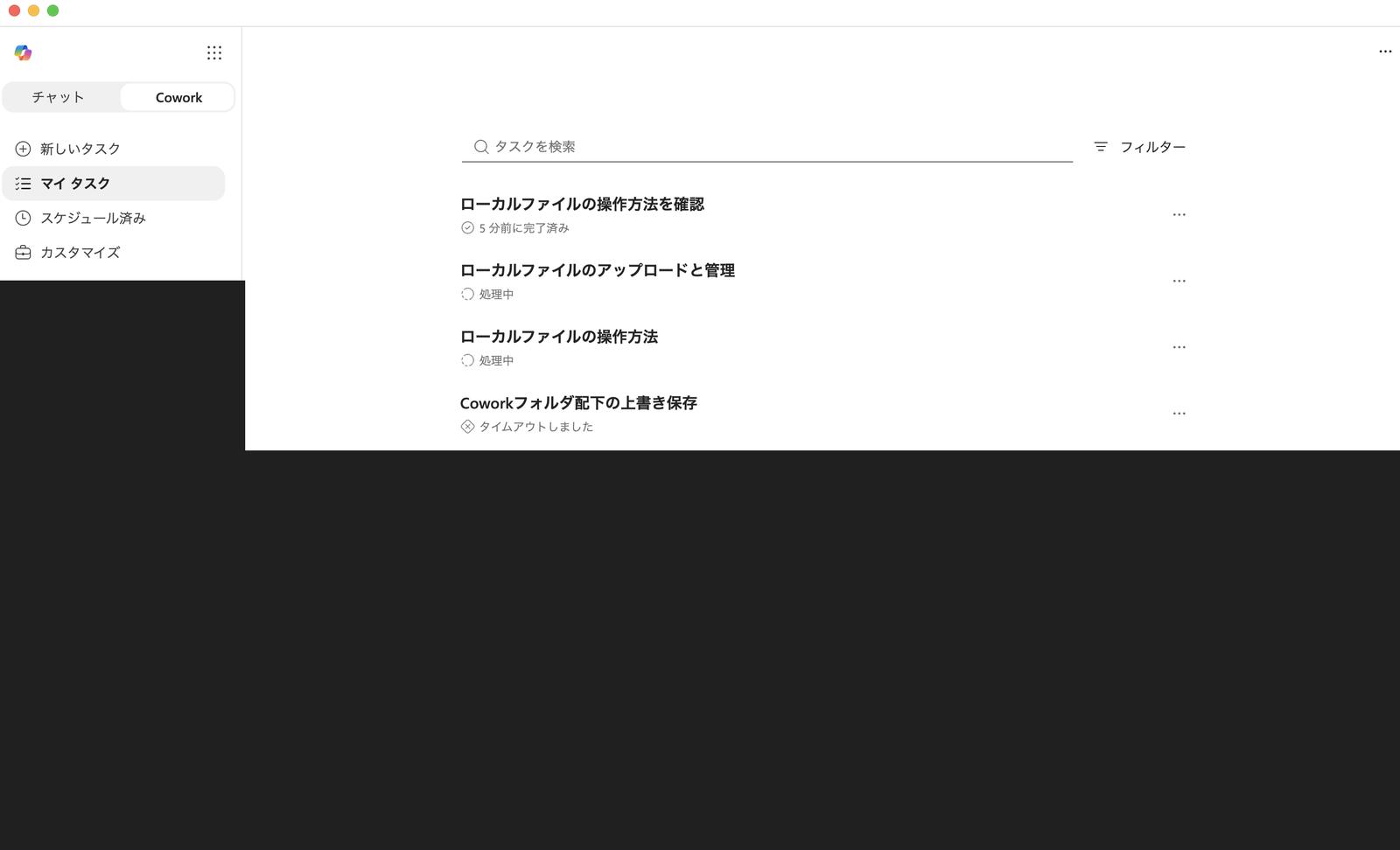
My Tasks list. "In Progress" and "Timed out" appear side by side in the same list
"Upload and manage local files" shows as In Progress, but opening it revealed that it had actually stopped with an error.
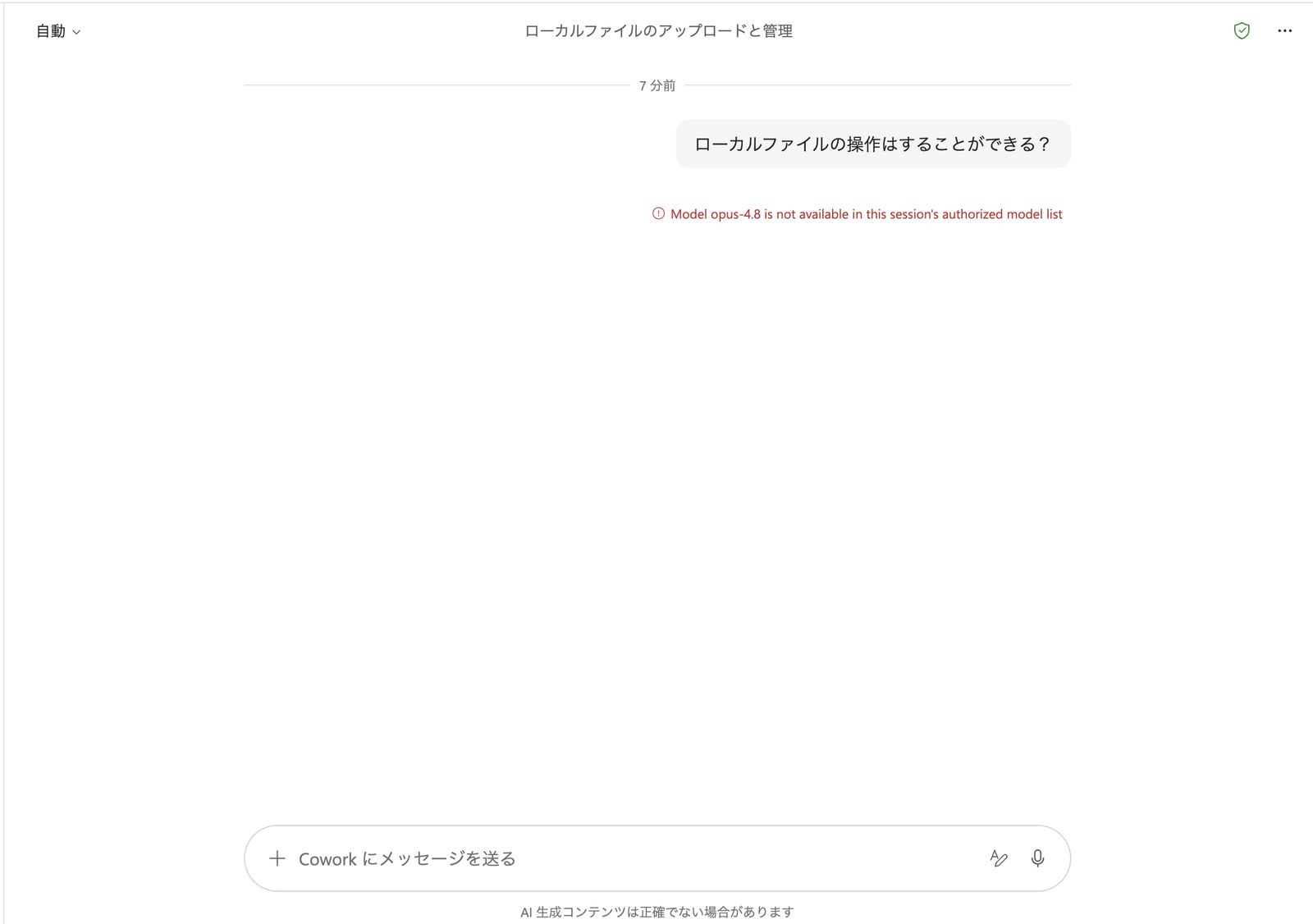
Contents of a task stopped due to an error. Only an error message stating the model is not on the approved list is shown
Since timeouts were correctly switching to a finished status, I suspect that for certain types of errors, the status update hasn't caught up. As this feature has only just become generally available, it may well be fixed in future updates, but I'm noting it here as something I observed.
4. Having Word, Excel, and PowerPoint Created
One of Cowork's highlights is the ability to create Word, Excel, and PowerPoint files using only chat instructions. I tested it with three different subjects.
4.1 Word
I requested the creation of an internal proposal on "Introducing a Free-Address System in the New Office" using the following prompt.
Please create an internal proposal document about "Introducing a Free-Address System in the New Office" in Word.
Structure as follows:
1. Cover page (title, date, creating department, one graphic image evoking an office space background)
2. Background for introduction (3 current issues in bullet points)
3. Proposal content (overview of the free-address system, one layout image)
4. Expected effects (table format with 3 items)
5. Introduction schedule (simple table)
Please use heading styles and keep it to approximately 3 pages in A4 format.
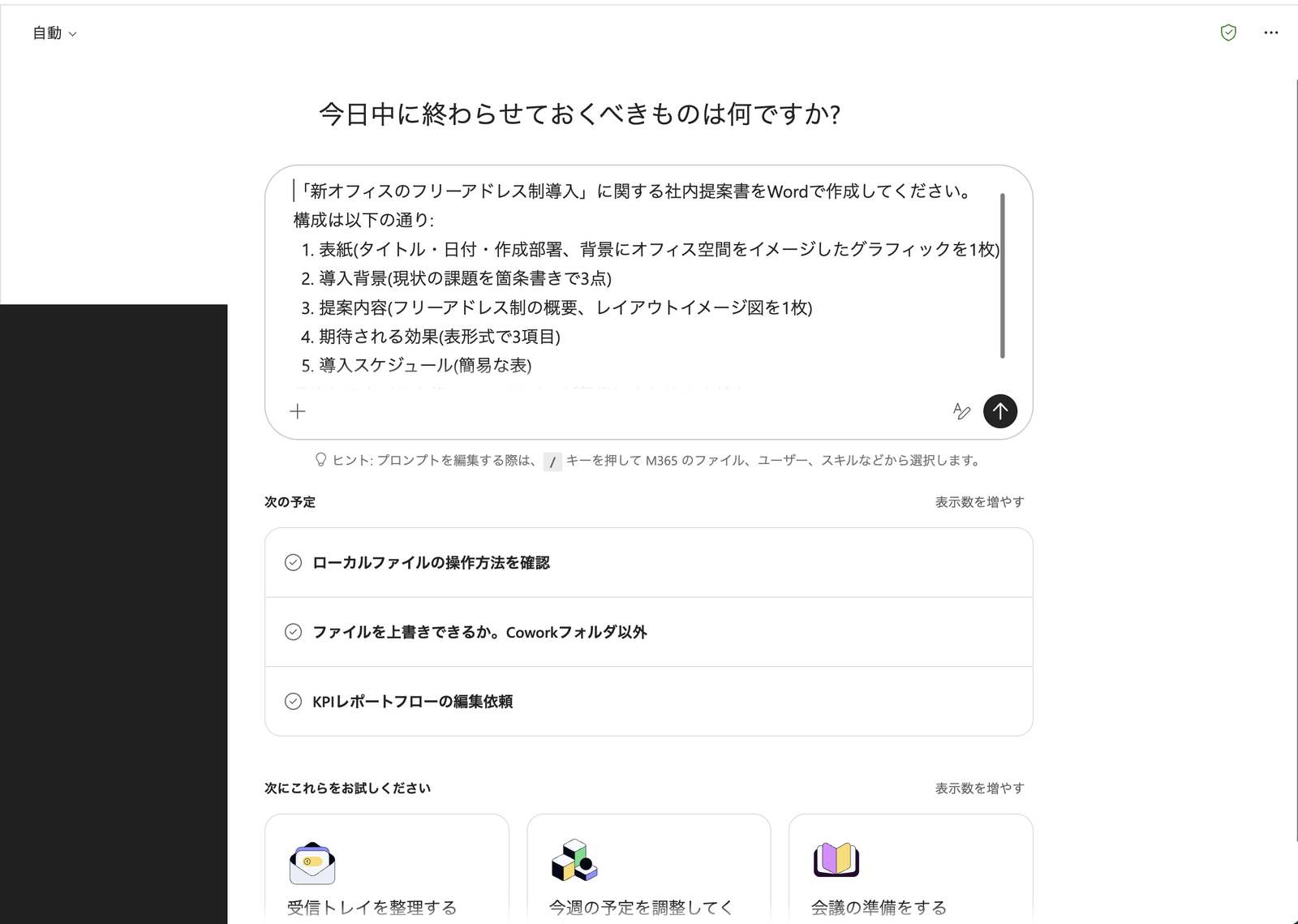
Word creation prompt. Specifying heading styles and page count (approximately 3 pages in A4 format)
Here is what was created in Word. It could be previewed directly on the right side of the chat screen.
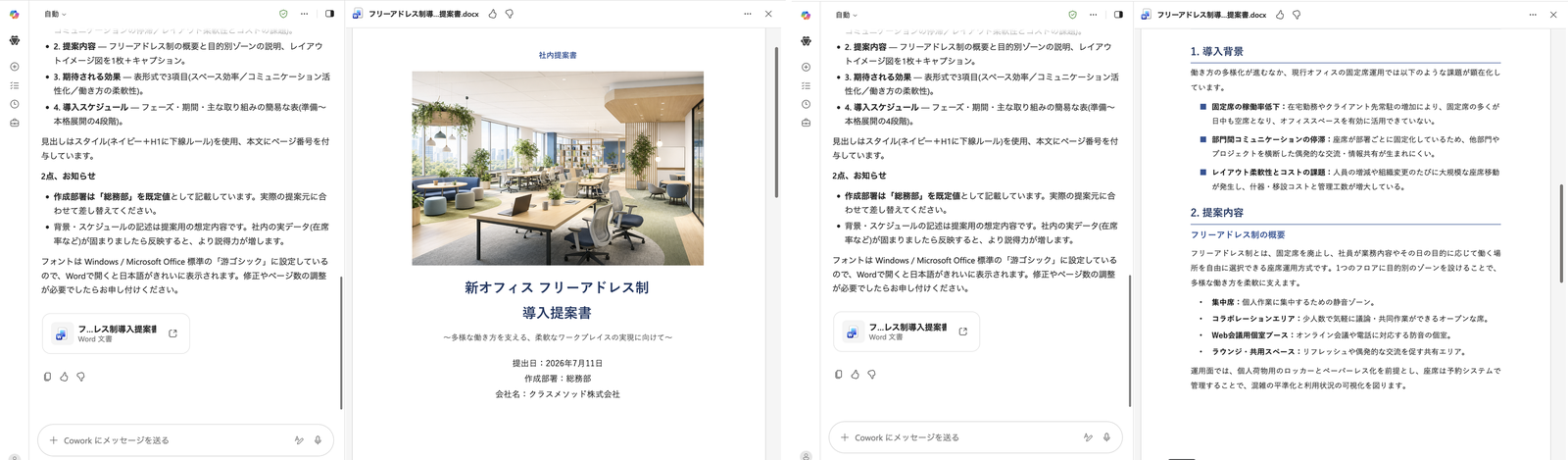
Left: Cover page. An image evoking an office space was generated as specified / Right: Page 2. Background and proposal content are summarized
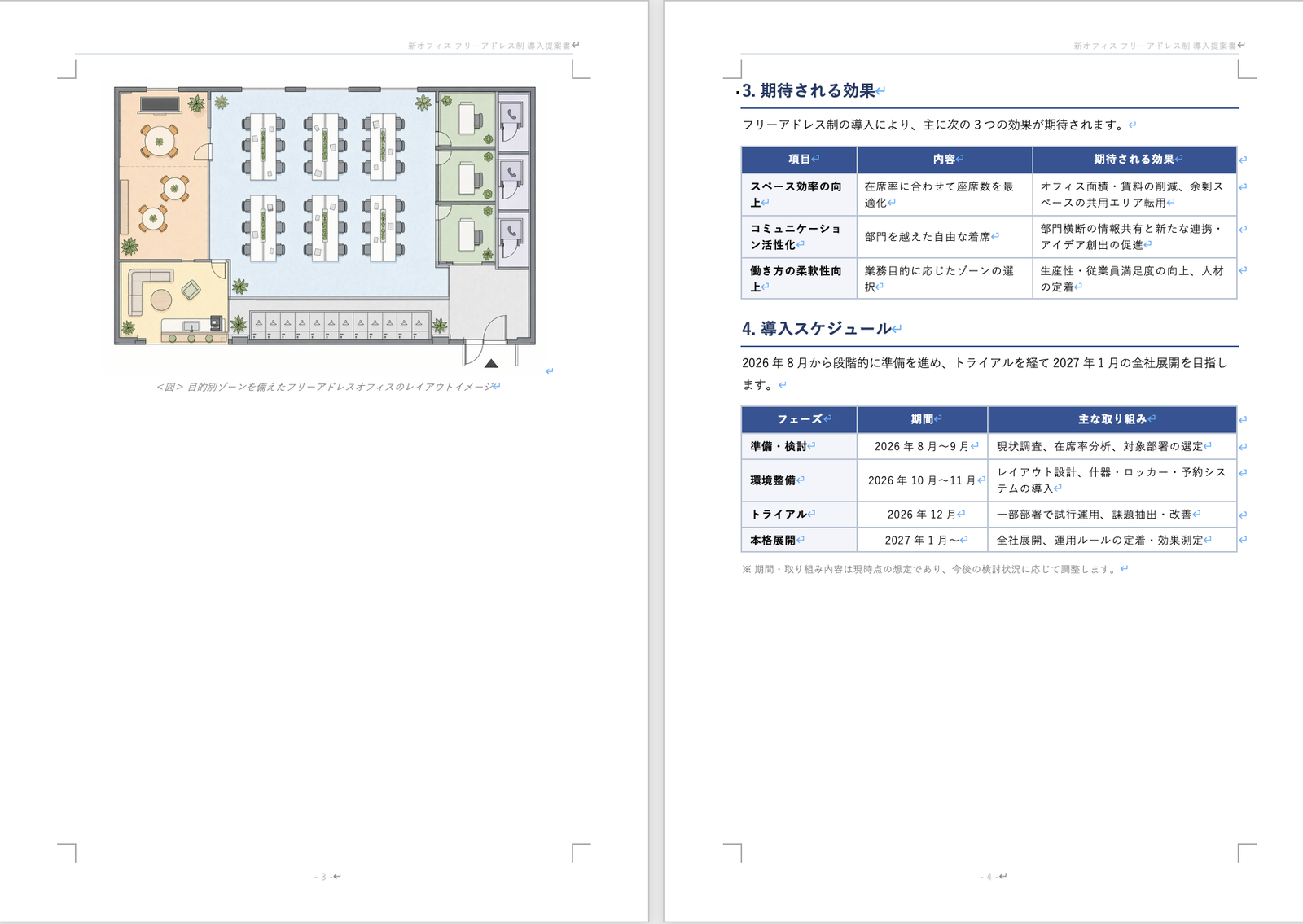
Pages 3-4. Tables for expected effects and introduction schedule. The page count was 1 page more than the "approximately 3 pages in A4 format" specified in the prompt
4.2 Excel
I requested the creation of fictional monthly sales data using the following prompt.
Create fictional monthly sales data (April to September, 3 stores) and produce an Excel file containing the following:
1. Raw data sheet (month, store, sales, customer count)
2. Line chart showing sales trends by store
3. Bar chart showing monthly totals
4. Conditional formatting (color scale) applied so top and bottom sales figures are immediately visible
Please randomly generate realistic figures (approximately 3 to 8 million yen monthly per store).
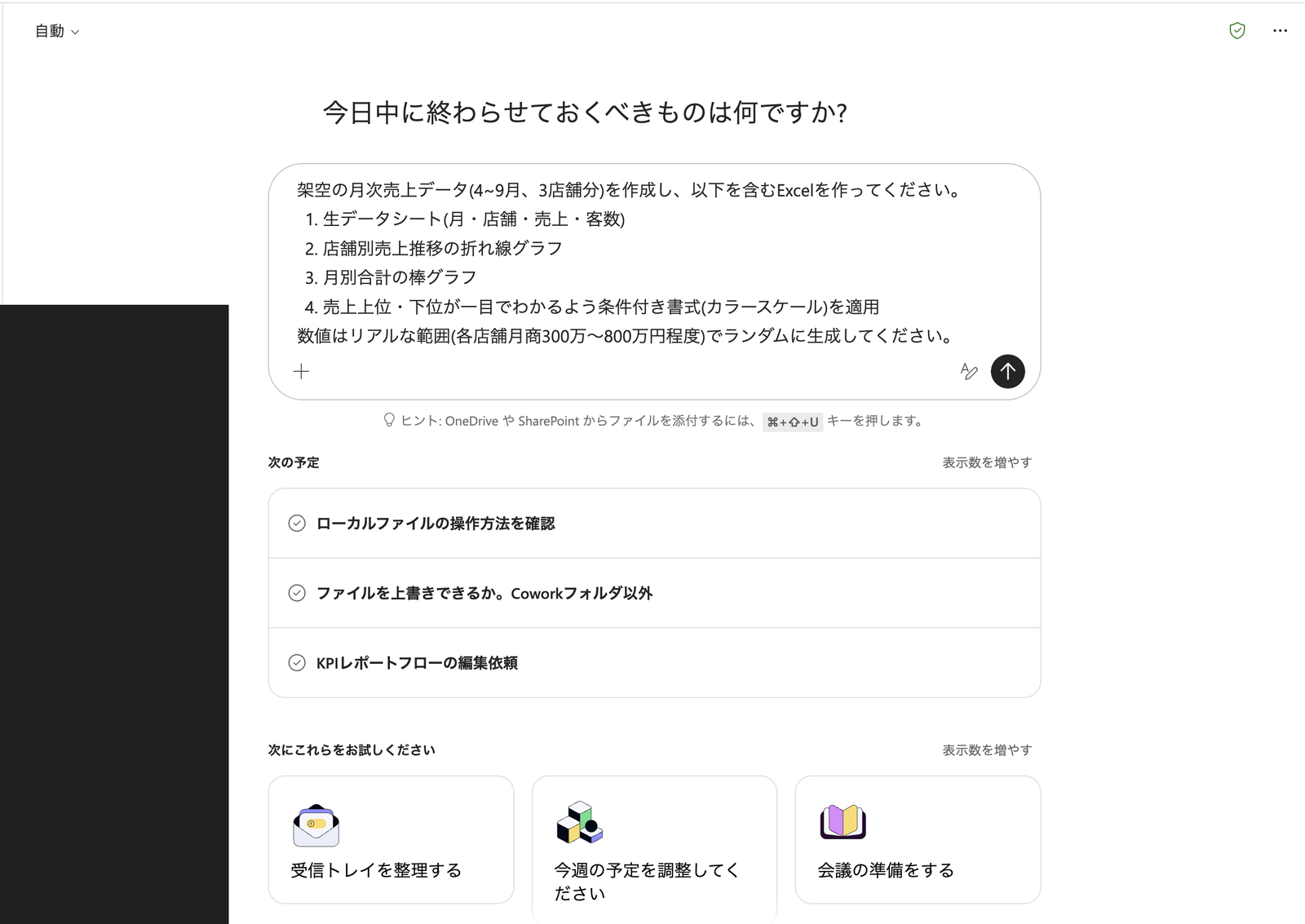
Excel creation prompt. Specifying sheet structure and conditional formatting
The raw data sheet contained randomly generated sales figures within the specified range of 3 to 8 million yen, with a color scale conditional format applied to the sales column.
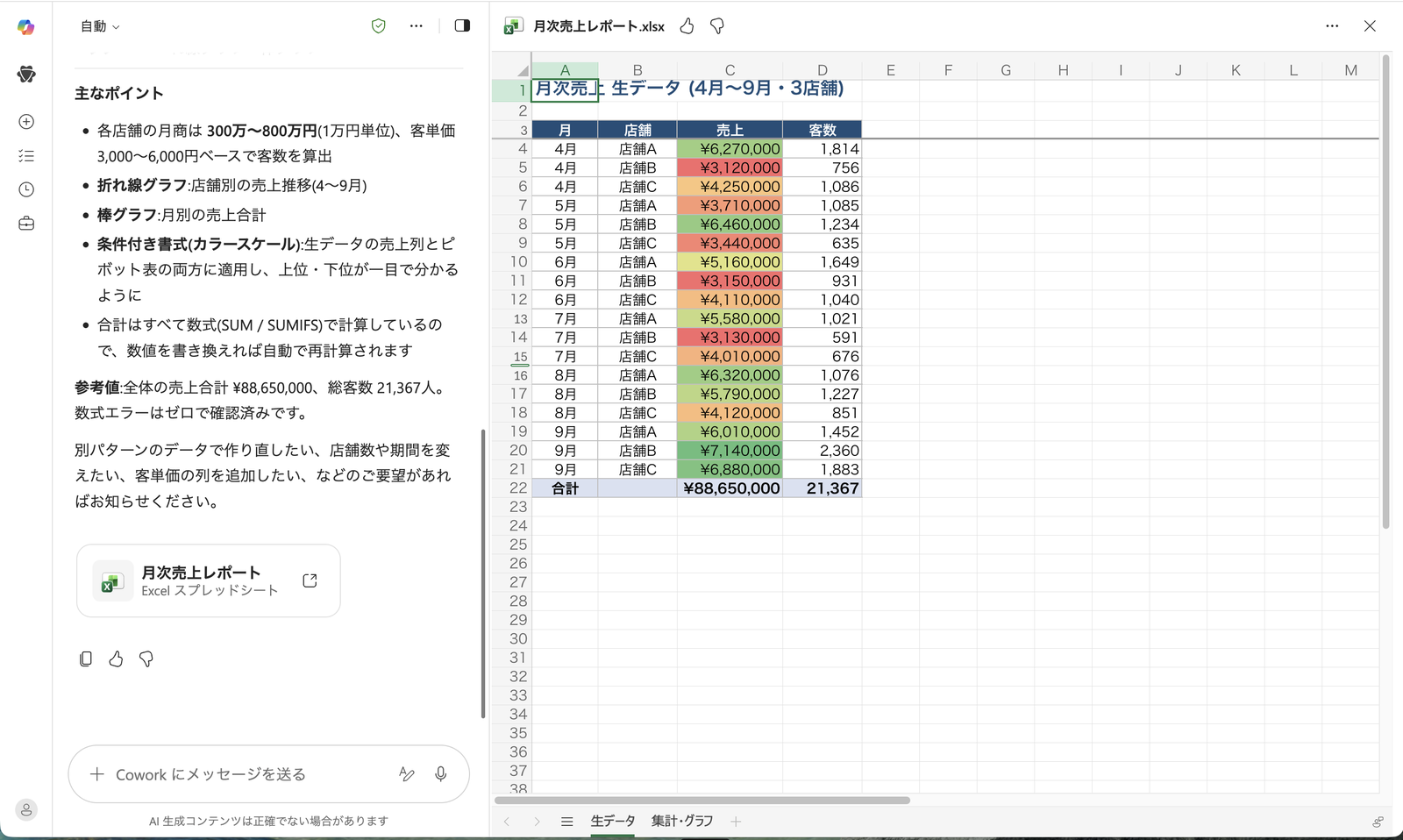
Raw data sheet. Color scale conditional formatting was applied as specified
The summary/charts sheet contained both the line chart and bar chart as specified.
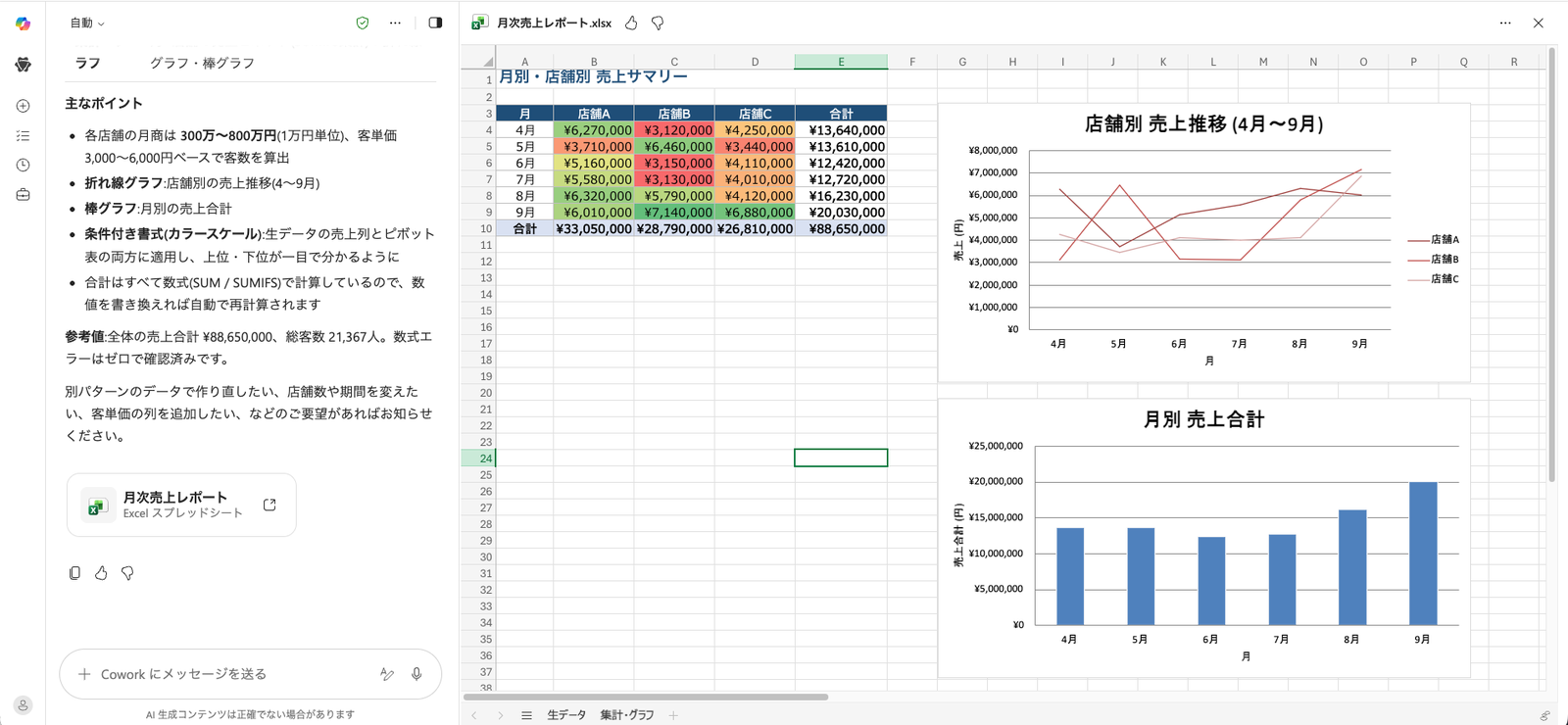
Summary/charts sheet. Both the line chart and bar chart were generated
4.3 PowerPoint
I requested the creation of a company introduction presentation for fictional IT company "NextBridge Co., Ltd." using the following prompt.
Please create a 5-slide PowerPoint company introduction for a fictional IT company called "NextBridge Co., Ltd."
1. Cover (simple visual resembling a company logo)
2. Business overview (introduce 3 businesses with icon images)
3. Strengths (photo-style image evoking an office or team)
4. Track record and simple chart of number of clients, etc.
5. Company profile (table format)
Please generate and place at least one relevant image on each slide.
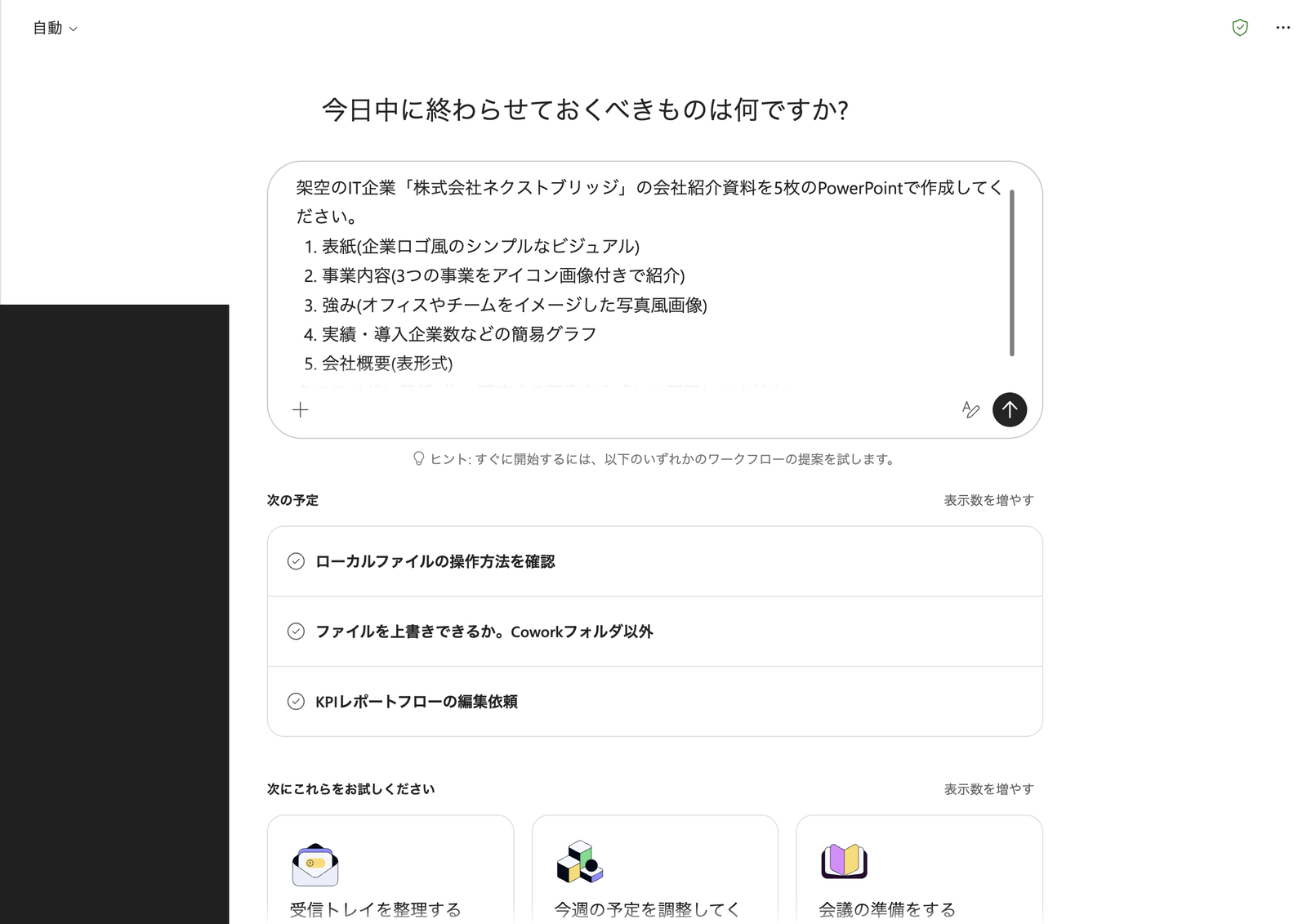
PowerPoint creation prompt. Specifying content for each slide and requiring at least one image per slide
Here is what was created in PowerPoint. All 5 slides followed the specified structure, and could be previewed directly on the right side of the chat screen.
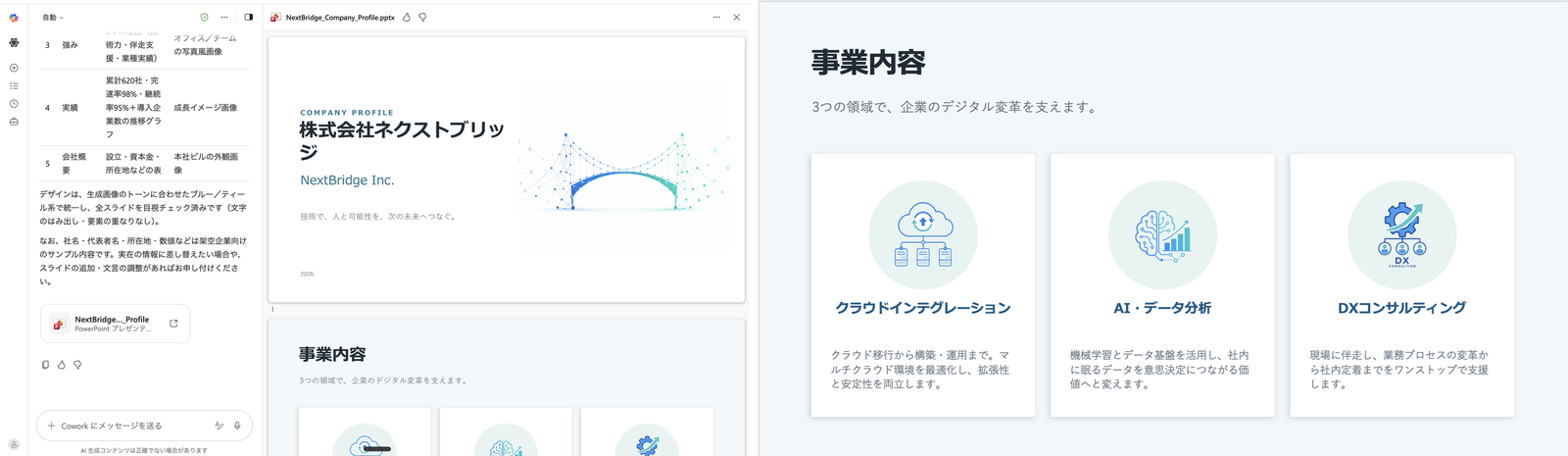
Left: Cover page. A bridge graphic matching the company name "NextBridge" was previewed alongside the structure table / Right: Business overview. Three businesses introduced with icon images
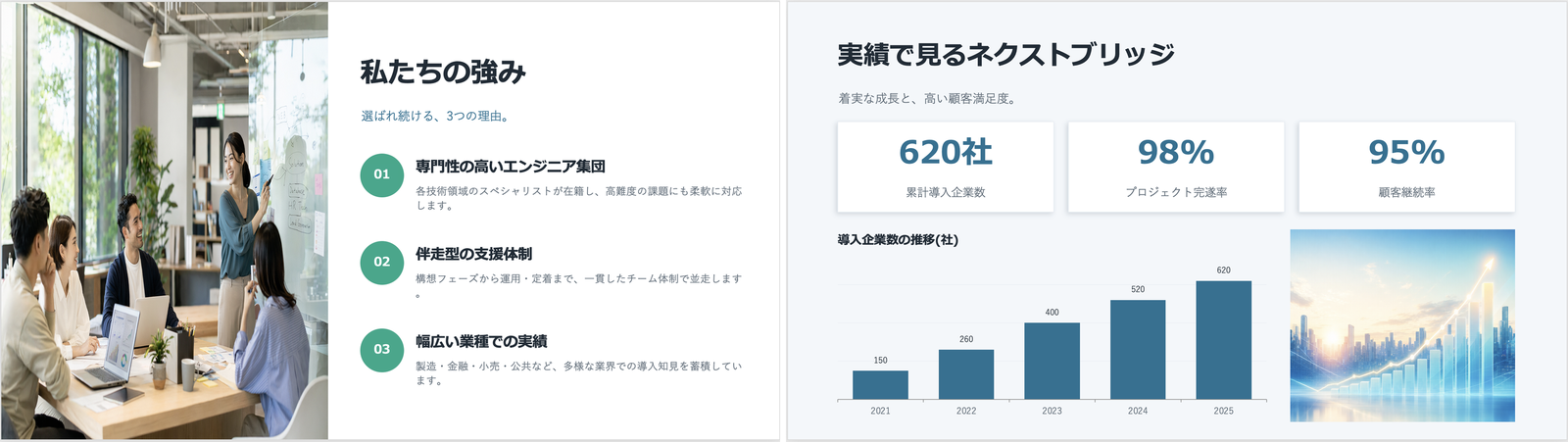
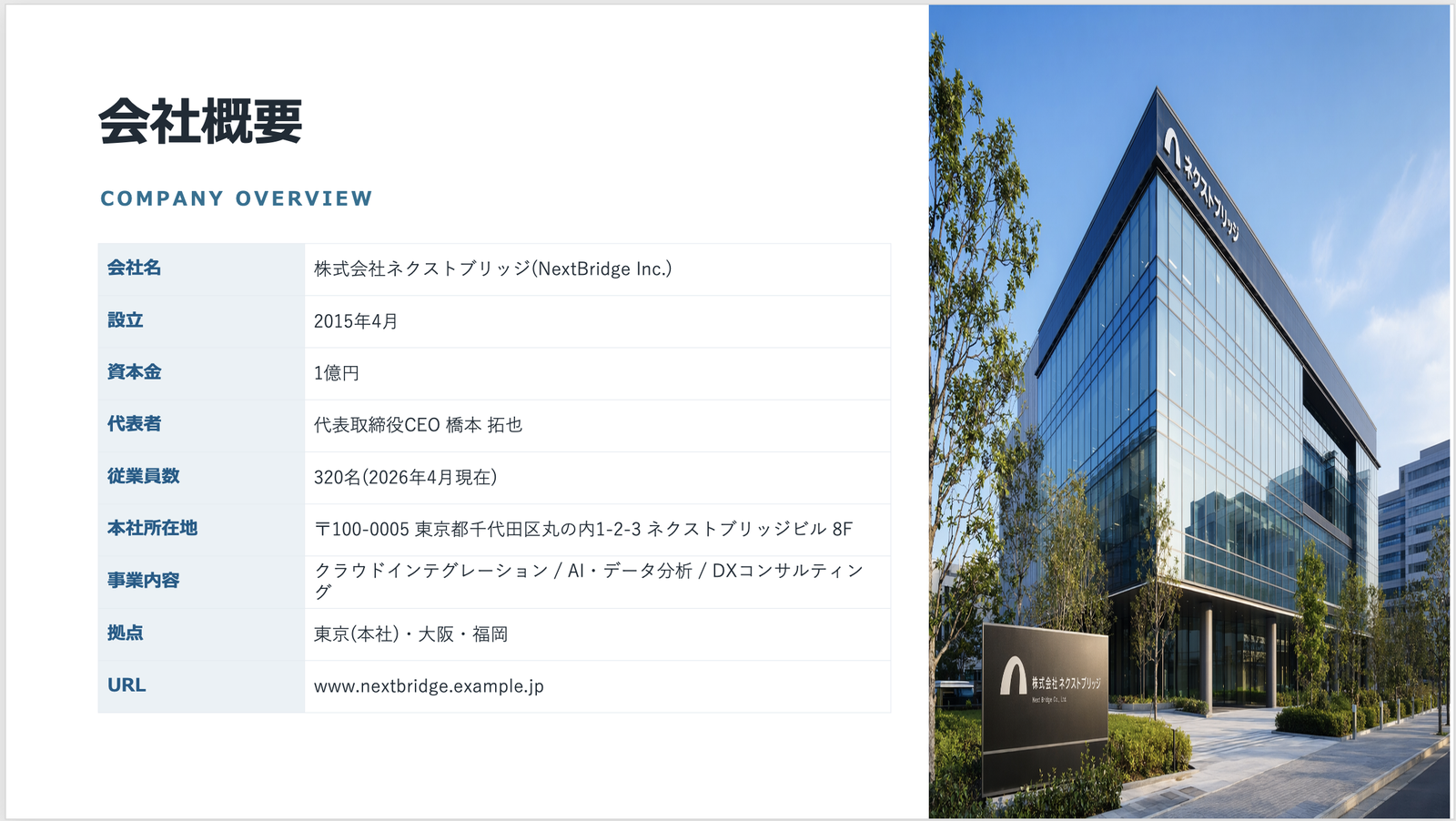
For all three—Word, Excel, and PowerPoint—the tone of the generated images was consistent, and no layout issues were visible. These previews can be viewed directly on the right side of the conversation screen without needing to download the files.
Users can preview files directly within the conversation without downloading them. Supported formats are PDF, Word, Excel, PowerPoint, Markdown, code files, images, CSV, HTML, and email.
Source: Get started with Copilot Cowork | Microsoft Learn
Regarding image generation, the official documentation explicitly names the model used, right down to the model name, as a built-in image generation skill.
When you request an image, Cowork automatically uses Imagen 2 as the image generation model.
When you ask for an image, Cowork: 1. Automatically uses the Imagen 2 model for image generation.
Source: Use Copilot Cowork | Microsoft Learn
It was surprising to find that Google's Imagen 2 is used rather than GPT-based models or DALL-E.
5. Checking Where Files Are Saved
Generated files are saved in a folder named "Cowork" created inside OneDrive.
You can access files that Cowork creates directly in your OneDrive Cowork folder at any time.
You can also access files that Cowork creates directly in your OneDrive Cowork folder at any time.
Source: Use Copilot Cowork | Microsoft Learn
When I actually opened OneDrive, task-specific folders had been created under My Files > Documents > Cowork > Tasks.
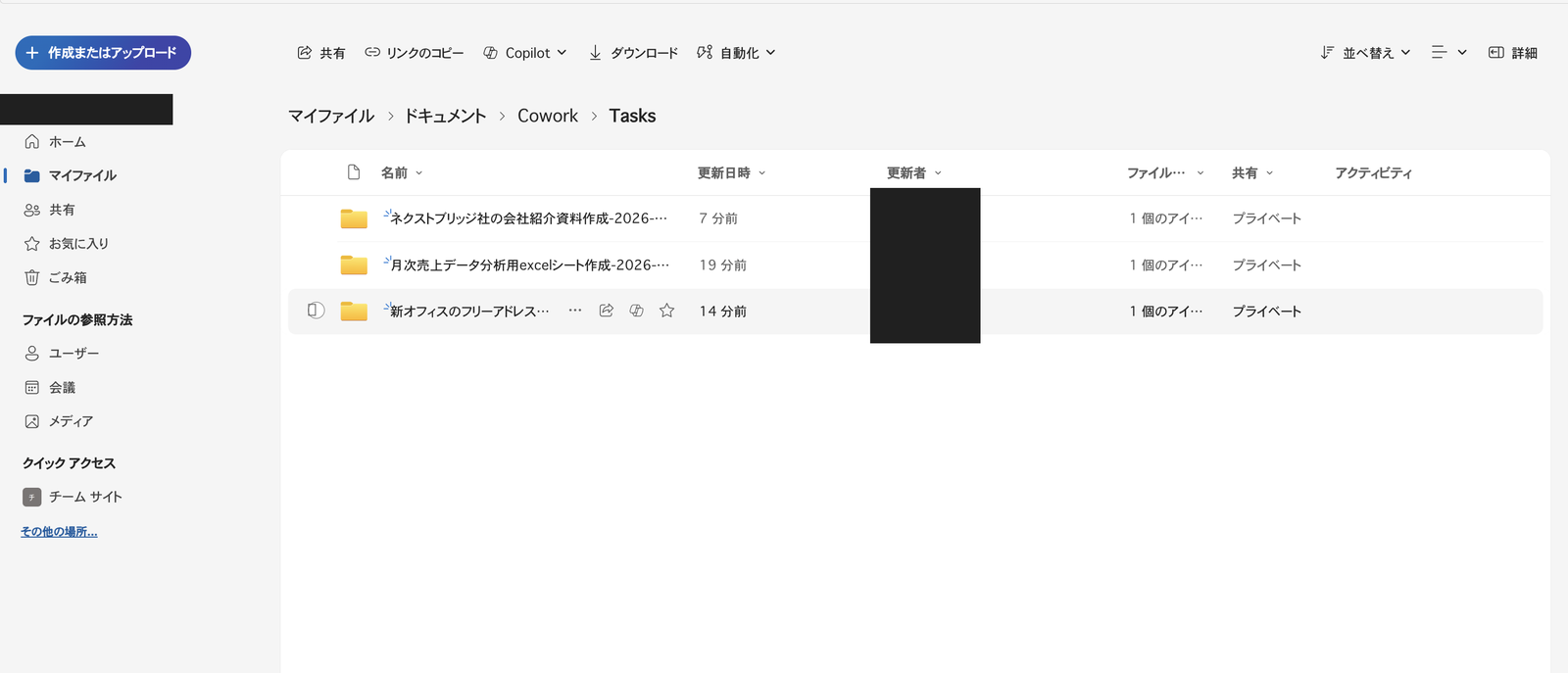
Folders are created by task name and date under Documents/Cowork/Tasks/
Opening each task's folder revealed the generated files inside an output folder.
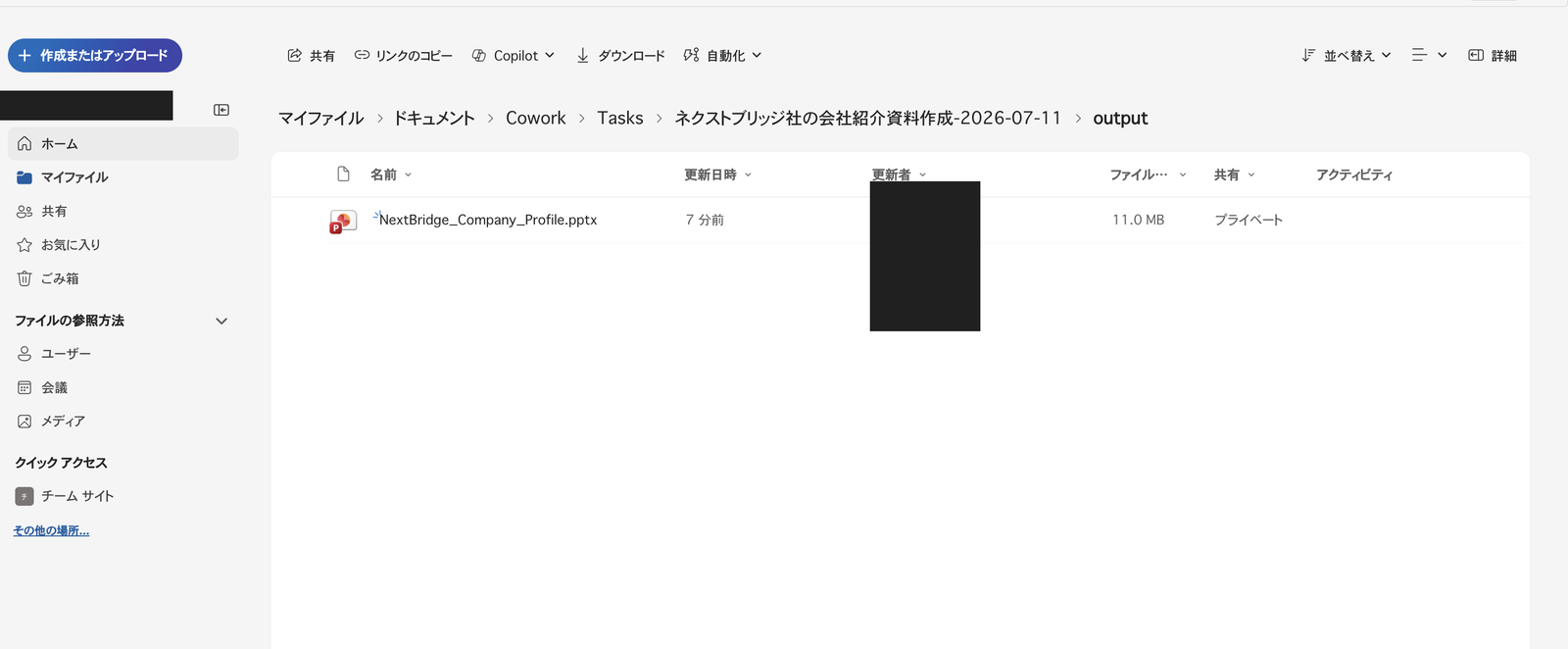
Output folder for the PowerPoint task
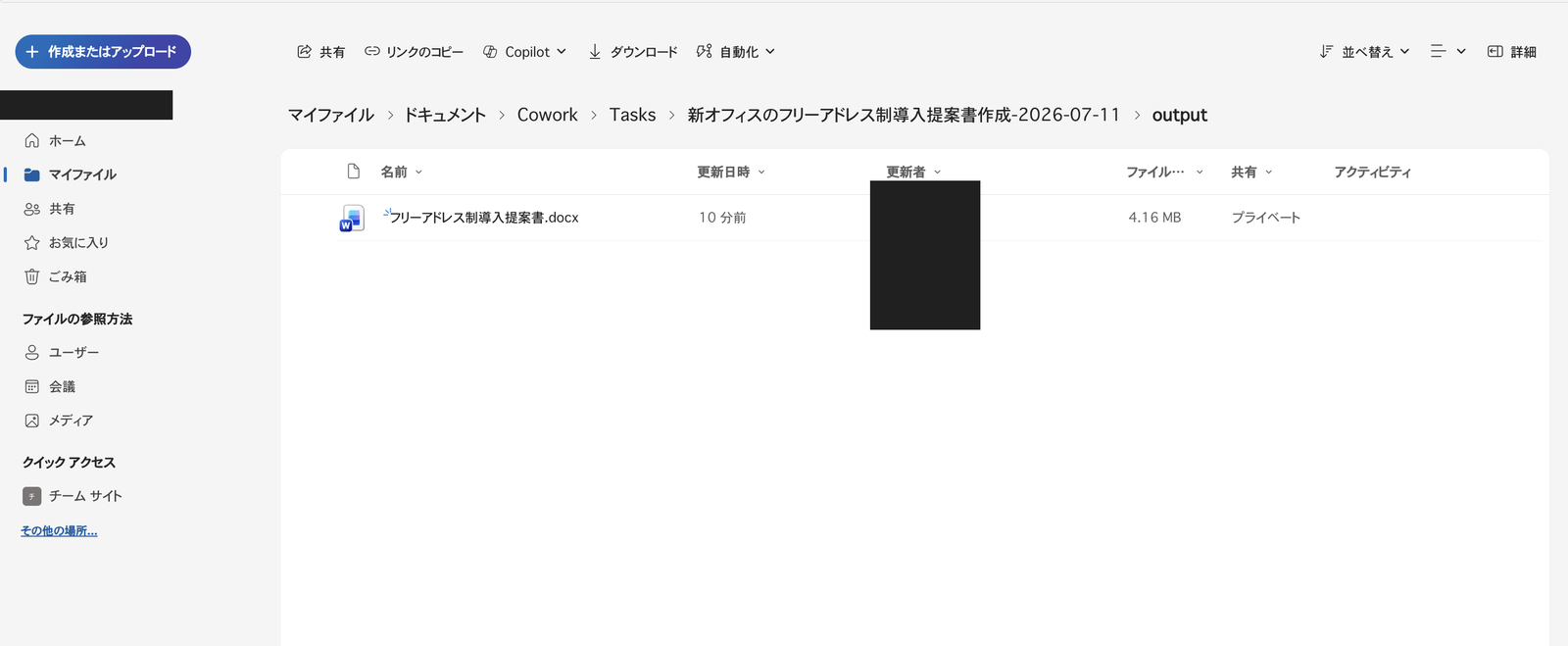
Output folder for the Word task
In other words, the save path follows the structure Documents/Cowork/Tasks/<task name-date>/output/<filename>. Since folders are separated by task, the structure makes it easy to look back at files later.
5.1 Testing Whether Existing Files Can Be Updated
Although the original prompt specified "approximately 3 pages in A4 format," the actual output was 4 pages. I tried passing the generated file back and asking it to fix the page count, also as a test of updating existing files. The official documentation also describes editing shared files as a Cowork feature.
You can edit and refine existing documents shared in the conversation.
Source: Copilot Cowork overview | Microsoft Learn
I pasted the previously created 4-page proposal into the conversation and asked, "Can you trim this down to 3 pages?"
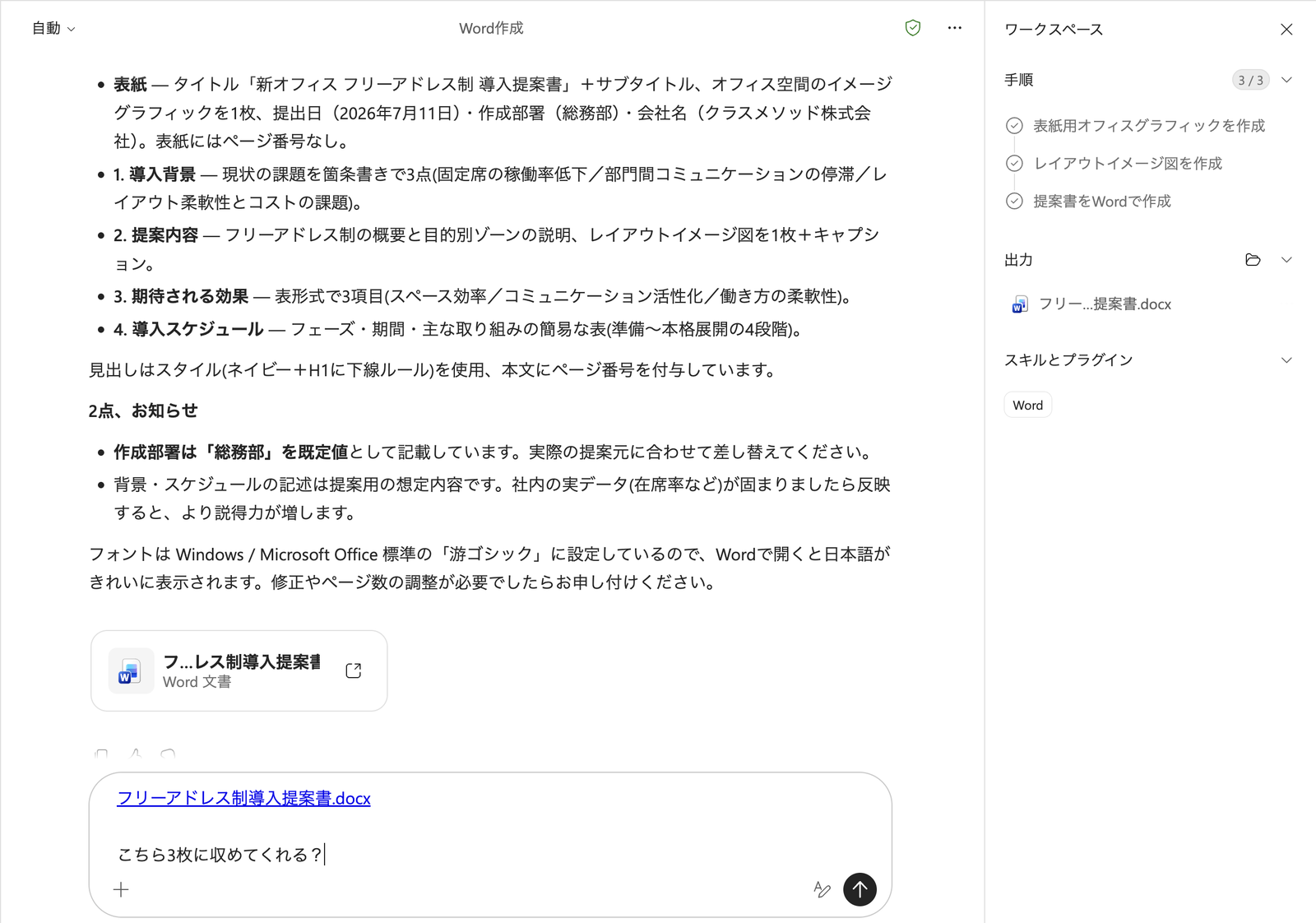
Pasted the generated Word file into the conversation and requested a reduction in page count
Actual response:
I've trimmed it to 3 pages. Updating Free-Address System Introduction Proposal.docx.
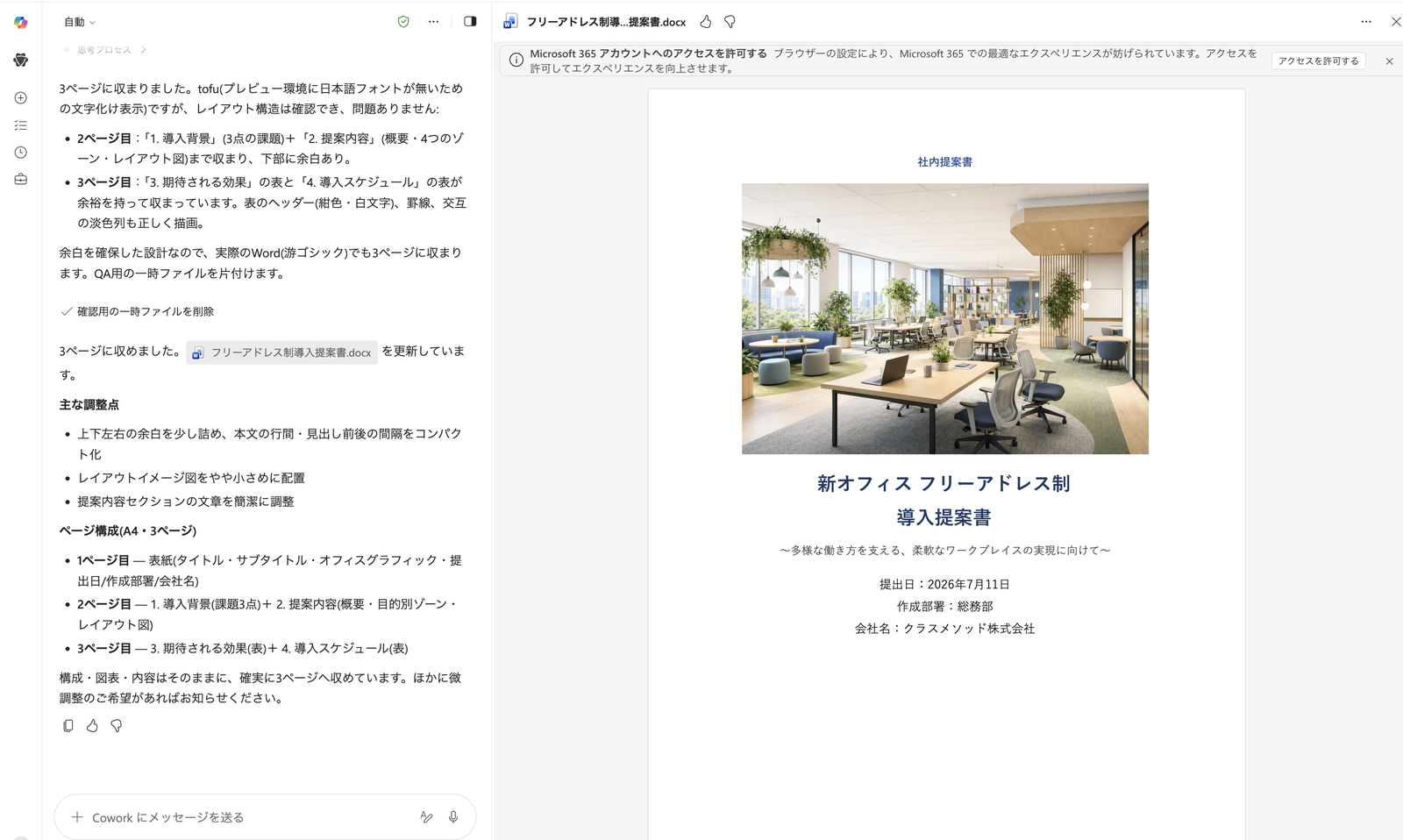
Margins and line spacing were tightened to fit 3 pages, and the same file was updated
Viewing the entire document across pages 1–3 confirmed there was no 4th page, and the document was indeed contained within 3 pages.
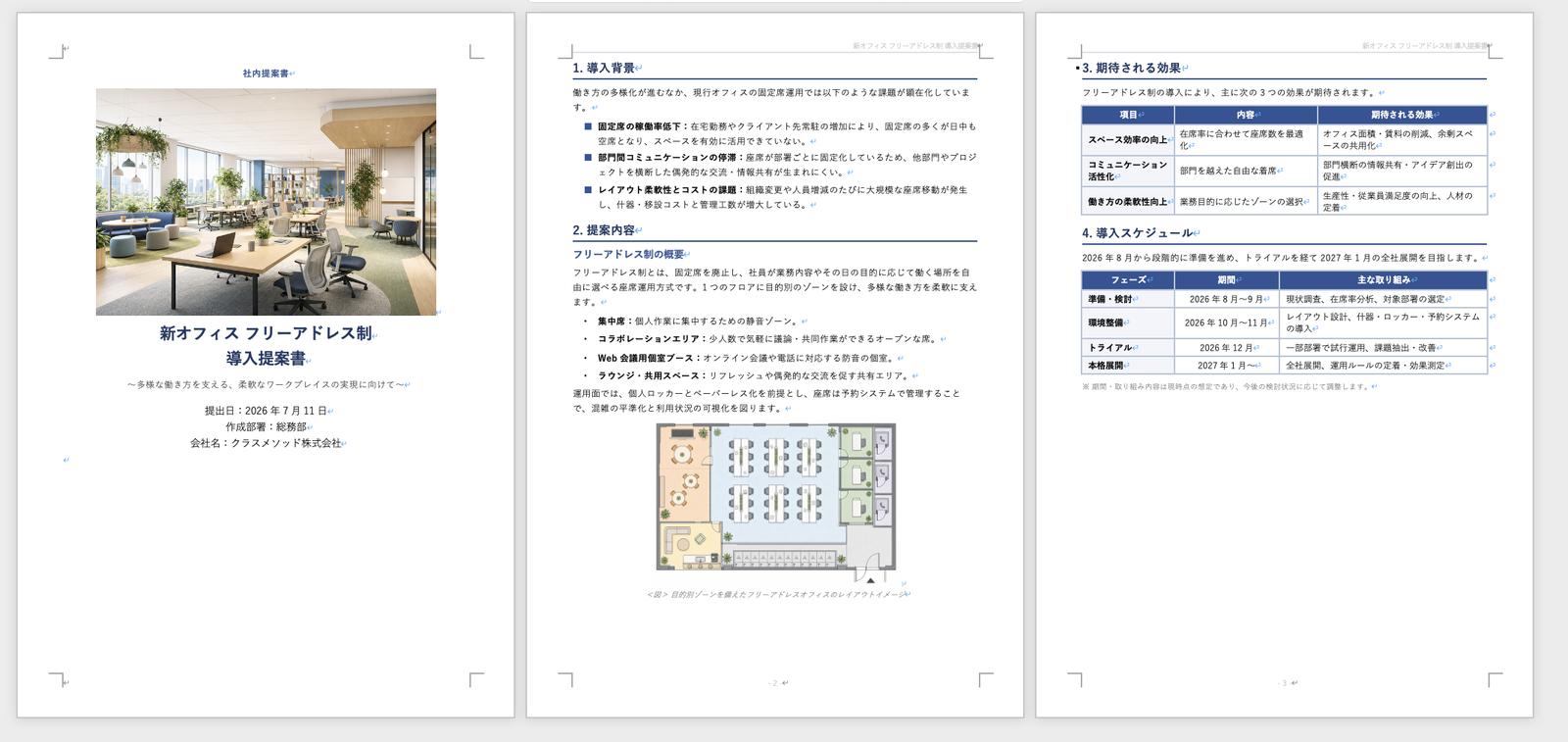
Pages 1–3 displayed in full. No 4th page, confirming it fits within 3 pages
Checking the same output folder in OneDrive, no new file had been added—instead, the last modified date on the same Free-Address System Introduction Proposal.docx had been updated.
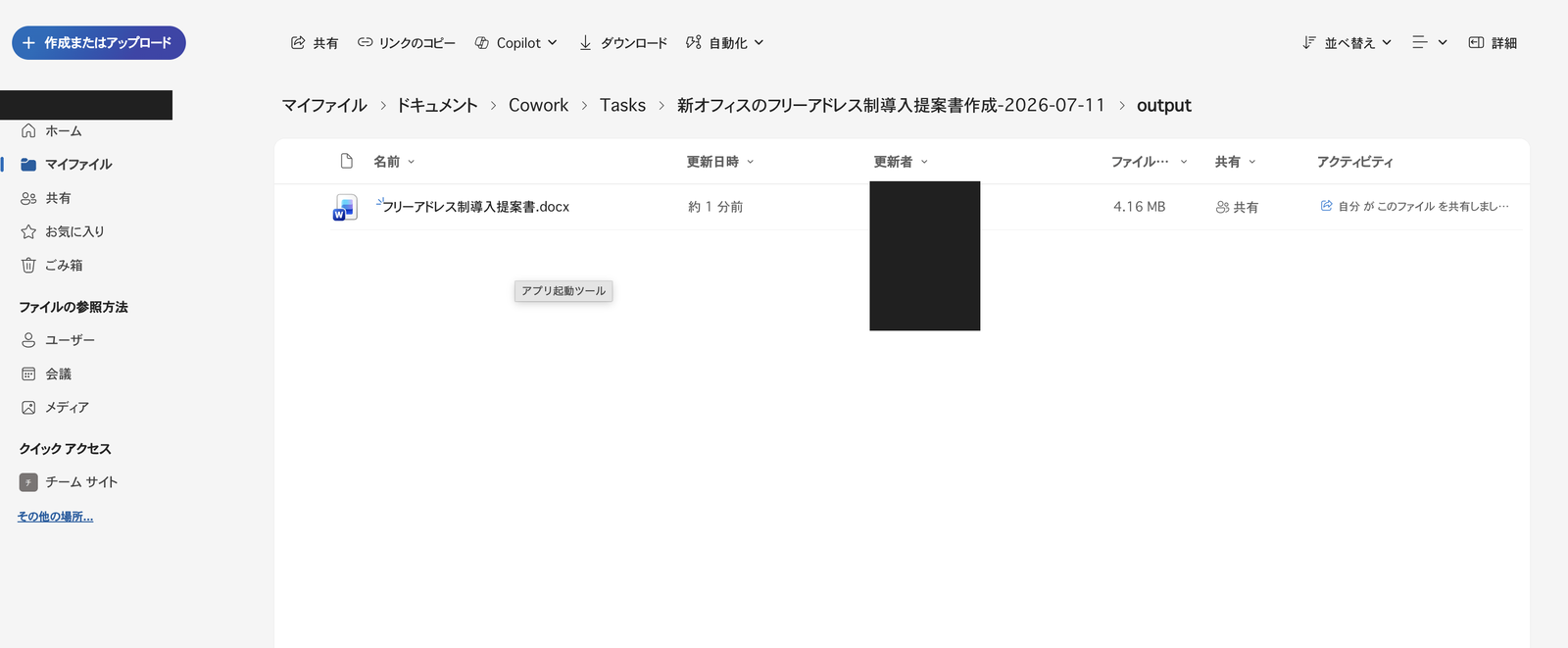
Only the last modified date has changed, keeping the same filename. No new file was created
In my environment, when I asked Cowork to make revisions, it updated the existing output file by overwriting it rather than creating a separate file.
6. Differences from Claude's Cowork
Anthropic's Claude also has an autonomous execution feature called "Cowork." Since I use Claude Cowork regularly, I'll summarize the differences based on the official documentation.
| Aspect | Microsoft 365 Copilot Cowork | Claude Cowork |
|---|---|---|
| Provider | Microsoft (uses Anthropic's Claude and OpenAI's GPT models) | Anthropic |
| Operating environment | Web, desktop app, mobile app | Web, desktop app, mobile app (Web/mobile in beta, rolling out starting from Max plan) |
| Required plan | Microsoft 365 Copilot license | Paid plans such as Pro/Max/Team/Enterprise |
| File save location | Cowork folder in OneDrive |
Locally specified folder |
| Scheduled tasks | Available | Available |
In my hands-on environment, the Microsoft 365 Copilot Cowork model selection also listed GPT 5.5 and GPT 5.6 variants, confirming that both Claude and GPT can be used.
Unlike Claude Cowork, which I use regularly, model selection here defaults to "Auto" with no option to choose an effort level. Not having to think about which model or reasoning strength to use is actually a clearer and more approachable design, especially for non-engineers.
Summary
Copilot Cowork feels like it has reached a practically useful stage as an entry point for document creation—you can get Word, Excel, and PowerPoint files created just by giving instructions in chat. The quality of generated images and charts, the ability to preview without downloading, and the organized OneDrive save structure by task all felt polished enough for real-world use. I was also able to confirm that asking Cowork to revise a previously created file results in the same file being overwritten rather than a new one being created. On the other hand, minor inconsistencies remain, such as the status display issues in My Tasks. Since this feature has only just become generally available, I'll continue watching to see how it stabilizes with future updates.