
I tried setting up scheduled tasks in Copilot Cowork

This page has been translated by machine translation. View original
Introduction
Hello, I'm Keema.
One of the indispensable features of Copilot Cowork is the "scheduled tasks" feature. Simply put, it's a feature that regularly executes specific tasks according to a schedule. Most people probably want AI to automate their work.
In this article, I'll cover Cowork's scheduled tasks (labeled "Scheduled" on screen), reviewing each settings screen one by one as of July 2026. I also looked into the official Claude Cowork documentation and compared both products on three points: model selection, conversation continuity, and how time is handled.
Target audience: Those who want to set up recurring execution tasks in Copilot Cowork
0. What are Scheduled Tasks?
In the official documentation, in response to the question of whether recurring prompts can be scheduled, it explains that if you describe what you want done and when in your message, Cowork will build the schedule based on that content.
Can I schedule recurring prompts?
Yes. Describe what you want and when in your message—for example, "Send me a daily briefing every morning at 9 AM." Cowork sets up the schedule based on your request.
Source: Copilot Cowork common questions | Microsoft Learn
Rather than filling in fields on a fixed input form, it's a mechanism where Cowork builds the schedule from chat instructions. Let's walk through how this appears in the actual screens.
1. Opening the "Scheduled" Screen
Selecting "Scheduled" from the left navigation displays a list of registered scheduled tasks along with a "Create" button in the upper right. When nothing is registered, the list is empty.
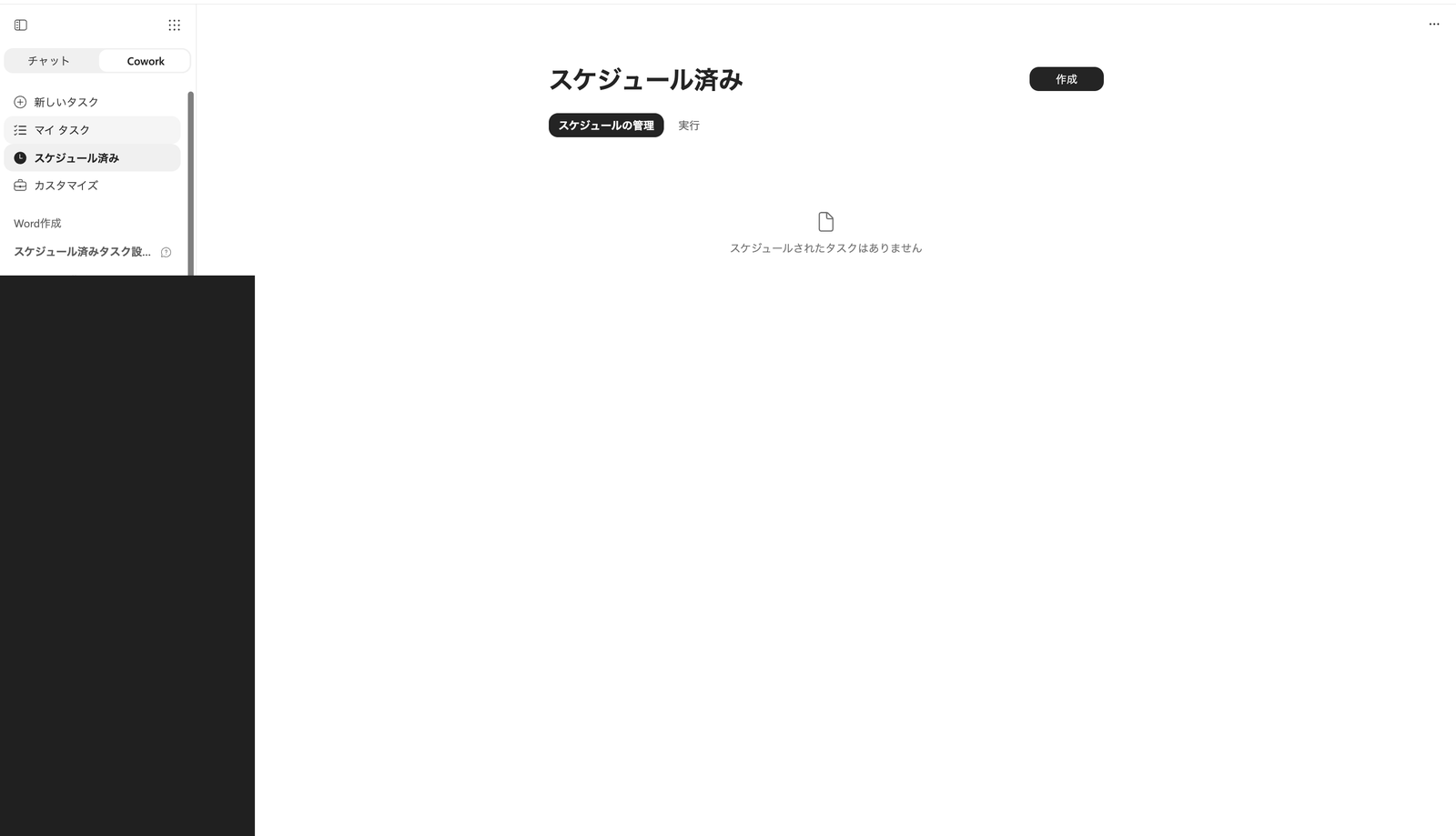
The "Scheduled" screen. In the initial state the list is empty, and you create a new task from the "Create" button
When I clicked "Create," instead of a form for entering a name or model, a chat conversation started directly.
2. Being Asked About Content and Frequency in Conversational Format
First, the question "What would you like Cowork to do regularly?" is presented along with four options (morning briefing, email summary and organization, meeting preparation, and daily review). Content not covered by the options can be entered as free text.
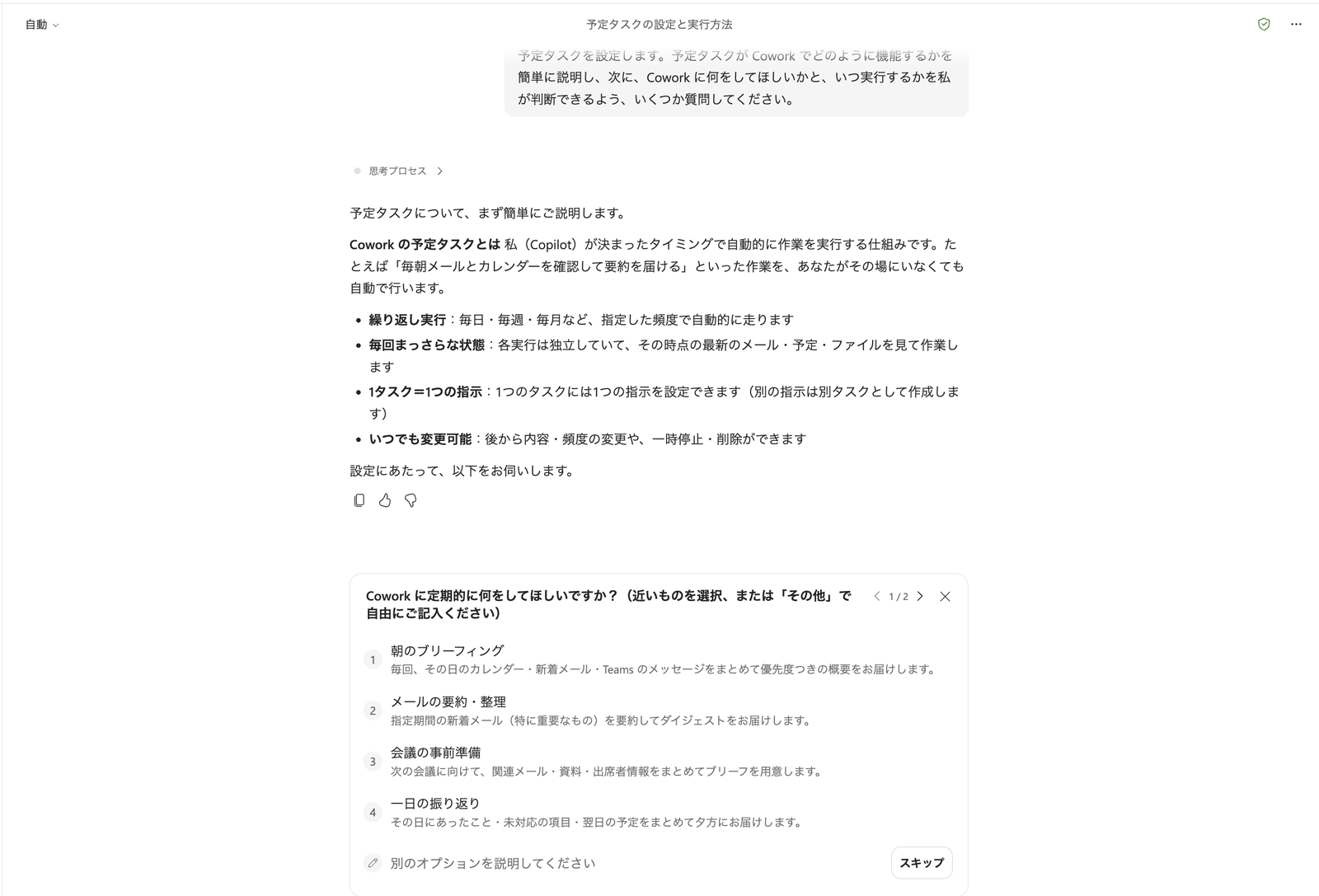
The first question. In addition to the options, free text entry is also supported
I typed "Tell me the World Cup results for that day, every day" in the free text field. Then a second question, "When should this run?", appeared, offering four choices: every morning (weekdays), every day, every week, and every month.
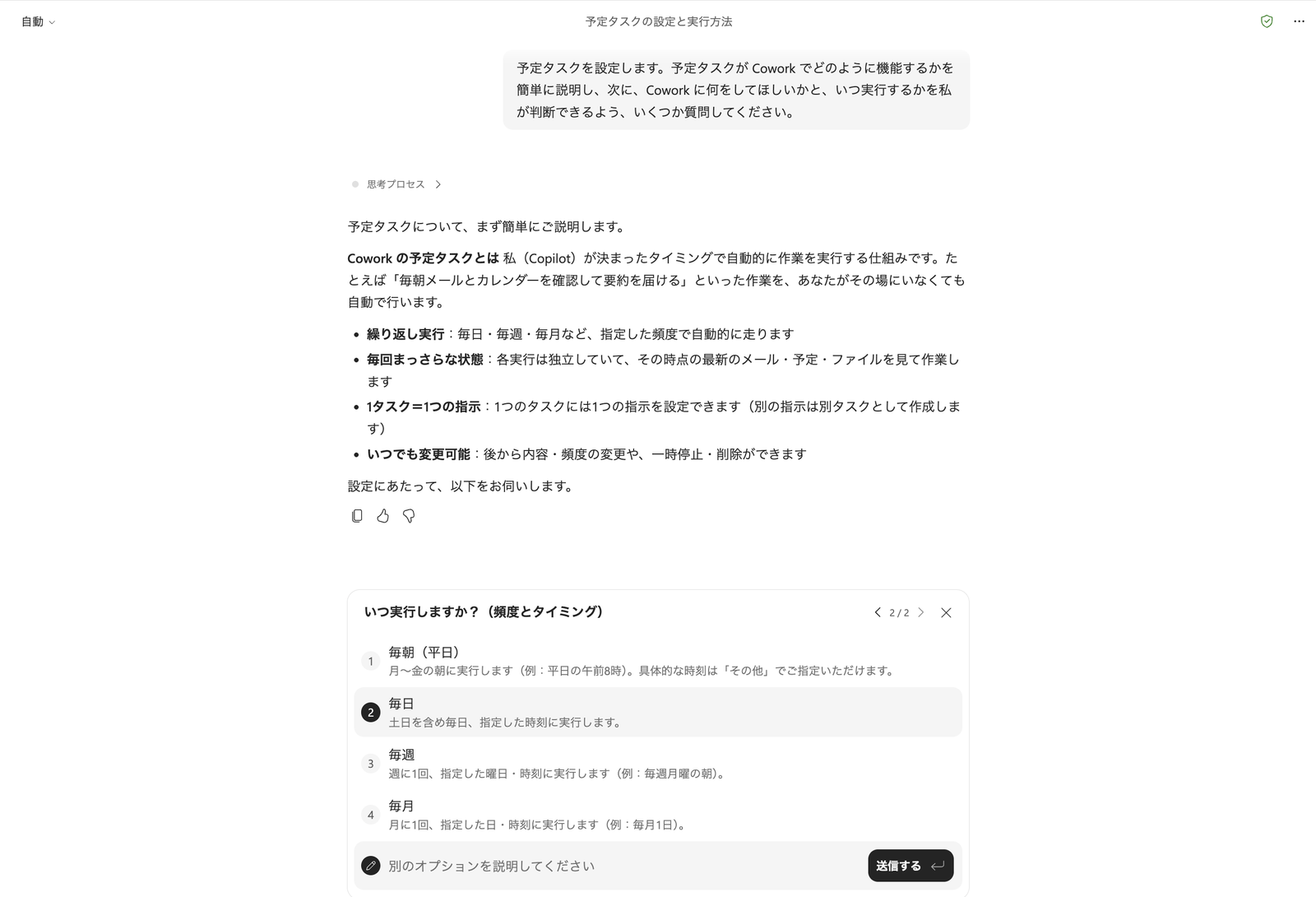
The second question. Frequency can be chosen from four options, with finer details like time specified via free text
A name input field or model selection field did not appear anywhere in either of these two questions.
3. Confirming the Schedule with a Confirmation Card
After answering the two questions, a confirmation card appeared showing what Cowork had put together.
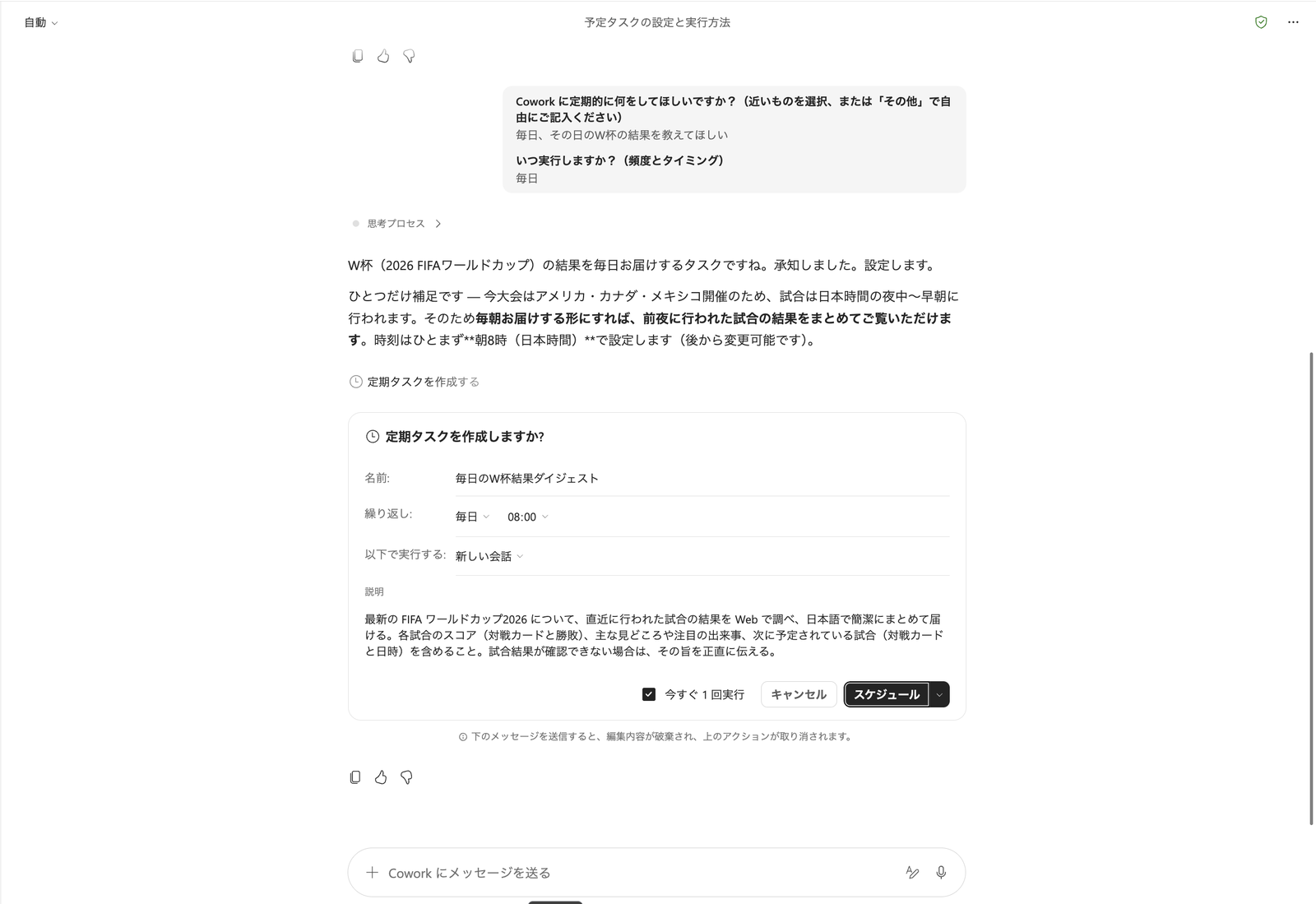
The confirmation card. The name, recurrence, execution method, and instruction text are all auto-generated and can be edited on the spot
The card contains the following items.
| Item | Content |
|---|---|
| Name | Daily World Cup Results Digest (auto-generated, editable) |
| Recurrence | Every day 08:00 (frequency and time can be changed via dropdown) |
| Run in | New conversation (can be switched to "Same conversation") |
| Description | Instruction text passed to Cowork at each execution |
"Run in" is an item that selects whether to start each execution as a new conversation or to continue it as a continuation of the same chat. The default was "New conversation." There was also no item for specifying a model on this confirmation card. With the "Run once now" checkbox checked, pressing "Schedule" returned sample execution results on the spot.
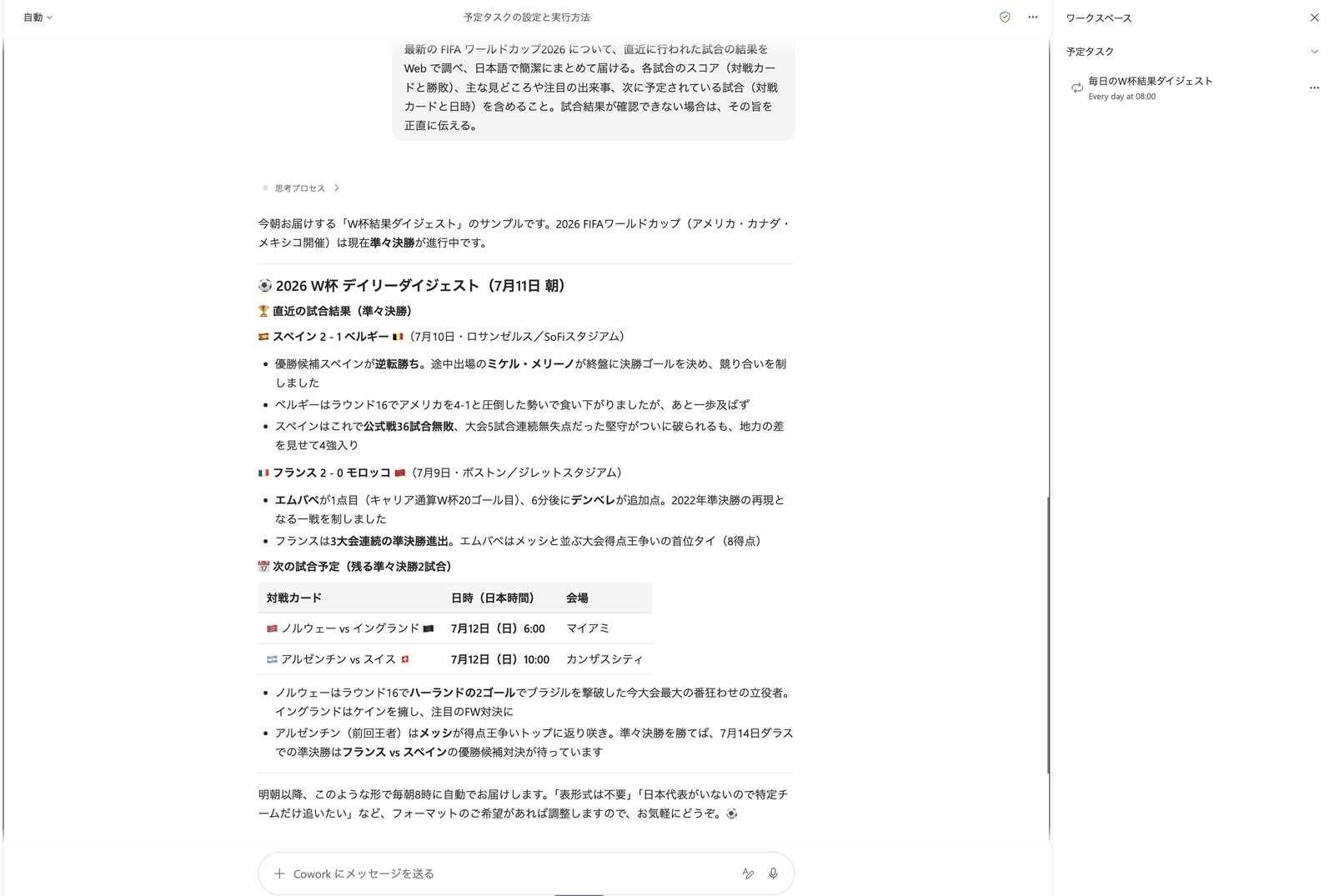
A sample output for one run was returned immediately after registration
4. Checking the List and Detail Screen After Registration
Returning to the "Scheduled" list, the created task had been added.
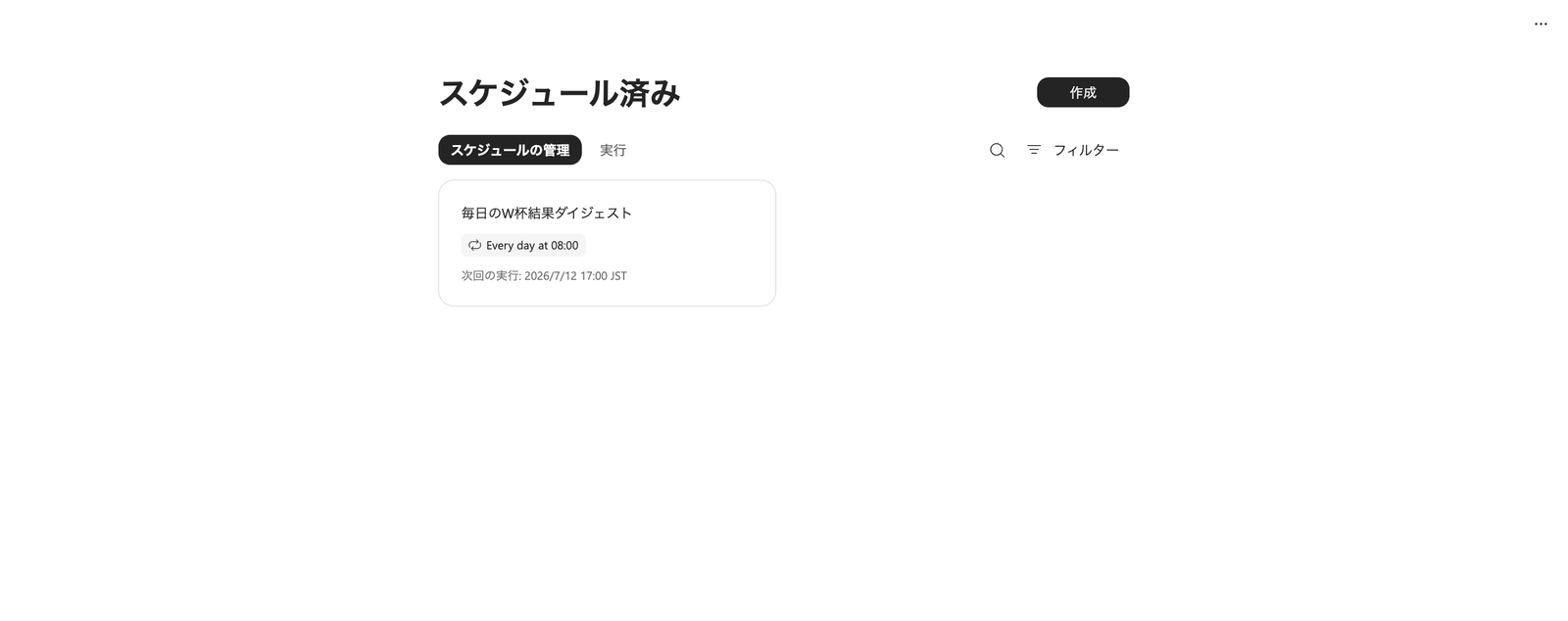
The scheduled list. The recurrence setting and next execution time are displayed side by side
In my environment, while the recurrence setting showed "Every day at 08:00," the next execution time was displayed as "2026/7/12 17:00 JST." Adding 9 hours to 08:00 gives exactly 17:00, suggesting that the time interpreted as UTC may be displayed with the JST label. There is no mention of timezone handling in the official documentation, and I was unable to confirm whether this 9-hour discrepancy is a consistent behavior or something specific to my environment.
Clicking the task name opens the detail screen, where in addition to the items seen on the confirmation card, I could toggle between active and paused states and check the execution history.
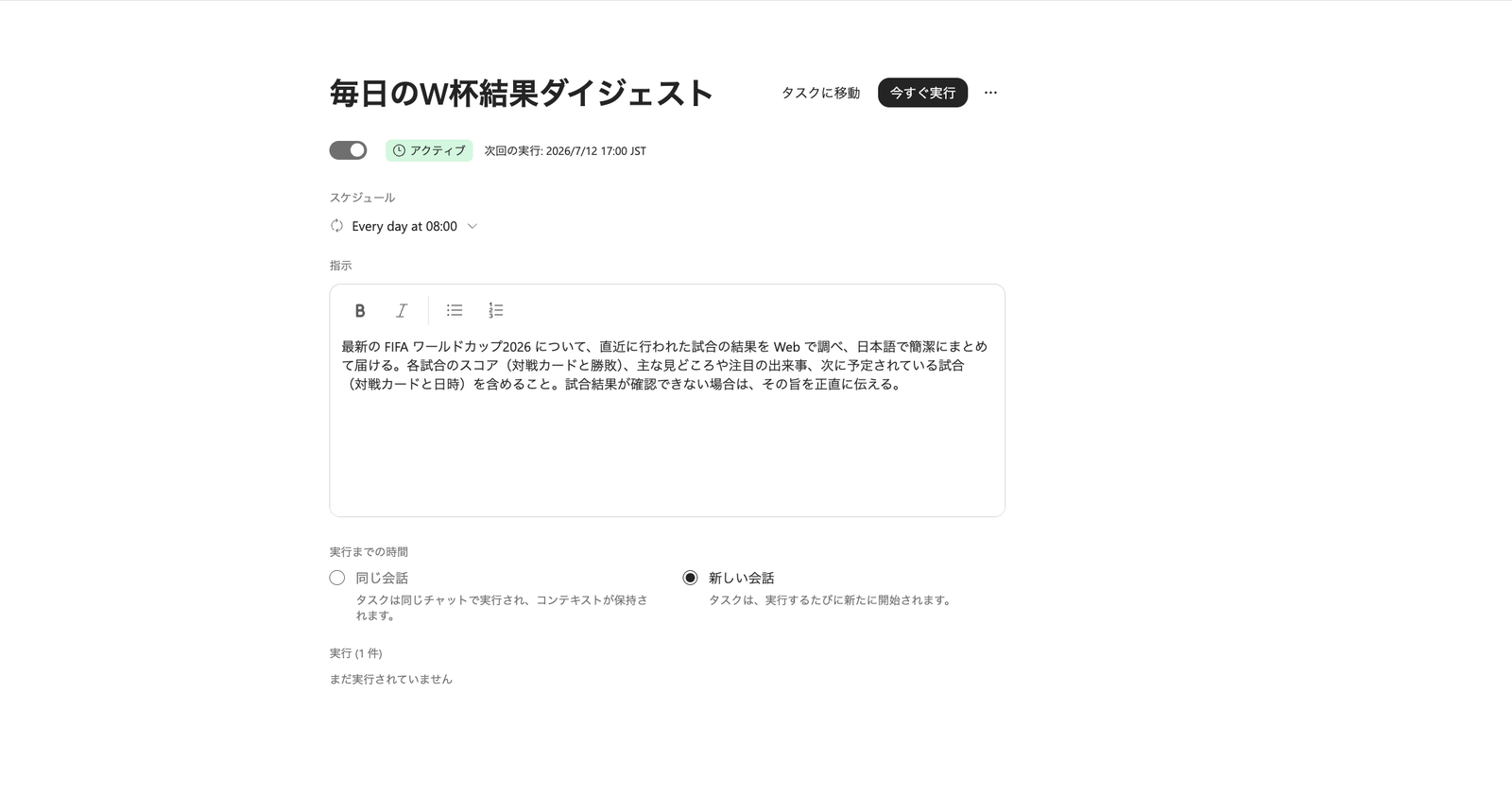
The task detail screen. Even after creation, the schedule, instruction text, and execution method can all be edited
There was no item for selecting a model on the detail screen either.
5. Comparing with Claude Cowork's Scheduled Tasks
The same "automatically repeat chat instructions" feature also exists in Anthropic's Claude Cowork.
5.1 Creation Method: Not Just Conversational Format, but Also a Manual Form
According to the official documentation, Claude Cowork's scheduled tasks can be created in two ways: by typing /schedule in an existing task's chat and creating it through conversation with Claude, or by going to the "Scheduled tasks" page → "New task" → "Set up manually" and directly entering the task name, prompt, execution frequency, model to use (optional), and other details in a form.
Source: Schedule recurring tasks in Claude Cowork | Claude Help Center
Only the conversational format was confirmed for Copilot Cowork. For those who want to set up scheduled tasks in a way other than conversational format, Claude Cowork is better suited. On the other hand, Claude Cowork's manual form has an item for specifying the model, and within the scope I confirmed with the actual device, no equivalent item was visible in Copilot Cowork's scheduled tasks. In terms of whether a model can be selected, this seems to be a correct understanding that there is a difference.
5.2 Conversation Continuity: Claude Cowork Creates a New Session Each Execution
According to the official documentation, each scheduled task runs as its own dedicated Cowork session, and results can be reviewed when ready just like any other task.
Each scheduled task runs as its own Cowork session. You can review the results when they're ready, just like any other task.
Source: Schedule recurring tasks in Claude Cowork | Claude Help Center
It is explicitly stated that a dedicated session is created for each execution, and there is no option equivalent to Copilot Cowork's "Same conversation" for running it as a continuation of previous executions. Copilot Cowork had radio buttons on both the confirmation card and the detail screen for switching between "Same conversation" and "New conversation," so the behavior differs in this regard.
5.3 Time Handling: Claude Cowork Uses Japan Time, Copilot Cowork Uses UTC
With Claude Cowork, scheduled task times can be set directly in Japan time (JST). On the other hand, as seen in Chapter 4, Copilot Cowork displays the next execution as "17:00 JST" against a recurrence setting of "08:00," suggesting it handles time based on UTC.
5.4 Comparison Table
| Aspect | Copilot Cowork (hands-on verification) | Claude Cowork (official documentation) |
|---|---|---|
| Creation method | Only conversational format confirmed | Two methods: conversational format and manual form |
| Model selection | Not confirmed | "Model to use" item available in manual form |
| Frequency options | Every morning (weekdays), every day, every week, every month (can also be specified via free text) | hourly, daily, weekly, on weekdays, manually |
| Conversation continuity during execution | Can choose between "Same conversation" and "New conversation" (default is new conversation) | No option. A dedicated new session is created each execution |
| Time handling | Appears to be UTC-based (set to 08:00, displayed as 17:00 JST) | Can be set directly in Japan time (JST) |
Summary
Copilot Cowork's scheduled tasks are built not through a dedicated form for entering a name or model, but simply by answering questions in chat. With fewer elements to puzzle over during setup, I found the flow approachable for those setting up recurring execution tasks for the first time. On the other hand, the absence of a visible item for specifying a model, and the fact that the next execution time was displayed 9 hours off from the recurrence setting, are behaviors worth confirming before using this in a production setting. Comparing with Claude Cowork, the conversational creation method was common to both, but there were differences in the presence or absence of model selection and in whether a new session is created for each execution or whether conversation can be continued. Since either product could change in future updates, I recommend confirming the behavior again when you actually start using it.