I tried packaging my self-made MCP server as a .mcpb file and installing it into Claude Desktop with one click

This page has been translated by machine translation. View original
Introduction
Hello, I'm Masaoka from the AI Business Division, Generative AI Integration Department, Western Japan Development Team.
Have you ever felt exhausted when distributing an MCP server you wrote yourself, having to start by explaining where claude_desktop_config.json is located?
Time just melts away on things unrelated to the main topic — like path separators being different on Windows, or a missing comma in JSON.
MCPB is a distribution format that solves this problem.
This time, I tried creating an MCP server that simply returns the current time, packaging it as a .mcpb file, and installing it into Claude Desktop.
What is MCPB?
MCPB stands for MCP Bundles, a format for packaging locally-running MCP servers into a single file for distribution.
Following the same concept as Chrome extension .crx files or VS Code .vsix files, passing a .mcpb to a compatible client allows installation with a single click.
Users don't need to edit claude_desktop_config.json.
It was originally called DXT (Desktop Extensions) with the .dxt extension. It was announced in June 2025 but appears to have been renamed to MCPB in September 2025.
Since Claude Desktop still accepts .dxt, existing bundles won't suddenly stop working.
Prerequisites
| Item | Version |
|---|---|
| OS | macOS 26.5.1 (Apple Silicon) |
| Node.js | 22.22.0 |
| pnpm | 10.29.2 |
| @anthropic-ai/mcpb | 2.1.2 |
| @modelcontextprotocol/sdk | 1.30.0 |
| zod | 4.4.3 |
| tsx | 4.23.11 |
| esbuild | 0.28.2 |
| Claude Desktop | 1.25927.0 |
Setup
pnpm add -g @anthropic-ai/mcpb@2.1.2

mkdir mcpb-demo && cd mcpb-demo
pnpm init
pnpm add @modelcontextprotocol/sdk@1.30.0 zod@4.4.3
pnpm add -D tsx esbuild
Since @modelcontextprotocol/sdk is ESM-only, add "type": "module" to package.json.
{
  "name": "mcpb-demo",
  "version": "1.0.0",
  "type": "module",
  "license": "MIT",
  "dependencies": {
    "@modelcontextprotocol/sdk": "1.30.0",
    "zod": "4.4.3"
  },
  "devDependencies": {
    "esbuild": "^0.28.2",
    "tsx": "^4.23.11"
  }
}
Trying It Out
Writing the Server
An MCP server that only has get_current_time.
// server/index.ts
import { McpServer } from '@modelcontextprotocol/sdk/server/mcp.js';
import { StdioServerTransport } from '@modelcontextprotocol/sdk/server/stdio.js';
import { z } from 'zod';

const server = new McpServer({ name: 'mcpb-demo', version: '1.0.0' });

server.registerTool(
  'get_current_time',
  {
    title: 'Returns current time',
    description: 'Returns the current time for the specified timezone',
    inputSchema: { timeZone: z.string().default('Asia/Tokyo') },
  },
  async ({ timeZone }) => ({
    content: [{ type: 'text', text: new Date().toLocaleString('ja-JP', { timeZone }) }],
  }),
);

await server.connect(new StdioServerTransport());
Let's check the behavior by piping JSON-RPC through standard input/output.
printf '%s\n' \
  '{"jsonrpc":"2.0","id":1,"method":"initialize","params":{"protocolVersion":"2025-06-18","capabilities":{},"clientInfo":{"name":"t","version":"1"}}}' \
  '{"jsonrpc":"2.0","method":"notifications/initialized"}' \
  '{"jsonrpc":"2.0","id":2,"method":"tools/call","params":{"name":"get_current_time","arguments":{}}}' \
  | pnpm exec tsx server/index.ts
{"result":{"protocolVersion":"2025-06-18","capabilities":{"tools":{"listChanged":true}},"serverInfo":{"name":"mcpb-demo","version":"1.0.0"}},"jsonrpc":"2.0","id":1}
{"result":{"content":[{"type":"text","text":"2026/8/11 11:20:58"}]},"jsonrpc":"2.0","id":2}
The current time was returned. The MCP server is working correctly.
Creating manifest.json
Running mcpb init outputs a template manifest.json. Adding -y skips the interactive prompts.
mcpb init -y
{
  "manifest_version": "0.2",
  "name": "mcpb-demo",
  "version": "1.0.0",
  "description": "A MCPB bundle",
  "author": {
    "name": "Unknown Author"
  },
  "server": {
    "type": "node",
    "entry_point": "server/index.js",
    "mcp_config": {
      "command": "node",
      "args": [
        "${__dirname}/server/index.js"
      ],
      "env": {}
    }
  },
  "license": "MIT"
}
entry_point is a relative path within the bundle. It points to the converted .js rather than .ts — since Claude Desktop simply executes it with node, TypeScript as-is won't work.
mcp_config is the command that Claude Desktop actually invokes. ${__dirname} is replaced with the extraction destination directory.
Here is the manifest.json with display_name, tools, and compatibility added to the auto-generated file, with description and author rewritten.
{
  "manifest_version": "0.2",
  "name": "mcpb-demo",
  "display_name": "MCPB Demo",
  "version": "1.0.0",
  "description": "A sample MCP server that simply returns the current time",
  "author": { "name": "masaoka" },
  "server": {
    "type": "node",
    "entry_point": "server/index.js",
    "mcp_config": {
      "command": "node",
      "args": ["${__dirname}/server/index.js"],
      "env": {}
    }
  },
  "tools": [
    { "name": "get_current_time", "description": "Returns the current time for the specified timezone" }
  ],
  "compatibility": { "runtimes": { "node": ">=18" } },
  "license": "MIT"
}
display_name is the display name that appears in Claude Desktop's extensions list. Since description and author are required fields, make sure to fill them in rather than leaving the default values.
tools declares the tools provided by this extension and is displayed in the confirmation dialog before installation. It can be omitted and things will still work.
compatibility specifies the runtime requirements. Writing node: ">=18" here will block installation on environments that don't meet the requirement.
Bundling
Use esbuild to compile .ts along with all dependencies into a single .js file, outputting to dist/.
Copy manifest.json as well, so that dist/ itself becomes the contents of the .mcpb file.
pnpm exec esbuild server/index.ts --bundle --platform=node --format=esm \
  --outfile=dist/server/index.js
cp manifest.json dist/manifest.json
  dist/server/index.js  1.1mb

⚡ Done in 46ms
Let's verify it still works after bundling by piping the same JSON-RPC as before.
printf '%s\n' \
  '{"jsonrpc":"2.0","id":1,"method":"initialize","params":{"protocolVersion":"2025-06-18","capabilities":{},"clientInfo":{"name":"t","version":"1"}}}' \
  '{"jsonrpc":"2.0","method":"notifications/initialized"}' \
  '{"jsonrpc":"2.0","id":2,"method":"tools/call","params":{"name":"get_current_time","arguments":{}}}' \
  | node dist/server/index.js
{"result":{"protocolVersion":"2025-06-18","capabilities":{"tools":{"listChanged":true}},"serverInfo":{"name":"mcpb-demo","version":"1.0.0"}},"jsonrpc":"2.0","id":1}
{"result":{"content":[{"type":"text","text":"2026/8/11 12:02:17"}]},"jsonrpc":"2.0","id":2}
Packaging into .mcpb
First, run mcpb validate to check that manifest.json conforms to the schema.
mcpb validate dist/manifest.json
# Manifest schema validation passes!
If there are no issues, use mcpb pack to bundle the contents of the specified directory into a .mcpb file.
mcpb pack dist mcpb-demo.mcpb
A summary follows the list of included files.
Archive Contents
    620B manifest.json
   1.1MB server/index.js

Archive Details
name: mcpb-demo
version: 1.0.0
package size: 188.4kB
unpacked size: 1.1MB
total files: 2

Output: /path/to/mcpb-demo/mcpb-demo.mcpb
The .mcpb file was created at the path shown in Output. The contents are just two files: manifest.json and the server itself.
Installing into Claude Desktop
There are two installation methods.
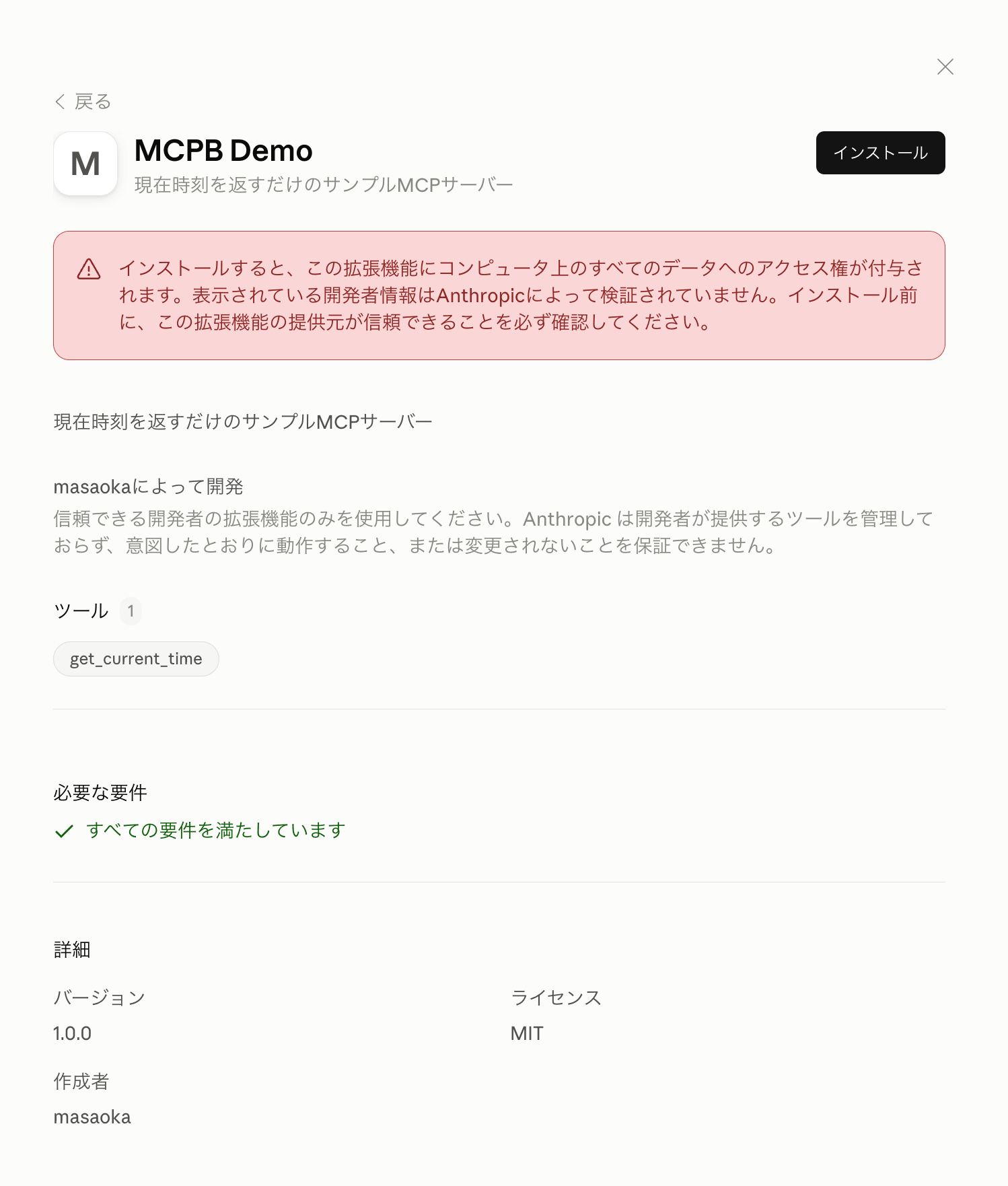
Double-click the .mcpb file
Double-clicking will show a dialog asking whether you want to install it into Claude Desktop.
Click Install.
Install from Settings
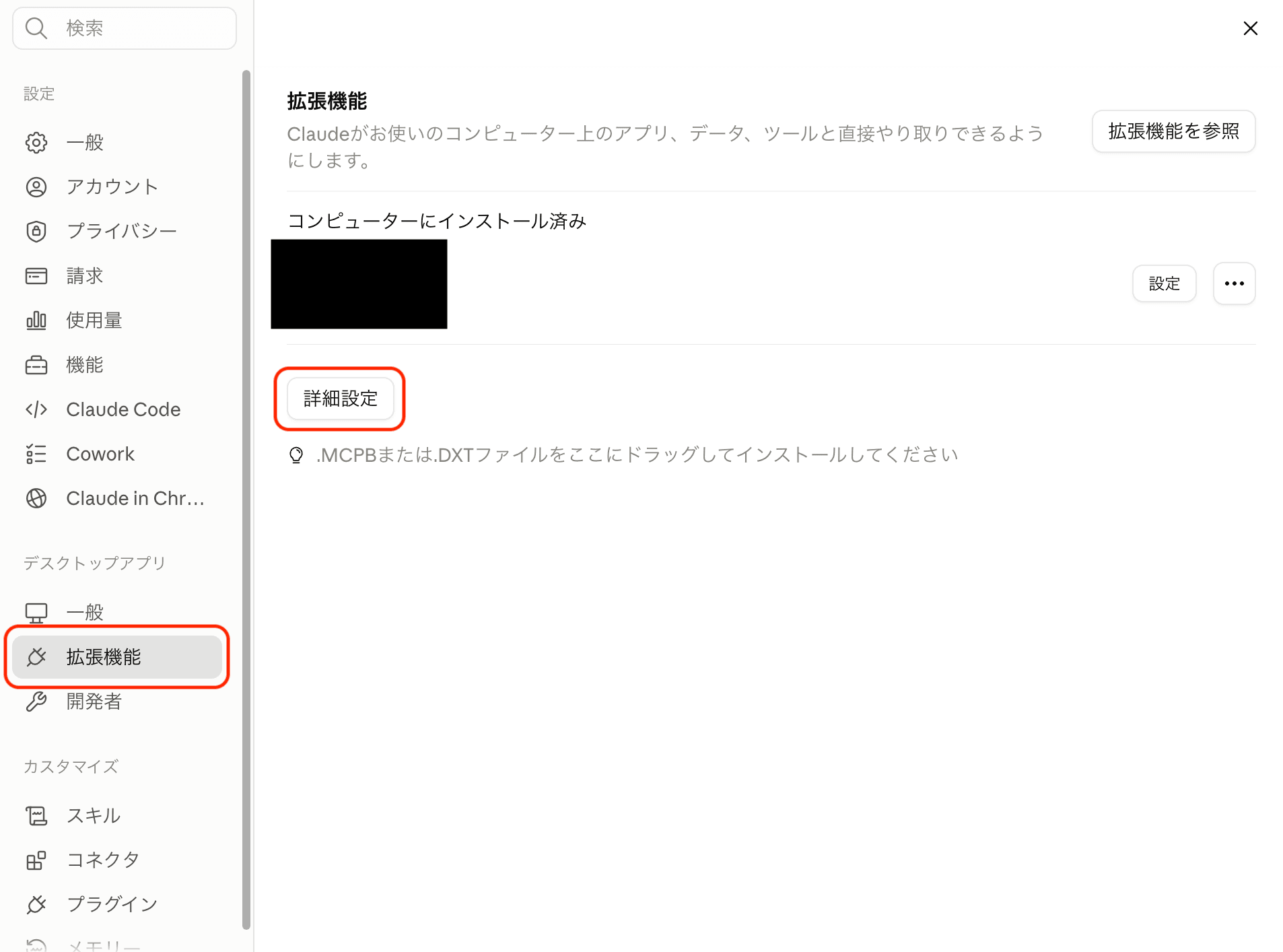
Click the gear icon in the bottom left, then select Extensions, and click "Advanced Settings."
You can also drag and drop a .mcpb file onto this screen to install it.
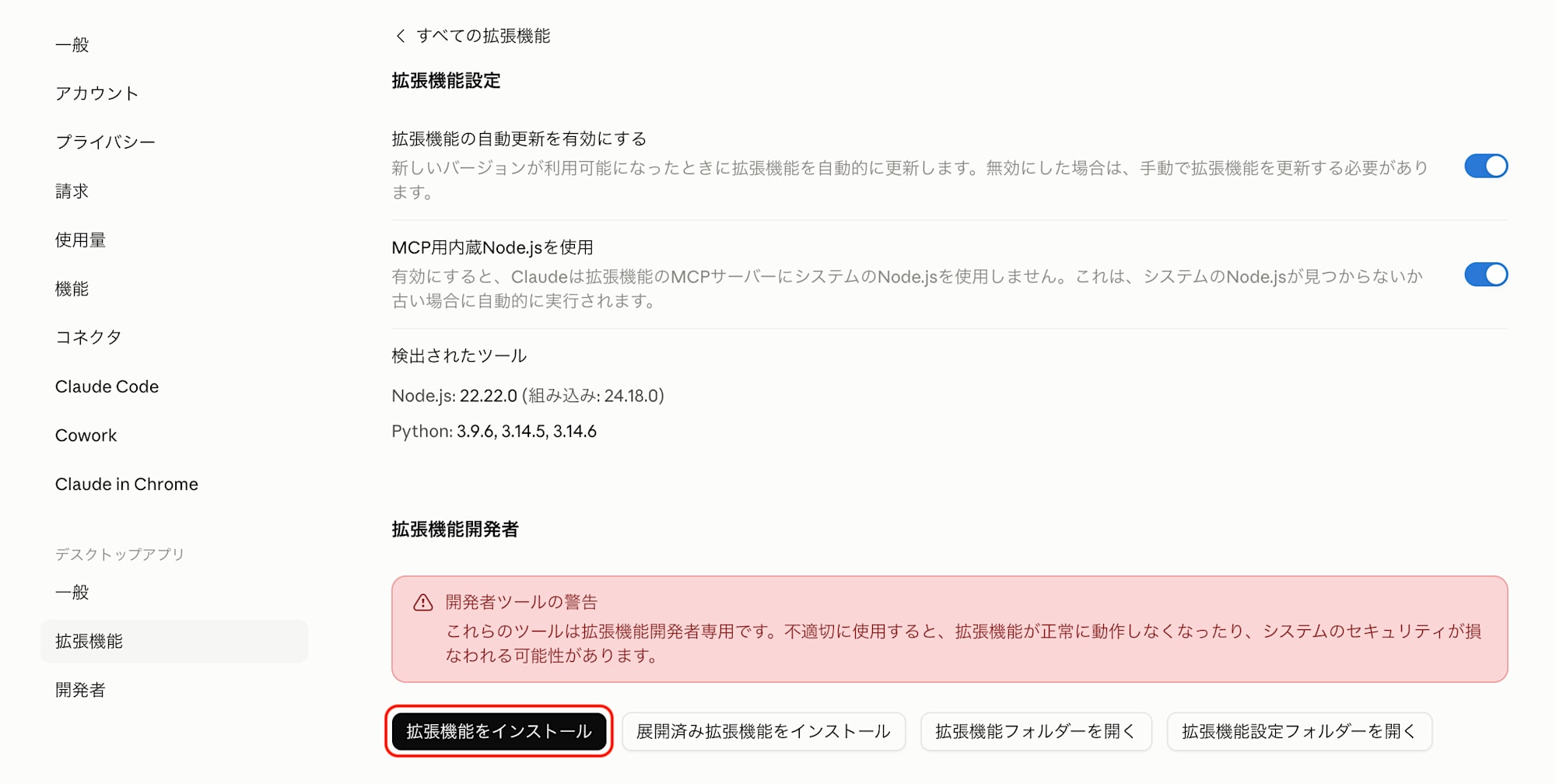
Clicking "Install Extension" opens a file selection dialog where you can choose the .mcpb you want to install.
After Installation
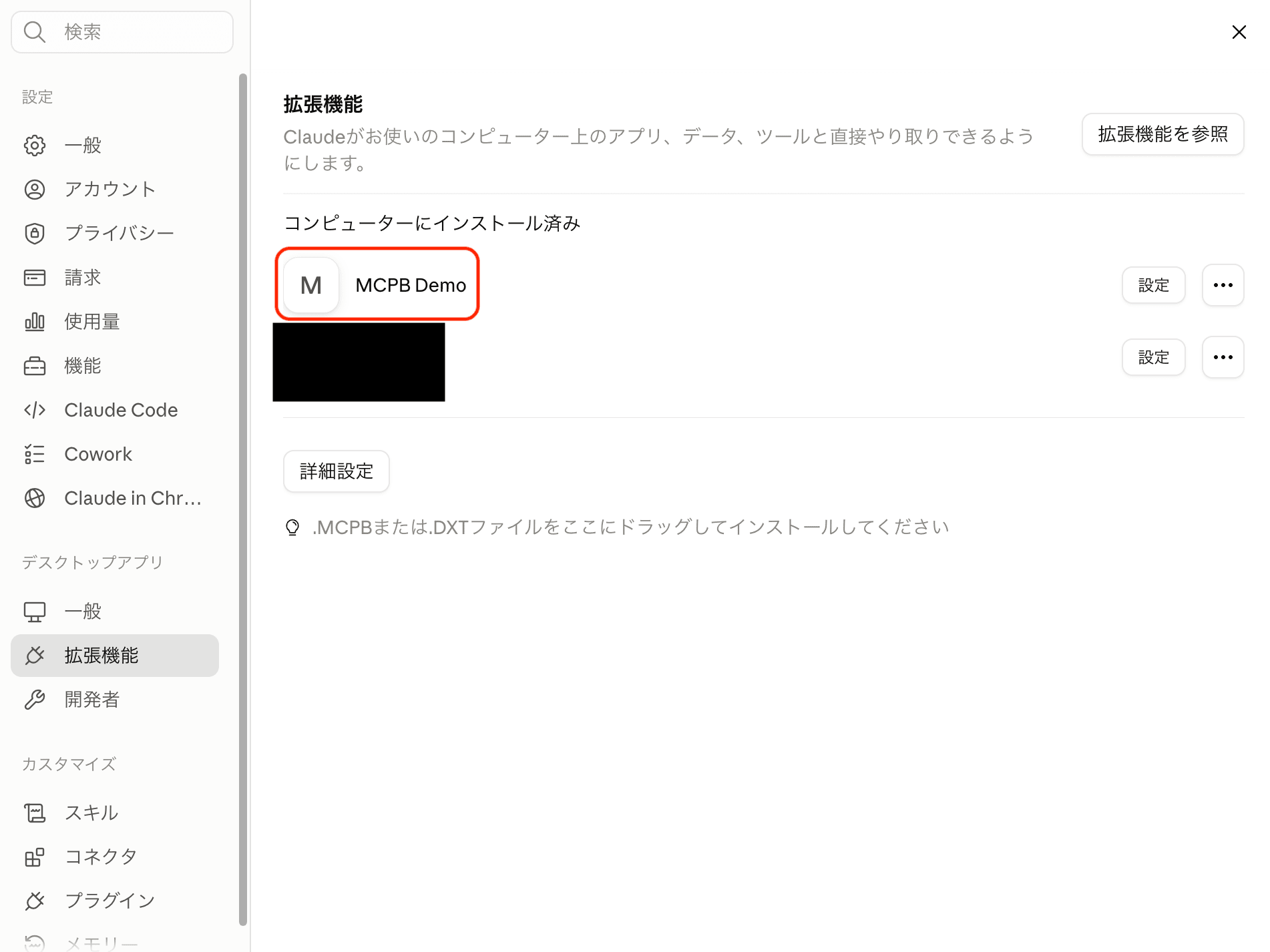
MCPB Demo now appears in the extensions list.
Configuring MCP was incredibly easy!
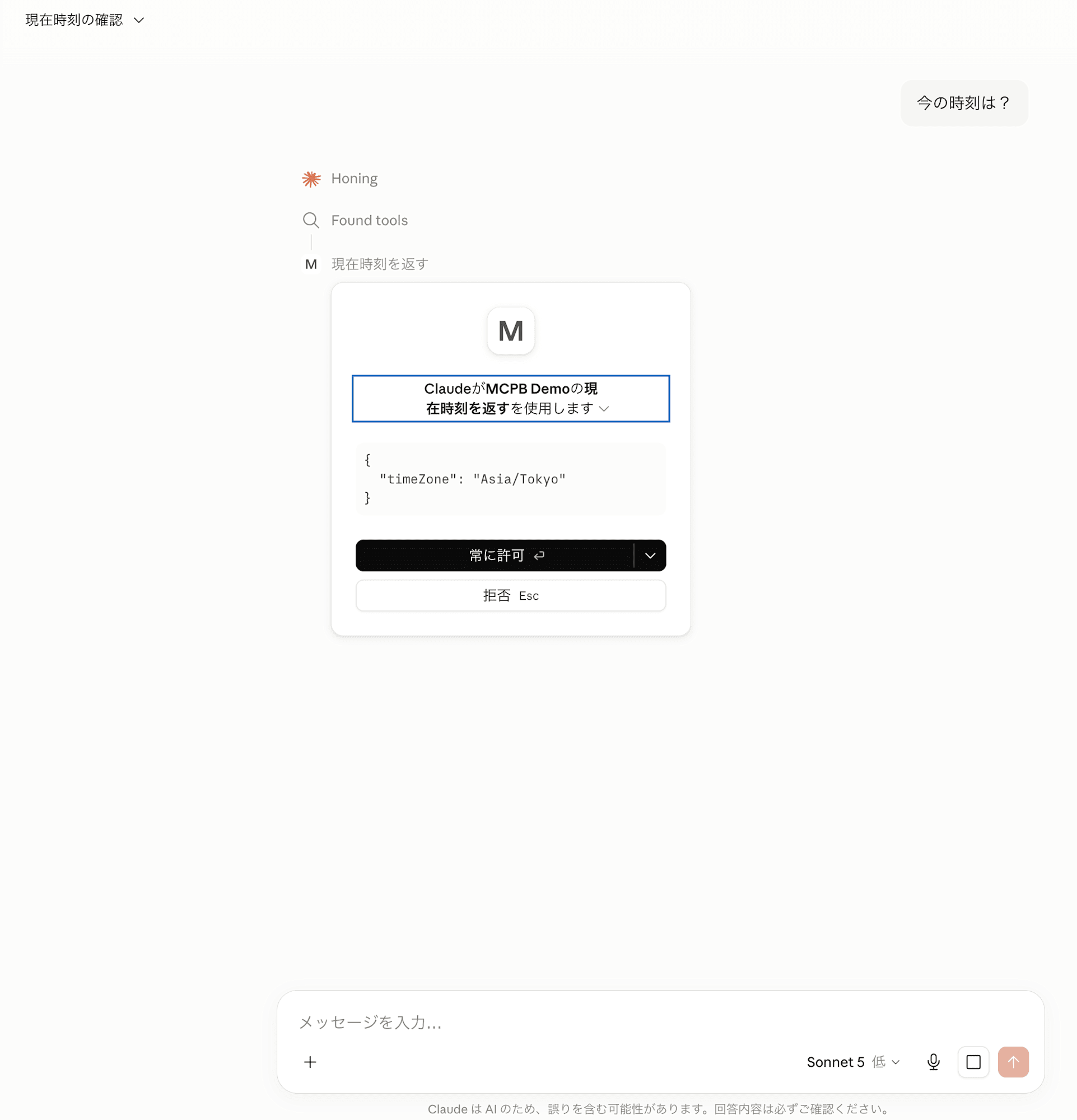
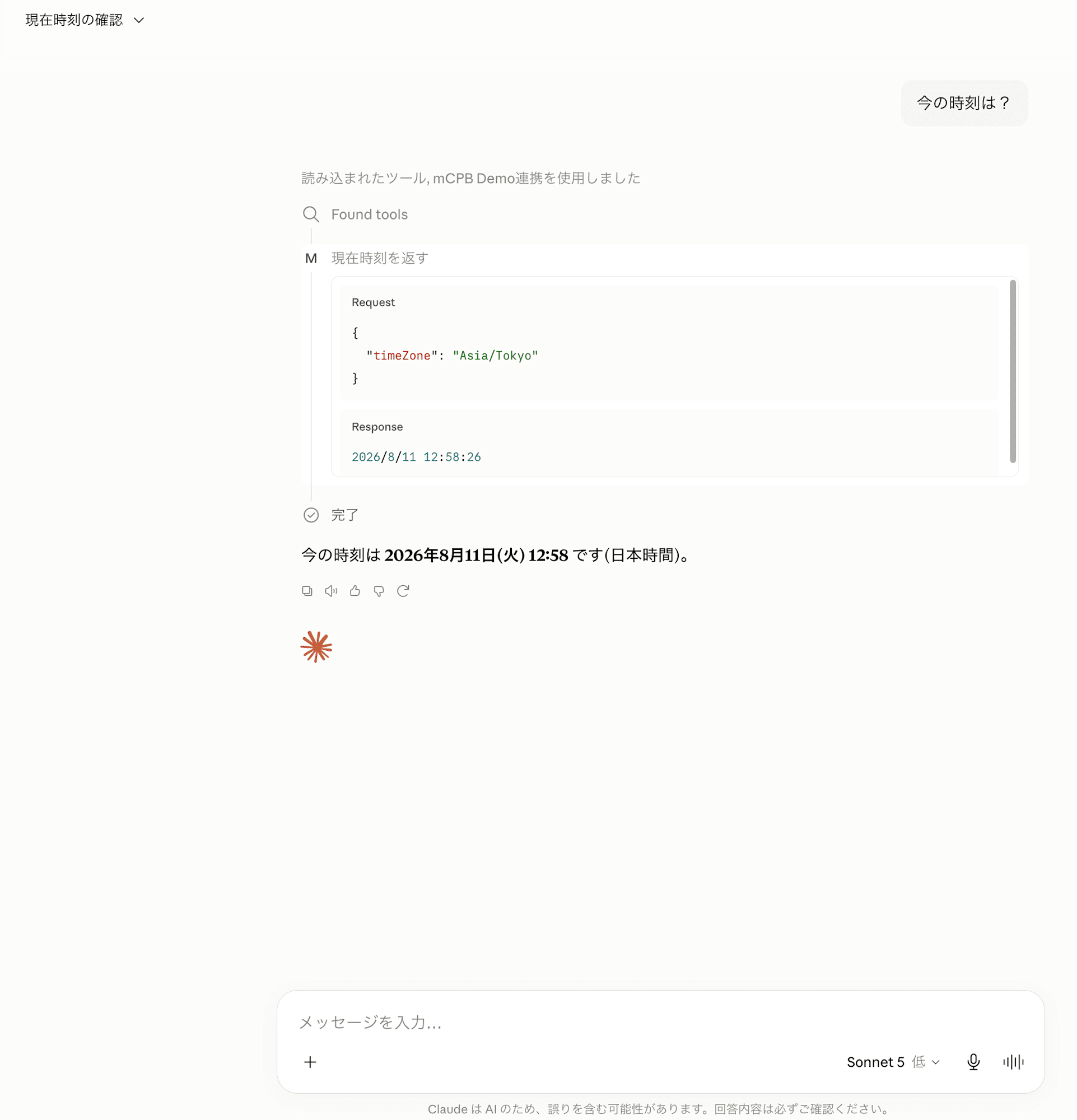
When you ask for the time in chat, a permission dialog appears.
Clicking Allow calls the tool and returns the time.
Reference: The Path to Discovering Bundling
Trying to Pack as-is
There are two differences from the steps in "Trying It Out": running esbuild without --bundle (just transpiling), and packaging the entire project instead of just dist/.
The --node-linker=hoisted flag is used because pnpm's default node_modules is structured with symbolic links, which can't be resolved after being packed into a zip file.
pnpm exec esbuild server/index.ts --platform=node --format=esm --outfile=server/index.js
pnpm install --prod --node-linker=hoisted
mcpb pack . mcpb-demo.mcpb
package size: 26.9MB
unpacked size: 73.4MB
total files: 9892
An MCP server that does nothing but return the current time had 9,892 files and 73.4MB unpacked. That's not practical as a distributable.
Inspecting the Contents of node_modules
Let's investigate what's taking up space.
du -sh node_modules/.pnpm
# 35M	node_modules/.pnpm
.pnpm alone was 35MB.
--prod removes devDependencies from the top level, but the actual packages stored under .pnpm remain.
Both tsx and esbuild were ending up in the zip via .pnpm.
Even reinstalling over the existing node_modules leaves .pnpm intact, so delete it first and reinstall.
rm -rf node_modules
pnpm install --prod --node-linker=hoisted
du -sh node_modules/.pnpm
#  24K	node_modules/.pnpm
.pnpm is now 24KB. Repacking gives 3.2MB.
package size: 3.2MB
unpacked size: 10.4MB
total files: 2251
Still 2,251 files.
Looking at the file list that pack output, it contained test code from ajv, README files from each package, and for zod, even the full TypeScript source for v3, v4, v4-mini, and everything else.
Trying mcpb clean
There is a command called mcpb clean designed to strip unnecessary files.
mcpb clean mcpb-demo.mcpb
Clean Complete:
Before: 3.37 MB
After: 3.37 MB
The size didn't change.
After installing with --prod, it seems there's nothing left in node_modules for this command to remove.
Switching to Bundling
Since there was no way to reduce the 2,251 files, the solution in "Trying It Out" was to stop distributing node_modules and add --bundle.
What was 3.2MB with 2,251 files became 188.4kB with just 2 files.
Cleanup
You can revert everything by uninstalling the extension from Claude Desktop Settings > Extensions.
Also remove the globally installed CLI.
pnpm remove -g @anthropic-ai/mcpb
Summary
I confirmed the process of packaging a custom MCP server into a .mcpb file and installing it into Claude Desktop with a single click.
All it takes is writing a manifest.json and running mcpb pack, which is quite straightforward.
I also found that bundling everything into a single file with esbuild can significantly reduce the size of the distribution.
I hope this is helpful for anyone who has been struggling with the same issues.