Trying to migrate personal Claude (Max plan) to Team plan

This page has been translated by machine translation. View original
Introduction
Hello everyone, this is Akaike.
I had the opportunity to move my personal Claude (Max plan) to a Team plan, and since the official instructions were a bit difficult to understand in some parts, I wrote this blog post.
Also, this blog covers the steps for the invited party, and does not describe the steps for the inviting party (administrator).
The steps for the inviting party are as follows, so please refer to them if you wish.
Prerequisites
- You have a personal Claude account (Max plan) subscribed
- An invitation has been sent to the same email address as your personal account from the Team plan workspace you are migrating to
Joining a Team
Accepting the Invitation
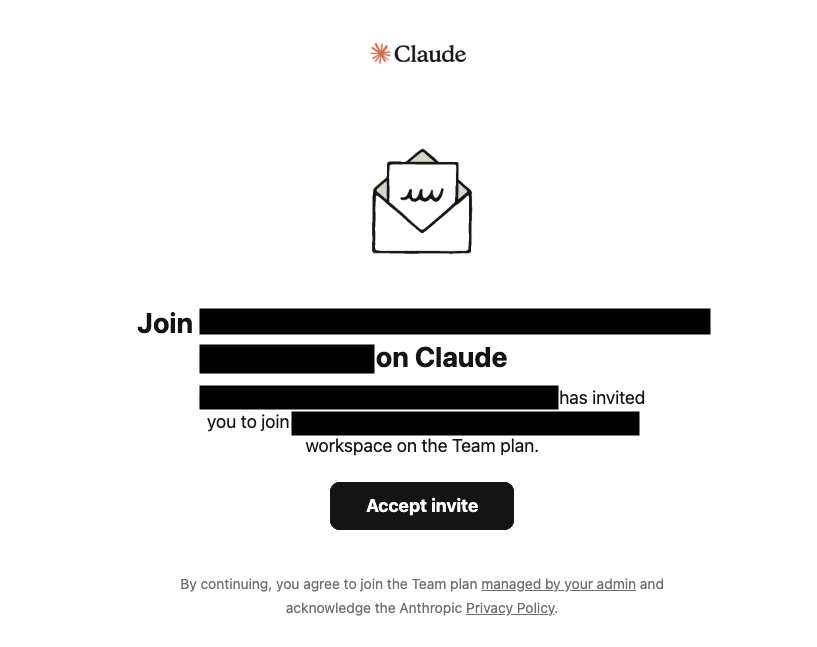
First, you should have received an invitation email like the one below, so click "Accept invite."
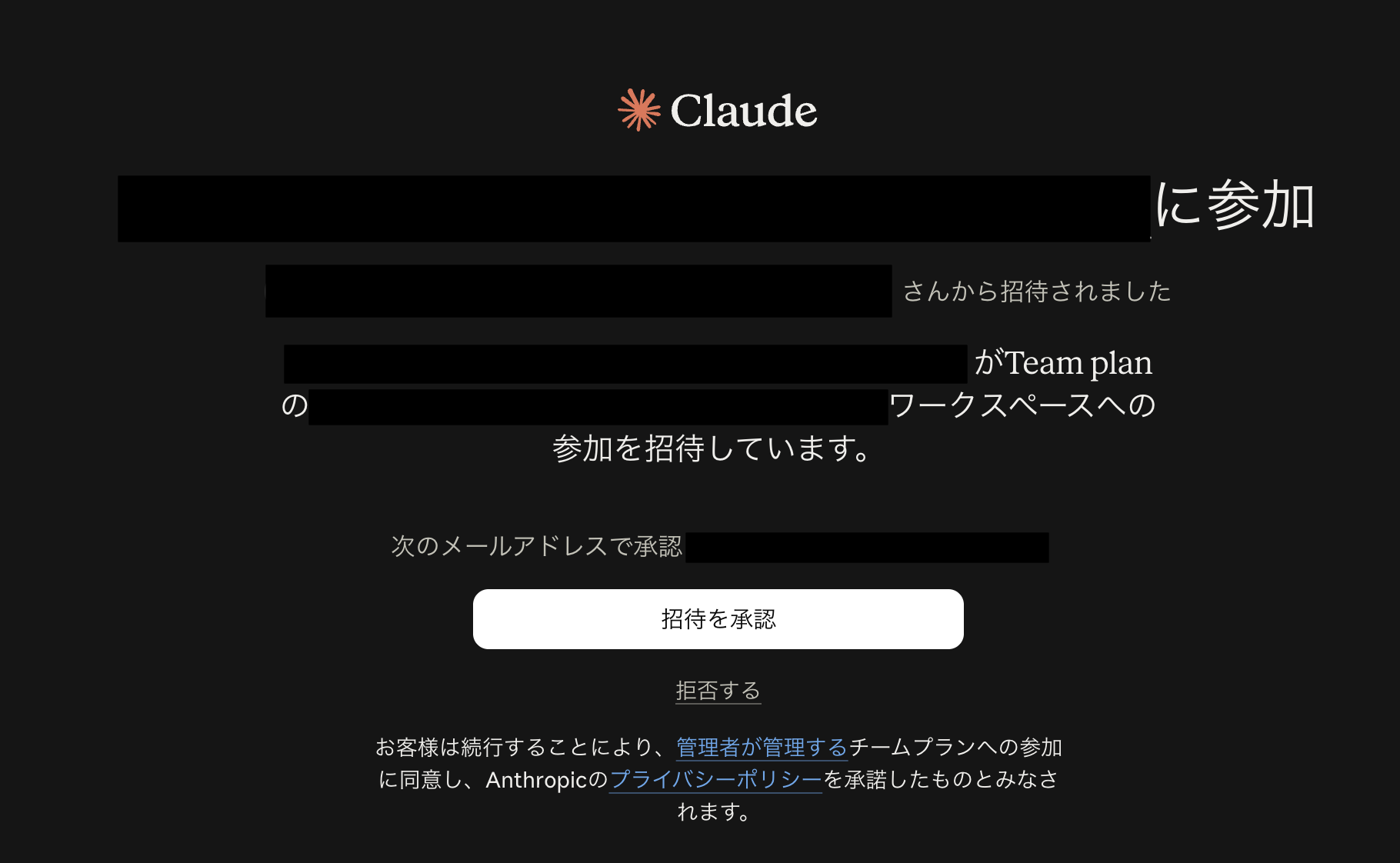
You will be taken to the approval screen, so confirm the team you are joining and the address shown under "Approve with the following email address," then click "Accept Invitation."
Account Status After Joining
Once the approval is complete, open the account menu.
Accounts linked to the same email address are displayed side by side, showing the Team you joined and your personal Max plan.
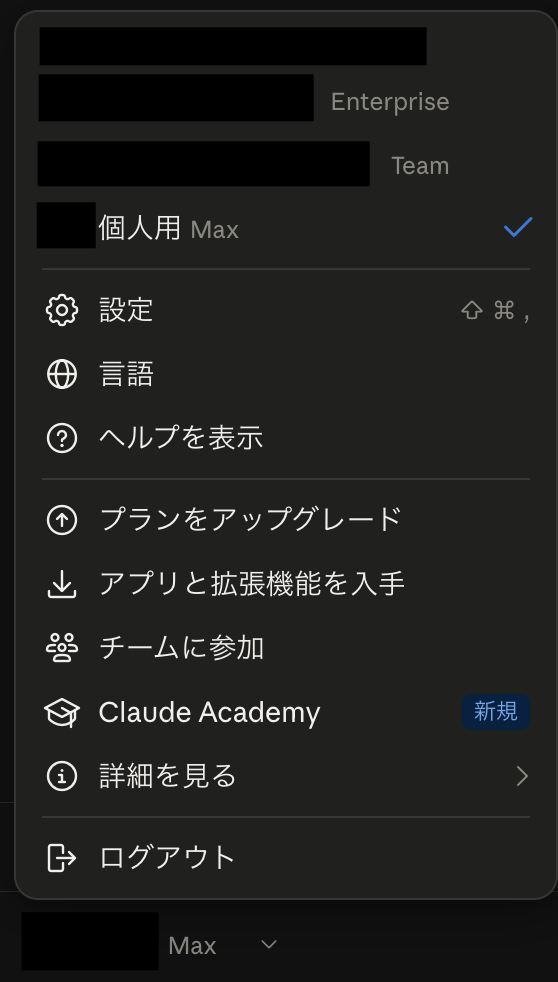
So at the point of joining, it has simply been added as a switch destination option.
Your chat history and projects still remain on the personal account side.
If you want to keep your personal Max plan, this state is fine, but if you want to consolidate into the Team, you will need to perform the next steps.
Consolidating Your Personal Account into the Team
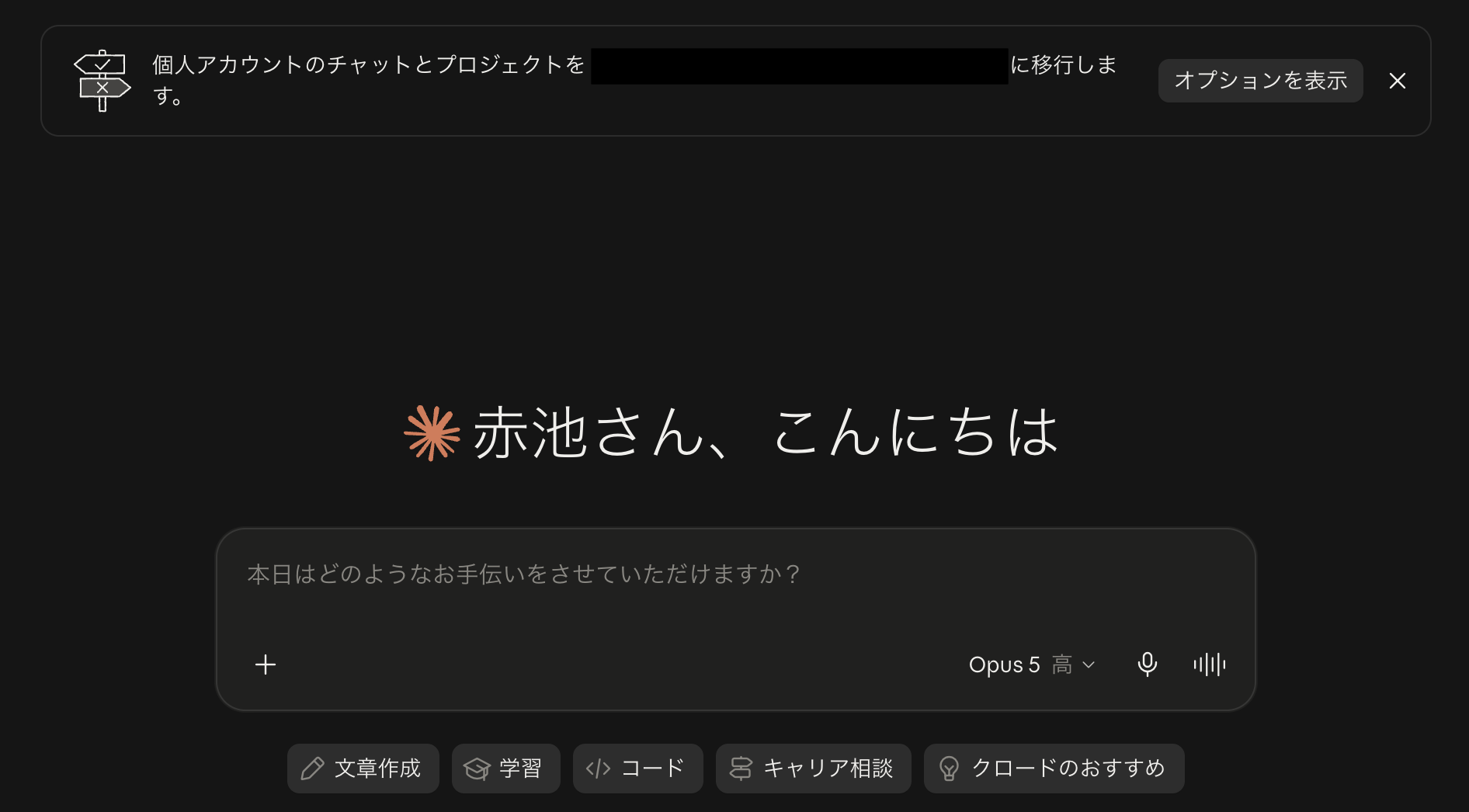
Entry Point for Migration
The consolidation operation can be performed from "Show Options" to the right of the text that says "Migrate your personal account's chats and projects to (team name)."
Choosing How to Handle Your Account
First, choose whether to keep your personal account.
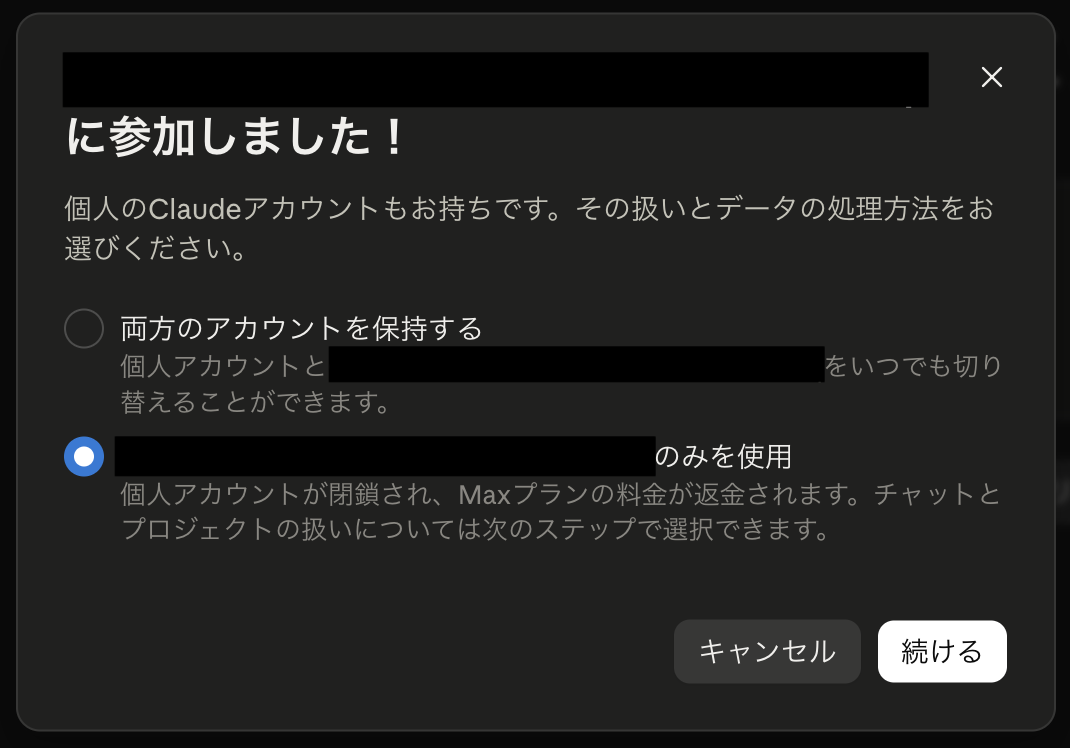
- Keep both accounts: Your personal account remains as is, and you can switch between it and the team at any time
- Use team only: Your personal account will be closed and your Max plan fees will be refunded
In this case, since the personal plan was originally used for work and I won't be using it going forward, I chose the latter.
Choosing How to Handle Your Data
Next, choose what to do with your personal account's data.
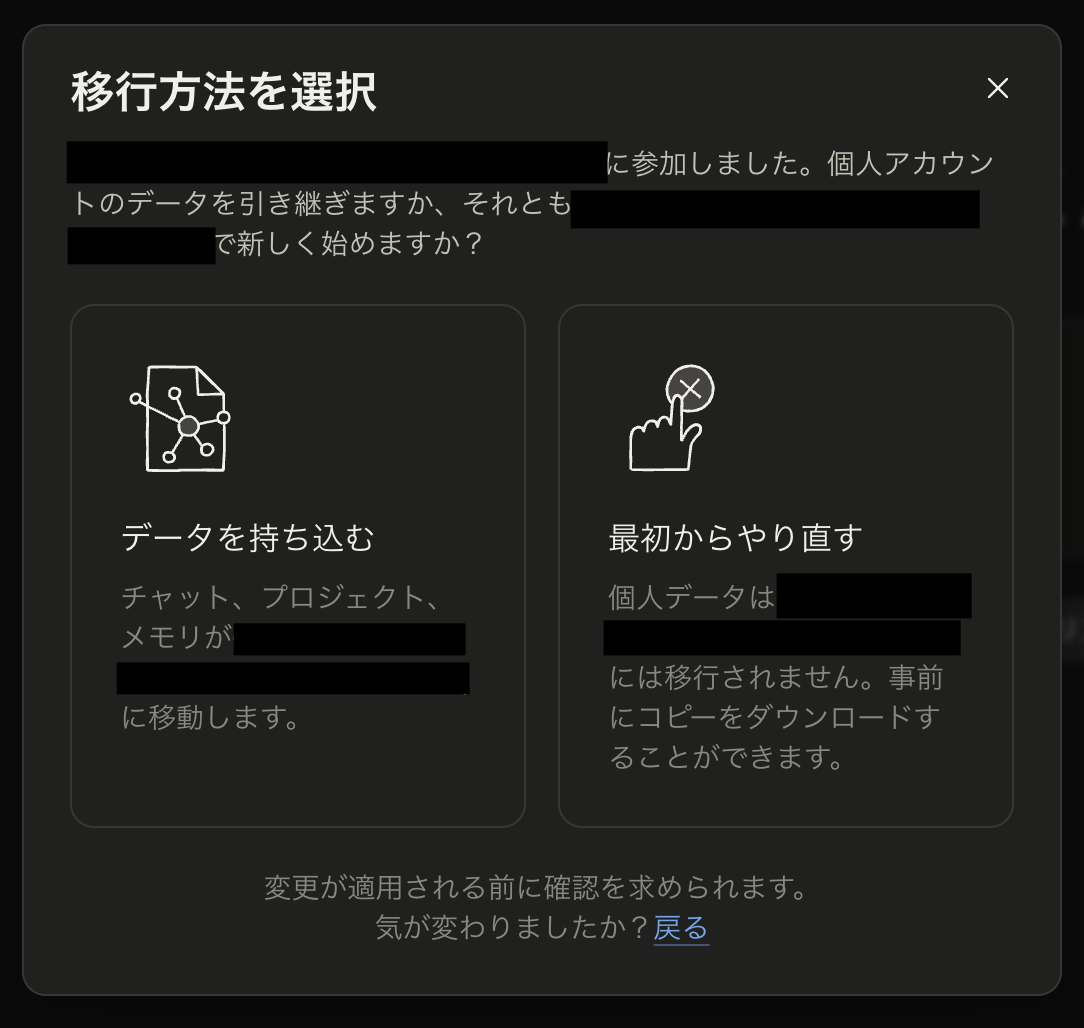
- Bring your data: Chats, projects, and memories will be moved to the team
- Start fresh: Personal data will not be migrated to the team. You can download a copy in advance
Since I wanted to continue using my previous conversations in the Team as well, I chose "Bring your data."
Reviewing What Will Be Migrated
When you select "Bring your data," a list is displayed showing what will and will not be migrated.
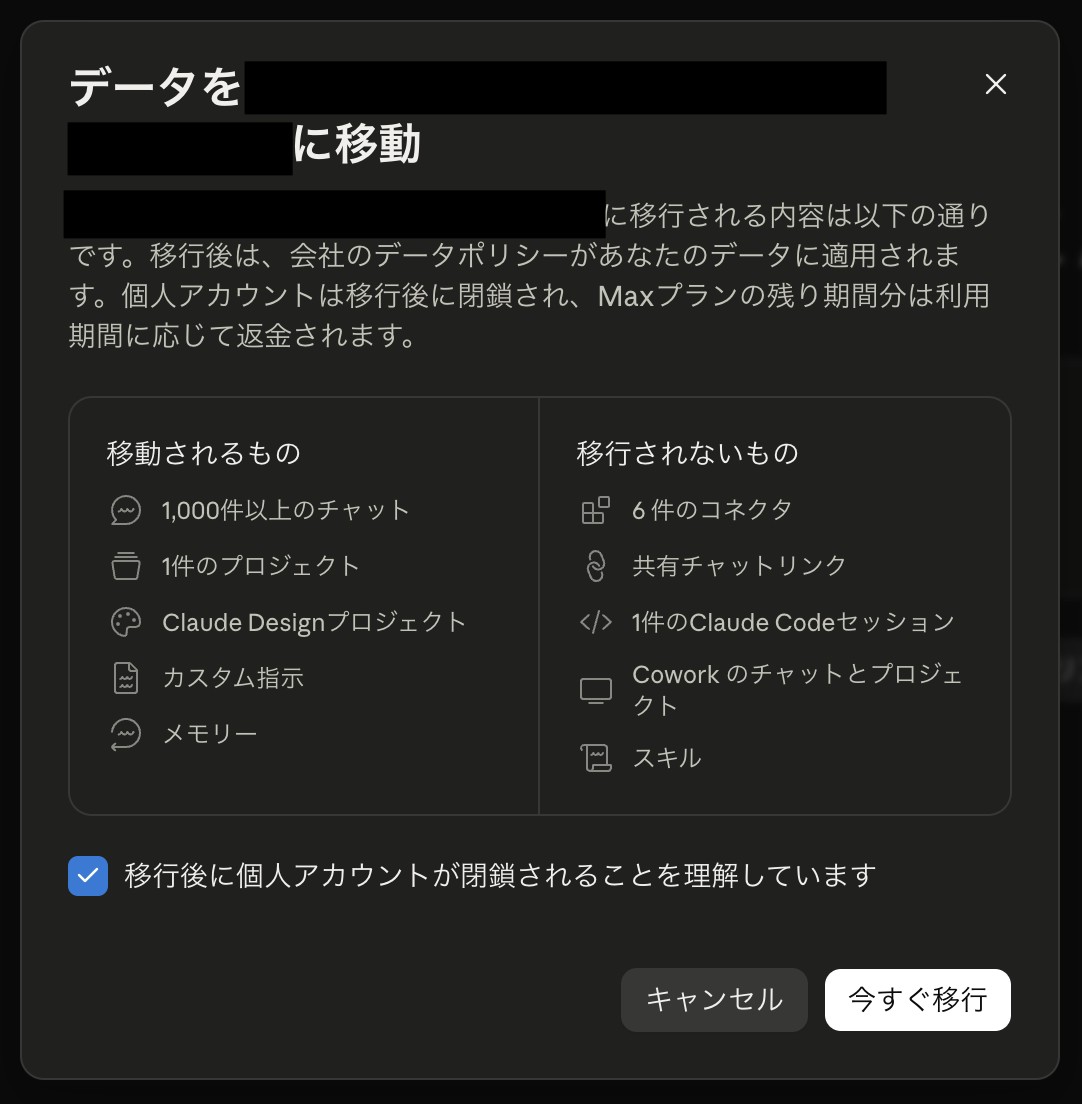
The items that will be moved are chats, projects, Claude Design projects, custom instructions, and memories.
On the other hand, connectors, shared chat links, Claude Code sessions, Cowork chats and projects, and skills will not be migrated, so if you no longer have those settings saved locally, make sure to note them down before migrating.
After reviewing the contents, check "I understand that my personal account will be closed after migration" and click "Migrate Now."
Executing the Migration
When the migration begins, you will be taken to a waiting screen until it completes.
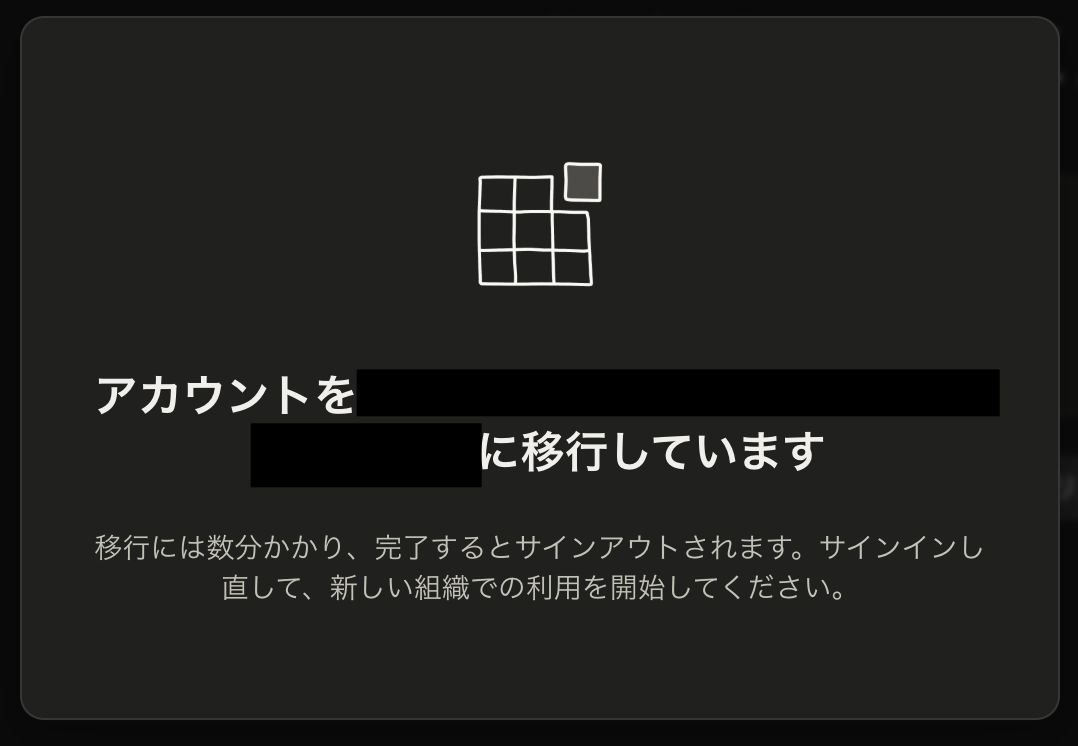
As indicated on screen, it took a few minutes, and once completed I was signed out.
Simply sign back in and you can start using the team workspace.
Verification
After the migration, open the account menu once more.
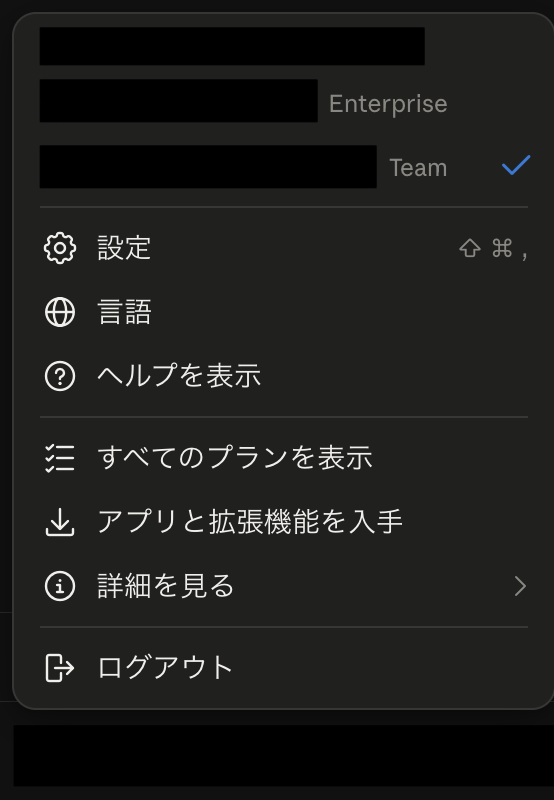
The personal Max plan has disappeared from the list.
I was also able to open the chat history and projects I had used on my personal account without any issues from the Team side.
Considerations
Accepting the Invitation and Consolidating Are Separate Operations
As mentioned above, simply joining the Team does not cancel the personal Max plan, so if you want to discontinue your personal MAX plan, you need to consolidate.
Max Plan Refunds Vary Depending on the Purchase Channel
For direct purchases and purchases made through Google Play, unused portions are refunded on a pro-rata daily basis, but for purchases made through the Apple App Store, cancellation cannot be done on our end due to Apple's specifications, so you will need to cancel it yourself.
Conclusion
That covers migrating a personal Claude Max account to a Team plan.
I hope this is helpful for anyone facing the same situation.